WhatsApp template
Description
At the moment, only template messages (HSM) can be sent via Altcraft Platform.
A template message is an HSM message that must be pre-approved by Facebook. Use this type of template when initiating a conversation with a user. As of July 1, 2025, each sent template is billed separately based on its category.
If a customer contacts you first on WhatsApp, a 24-hour window opens during which you can send service and non-template messages free of charge.
Message templates for WhatsApp are created in the provider’s personal account.
Currently, only typical templates (HSM) can be sent via the Altcraft Platform.
Message templates for sending to WhatsApp are created in the provider's personal account.
You can find more information about creating templates in your provider's documentation.:
Creating a message
All templates available in WhatsApp accounts connected via Edna or via 360dialog are automatically available in Altcraft Platform and displayed in the editor. To search for the desired template in the platform, you can enter a query in the search bar or use the filter by account/category in the upper right corner.
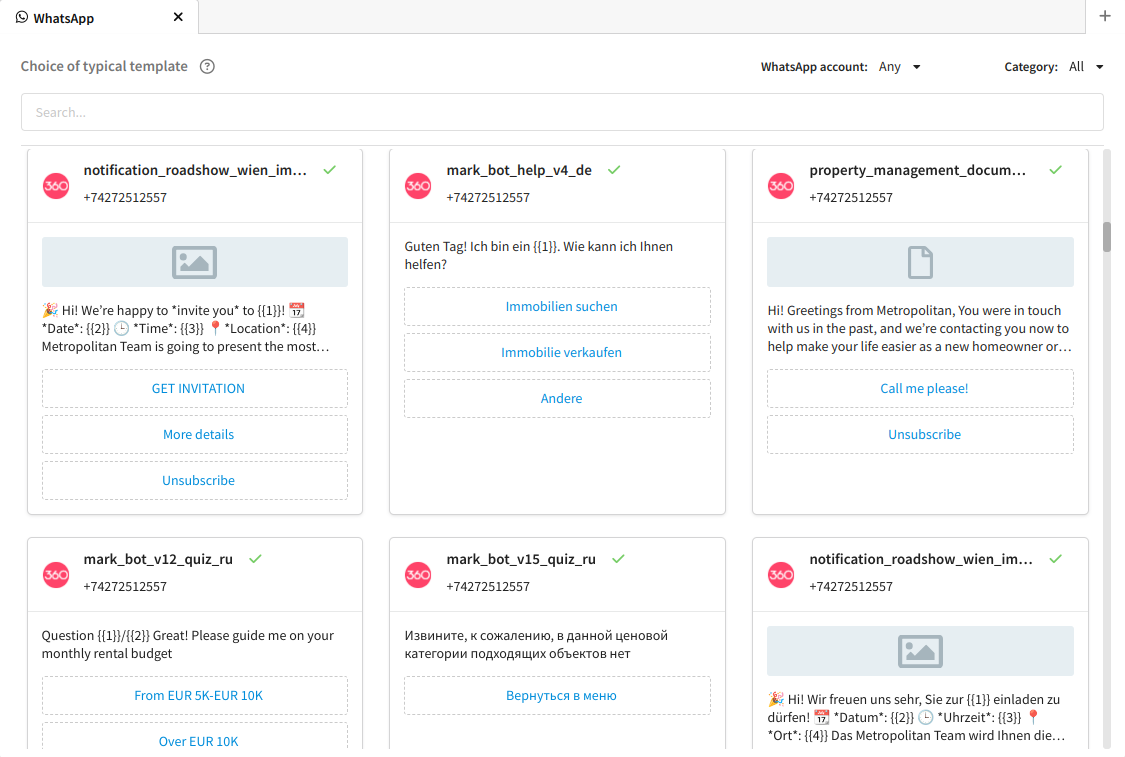
Mailings can only use templates agreed with Facebook.
The status of the template is displayed to the right of its name:
 — the template has successfully passed
moderation;
— the template has successfully passed
moderation;
 — template rejected;
 — the template is under moderation;
 — the template has not been submitted for
moderation.
— the template has not been submitted for
moderation.
Select the template you want to use in the mailing. To create a message based on a WhatsApp template, click on it. The template structure will be displayed in the editor:
- Header — template header with a welcome text or media file;
- Body — the main text of the message with variables (required block);
- Footer — additional text;
- Button — a block with buttons to add interactivity.
You can change template elements such as variables, media files and buttons.
Variables
A text block in WhatsApp consists of fixed text and variables. Variables are the template text that changes for each new message (name, address, event name, date and time, link, etc.).
You can manually set variable values or add Altcraft variables. To open the list of variables, click </>. When sending a message, the entered text is automatically inserted into the template.
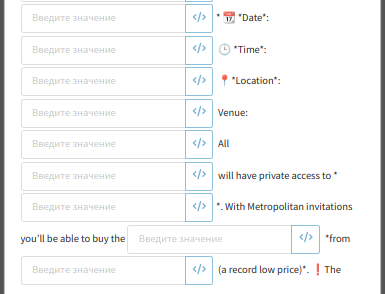
Links inserted through the platform are automatically shortened. The final link path (excluding tracking domain) length is 12-14 characters, including the /.
Media Files
Available media files:
- image (JPG/PNG, up to 5 MB, recommended image size is 640x640.)
- file (any correct MIME type, up to 16 MB)
- video (MP4, 3GP, 3GPP, up to 100 MB)
To insert an image, click on the download area and select the image in the platform gallery or enter the URL:
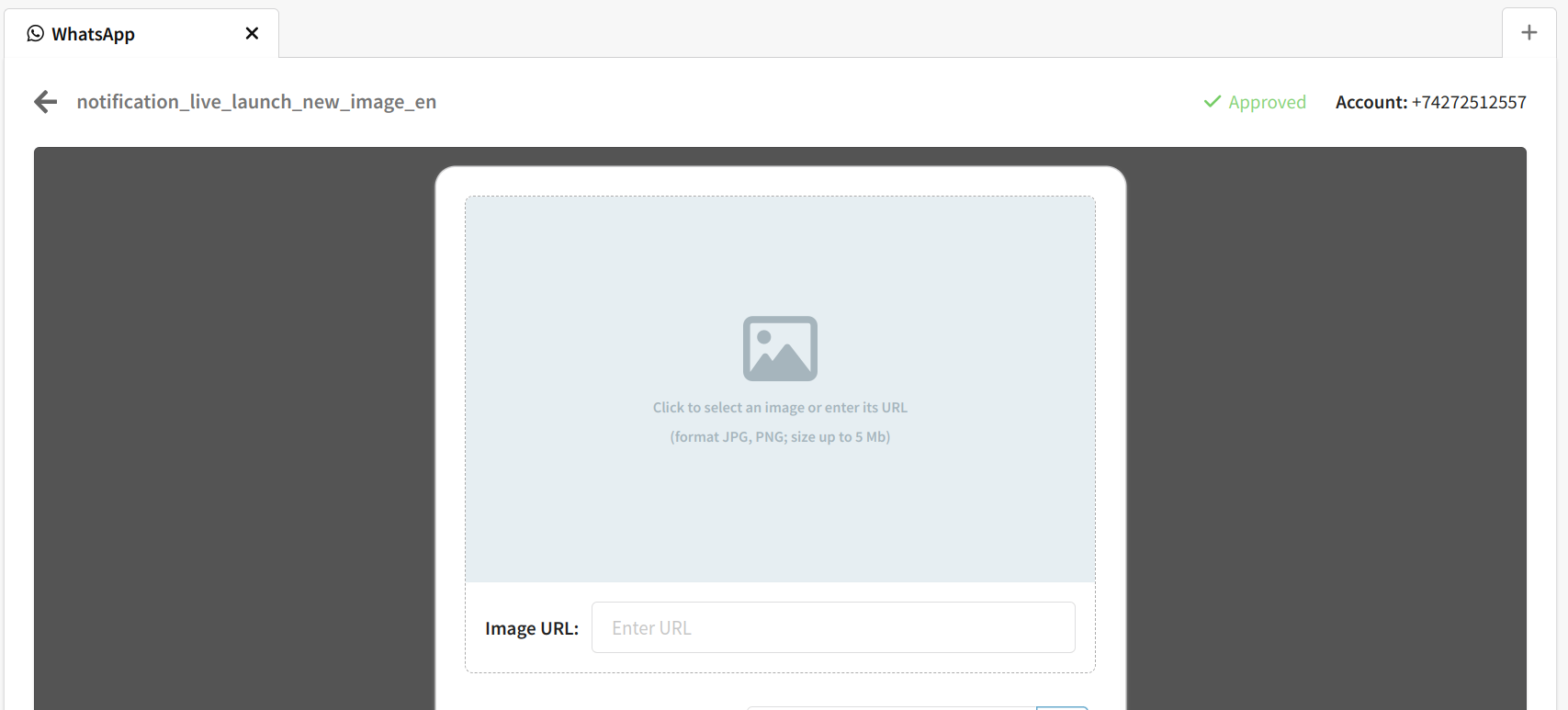
To add a file or video, enter the URL where the file is located.
Buttons
WhatsApp offers two types of buttons for HSM templates:
- Call-to-action — call-to-action for users;
- Quick-reply — for user to reply quickly.
Call-to-action buttons
The CTA is a link button (URL) and a call button (Phone). There can be only 2 buttons of this type in the template.
When clicking on the link button, a user goes to the specified page. If a parameterizable URL is specified in the WhatsApp template, you need to fill it in.
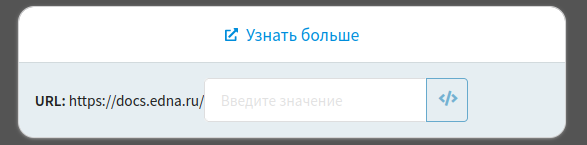
When you click on the call button, the number is dialed. The phone number cannot be edited.

Quick-reply buttons
When clicking on the button, a user receives a quick response written in the template. The template can contain no more than 3 buttons of this type.
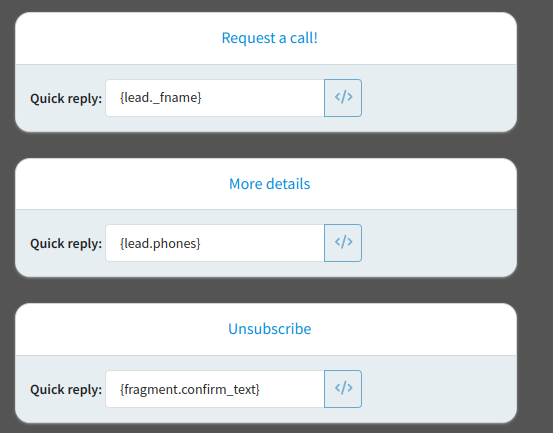
You can save the template after filling in all the variables, buttons and adding a media file.
Preview the message
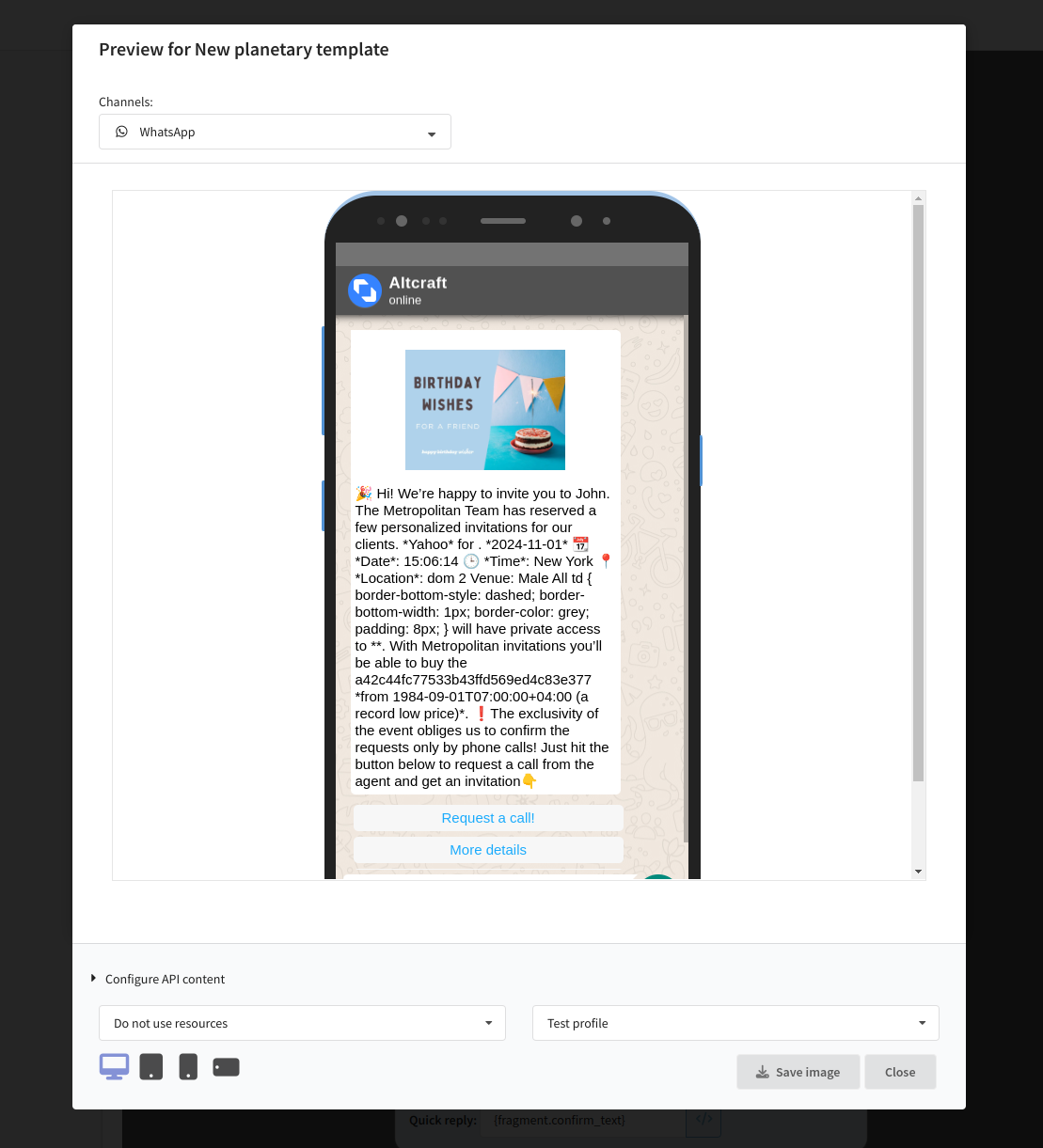
If you want to check how the message will look, go to the template preview mode by clicking on the button  :
: