Altcraft Docs LogoAltcraft Docs Logo
User guideDeveloper guideAdmin guide
Company siteHelp center
English
  • Русский
  • English
Login
  • User documentation
  • Getting Started
  • FAQ
  • Altcraft glossary
  • Profiles and databases
  • Communication channels
  • Segmentation
  • Message templates
  • Mailings
  • Campaigns
  • Automation scenarios
  • Market
  • Loyalty programs
  • Reports and analytics
  • Integrations
  • Weblayers
  • Settings
    • Account settings
    • Custom links
    • Virtual senders
    • Sending policies
    • Audit journal
    • Tags FAQ
    • Users, groups and access
    • Connections
      • Connection to Facebook Ads Manager
      • Connection to Google Ads
      • Connecting to Yandex.Audience™
      • Connection to 360dialog
      • Connection to Edna
      • Connection to Devino Telecom
      • Connection to SMSTraffic
      • Connection to VK Ads™
      • Connection to MTS OmniChannel
      • Custom Authentication Connection
      • OAuth2 connection
      • Basic Authentication connection
      • Token Authentication connection
      • Connection to Rapporto
      • MAX connection
      • Connection to Notify
    • Attribute settings
  • API requests: where to start
  • Changelog
  • Documentation archive
  • library
  • Settings
  • Connections
  • MAX connection

MAX connection

info

Before connecting MAX to the platform, you must first create a bot in MAX. Bot creation is available only for MAX accounts that have passed verification for legal entities and individual entrepreneurs. More details about creating a bot are available in the MAX documentation.

A connection to the MAX messenger is required to integrate the platform with MAX for further use as communication channels — MAX Bot and MAX Group.

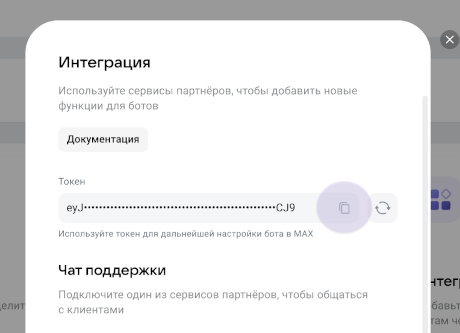
To create a connection, you will need your bot's API token in MAX. You can find the token in the Chatbots section on the MAX for Partners platform. In this section, go to Integration — Get token. The token will appear in the corresponding field:


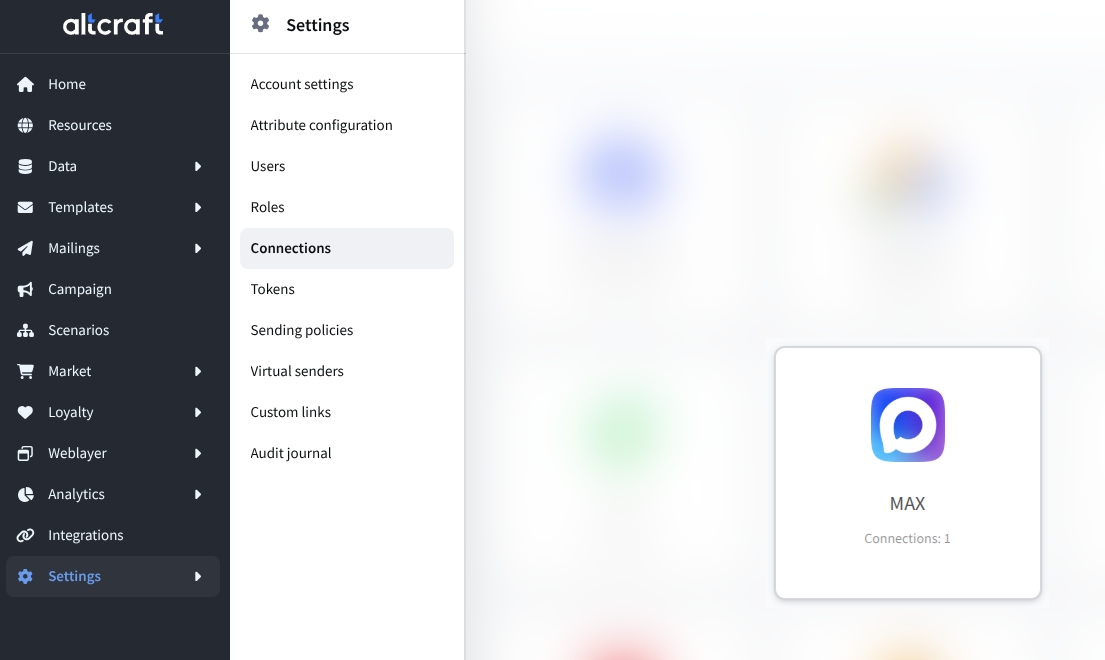
Then go to the Altcraft platform. Open Settings — Connections. Select the connection type — MAX:

Click Create on the top panel. Enter the connection name and description.

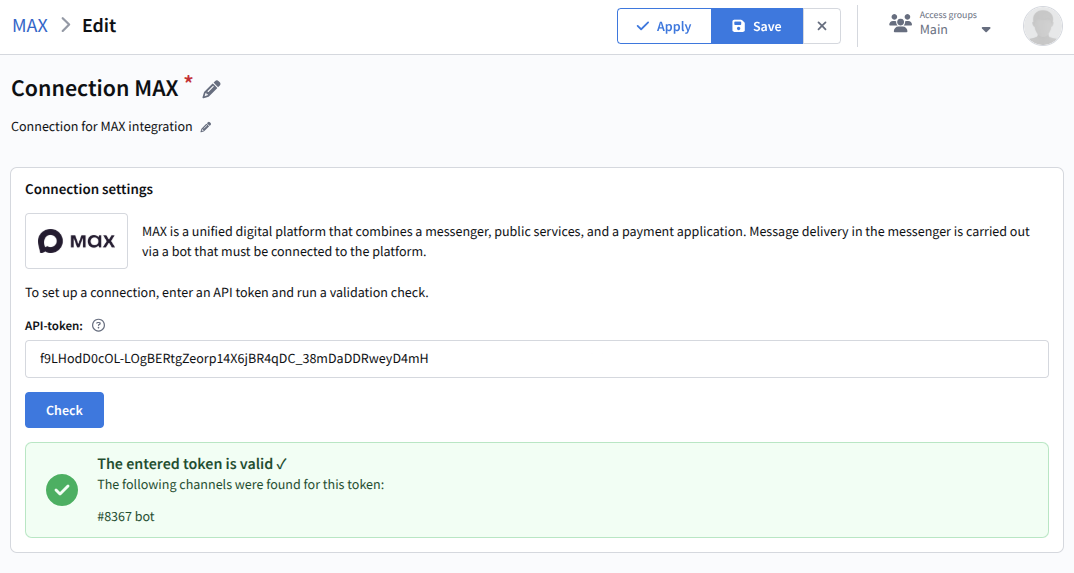
Then specify the API token obtained in the first step of the guide. Click Check. If the entered data is valid, the platform will display a corresponding message:

Save the connection by clicking the Save button. After that, you can proceed to setting up MAX integrations.

Last updated on Mar 25, 2026
Previous
Connection to Rapporto
Next
Connection to Notify
© 2015 - 2026 Altcraft, LLC. All rights reserved.