Segmentation by Activity of the channel
The history of subscriber actions within sent messages is formed based on events in various communication channels. Selections based on this activity allow segmentation by engagement (e.g., by opens and clicks) and effective setup of retargeting mailings.
For most rules of segmentation by message activity history, the following types of selection operators are available:
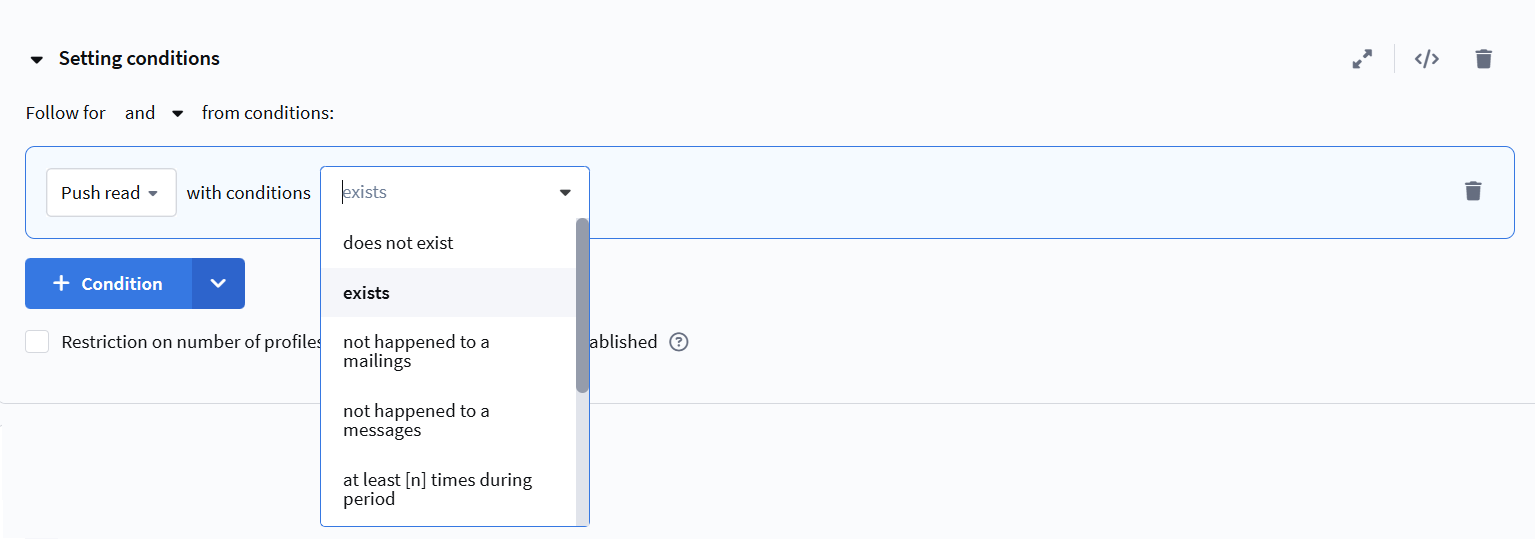
- Exists/Does not exist — selection based on the presence of at least one action of the selected type for subscribers.
- Not happened — selection based on the absence of at least one action of the selected type. Depending on the operator, you can additionally specify the campaign, message template, time period, or number of days from the current date.
- At least [n] times — selection based on the presence of the specified number of events for subscribers. Depending on the operator, you can additionally specify the campaign, message template, time period, or number of days from the current date.
How "in the last x days" is calculated
"x days" means the number of calendar days counted backwards from the current day inclusive:
- 1 day — the current day only
- 2 days — the current day + the previous day
- 7 days — the current day + 6 previous days, etc.
Each day is a calendar day — from 00:00:00 to 23:59:59.9999 according to the account's timezone (TZ).
In all rules except Exists, you can select message templates or campaigns — within which the action was made. Then you can select several templates or campaigns in one rule. Action in any of these objects will count — they are combined by the OR operator.
Common Events for All Channels
For most communication channels, similar event types are available. Below are common event groups with indications of the channels where they apply.
Message Sent
The event is registered when a message is formed and redirected to the sending module (mail server, SMS gateway, push or messenger platform).
- Available in: Email, SMS, Push, In-App, Telegram Bot, Telegram Group, MAX Bot, MAX Group, WhatsApp, Viber, VK Notify.
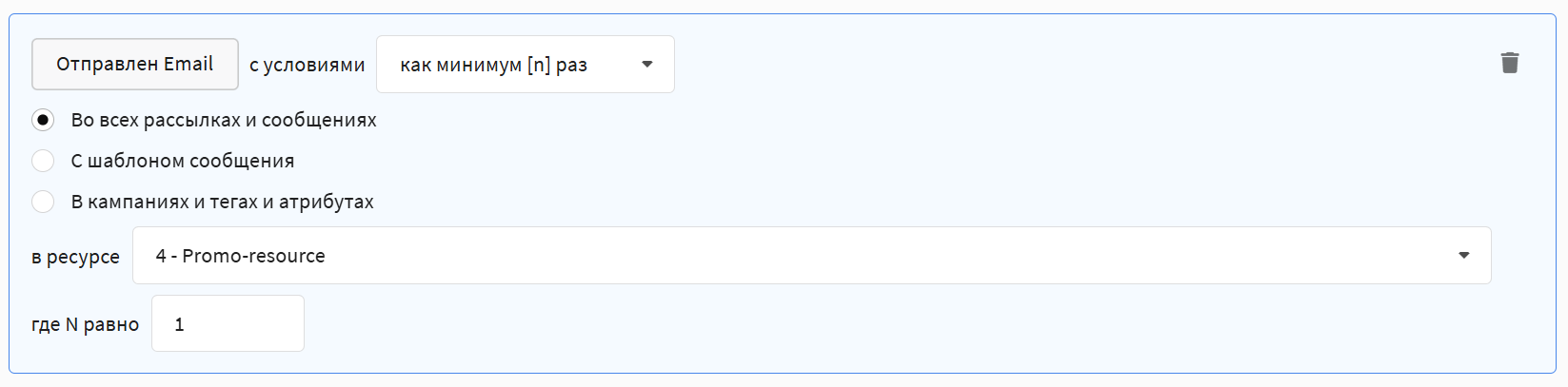
Message Delivered
The event is registered when the platform receives confirmation of message acceptance for delivery from the provider, gateway, or carrier.
- Available in: Email, SMS, Push, In-App, Telegram Bot, Telegram Group, MAX Bot, MAX Group, WhatsApp, Viber, VK Notify.
Allows determining which subscribers' messages were not delivered due to temporary channel unavailability.
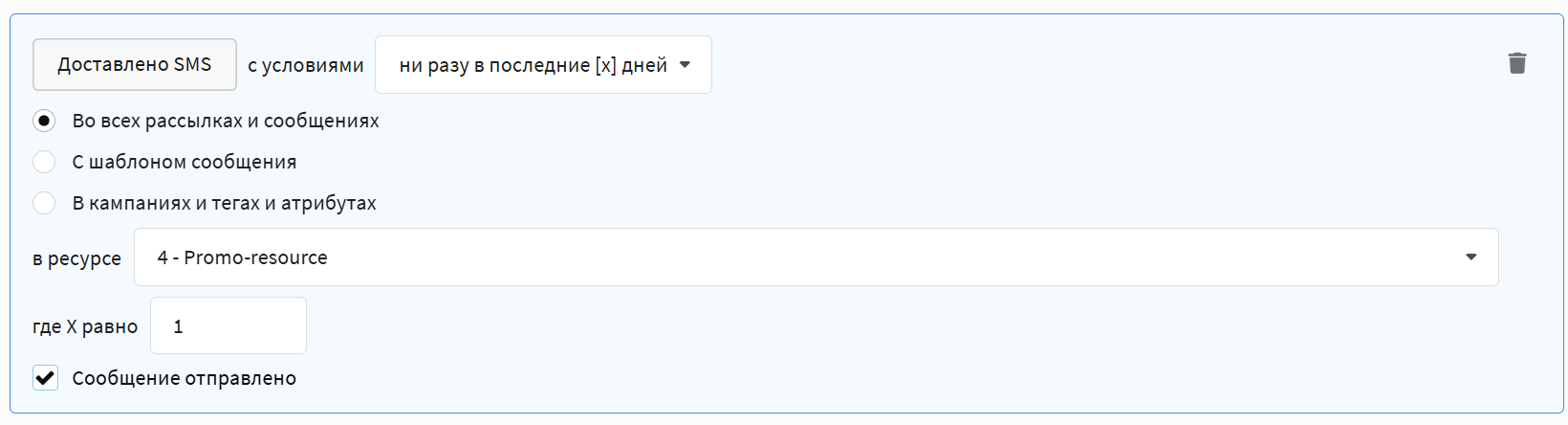
Message Opened / Read
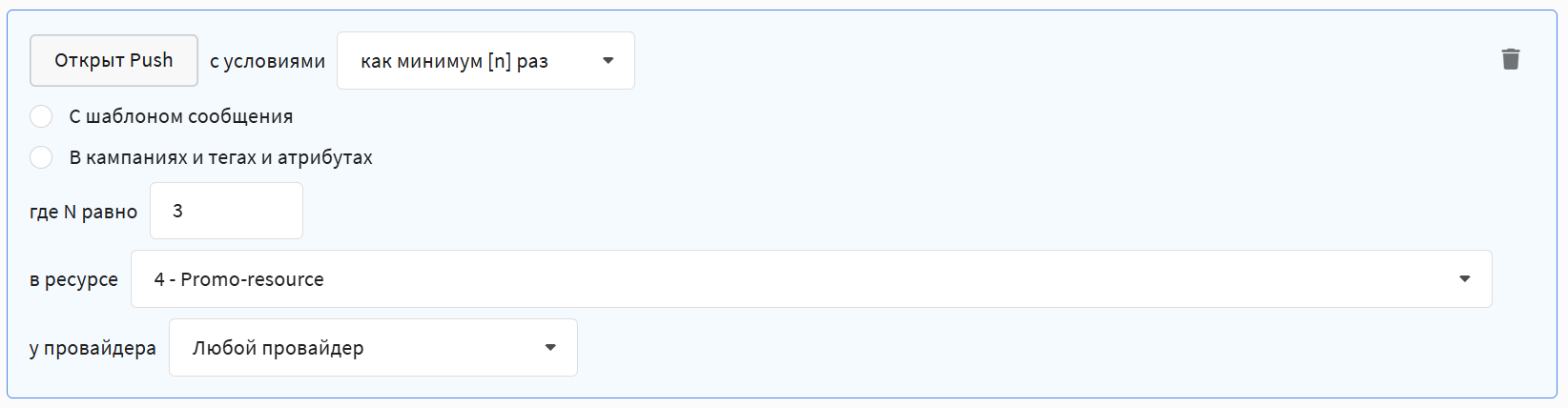
The event is registered when a user opens a message.
- Opened: Email, SMS, Push, In-App.
- Read: Email, WhatsApp, Viber, VK Notify.
For Email, opening is tracked using a pixel in the email body.
Allows obtaining the exact number of unique opens and calculating the Open Rate (OR) for a specific recipient group.
Clicks in Messages
Various events related to clicks on links within messages.
- Any click in message: Email, SMS, Push, VK Notify. Selects recipients who clicked on any link in the message.
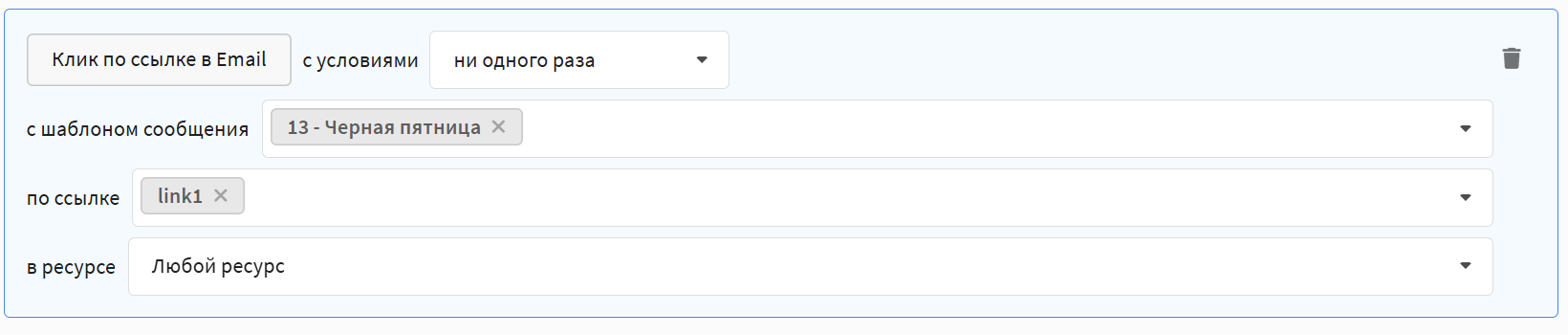
- Specific link click in message: Email, SMS, Push, In-App, Viber, WhatsApp, Telegram Bot, MAX Bot, VK Notify. Allows specifying specific templates and links for selection of clicks.
- Unsubscribe click in message: Email, SMS, Push, VK Notify. Selects recipients who unsubscribed via a special unsubscribe link.
A click on an unsubscribe link has a separate event type and is not included in the selection by the rule "Specific link click in message".
Unique Clicks in Messengers (Telegram, MAX, WhatsApp, Viber, VK Notify)
For messengers, detailed click statistics are available:
- Click — each link click is recorded.
- Unique click — the event is registered if the recipient clicked on at least any link in the message (1 unique click per message).
- Unique link click — unique click on a specific link (one event is recorded for each link, even with multiple clicks).
Non-delivery and Sending Errors
Events related to problems during sending or delivery.
- Non-delivery: Telegram Bot, Telegram Group, MAX Bot, MAX Group, WhatsApp, Viber, VK Notify, In-App.
- Sending policy violation: Telegram Bot, Telegram Group, MAX Bot, MAX Group, WhatsApp, VK Notify.
- Hard bounced (permanent delivery errors): Telegram Bot, MAX Bot.
Available operators for these events: Exists/Does not exist, Not happened, At least [n] times.
Subscription Management in the Channel
Events related to subscription and unsubscription from communication in a specific channel.
- Subscribed to channel: Telegram Bot, MAX Bot, WhatsApp, Viber, VK Notify, In-App.
- Unsubscribed from channel: Telegram Bot, MAX Bot, WhatsApp, Viber, VK Notify, In-App.
- Subscription confirmation: Telegram Bot, MAX Bot, Email (Click on Confirm link).
Channel-Specific Events
Email
- Email Read — the
{read}pixel triggers after 8 seconds of the email being open. - Click on Confirm link — subscription confirmation via Double opt-in.

Telegram Bot
- Telegram bot subscription confirmed — confirmation of subscription to the bot.

WhatsApp
- WhatsApp read — message read event.

Viber
- Viber read — message read event.

In-App
For the In-App channel, events related to user interaction with content inside the application are available:
- In-App screen opened —
inapp_screen_openedevent. Registered when an In-App screen is opened. - In-App screen closed —
inapp_screen_closedevent. Registered when an In-App screen is closed. - In-App screen action —
inapp_screen_actionevent. Registers a user action on the screen (e.g., a button click). - In-App screen stay time —
inapp_screen_stay_timeevent. Registers the time spent by the user on the screen (in milliseconds).
These events are registered via Altcraft mSDK in the mobile application. For more information on SDK setup, see the technical documentation for Android, iOS, and React Native.

Push
- Push read — the event is registered when a recipient reads a push notification in the notification center. Used in cascaded communication when notification content is duplicated for deferred viewing: the platform tracks not only push notification opens, but also the fact of reading.
Checking an Event in a Message or Campaign
For precise checking of whether an event occurred in a specific campaign or message template, use conditions with object specification:
- At least [n] times in messages / in campaigns — the profile will be included in the segment if the action occurred in any of the selected templates or campaigns.
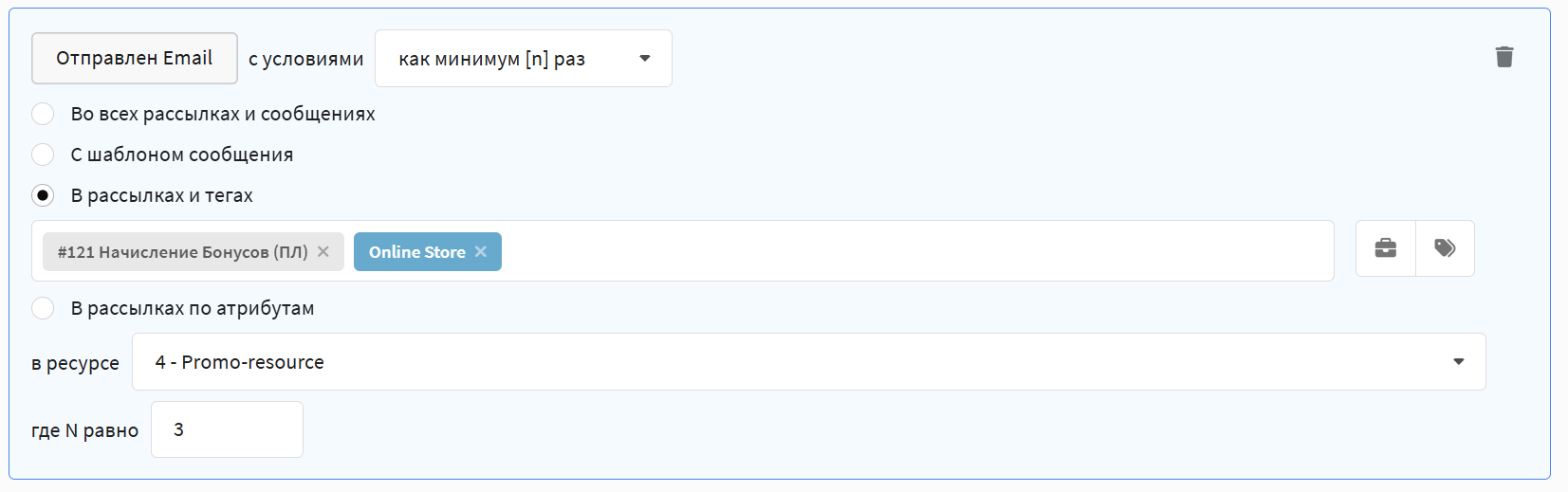
- Not happened to messages / campaigns — the profile will be included in the segment if the action did not occur in each of the selected objects.

For reverse conditions, you can add a check for a preceding event (e.g., for a click — a check for delivery or opening).
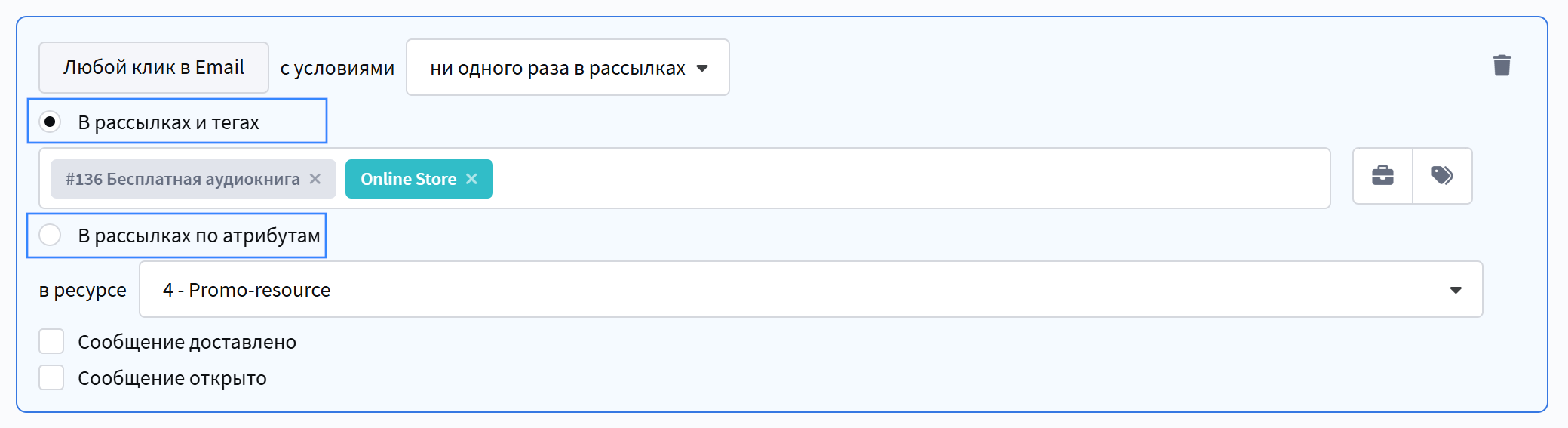
Selecting Campaigns, Messages, or Templates by Tags or Attributes
When segmenting by events in a campaign or message, you can also filter by tags and by attributes.
Selection of objects for checking is available not only individually but also by tags or by attributes.
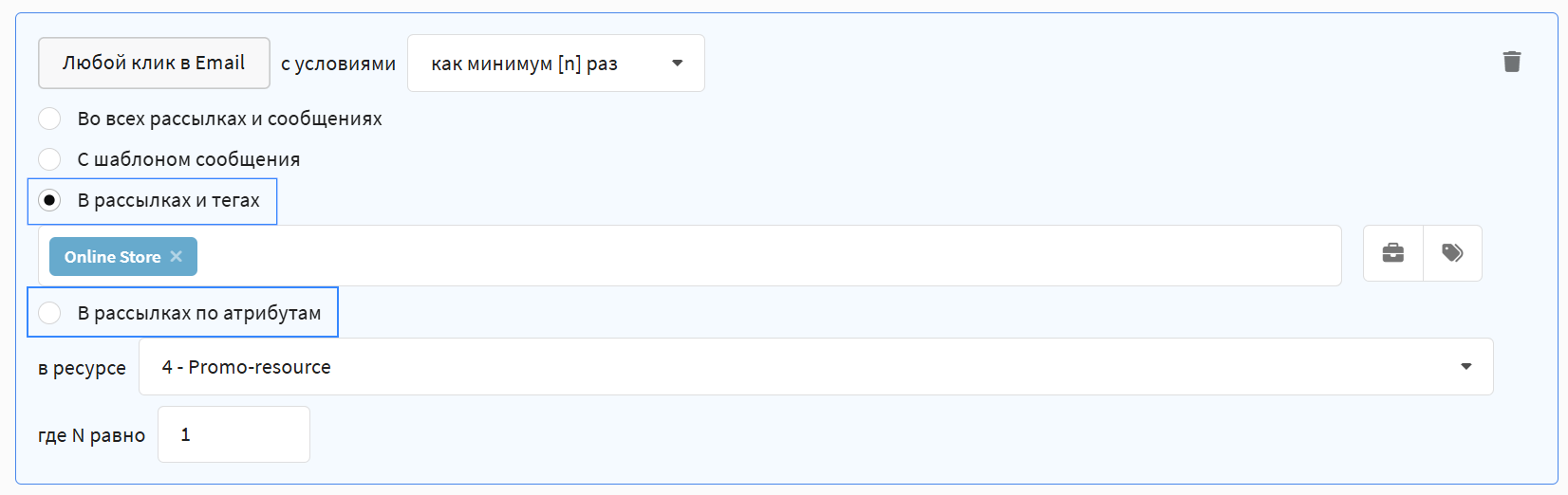
In the example below, profiles that clicked in any campaign tagged "Online store" will be selected:

* Meta, the organization that owns Instagram, Facebook, and WhatsApp, is recognized as extremist and banned in the Russian Federation.
* Viber™ is a trademark of Rakuten Group, Inc. Blocked in the Russian Federation.