Altcraft Docs LogoAltcraft Docs Logo
User guide iconUser guide
Developer guide iconDeveloper guide
Admin guide iconAdmin guide
English
  • Русский
  • English
Login
    User documentationGetting StartedFAQAltcraft glossary
      Profiles and databasesarrow
    • Subscription resourcesManaging databasesSubscriber profileProfiles import and data updateCommon Errors When Importing ProfilesScheduled customer data importManaging Data TablesAutomatic data collectionBulk customers profiles updateDouble opt-in subscriptionSuppression listsProfile relationsProfile history exportProfile exportCreating a static segment based on import resultsHow to open a CSV fileMatchingTypes of fields in the databaseGlobal control groupsSubscription Manager
      Communication channelsarrow
      • Email channelarrow
      • Email: ISP interactions best practices
          First mailingarrow
        • Quick StartEmail
        Email: sending domain configurationEmail: setting up and using postmastersHow email tracking works
        Push Channelarrow
        • Mobile Pusharrow
        • First Mobile Push Mailing
            Mobile Push Providersarrow
          • Firebase Cloud MessagingApple Push Notification ServiceHuawei Mobile ServicesRuStoreYandex.AppMetrica
          Integrate your app with Altcraft
            Deprecated: Manual Push Setuparrow
          • Deprecated: Setup and ConnectionProcessing and adding a subscriptionEvent registrationProviders: push message structure
          Web Pusharrow
        • First Web Push MailingResource and Website Setup
            Web Push Providersarrow
          • Firebase Cloud messagingApple SafariMozilla Services
          Transferring Data to the PlatformWeb Push SDK MethodsPWA and Push Notifications
            Migration and Subscription Transferarrow
          • Migrating push subscriptions from third-party servicesHow to transfer push subscriptions configured for Safari?Migration from OneSignal
        SMS channelarrow
      • SMS
      WhatsAppViber*™
        Telegramarrow
      • Telegram BotTelegram Group
        Maxarrow
      • MAX BotMAX Group
      NotifyCommunication Channels WorkflowРуководство: SMS-рассылка через VK NotifyРуководство: SMS-рассылка через УТШРуководство: push-рассылка через сервис от "Согласие"
      Segmentationarrow
    • Static SegmentsDynamic SegmentsUpdatable Segments
        Segmentation Conditionsarrow
      • Segmentation by Profile dataSegmentation by Interactions with EntitiesSegmentation by Activity of the channel
          Segmentation by external dataarrow
        • Segmentation by external dataSegmentation by external SQL tablesRecommendations for segmentation by external data
        Segmentation by Profile structure
      Best Send Time (BST)Logical operators "AND" and "OR"Recommendations for working with segments
      Message templatesarrow
      • Working with message templatesarrow
      • Working in the editorEmail templateSMS templatePush templateMAX templateTelegram templateWhatsApp templateViber templateNotify template
        Visual editor for email-templatearrow
      • Visual editor interfaceAdding blocksElements and their settingsCustom blocksStyle managerLayer manager
      Template fragmentsImage galleryContent personalizationCreating tables based on array elementsBlock editor for email template
        Altcraft Variables and Functionsarrow
      • Logical expressions in messagesLoops in messagesMarket variables in templatesUsing the JSONPath functionality
        Dynamic content in messagesarrow
      • Dynamic HTML contentDynamic JSON contentContent from SQL database in templatesDynamic API content
      Importing and exporting a message templateImporting a template from a third-party serviceExporting a template from Pixcraft
      Mailingsarrow
    • Broadcast mailingsTrigger mailingRegular mailingMultivariate testingPlacement mailingMailing testingMailing scheduleMailings calendarManaging the Sender Queue
      Automation scenariosarrow
    • Managing scenariosNodes of the scenarioClassic marketing scenariosStep-by-step welcome scenario guideScenario for automatic notification of the managerAbandoned cart scenarioCycle Handling in Automation ScenariosHigh-priority scenarios
      Campaignsarrow
    • Working with CampaignsLocal control groups (LCG)Stratification violation error when limit is reachedAudience expansion in campaignsAudience building
      Marketarrow
    • Market settings
        Productsarrow
      • How to create a product manuallyHow to import a product from a fileScheduled product importProduct and SKU SegmentsPreparing the YML file
      OrdersMarket variables in message templateGuide: how to send an order confirmation email
      Loyalty programsarrow
    • Loyalty programsLoyalty integration with external systemsCreating a loyalty program from scratchBasic loyalty program use casesOrder SegmentsPromotion codes
      Reports and analyticsarrow
    • Channel reportTraffic report
        Summary reportarrow
      • Summary report metrics
      Cohorts reportLifetime reportFunnels reportGoals reportAudience growth reportClick map reportLoyalty programs reportBounces reportUndeliveries reportReport on global control groups
      Integrationsarrow
      • Action hooksarrow
      • Altcraft Action HooksAction hooks event typesAction Hook Message StructureJSON batch request (HTTP POST action hook)Message to RabbitMQ brokerMessage to RabbitMQ exchangerMessage to Kafka brokerTest event
        Integration of third-party services using Albatoarrow
      • Connecting Altcraft to Albato Launching the welcome scenario using AlbatoTransmitting event dataSetting up a trigger mailingEvent registrationGoogle Sheets and Altcraft integration AmoCRM and Altcraft integration
      Facebook Ads Manager™Google Ads AudiencesMAXYandex.Audience™VK AdsStatic segment synchronizationYandex AppMetrica™Tilda™Lpgenerator™WhatsAppViber integrationIntegration scopeData Transmitted During SynchronizationNotify
      Weblayersarrow
      • Formsarrow
        • Create a formarrow
        • General settingsForm customization with custom codeForm constructorAppearanceActions and form publicationConditional logic in forms and surveys
        Data analyticsBinding data channel and formsNPS testing
        Pixelsarrow
      • Goal customer actions and scoring
        Pop-upsarrow
      • Creating and publishing a pop-upSetting up a popup in the code editorManaging pop-ups manually via scriptPopup analyticsGuide: pop-up for push subscriptionsCase: Creating a pop-up with the "Wheel of Fortune" widgetBasic cases of placing a popup via the Tag Manager
        Tag Managerarrow
      • Configuring and installing Tag ManagerTrigger typesVariable typesLinking a pixel and the Tag manager
      Settingsarrow
    • Account settingsCustom linksVirtual sendersSending policiesAudit journalTags FAQ
        Users, groups and accessarrow
      • Two-Factor Authentication (2FA)
        Connectionsarrow
      • Connection to Facebook Ads ManagerConnection to Google AdsConnecting to Yandex.Audience™Connection to 360dialogConnection to EdnaConnection to Devino TelecomConnection to SMSTrafficConnection to VK Ads™Connection to MTS OmniChannelCustom Authentication ConnectionOAuth2 connectionBasic Authentication connectionToken Authentication connectionConnection to RapportoMAX connectionConnection to Notify
      Attribute settings
      API requests: where to startarrow
    • Import or update a profileTrigger mailing launchEngage profile in scenario
      Changelogarrow
    • v2026.2.77v2026.1.76v2025.4.75v2025.4.74v2025.3.73v2025.2.72v2025.1.71v2024.4.70v2024.3.69v2024.2.68.2v2024.1.68
    Documentation archiveEmail Marketer's Library
  • Automation scenarios
  • High-priority scenarios

High-priority scenarios

By default, tasks of all scenarios are processed by shared workers in the order they arrive. If the platform has many scenarios and the load is high, tasks of a critical scenario may wait for processing along with the rest.

To have a scenario's tasks processed before regular ones, you can mark the scenario as high-priority. A separate pool of workers in the cluster is allocated for it: these workers drain the priority queue first and only then pick up everything else.

info

Scenario priority is a separate mechanism from priority sending in mailings. Scenario priority speeds up processing of tasks (node execution), while priority sending speeds up message delivery in channels. They work independently and complement each other.

When to use​

Assign high priority to scenarios where processing delay is critical for the business — for example, scenarios that send messages immediately after a user action.

How to enable​

To activate the option, open the scenario settings and enable the High priority toggle:
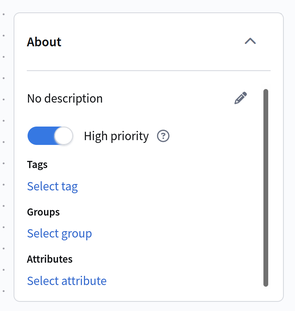
Scenario settings with the “High priority” toggle enabled

Then save the scenario. No service restart is required — the new value takes effect immediately.

You can change the priority at any time: turn the toggle off and save the scenario. The change affects only new tasks — profiles that are already in the scenario continue processing with the previous priority.

What happens when enabled​

  • Dedicated processing. The scenario's tasks are processed by dedicated workers on the hosts that the platform administrator configured for priority tasks. While high-priority tasks are present, these workers do not pick up regular ones. When there are no high-priority tasks, the workers help with regular ones — the throughput of regular scenarios is not reduced.
  • Priority sending in mailing nodes. In all Channels nodes of the scenario, the High priority toggle is automatically enabled and locked — you cannot turn it off manually. In regular scenarios, the toggle is available for manual control. Toggling the scenario priority on and off does not overwrite the value the user set in a campaign: it is restored as soon as the scenario becomes regular again.

Limitations​

  • Priority does not guarantee processing or delivery time. It sets the order in the queue but does not override the rest of the platform's limits: sending limits, channel queues, and mailing speed settings work as usual.
  • Priority message sending is not available in all channels. Details — in Trigger mailing.
  • Campaign processing inside a scenario is synchronous: a worker is occupied with it entirely, from recipient selection to publishing to the queue. Priority speeds up how quickly a worker gets to the campaign, but within the sending itself, the stages common to all campaigns run in the general order.
  • A node failure does not lead to loss or reprocessing of profiles: unfinished tasks are automatically passed to other cluster nodes.
Last updated on Aug 21, 2026
Previous
Cycle Handling in Automation Scenarios
Next
Campaigns
  • When to use
  • How to enable
  • What happens when enabled
  • Limitations
© 2015 - 2026 Altcraft, LLC. All rights reserved.