Basic cases of placing a popup via the Tag Manager
Configuring popup triggers
There are four main popup trigger scenarios available:
- On page load
- On scroll
- On click
- After a certain time on the page
To place a popup, you need to add it to the Altcraft Tag Manager and install the container code on your website.
Showing a popup on page load
To configure a popup to appear immediately after the page loads, create the corresponding trigger in the Tag Manager. The trigger type depends on your site’s architecture:
| Site architecture | Trigger |
|---|---|
| For MPA sites (with full page reload) | Page View |
| For SPA sites (without page reload) | History Change |
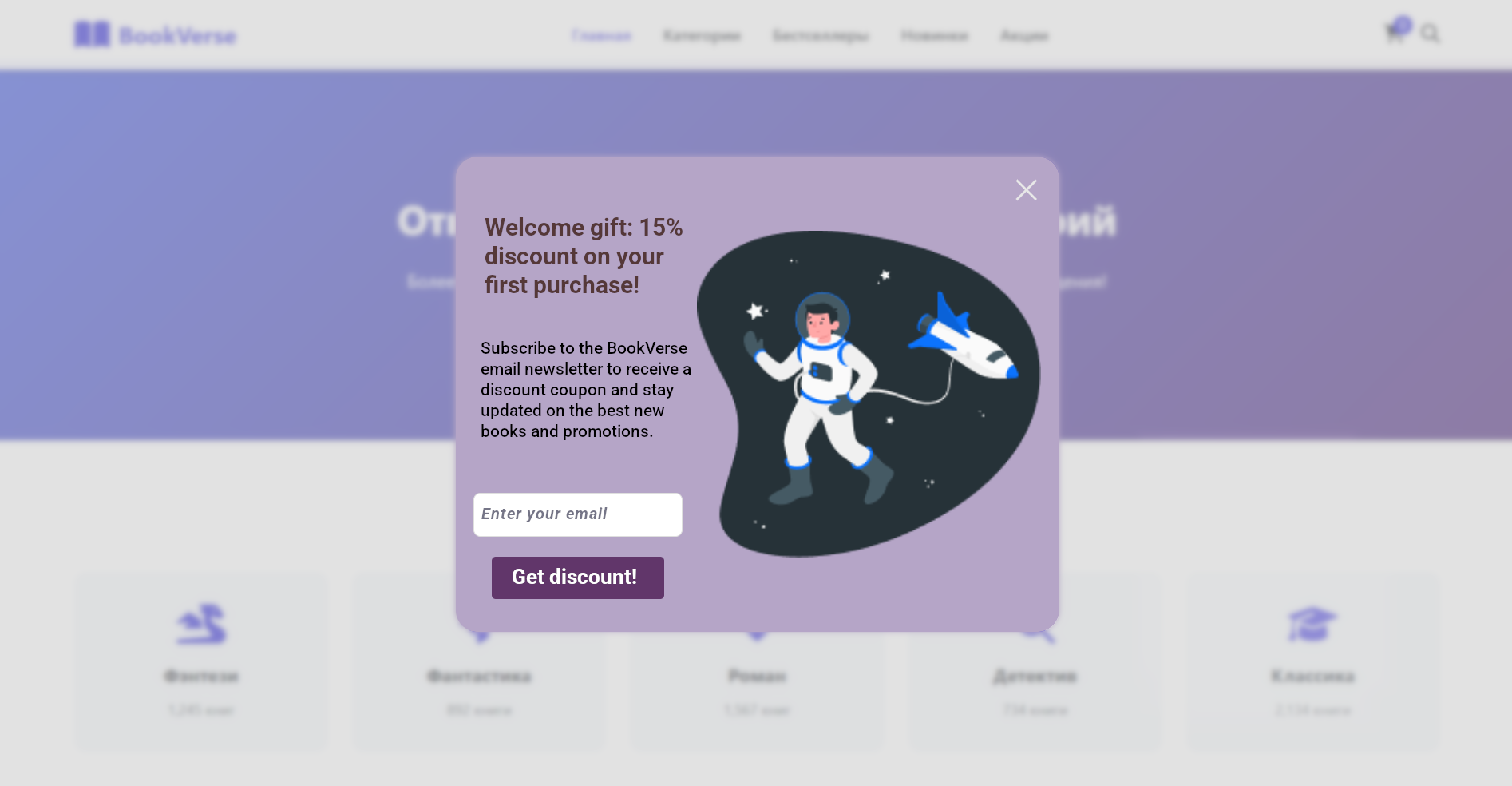
To configure, create a trigger in the Tag Manager: go to the Triggers tab —> "Create".
Select the appropriate trigger type and set the activation conditions:
- All page views — the popup will appear on any page with the container code.
- Some page views — for example:
Page URL —> equals —> https://site.com/contact. The popup will only appear on the contact page.
After configuration, click "Save" and publish the changes in the Tag Manager.
Showing a popup on scroll

The popup will appear when the user scrolls the page to the specified depth. To configure this, create a Scroll Depth trigger and set the value in percentages (for example, 50%). The trigger can fire on both vertical and horizontal scroll depth.
Set the activation conditions:
- All page views — trigger on any page.
- Some page views — for example:
Page Path —> contains —> /blog/. The popup will only appear when scrolling blog pages.
After configuration, click "Save" and publish the changes in the Tag Manager.
Showing a popup on click
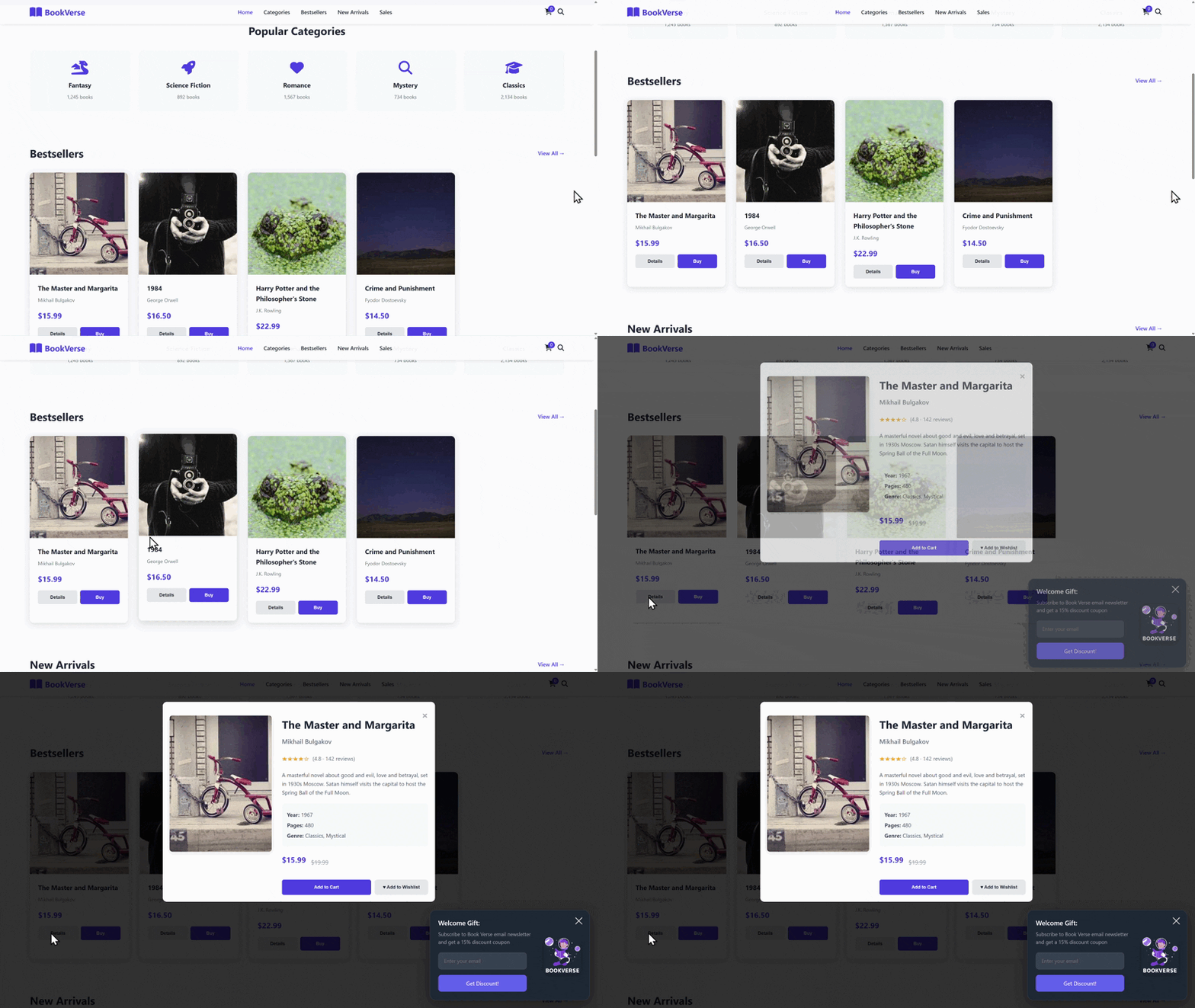
The popup will appear when clicking an element on the page. To configure, create a Click on element trigger.
Set the activation conditions:
- All clicks — trigger on any click on the page.
- Some clicks — for example:
Click ID —> equals —> subscribe-button. The popup will only appear when clicking the button with the ID "subscribe-button".
After configuration, click "Save" and publish the changes in the Tag Manager.
Showing a popup after a time delay
With this trigger configuration, the popup will appear after the specified time has passed.
To do this, create a trigger in the Tag Manager. Go to the Triggers tab —> Create.
Enter the trigger name and select its type "Timer".
Trigger settings include:
-
Default event name —
actm.timer. In most cases, you don’t need to change the name. You can specify another name to create a trigger based on a custom event. -
Interval — the time between event firings (in milliseconds). For example, if you specify 5000, the event will fire every 5 seconds. The first firing will also occur after the specified time.
-
Limit — the maximum number of firings. If you leave the field empty, the trigger will keep firing until the user leaves the page.
For example, to show a popup 10 seconds after the page loads, set the interval to 10000 and the limit to 1.
After configuration, click "Save" and publish the changes in the Tag Manager.