SDK Setup and Integration
To work with the In-App channel, you must integrate Altcraft mSDK into your mobile application. The SDK handles user authentication, channel subscription, retrieving available placements, and displaying In-App content in the application.
The mSDK integration procedure depends on the platform. Detailed instructions for each platform are provided in the developer guide: Android, iOS, Flutter, React Native.
Authorization
The SDK supports two authorization methods — JWT token and role token (rToken):
- JWT token — required if personalization is needed. Profile matching (search by email, phone, profile_id, and other identifiers) is only possible with JWT. The JWT provider is registered in the SDK before initialization.
- rToken — a role token bound to a resource. In-App is not tied to the push channel: a role token can be used without integrating push providers. However, with a role token, placements run for all users — personalization is not available.
After creating a resource, a section for managing tokens will be available in its settings:
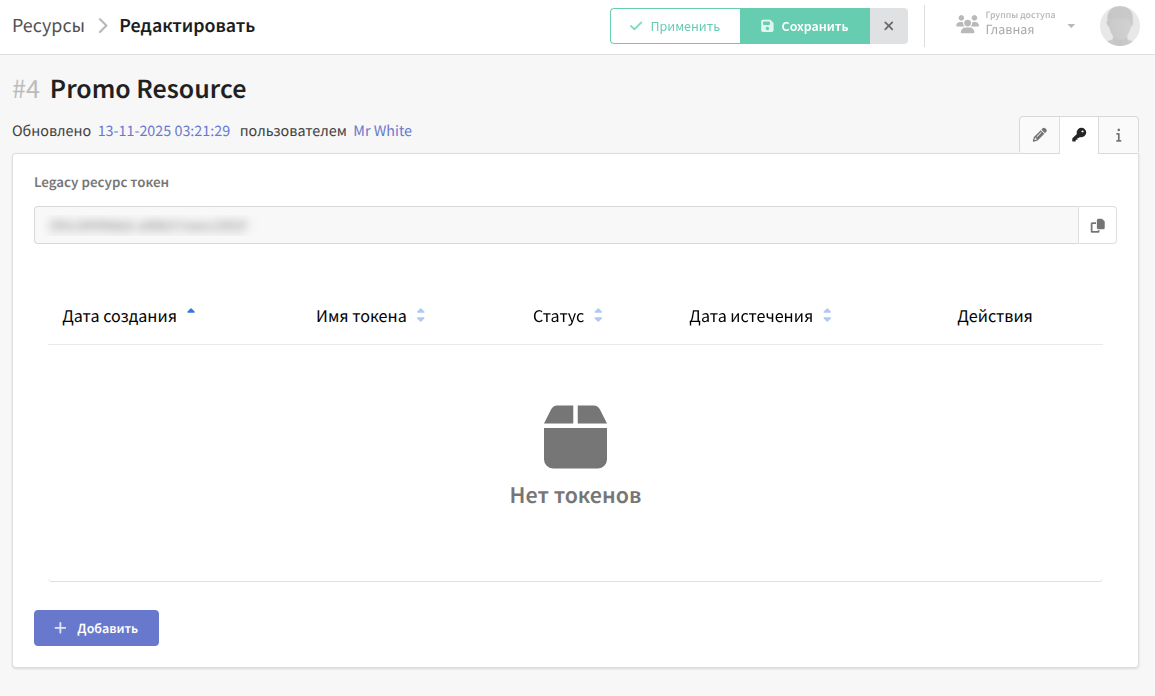
To create a role token, no public key is required: specify its name, expiration date, and the profile database bound to it:
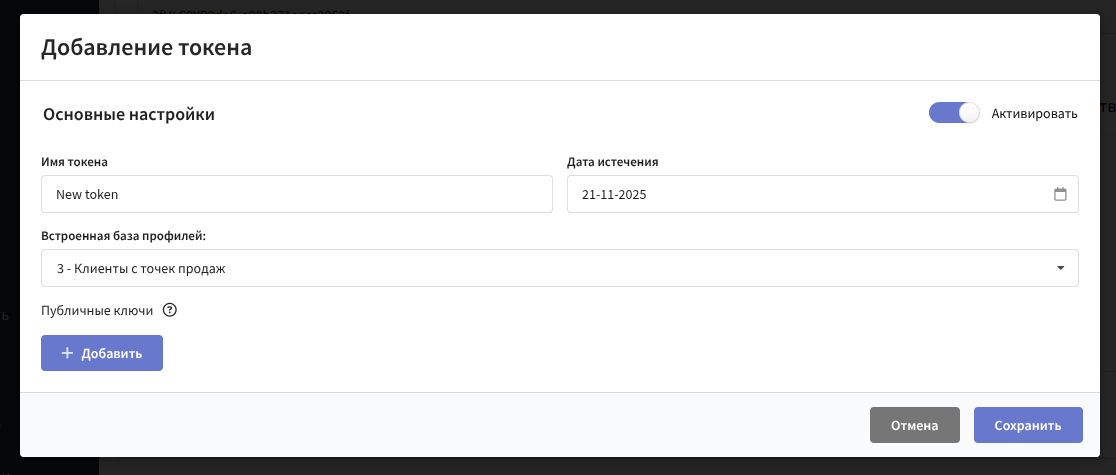
The role token serves as an access key from the mSDK side to the "resource-database" pair.
To create a JWT token, you need to provide a public key. The platform supports the ES384 algorithm (ECDSA, as the most reliable), as well as RS256, ES256, and ES512 for compatibility with different application libraries:

The application must pass a JWT token to the SDK, which is generated by the client's server-side using the following payload:
{
  "iss": "<App Name>",
  "exp": <UnixTimeUTC>,
  "rtoken": "<RoleToken>",
  "matching": "JSONString"
}
iss—issuer— unique identifier of the token creator;exp—expiration time— token expiration time as a UNIX timestamp in seconds;rtoken— the role token obtained when setting up the resource in the platform;matching— a string-serialized profile matching object, e.g.{"db_id":2,"email":"registered_db@localhost","matching":"email_profile"}.
For more information on JWT structure and its differences from rToken, see Working with Role and JWT Tokens.
Initialization and In-App Launch
The basic principle of working with the SDK:
- Integrate the mSDK and set up authorization (see above).
- Initialize the SDK at application startup: specify the platform API address; for JWT authorization, register the token provider before initialization.
- Immediately after initialization, subscribe to activity lifecycle tracking (
registerLifecycleTracking()), otherwise In-App notifications that should appear at application startup may be missed. - After initialization, execute in the application: authentication (
authenticate()), channel subscription (inAppSubscribe()), placement request (getInAppPlacements()). UsesetScreen()to show content only on specific screens.
inAppSubscribe()Even if an In-App channel subscription has been added manually in the platform interface, you must call inAppSubscribe() in the application. Without it, the SDK will not register the profile for In-App, matching will not work, and personalized placements will not be displayed. Call this function after authentication is complete.
Initialization and Subscription Example (Android)
Initialization in the application class:
class AltcraftApp : Application() {
    override fun onCreate() {
        super.onCreate()

        // Register JWT provider (before SDK initialization)
        AltcraftSDK.setJWTProvider(MyJWTProvider())

        // Initialize SDK
        val config = AltcraftConfiguration.Builder(
            apiUrl = "https://<API-domain>",
            enableLogging = true
        ).build()
        AltcraftSDK.initialization(context = this, configuration = config)

        // Register activity lifecycle for automatic In-App display
        AltcraftSDK.inAppFunctions.registerLifecycleTracking(this)
    }
}
Authentication, subscription, and placement request in the activity:
class MainActivity : AppCompatActivity() {
    override fun onCreate(savedInstanceState: Bundle?) {
        super.onCreate(savedInstanceState)
        setContentView(R.layout.activity_main)

        // Set screen for In-App content filtering
        AltcraftSDK.inAppFunctions.setScreen("home")

        // Request available In-App placements
        AltcraftSDK.inAppFunctions.getInAppPlacements(this)

        // Authenticate and subscribe to In-App channel
        CoroutineScope(Dispatchers.Main).launch {
            AltcraftSDK.authFunctions.authenticate(this@MainActivity)
            withTimeoutOrNull(10_000L) {
                while (!AltcraftSDK.authFunctions.isAuthenticated(this@MainActivity)) {
                    delay(100L)
                }
            }
            AltcraftSDK.inAppFunctions.inAppSubscribe(context = this@MainActivity, sync = true)
        }
    }
}
Initialization and Subscription Example (iOS)
Initialization in AppDelegate.application(_:didFinishLaunchingWithOptions:):
class AppDelegate: UIResponder, UIApplicationDelegate {
    func application(
        _ application: UIApplication,
        didFinishLaunchingWithOptions launchOptions: [UIApplication.LaunchOptionsKey: Any]?
    ) -> Bool {
        // Register JWT provider (before SDK initialization)
        AltcraftSDK.setJWTProvider(provider: JWTProvider())

        // Initialize SDK
        AltcraftSDK.shared.initialization()

        // Register application lifecycle for automatic In-App display
        AltcraftSDK.shared.inAppFunctions.registerLifecycleTracking()

        return true
    }
}
Authentication, subscription, and placement request:
// Set screen for In-App content filtering
AltcraftSDK.shared.inAppFunctions.setScreen(screen: "home")

// Request available In-App placements
AltcraftSDK.shared.inAppFunctions.getInAppPlacements()

// Authenticate and subscribe to In-App channel
AltcraftSDK.shared.authFunctions.authenticate()
AltcraftSDK.shared.inAppFunctions.inAppSubscribe()
Detailed code examples for each platform are available in the mSDK documentation.
Pitfalls and Common Errors
- Incorrect API domain.
apiUrlmust point to the platform API endpoint (e.g.,pxl-*.altcraft.com), not the tracking domain. If the SDK cannot retrieve placements (error404 No such routeorRole Token processing error), checkapiUrl. - Expired token. The token must be signed with a key added to the resource. A token with an expired date will return a
Role Token processing error. db_idin matching must match the database ID bound to the token. Otherwise, the profile will not be found.- HTTP requests. For working with the API over an unsecured protocol (dev environments), cleartext traffic must be allowed in the application manifest.