Firebase Cloud Messaging
To send Mobile Push to Android and iOS devices, you need to set up a project in Firebase Console in advance.
Step 1. Creating a project in Firebase
Go to the Firebase Console page, sign in to your Google account, and create a new project. | 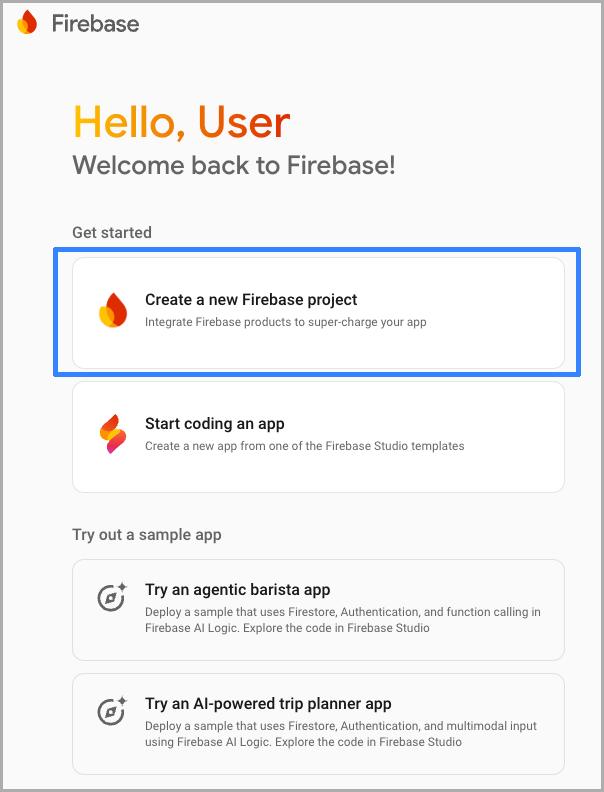 |
Add an app to the project. | 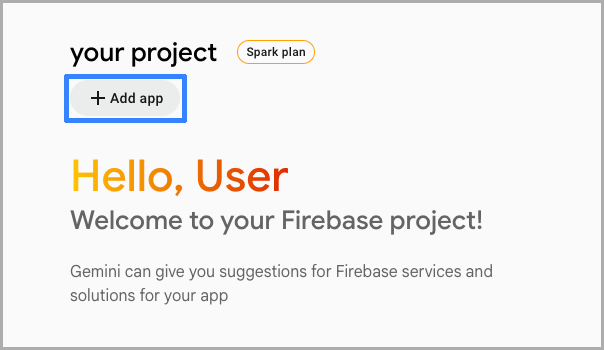 |
Register the app by filling in the required fields with information about it. | 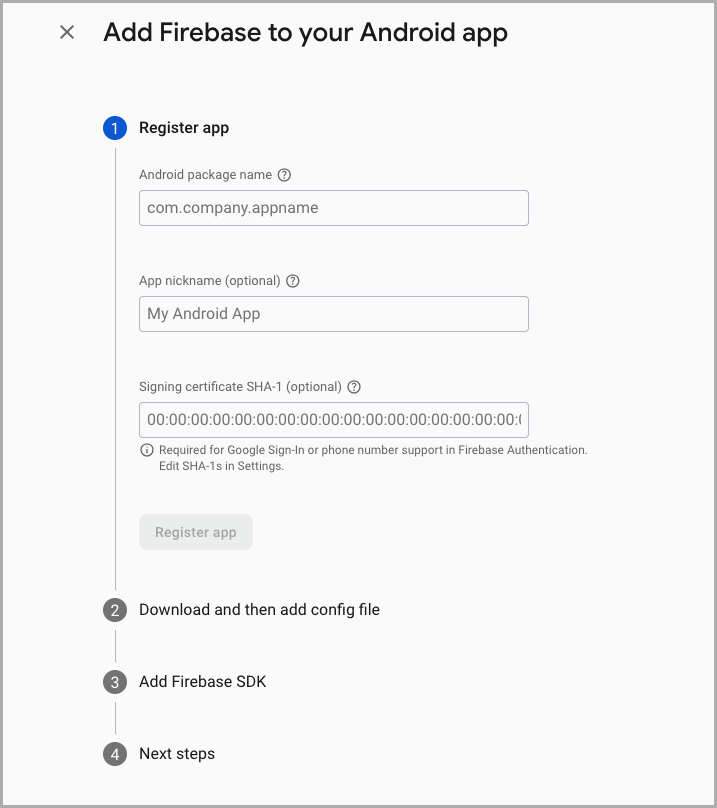 |
Download the configuration file. | 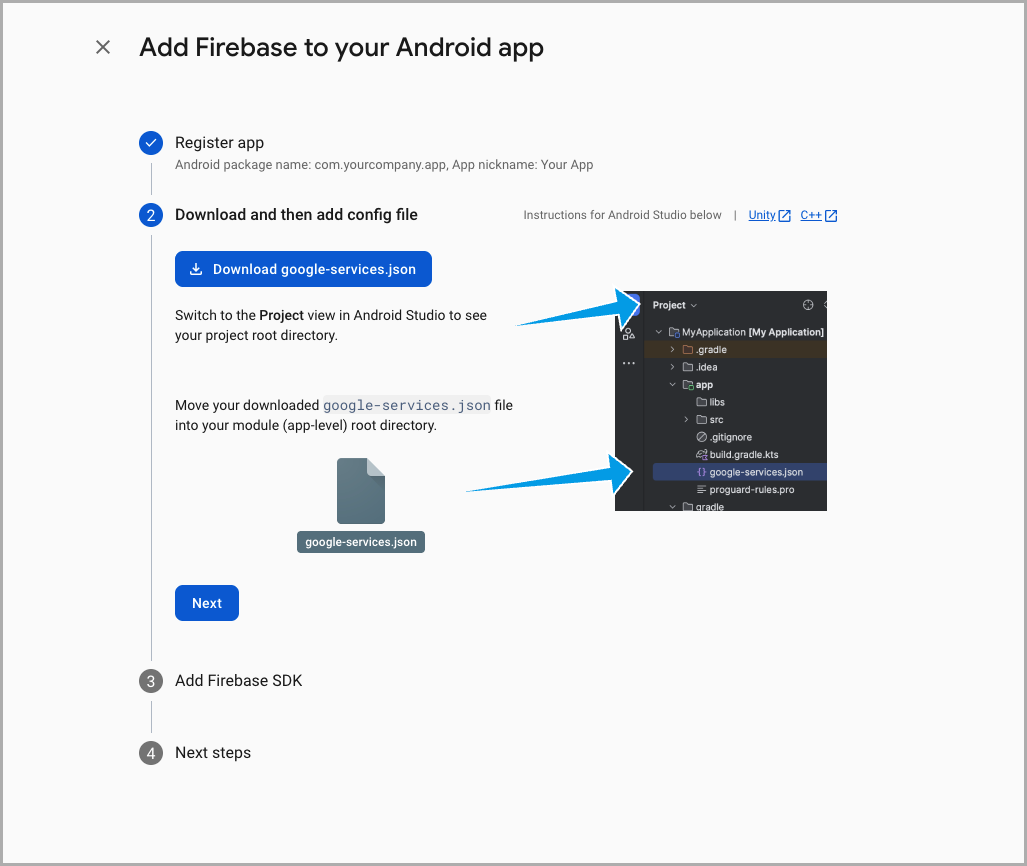 |
Step 2. Configuring in the Altcraft platform
Android
In the Altcraft platform, open the resource settings. Select the Android platform and activate the Firebase Cloud Messaging toggle. | 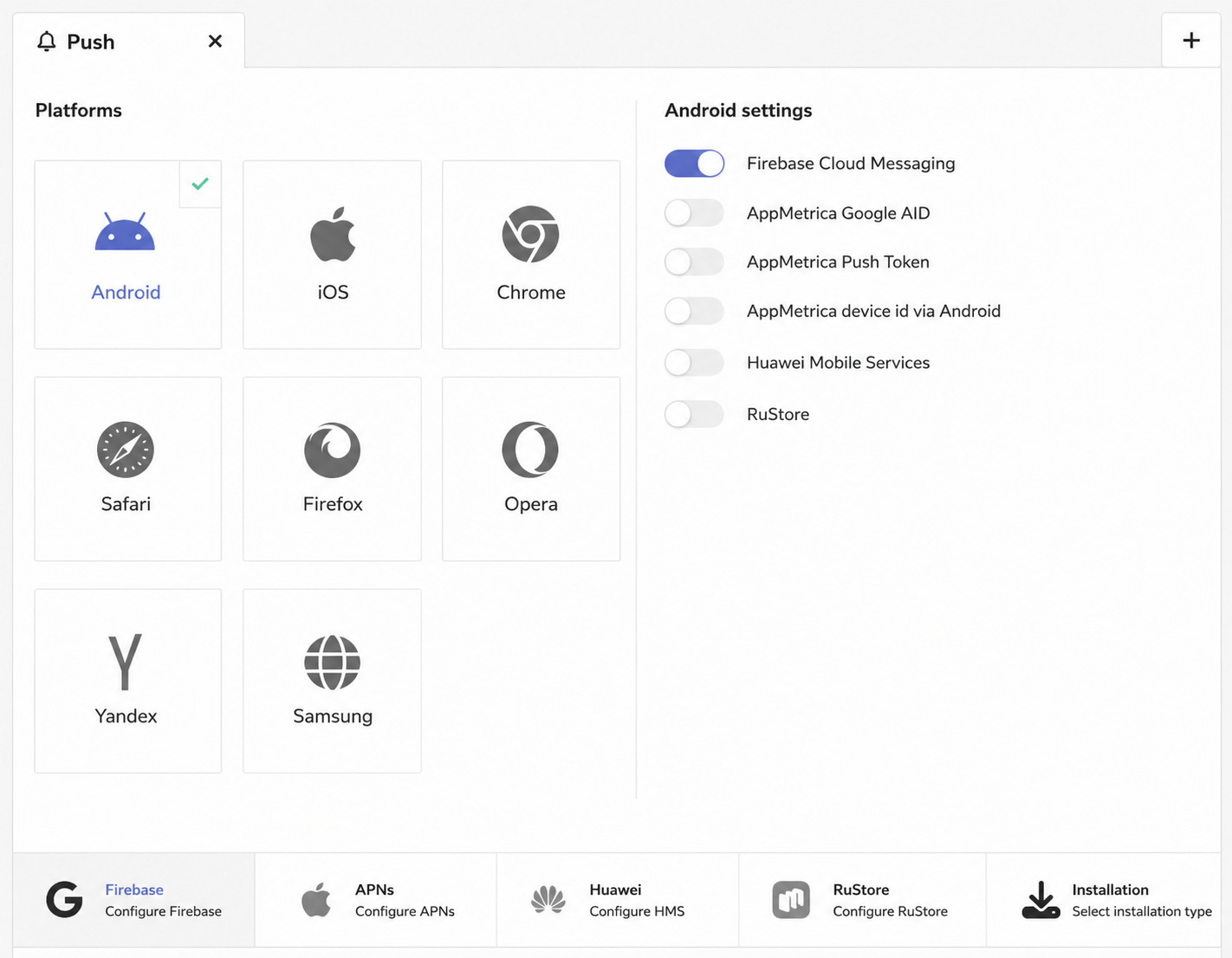 |
Go to Firebase settings and specify:
| 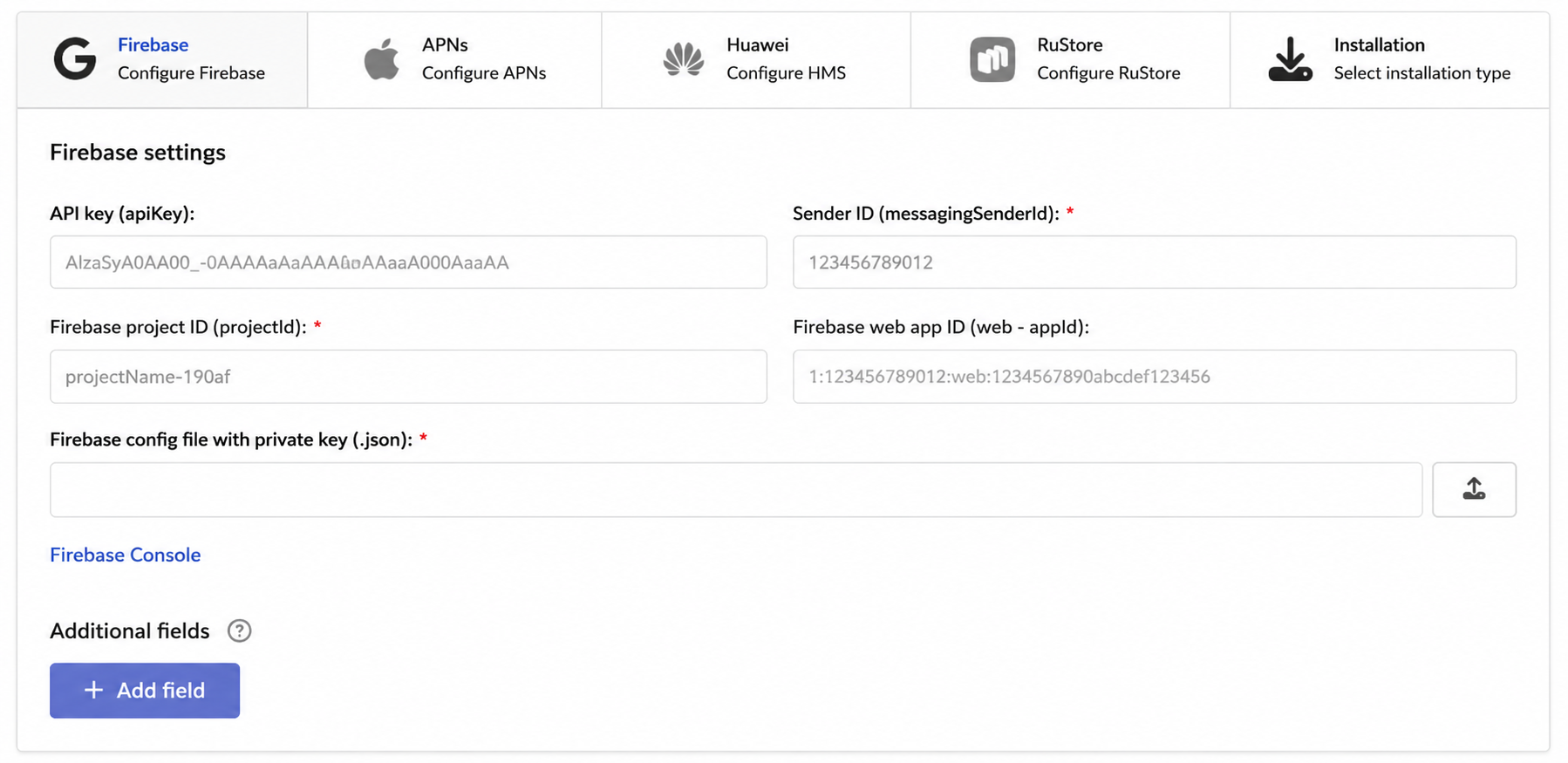 |
Private key generates in this settings section:
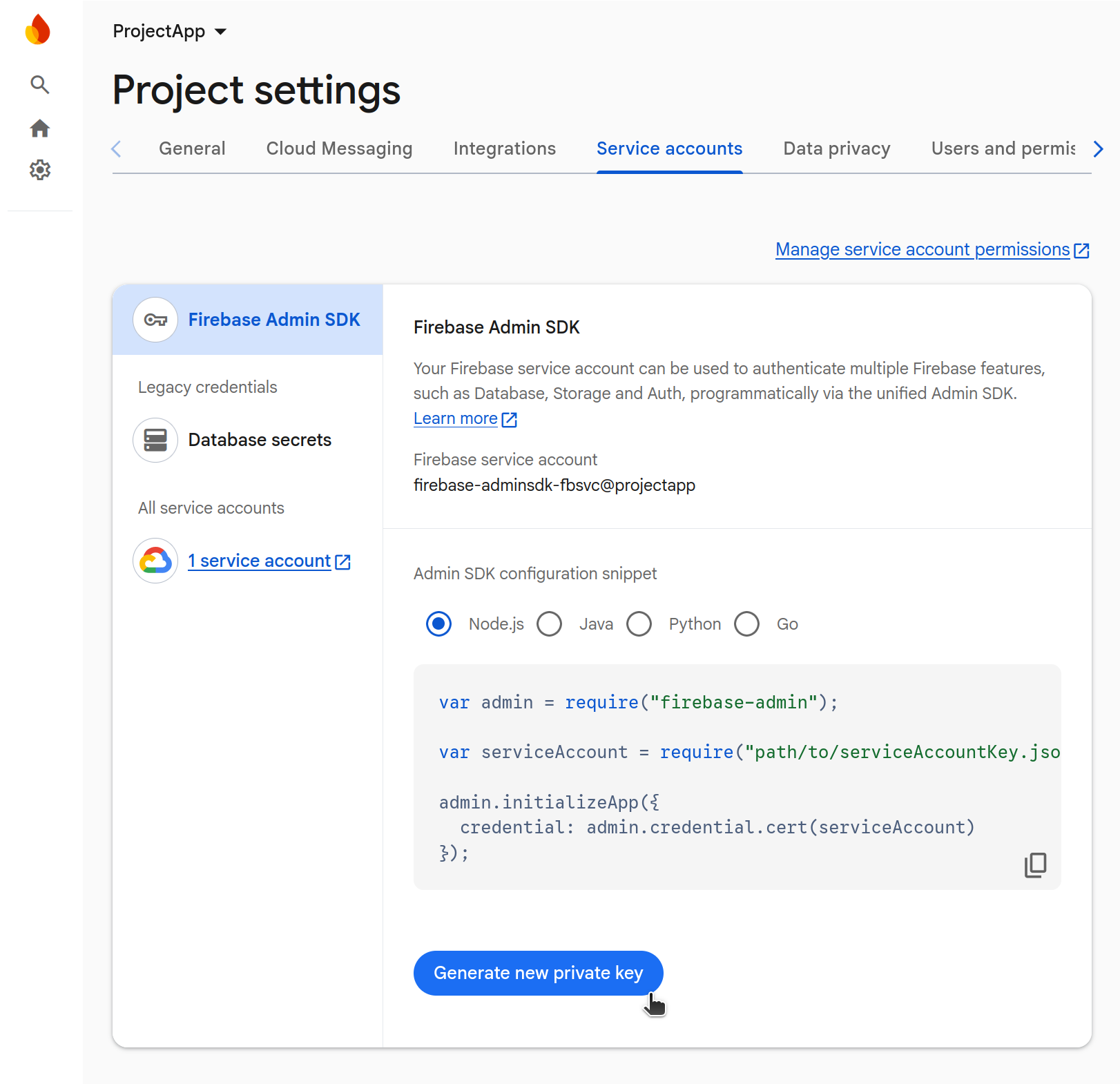
Save the resource using the buttons in the upper right corner of the screen. |
iOS
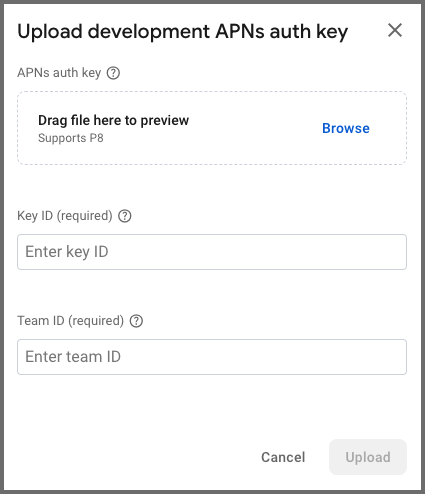
Go to your Firebase project settings — Cloud Messaging — Apple app configuration. Add the APNs Authentication Key data (the key must be created in advance on Apple Developer): | 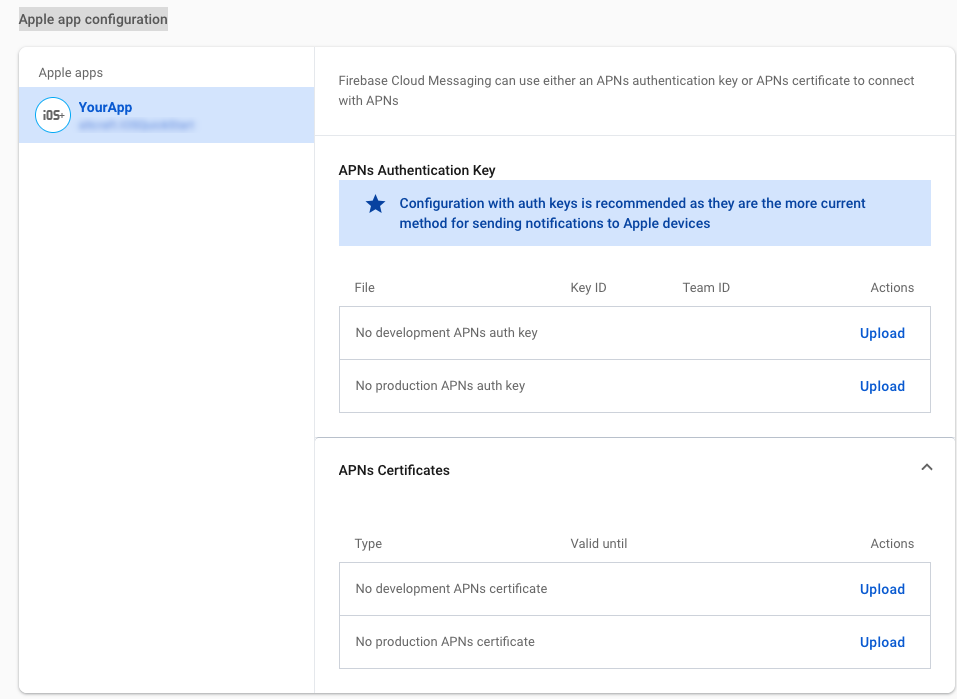 |
Then:
|  |
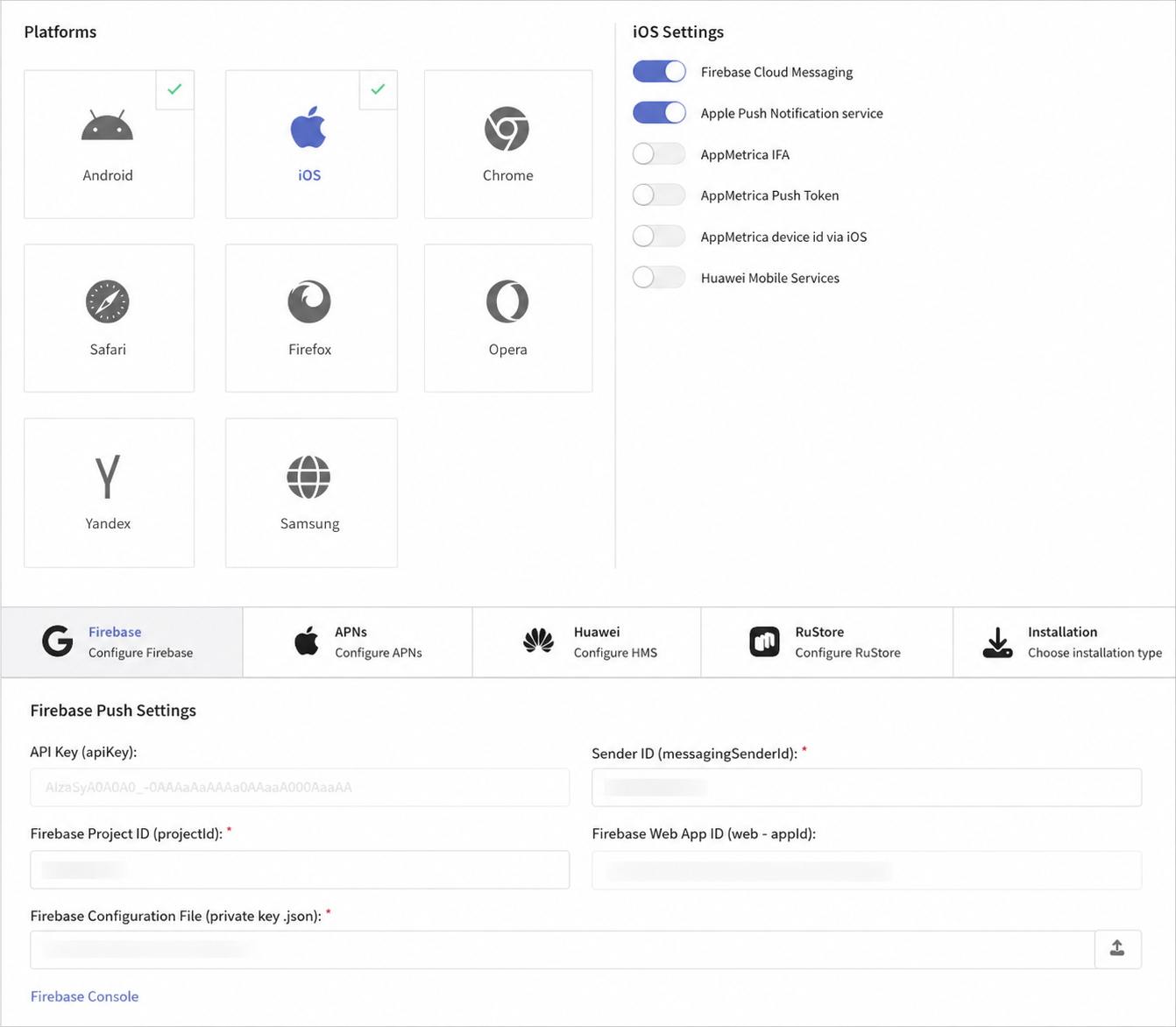
Return to the Altcraft platform. Select the iOS platform and activate the Firebase Cloud Messaging toggle. Specify:
|  |
Save the resource using the buttons in the upper right corner of the screen. |
What's next
- App integration with Altcraft — adding SDK and registering subscriptions
- Push message structure — message format for Firebase