Loyalty programs
A loyalty program is a customer reward system for target actions such as purchases, registration, content viewing, and more. Customers earn points that can be spent on discounts, movies, plans, and services. The program includes tiers (bronze, silver, etc.), reporting, rules for points accrual and expiration, as well as integrations with other services and communication channels.
Creating a loyalty program
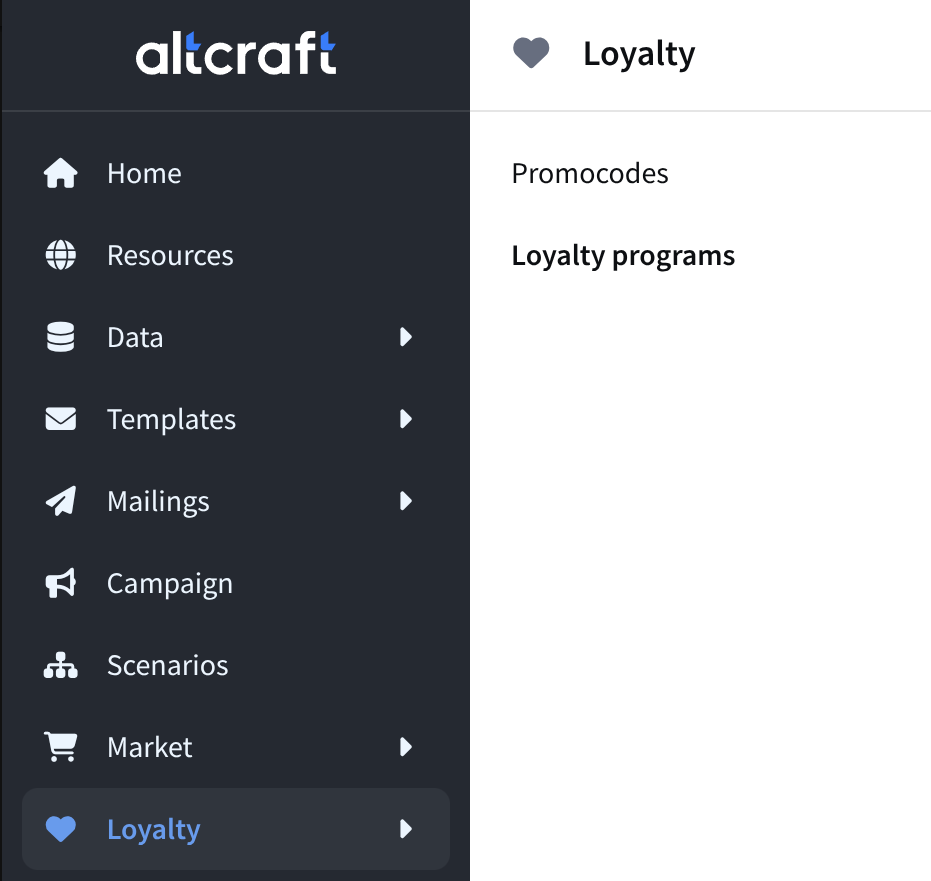 | To manage loyalty programs, go to Loyalty — Loyalty programs in the main menu. A list of existing loyalty programs will open. To edit a program, click its title. |
To start a new loyalty program, click + Create at the top of the page:

The loyalty program settings window will open. Specify the name of your program and its external identifier. Optionally, add a description:
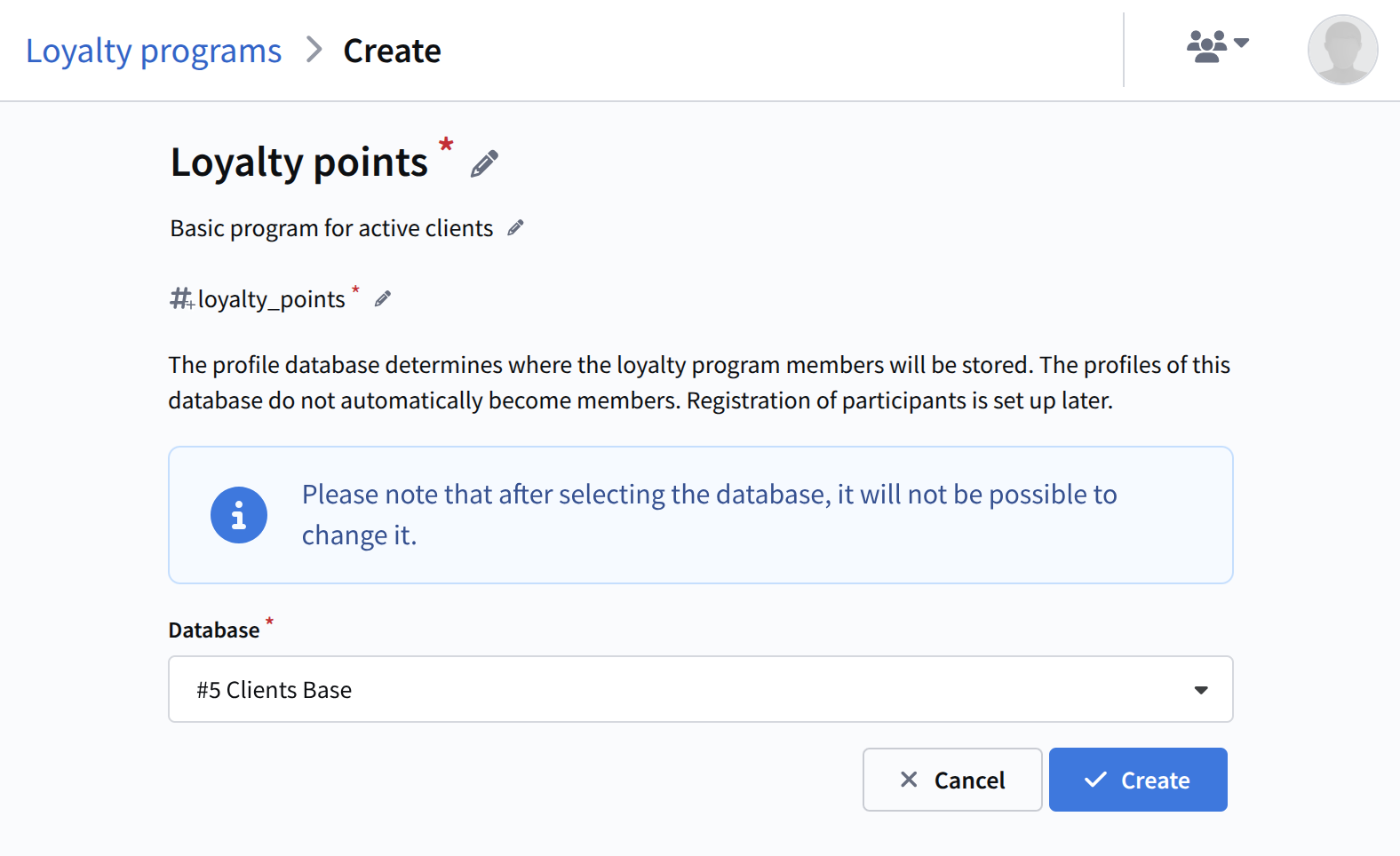
Select the database from which participants will be taken.
Please note: after selection, the database cannot be changed; only one loyalty program can be active in a single database at a time.
Editing a loyalty program
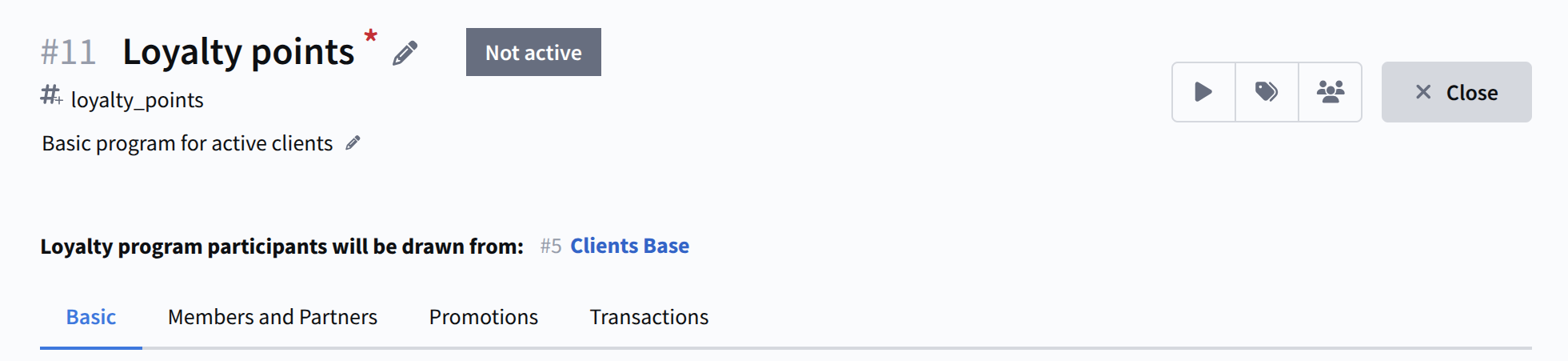
After creation, you will be taken to the loyalty program editor, which consists of several tabs: General, Members and partners, Promotions, and Transactions:
General
The General section is used to configure the basic structure of the loyalty program. It defines the key parameters that determine how points are accrued, used, and tracked, as well as how customers progress through loyalty tiers.
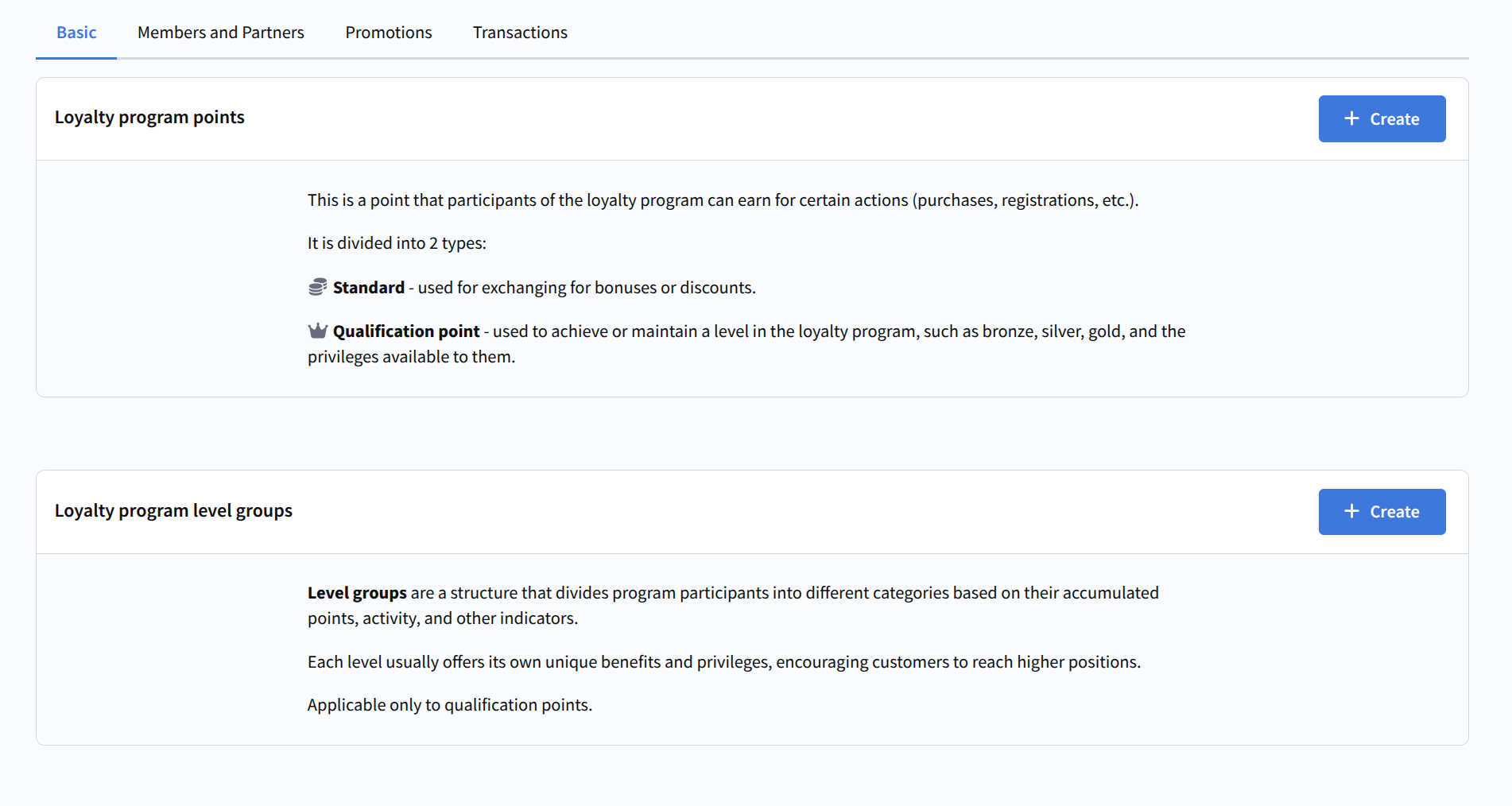
Loyalty program points
Loyalty program points — this block is used to create and manage points types within the loyalty program. Specify the points name and external identifier, and optionally add a description.
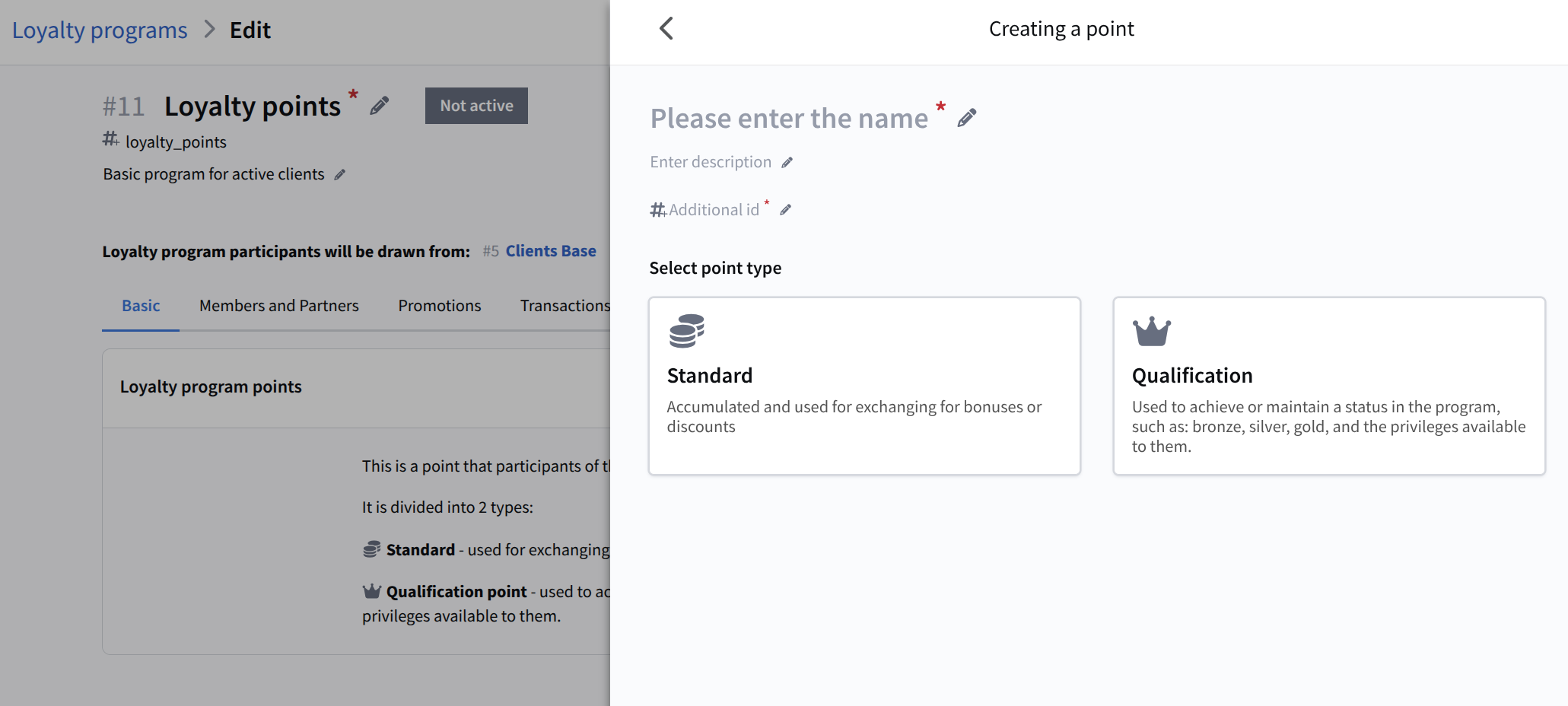
There are two types of points:
Standard points — points credited to the bonus account that the customer can later use to fully or partially pay for purchases.
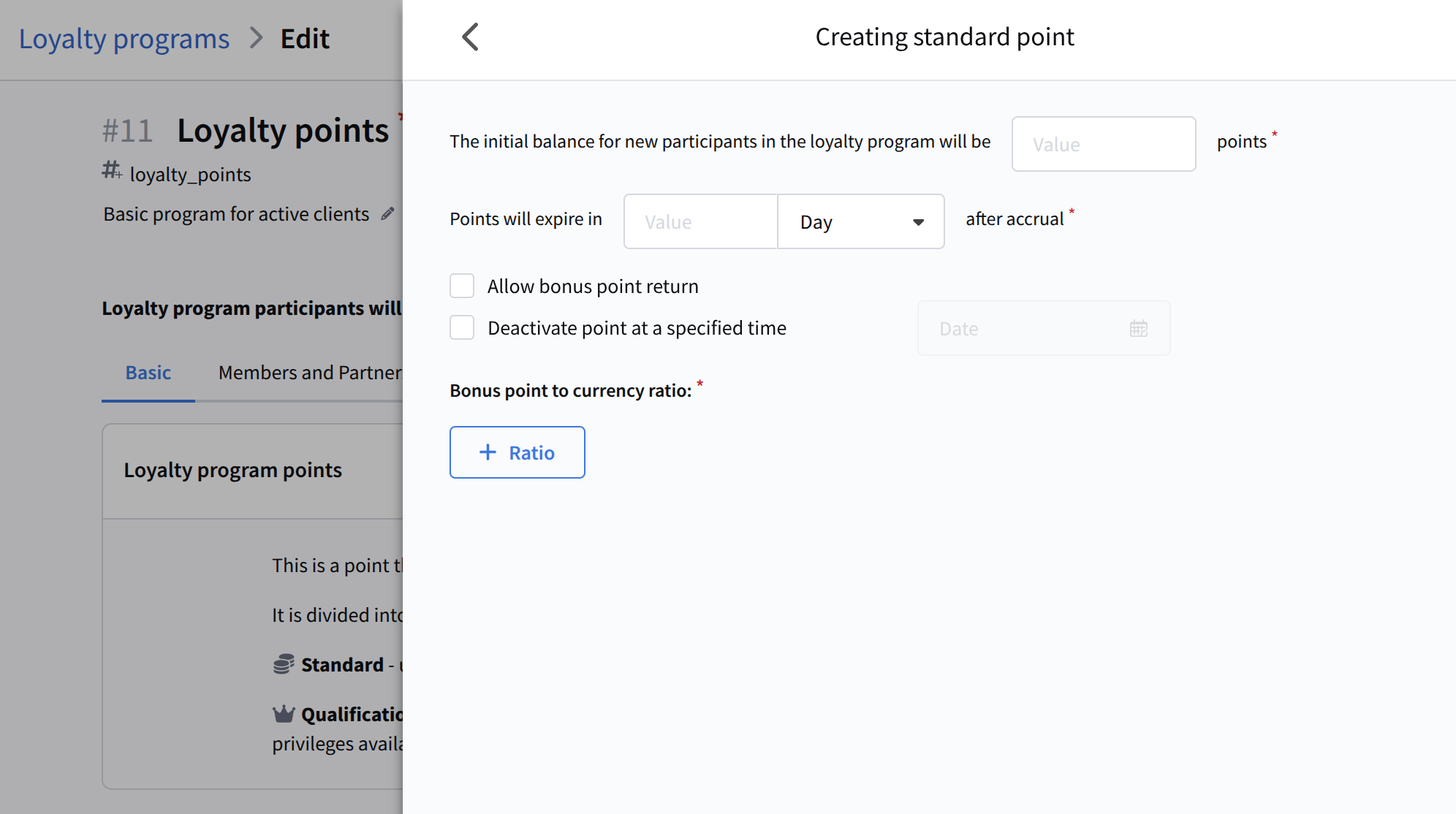
When creating standard points, you can configure the following parameters:
- Initial balance for a new loyalty program member — the number of bonus points automatically granted to a new member upon joining the program. The value is specified in points.
- Points validity period — defines how long accrued points remain valid. The period can be set in days, weeks, months, or years. After expiration, points are canceled.
- Allow bonus points refund — enables returning bonus points to a member, for example, in case of a product return or service cancellation.
- Deactivate points at a specific time — sets a date after which the points become inactive (not accrued or used). Useful for temporary or seasonal programs.
- Bonus-to-currency ratio — a required parameter defining how many bonus points correspond to a monetary amount, for example: 1 point = 1 USD or 10 points = 1 USD. Used for discount and redemption calculations.
Qualification points — used to evaluate customer activity and determine their tier in the loyalty program (bronze, silver, gold, etc.).
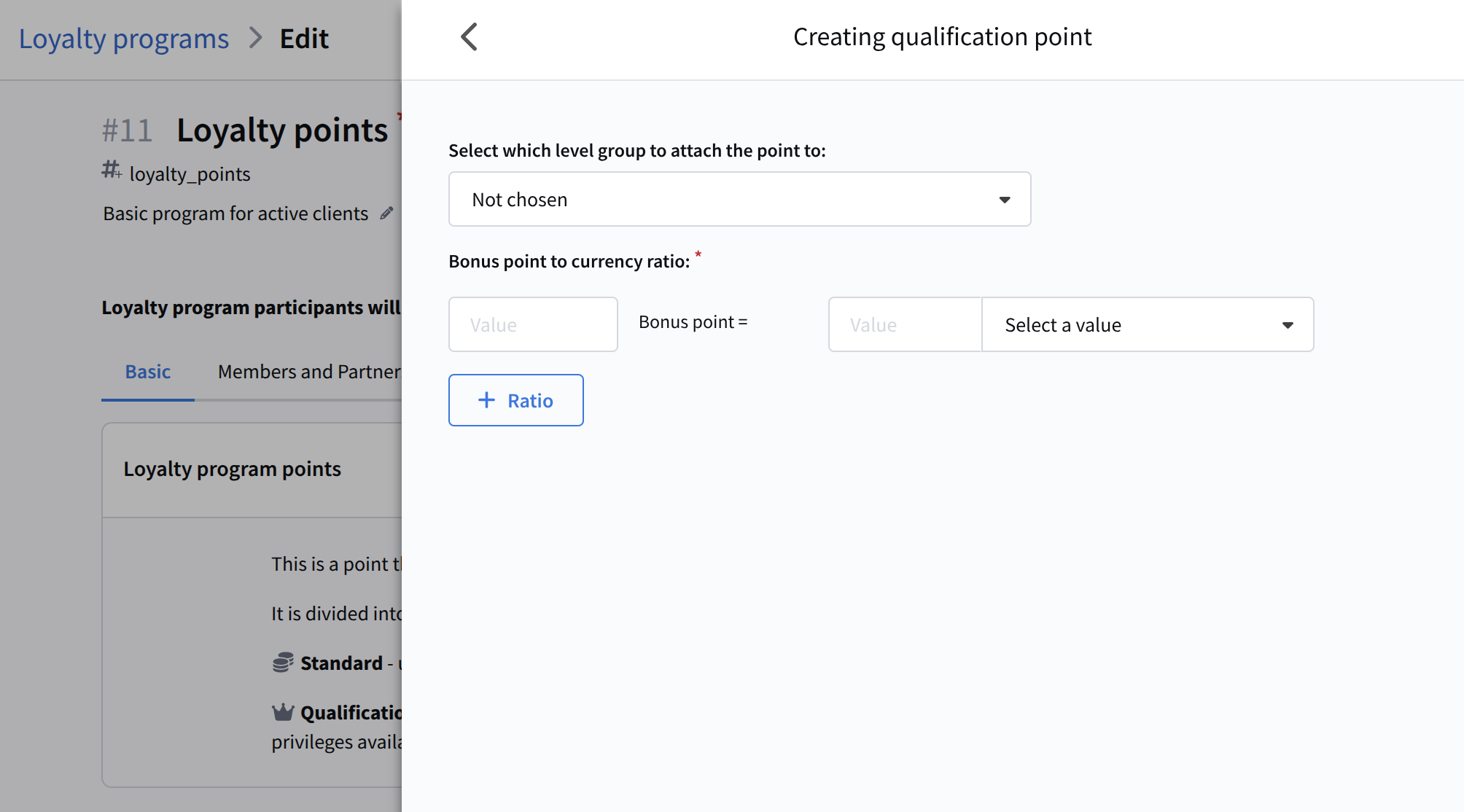
When creating qualification points, you can configure:
- Allow bonus points refund — enables returning bonus points to a member.
- Tier group binding — links the points to a specific loyalty tier group (for example, Bronze, Silver, Gold). This can be used to configure different accrual rules or rates depending on the customer's tier.
- Bonus-to-currency ratio — defines the conversion rate between points and monetary value.
Do not forget to activate the created points. If needed, points can be cloned to create another type based on them.
Loyalty tier groups
Loyalty tier groups allow you to segment loyalty program members into different levels or statuses based on activity, accumulated points, or other criteria.
Specify the name and external identifier of the tier group, and optionally add a description:
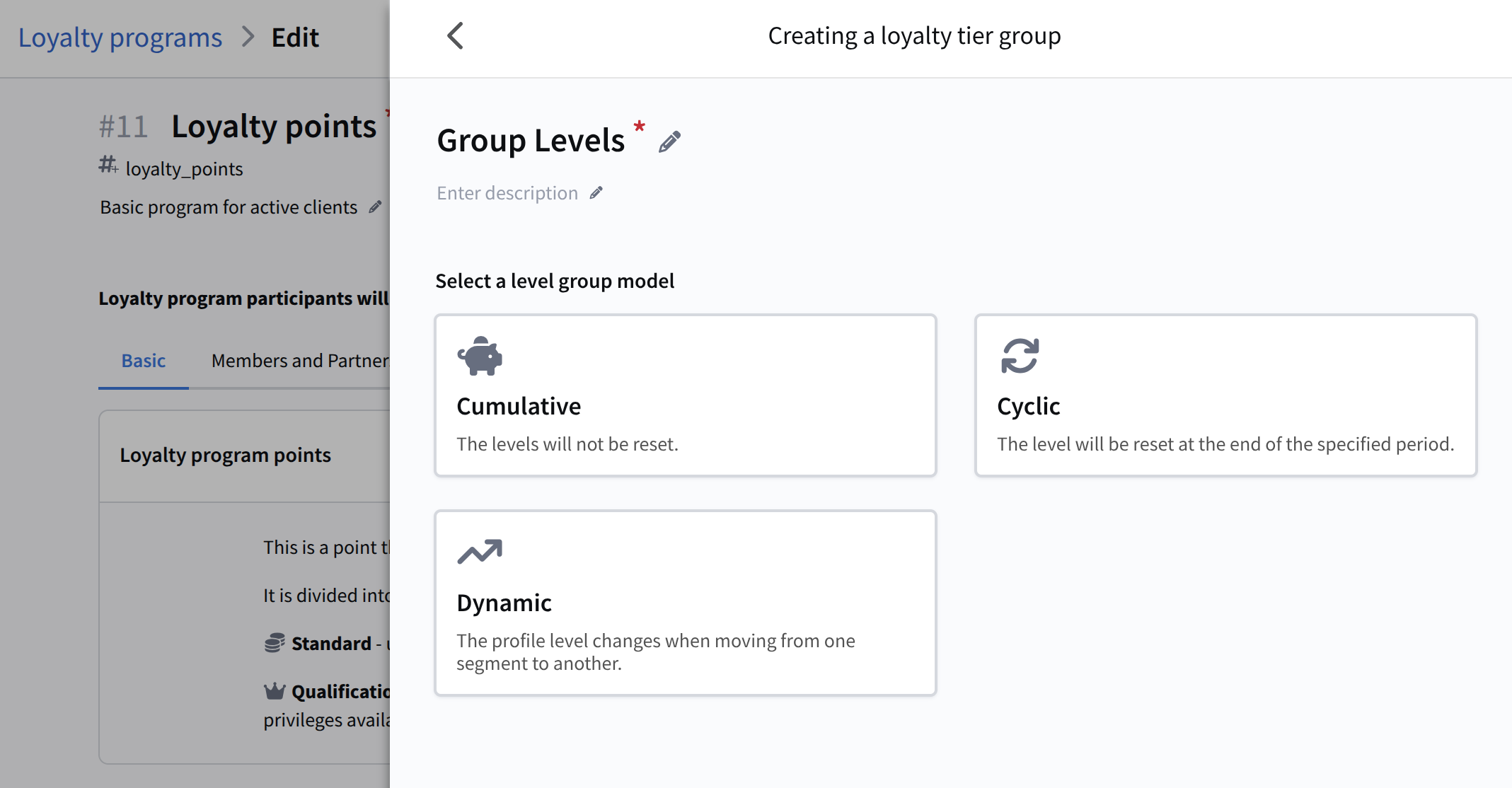
Several tier group models are available:
- Cumulative model — once a member reaches a tier, it is retained permanently. After a user accumulates enough points or meets the necessary conditions, they receive a status that stays with them and does not reset over time. This is convenient for programs aimed at long-term motivation and rewarding loyalty.
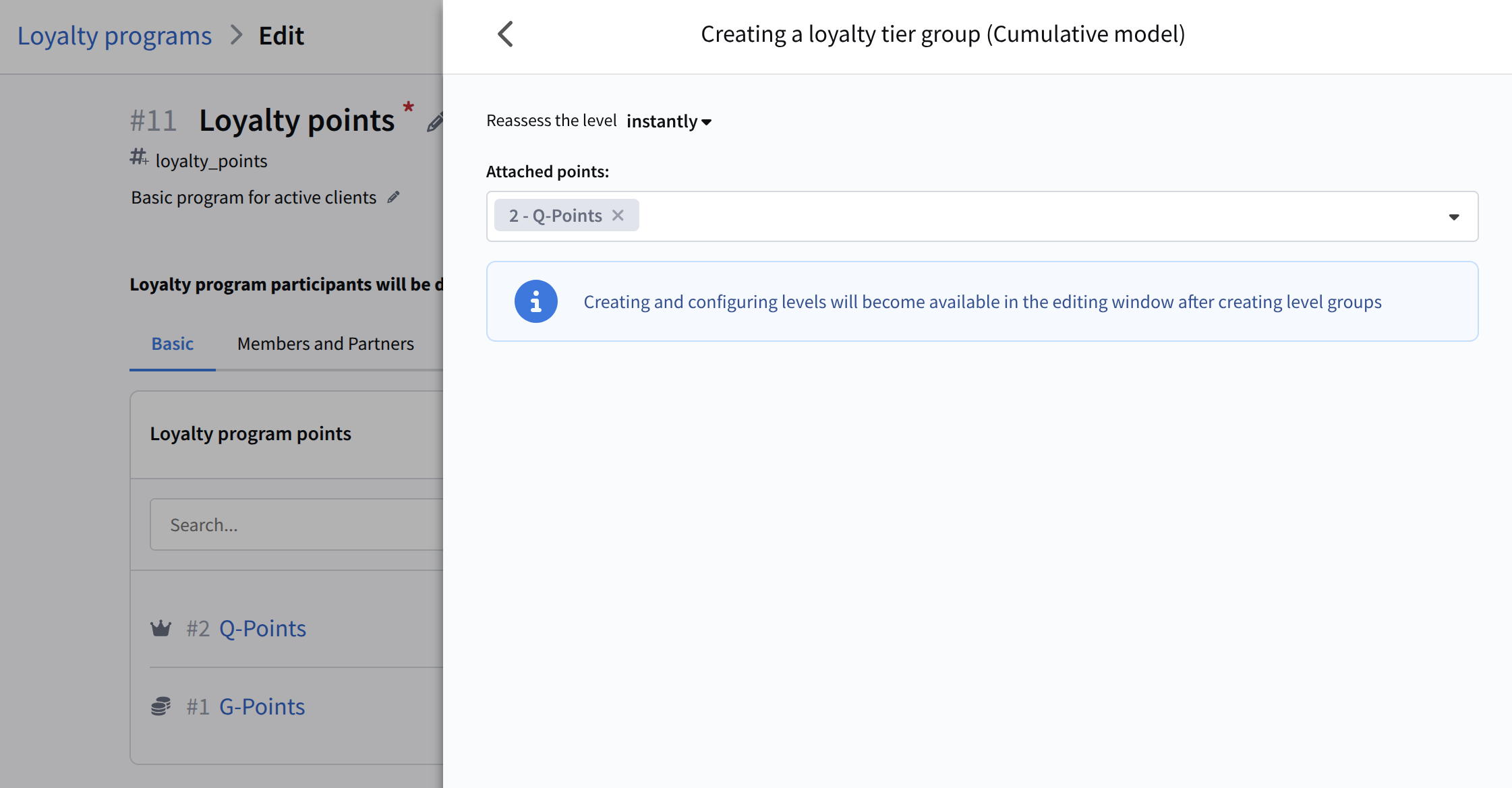
Specify the points type bound to this model.
- Cyclic model — the achieved tier is valid only for a defined period. After the period ends, the system reevaluates the member's status: if they have not confirmed their activity or met the required conditions, the tier may be lowered.
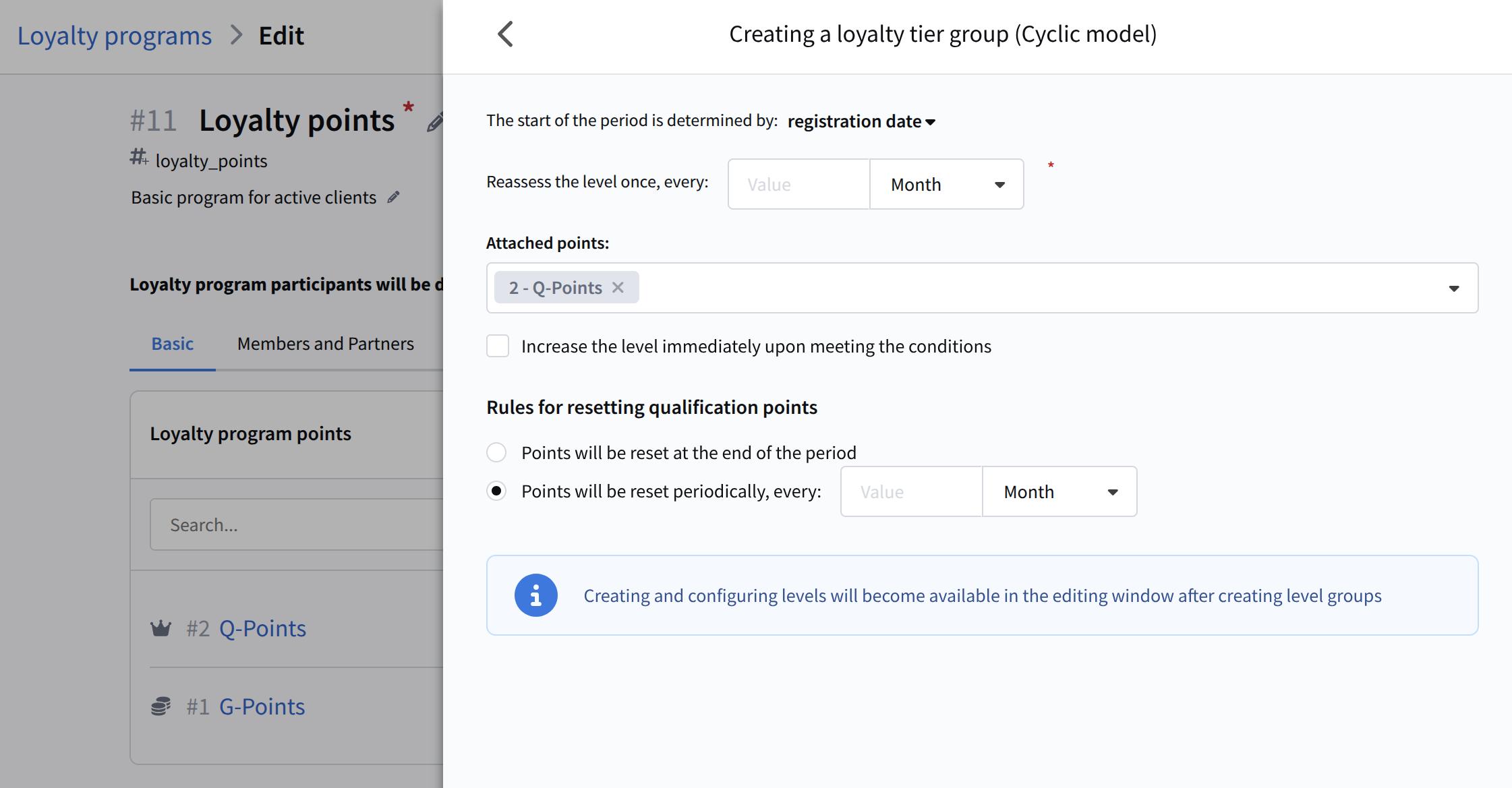
Configure the model:
-
Set the interval for tier reevaluation;
-
Specify the points type bound to the model;
-
Enable Upgrade tier immediately when conditions are met to apply tier changes instantly;
-
Configure qualification points reset rules, you can choose reset at the end of each period or at fixed intervals (for example, every 6 months);
-
Optionally enable Extend tier until the end of the month — the tier is retained until the end of the current calendar month, even if the member did not meet the conditions to maintain it.
-
Dynamic model — the member's tier directly depends on their current characteristics or activity and changes automatically when conditions change.
After completing the basic settings, go to Members and partners.
Members and partners
The Members and partners section is used to manage loyalty program members (end users) and partners (companies providing additional benefits).
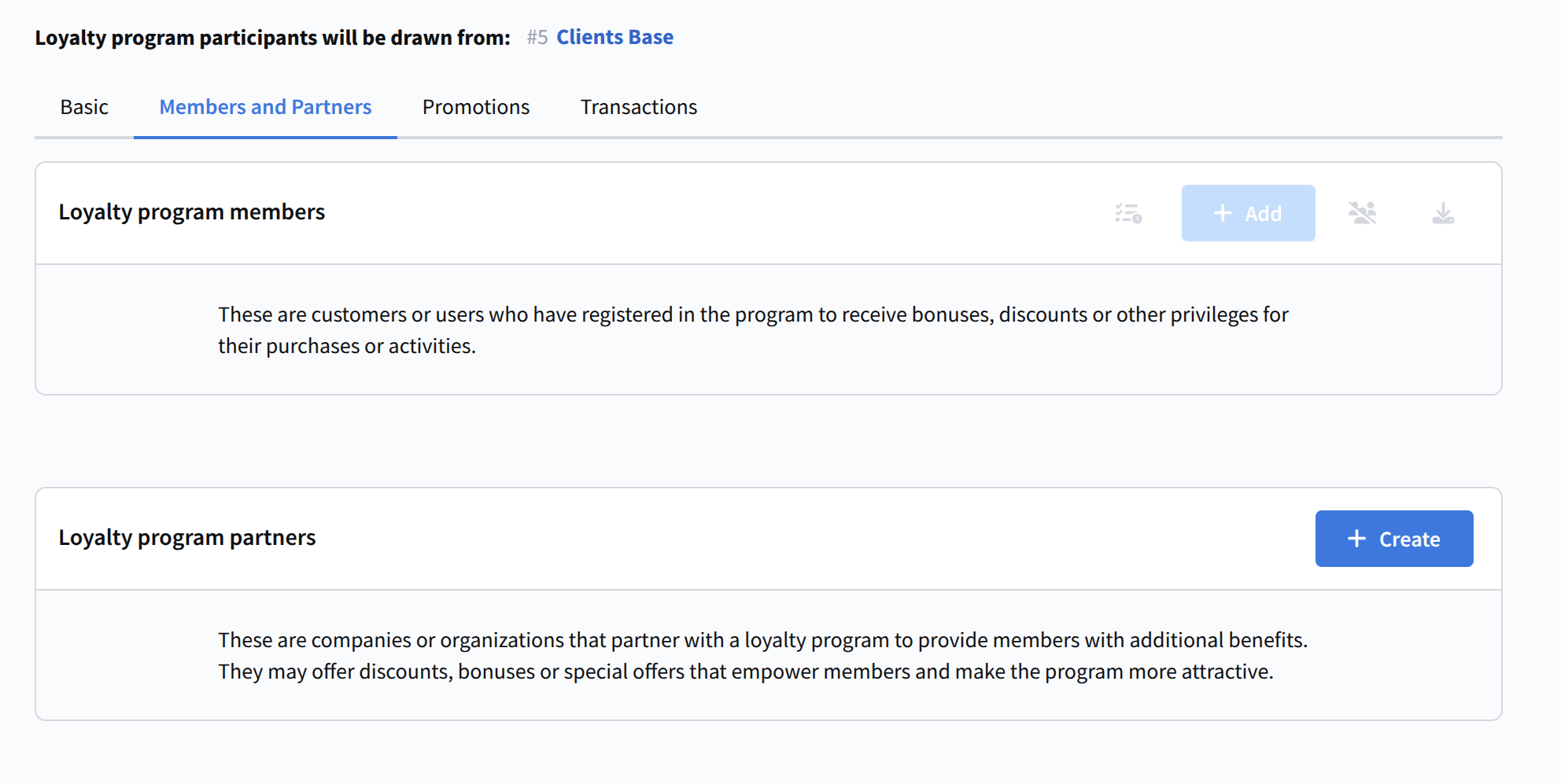
This section includes the following elements:
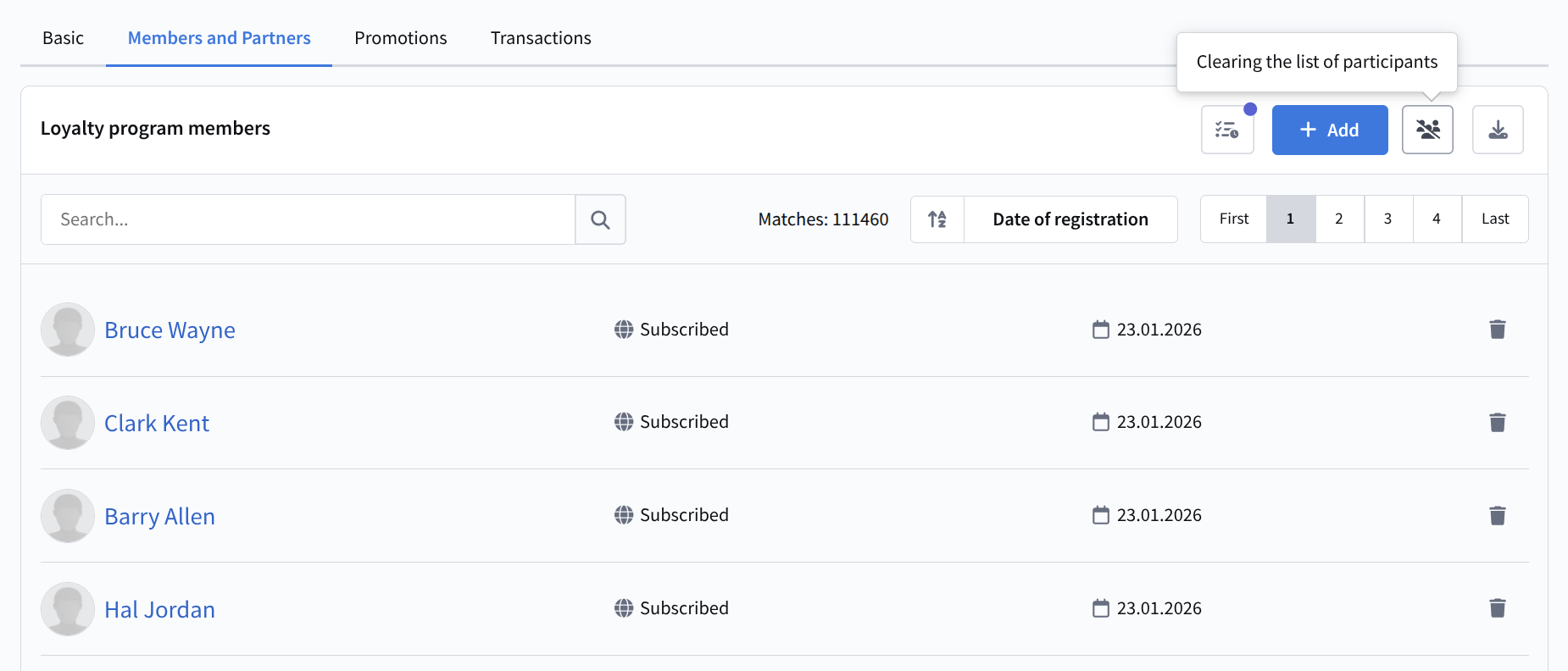
Loyalty program members — customers registered in the loyalty system. They earn points for specific actions (for example, payments, content viewing, data confirmation) and can redeem points for discounts, content, or additional options.
To add members, click + Add. Three options are available:
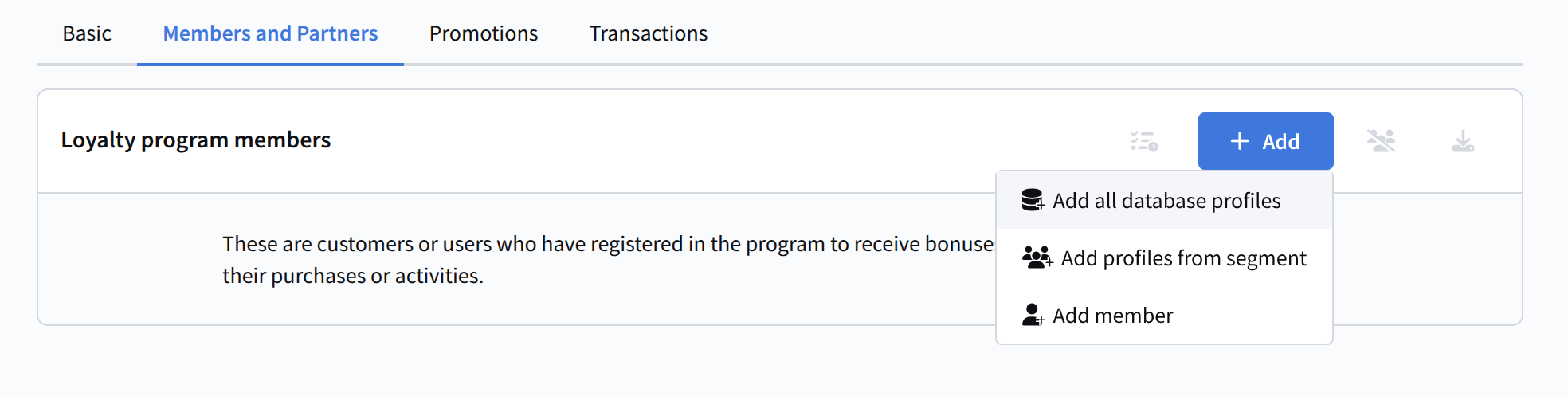
1. Add all database profiles — mass registration of all customers in the database. 2. Add profiles from a segment — registration of a selected group of users, for example, active customers, those who recently paid for a service, etc. 3. Add a member — manual registration of a single customer.
Additionally, the following methods for adding members are available:
- Automation via the "Loyalty Participation" node — automatically adding customers within scenarios when specified conditions are met, for example, after submitting a form.
- Integration via API — adding members programmatically using an API call. Suitable for connecting external systems and services.
Specify the registration date source.
It can be a specific date:
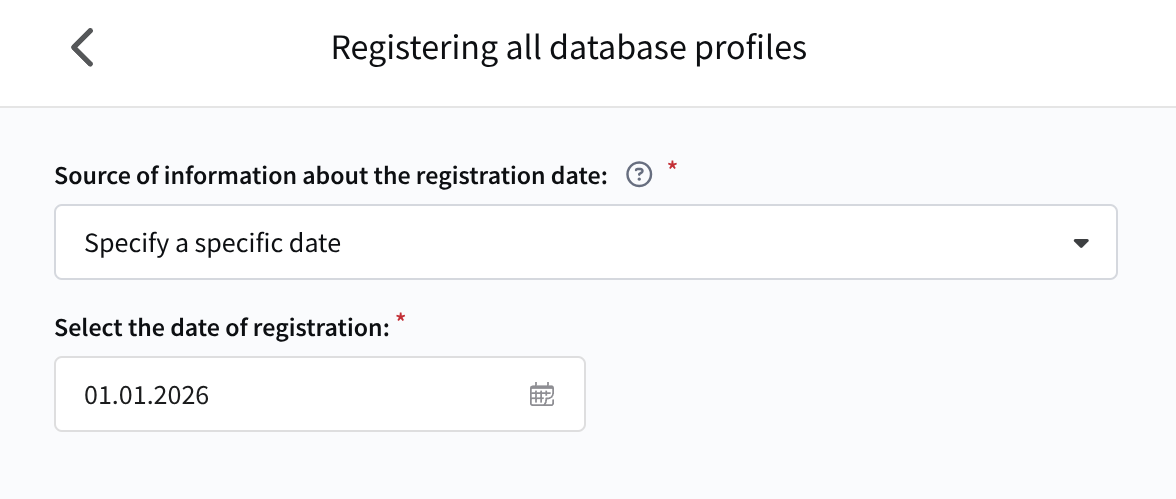
Or a profile field:
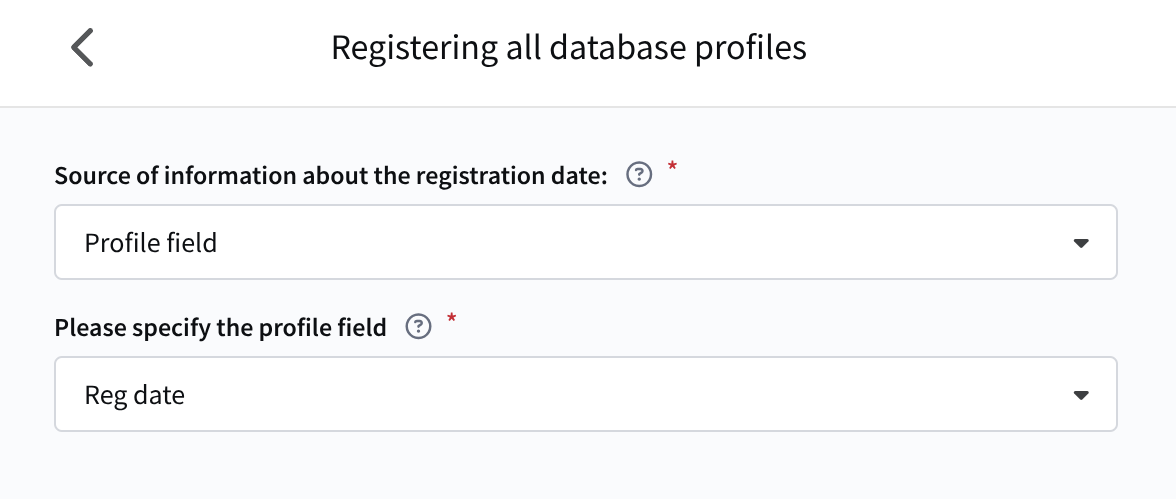
After members are added, you can remove individual members or all members using Clear members list, and export the list using the corresponding button.
Loyalty program partners — this section manages organizations cooperating with the loyalty program to expand its capabilities. Partners provide participants with additional privileges — from discounts to exclusive offers.
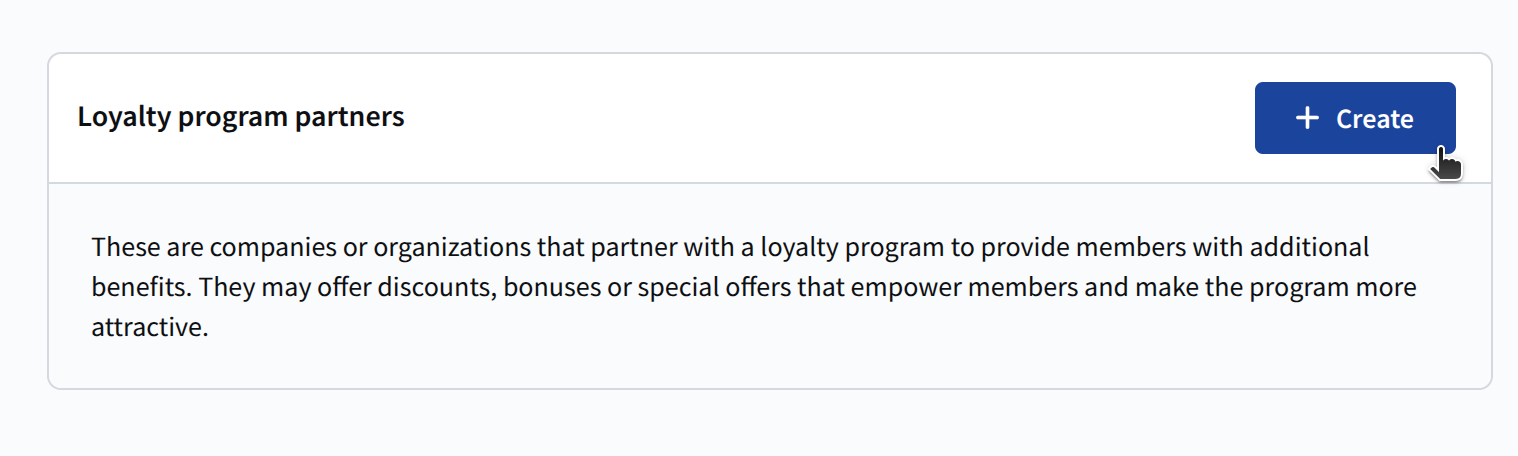
Click + Create to add a new partner. The partner settings window will open:
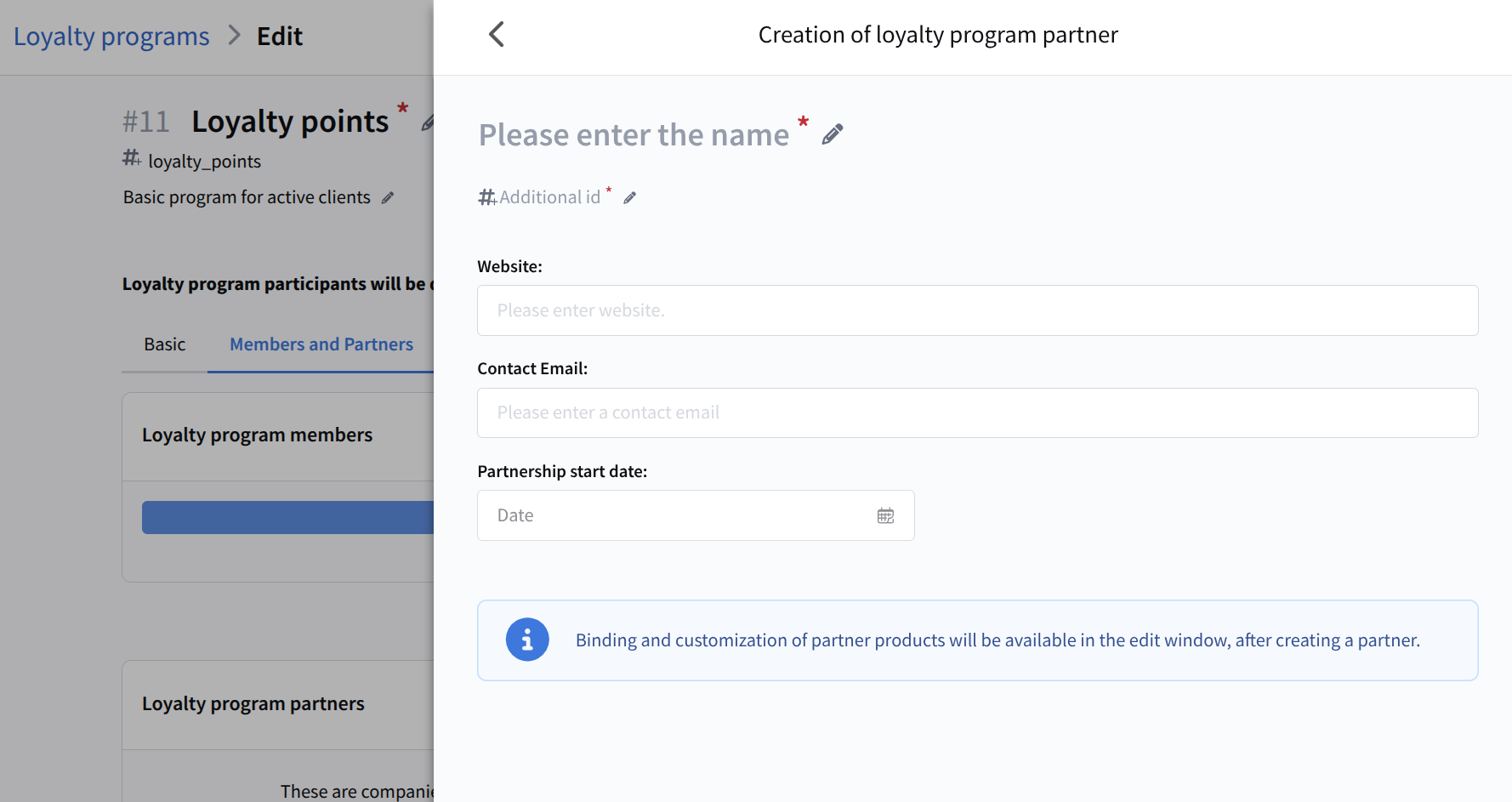
Specify the partner name and external identifier. Optionally, add a link to the partner's official website for reference, provide a contact email, and set the partnership start date.
After creating and saving the partner, you can link Partner products from the Market to which partner terms will apply.
For each product, a discount percentage is configured, which will be provided to loyalty program participants when purchasing partner products. These settings are used in promotions with the "Discount from a partner" benefit and are taken into account when calculating an order.
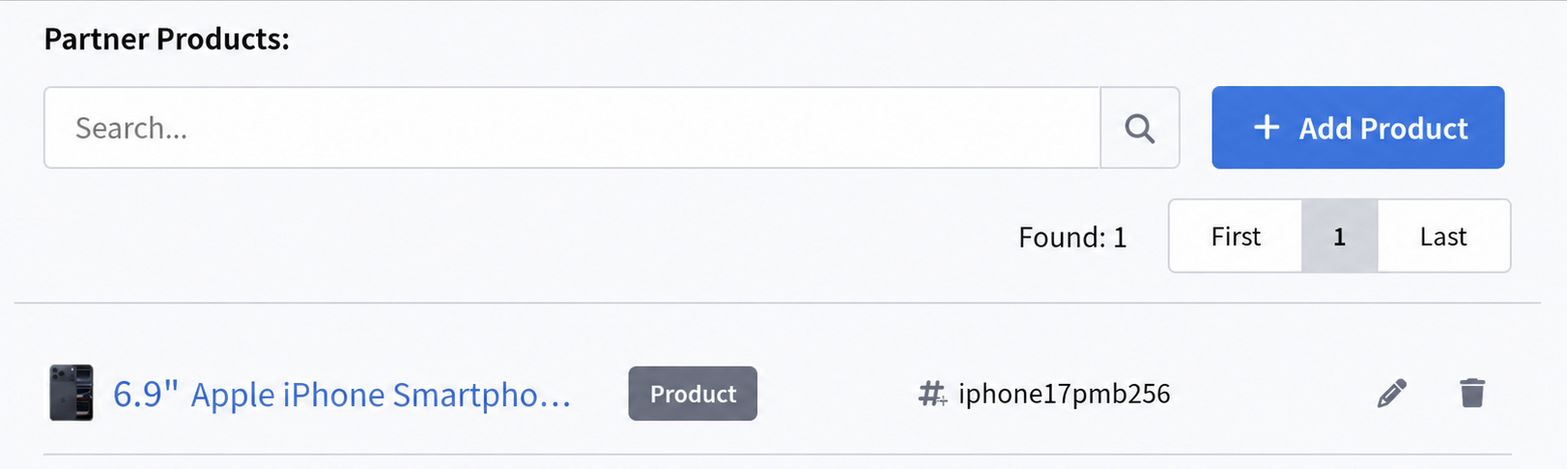
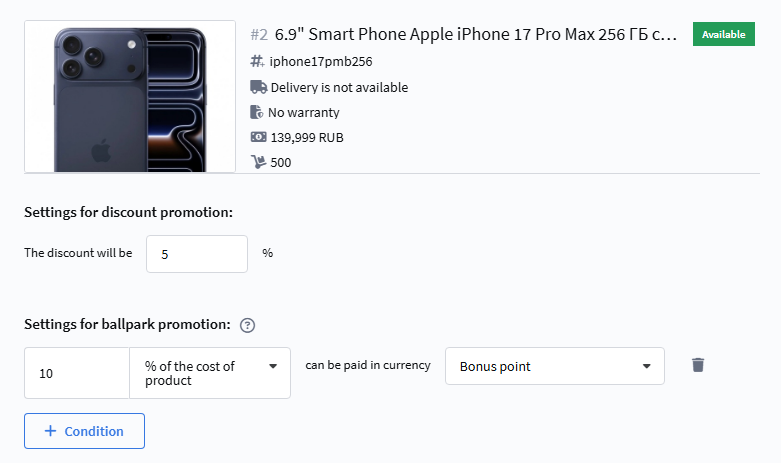
When adding partner products, you can also set application conditions depending on the type of promotion.
Settings for discount promotions:
- Discount will be % — discount type;
Settings for points promotions:
- Value — the number of points or the percentage of the product price to be used for calculation;
- Points / % of product price — choice of calculation mechanics: points accrual/deduction or applying a discount in %;
- Can be paid with currency — determines how many points can be used as a monetary equivalent:
Partner products are used to form special offers within the loyalty program. Such offers are available only to participants for whom the partnership terms apply and are configured through corresponding promotions with the "Discount from a partner" benefit.
Promotions
The Promotions section is used to create and manage loyalty program promotions that automatically accrue and deduct points, apply discounts, and grant other benefits to orders and products in the Market.
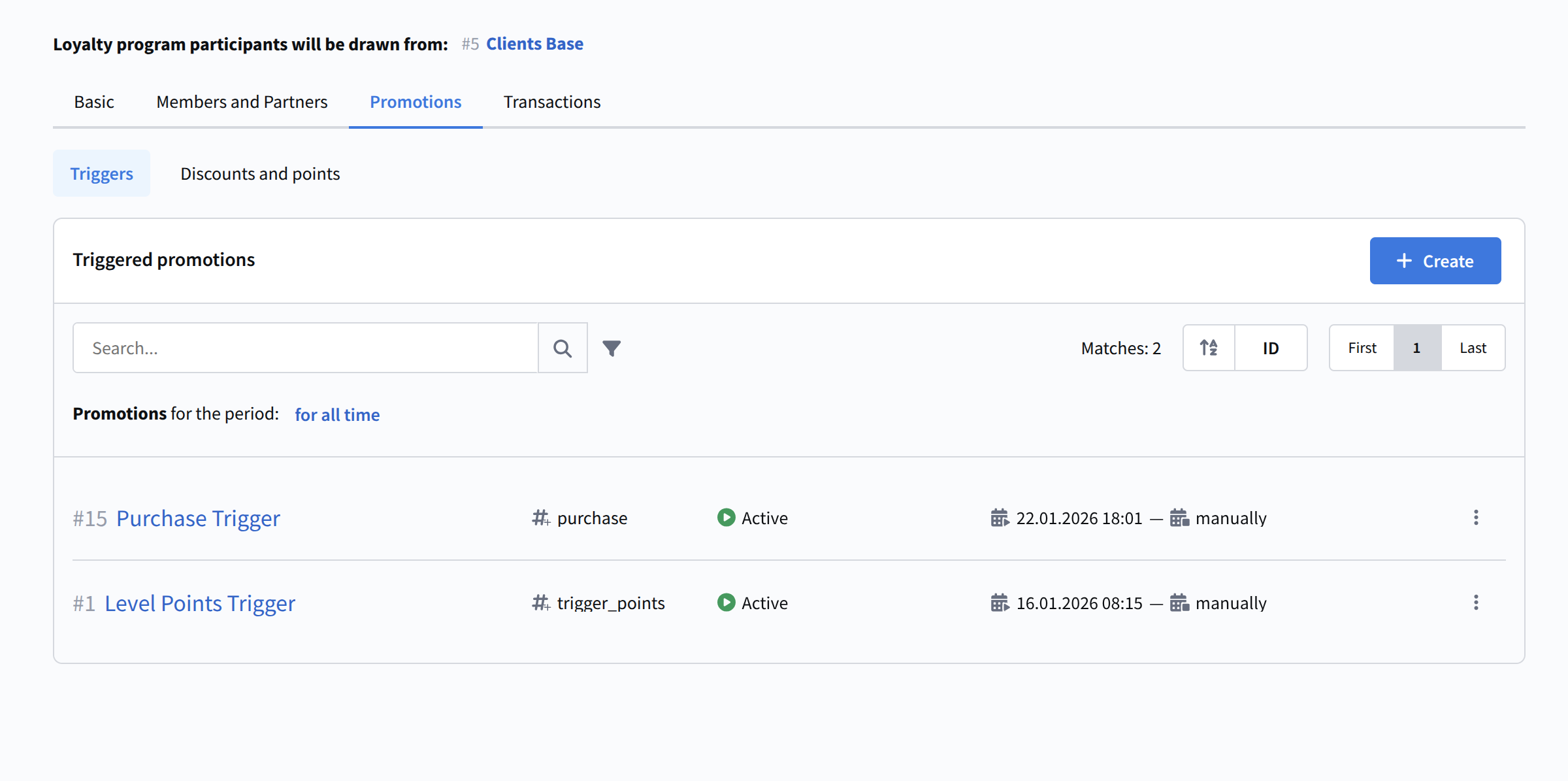
Promotions are divided into two groups: trigger and discount and points promotions.
Trigger promotions
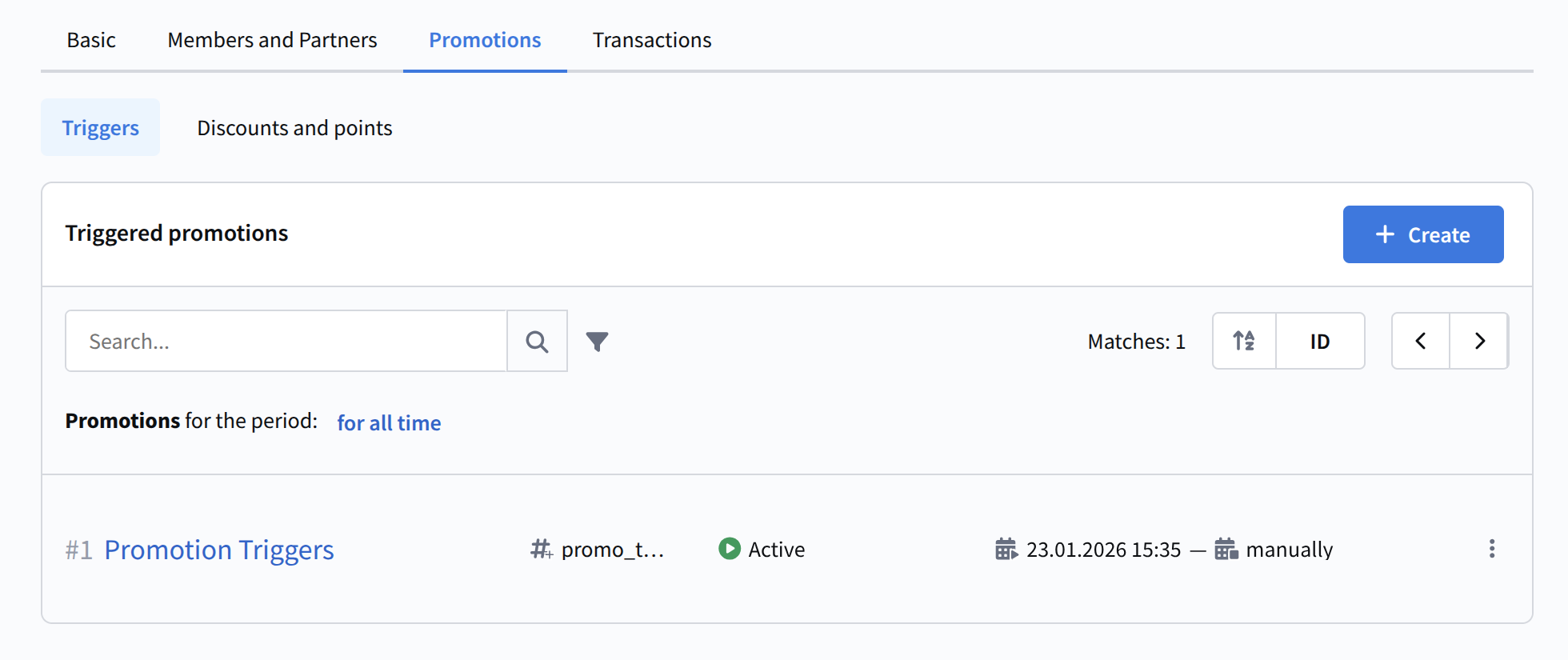
Trigger promotions are marketing activities in which, when rules are met (triggers are activated), a participant becomes eligible to receive bonus points. In other words, this is a set of rules according to which a customer can earn (and later lose) loyalty points. Such promotions are linked to triggers when creating campaigns and scenarios.
To create a new trigger promotion, click + Create. A promotion setup window opens:
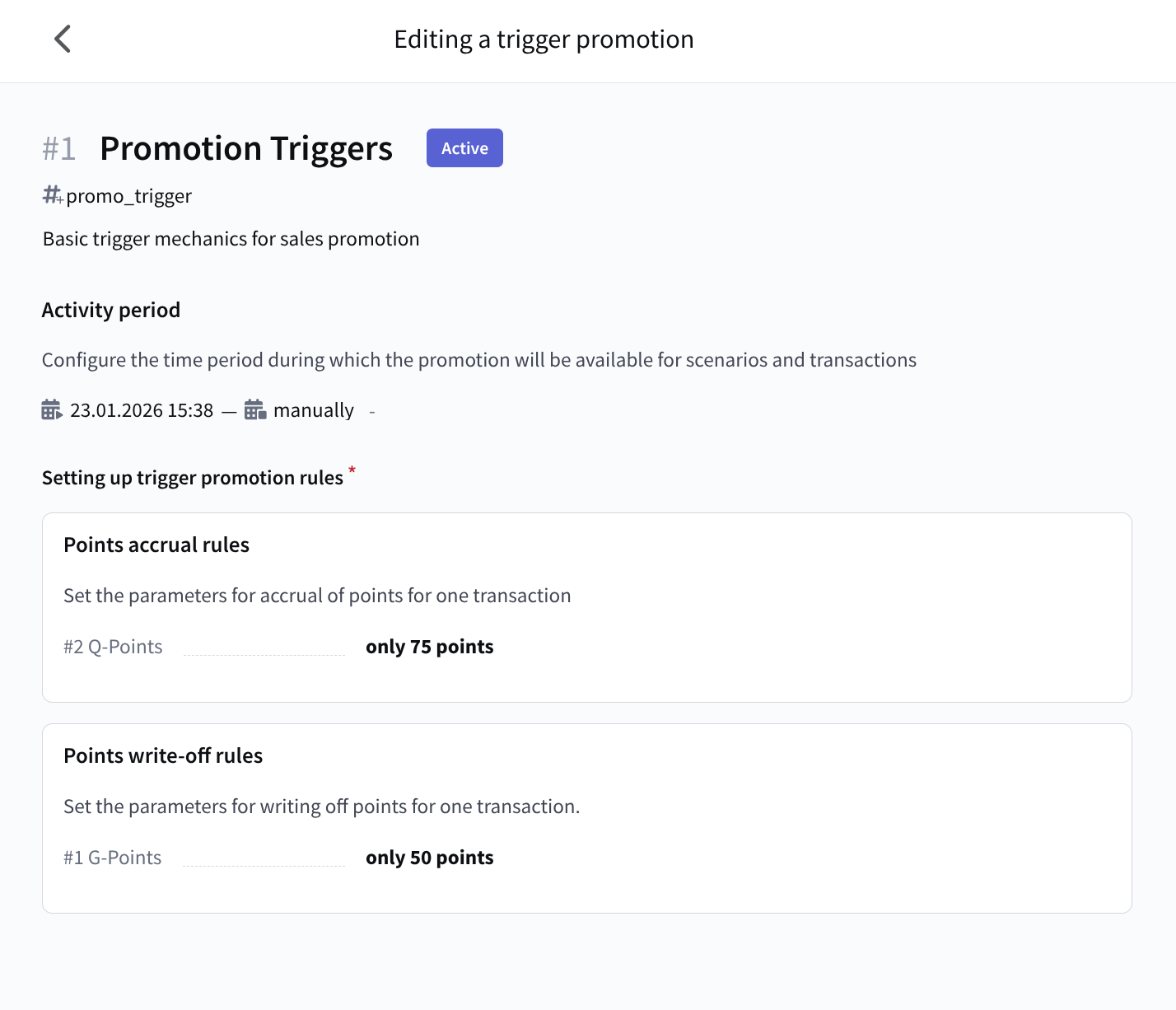
Specify the name of the promotion and its additional identifier. Add a description if needed.
Then set the start and end dates of the promotion:
- Promotion start — starts immediately after activation or at a specific date and time;
- Promotion end — ends manually, at a specific date and time, or after a specified period.
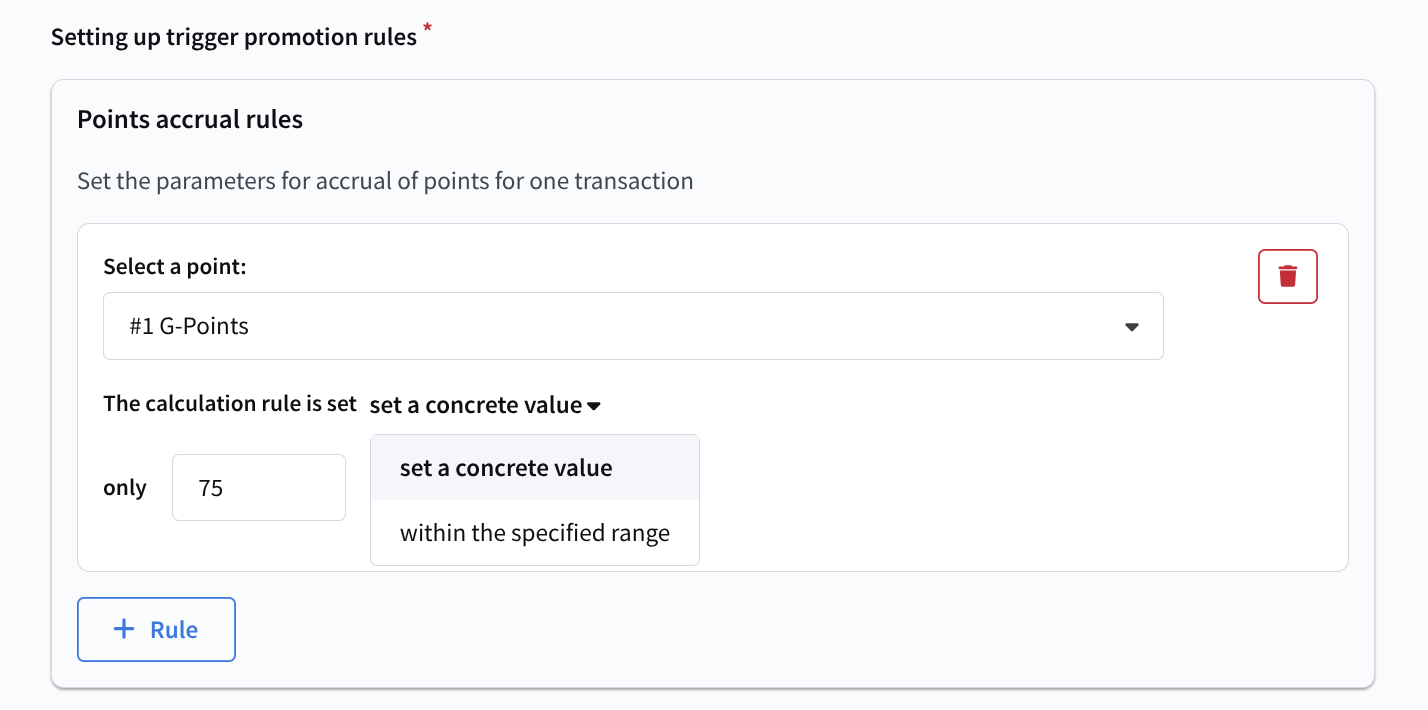
Next, define the promotion rules. They control how points can be accrued and deducted for participants. Accrual and deduction rules are configured as separate conditions. Specify the point type to which the rules apply and the exact value or range of points to be changed:
After saving and activating the promotion, it can be used in trigger-based campaigns and scenarios to automate point accrual. For example, you can set up a promotion that awards bonus points for placing a first order, purchasing products from a selected category, or reaching a specific order amount.
Discount and points promotions
Points and discount promotions are loyalty program promotions that are automatically applied at checkout or during order calculation via the Market. They manage point accrual and deduction, discount application, and other benefits based on configured conditions, audiences, and application rules.
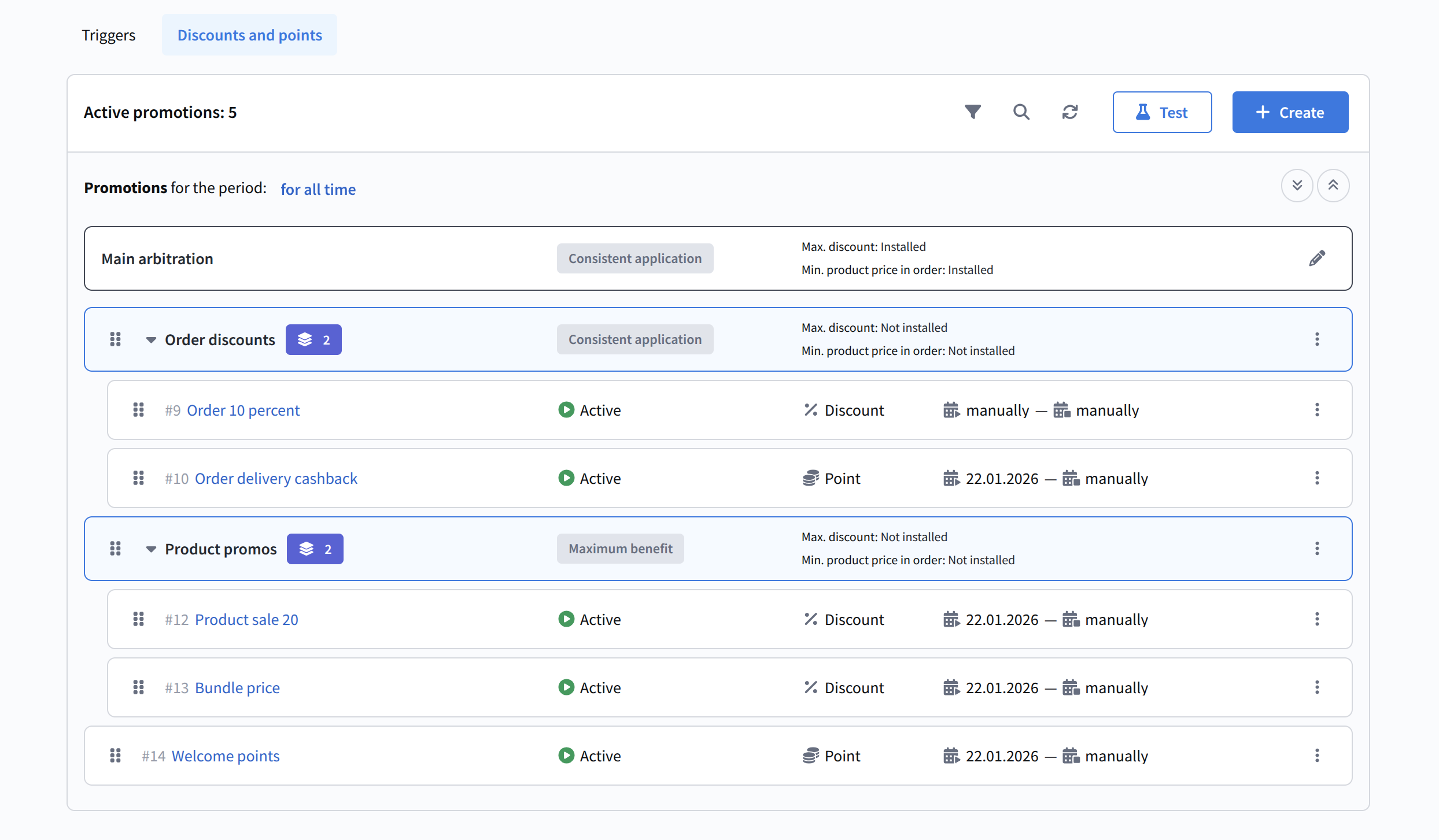
Points promotions manage a participant's loyalty balance. They accrue or deduct points, both standard and qualification, when specified conditions are met, such as purchasing products, reaching an order total, participating in a promotion, or using points for payment. These promotions do not change product prices directly; they affect the participant's future benefits and loyalty tier. Within points promotions, you can accrue both standard and qualification points, depending on the selected point type and configured benefits. This allows you to simultaneously manage the participant's bonus benefit and their loyalty program tier.
Discount promotions are applied to orders or individual products and change their price. They are used to grant purchase benefits such as discounts, special prices, and other incentives.
Arbitration
Promotions can run simultaneously and apply to the same order or product, so the system requires a mechanism to manage how they work together. For this purpose, the loyalty program includes arbitration.
Arbitration is a promotion application rule that defines how the system processes multiple eligible promotions at the same time. It determines:
- which promotions are applied;
- the order in which they are applied;
- whether promotions can be combined;
- which promotions apply together and which do not.
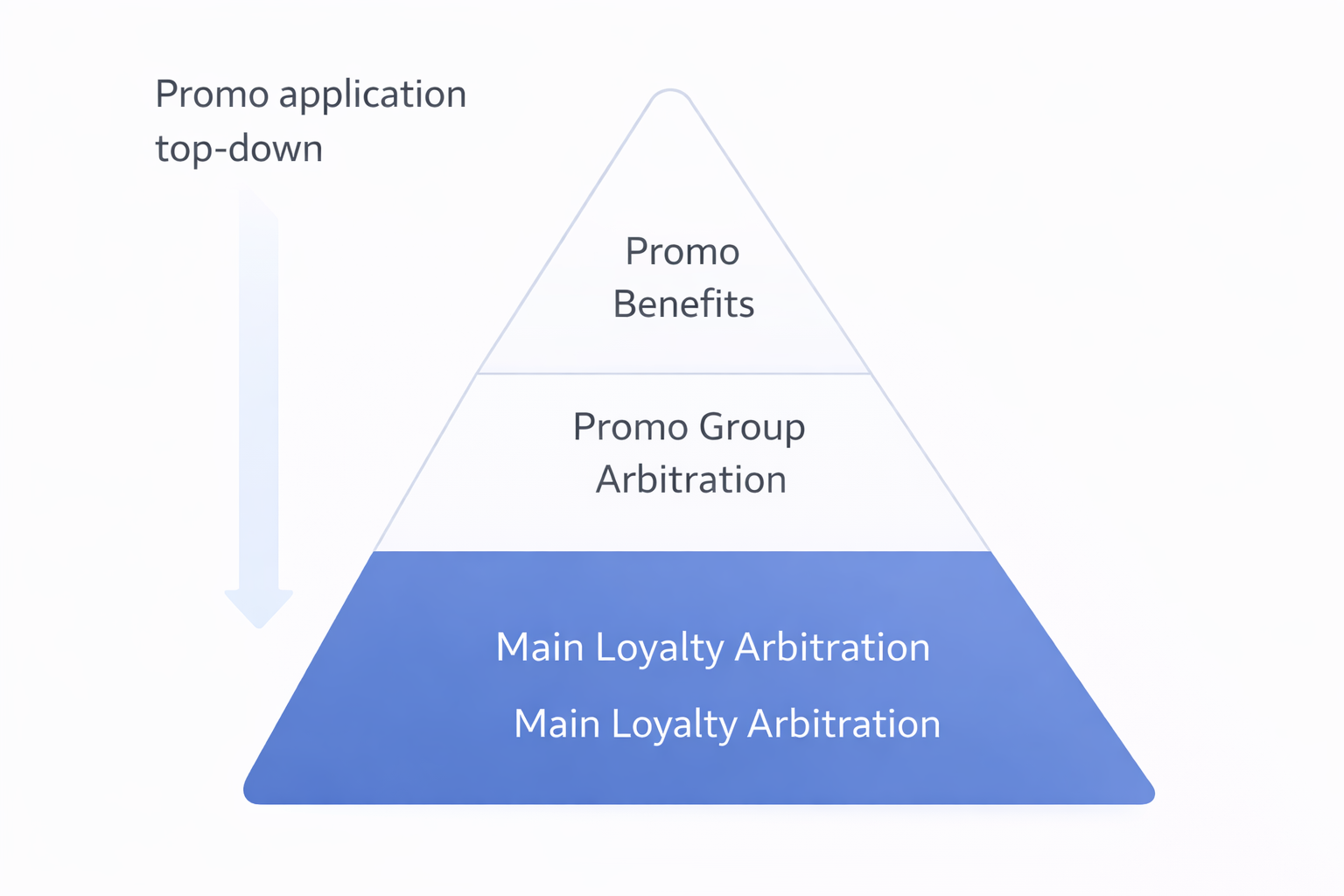
Arbitration is used whenever a single order or product meets the conditions of multiple promotions. It is configured at several levels and works hierarchically.
Main arbitration is the core arbitration applied to all points and discount promotions within the loyalty program. It defines the overall benefit calculation logic and always affects the final result, regardless of promotion structure.
Even if promotions are grouped or have their own rules, the final calculation always goes through the main arbitration.
Group arbitration allows promotions to be combined into groups, each with its own arbitration settings. It defines how promotions within the group interact. Groups can also contain subgroups.
Group arbitration works locally, only within its group. Its result is then passed upward and processed by the loyalty program's main arbitration.
In-promotion arbitration applies when a single promotion contains multiple benefits. It defines whether benefits are applied in parallel or sequentially.
There are several types of arbitration:
-
Consistent application — promotions are applied one after another in the order defined within the group. Each subsequent promotion is calculated based on the result of the previous one. For example, if one discount is applied first and another follows, the second discount is calculated from the reduced price. Suitable when order and step-by-step price or balance changes matter.
-
Incompatibility — only one of the eligible promotions is applied. At the product or order level, the first promotion that meets its conditions is applied, and the rest are ignored. Used when promotions logically exclude each other, for example, “either a discount or a gift”.
-
Summation — all eligible promotions are applied simultaneously. Discounts are added together, and accrued points are summed. The result is calculated as the combined effect of all promotions in the group. Suitable when multiple promotions should reinforce each other.
-
Maximum benefit — the system evaluates possible promotion combinations and selects the one that provides the greatest benefit to the participant. Used in complex promotional mechanics where the best option should be selected automatically without manual priority setup.
Not all benefits are supported by some arbitration types:
For "Maximum benefit" arbitration, the following are unavailable:
- Display templated text
- Issue a promo code
For "Summation" arbitration, the following are unavailable:
- Round price / Round order price
- Use price from field
- Award points from a custom field
Additional limits can be configured for arbitration to control the final result and prevent excessive discounts or overly low prices:
-
Maximum discount — limits the maximum discount that can be applied regardless of the number or combination of triggered promotions. If the total discount exceeds the limit, the system caps it automatically.
-
Minimum product price — sets the lowest allowed product price after all promotions are applied. If promotion calculations result in a price below this minimum, the system adjusts the result and stops further reduction.
Limits configured in the main arbitration apply to all promotions in the loyalty program.
Arbitration keeps promotion outcomes predictable and controlled, even with complex discount and bonus structures.
Assume a customer wants to buy an all-in-one PC for ₽100,000. They have access to a 20% birthday discount and can redeem 15% of the price with bonus points. Here is how it works with different arbitration types:
Consistent application 100,000 → −20% = 80,000 → −15% = ₽68,000 Promotions are applied one after another from the result of the previous one.
Incompatibility 100,000 → either −20% = ₽80,000, or −15% = ₽85,000 Only one promotion is applied.
Summation 100,000 → −(20% + 15%) = ₽65,000 All promotions are added together.
Maximum benefit Comparison: 80,000 / 85,000 / 68,000 / ₽65,000 The lowest price is selected.
Benefits for discount promotions
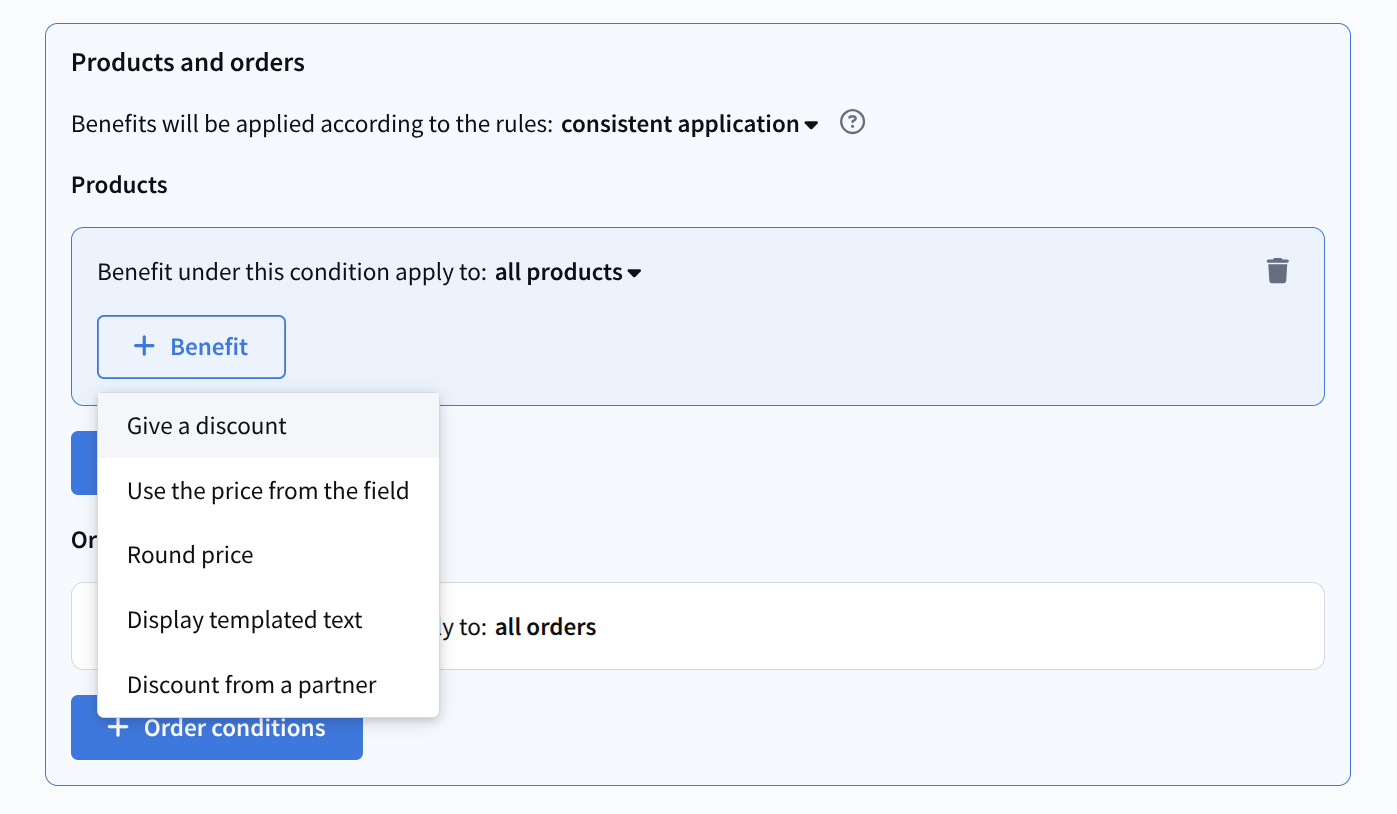
For products:
- Give a discount — a discount in a specified amount or percentage of the product price;
- Use the price from the field — uses a price from a custom product field. This price can be multiplied by a specified factor, for example 0.75 for a 25% discount;
- Round price — rounds the product price to an integer, half, nearest integer down, tens, or nearest ten;
- Display templated text — passes text with the order, supporting variables and emoji. The text is sent with order data and can be passed via API, for example to an email or POS terminal;
- Discount from a partner — grants a discount on products from selected partners according to partner product settings.
For orders:
- Give a discount — a discount in a specified amount or percentage of the order value. You can limit the number of discounted items per order;
- Round order price — rounds the final order total;
- Display templated text — passes text with the order;
- Issue a promo code — selects a promo code from a specified pool and links it to the participant. You can also configure a message template that the participant receives with the promo code.
Benefits for points promotions
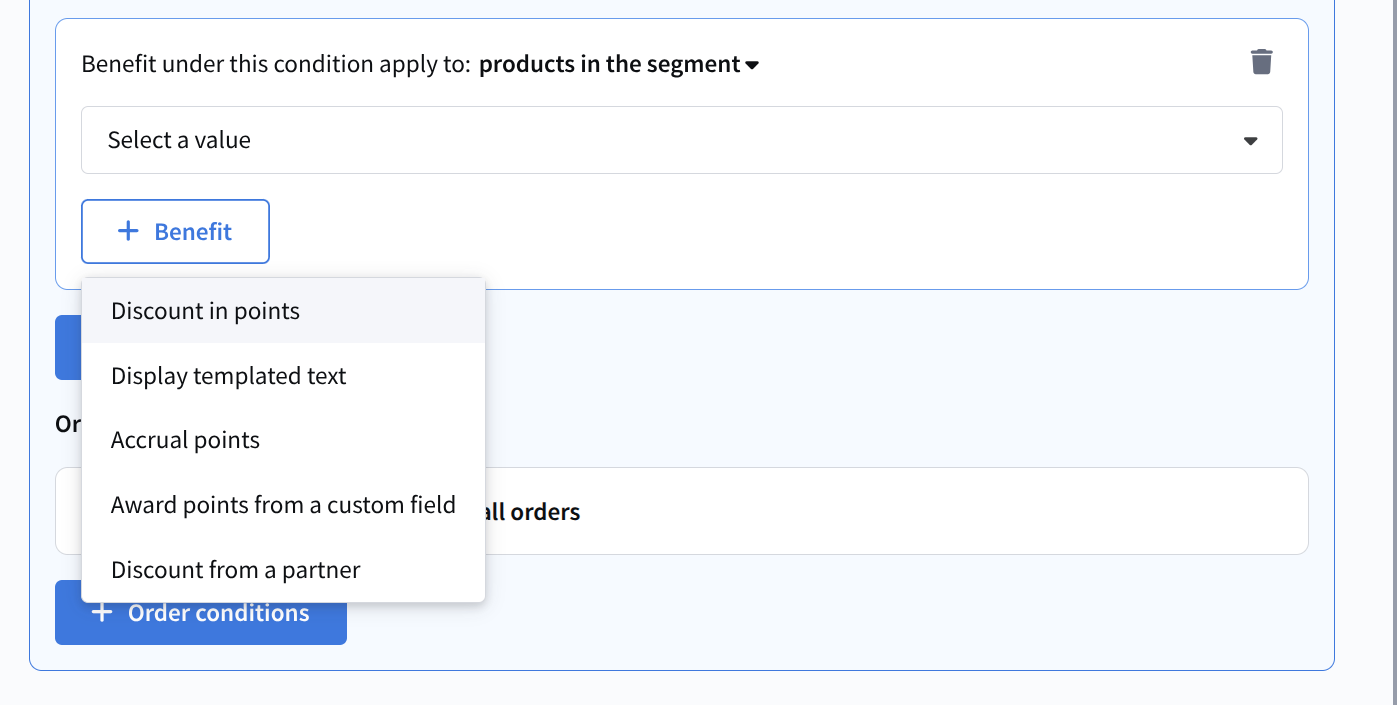
For products:
- Discount in points — a discount issued in points in a specified amount or percentage of the product price, or a fixed number of points. You can limit the number of discounted items per order;
- Display templated text — passes text with the order;
- Accrue points — credits specified loyalty points to the profile. You can configure when points are credited, for example at order creation or after delivery;
- Accrue points from a custom field — credits the number of points taken from a custom product field. You can also accrue a certain number of points for each currency unit spent, for example, 200 points for every ₽1,500 spent;
- Discount from a partner — grants a points-based discount on products from selected partners according to partner product settings.
For orders:
- Discount in points — a discount issued in points as a percentage of the order value or a fixed number of points;
- Display templated text — passes text with the order;
- Accrue points — credits points for the entire order.
After completing all required sections, the promotion can be saved or activated. An activated discount promotion participates in order calculations according to configured arbitration and conditions. If saved, the promotion appears as a draft and must be activated later.
When working with promotions, the top of the page shows the change status and quick actions.
If there are unapplied changes in the tree, the system displays a notification: “Unapplied changes detected”, with two options:
- Apply — makes changes effective for real calculations.
- Revert — discards unapplied changes and restores the last applied version.
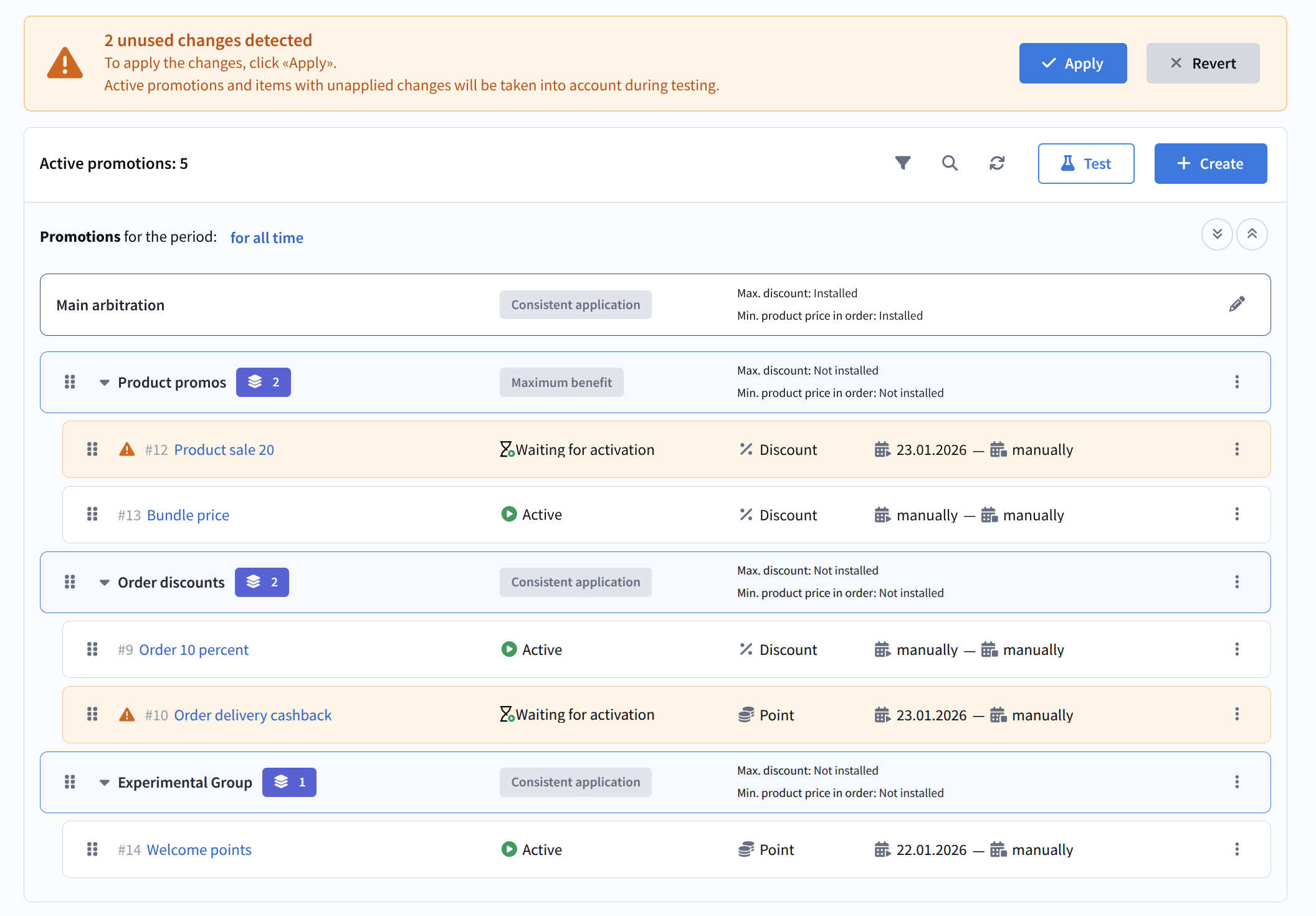
Unapplied changes are considered in test mode only. Real calculations use changes only after clicking Apply.
Below is the list of promotions and groups:
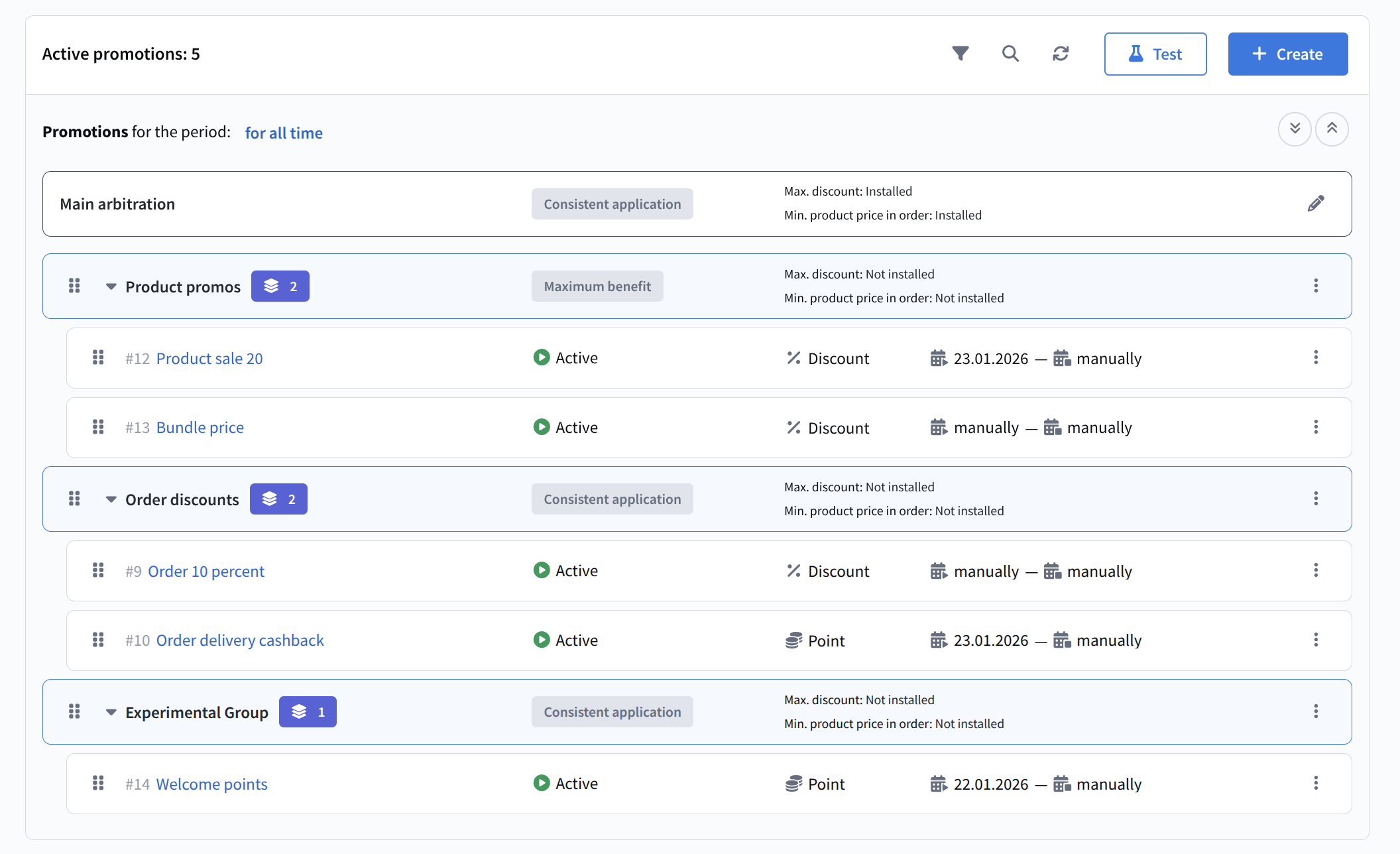
- the header shows the number of active promotions;
- quick actions on the right: filters/search, Test, Create;
- the tree shows the Main arbitration and its limits, such as maximum discount and minimum product price;
- groups and promotions have action menus, and items can be dragged within the tree and moved between groups.
For created promotions, a quick actions menu is available, which can be used to:
- edit the promotion;
- deactivate it (if active);
- move it to another group;
- clone it;
- end the promotion (all related processes stop and it cannot be reactivated).
Group management
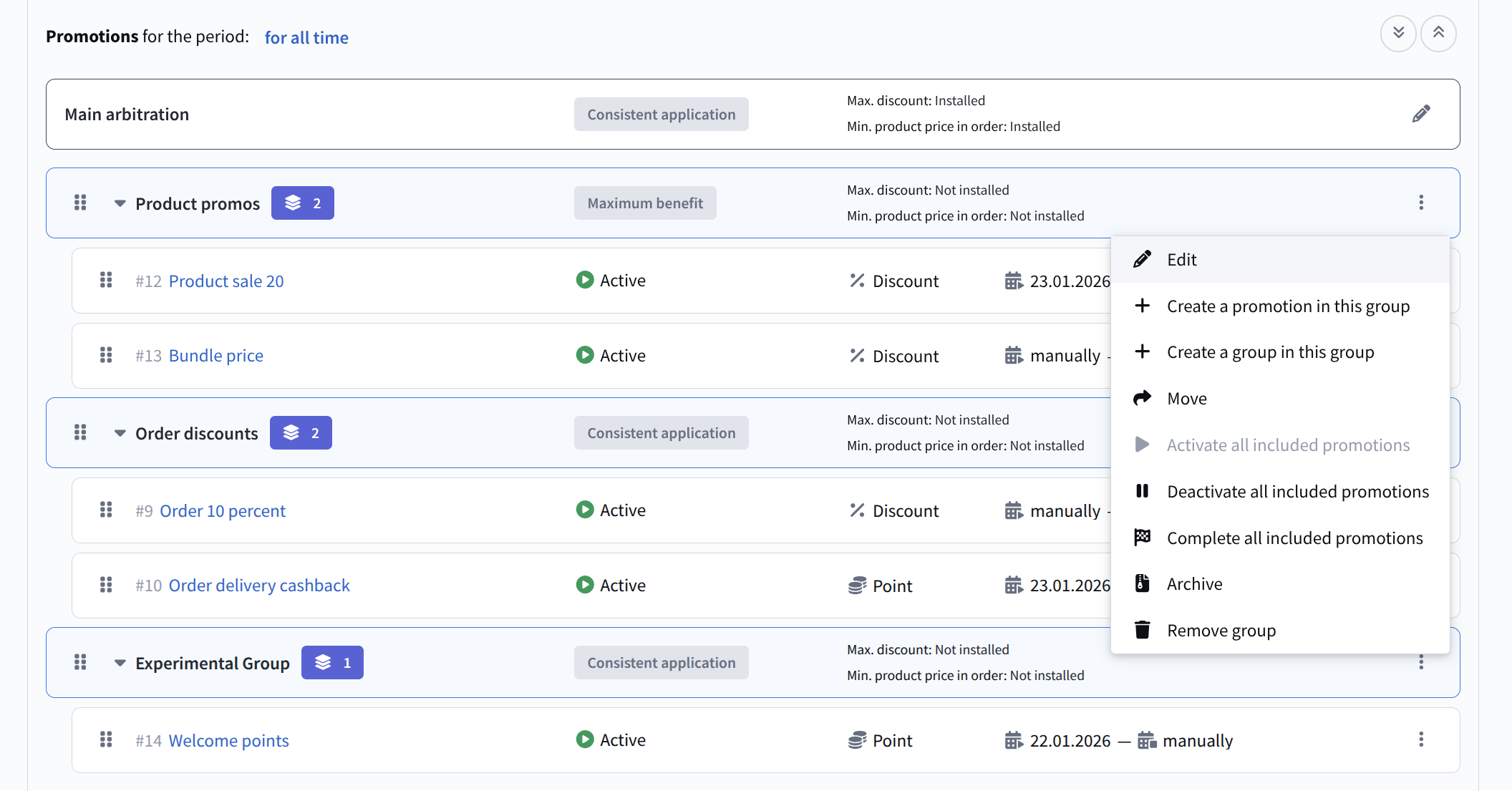
Promotion groups are used to logically organize promotions and manage their interaction through separate arbitration.
A group is a node in the promotion tree where its own arbitration type is defined, limits for maximum discount and minimum price are configured, and the application order of included promotions is set.
Groups can be nested (no more than 9 levels) and placed inside other groups or within the loyalty program's main arbitration.
When creating a group, specify:
- group name;
- parent group or main arbitration;
- arbitration type and limits.
After creating a group, promotions can be:
- moved into it during creation or editing;
- dragged between groups directly in the list;
- reordered within the group to affect the result (except for Summation);
- deactivated in bulk via the quick actions menu, and the group can also be archived.
As with promotions, changes to group structure and promotion order must be applied. Until applied, changes are considered only in test mode. The final result of applying promotions is always additionally processed by the loyalty program's main arbitration. All actions applied to a group (activation, deactivation, archiving) cascade to all nested promotions and subgroups.
A group is deleted only if one of the following conditions is met:
- there are no promotions inside the group;
- all promotions inside the group have the "Draft" status.
Promotion testing
To check how promotions apply to an order, click Test to open test mode, where you can set order and participant parameters and view the result, including unapplied changes.
Select a member and products for testing:
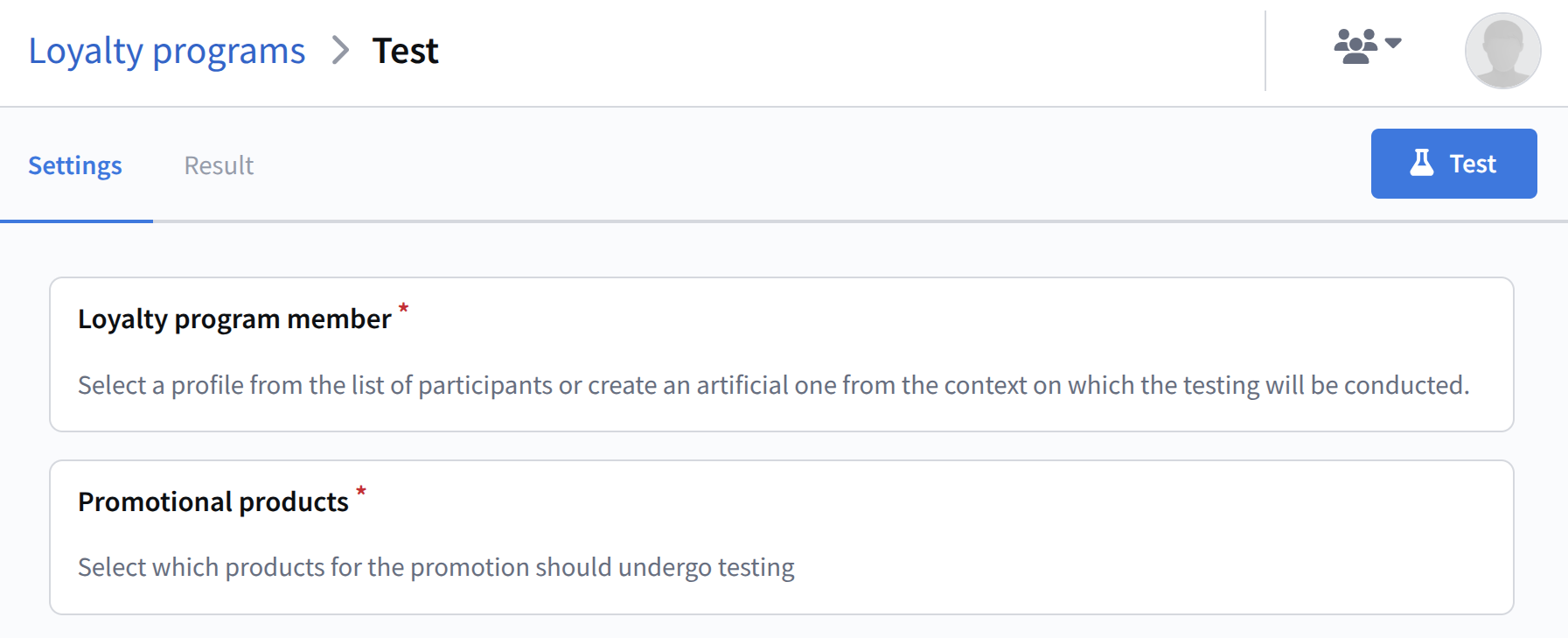
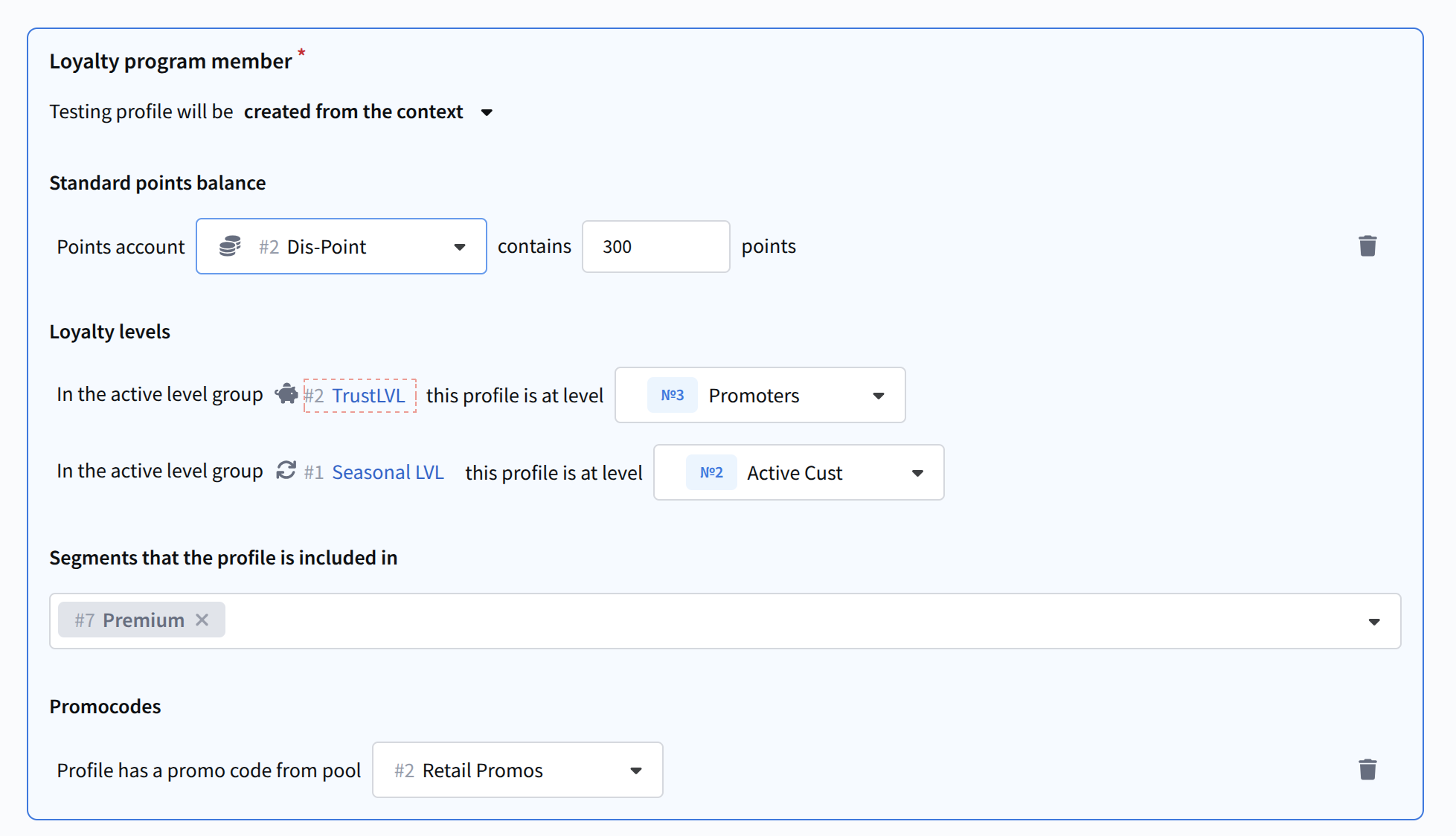
You can select an existing participant profile or create a profile from context.
When selecting an existing profile, click Select, choose a participant, and it will be fixed for testing:
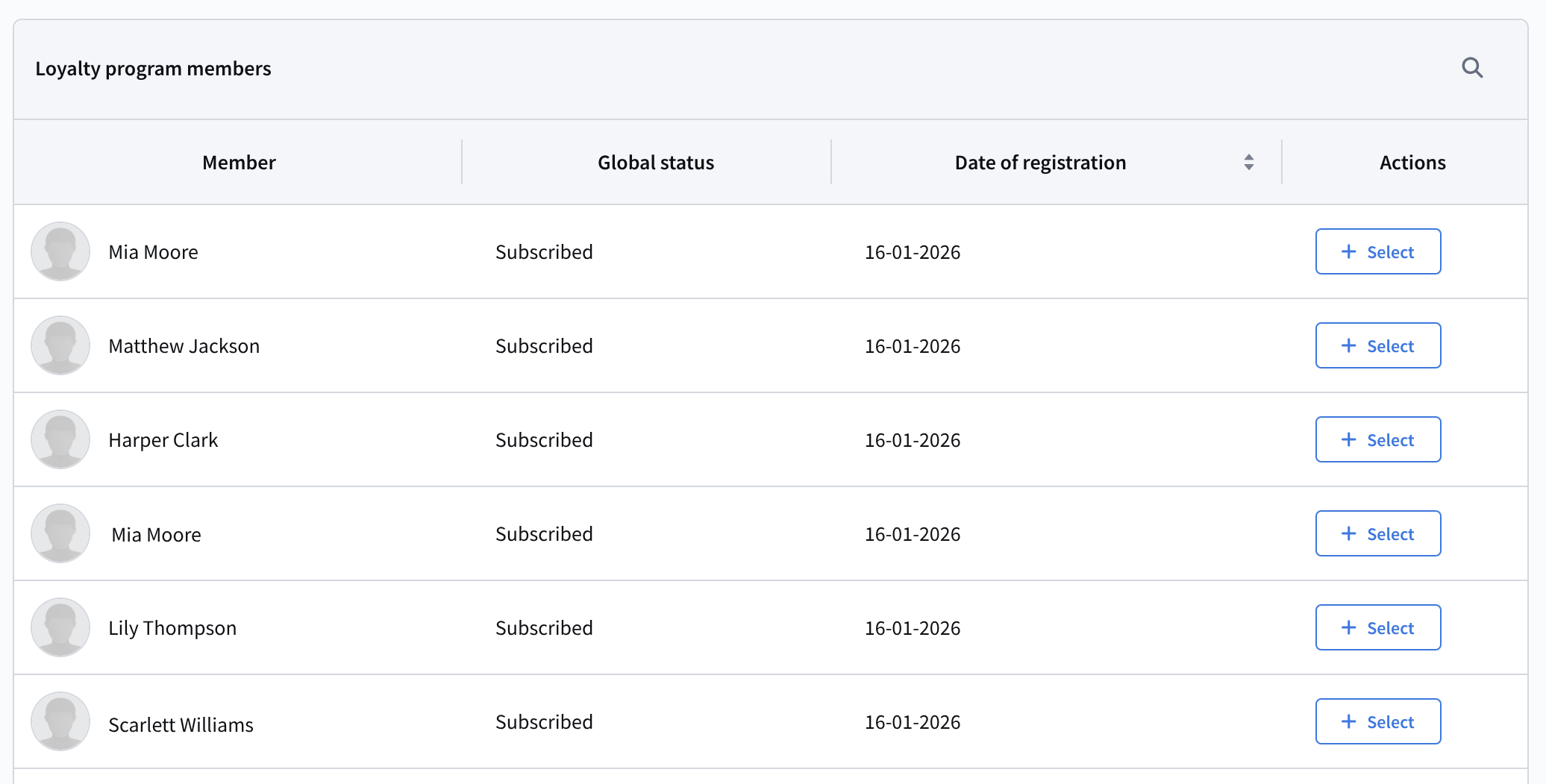
When building a profile from context, a test participant is created with configurable parameters:
- point balance;
- loyalty levels;
- segments;
- linked promo codes.
Next, define the products for the promotion within an order:
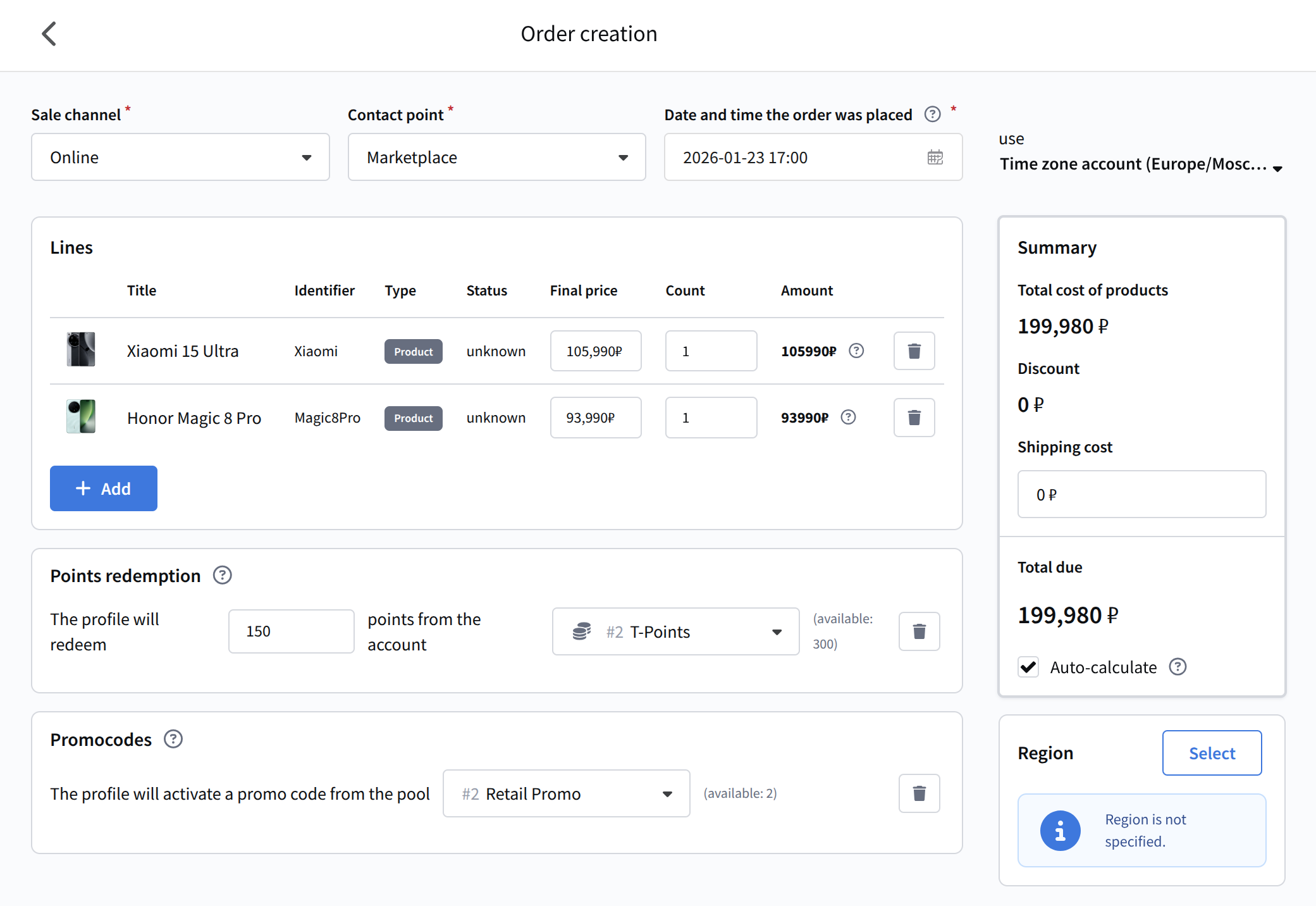
For a test order, specify:
- Sales channel and contact point — the channel through which the customer placed the order;
- Order date and time, including time zone;
- Lines — products, quantity, and final price. After selecting a product, you can edit it. Changes apply only to the test order and do not alter Market data. This is useful for testing promotions on new prices;
- Point redemption — amount and type of points to deduct within the order;
- Promocodes — promo codes activated by the profile;
- Shipping cost;
- Region.
If Auto-calculate is enabled, the final price is calculated as the sum of products and delivery.
After configuring the participant and products, click Test. The Result tab shows the final benefit application:
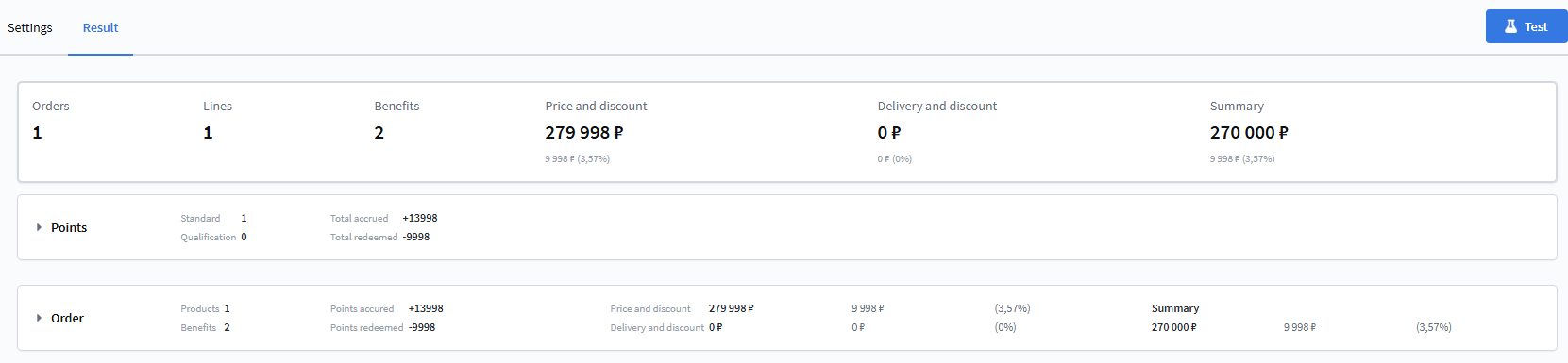
The panel shows:
- number of orders;
- number of items;
- number of applied benefits;
- total order value (before discount) and discount amount (under the value);
- delivery cost and discount;
- final order total with applied discount (discount amount shown under the total).
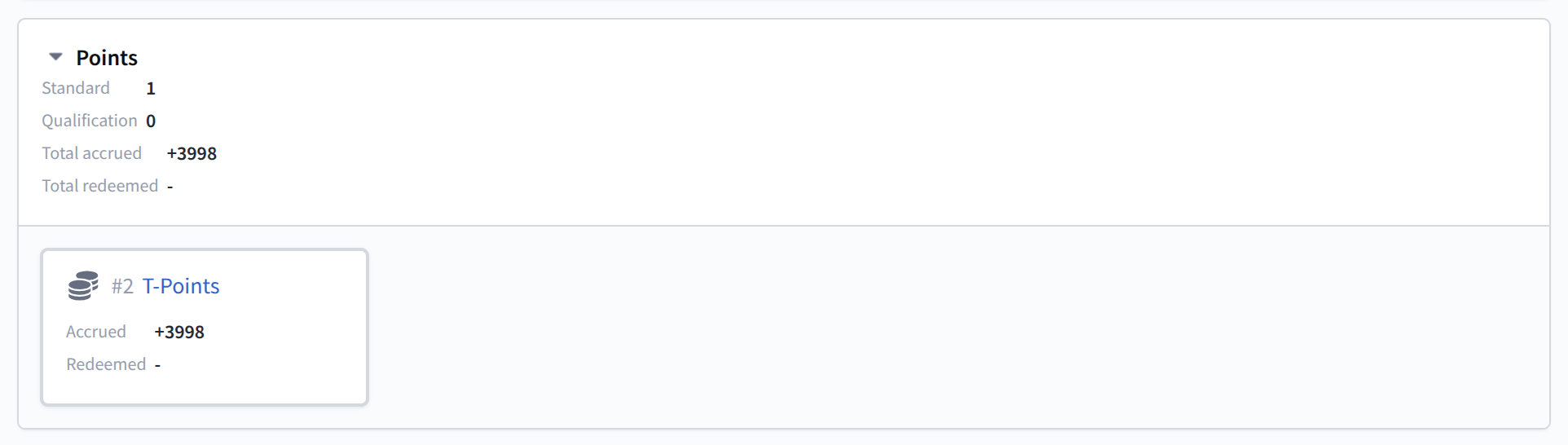
The Points tab shows loyalty balance changes after the order:
The Order tab contains a table of benefit-related operations. Each row includes:
- order item number;
- line (product);
- benefit;
- benefit result;
- applied promotion;
- promotion type.
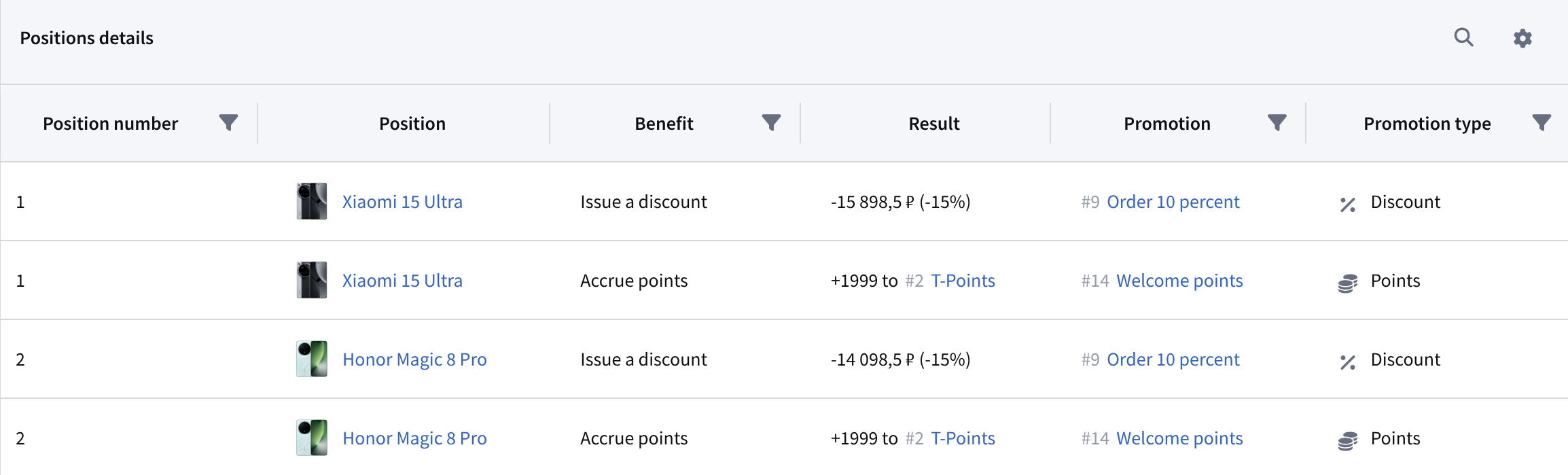
The table supports search and configurable visible columns via the actions menu.
Transactions
The Transactions section contains a list of all transactions within the loyalty program. Here you can also create a new transaction to accrue or redeem points.
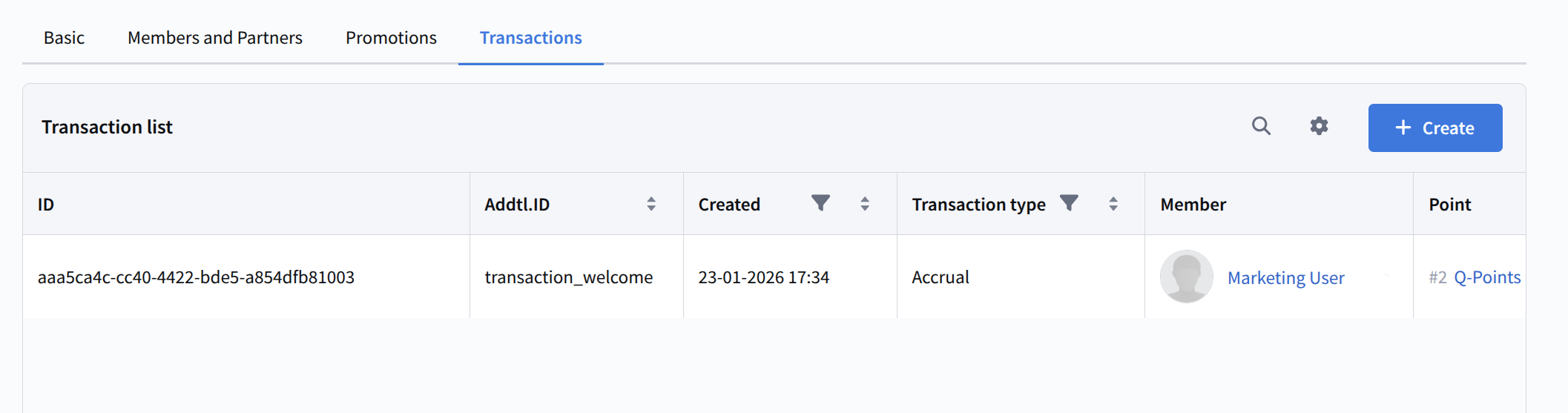
The transactions table provides detailed information about each balance change. It includes the following columns:
- ID — transaction ID
- External ID — external transaction identifier
- Created at — transaction creation date
- Transaction type — transaction type
- Member — loyalty program member profile
- Points — points type used
- Balance before — balance before the transaction
- Value — number of accrued or redeemed points
- Balance after — balance after the transaction
- Source type — entity type that initiated the transaction
- Source — link to the source entity
To create a new transaction, click + Create. The transaction setup window will open:
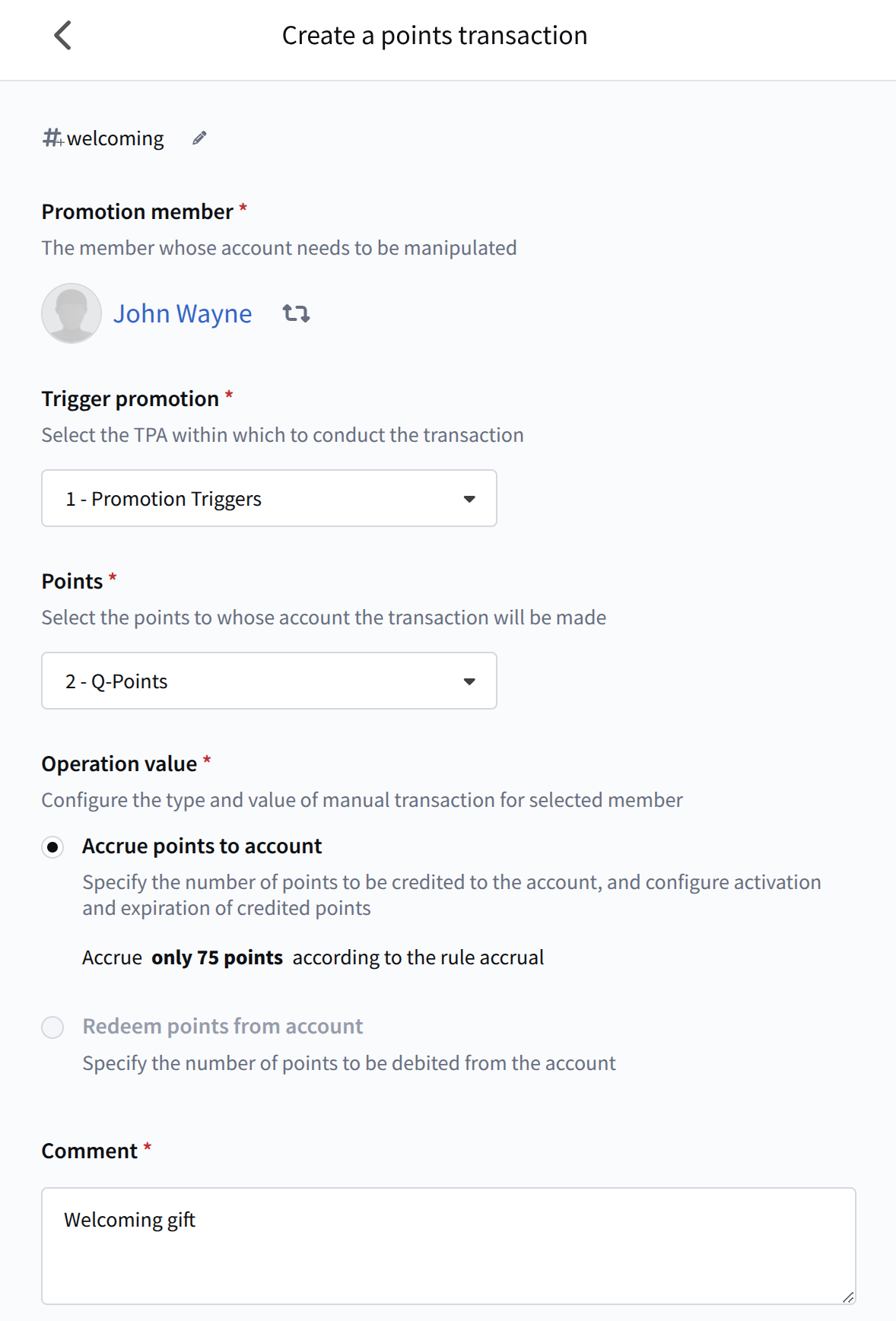
- Optionally specify an external identifier;
- Select the member — any profile registered in this loyalty program;
- Select the trigger promotion under which the transaction will be conducted;
- Select the points type;
- Specify the operation type — accrual or redemption;
- Add a transaction comment;
- Optionally specify additional JSON fields.