Working with message templates
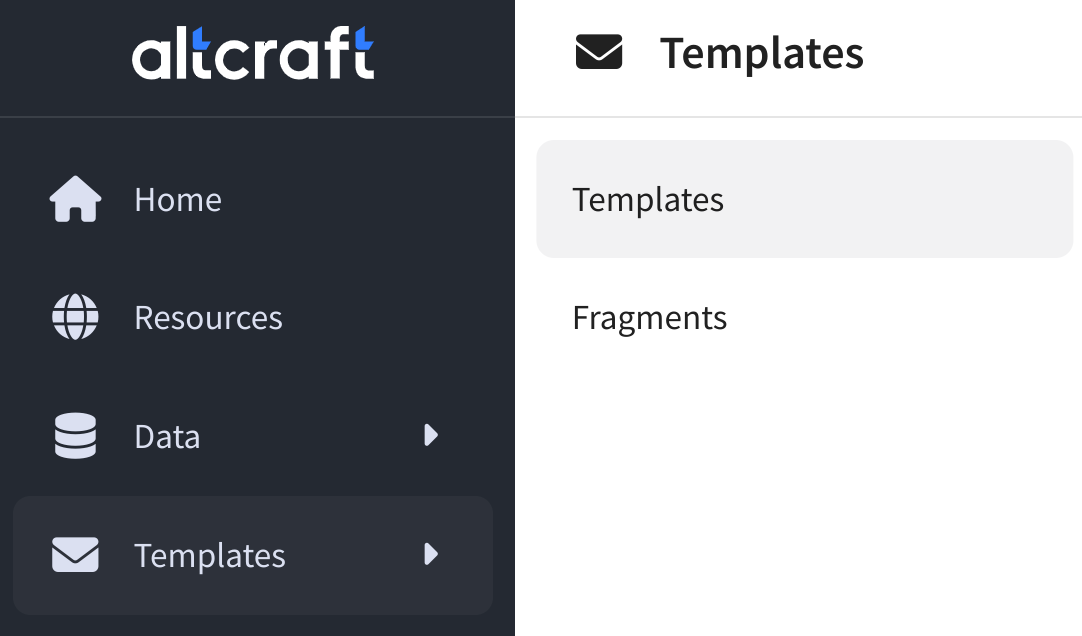 | To view existing templates and add new ones, open the Templates section in the main menu, then go to the item of the same name: |
The list shows all of your message templates available in the account or in the access group. To find a template in the general list, enter the template name or its ID in the search bar. You can also filter templates by tags, sending (communication) channel. You can also display only drafts or ready-made templates.
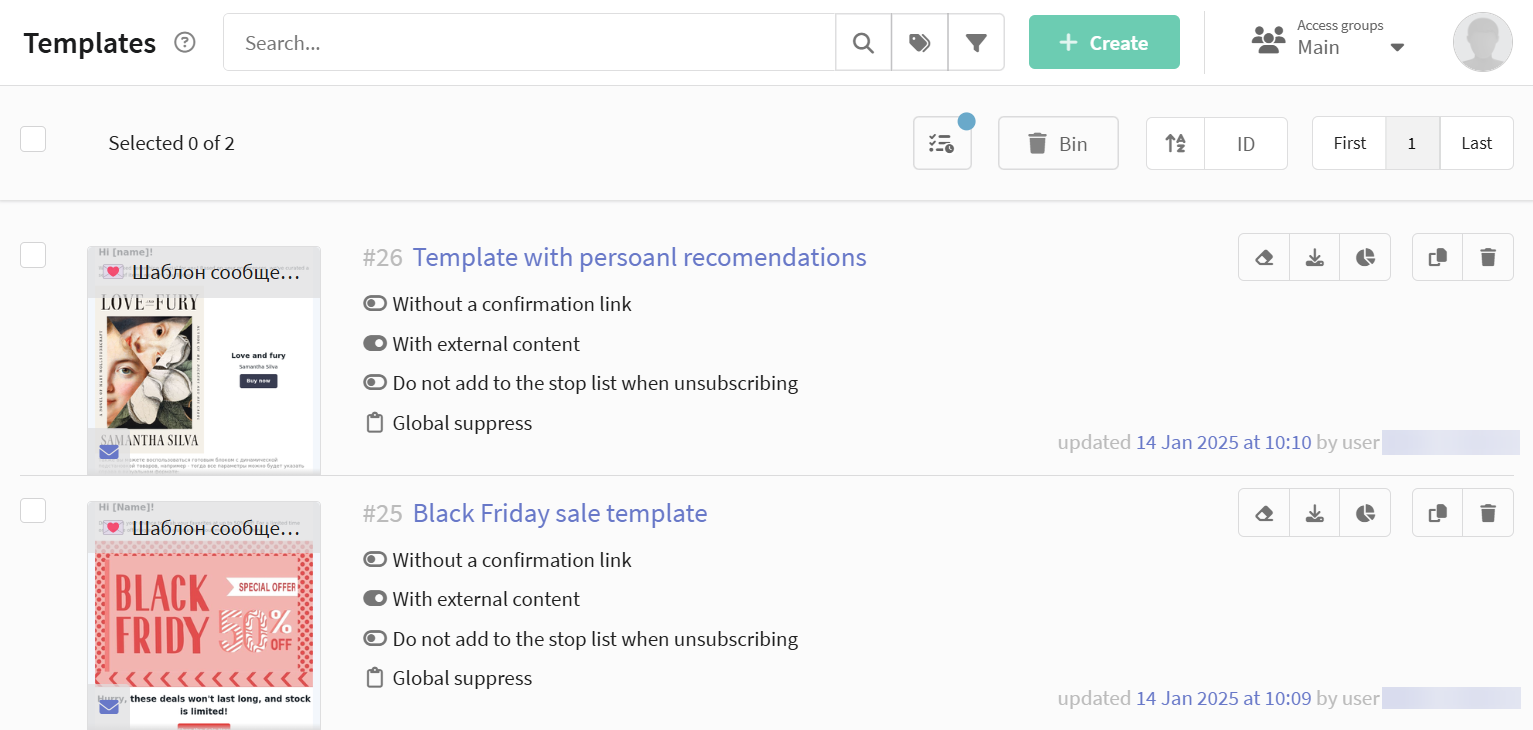
Click on the template and it will open the message preview. Here you can check how the message will look in different channels and on different devices.
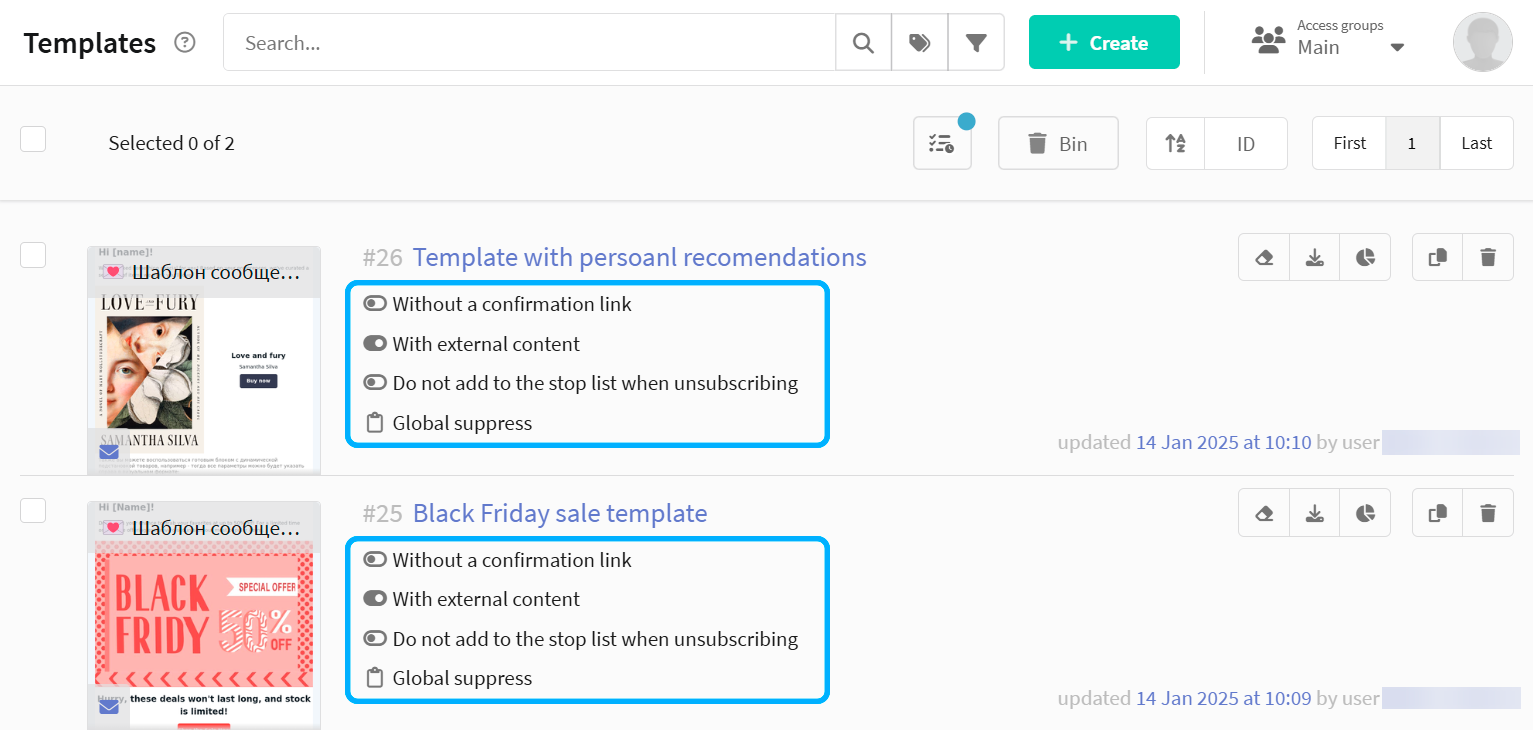
General information for each template is:
- The presence of a confirmation link — a template with such a link is required when using Double opt-in subscription.
- The presence of external content — the use of links to dynamic JSON content in the template.
- Adding to the stop list when unsubscribing — if the subscriber clicks the unsubscribe link in the message template, he will be included in the selected stop list.
- Suppression list - a mailing using a template will block sending an email to a subscriber whose contacts are in the specified suppression list.
A quick action menu is available:
 — draft mode.
 — export the template.
 — go to the template report.
 — clone the template.
 — delete the template.
A template can be deleted only after it stops being used in messages. If a template is attached to a message (active or inactive), the deletion will not be performed: the error “Message template are used in the mailings: [ID]” will appear in the Tasks → Failed section, where [ID] is the ID of the messages using the template.
To free the template, detach it from the messages:
- regular message — delete it (moving it to the trash is enough) or replace the template in the message settings;
- message inside a scenario — if the node with the message has been moved to the scenario trash, delete the message from the trash; replacing the template in the node settings does not remove the block — the message node has to be recreated.
To add a new template, click the + Create button at the top of the page. If you need to edit an existing template, click on its title.
Read more about working with the template editor and about templates for each communication channel in the following articles:


Working in the editor


Email template


SMS template


Push template
Template for In-App


MAX template


Telegram template


WhatsApp template


Viber template

