Updatable Segments
A scheduled segment is a segment that automatically recalculates its composition based on specified conditions according to a set schedule (for example, once a day). Its list of profiles is current at the moment of the last recalculation.
- Filling: The segment cannot be filled manually or via API. It is filled only based on specified conditions according to the schedule or during manual recalculation.
- Usage: The segment can be used in the same places as a static segment (for example, in mailings, scenarios, triggers).
Creating a Segment
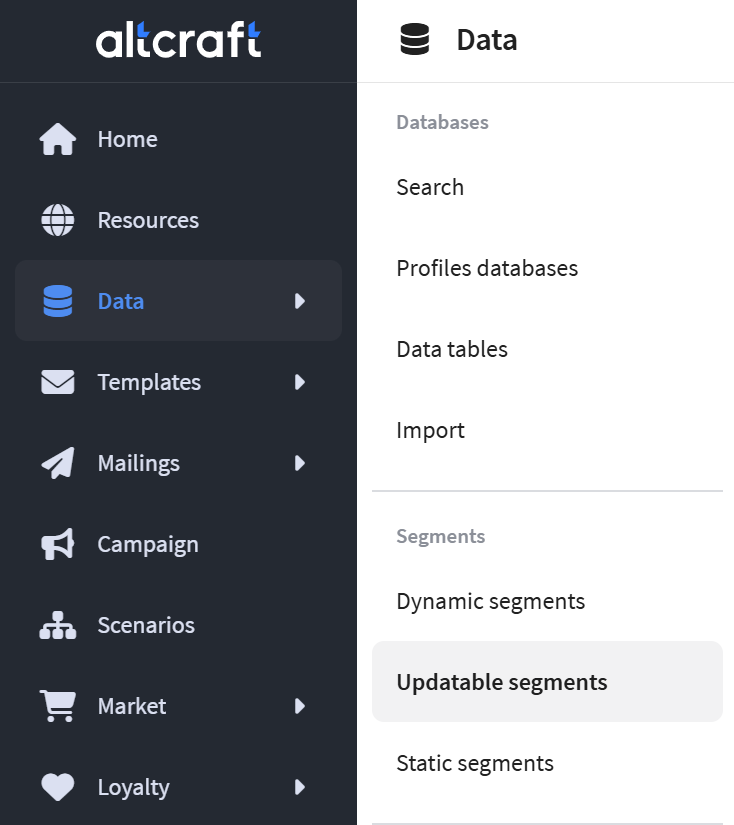 | To get started, go to Data → Segments → Scheduled Segments. |
In the scheduled segments list, click + Create. In the form that opens, specify the Name of the segment — this is a required field. Then select the segment source (Database). Segment creation is impossible without selecting a database:
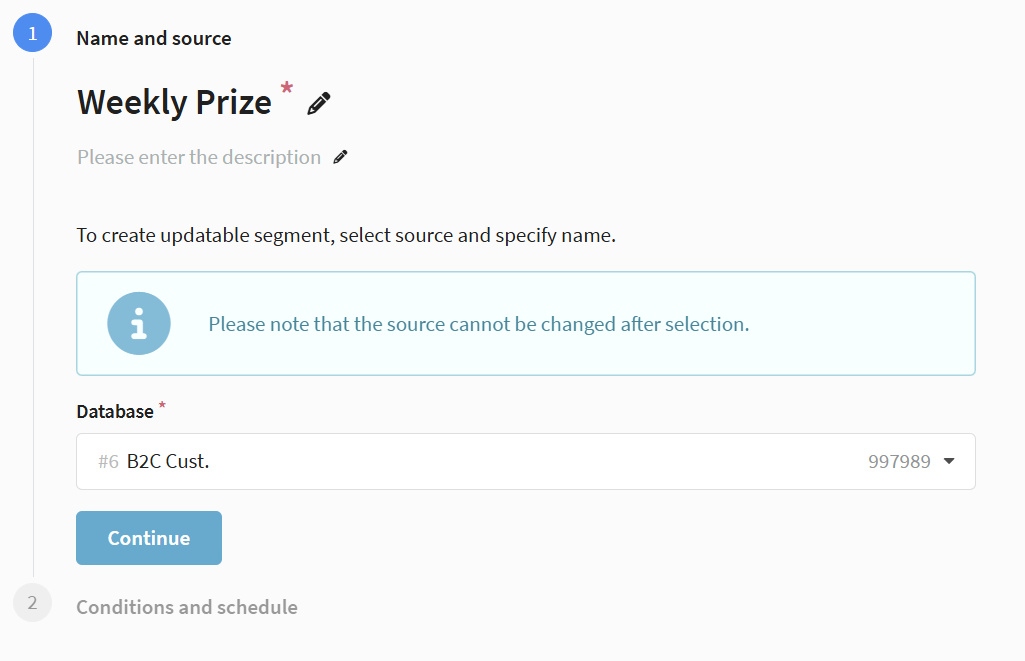
After selecting a source, it cannot be changed.
Configuring Conditions
After selecting the database, the Conditions and Schedule block will open. The mechanics of configuring conditions are completely identical to dynamic and static segments. You can set the Range, which defines the portion of the database for applying conditions.
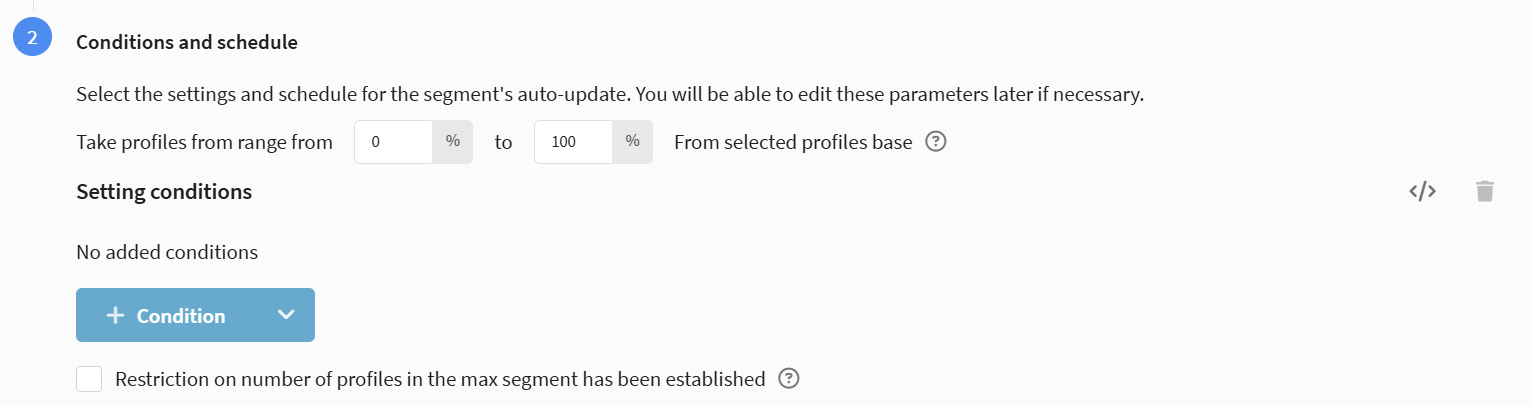
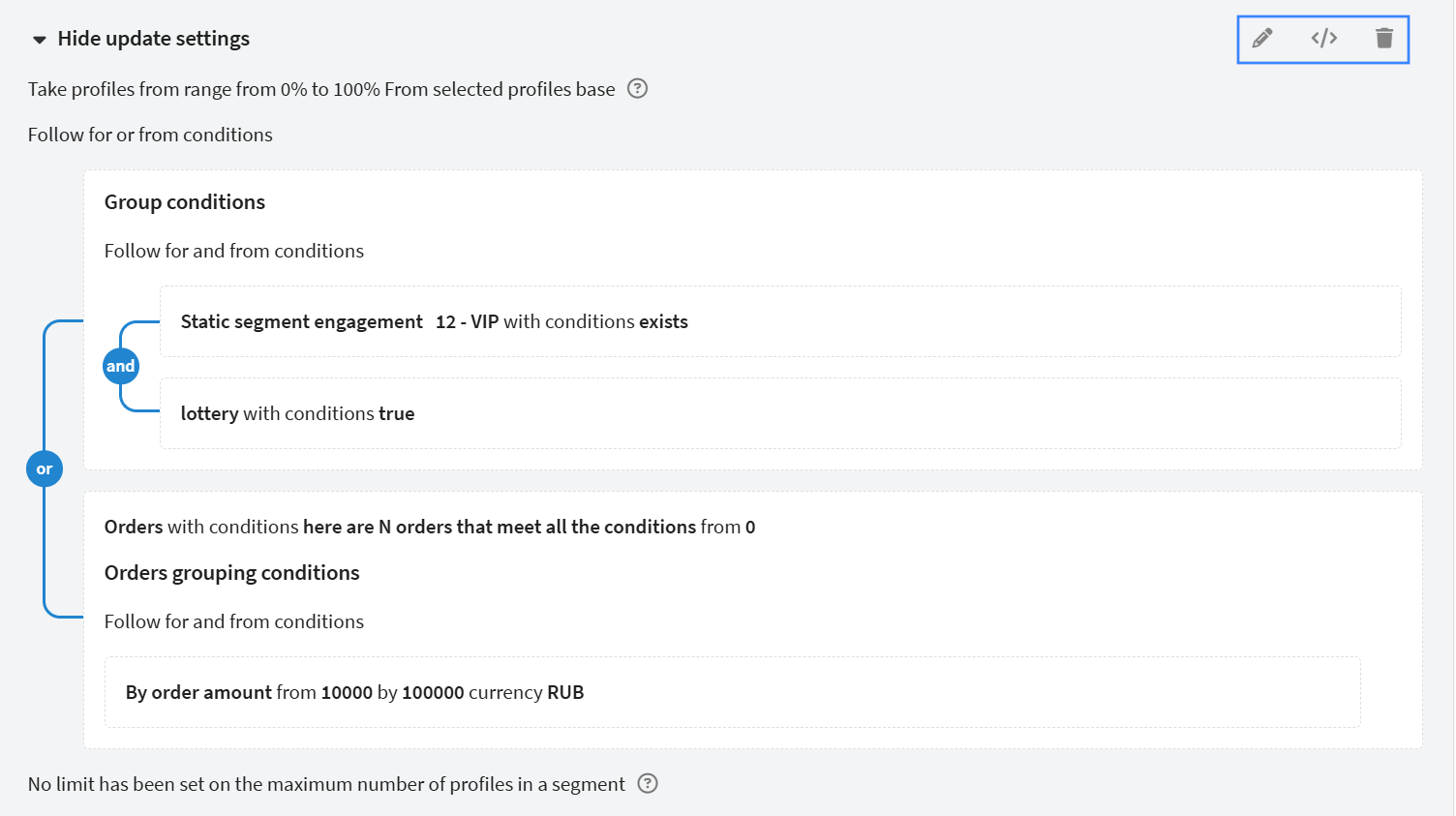
To add a rule, click the + Condition button. In the dropdown menu, the options Add Condition Group and Import Conditions are available. After configuring conditions within a group, they can be combined using must comply with each of the conditions (AND) or must comply with one of the conditions (OR) logic:
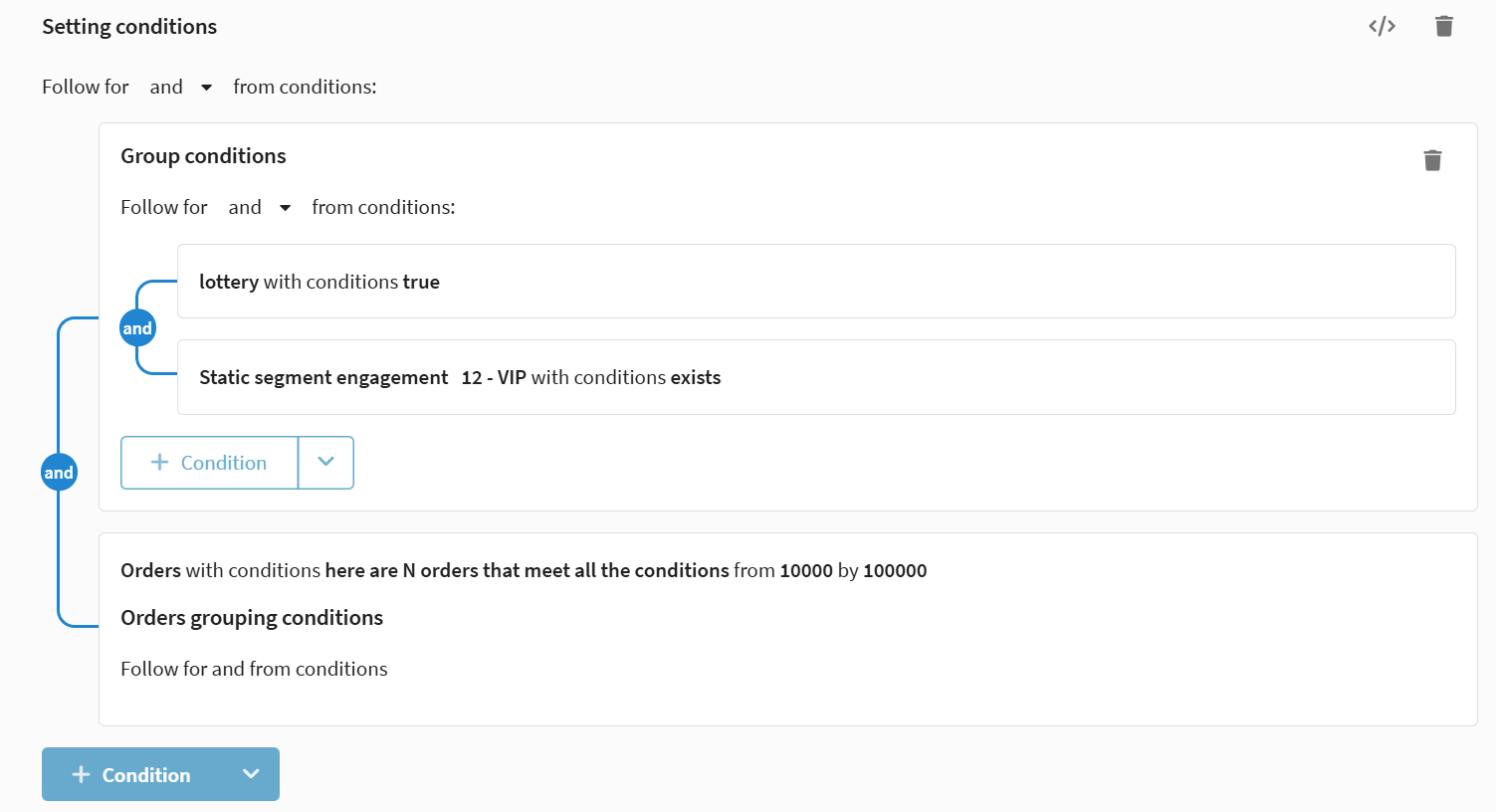
In the same block, the Delete button, which completely clears all set rules, and the Script button, which opens an editor for manually writing conditions, are available.
After configuring the conditions, you can set limitations by activating the checkbox Set a limit on the maximum number of profiles in the segment to specify a limit. This limitation is applied to the selection result after selection by range and conditions.
More about how audience limitations work
Limit on the maximum
Maximum profile count limit — the limit on the number of profiles that can be included in a segment.
This method limits the size of the final segment. You specify the maximum number of profiles that can be included. If more people match the segmentation conditions, the platform takes the first profiles from the resulting sample.
For example, if 1,000 people match the conditions and the maximum count is set to 400, the first 400 profiles will be included in the segment. This restriction applies to the sample result of the segment. If a range is also used, the range restriction is applied first, and then the profile count limit is applied to the selected portion of the database.
Range

The range determines which portion of the entire database will participate in segmentation. By default, it is set to 100%, meaning the conditions apply to all profiles. The key feature is that the range is tied to specific users: each profile in the database is assigned a numeric value, and the same range always selects the same people.

This means the selection is not random. A profile is included in the segment if its assigned value falls within the selected range. This allows you to create non-overlapping groups by setting different ranges — for example, a range from 0 to 20% and a range from 80 to 100% will never intersect.
When new users are added to the database, they are distributed according to the same rules: if a 20% range is selected, a new profile has the same probability of falling into it.
If a maximum profile count limit is also used, the range is applied first to determine the portion of the database, and then the limit takes effect within that portion.
Configuring the Schedule
In the Conditions and Schedule block, configure the parameters for automatic updates. Specify the exact time for launch (HH:MM) and select the timezone. Then set the frequency of recalculation from the available options: daily, on a specific date, by time (days of the week, days of the month, etc.):
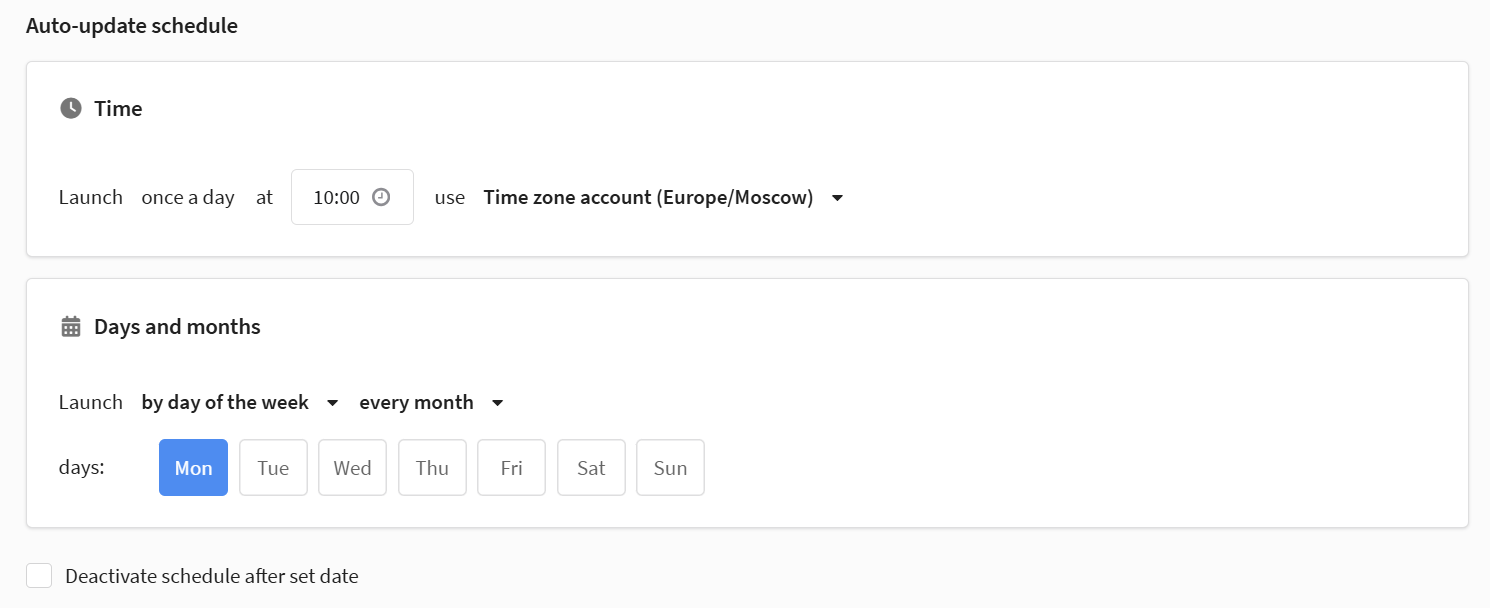
Optionally, you can activate the function Deactivate schedule after the specified date so that automatic updates stop on a given day.
If regular updates are not required, clear the Automatic update schedule checkbox — for example, when you need the segment audience one-off: it is enough to calculate it manually at creation and use it while the composition is relevant. This scenario suits time-limited activities — a seasonal sale, a one-off mailing to the segment, or testing a hypothesis on a fixed sample, where it is important that the audience stays the same between calculations. In this case, the segment is updated manually only (see Managing Automatic Updates).
After configuring all parameters, click Save. With the schedule enabled, the first calculation will start at the nearest scheduled time.
Working with a Created Segment
After creating and saving the segment, its page will open. Now, in the upper right corner, next to the fields for tags and access groups, additional actions for working with the current profile selection become available:
- Copy Profiles to Profile Database;
- Copy Profiles to Static Segment;
- Export Profiles;
- Bulk Edit Profiles;
- Add Profiles to Scenario.
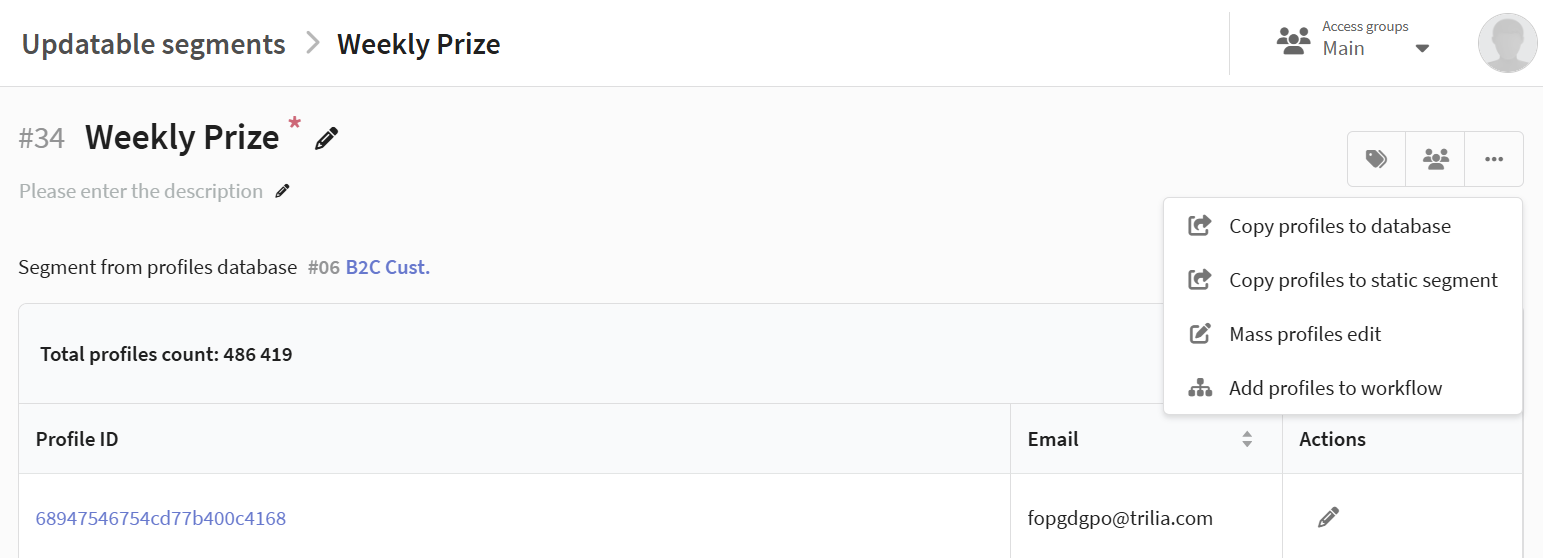
Actions with profiles will become available after the first segment update.
Managing Automatic Updates
The Automatic Segment Update block displays the current schedule and the update status (Active / Stopped). From here, you can Enable / Disable the schedule (depending on the current state), reconfigure the schedule, or update the segment outside the schedule — launch a recalculation at any time, regardless of the schedule. If no schedule is set, the segment is updated manually only.

Manual recalculation and editing of the update schedule are unavailable during segment update execution (automatic or manual).
Below is the Show Update Conditions spoiler. When expanded, it displays all set conditions, range, and limit. They can be edited, the script can be viewed, or they can be deleted.
Analyzing Composition and History
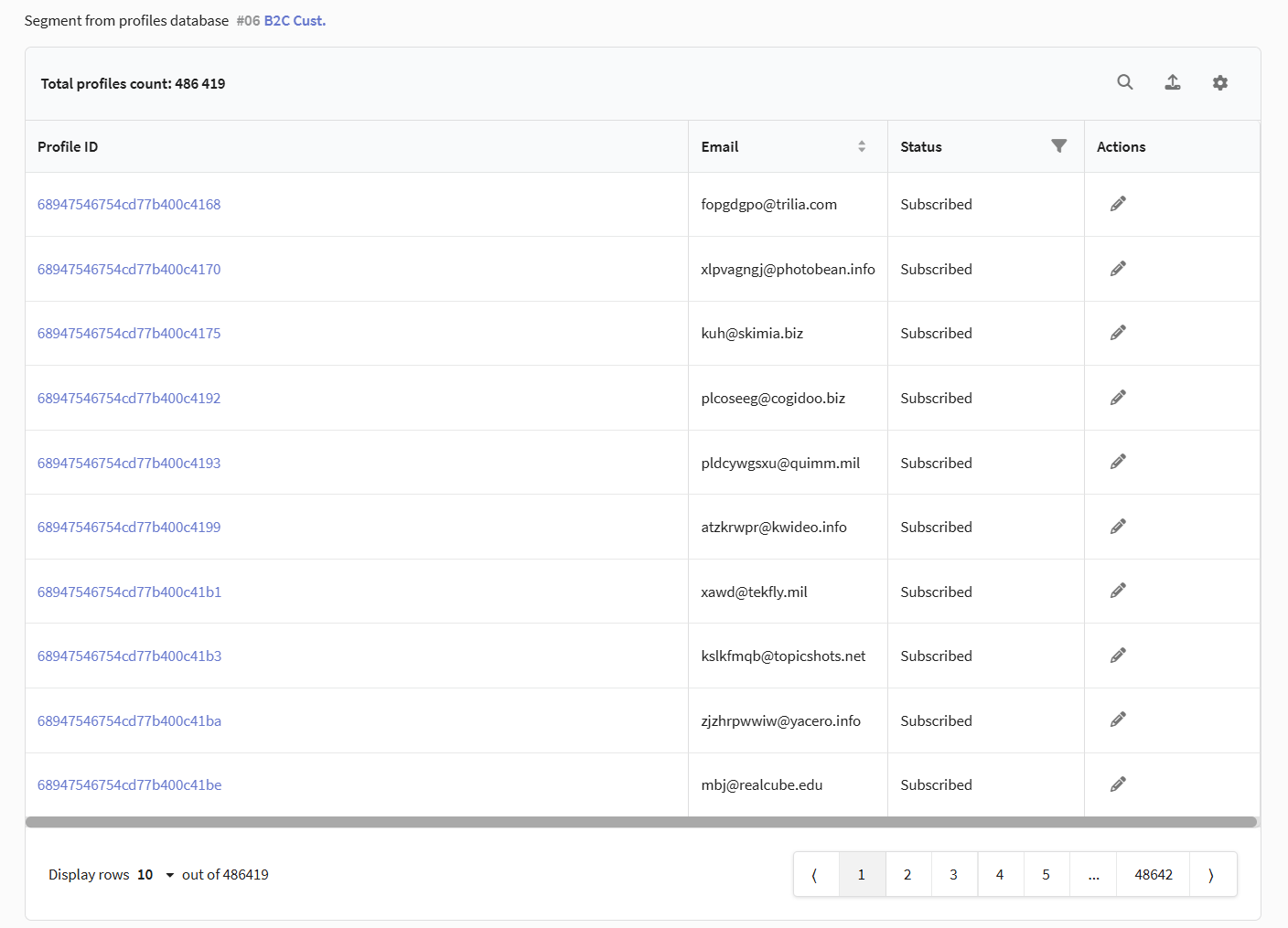
After the first update, the Profiles Table with the current composition will become available on the segment page:
Update History
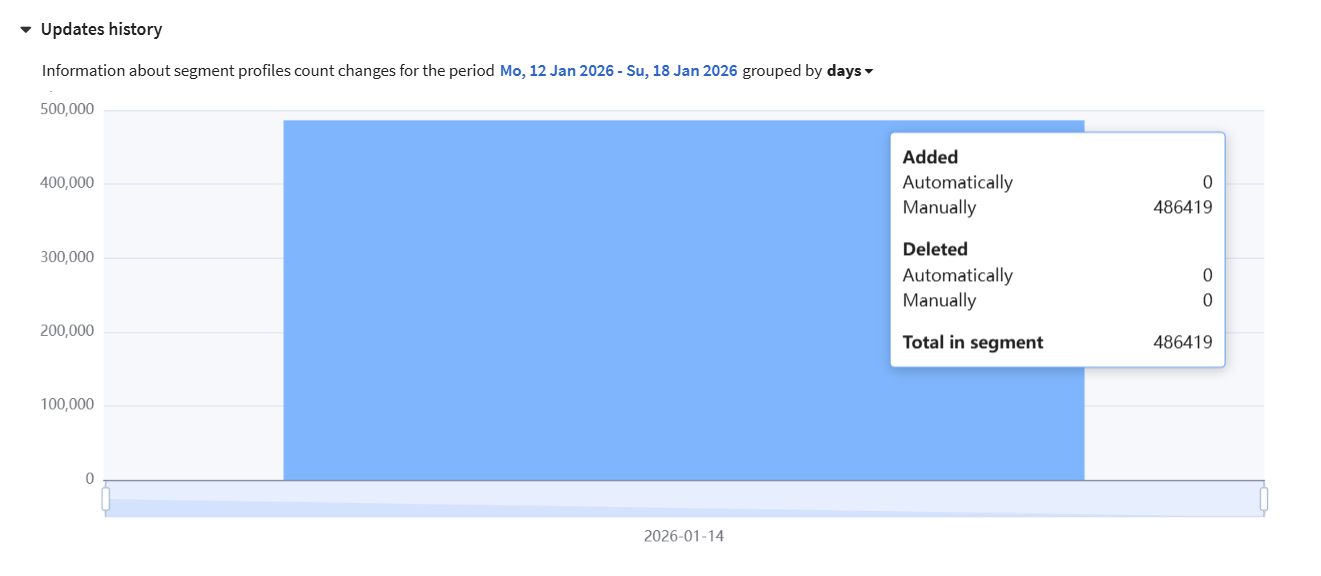
The Update History block is a graph visualizing changes in the number of profiles in the segment over the selected period. The period can be set using the calendar or ready-made options (today, last 7 days, this month, etc.), and data can be grouped by days, weeks, months, quarters, or years. When hovering over a point on the graph, a breakdown by profiles is displayed: added or removed automatically and manually:
Log
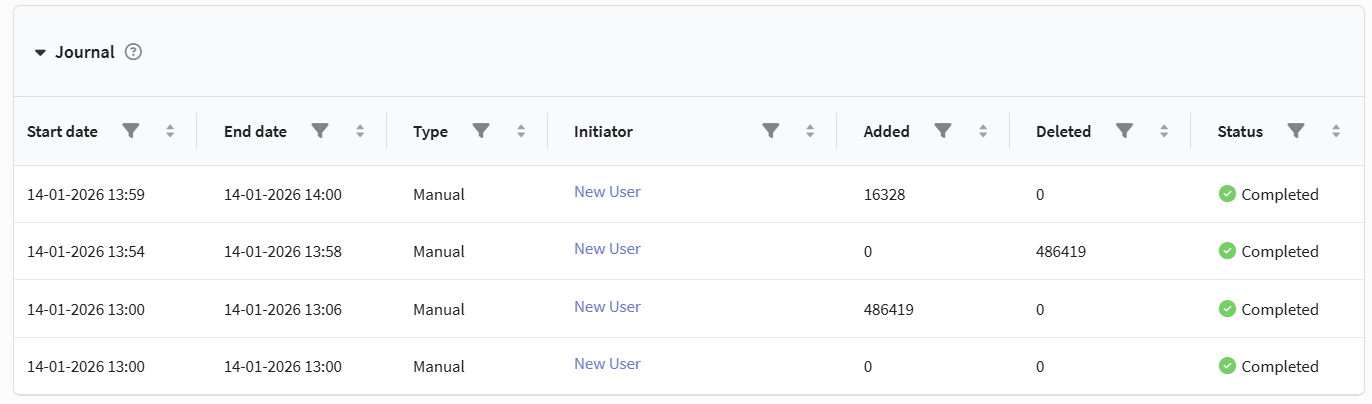
The Log block is a table with detailed information for each recalculation run. For each operation, the start and end date and time, type (Manual / Automatic), initiator (user or "System"), number of added and removed profiles, and status (In Progress, Completed, Error) are indicated.
Dependent Objects
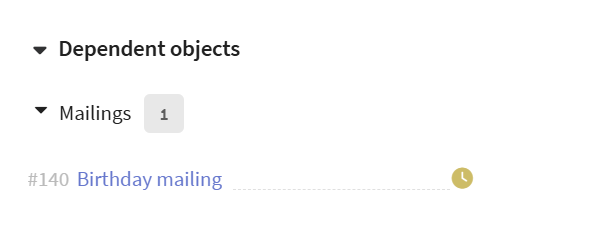
If the segment is used in other platform entities (mailings, scenarios, loyalty programs), the Dependent Objects block will appear below the update log:
Managing Segments from the General List
In the row of the desired scheduled segment in the general list, the following actions are available:
- Copy Profiles from Segment: Copy the list of profiles from the current segment to another selected segment.
- Update Profiles: Mass-modify profile data in the segment (e.g., update fields, add a subscription).
- Export Profiles: Export data of profiles included in the segment to an external file.
- Export Profile History: Export interaction and change history for profiles from the segment.
- Analytics: Go to analytical reports for this segment.
- Clone Segment: Clone the segment conditions, tags, access groups, profile database, and schedule.
- Delete Segment: Completely delete the segment.
