Altcraft Docs LogoAltcraft Docs Logo
User guideDeveloper guideAdmin guide
Company siteHelp center
English
  • Русский
  • English
Login
  • User documentation
  • Getting Started
  • FAQ
  • Altcraft glossary
  • Profiles and databases
  • Communication channels
  • Segmentation
  • Message templates
  • Mailings
  • Campaigns
  • Automation scenarios
  • Market
  • Loyalty programs
  • Reports and analytics
  • Integrations
    • Action hooks
    • Integration of third-party services using Albato
    • Facebook Ads Manager™
    • Google Ads Audiences
    • MAX
    • Yandex.Audience™
    • VK Ads™
    • Static segment synchronization
    • Yandex AppMetrica™
    • Tilda™
    • Lpgenerator™
    • WhatsApp
    • Viber*™ integration
    • Integration scope
    • Data Transmitted During Synchronization
    • Notify
  • Weblayers
  • Settings
  • API requests: where to start
  • Changelog
  • Documentation archive
  • library
  • Integrations
  • MAX

Integration with the MAX messenger

MAX connection

To create an integration, you must first configure a connection to the service. Instructions for connecting a MAX bot are available on this page.

Integration with MAX enables using the messenger as a communication channel for sending messages via a bot. The Altcraft platform provides two types of MAX integration:

  • bot integration — MAX Bot
  • chat (group) integration — MAX Group

These integrations control the operation of the corresponding communication channels.


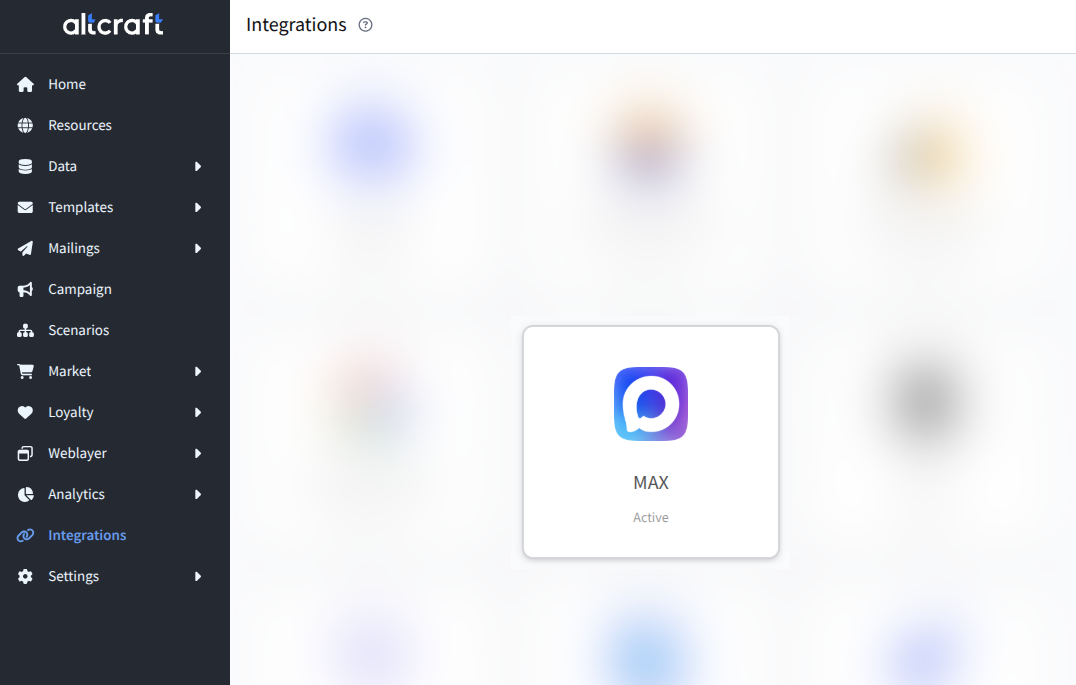
To configure it, open the Integrations section and select the integration type — MAX:

MAX Bot integration​

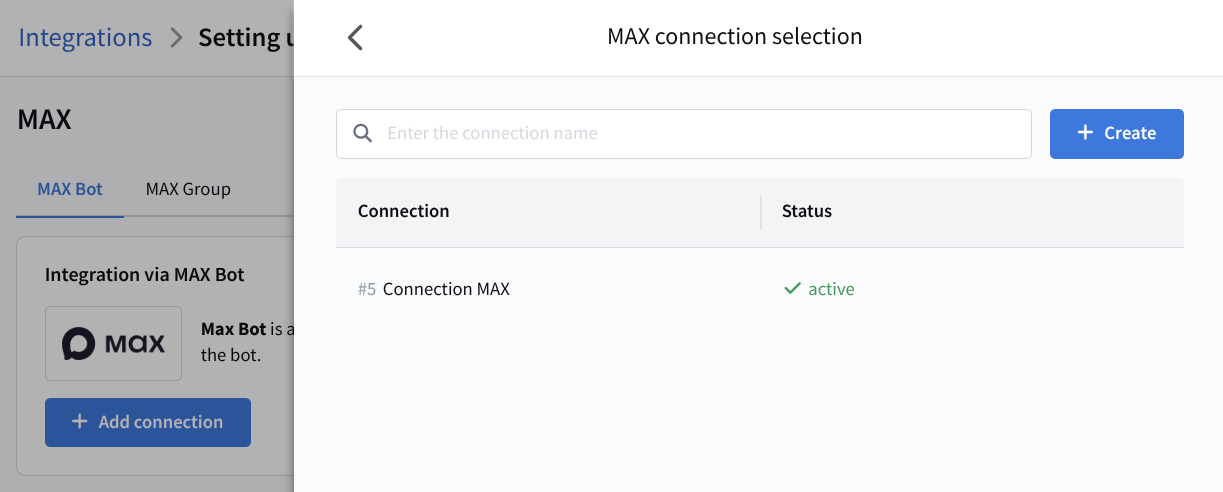
Open the MAX Bot tab. Click Add connection:

A list of created MAX bot connections will appear. Select the required connection from the list or create a new one:

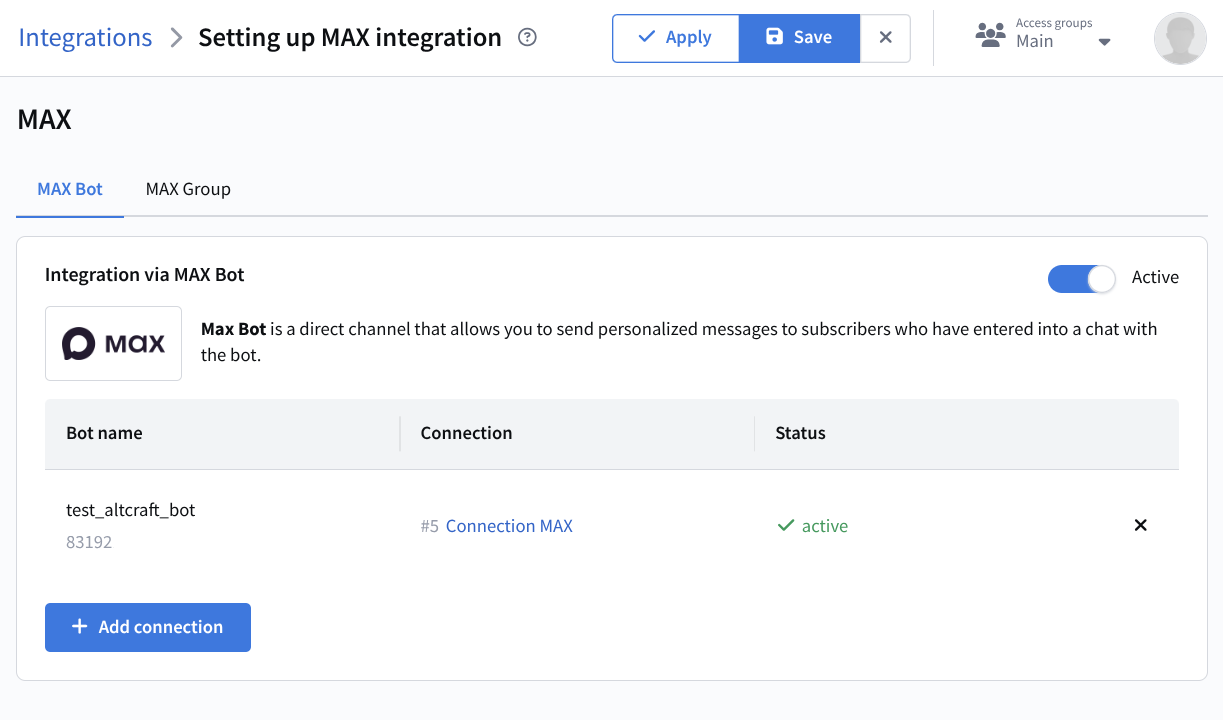
Enable the integration using the switch at the top of the screen and click Save:

The integration is ready to use. The next step is configuring a resource for sending Campaigns via the MAX bot.

MAX Group integration​

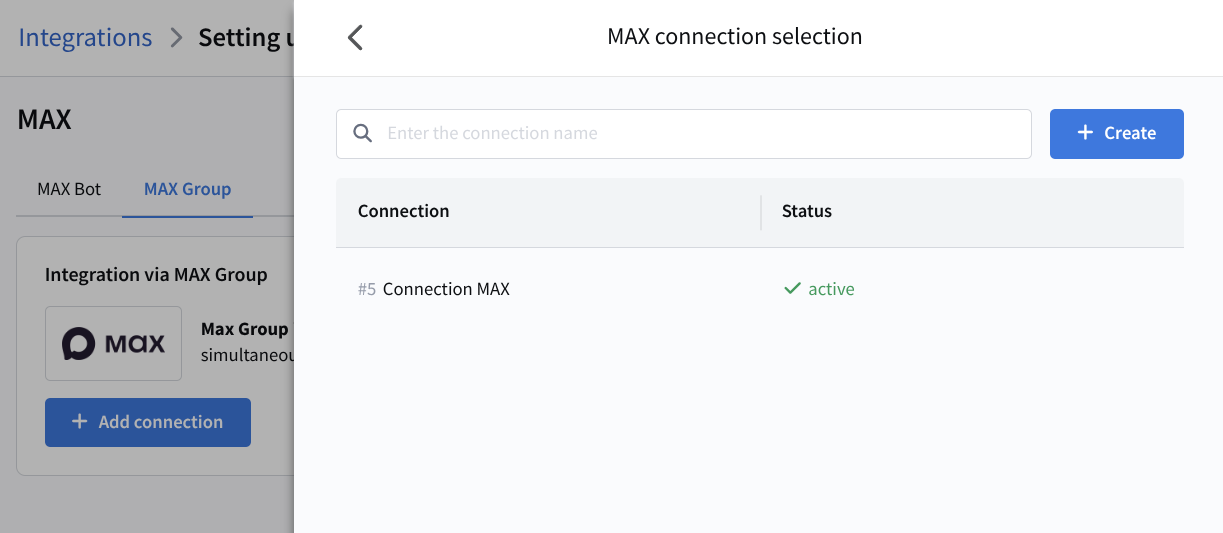
Open the MAX Group tab. Click Add connection:

A list of created MAX bot connections will appear. Select the required connection from the list or create a new one:

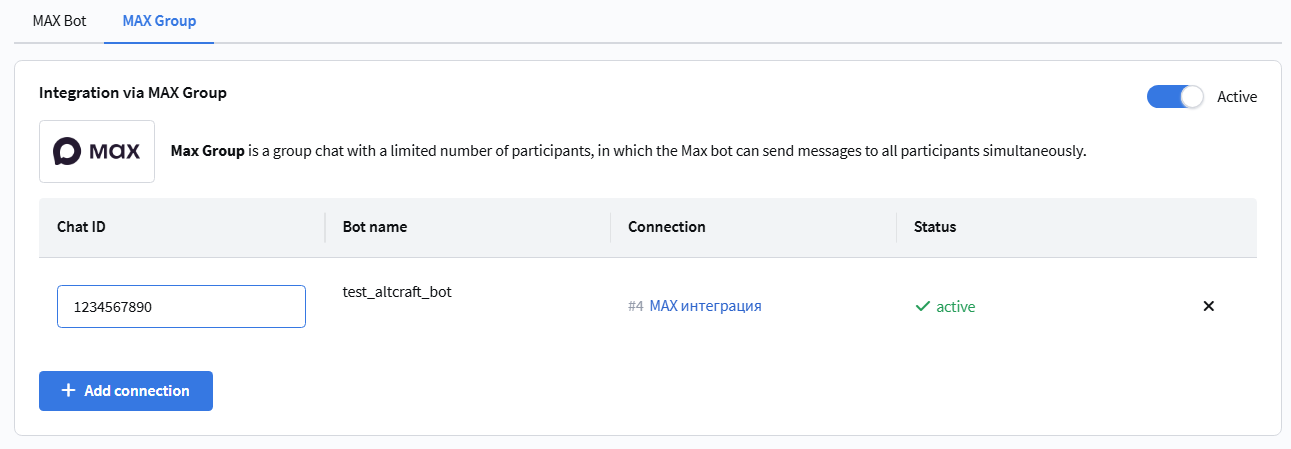
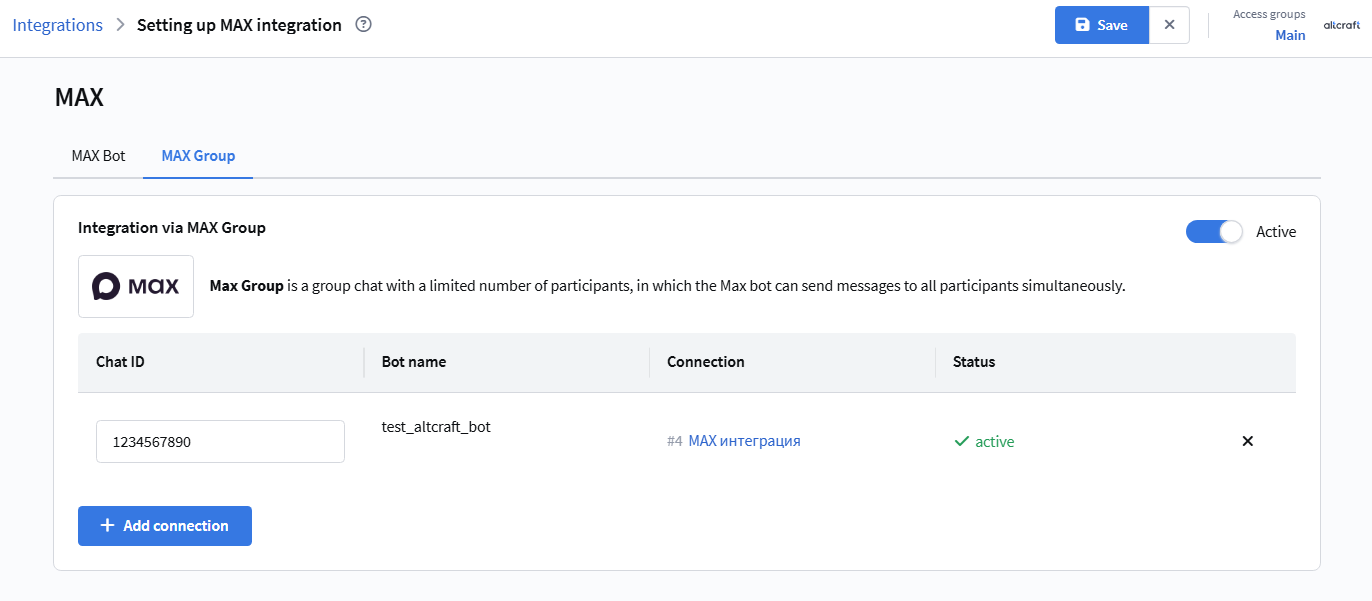
Next, select the chats where messages will be sent via the MAX bot:

Enable the integration using the switch at the top of the screen and click Save:

The integration is ready to use. The next step is configuring a resource for sending Campaigns to MAX messenger chats.

Last updated on Mar 25, 2026
Previous
Google Ads Audiences
Next
Yandex.Audience™
  • MAX Bot integration
  • MAX Group integration
© 2015 - 2026 Altcraft, LLC. All rights reserved.