Push template
The platform offers two editors for push templates: a standard editor and a dedicated Rich Push editor. The Rich Push editor enables adding banners and buttons, as well as configuring push settings tailored to specific browsers or operating systems.
Standard editor
For push notifications, you can configure:
- Title — It is recommended to use no more than 25 characters so that the text is not cut off on devices. Emojis are supported. The header can be personalized using the variable menu
 .
. - Icon — an image to display in the notification. In the browser Apple Safari, only one image is supported for all notifications, its configuration is performed in setting up the push channel in resourse.
- Message body — the main text of the notification. Emojis are supported. The maximum text length is 256 characters, it is recommended to use up to 150 characters. You can also use variables in the message body to personalize . The editor automatically counts the number of characters:
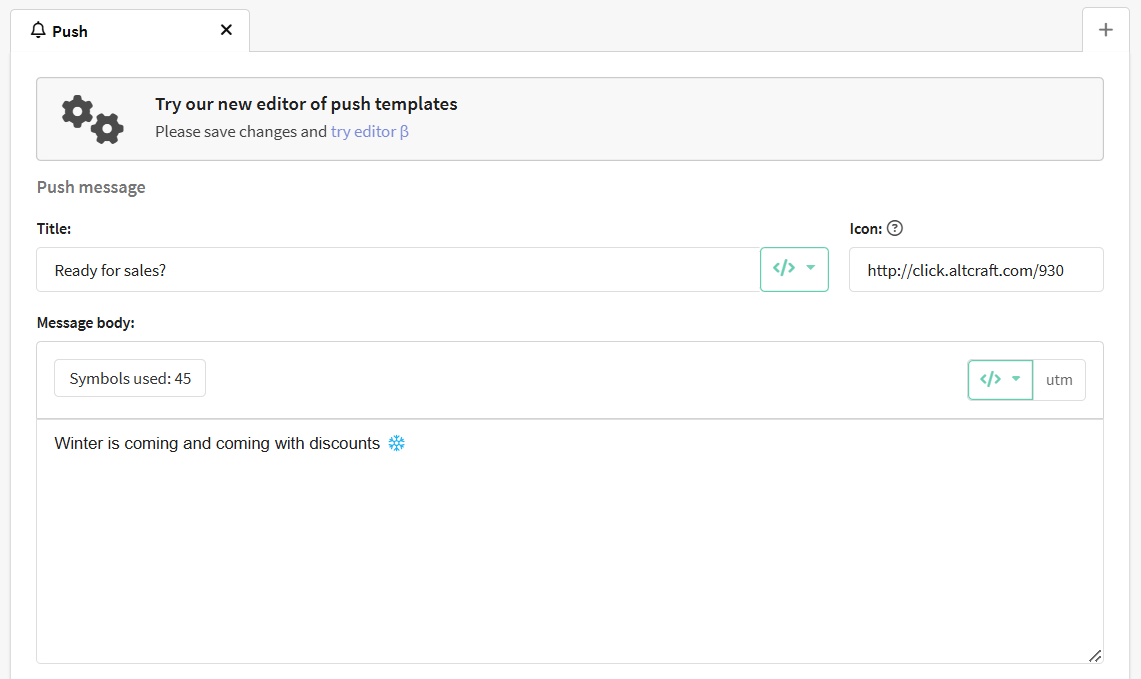
Links inserted through the platform are automatically shortened. The final link path (excluding tracking domain) length is 12-14 characters, including the /.
In the block Link settings are available:
- Link URL (SSL only) — The URL that opens when you click on the notification. Only the secure protocol (SSL) is used. A menu of variables is available for inserting, for example, promo codes, so that the user immediately goes to the page with the offer and the calculated discount.
- iOS app deep-link — link to go to iOS apps.
- Android app deep-link — link to go to Android apps.
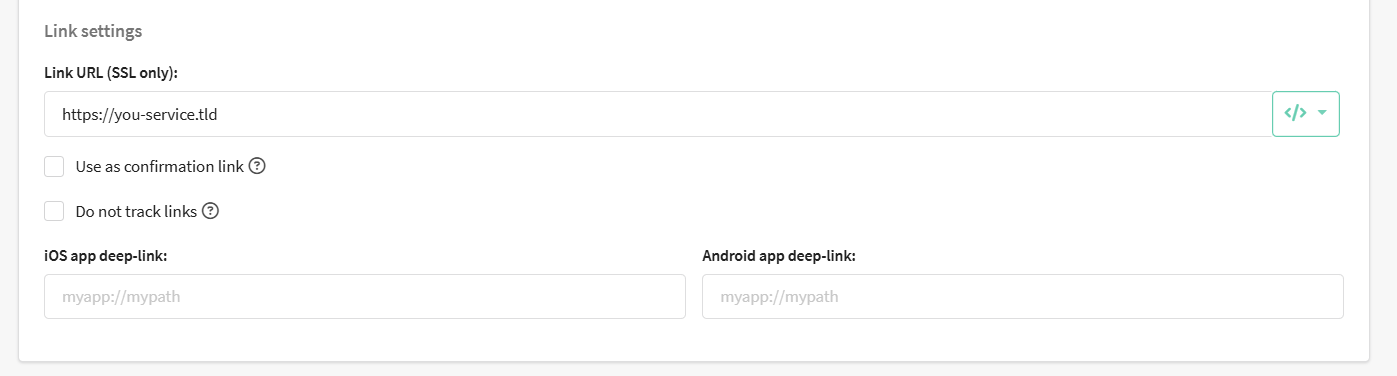
To add utm tags to the link click on the  button in the upper right corner of the editor or set the labels manually.
Additionally, the link in the push can be a confirmation link. You can create a double opt-in subscription mechanism. You also can disable tracking. If you decide not to wrap links for tracking, keep in mind that in this case the platform will not be able to capture clicks on the link, and deep-link links will become unavailable.
Rich Push editor
Get started
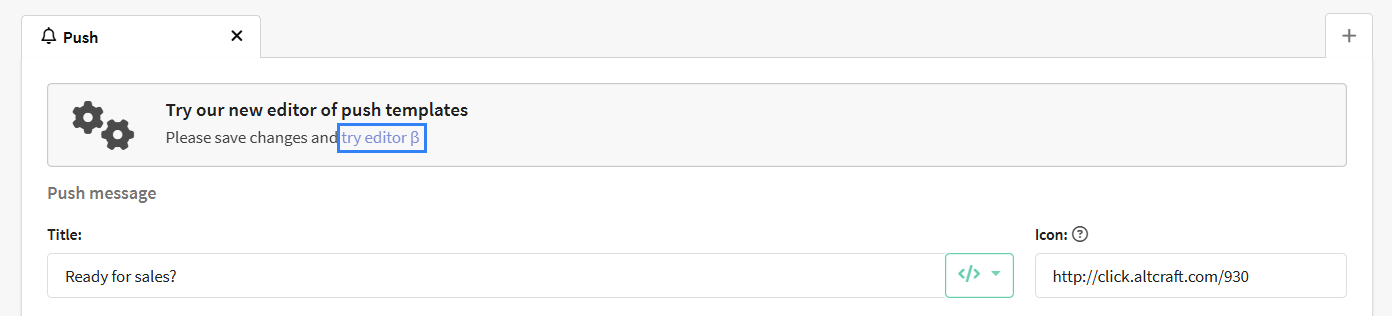
To switch to the editor for Rich push notifications, you need to prepare the initial version of the message in a standard editor (you can do it without a link to go to) and save the template using the "Apply" button. After that, the try the β editor button will be available in the editor:
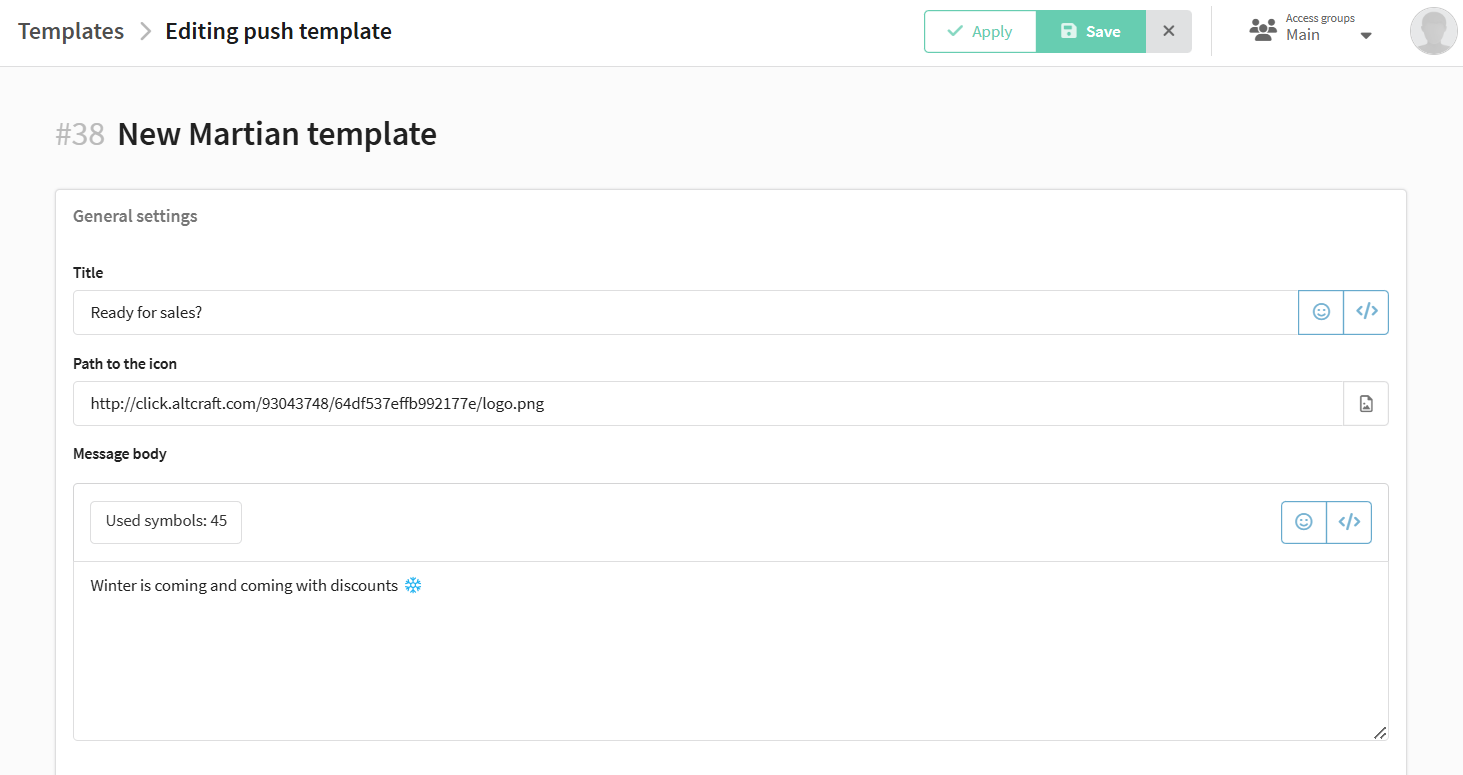
The title, the path to the icon and the body of the message will be filled with the data that you specified in the standard push editor. You can edit these fields if necessary.
Click-through link
The general action on click is the link that the user will click when they click on the push notification. In this block, you set up a link. Users will click on this link unless a unique link is set for different browsers and OS. The unique link is set below in the advanced settings section.
There are 2 types of links that can be used in the Rich push template editor:
- regular link;
- adaptive link.

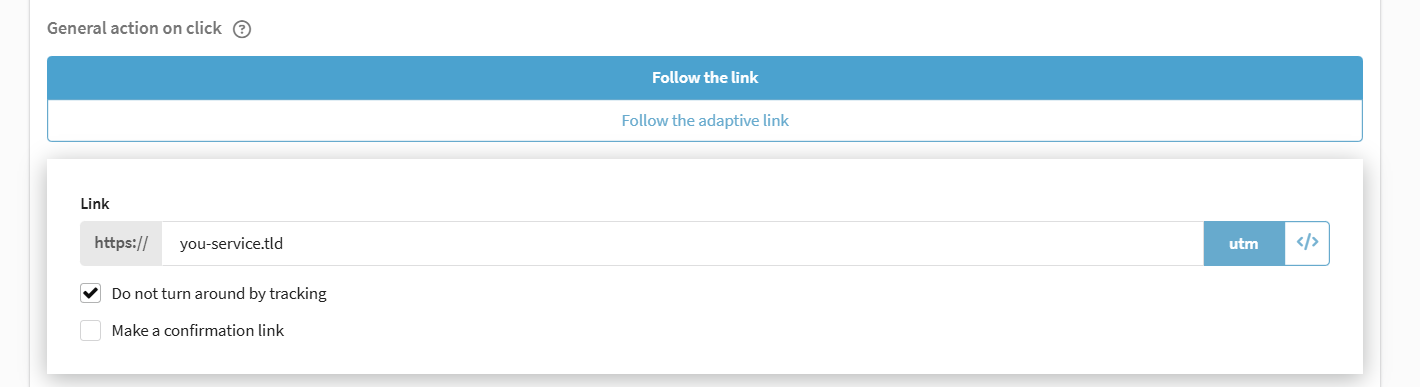
Regular link
- Specify the URL for following. You can only use https link, that means that a link must lead to a site that runs on a secure SSL connection.
- Insert variables using the button
</>. - Add UTM tags to track subscriber traffic. Click utm and in the window that opens, configure the labels, and then click Customize UTM-tags.
- Activate the field if necessary Do not turn around by tracking — this way you will disable the redirection to tracking when clicking on the link, and click statistics will not be collected.
- If you activate the field Make a confirmation link, then a template with such a link can be used to confirm the subscription. When clicking on the link, the profile status will be updated:
Unconfirmed—>Subscribed.
Adaptive link
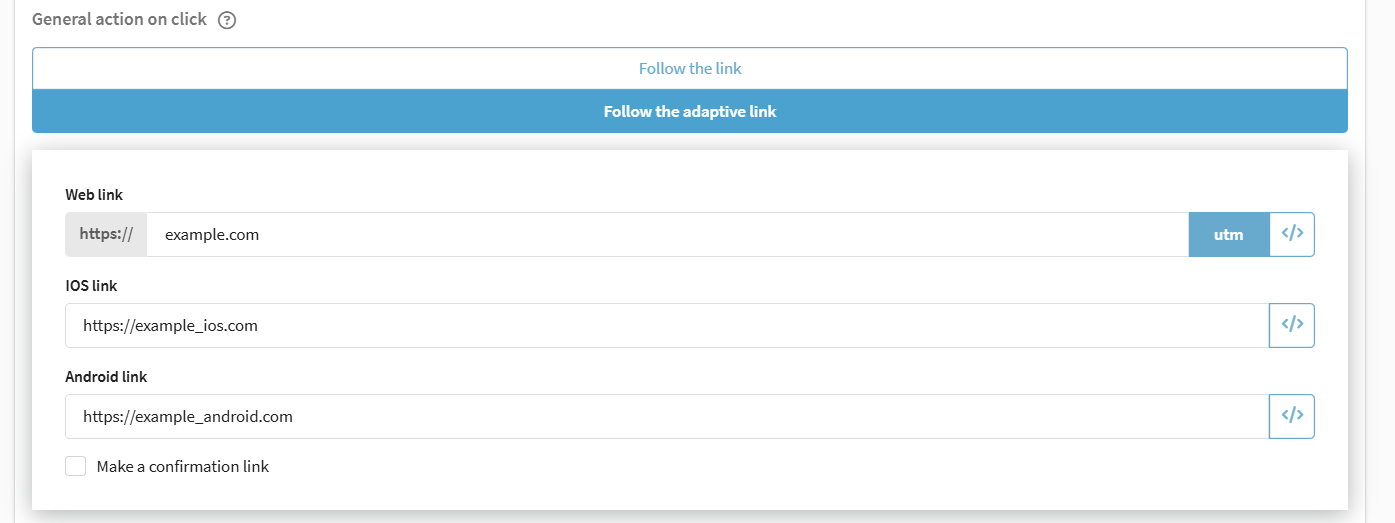
Adaptive link is a link to redirect the user to different URLs, depending on which device he opens the push notification from (desktop, Android or iOS).
- Web link — the user will click on this link if he opens a push notification from a desktop device
- IOS link — The user will click on this link if they open a push notification from an iOS device.
- Android link — The user will follow this link if he opens a push notification from an Android device.
Additional settings:
- Make a confirmation link — a template with such a link is used to confirm the subscription. When clicking on the link, the subscription status of the profile will change from
Unconfirmed—>Subscribed. - Add variables to the link using the button
</>. - Add UTM tags. To do this, click the "utm" button and in the window that opens, configure the labels, and then click Customize UTM-tags.
Advanced settings
The extended version of the push notification editor allows you to create push messages for different OS variants and browsers. Switch between OS and browsers using the panel and configure a push message for each of them.
In addition, a preview of push messages is available to you on the left.
You can also specify a test subscriber to see exactly how the created push message will be displayed on his device.
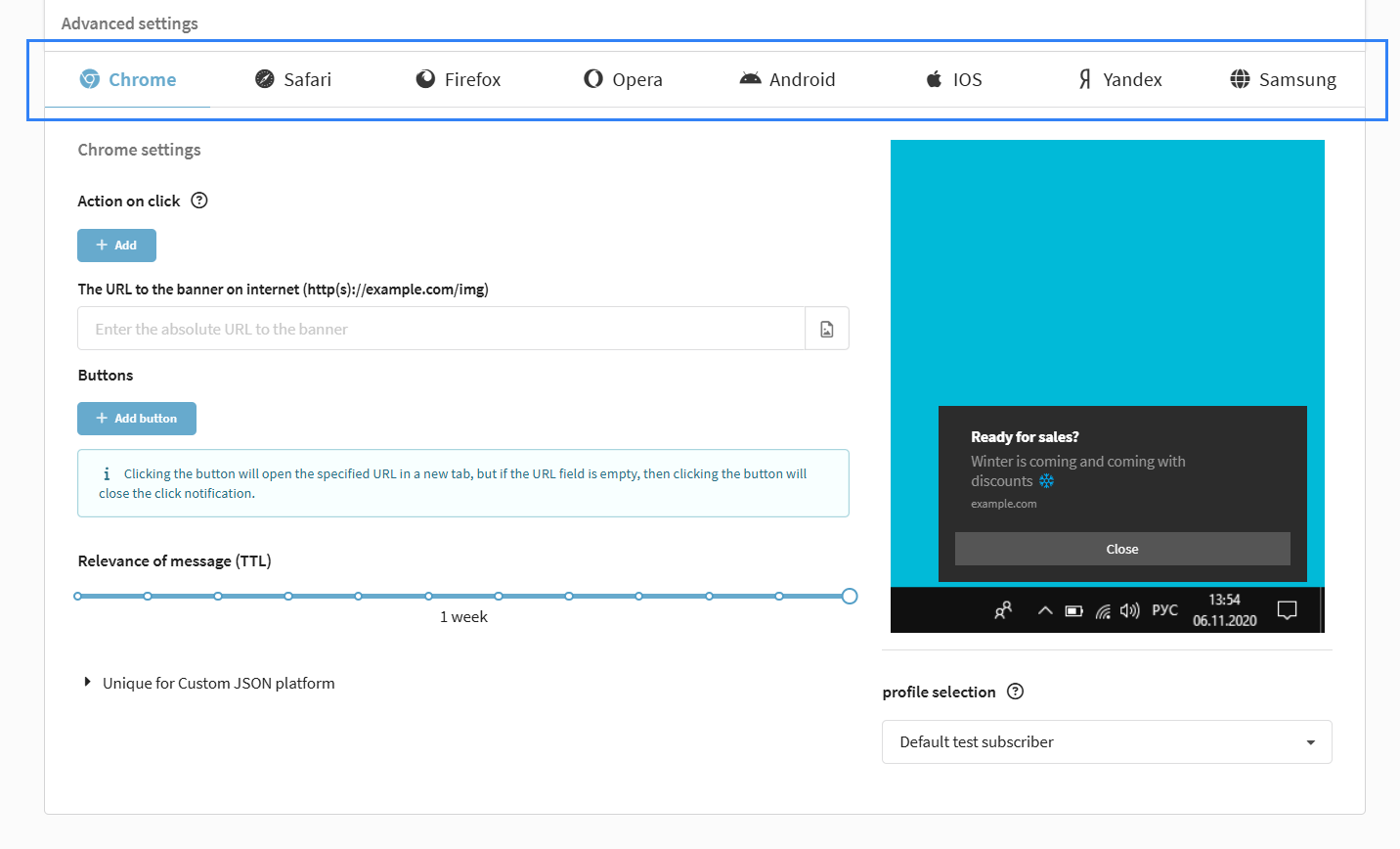
Individual push settings are available for 6 browsers and 2 operating systems. Most of the settings are the same.
Action on click
For each browser and OS, you can add click-through link. We remind you that it is a link for a user to follow.
How do I set up a click-through link?
1. Click + Add:

2. Select the type of the click-through link:
- Regular link;
- Adaptive link;
- Deep-link link.

3. Enter the URL of the link and configure it:
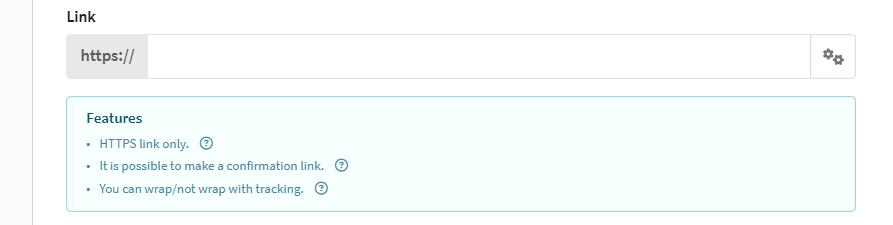
Please note that the link that you specify for each platform "overrides" general action on click.
General action on click

Action on click
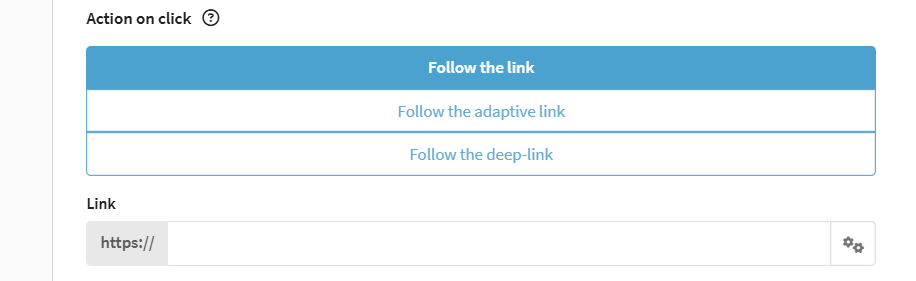
If you leave "action on click" to the platform empty, then even in this case it will "overwrite" general action on click.
When you leave the field with the click link empty, then when you click on it, the user will simply close the push notification.
Banner
Specify the URL of the image. If the URL is correct, the banner image will be displayed in the preview. In addition, you can add an image from the gallery.

Buttons
Click Add button. In the window that opens, enter the button text of the button and select the action that the user will perform when he clicks on the button. Read about setting up a click-through link right there.
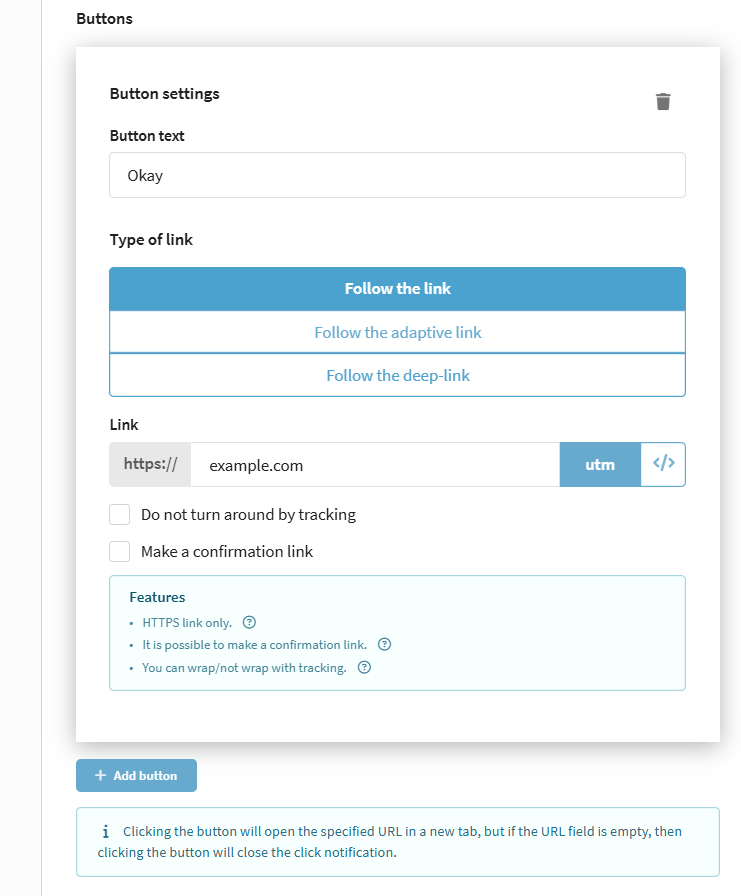
If the field Link is left empty, then when clicking on the button, the user will close the push.
Unique for Custom JSON platform
You can pass additional fields in JSON format to the message to expand the root structure of the push message.

Unlike the General settings Custom JSON option, which is applied to all browsers and OSs, a unique Custom JSON is configured for each browser and OS separately.
Custom JSON examples
Custom JSON is a JSON object that is added to the root fields of the push message. Use it to pass additional data to the subscriber's application that is not available in the standard fields (for example, parameters for a deep link, a badge, or a sound).
Fields from Custom JSON are not displayed in the notification itself — they are read by the receiving application. The set and structure of the fields must be agreed upon with your application's developer.
Example 1. Static fields. Pass fixed parameters to the application:
{
  "badge_type": "promo",
  "campaign_tag": "autumn_2026"
}
Example 2. With personalization. You can insert a platform variable into a field value — via the </> insertion menu in the Custom JSON editor, just like in other template fields:
{
  "user_name": "{lead._fname}",
  "phone": "{lead.custom_field}"
}
When sending, the platform replaces the variables with the current profile field values.
The Custom JSON field is processed by the platform's template engine. To avoid saving and sending errors:
- the content must be a valid JSON object;
- insert variables via the
</>menu rather than typing them by hand, so you don't break the syntax; - after variable substitution, the result must remain valid JSON. If a substituted value contains an unescaped quote or other special characters, the structure will be corrupted and sending will fail with an error — see errors in the campaign log (
ERR_PARSE_PUSH_CUSTOMJSON_CONTENT,ERR_MARSHAL_PUSH_CUSTOMJSON_CONTENT).
Relevance of message (TTL)
TTL ("time to live") is the period of time during which the push service monitors the status of a recipient's device for its connection to the Internet. As soon as a recipient appears online within the specified time, a push message will be delivered to him. If the time has expired and a recipient has not appeared on the network, the system stops tracking its status, and, accordingly, the push notification is considered not delivered.
Move the slider to set the "time to live" of the push message:

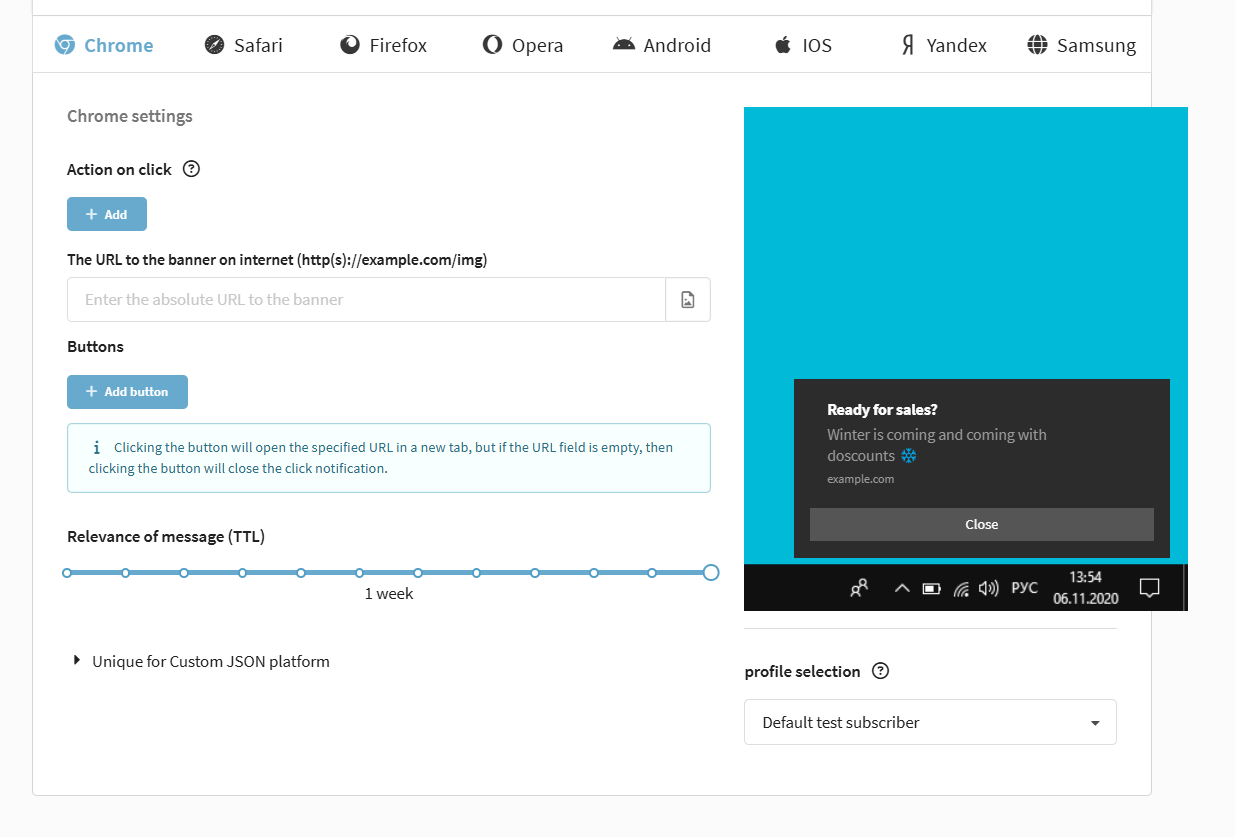
Chrome
The following settings are available for this browser:
| Field | Value |
|---|---|
| Action on click | The link that a user will follow when they click on a push message |
| Banner | Link to a banner image |
| Buttons | When the button is clicked, a user will perform a certain action |
| TTL | The time during which the service monitors a device's connection for delivery of a message. Then an expiration happens |
| Unique for Custom JSON platform | Additional fields in JSON format to expand the root structure of the push message |
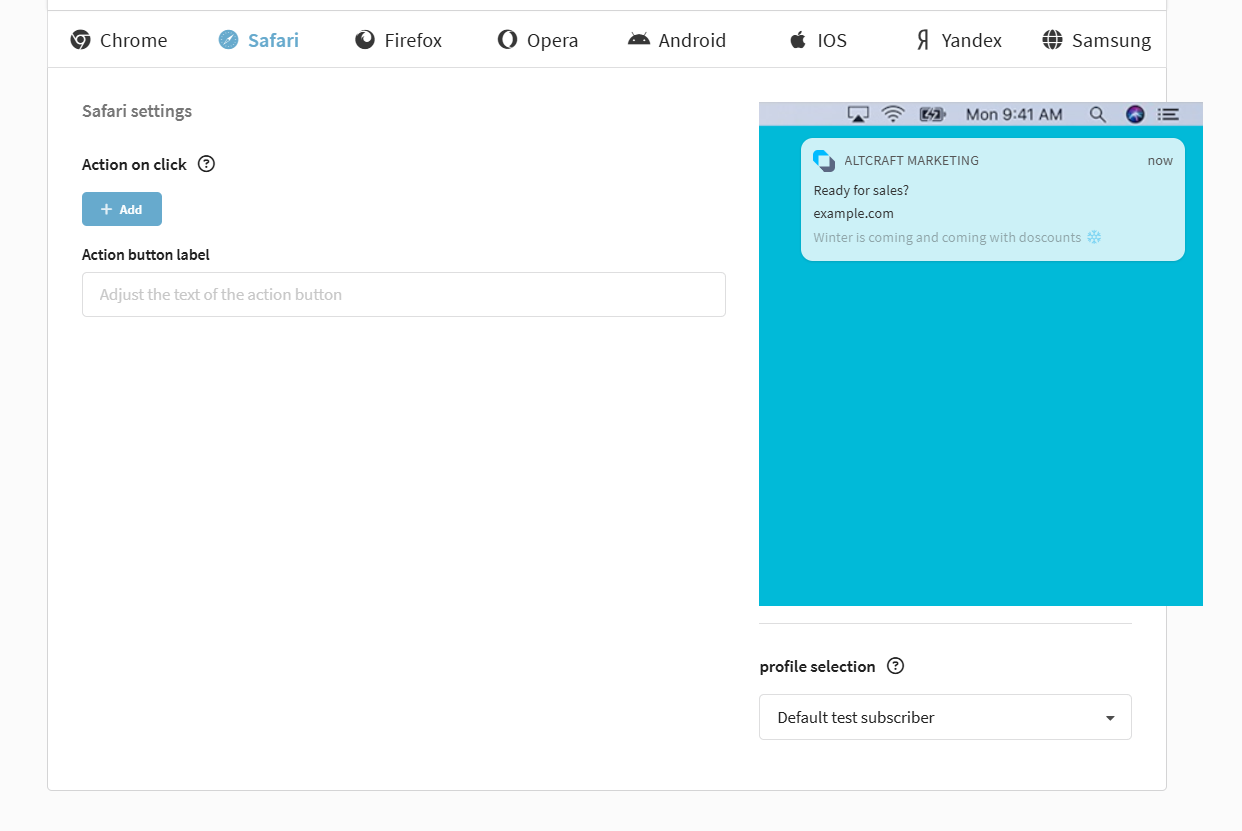
Safari
The following settings are available for this browser:
| Field | Value |
|---|---|
| Action on click | A link that users will follow when they click on a push message |
| Action button label | When the button is clicked, a user will perform a certain action |
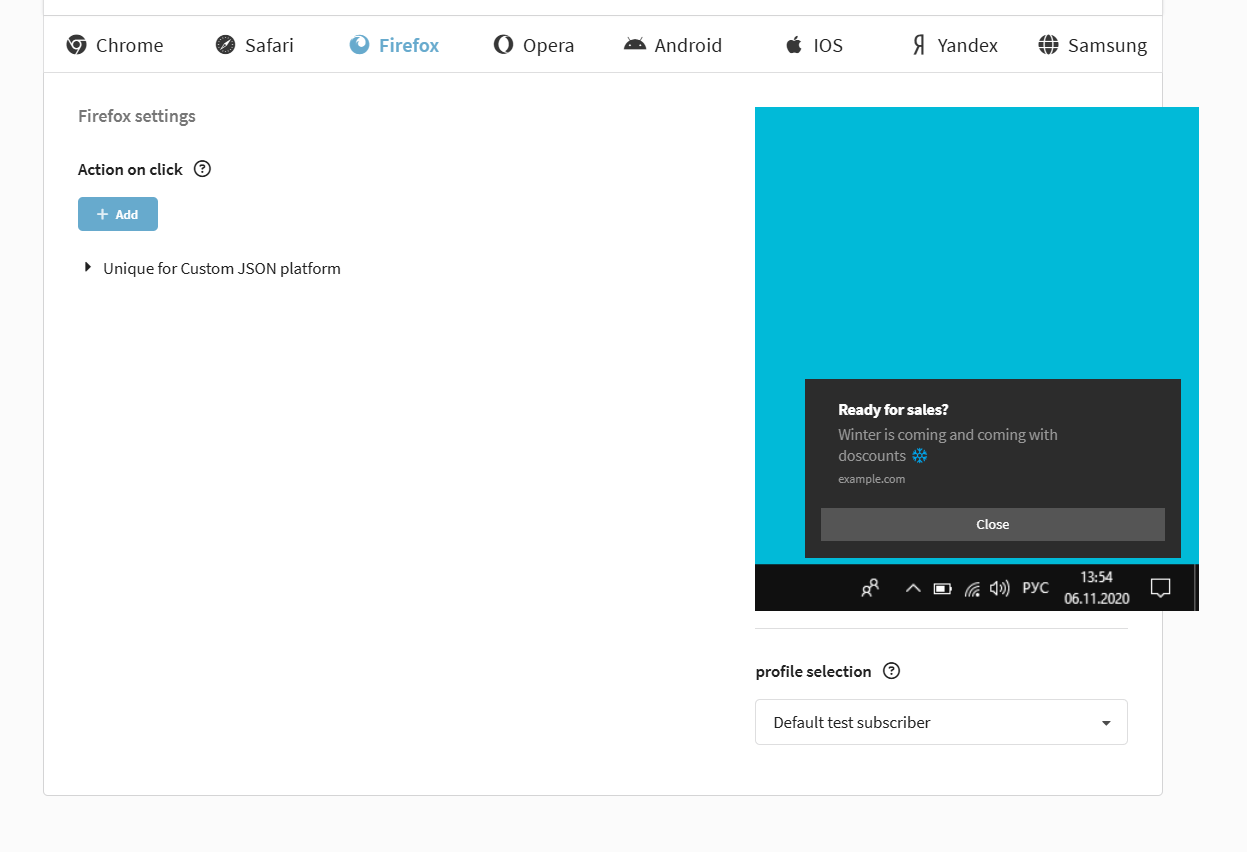
Firefox
The following settings are available for this browser:
| Field | Value |
|---|---|
| Action on click | A link that users will follow when they click on a push message |
| Unique for Custom JSON platform | Additional fields in JSON format to expand the root structure of the push message |
Opera
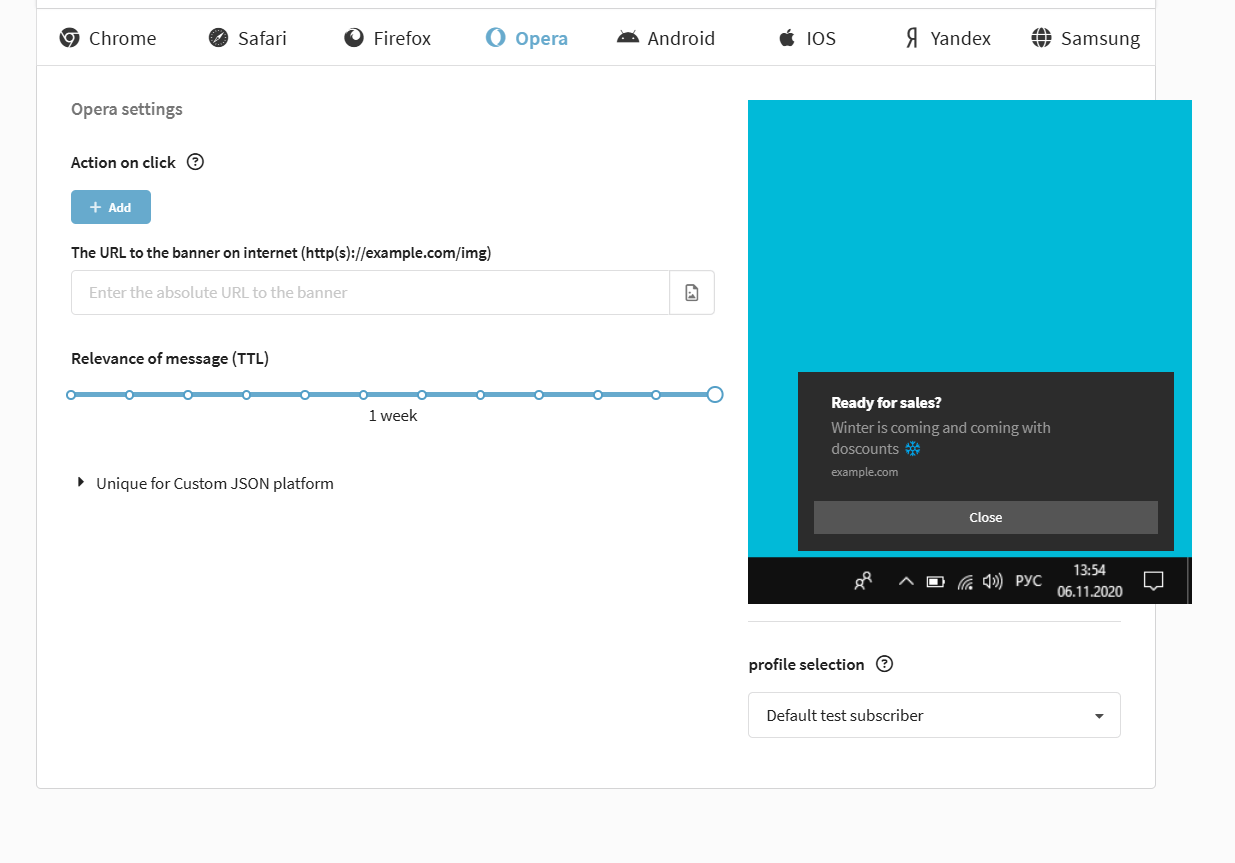
The following settings are available for this browser:
| Field | Value |
|---|---|
| Action on click | A link that the users will follow when they click on a push message |
| Banner | Link to the banner image |
| Relevance of message (TTL) | The time during which the service monitors a device's connection for delivery of a message. Then an expiration happens |
| Unique for Custom JSON platform | Additional fields in JSON format to expand the root structure of the push message |
Android
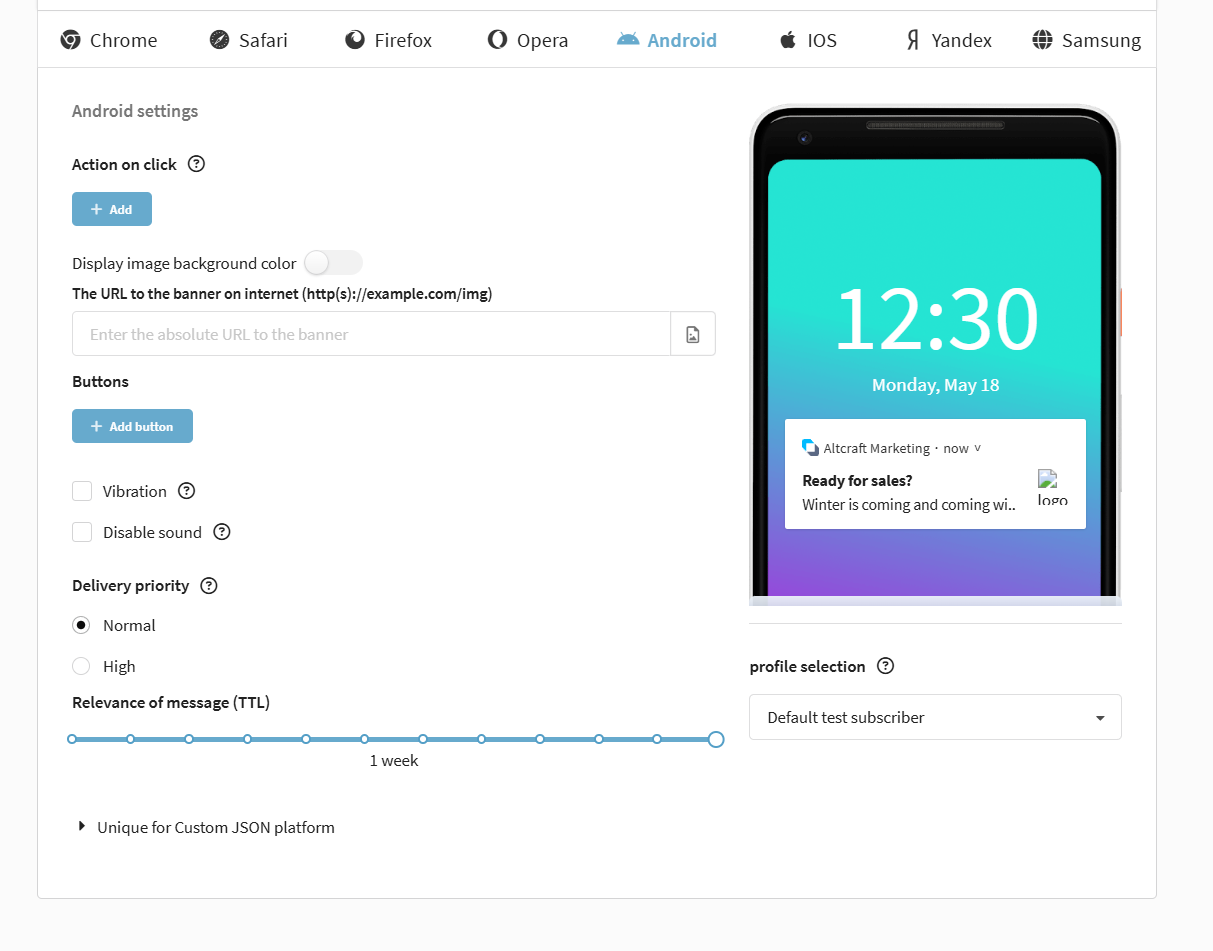
The following settings are available for this OS:
| Field | Value |
|---|---|
| Action on click | A link that users will follow when they click on a push message |
| Display image background color | Background of the push notification |
| Banner | Link to the banner image |
| Buttons | When the button is clicked, a user will perform a certain action |
| Vibration | When receiving a push notification, user's device will reproduce vibration |
| Disable sound | When delivered to a device, a push notification will not play sound or vibration |
| Delivery priority | Normal: the delivery of messages with normal priority can be postponed indefinitely to save battery power. High: push notification launches the app in the background and immediately gets internet access. |
| Relevance of message (TTL) | The time during which the service monitors a device's connection for delivery of a message. Then an expiration happens |
| Unique for Custom JSON platform | Additional fields in JSON format to expand the root structure of the push message |
iOS
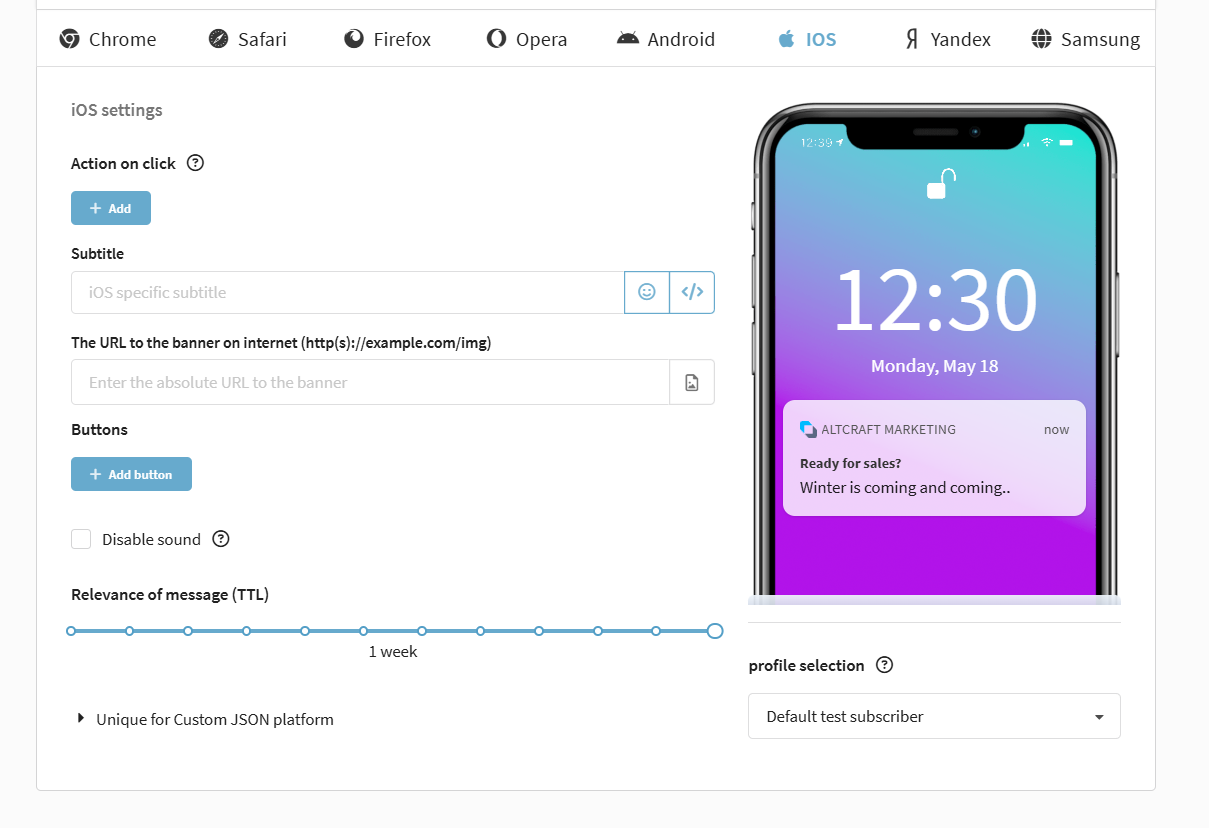
The following settings are available for this OS:
| Field | Value |
|---|---|
| Action on click | A link that users will follow when they click on a push message |
| Subtitle | IOS-specific subtitle |
| Banner | Link to the banner image |
| Buttons | When the button is clicked, a user will perform a certain action |
| Disable sound | When delivered to the device, the push notification will not play sound and vibration |
| Relevance of message (TTL) | The time during which the service monitors a device's connection for delivery of a message. Then an expiration happens |
| Unique for Custom JSON platform | Additional fields in JSON format to expand the root structure of the push message |
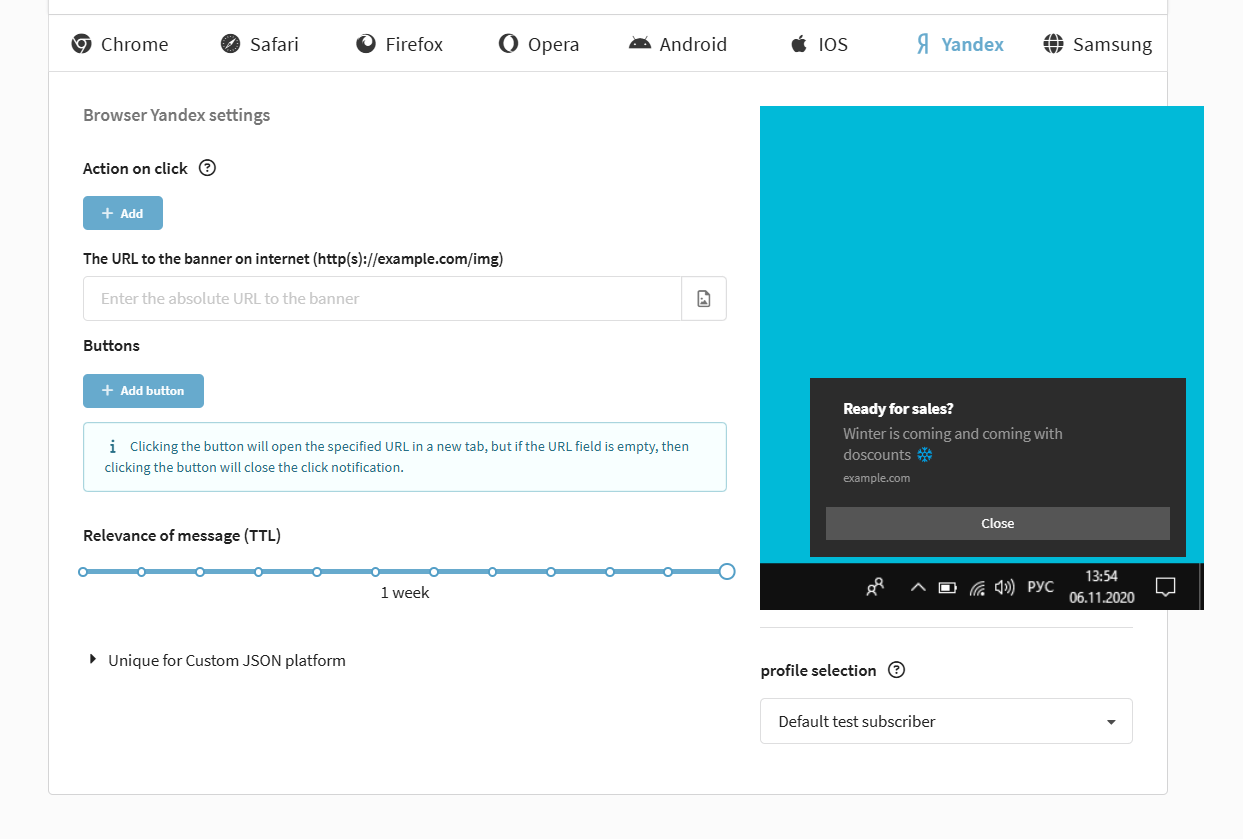
Yandex
The following settings are available for this browser:
| Field | Value |
|---|---|
| Action on click | A link that users will follow when they click on a push message |
| Banner | Link to the banner image |
| Buttons | When the button is clicked, the user will perform a certain action |
| Relevance of message (TTL) | The time during which the service monitors a device's connection for delivery of a message. Then an expiration happens |
| Unique for Custom JSON platform | Additional fields in JSON format to expand the root structure of the push message |
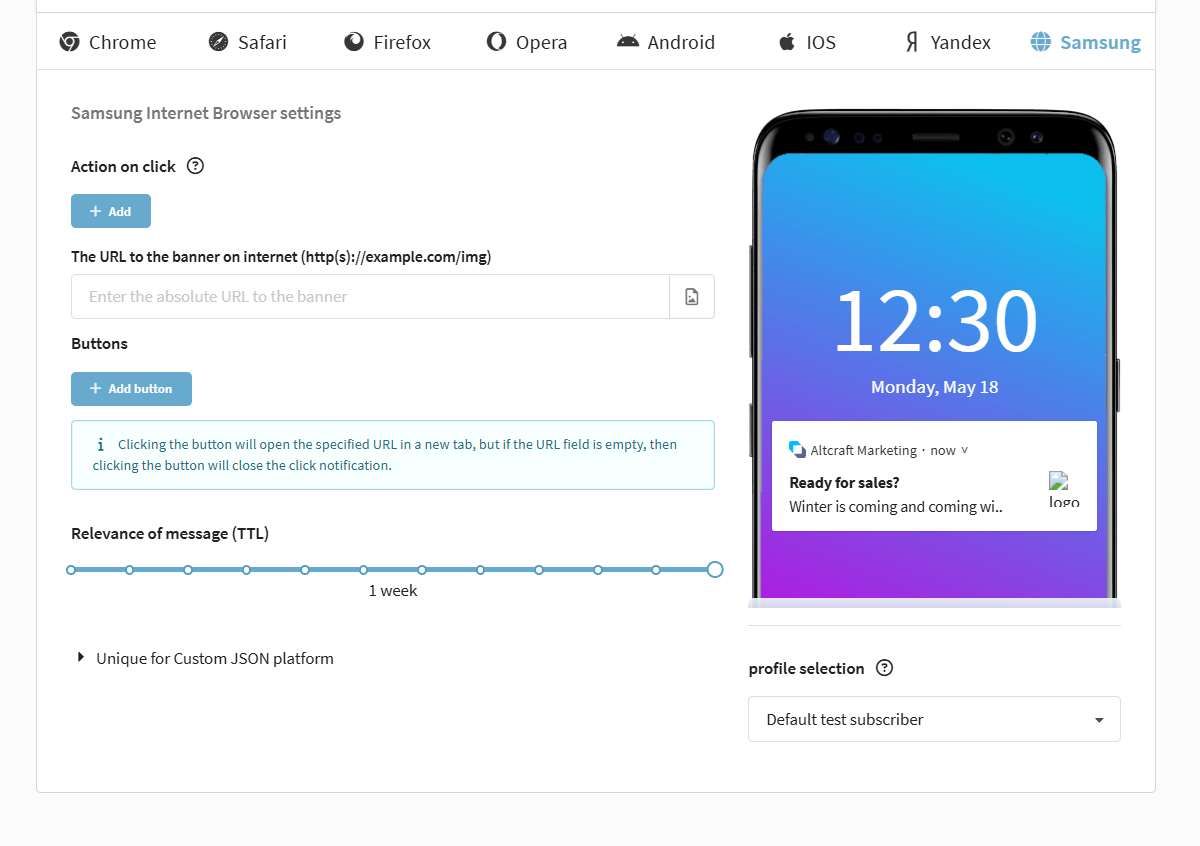
Samsung
The following settings are available for this browser:
| Field | Value |
|---|---|
| Action on click | A link that users will follow when they click on a push message |
| Banner | Link to a banner image |
| Buttons (no more than two at once) | When the button is clicked, the user will perform a certain action |
| Relevance of message (TTL) | The time during which the service monitors a device's connection for delivery of a message. Then an expiration happens |
| Unique for Custom JSON platform | Additional fields in JSON format to expand the root structure of the push message |
Once you have set up all the necessary parameters for your template, save it by clicking on the "Save" button:

If you made some mistake when filling template fields, it will be displayed at the top of the screen. Correct your error and save the template again.

Now you can use this template to send Rich Push notifications. Read more about how to do this here: Web push: setup and connection.