MAX template
Templates for sending via MAX Bot and MAX Group are configured in the same way, except that profile data variables are not available for MAX Group because it is an indirect communication channel.
This article describes how to create templates for sending messages via MAX Group and MAX Bot.
Message elements
A MAX template consists of elements. To start editing a template, click + Element:
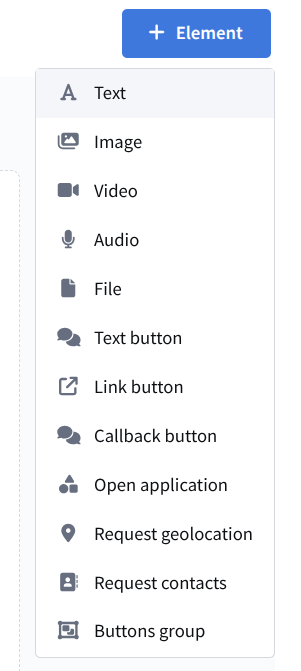
The following elements are available:
- Text — sends a text message
- Image — attaches an image to the message
- Video — attaches a video file to the message
- Audio — attaches an audio file to the message
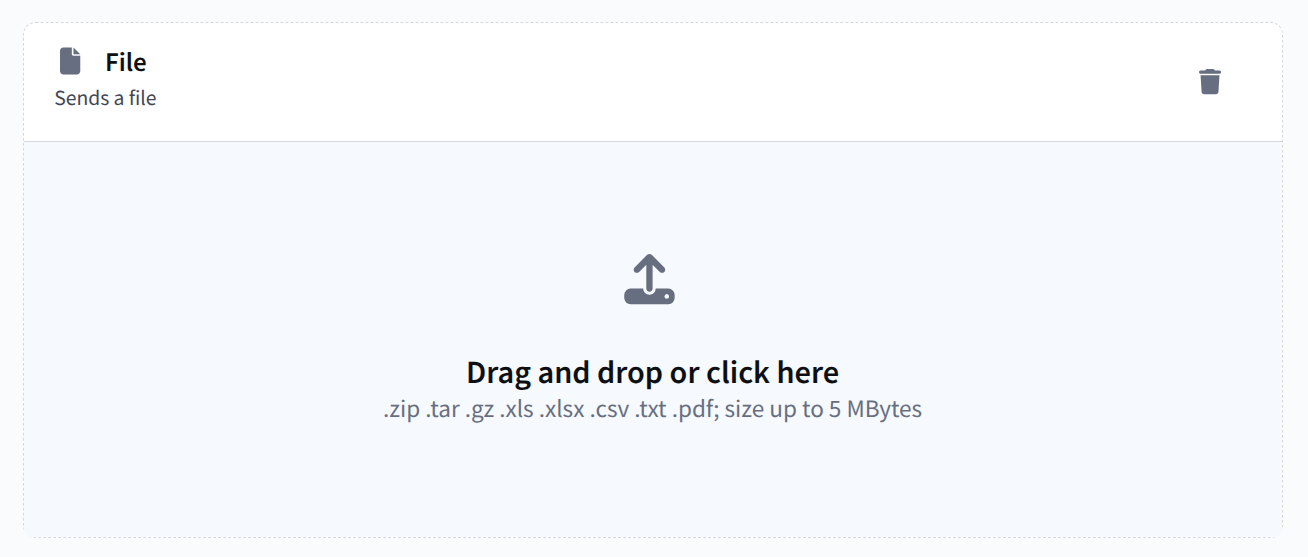
- File — attaches a file to the message
To interact with the recipient, you can add inline buttons to the message:
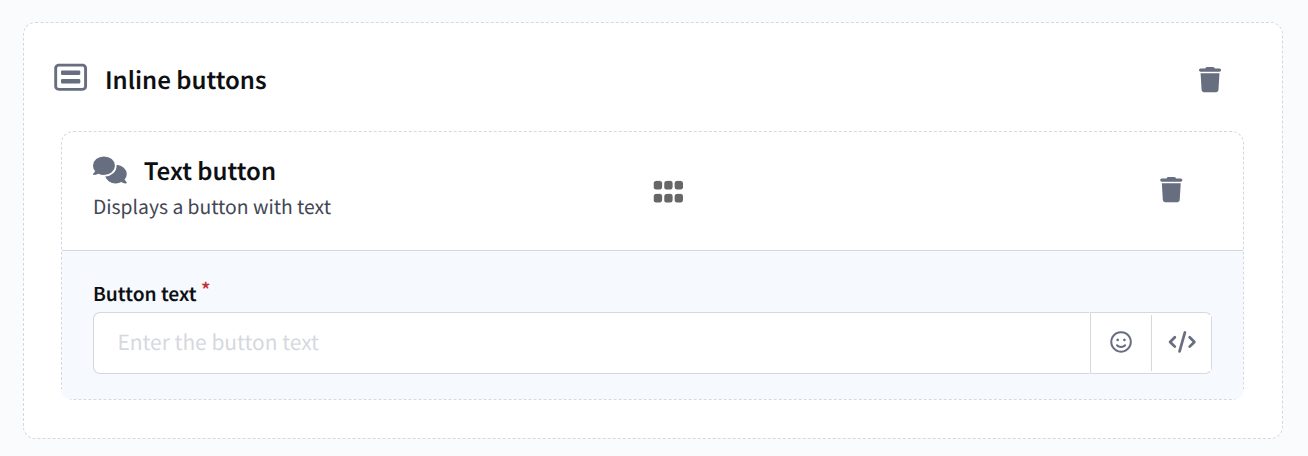
- Text button — displays a button with text
- Link button — opens the specified link
- Callback button — after being clicked, sends the specified text or command back to the bot
- Open app — opens a mini app
- Request location — requests the user's location
- Request contact details — requests the user's contact and phone number
- Button group — a combination of buttons of several types
These buttons cannot be used without other elements.
The following limits apply to MAX templates:
- Up to 32 elements in one template — up to 30 buttons, text, and one media file
- You can attach only one media type to a message (images, video, audio, or file)
- Up to 12 images in one template, while all other media support only one attachment
- A single button group can contain up to 7 buttons if only text and callback buttons are used, or up to 3 buttons if at least one button of another type is used (link, open app, request location, or request contact details)
If the message text contains links to web pages, MAX displays a preview of that page by default:
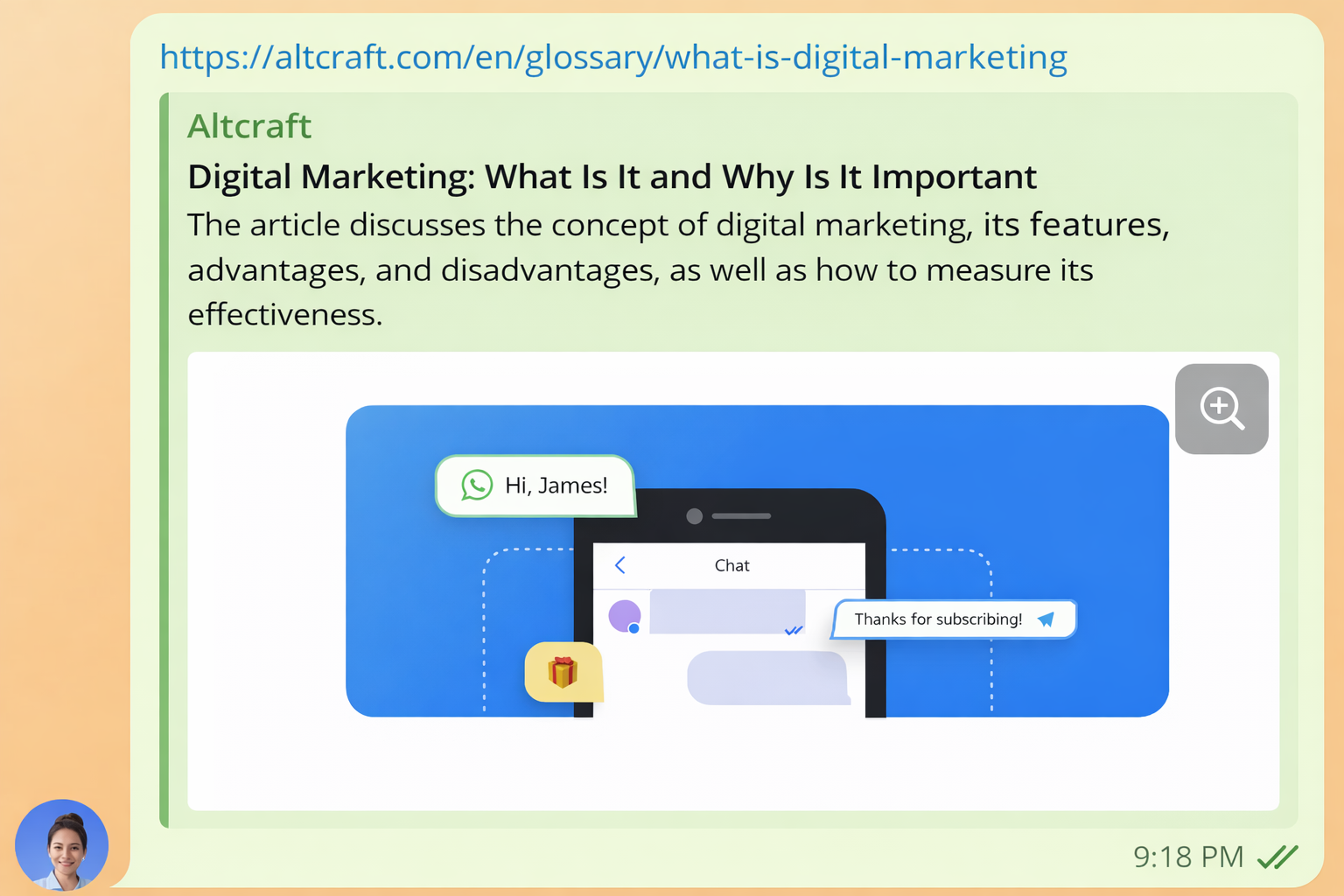
If you do not want the preview to be displayed, enable the Disable link previews in MAX switch.
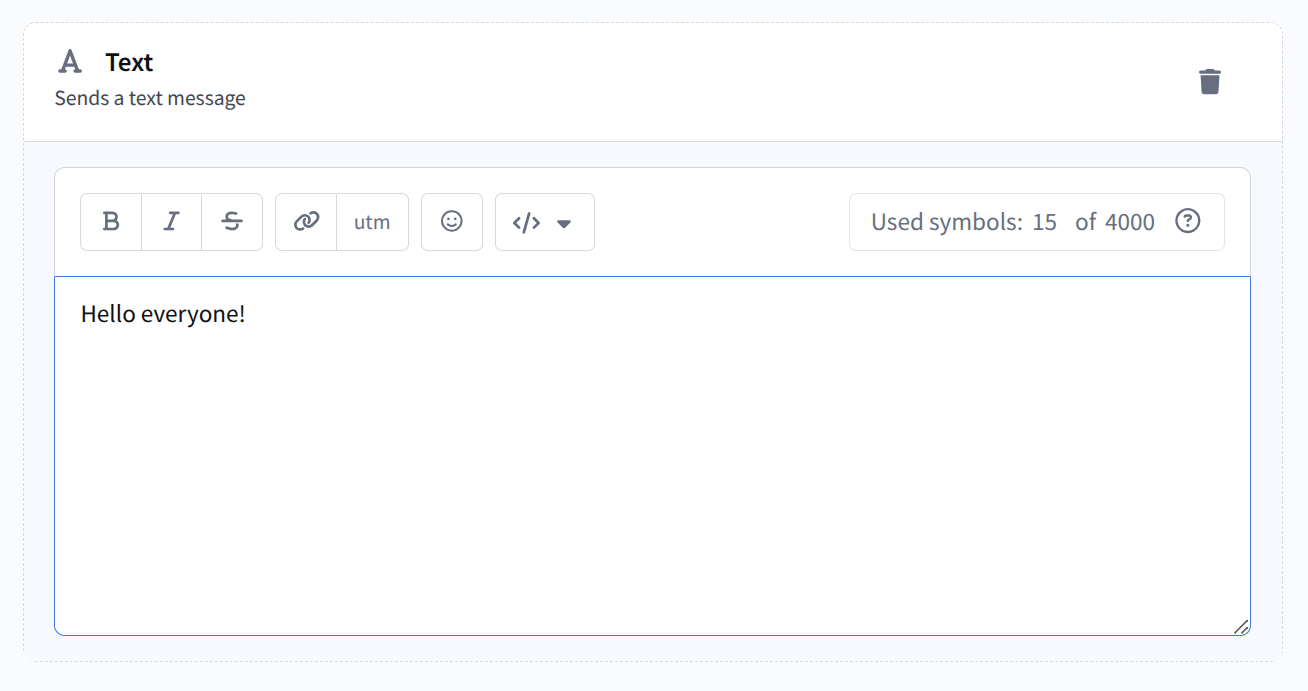
Text
A text message that will be sent by the bot. For easier formatting, the top panel includes the following functions:
 — bold text
 — italic
 — strikethrough text
 — link editor (see more here). Links inserted through the platform are shortened automatically. The final link path length excluding the tracking domain is 12–14 characters, including
 /.
 — add UTM tags
 — list of editor variables and functions for message personalization
 — insert emoji. Note that each emoji counts as two characters.
On the right, there is a character counter. The maximum length of a single message is 4000 characters. Note that data inserted from dynamic variables may exceed this limit. To ensure reliable delivery, we recommend monitoring the message length and shortening the text when necessary.
Image
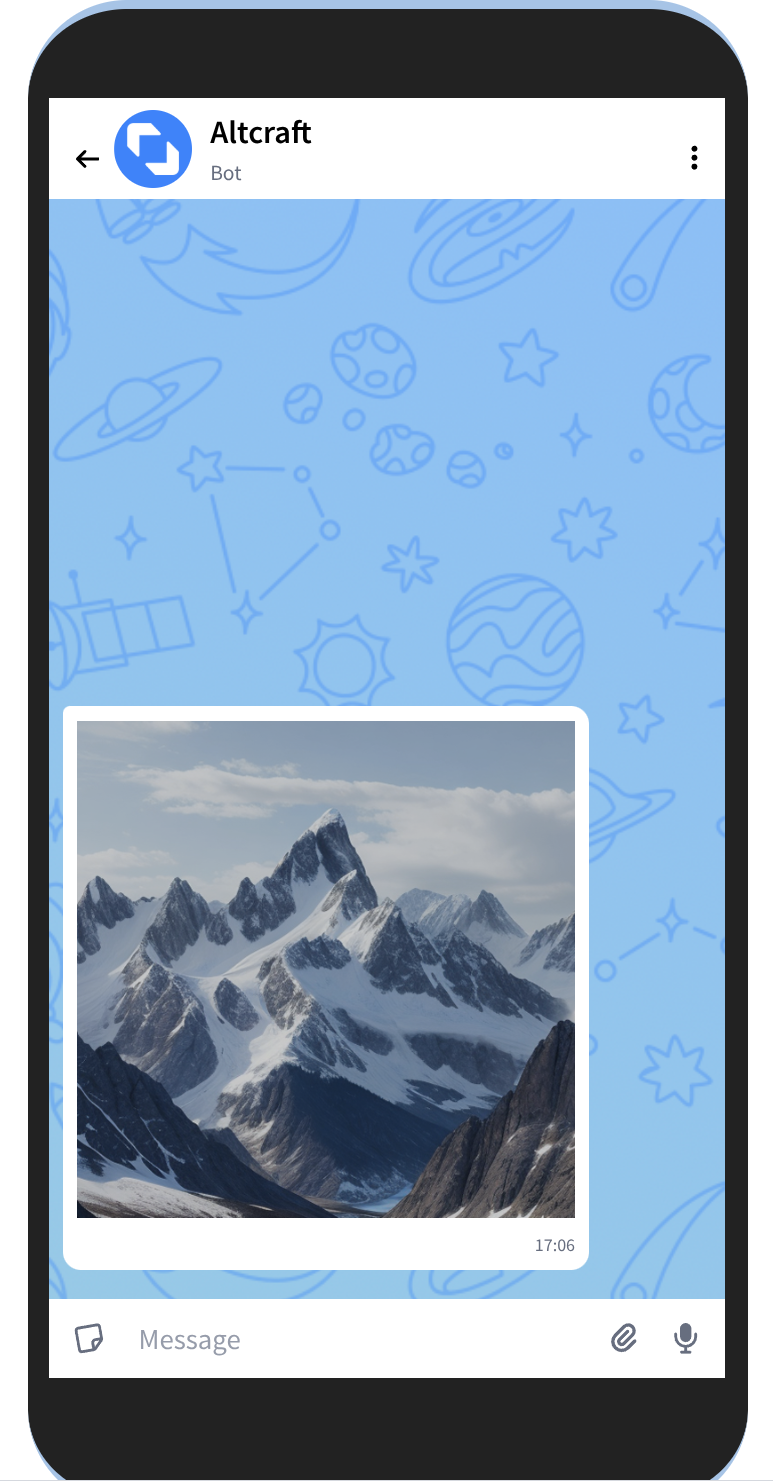
Sends a message with images. You can attach up to 12 images. Files are selected from the gallery or uploaded from a device.
The maximum image size for insertion into a template is 10Mb. Supported formats: .jpg, .png, .gif
If this element is used in the template, other media elements (video, audio, or file attachments) cannot be added.

Preview in MAX
Video
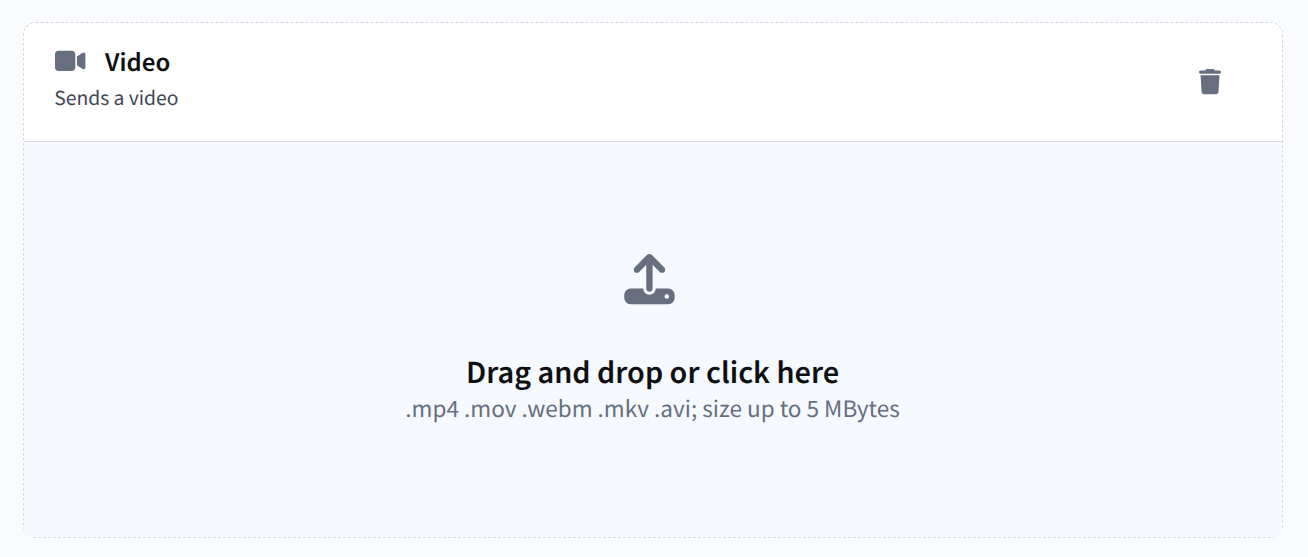
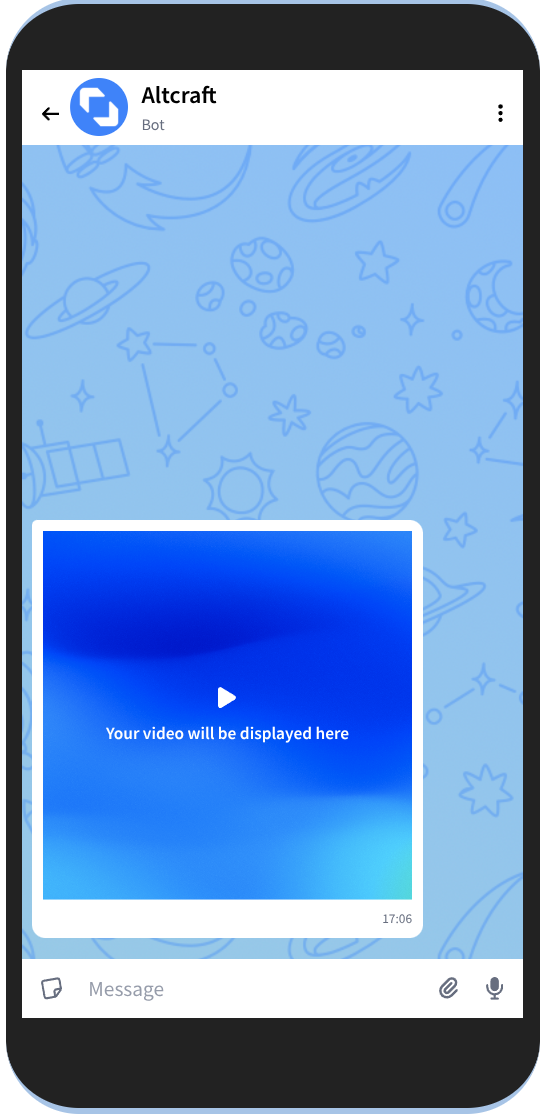
Sends a video. You can attach only one video file. The maximum video size for insertion into a template is 5Mb. Supported formats: .mp4, .mov .webm .mkv .avi
If this element is used in the template, other media elements (image, audio, or file attachments) cannot be added.
Preview in MAX
Audio
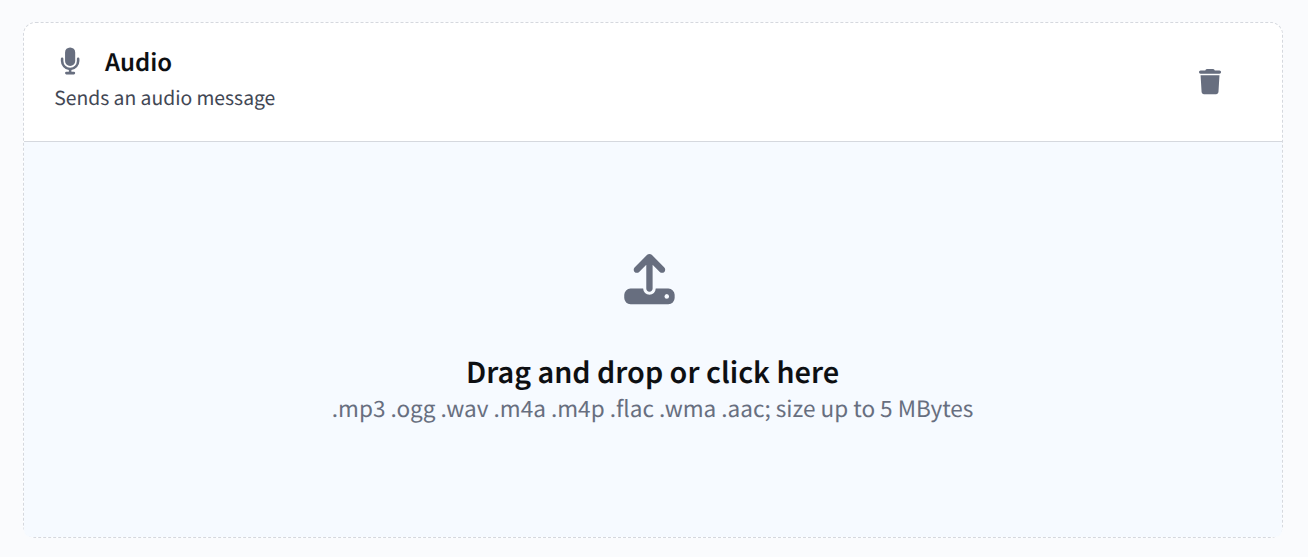
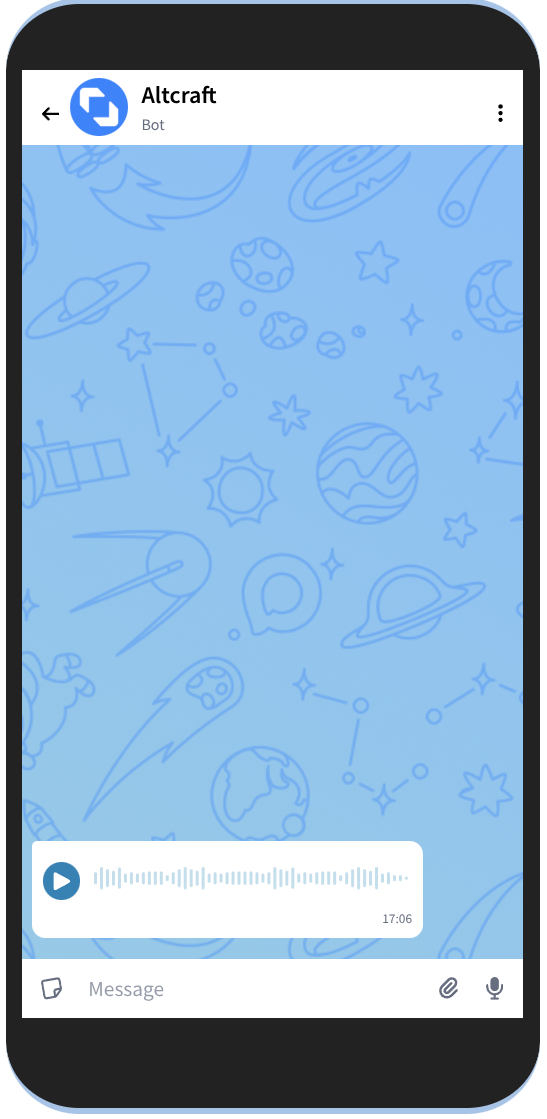
Sends an audio message. You can attach only one audio file. The maximum audio size for insertion into a template is 5Mb. Supported formats: .mp3, .ogg, .wav, .m4a, .m4p, .flac, .wma, .aa
If this element is used in the template, other media elements (image, video, or file attachments) cannot be added.
Preview in MAX
File
Sends a file up to 5Mb in .zip, .tar, .gz, .xls, .xlsx, .csv, .txt, or .pdf format
If this element is used in the template, other media elements (image, video, or audio) cannot be added.
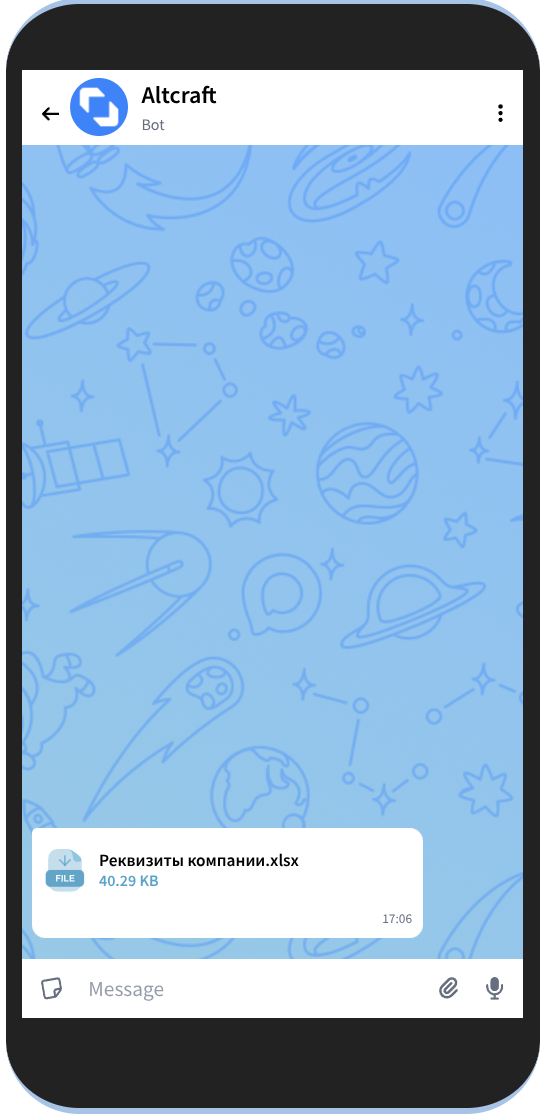
Preview in MAX
Text button
Displays a button with text. You can add emoji and platform variables to the button text. The maximum number of characters in button text is 128.
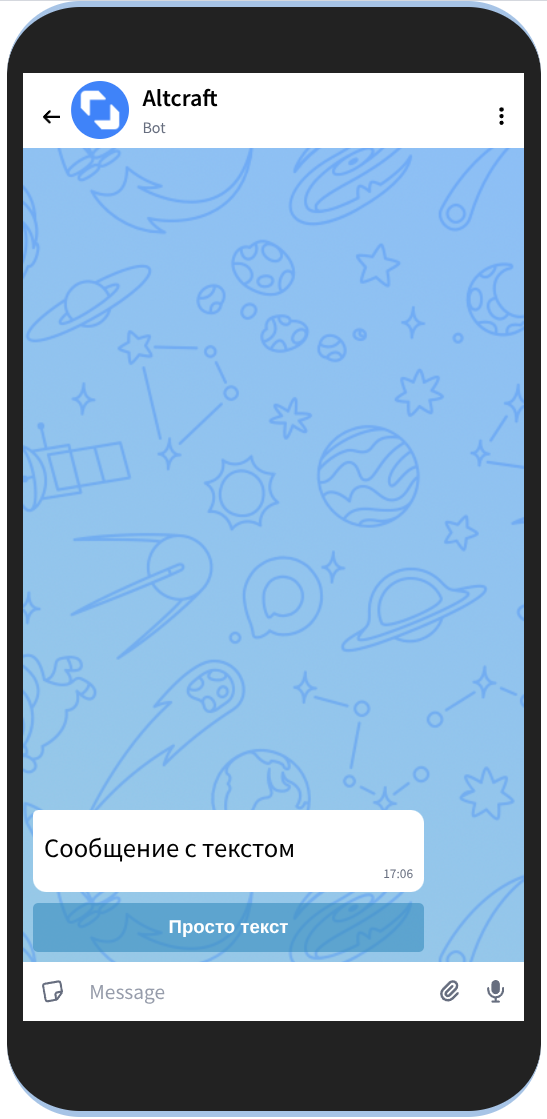
Preview in MAX
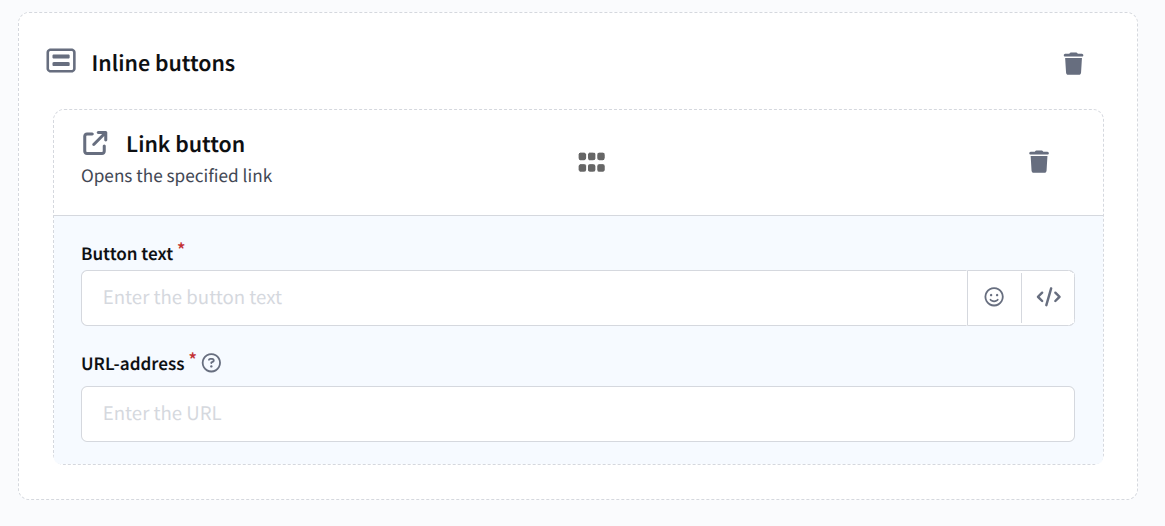
Link button
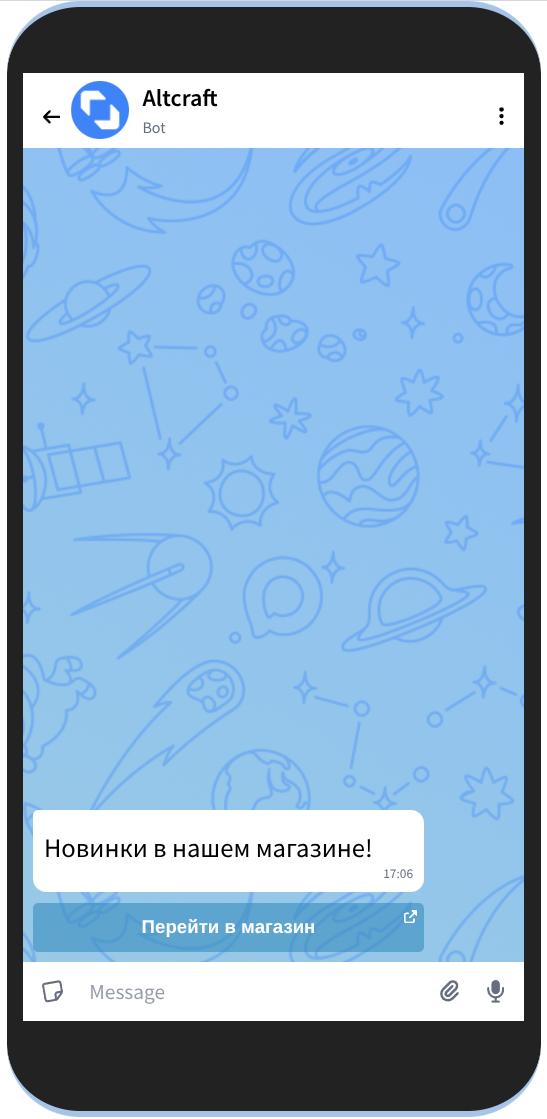
Opens the specified link. For this button, you need to specify the text displayed on it and the destination link. You can add emoji and platform variables to the button text. The maximum number of characters in button text is 128.
Preview in MAX
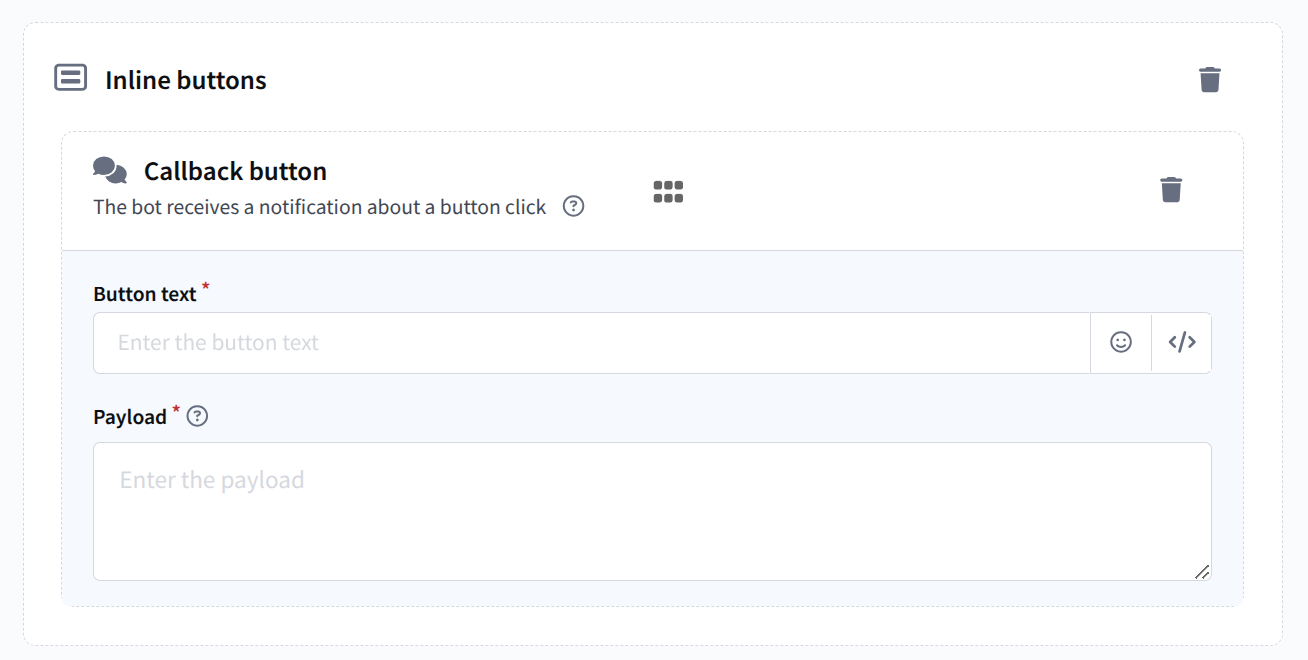
Callback button
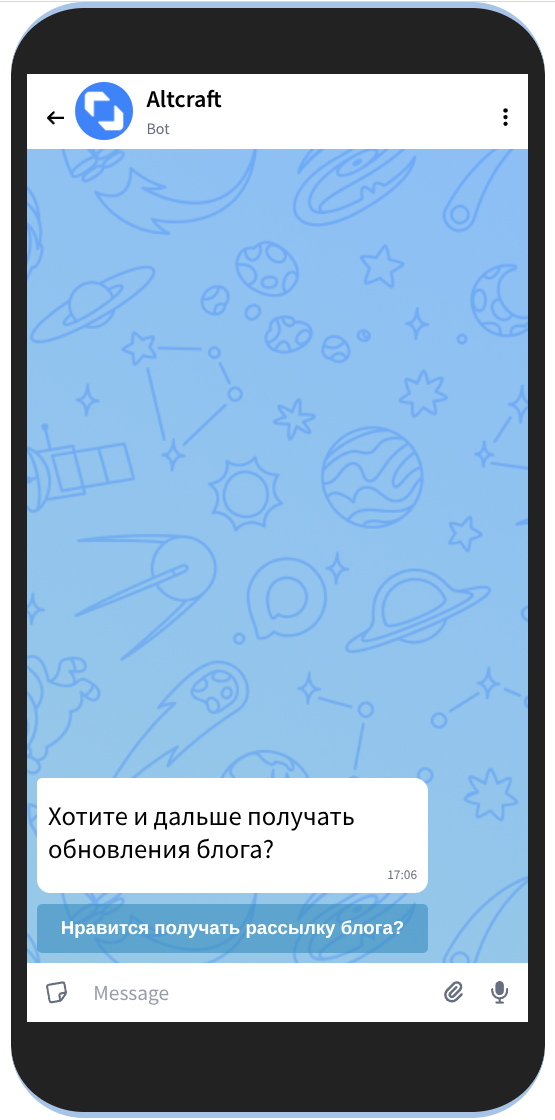
When a callback button is clicked, the bot receives a notification and accepts the message payload. You can add emoji and platform variables to the button text. The maximum number of characters in button text is 128. The payload can contain plain text or a command that the bot should execute.
Preview in MAX
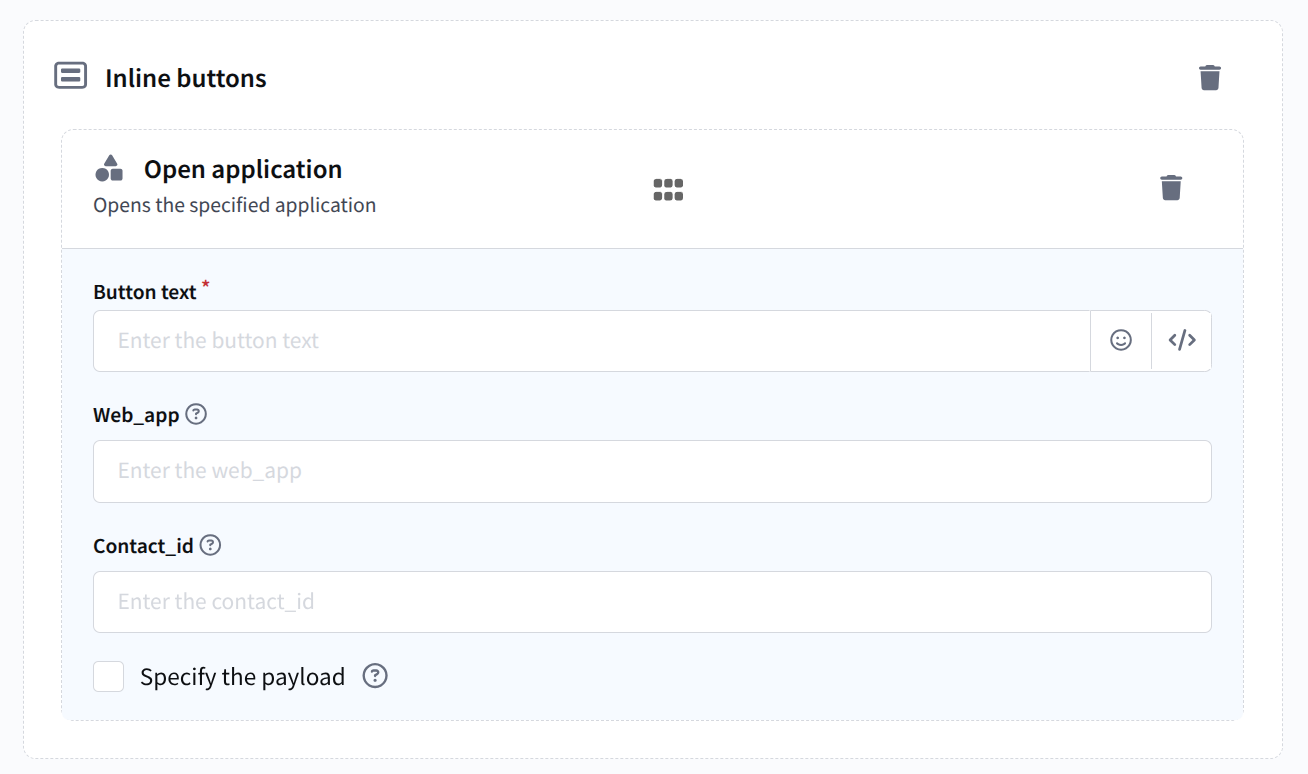
Open app
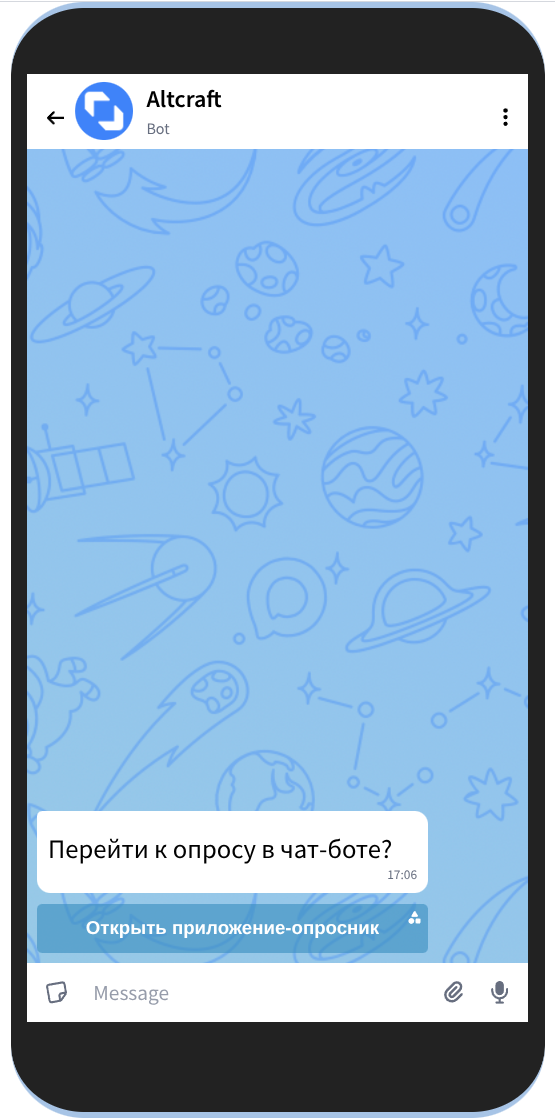
Opens the specified mini app when clicked. You need to specify the button text and the app identifier. It can be passed either as Web_app (the username of the bot whose mini app will be launched, or a link to it, passed as a string value) or as Contact_id (an integer value, the bot ID). You must pass only one parameter.
We recommend passing Web_app, since using Contact_id may cause errors on the messenger side.
You can add emoji and platform variables to the button text. The maximum number of characters in button text is 128. The payload can contain plain text or a command that the bot should execute.
Preview in MAX
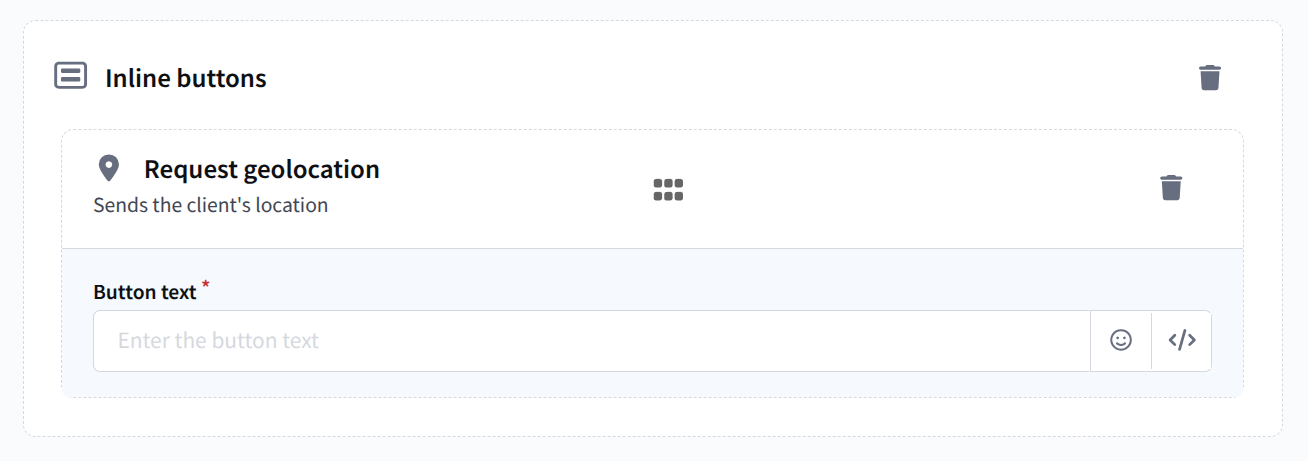
Request location
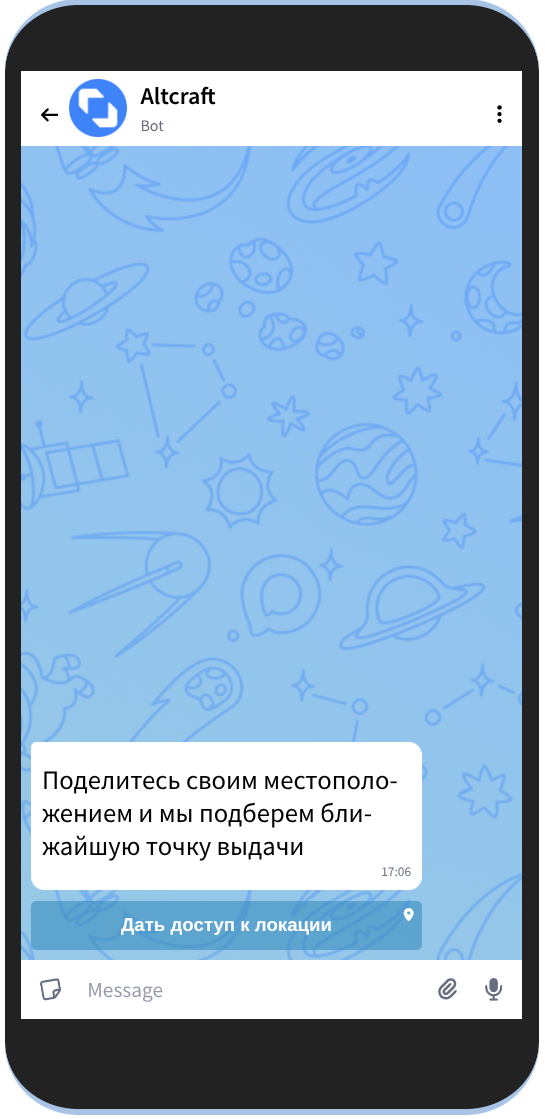
When clicked, sends the user's location. You can add emoji and platform variables to the button text. The maximum number of characters in button text is 128.
Preview in MAX
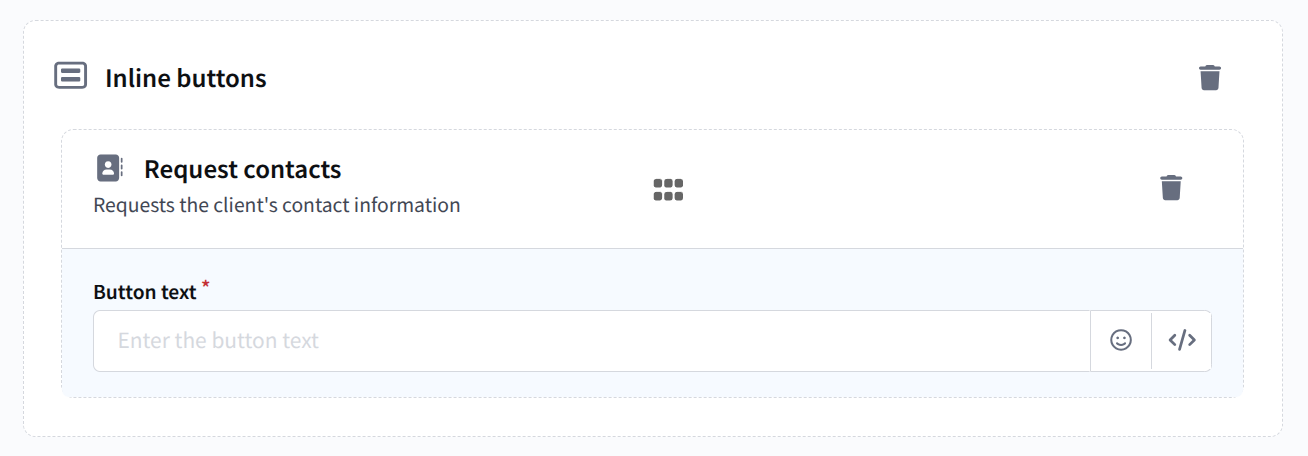
Request contact details
When clicked, sends the user's contact details. You can add emoji and platform variables to the button text. The maximum number of characters in button text is 128.
Preview in MAX
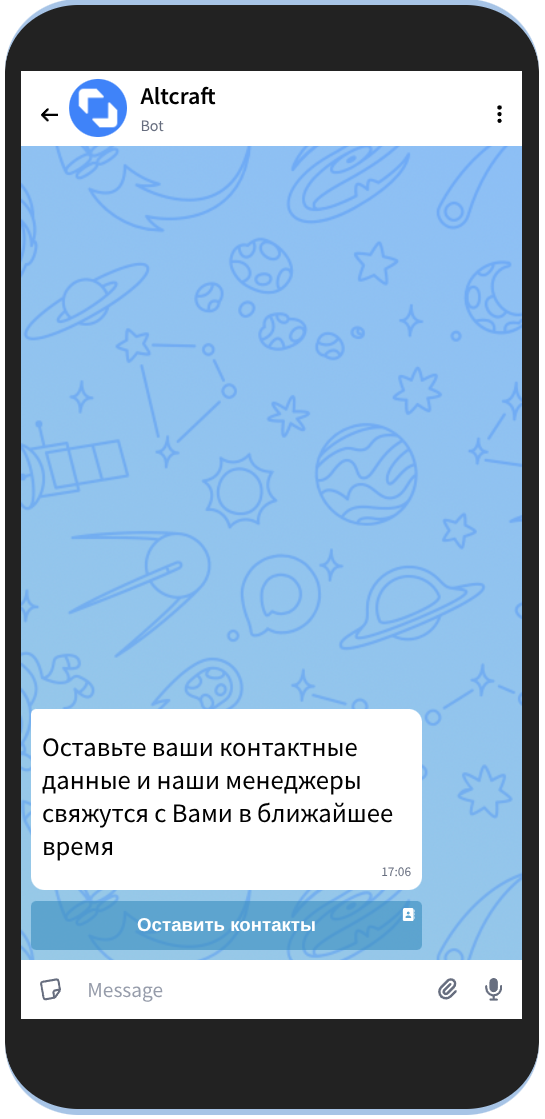
Button group
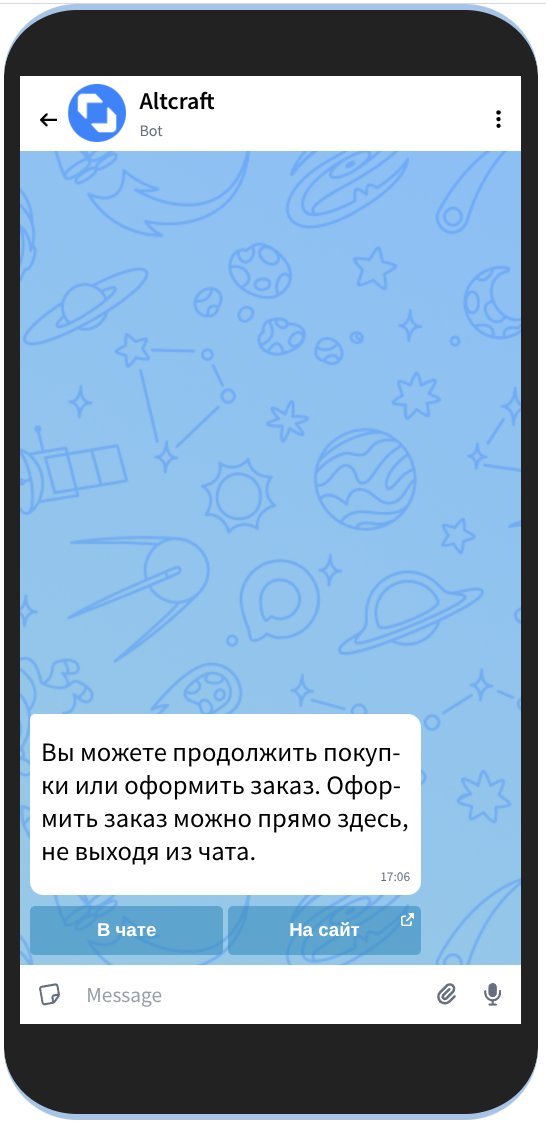
A combination of several buttons. A single button group can contain up to 7 buttons if only text and callback buttons are used, or up to 3 buttons if at least one button of another type is used (link, open app, request location, or request contact details).
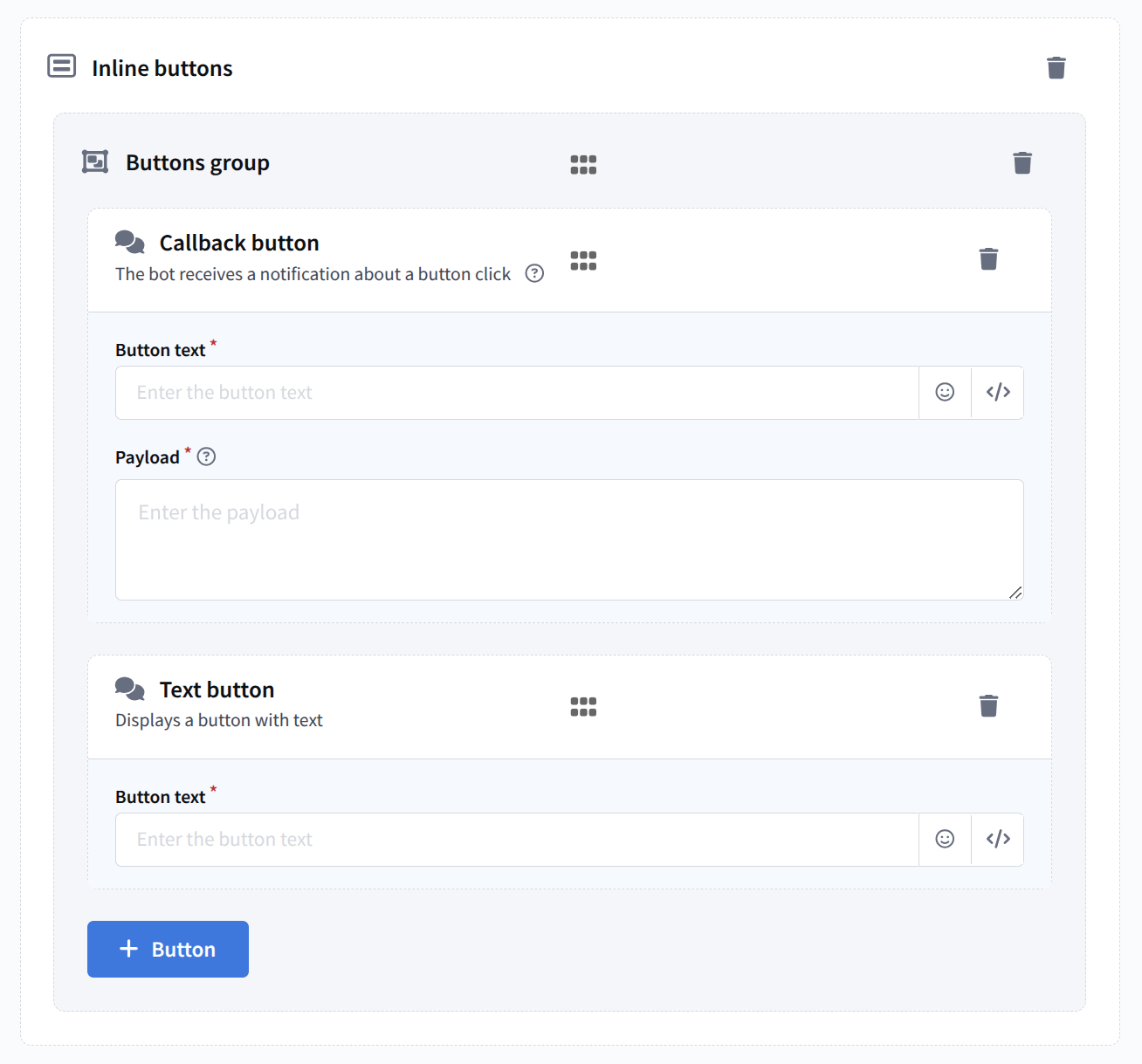
Preview in MAX
Preview and save
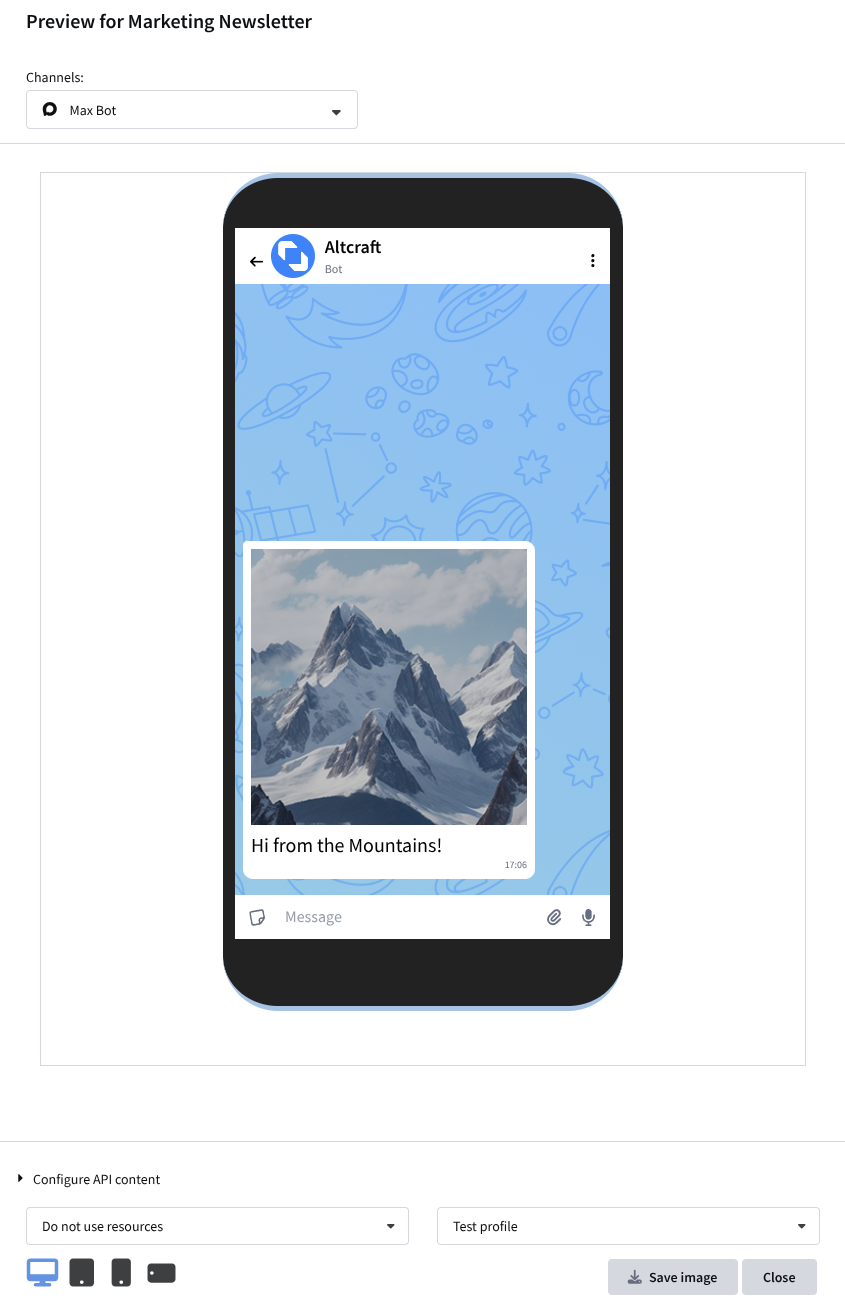
At the top of the template editor, there is a button for switching to preview mode. It can be used to check how the message will appear in the recipient's messenger:
After all required elements have been added, save the template. You can then use it in Campaigns via MAX Group or MAX Bot.