Notify template
According to the service policy, new access to the Notify service personal account is currently not provided.
Support for current users is provided by MAX Business tech support.
Using the Notify channel you can send business-messages via VK, OK and also send SMS notifications. Social media messages and SMS messages are customized in two different sends that follow each other.
Existing operator templates
When you open the template editor for Notify, you will be shown the operator templates created in your personal Notify account:
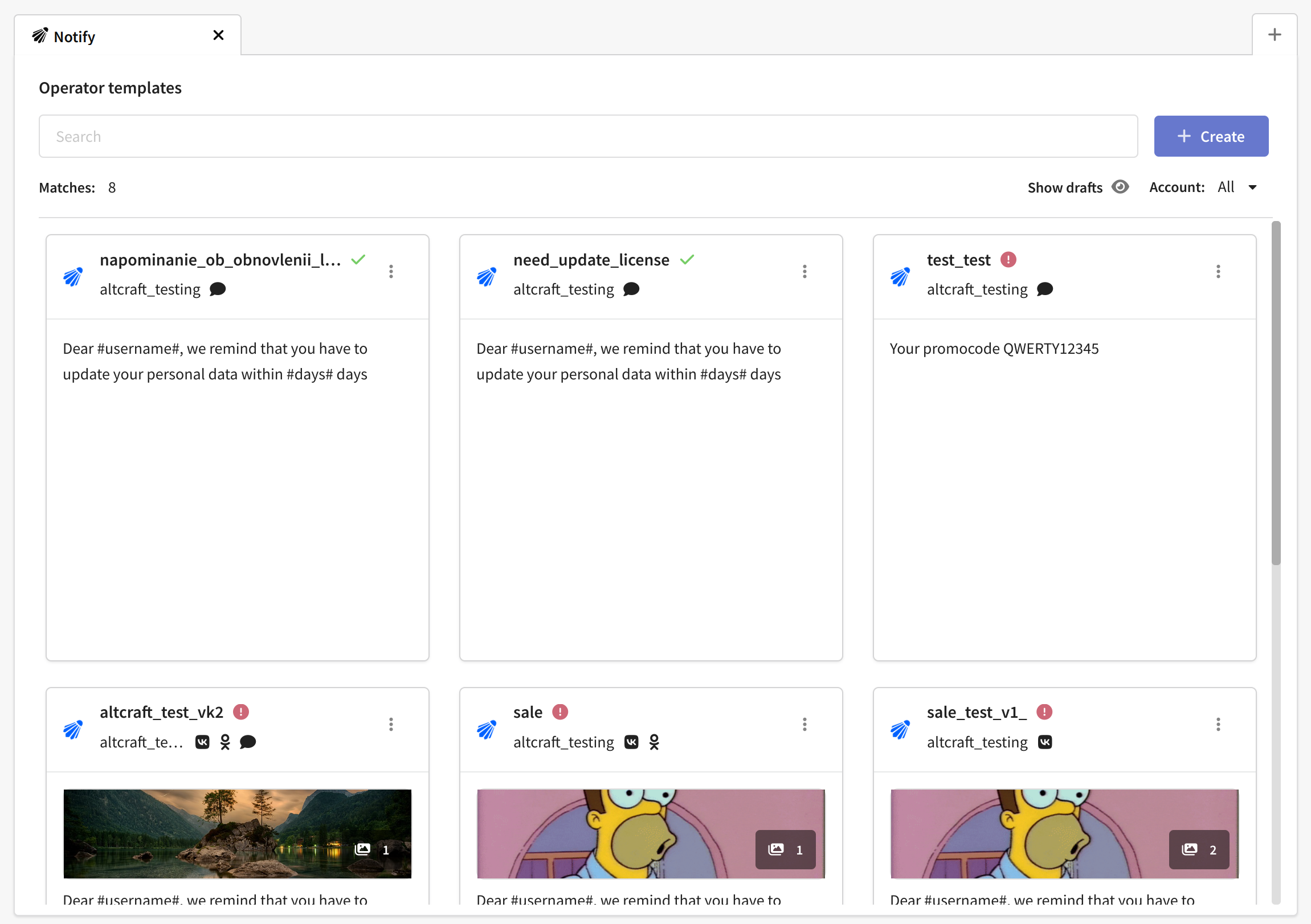
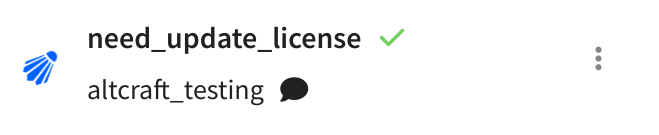
All templates for sending are moderated by the service. Templates approved by the service are marked with a check sign:
Templates that have been archived or have not been moderated will carry a warning. They cannot be used until you edit them and they are approved:

Creating an operator template
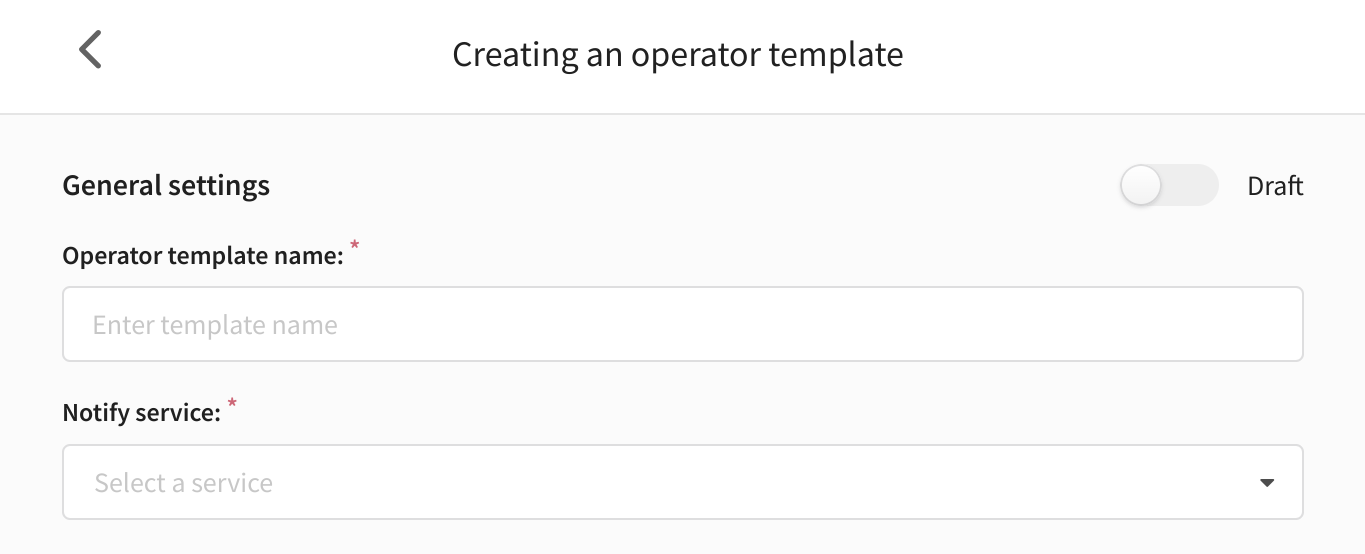
You can also create a new Notify template while in the platform. To create a template, click the corresponding button. The window of template creation will open, in this window you should specify name of the template and service configured in your personal cabinet:
There is an option in the template to set time to wait for the message to be delivered and read. The delivery wait time is the time during which Notify will attempt to resend the message if any error occurs. When this time expires, a second send will be triggered. Read event waiting time is the amount of time Notify will wait for the message to be read on VK or OK. When this time expires, a send with an SMS message will be triggered.
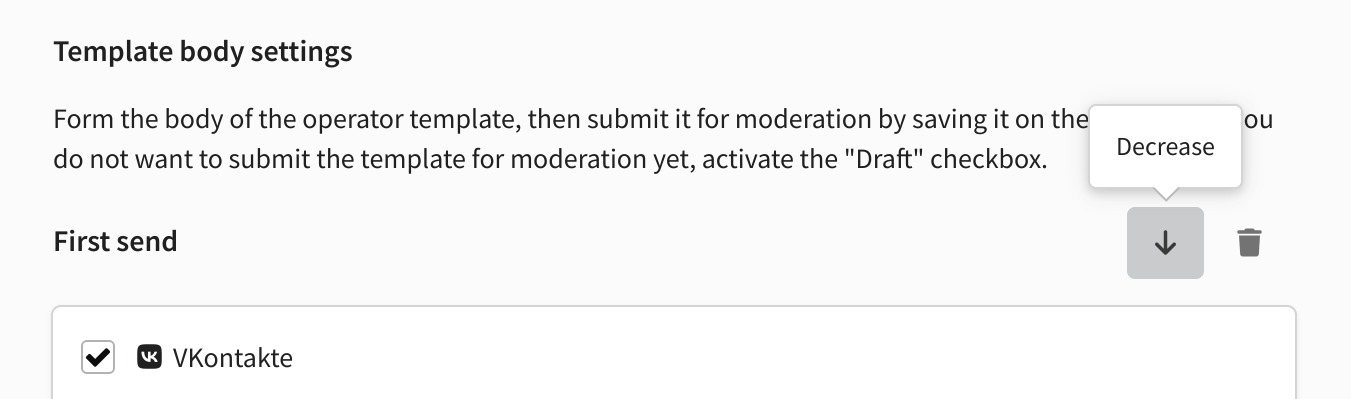
The Notify template consists of sends. One send is a message to VK or OK, the other sending is an SMS to the user's phone number. You can add or delete a sending, as well as change the order of their sending by clicking the corresponding button:
The message body defines the content of your notification. An OK message can be text-only. You can attach an element to a VK message:
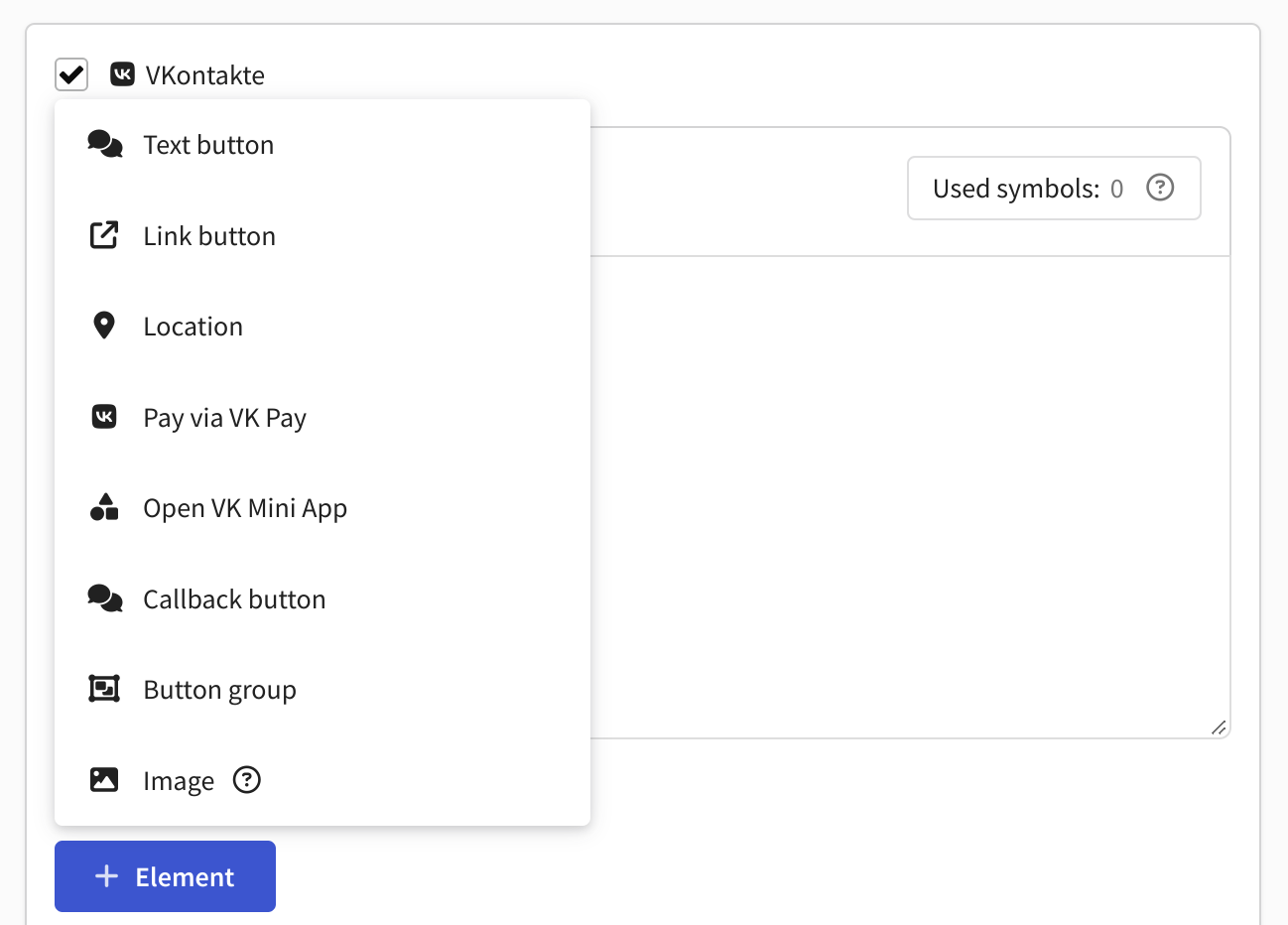
- Text Button - sends a message with text. For a text button you can choose a color, as well as attach additional information in JSON format.
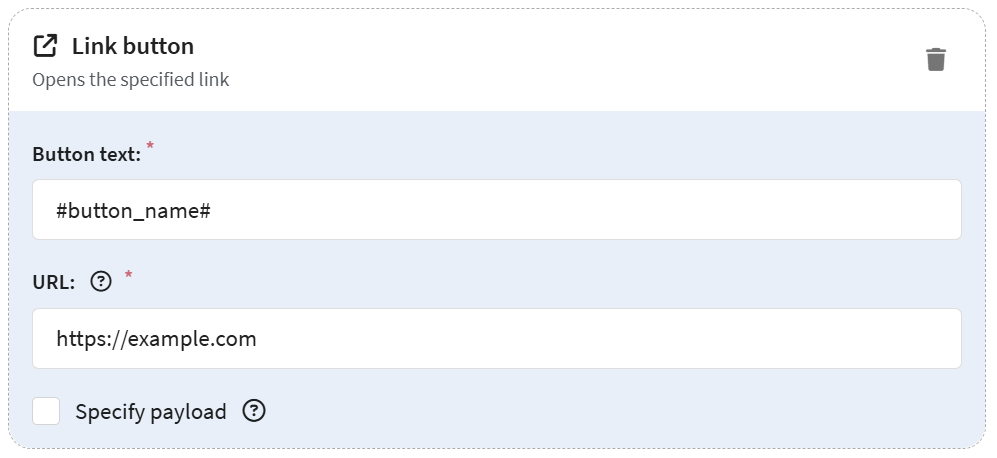
- Link Button - opens the specified link. In the button you can specify its text, a link to go to, as well as additional JSON information.
- Location - when clicked, opens a dialog box with location information. The user can select location in this dialog box and send it to the chat. Community administrators will receive the map image in chat.
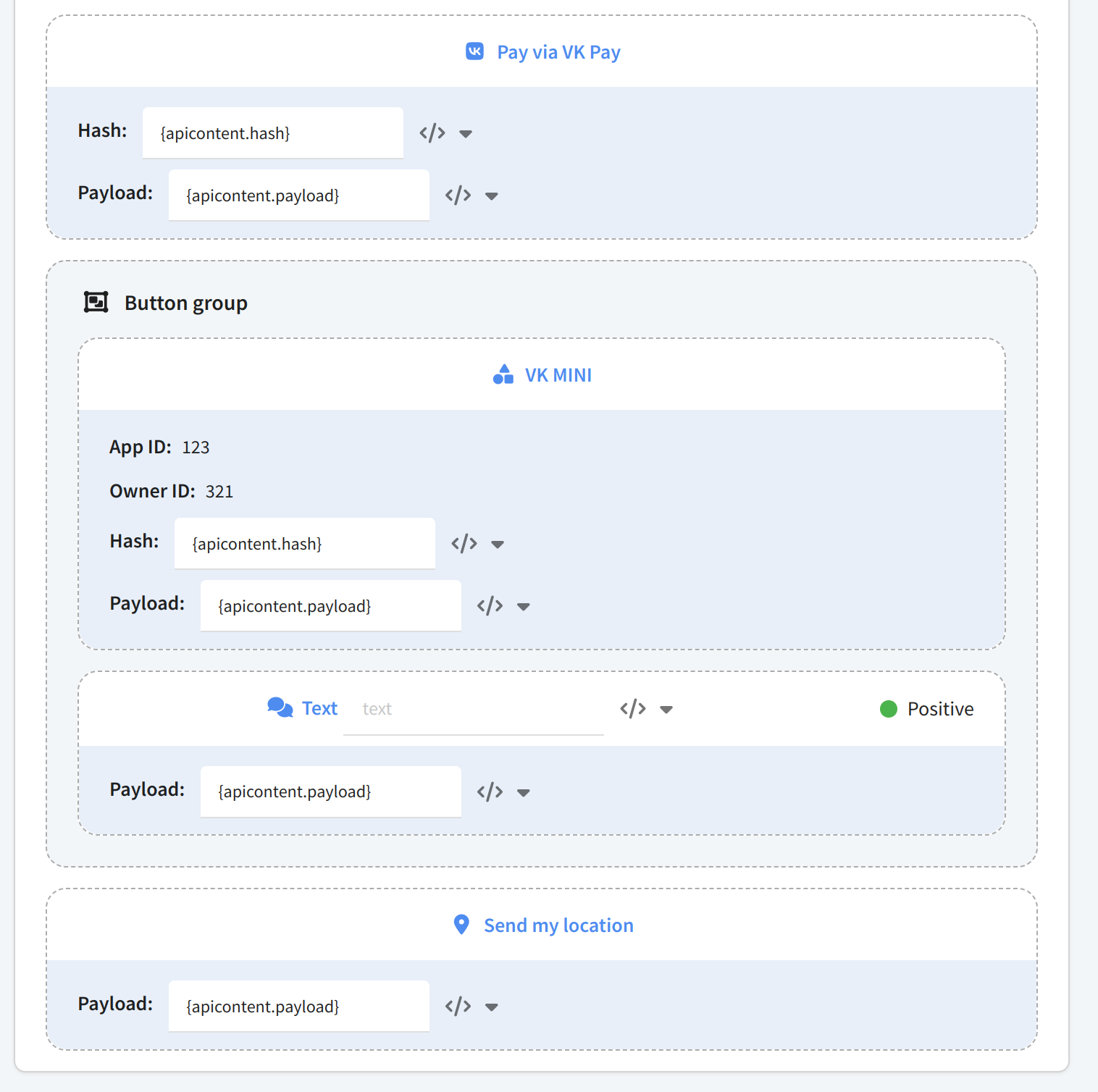
- Pay via VK Pay - opens VK Pay payment window with predefined parameters. For the button it is necessary to specify a hash - a string containing payment parameters and application ID.
- Open VK Mini App - opens the specified VK Mini Apps application. To customize the button you need to specify the application ID, Owner ID, as well as a hash for navigation in the application.
- Callback Button - allows you to receive a notification of a button press and perform the required action without sending a message from the user. You can specify a caption and color for the button.
- Button group - cobmination of the above buttons.
- Image - up to 5 images with total weight not more than 50 MB. Supported formats - JPG, PNG, GIF.
Read more about elements in Notify documentation.
You can insert parameters into the message body. Later you can substitute field values from the platform's databases into them.
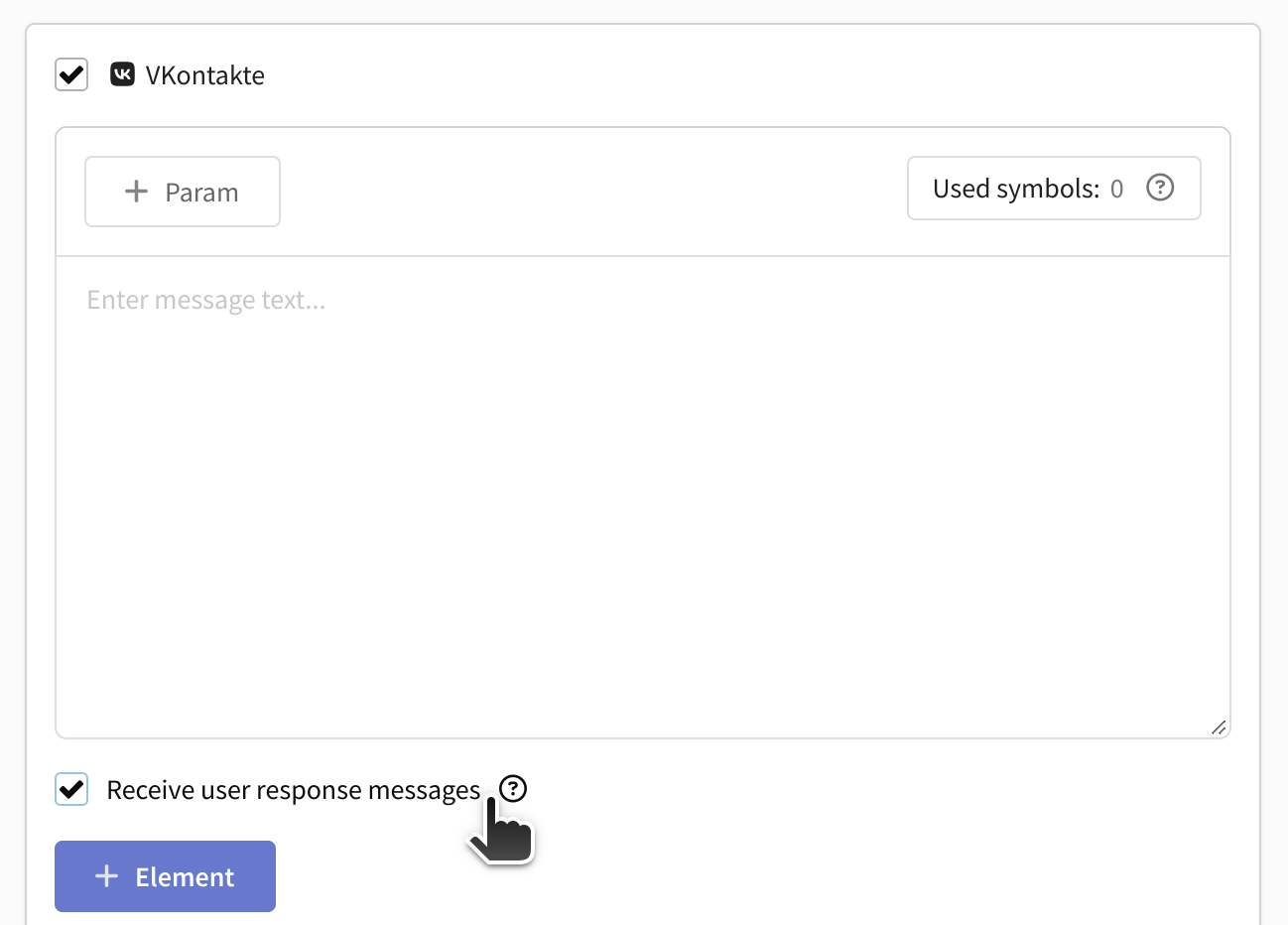
You can also allow the client to send reply messages in the chat with the company. To do this, activate the Receive user response messages box in the settings:
There are several types of SMS messages - advertising, identification, service and transactional. Message type affects its charging in Notify, you can get detailed information about it from the service support.
Once you save the template, it will be sent to moderation in the service. If you don't want to send it for moderation, activate the Draft switch.
Managing parameters
The text block in Notify consists of fixed text and parameters. Parameters are template text that changes for each new message (name, address, event name, date and time, link, etc.).
A parameter can be added to the text block in two ways: manually by typing #parameter_name#, where parameter_name is an arbitrary parameter name, or by using the +Parameter button, which will automatically insert it into the text:
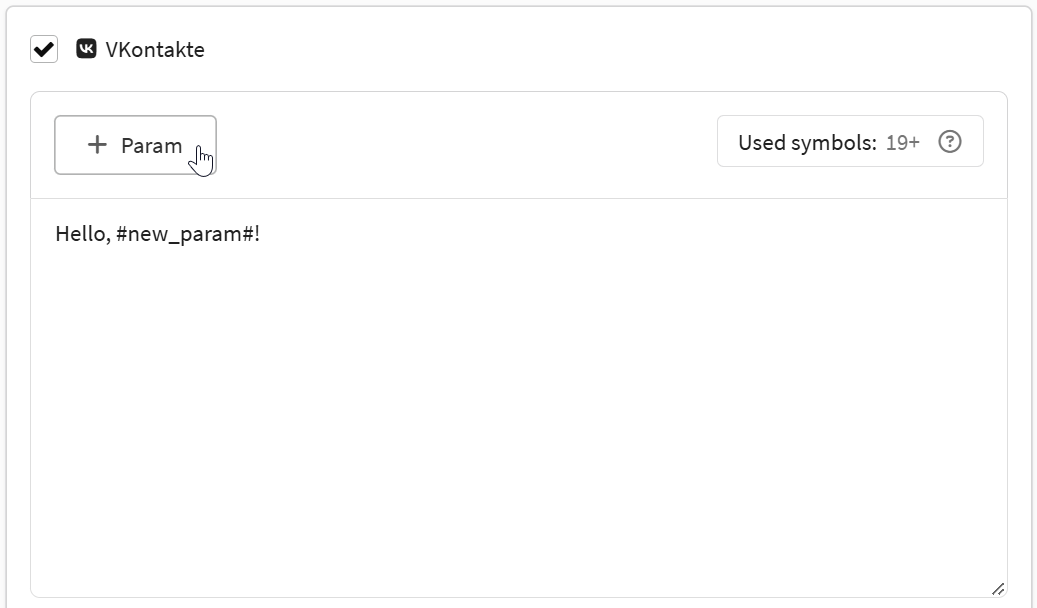
You can manually prescribe parameter values or add Altcraft variables. To open the list of variables, press </>. When you send a message, the entered text will be automatically substituted into the template.
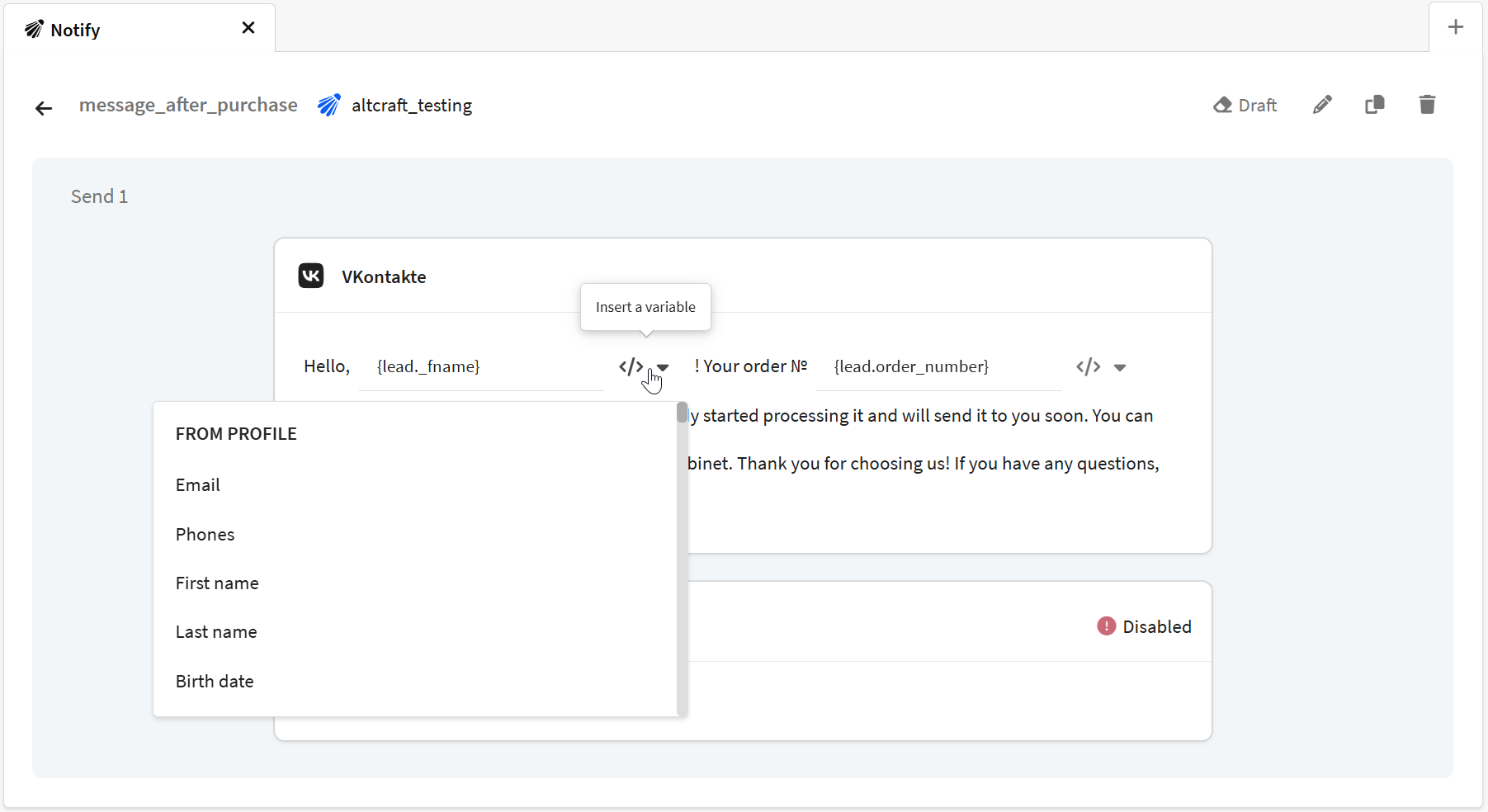
Parameters can be used not only in the Notify text block, but also in elements such as buttons:
Template Preview
After selecting an approved template, you can specify the required values or variables from the platform for the parameters:
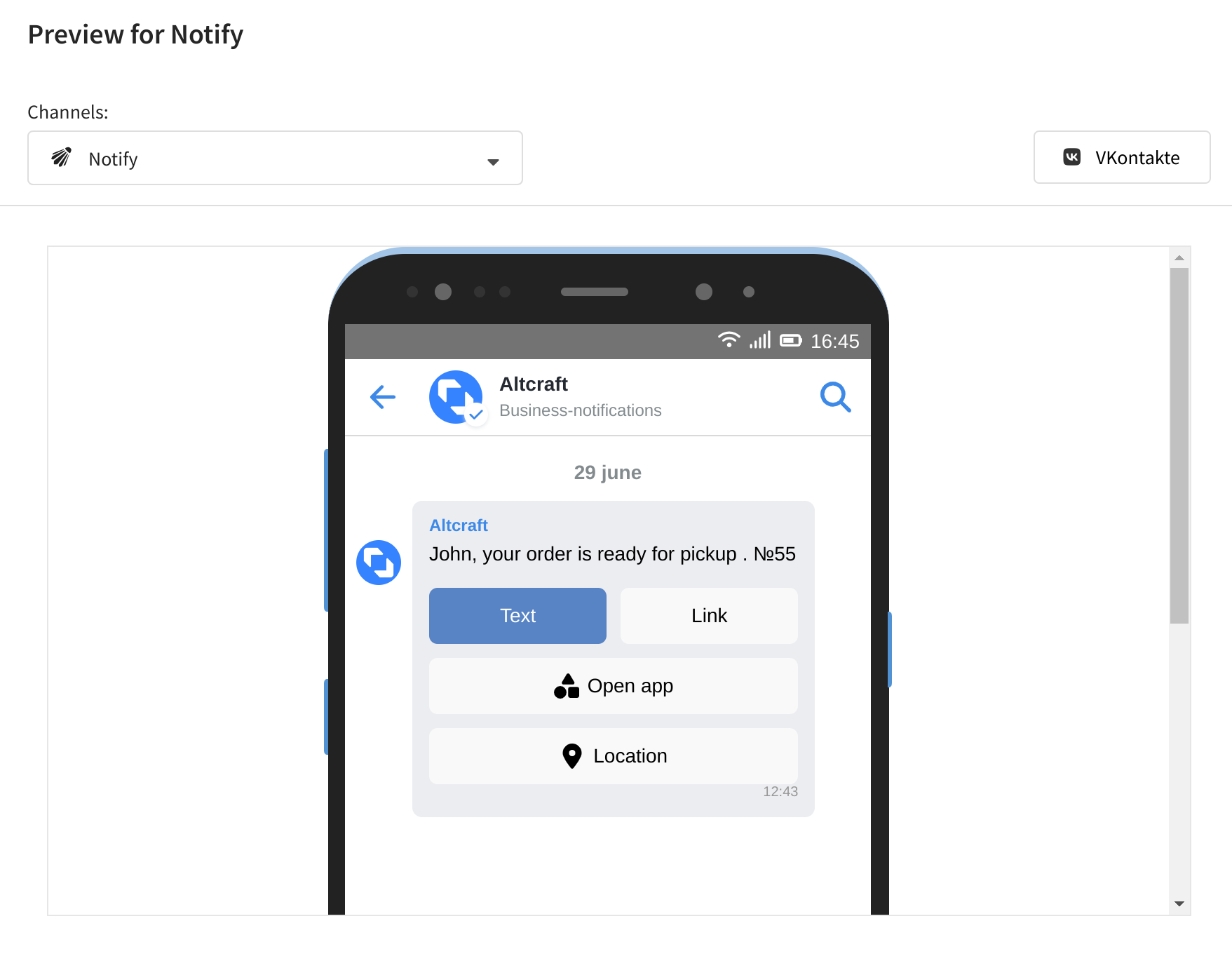
To see how the user will see the received message, click the preview button at the top of the screen:
Don't forget to save the template in the platform after making all the changes. You can now use this template to send out Notify feeds.