Huawei Mobile Services
To send Mobile Push to Huawei devices, you need to set up a project in AppGallery Connect in advance. HMS works on both Android and iOS.
Step 1. Creating a project in AppGallery Connect
Go to AppGallery Connect, sign in to your developer account, and navigate to Development & Services — Add Project. | 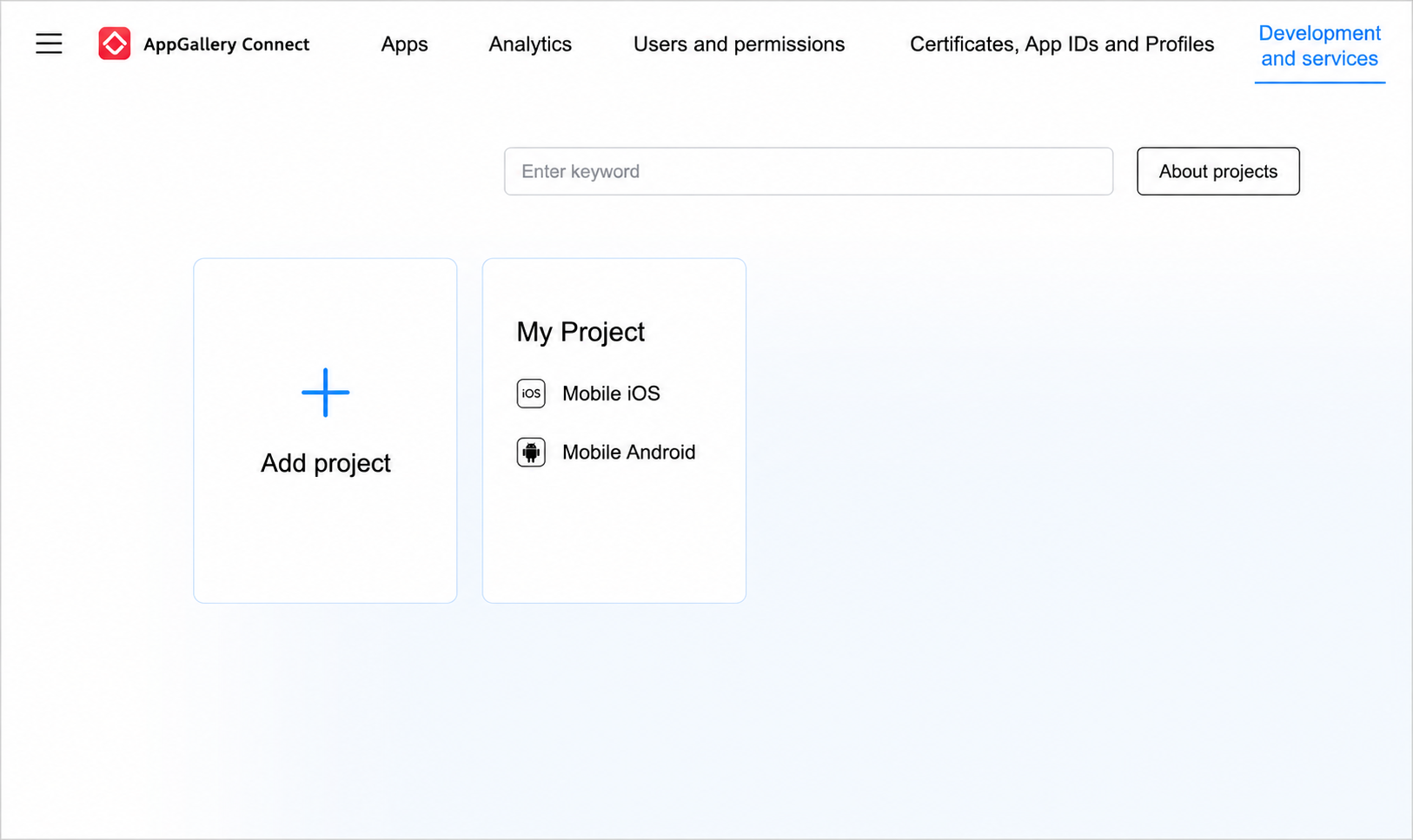 |
Add a new app to the project. | 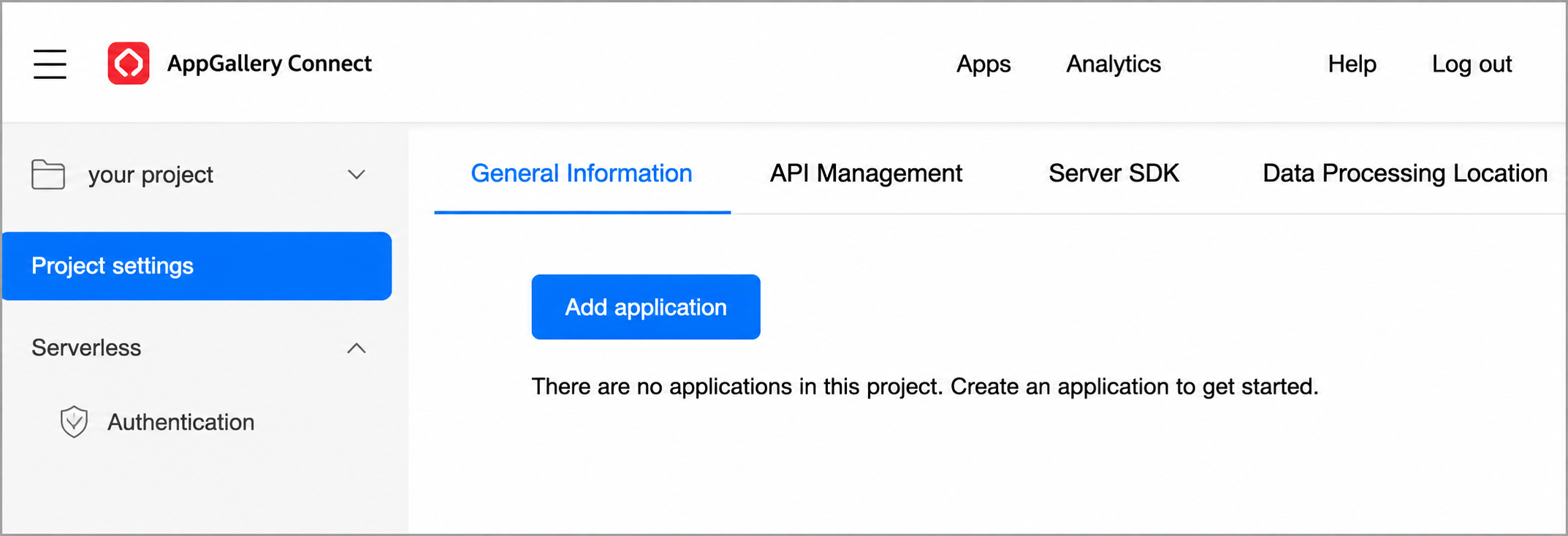 |
Enter your app information. | 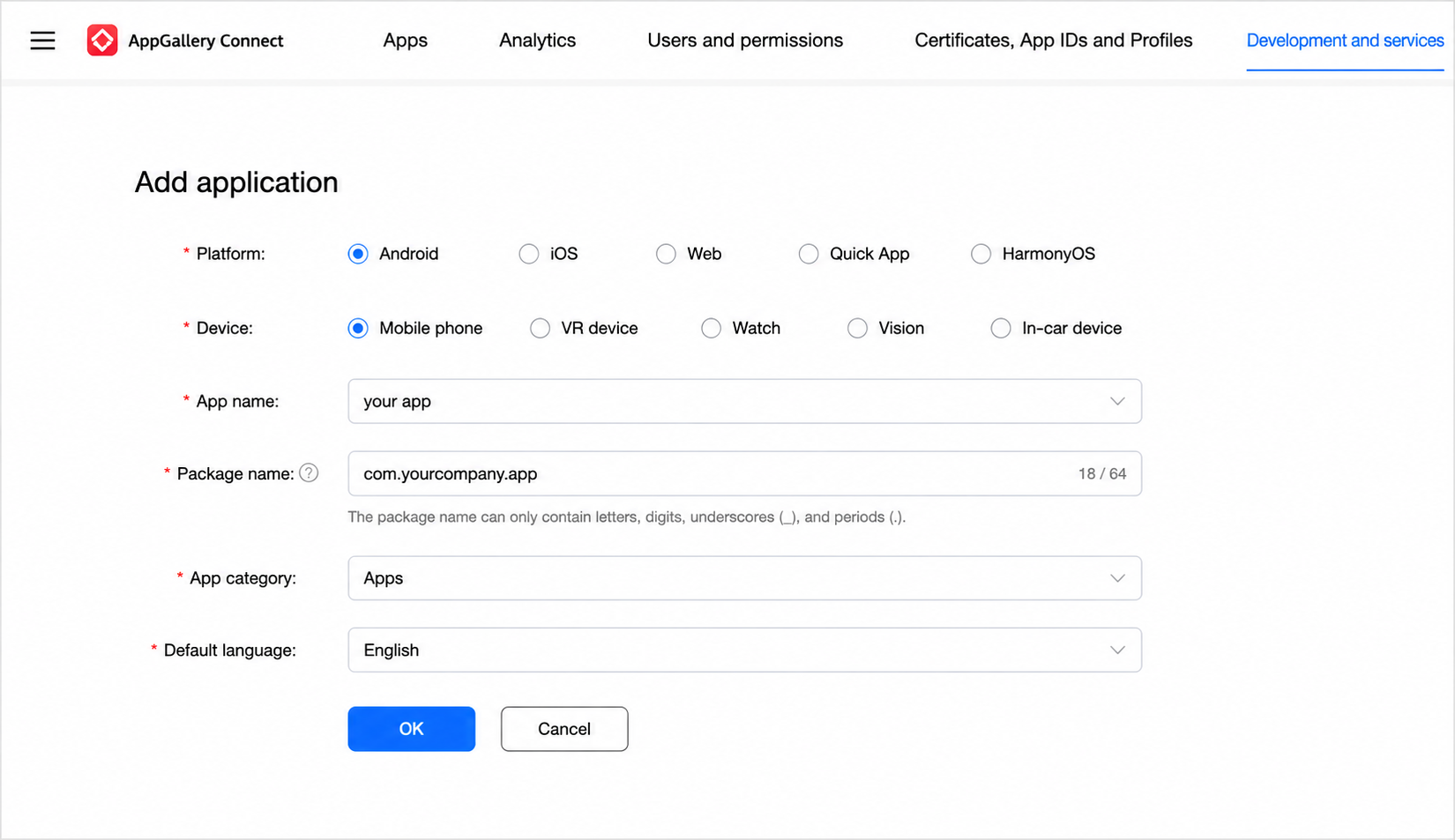 |
Download the configuration file. | 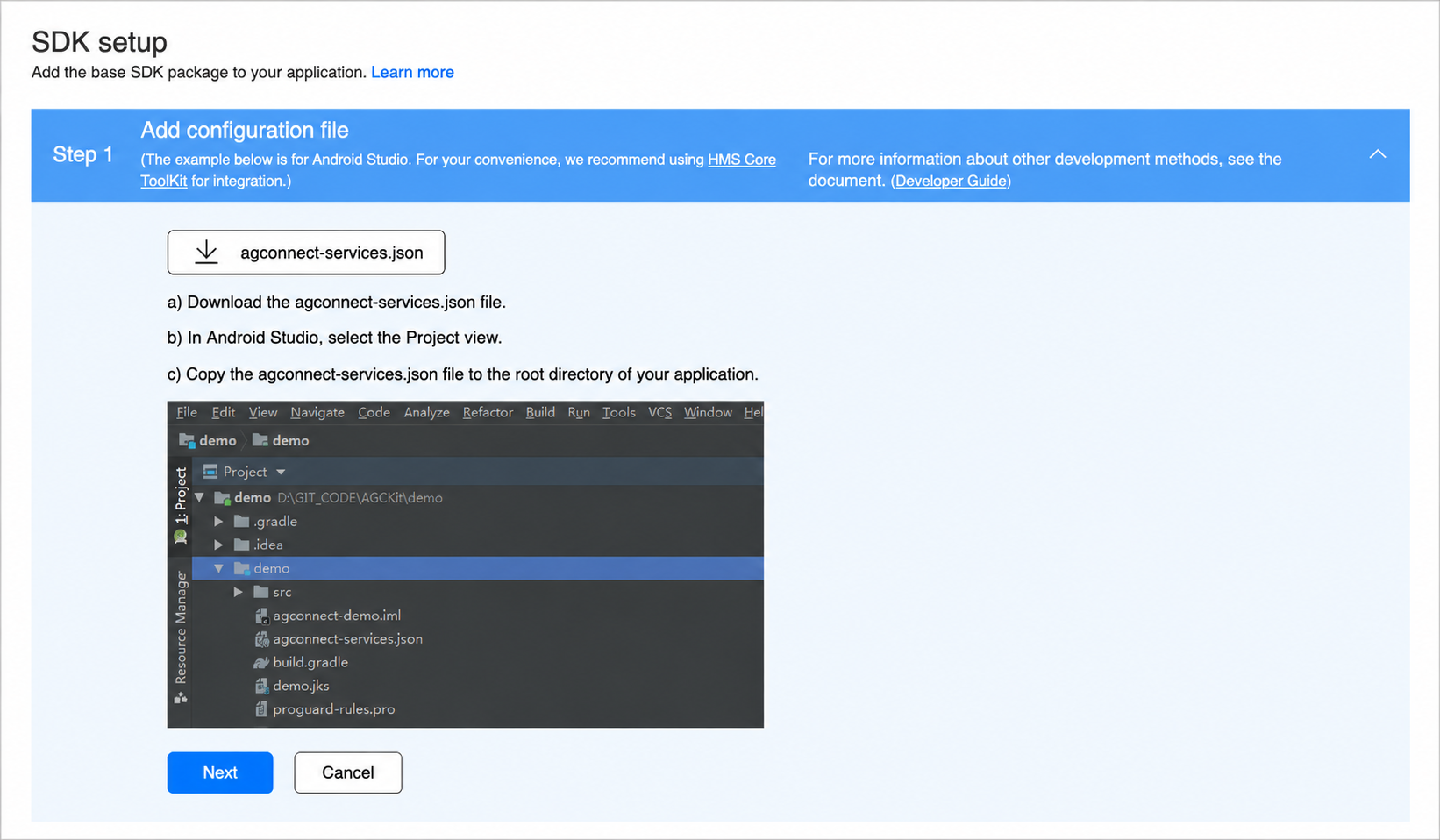 |
Return to project settings and add the SHA-256 Certificate Fingerprint. You can obtain it by running the | 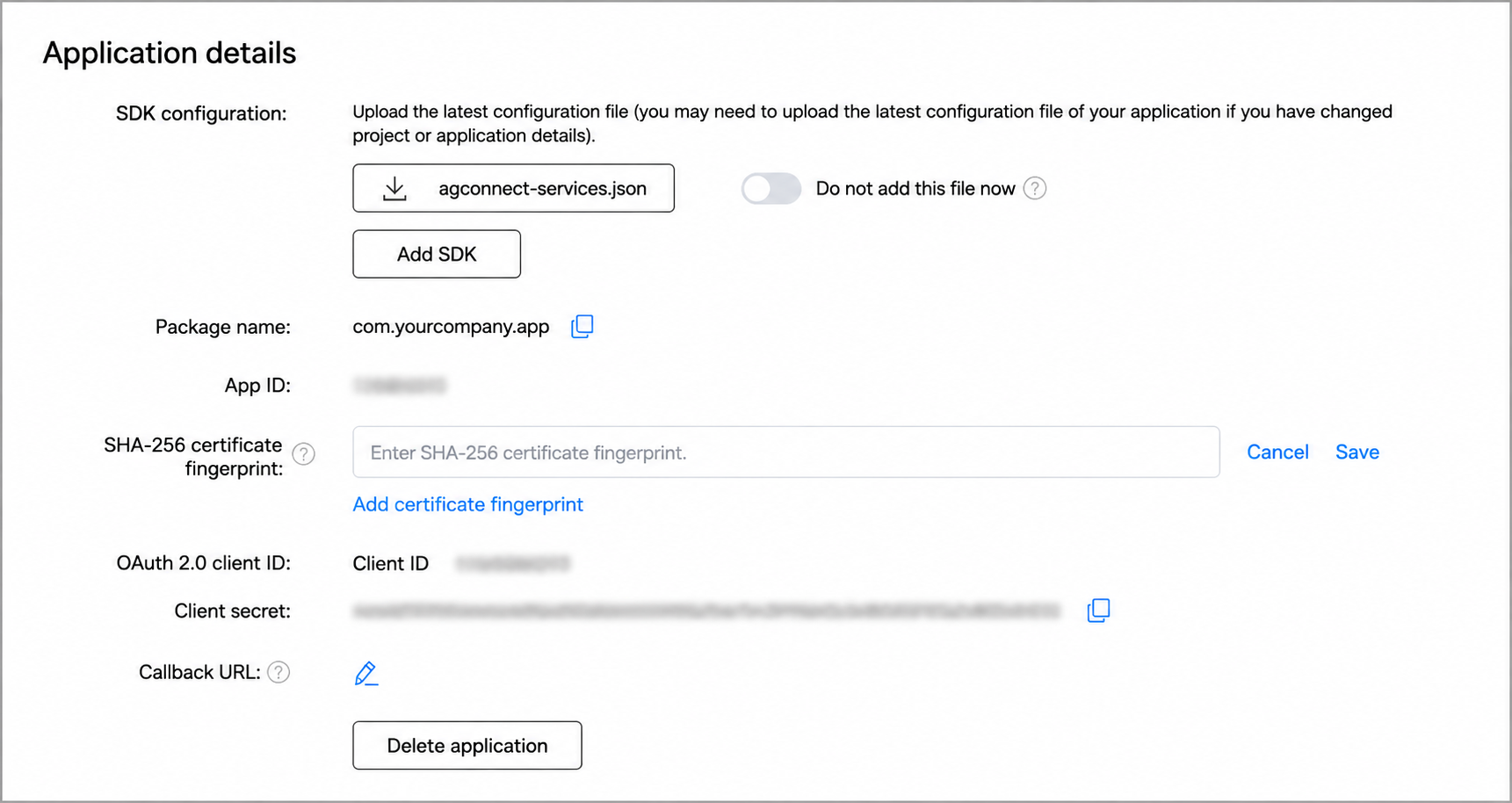 |
In the left sidebar, select Push Kit under the Growth section. | 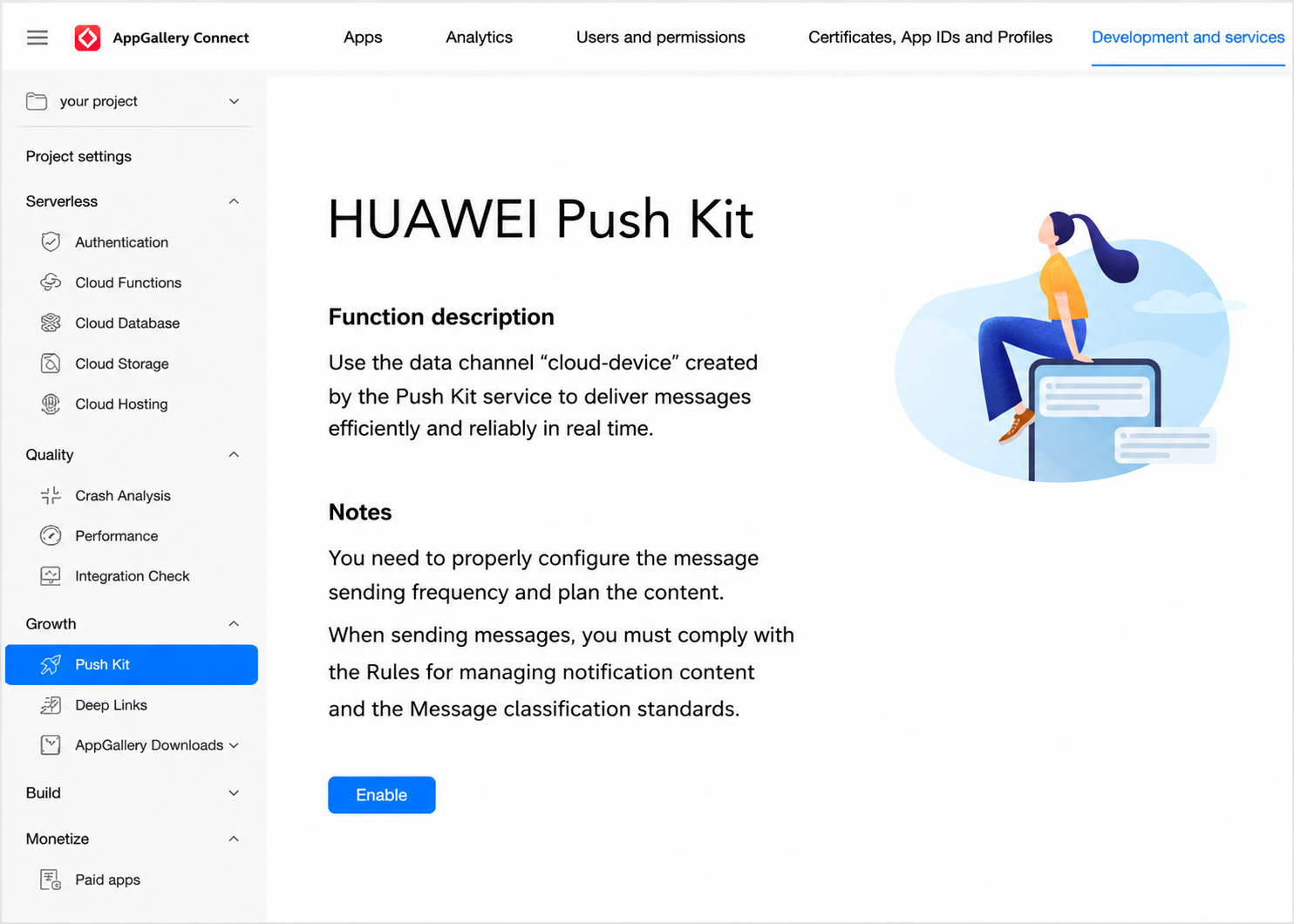 |
Click Enable — Select data storage location. | 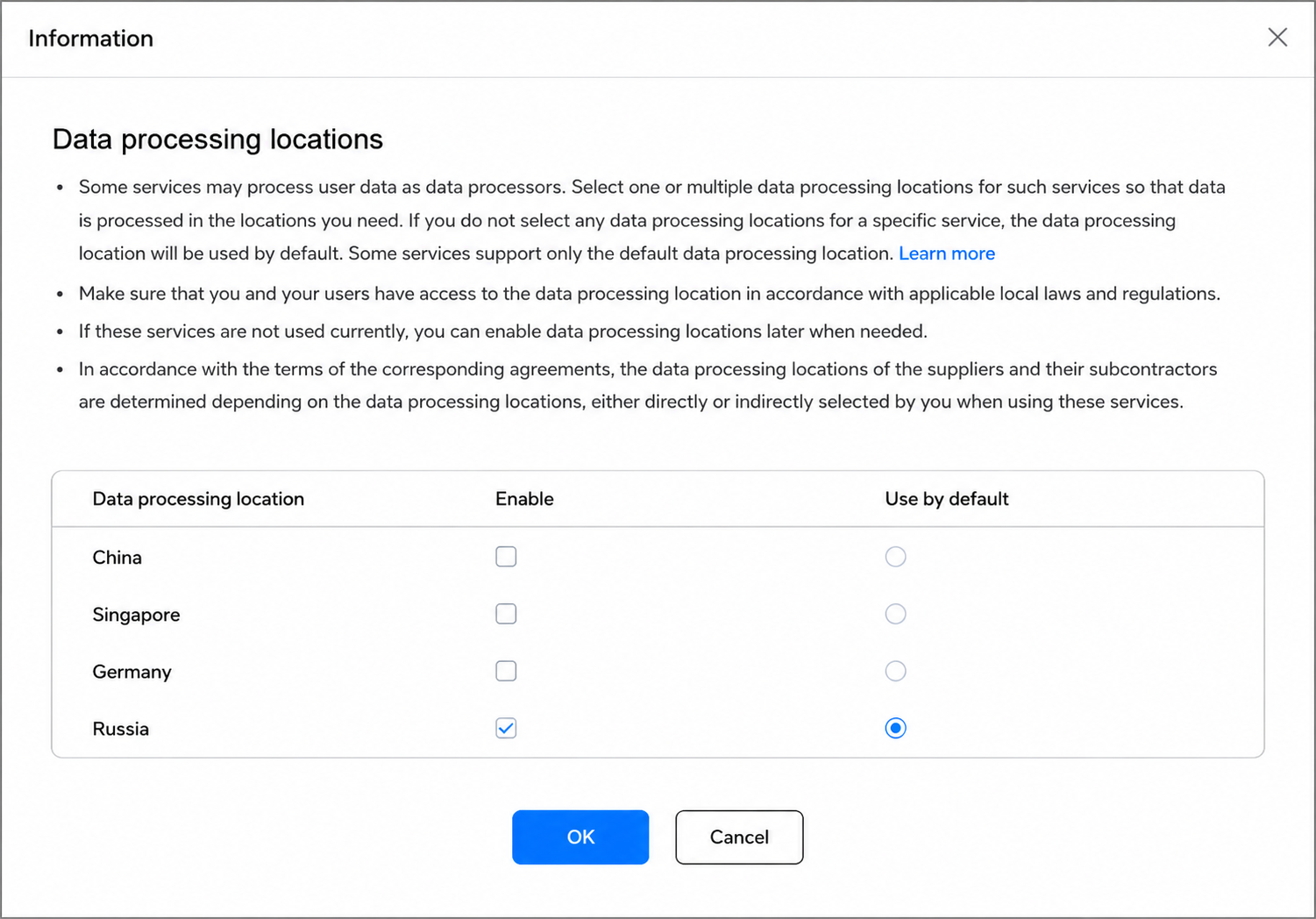 |
Step 2. Configuring in the Altcraft platform
Android
In the Altcraft platform, open the resource settings. Select the Android platform and activate the Huawei Mobile Services toggle. | 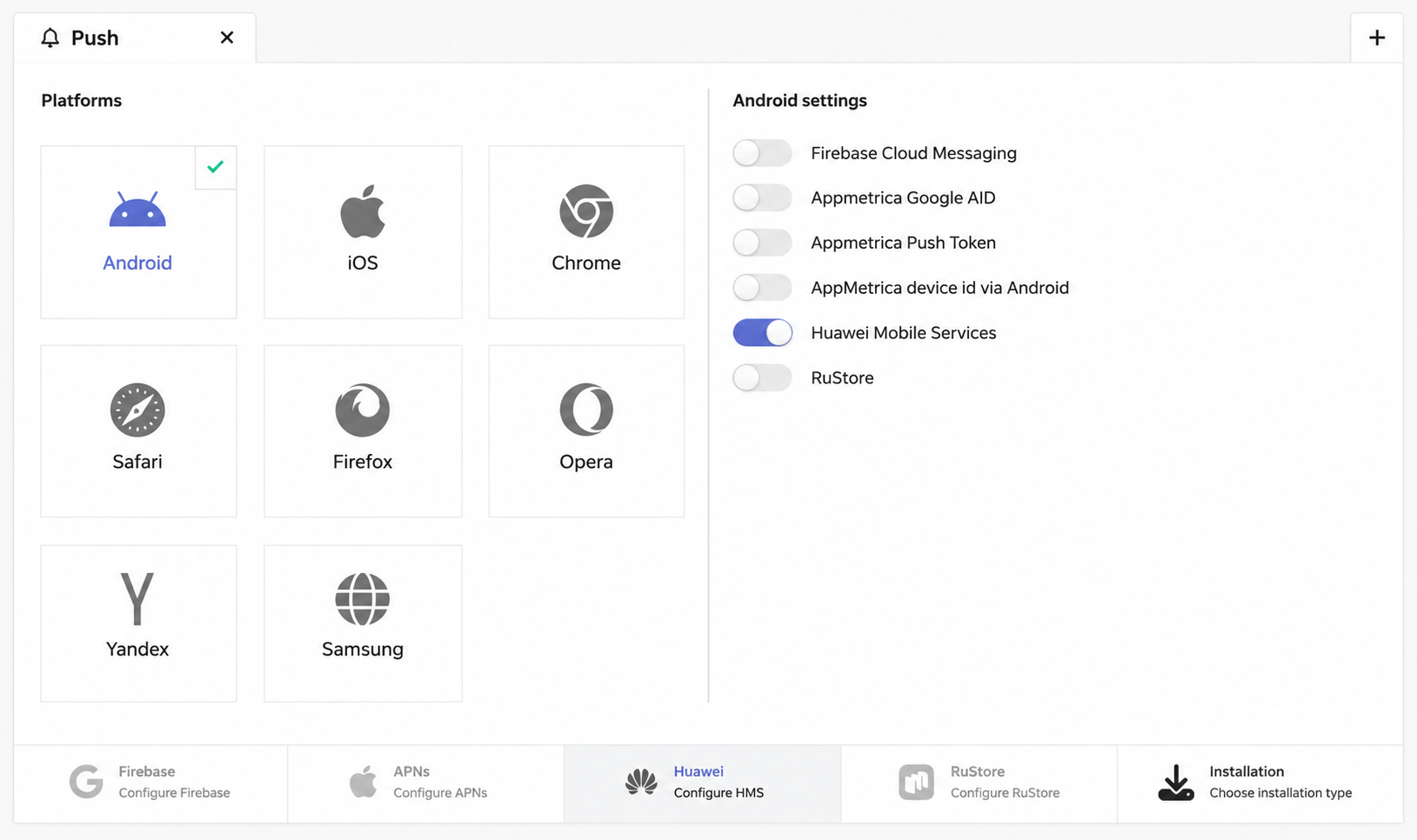 |
Go to Huawei settings and specify:
| 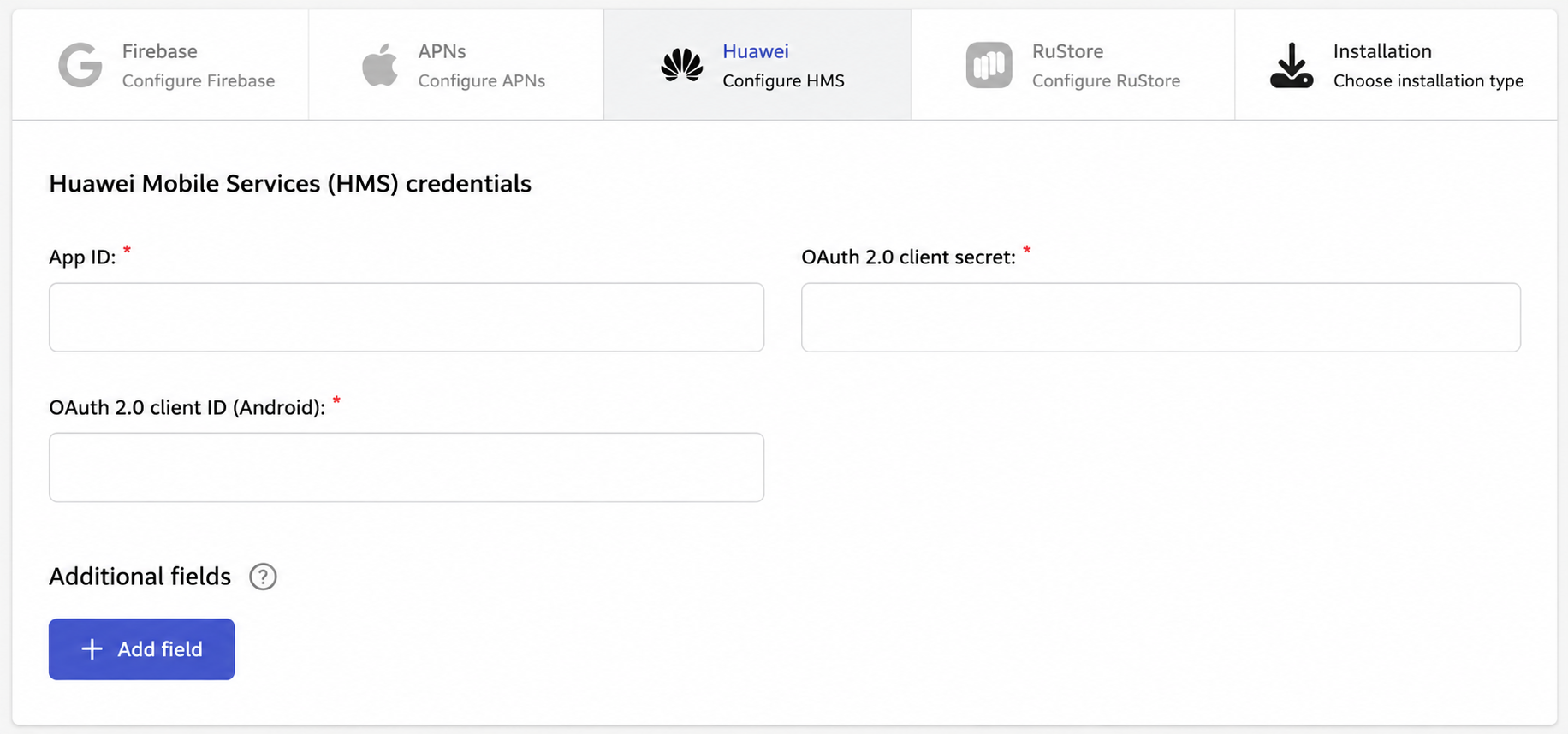 |
All of this information can be found in the App Information section of Huawei Mobile Services:
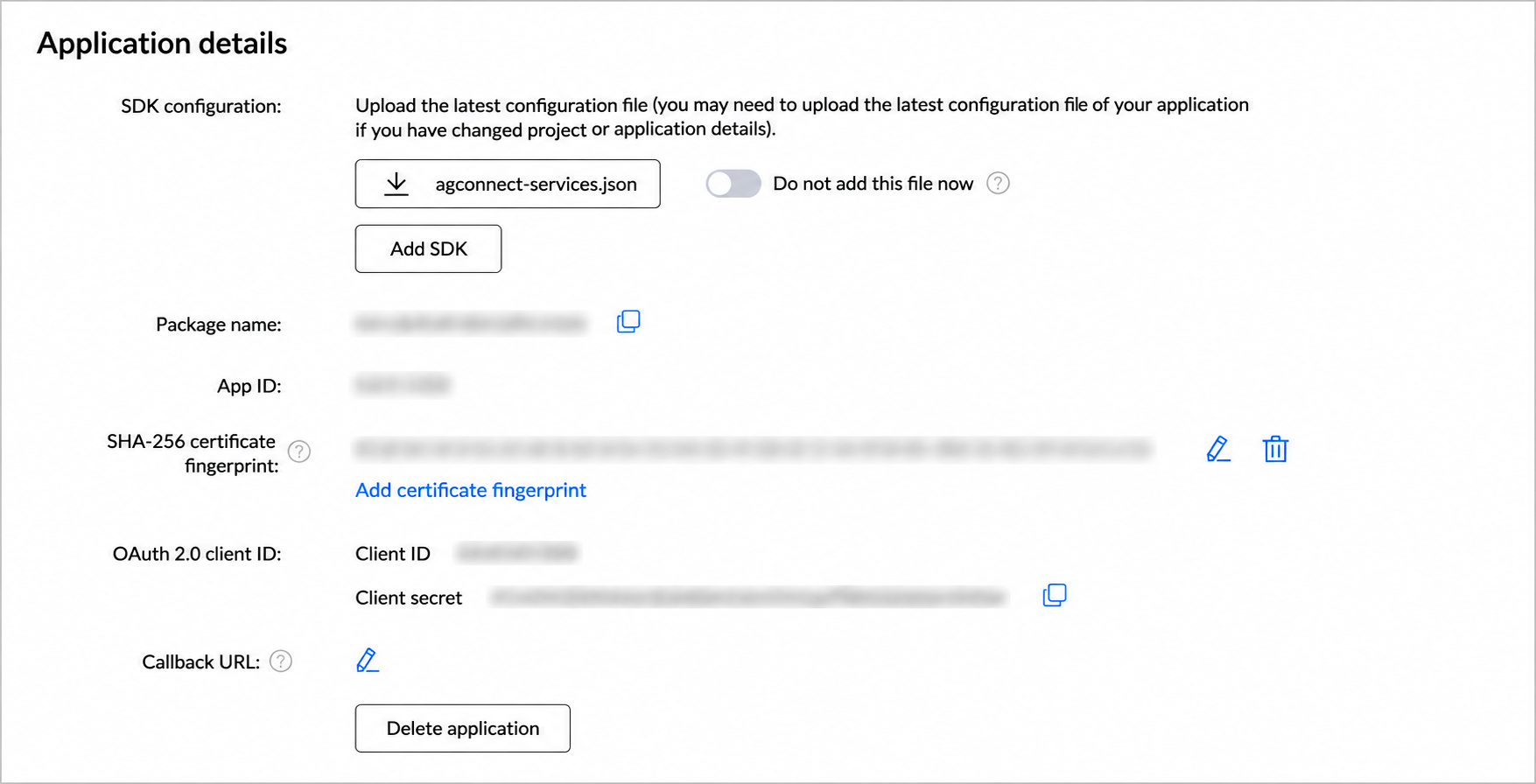
Save the resource using the buttons in the upper right corner of the screen. |
iOS
After creating the project in AppGallery Connect, add an iOS app: | 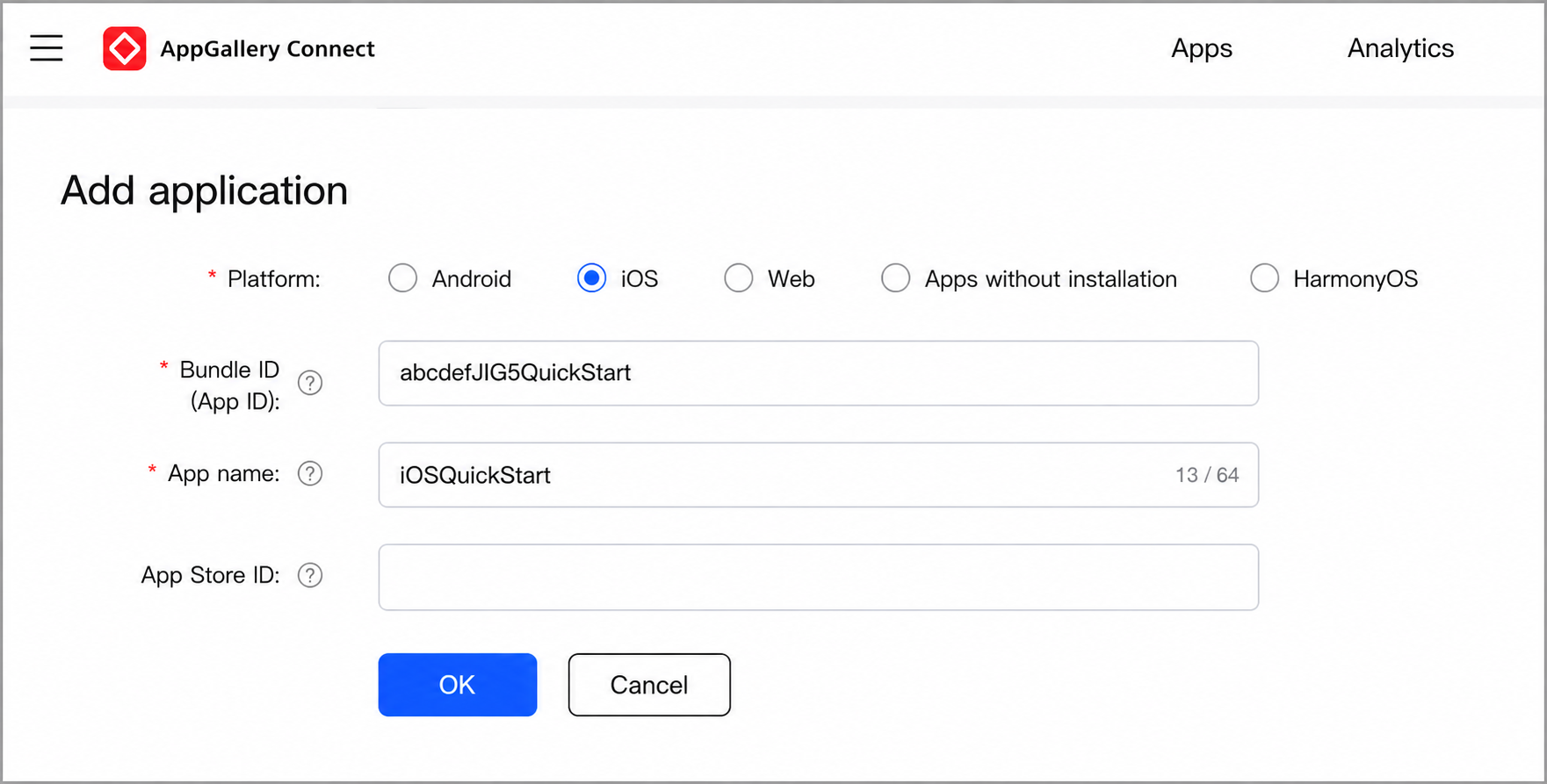 |
Download the | 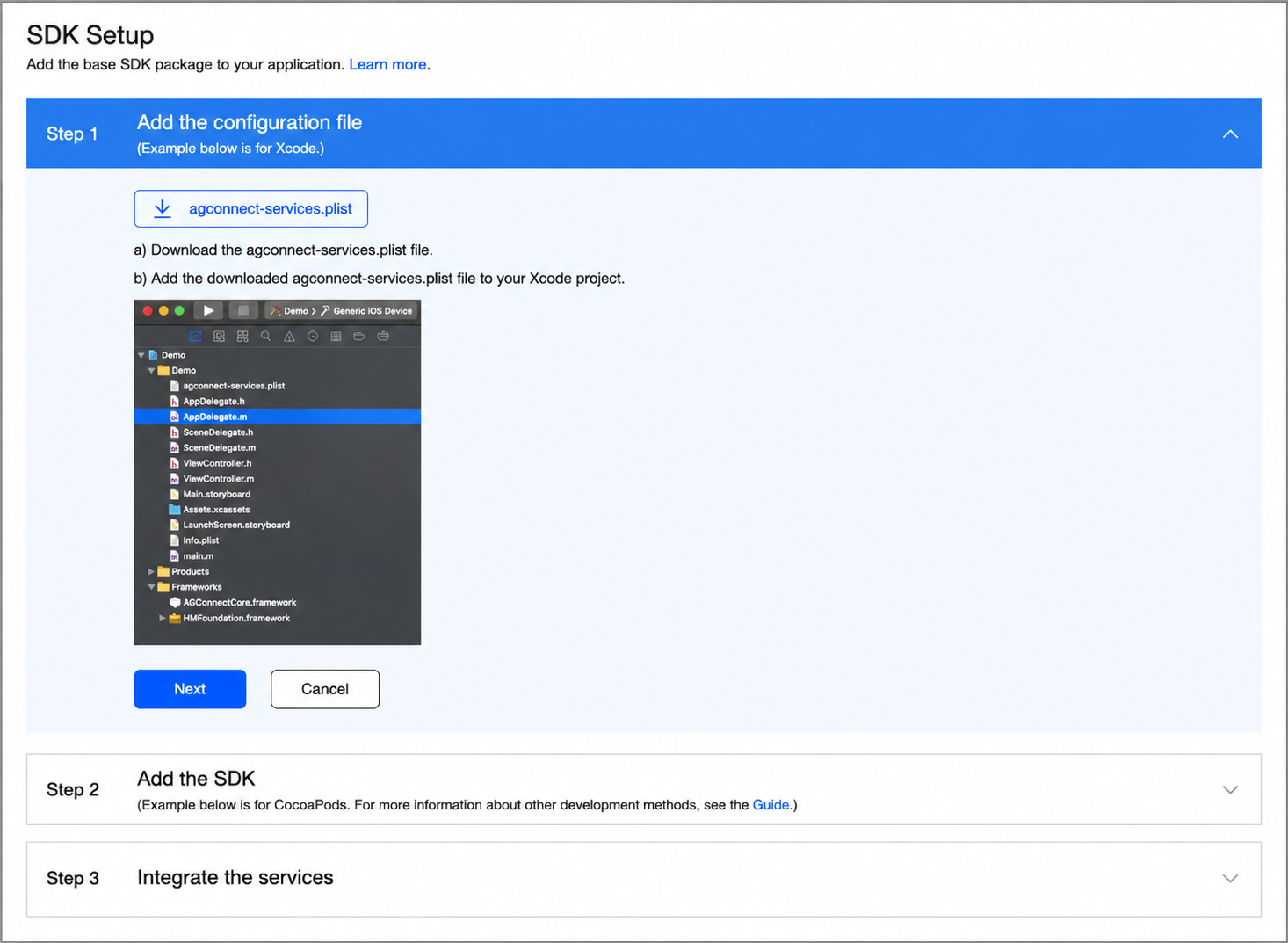 |
Navigate to Push Kit — Settings — App — iOS Configuration — Enable. Specify:
| 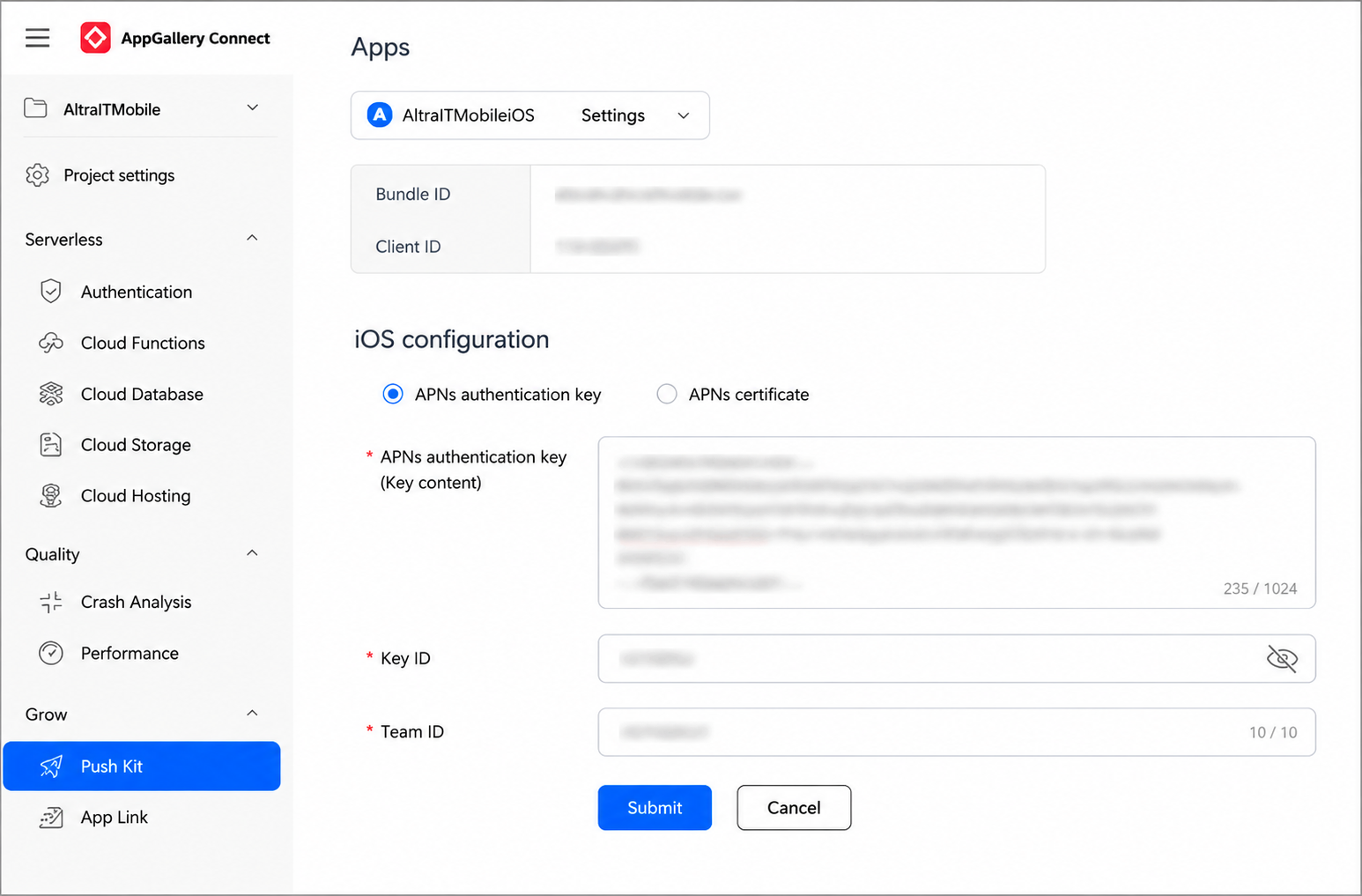 |
In the Altcraft platform, open the resource settings. Select the iOS platform and activate the Huawei Mobile Services toggle. | 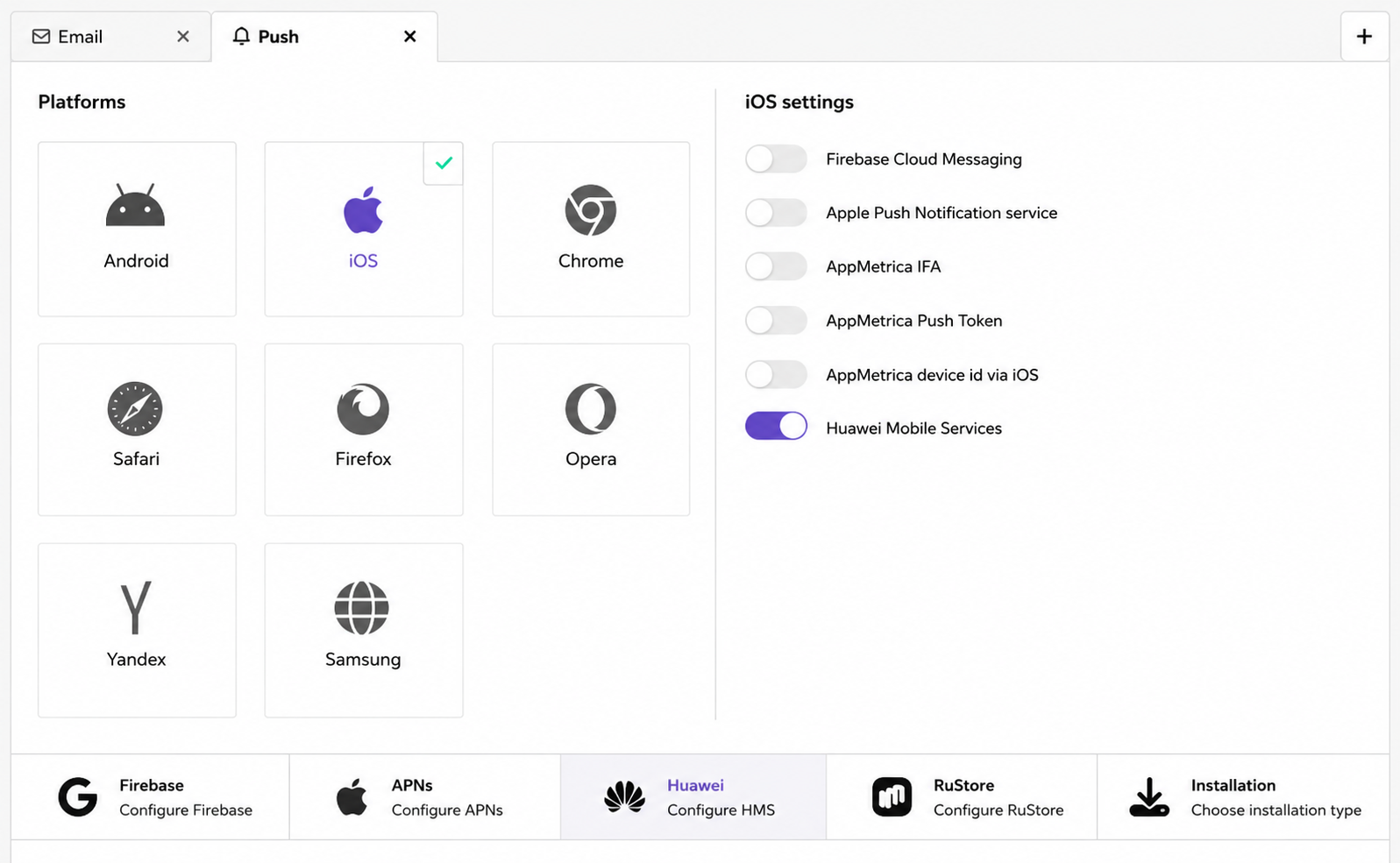 |
Go to Huawei settings and specify:
| |
All of this information can be found in the App Information section of Huawei Mobile Services:
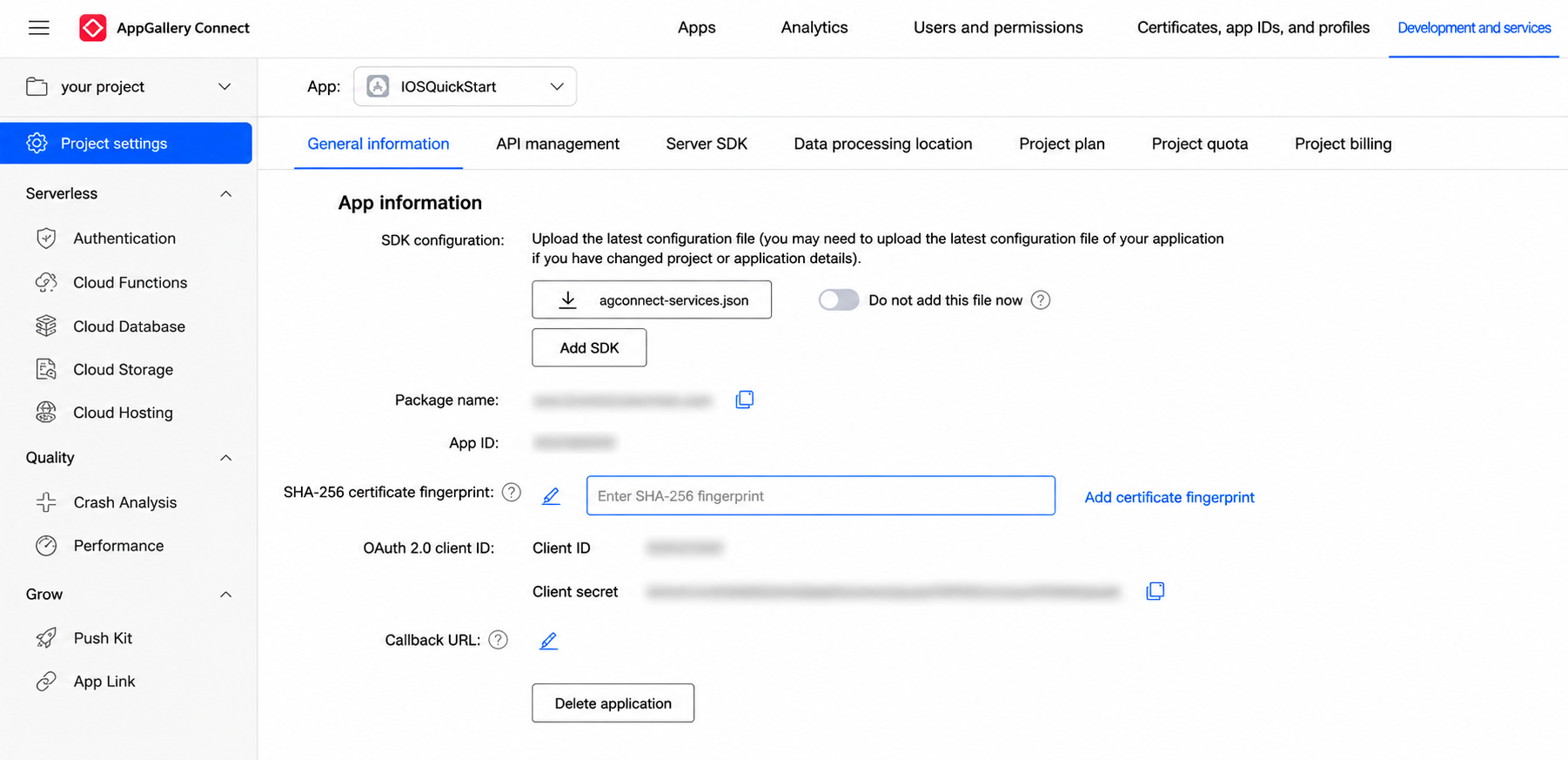
Save the resource using the buttons in the upper right corner of the screen. |