Product and SKU Segments
Product and SKU segmentation works the same way as profile segmentation in the platform. More details about the condition builder and segmentation logic are available in this section.
Description
Product and SKU segments are sets of products and their modifiers (SKUs) grouped by a specific criterion. A finished segment can be exported and used for sales data analysis. There are two types of segments: static and updatable.
Updatable Segments
Updatable segments are product and SKU sets that are recalculated on a schedule based on defined conditions. Such a segment can also be recalculated manually outside the schedule.
To create an updatable segment, go to Market — Updatable segments:

Click "Create". Specify a name, description, and select entities for segmentation — products or SKU. After selection, the segment type cannot be changed:
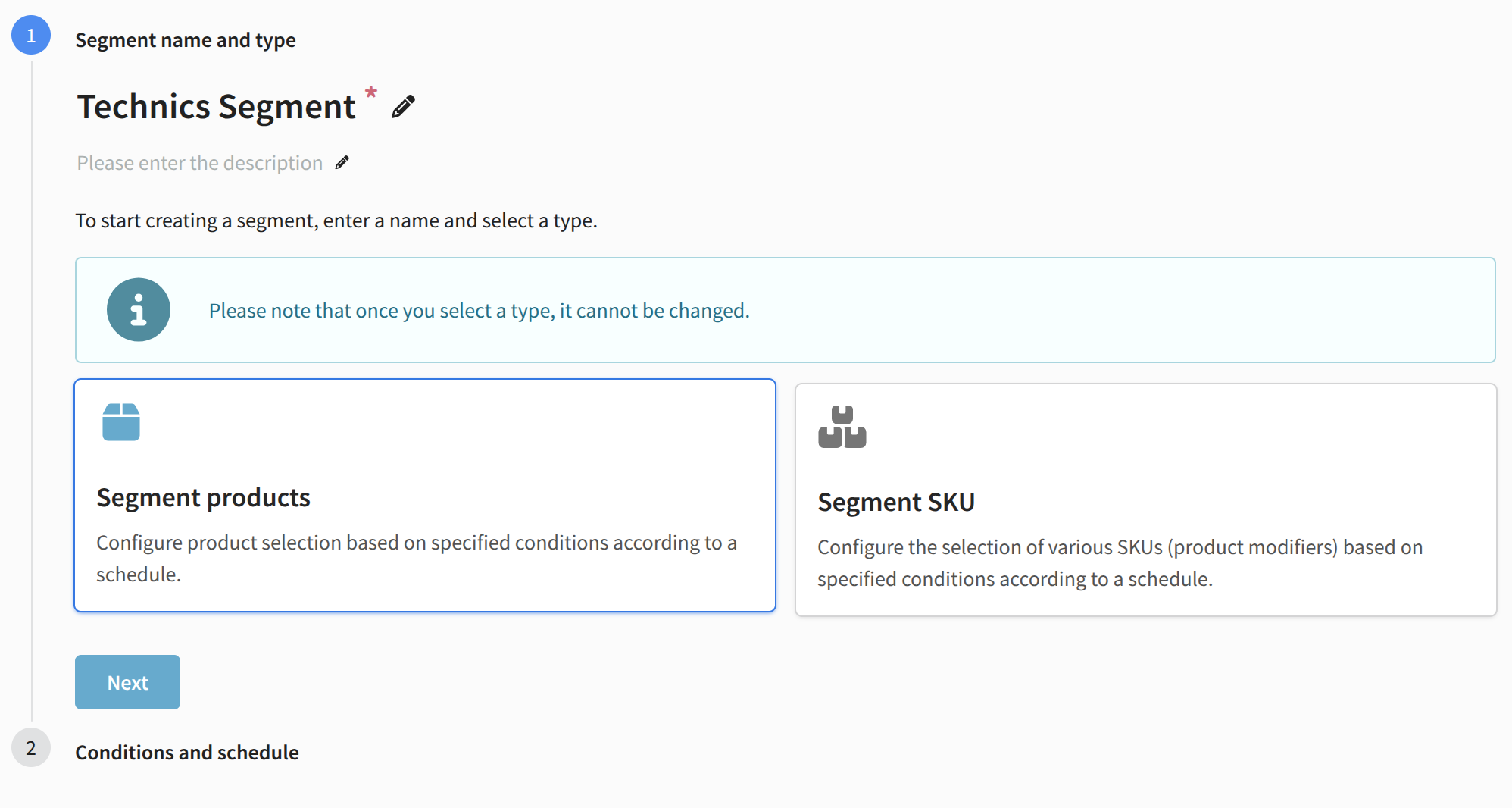
Then the Conditions and schedule block opens. Select conditions or condition groups and set a schedule for automatic updates. Conditions inside a group can be combined using match all conditions (AND) or match any condition (OR). These settings remain editable later.
Conditions are divided into three groups:
- Core fields — filtering by name, region, category, product quantity, expiration date, price, delivery, warranty, availability, manufacturer, and tags.
- System fields — filtering by identifier, additional (string) identifier, creation date, and update date.
- Custom fields — filtering by user-defined fields.
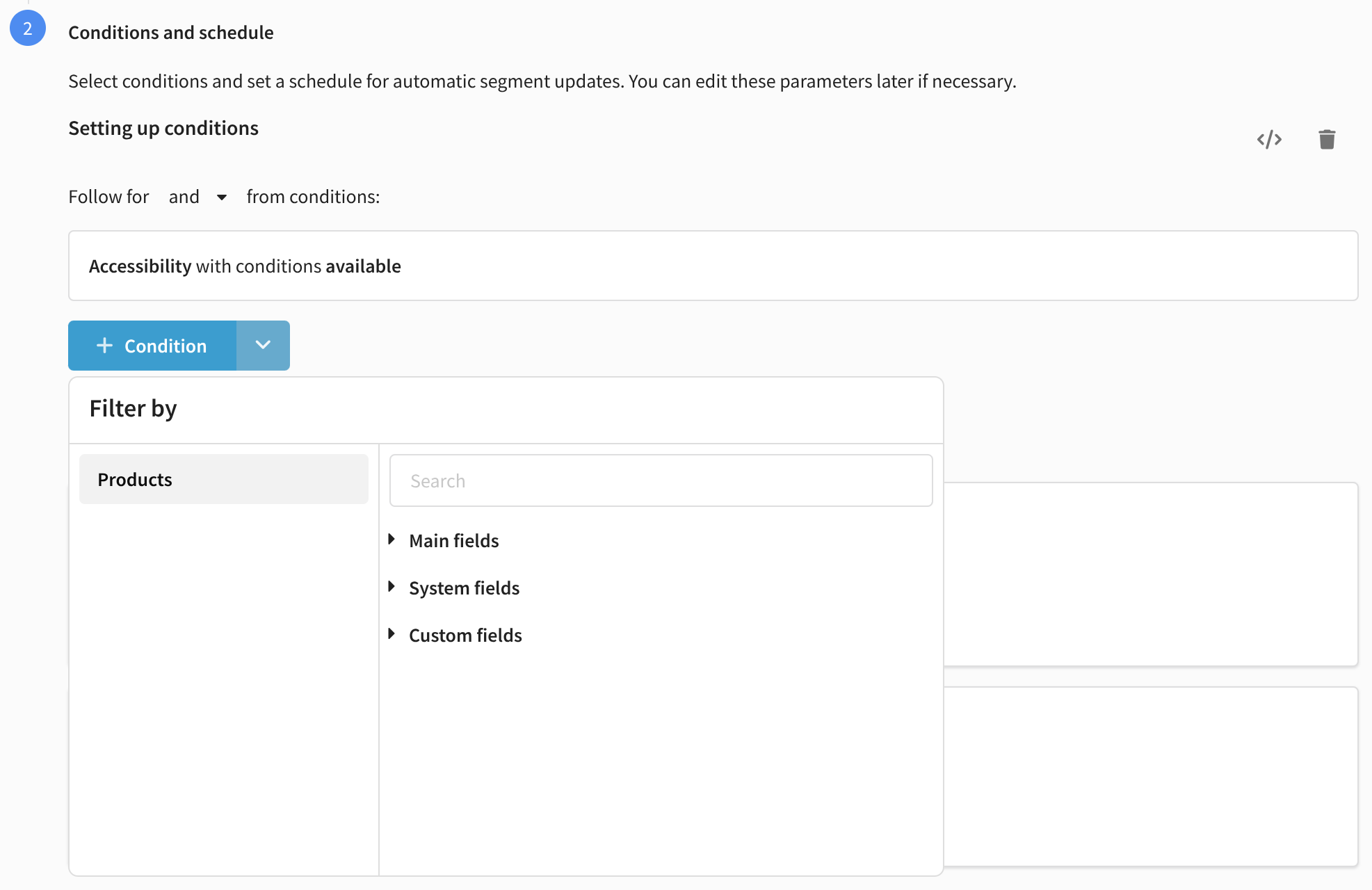
The same block contains the Script button, which opens an editor for manual condition writing. After setting conditions, you can define a product count limit. This limit applies to the selection result after condition filtering.
A segment can be updated daily or on specific days. Update time and time zone are set by the user:
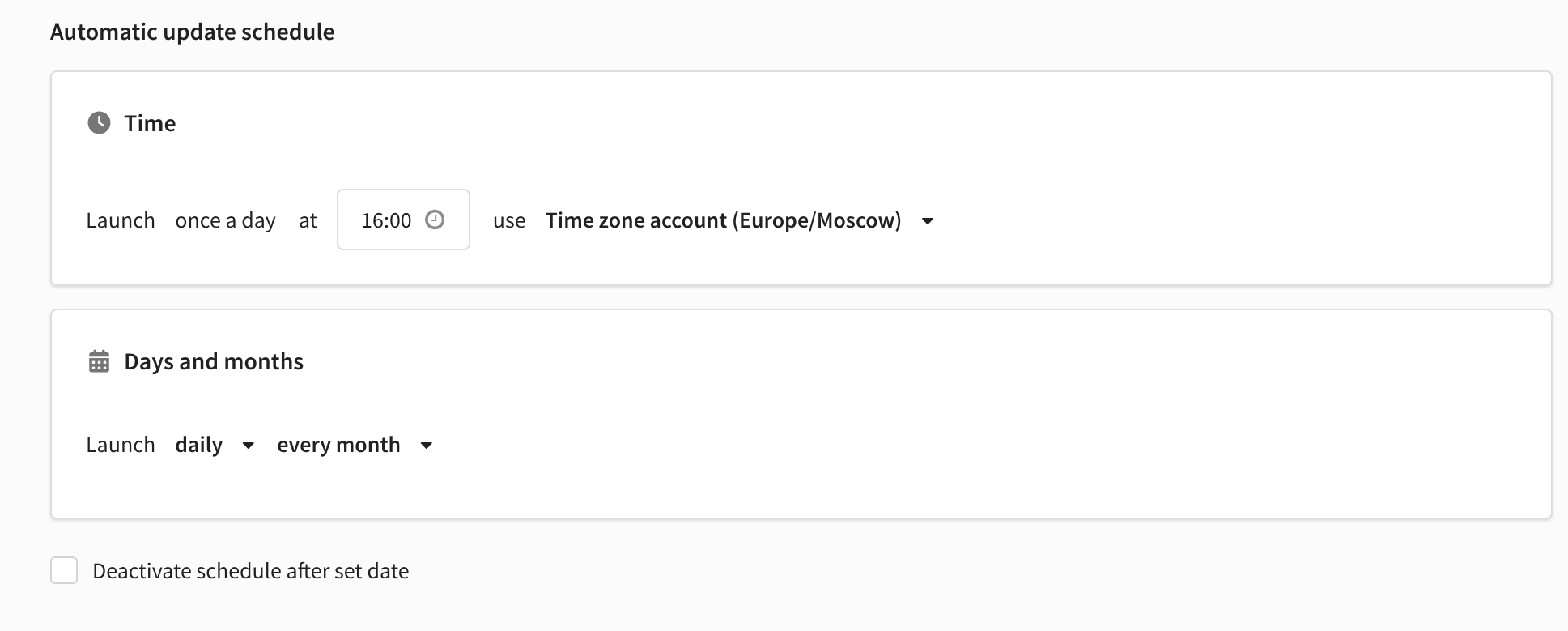
You can also configure automatic segment deactivation after a specified date.
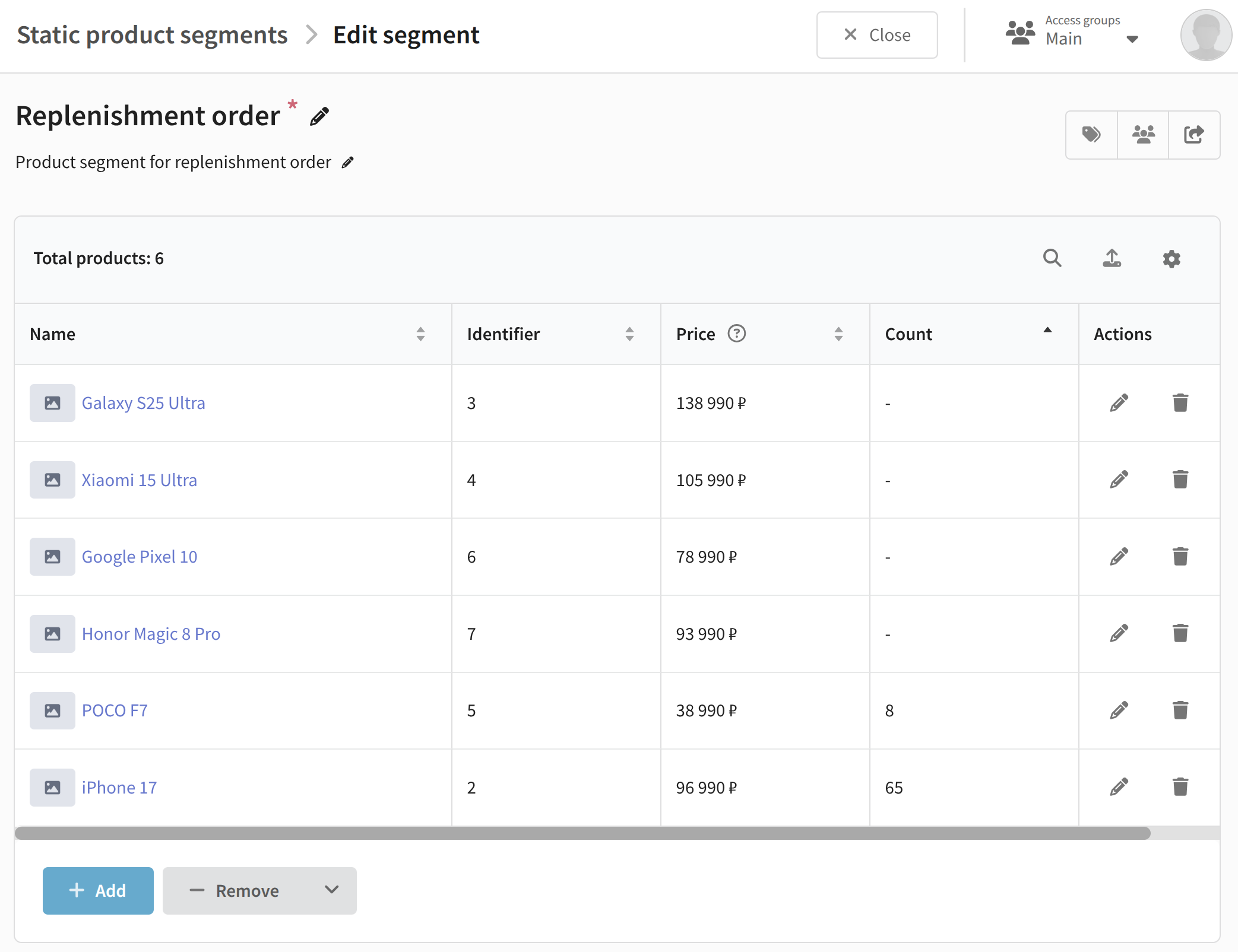
After calculation, the segment view displays a table with all products included in the segment. It shows the fields "Name", "Identifier", "Price", "Quantity", and a button to open product editing:
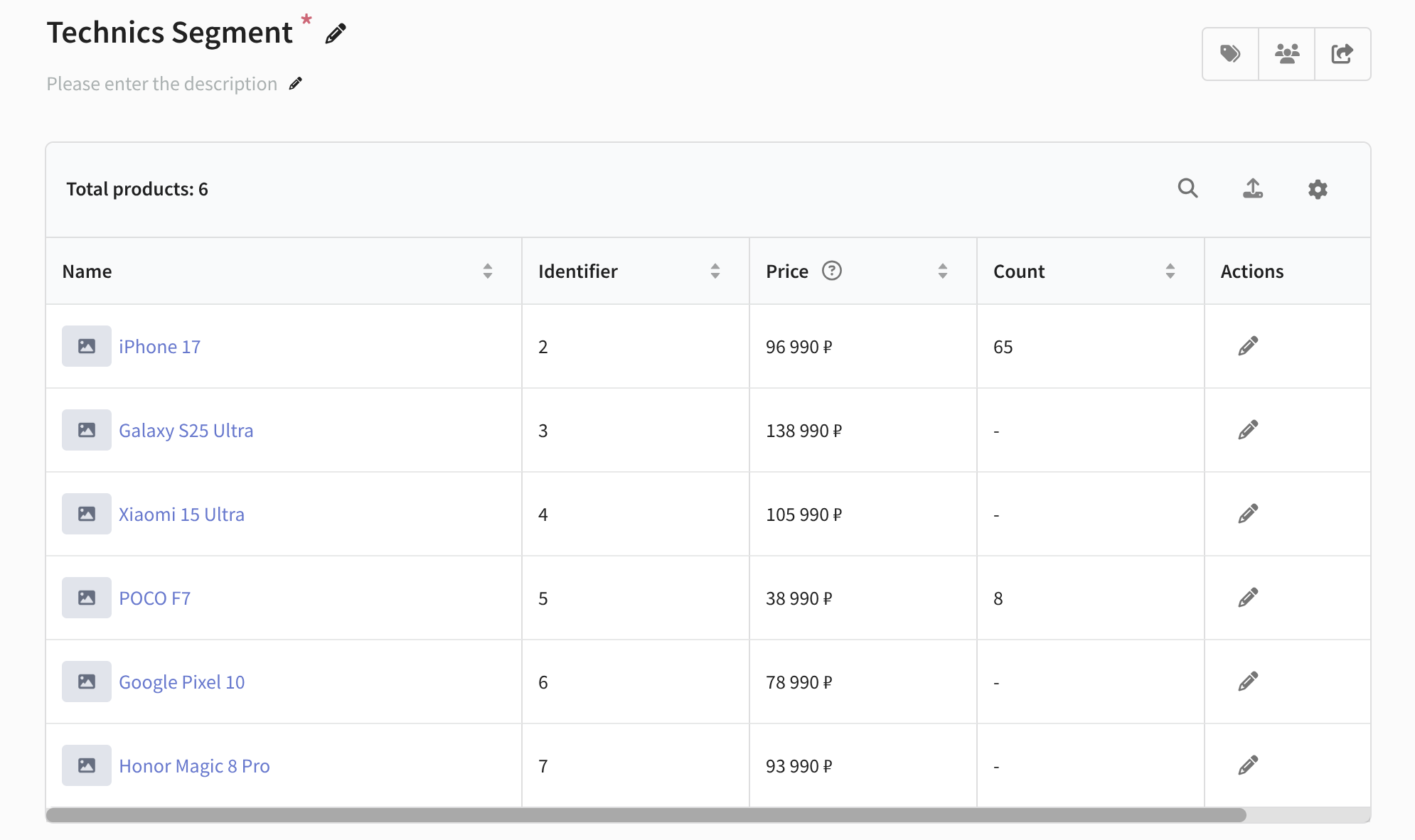
Available actions for this table:
- Search
 : find a specific product.
 - Export products
 : export the displayed list to an external file.
 - Configure displayed fields
 : add or remove table columns by dragging a Field from the Add field sidebar to Displayed fields or back.
Below the product table are the segment update schedule and conditions. Here you can edit them or recalculate the segment outside the schedule:
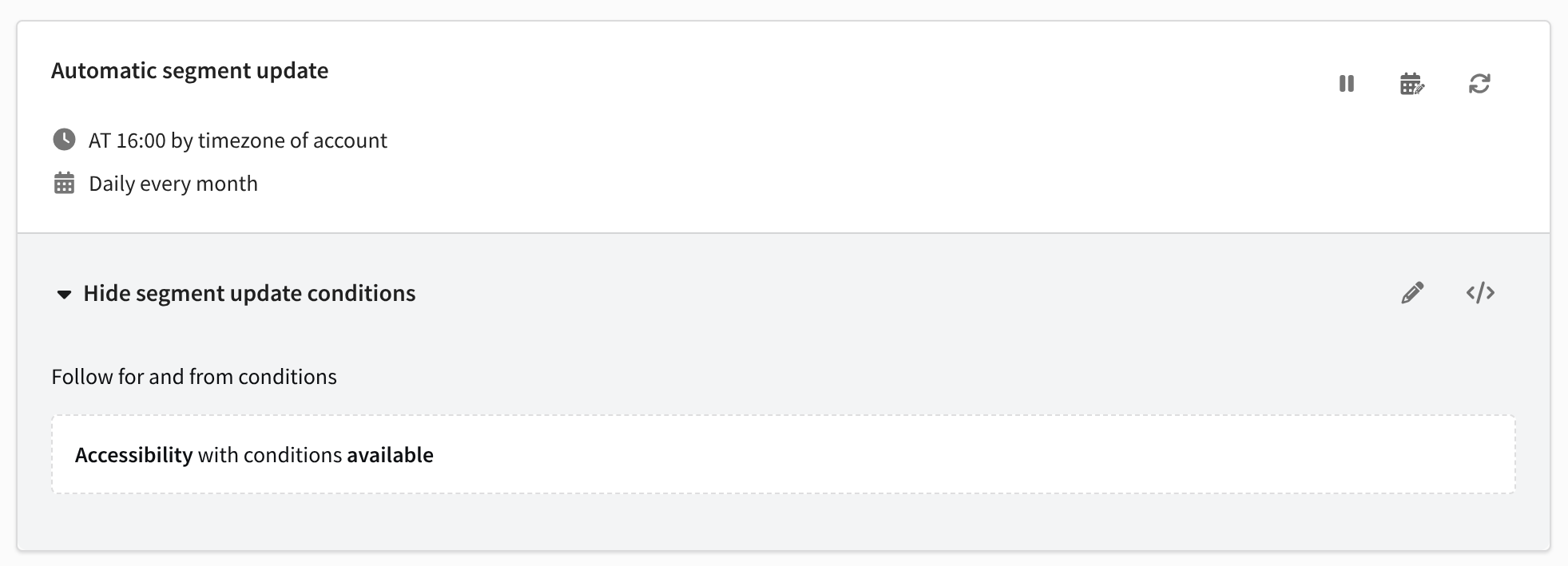
Below is the Update history block. It visually shows changes in the total number of products in the segment for the selected period. You can specify a date range and group data by days or weeks.
Below the update history is the Log. It contains a detailed record of all operations affecting the segment composition. For each operation, the following is shown:
- Start date: time when the segmentation process started (adding/removing by conditions).
- End date: time when the process finished.
- Initiator: name of the user who initiated the operation.
- Added: number of products added as a result of the operation.
- Removed: number of products removed as a result of the operation.
- Status: current operation state (for example, "Completed", "In progress", "Error").

At the top of the screen, a quick actions menu is available, where you can assign tags, configure access groups, and copy products to another segment.
Static Segments
Static product segments are sets of products and their modifiers (SKU) grouped via API or manually using selection conditions.
To create a static segment, go to Market — Static segments:
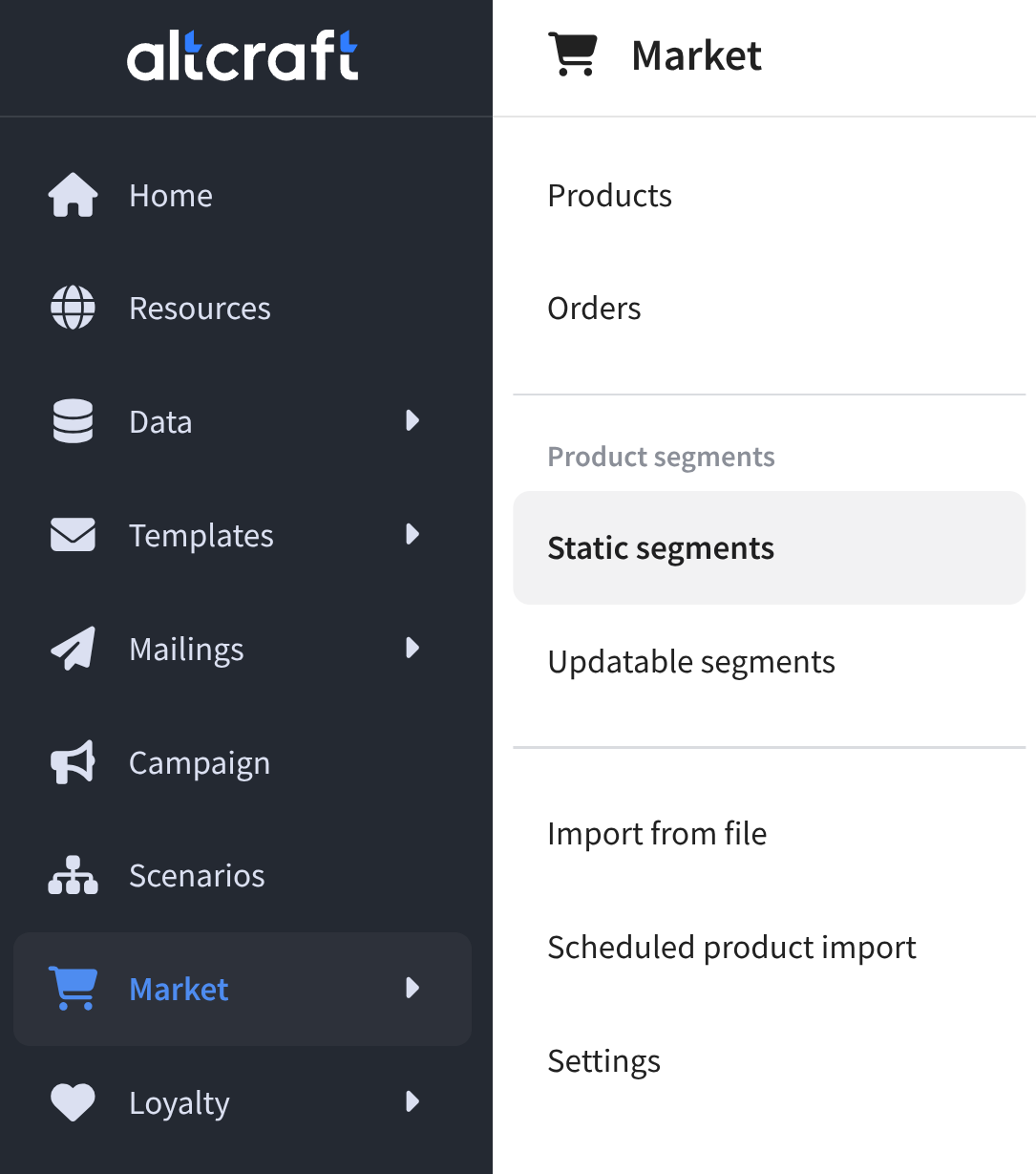
Click "Create". Specify a name, description, and select entities for segmentation — products or SKU. After selection, the segment type cannot be changed:
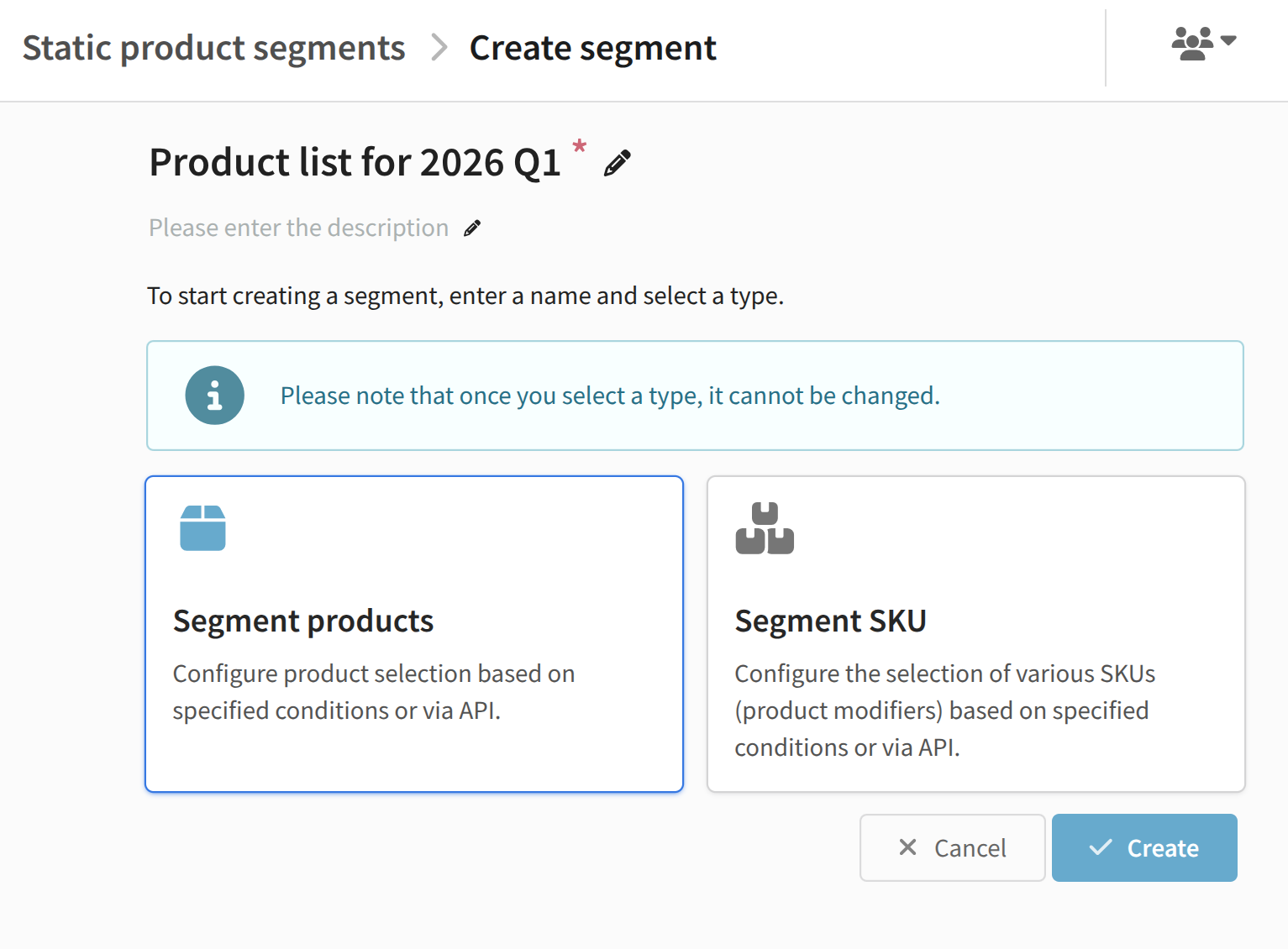
The segment is created. To add products, click "Add" — the Conditions block opens.
To add a rule, click + Condition. The dropdown menu contains the Add condition group option. Conditions inside a group can be combined using match all conditions (AND) or match any condition (OR):
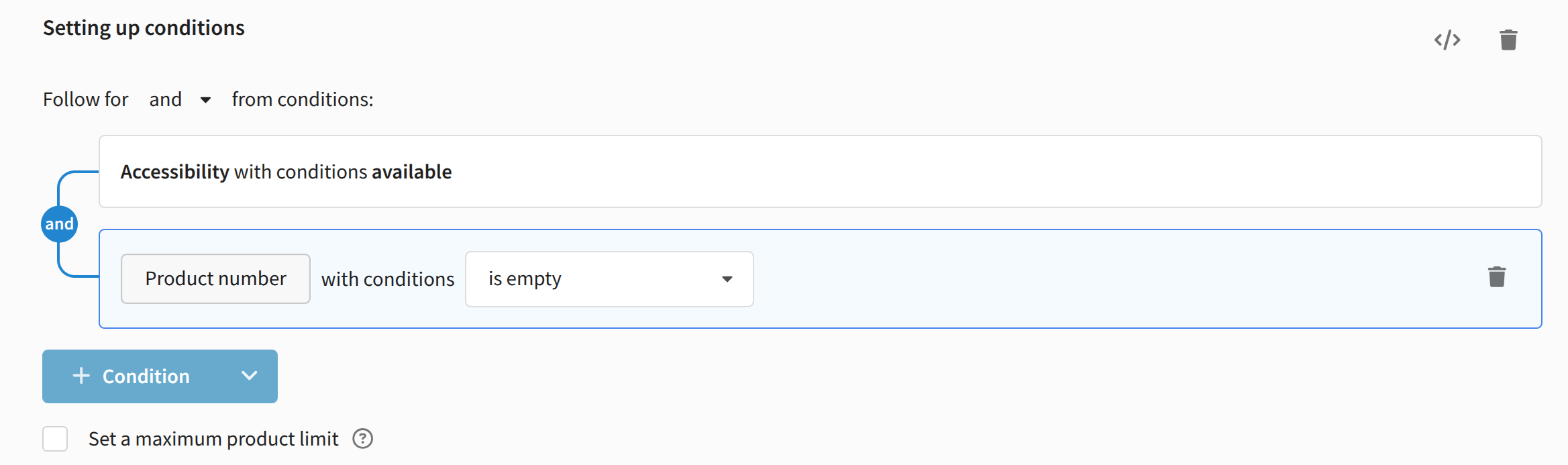
Conditions are divided into three groups:
- Core fields — filtering by name, region, category, product quantity, expiration date, price, delivery, warranty, availability, manufacturer, and tags;
- System fields — filtering by identifier, additional (string) identifier, creation date, and update date;
- Custom fields — filtering by user-defined fields.
The same block contains the Clear button, which fully removes all defined rules, and the Script button, which opens an editor for manual condition writing. After setting conditions, you can define a product count limit. This limit applies to the selection result after condition filtering.
After clicking "Add", products matching the selection rules appear in the segment. To remove products from the segment, click Remove. The removal function works the same way as adding products.
After calculation, the static segment view displays a table with all products included in the segment. It shows the fields "Name", "Identifier", "Price", "Quantity", as well as a quick actions menu for removal or opening product editing:

Available actions for this table:
- Search : find a specific product.
- Export products : export the displayed list to an external file.
- Configure displayed fields : add or remove table columns by dragging a Field from the Add field sidebar to Displayed fields or back.
Below is the Update history block. It shows changes in the total number of products in the segment for the selected period. You can specify a date range and group data by days or weeks.
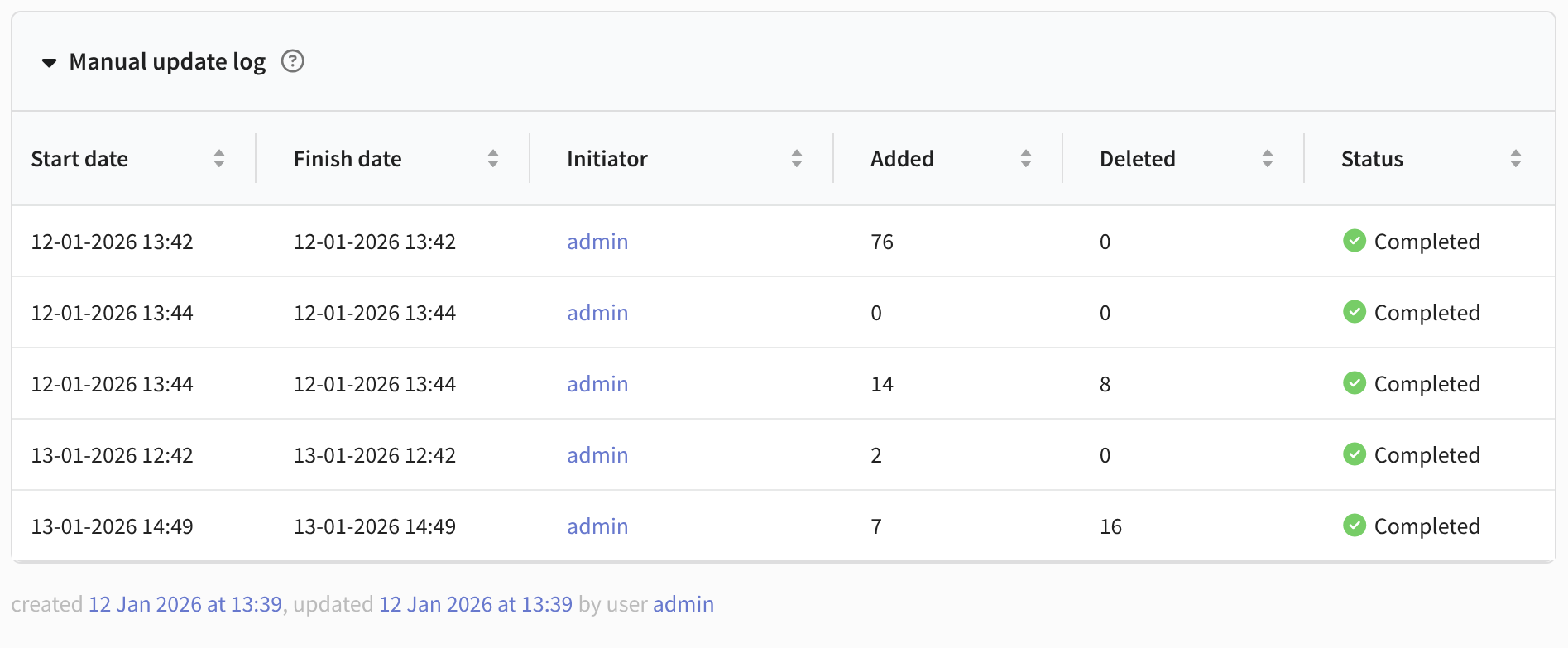
Below the update history is the Manual changes log. It contains a detailed record of all operations that affected the segment composition. For each operation, the following is shown:
- Start date: time when the segmentation process started (adding/removing by conditions).
- End date: time when the process finished.
- Initiator: name of the user who initiated the operation.
- Added: number of products added as a result of the operation.
- Removed: number of products removed as a result of the operation.
- Status: current operation state (for example, "Completed", "In progress", "Error").
At the top of the screen, a quick actions menu is available, where you can assign tags, configure access groups, and copy products to another segment.
Conditions
Conditions for selecting products and SKUs are divided into three groups: Main Fields, System Fields, and Additional Fields. The available set of operators depends on the type of selected field.
The same product and SKU fields are available in profile segmentation by orders — under the "Main Product/SKU Fields" and "Products by Custom Field" conditions.
Main Fields
Main fields include standard product or SKU fields: name, category, price, quantity, and others.
Product Name
A string field containing the product name.
- is equal to / is not equal to
- contains / does not contain
- begins with
- is in list / is not in list
- is in data table / is not in data table
- is in file in column / is not in file in column
- is in a field of post url response / is not in a field of post url response
Region
A field for specifying the sales region or product availability.
- exists / does not exist
- is equal to / is not equal to
- is in list / is not in list
Category
A field containing one or more categories to which the product belongs.
- exists / does not exist
- contains at least one value from the list
- does not contain any values from the list
- contains all values from the list
- does not contain all values from the list at the same time
Product Number
An integer reflecting the remaining stock or available quantity.
- is empty / is not empty
- is equal to / is not equal to
- is greater than / is less than
- is greater than or equal to / is less than or equal to
- in the range
Expiration Date
A date type field indicating the product's expiration date.
- is equal to / is not equal to
- is greater than / is less than
- is greater than or equal to / is less than or equal to
- exists / does not exist
- in the range
Price
A numeric field with the current product price.
- exists / does not exist
- is equal to / is not equal to
- is greater than / is less than
- is greater than or equal to / is less than or equal to
- is in list / is not in list
- in the range
Old Price
A numeric field with the price before discount (if applicable).
- exists / does not exist
- is equal to / is not equal to
- is greater than / is less than
- is greater than or equal to / is less than or equal to
- is in list / is not in list
- in the range
Delivery
A boolean field (true/false) indicating whether delivery is required for the product or available.
- true
- false
Guarantee
A boolean field (true/false) indicating whether the product has a warranty.
- true
- false
Accessibility
A switch field reflecting the product's availability status.
- available
- not available
Manufacturer
A string field with the manufacturer's company name.
- exists / does not exist
- is equal to / is not equal to
- contains / does not contain
- is in list / is not in list
- is in data table / is not in data table
- is in file in column / is not in file in column
- is in a field of post url response / is not in a field of post url response
Tags
A list field used for flexible product tagging.
- exists / does not exist
- contains at least one value from the list
- does not contain any values from the list
- contains all values from the list
- does not contain all values from the list at the same time
System Fields
Fields automatically filled by the platform or used for internal identification.
Identifier
A unique numeric product ID in the system.
- is equal to / is not equal to
- is in list / is not in list
- is in data table / is not in data table
- is in file in column / is not in file in column
- is in a field of post url response / is not in a field of post url response
Additional Identifier
A string field for storing an external ID (e.g., SKU from 1C or product code).
- is equal to / is not equal to
- is in list / is not in list
- is in data table / is not in data table
- is in file in column / is not in file in column
- is in a field of post url response / is not in a field of post url response
Product/SKU Creation Date
A date type field recording the moment the record was created in the platform.
- is equal to / is not equal to
- is greater than / is less than
- is greater than or equal to / is less than or equal to
- month is / month is not
- month is the same as today
- month day is / is not / is greater than / is less than / is the same as current
- day and month are / are not / are greater than / are less than / are the same as current
- is in list / is not in list
- is in a date range
- date relative to current date — selection based on a moment in the past or future
Product/SKU Update Date
A date type field recording the moment the record was last modified.
- is equal to / is not equal to
- is greater than / is less than
- is greater than or equal to / is less than or equal to
- month is / month is not
- month is the same as today
- month day is / is not / is greater than / is less than / is the same as current
- day and month are / are not / are greater than / are less than / are the same as current
- is in list / is not in list
- is in a date range
- date relative to current date
Custom Fields
You can create your own fields in the catalog structure to store specific product information. For segmentation, operators corresponding to the created field type (string, numeric, date, boolean, etc.) are available.