Mobile push: settings & implementation
If you want to set up web browser push, see this guide!
Description
Mobile push notifications are displayed in your customers' mobile device message center, in the upper part of the screen most commonly. They are allowed by default on application installation — thus you can start engaging your customers right away and increase your app conversion.
In Altcraft Platform, there are 5 mobile push options:
Google Firebase Cloud Messaging — for both Android & iOS.
Apple Push Notification Service — iOS apps only.
Yandex.AppMetrica — for both Android & iOS.
Huawei Mobile Services — for both Android & iOS.
RuStore — Android apps only.
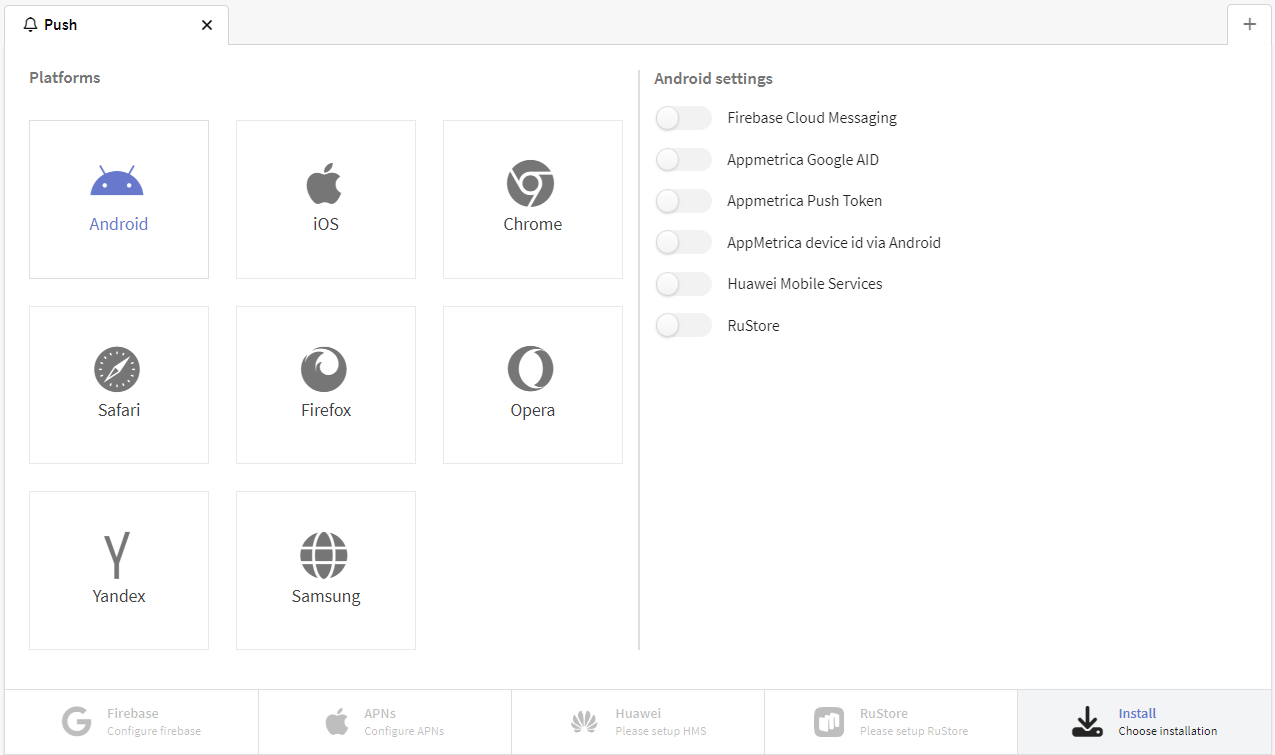
Configuring push for Android and iOS
Firebase Cloud messaging
 | Firebase cloud messaging is used as a cross-platform and a cross-browser solution to activate push notifications for Mozilla Firefox, Opera, Google Chrome and both iOS and Android applications. You can configure both platforms within one Resource. The first step is to create a project at Firebase Console. |

In Altcraft Marketing select or create a Resource, where you will activate Firebase Cloud Messaging for supported mobile platforms. On activation Firebase section becomes active in the lower part of the form:
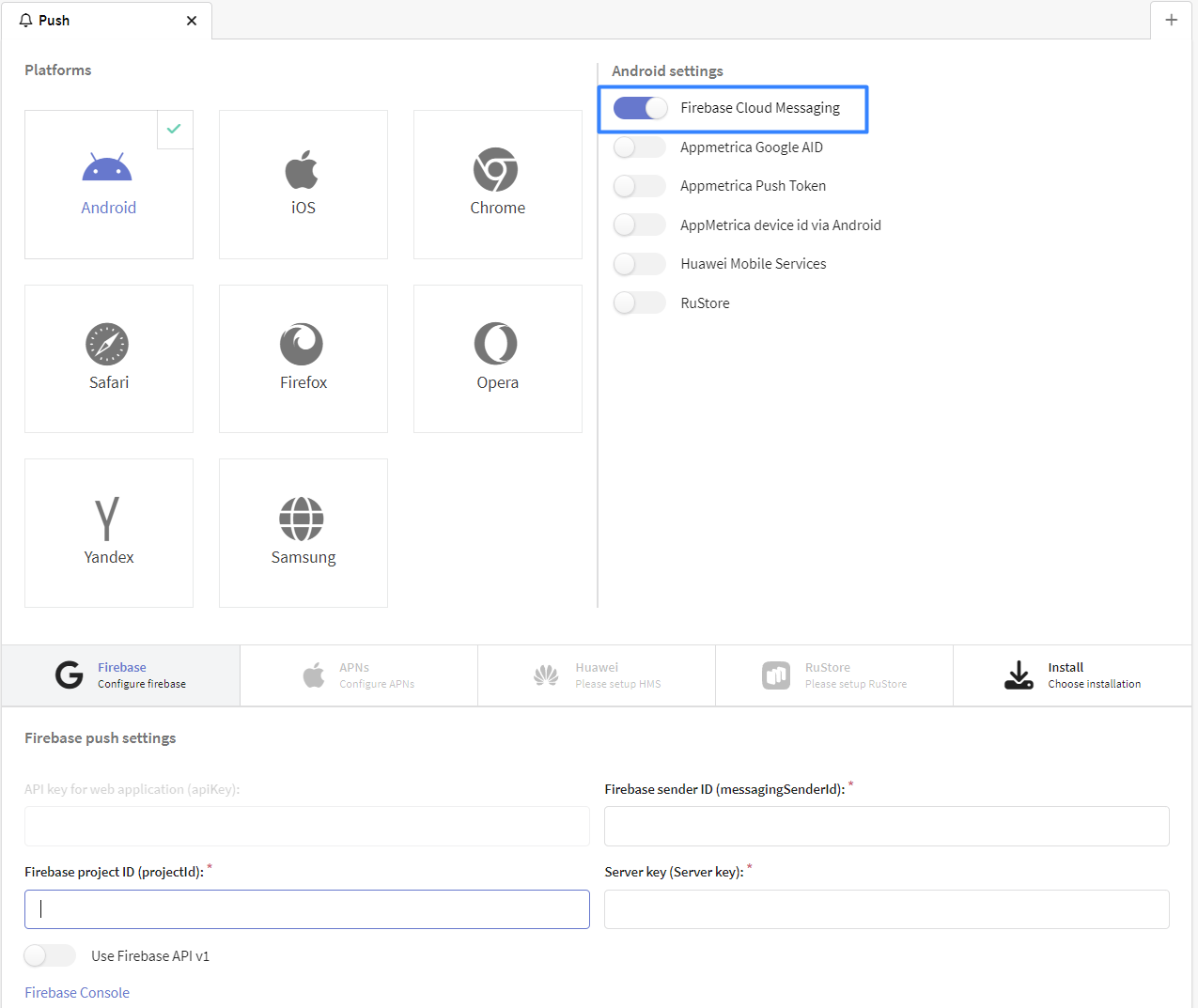
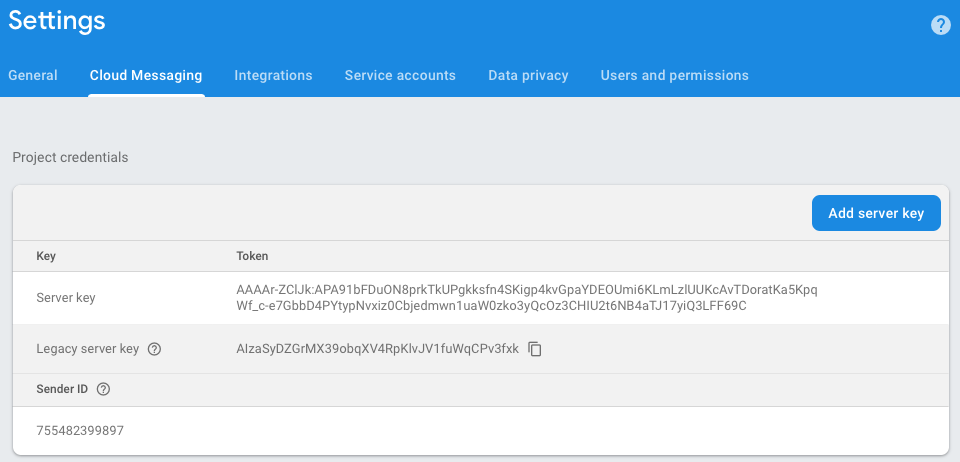
You would need the following information, retrieved from your Firebase project:
- Firebase API key (Web API key)
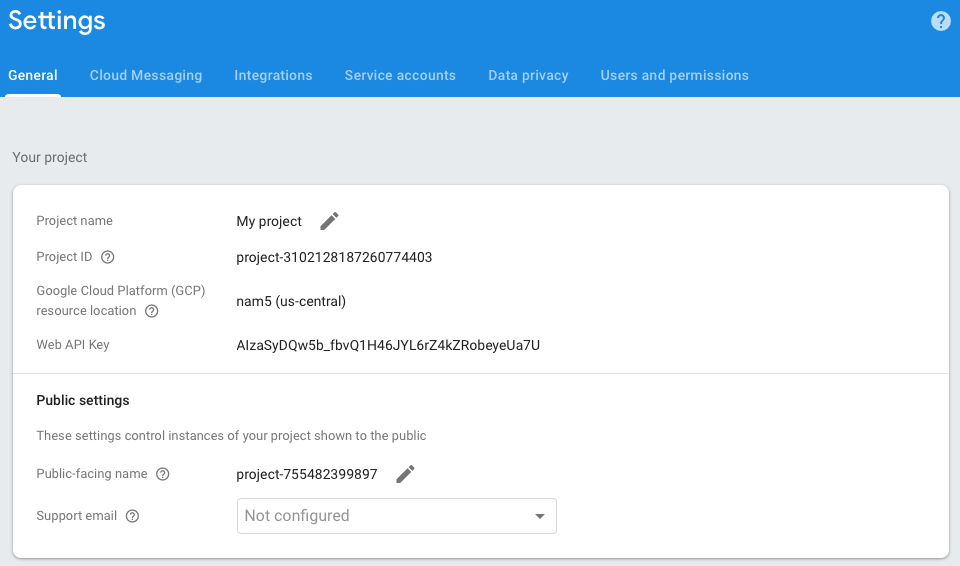
Project ID and Web API key can be found in Project settings in General tab.
Server key and Sender ID are found in the Cloud messaging tab also in Project settings.
Apple Push Notification service
 | Apple Push Notification service allows you to send push notifications from mobile apps to iOS devices. You need an Apple Developer account and a macOS device to set up the service. |
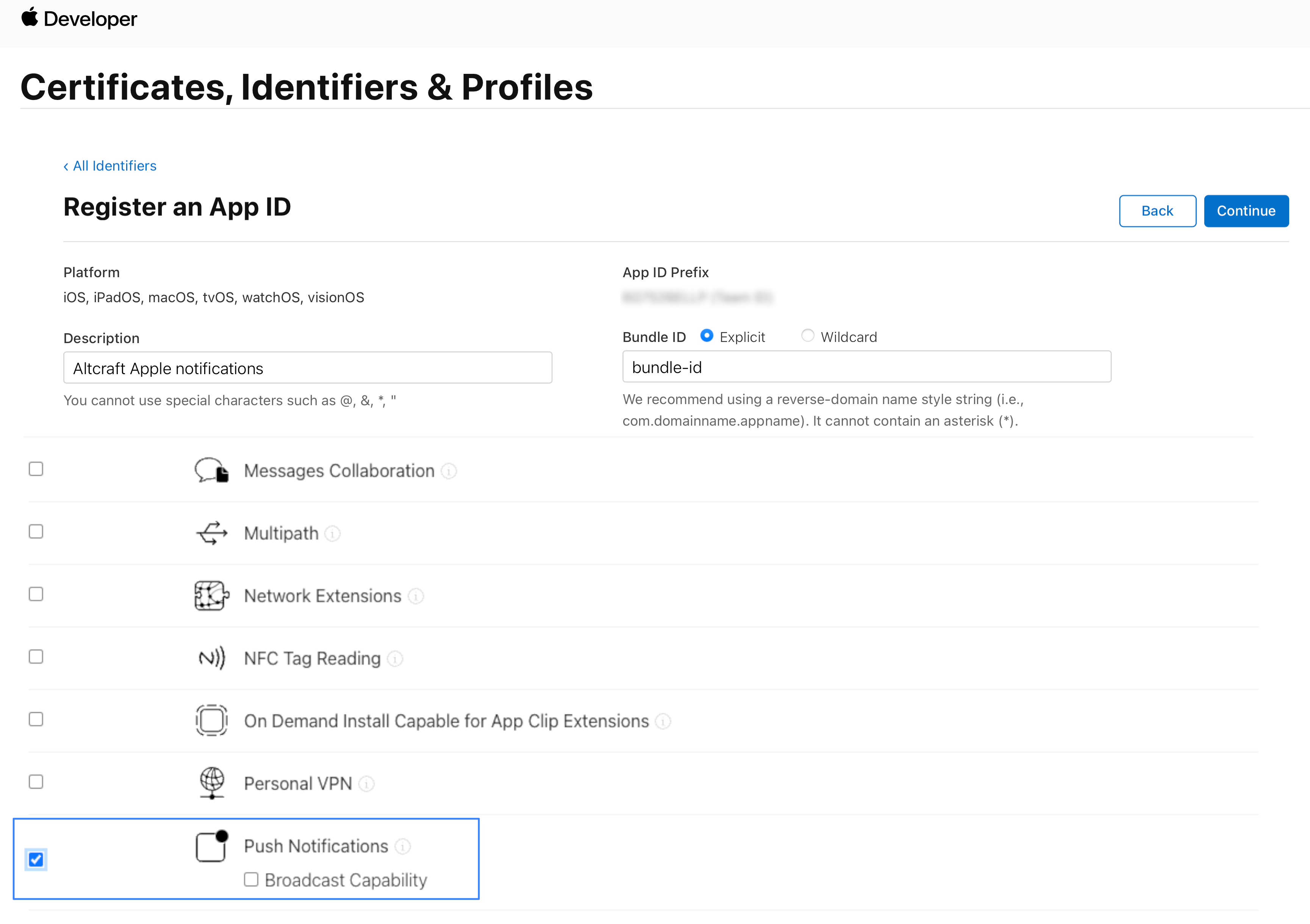
Go to the Apple Developer website to **Account ** — Certificates, Identifiers & Profiles — Identifiers. Create a new identifier. Select the App IDs option, then App. Enter a title in the Description field, specify the Bundle ID of the application in the appropriate field, select the Explicit option, then select Push Notifications from the list below and register the ID:
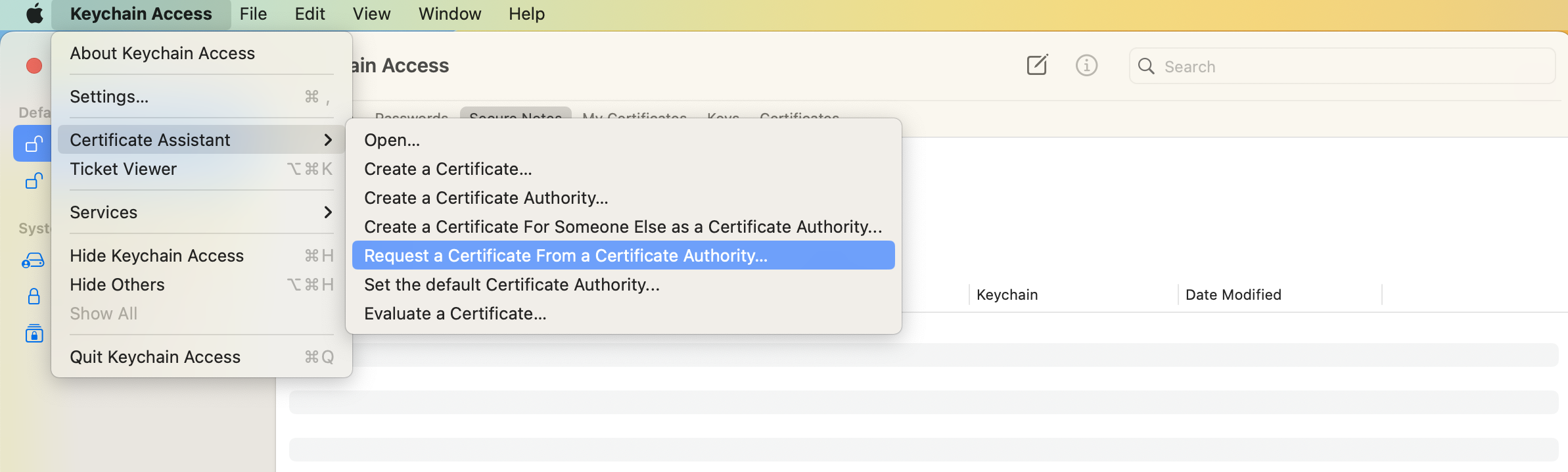
Open the Keychain application on your device. Go to Default Keychains — Login, select **Certificate Assistant ** — Request a Certificate From a Certificate Authority from the menu:
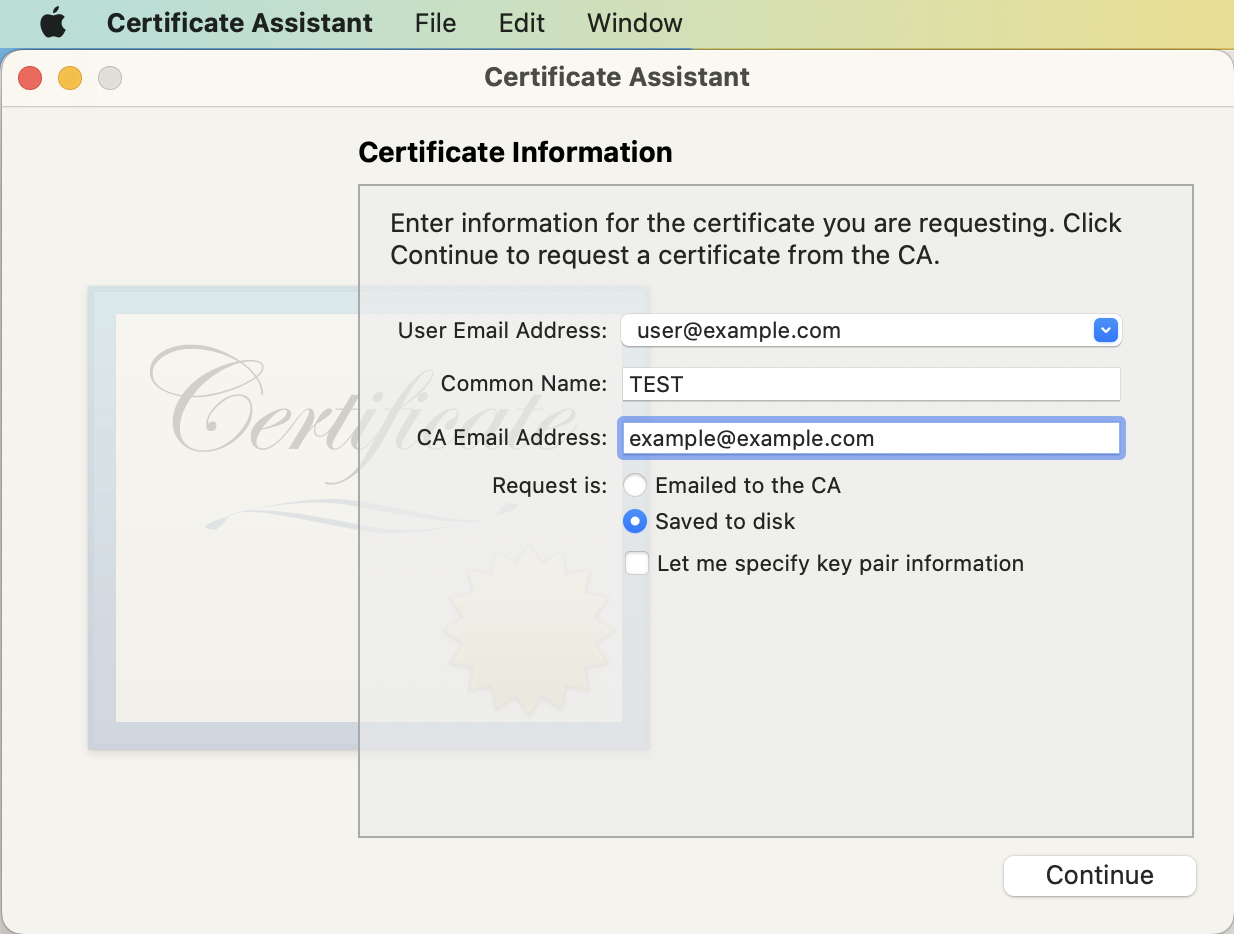
In the window that opens, fill in the required fields and select Saved to disk. Save the certificate on the device:
Go back to **Certificates, Identifiers & Profiles ** — **Certificates ** on the website. Create a new certificate. In the Services list, select Apple Push Notification service SSL (Sandbox & Production). In the next item, find your application in the AppID drop-down list. Upload the certificate you created earlier into the appropriate field. Save the resulting Apple certificate to your device:
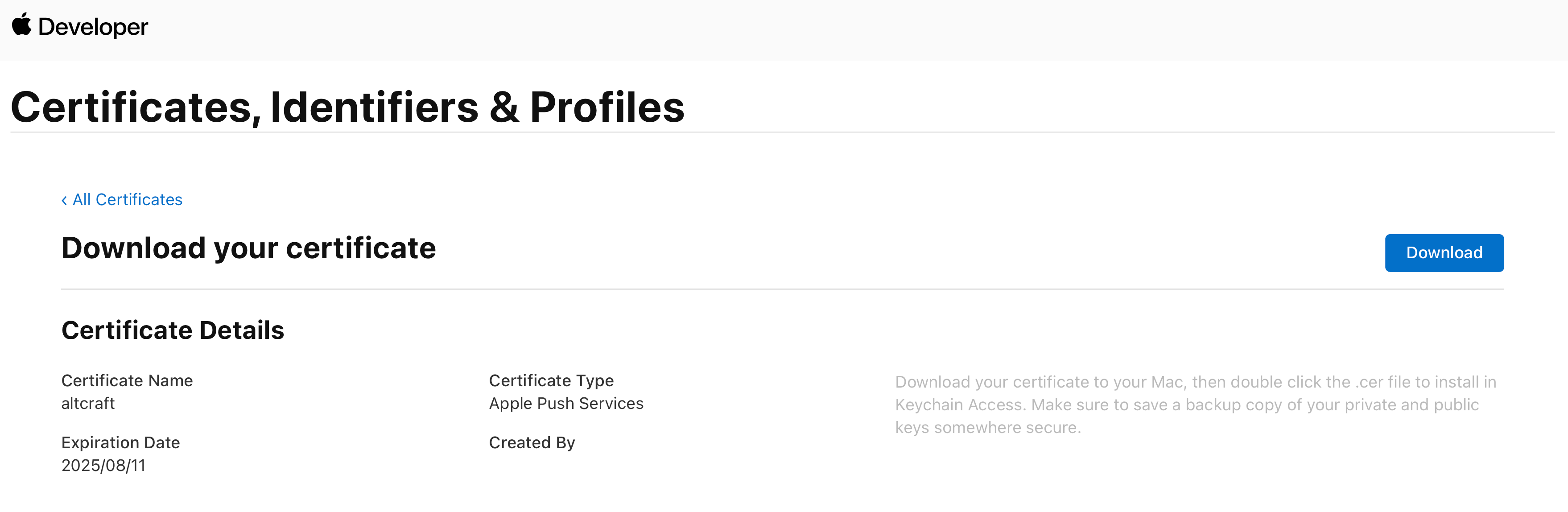
Double-click it to make it appear in the Keychain application. Open it and select Always Trust in the certificate usage options:
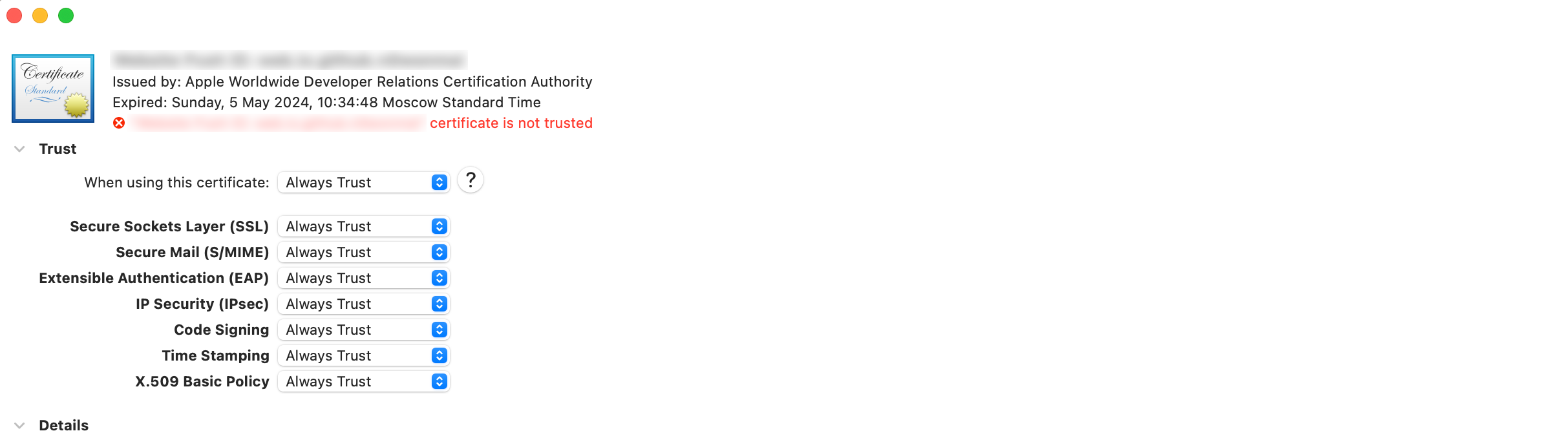
The next steps depend on whether you want to use token or certificate authentication.
- Token authentication
- Certificate authentication
On the Apple Developer site, go to Certificates, Identifiers & Profiles — Keys. Create a new key. Specify the name of the key and its type — APNs, click Continue, then Register. Make a note of Key ID, it will be required to configure the resource on the platform:
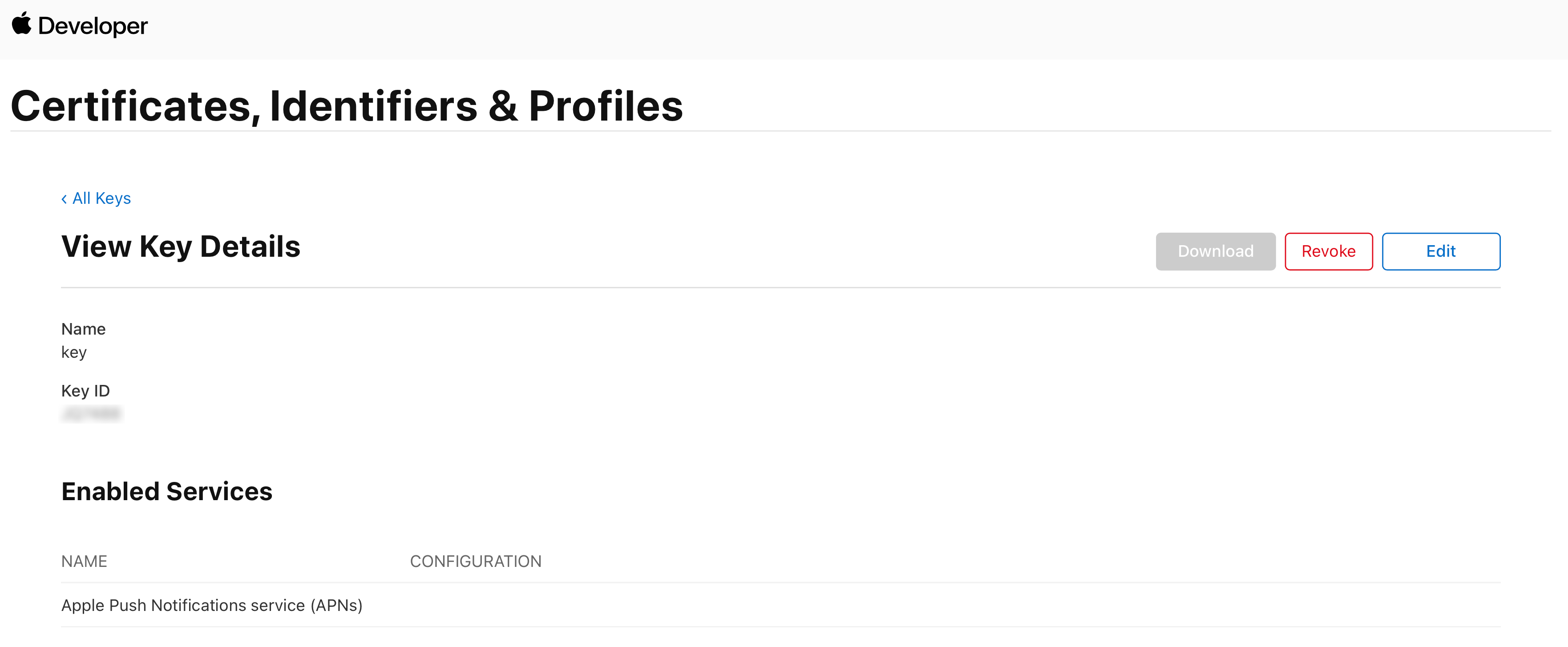
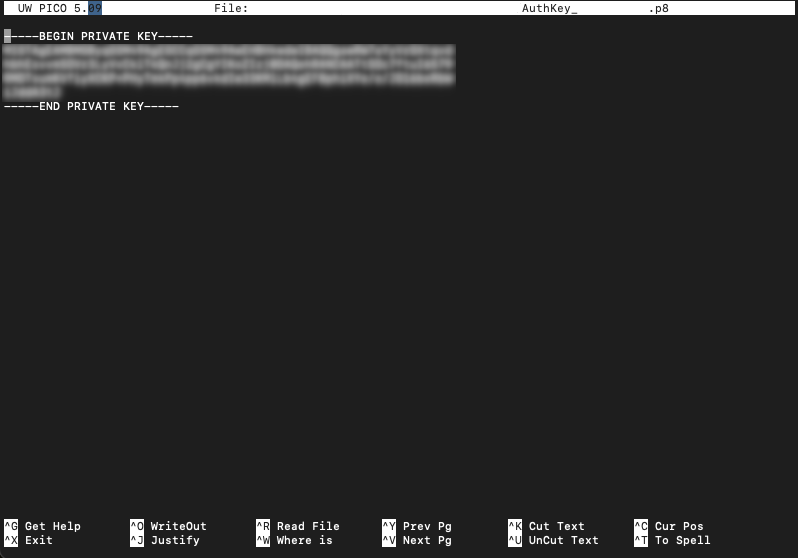
Download the key to your device. You need to open it with any text editor. The signature key is contained inside. You will need to specify it in the appropriate field when configuring the resource.
The key can only be downloaded one time. If you can't download it now, click Done and come back when you can.
On the Altcraft platform, create a resource for the push channel, select the iOS platform and enable the Apple Push Notification service switch:
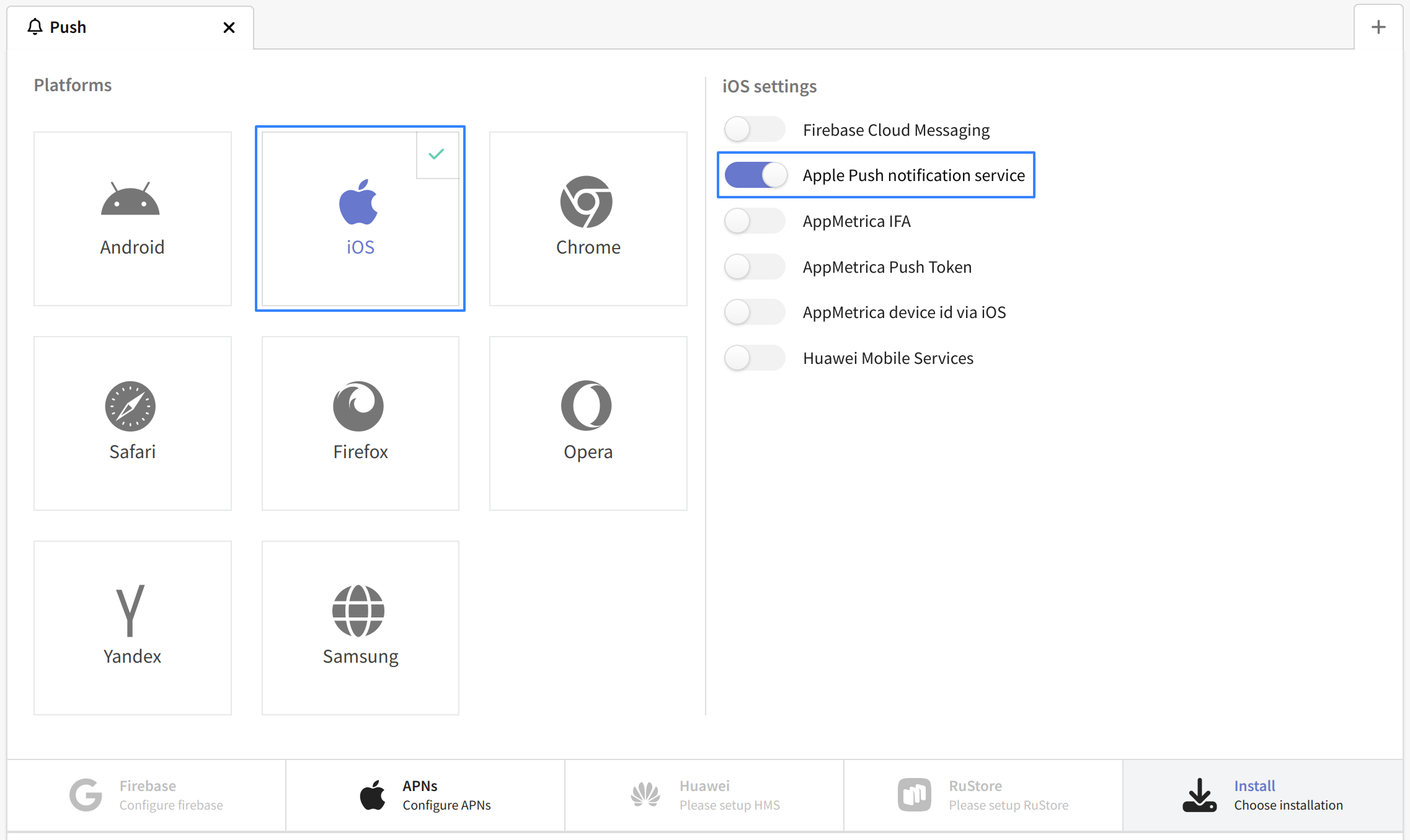
Activate the Use APNs token switch in the settings below. Fill in the following fields:
- apns-topic — Bundle ID of the application.
- kid — KeyID value of the key.
- iss — Team ID, usually found in the developer account on the Apple Developer site.
- Signature Key — The contents of the key file downloaded earlier.
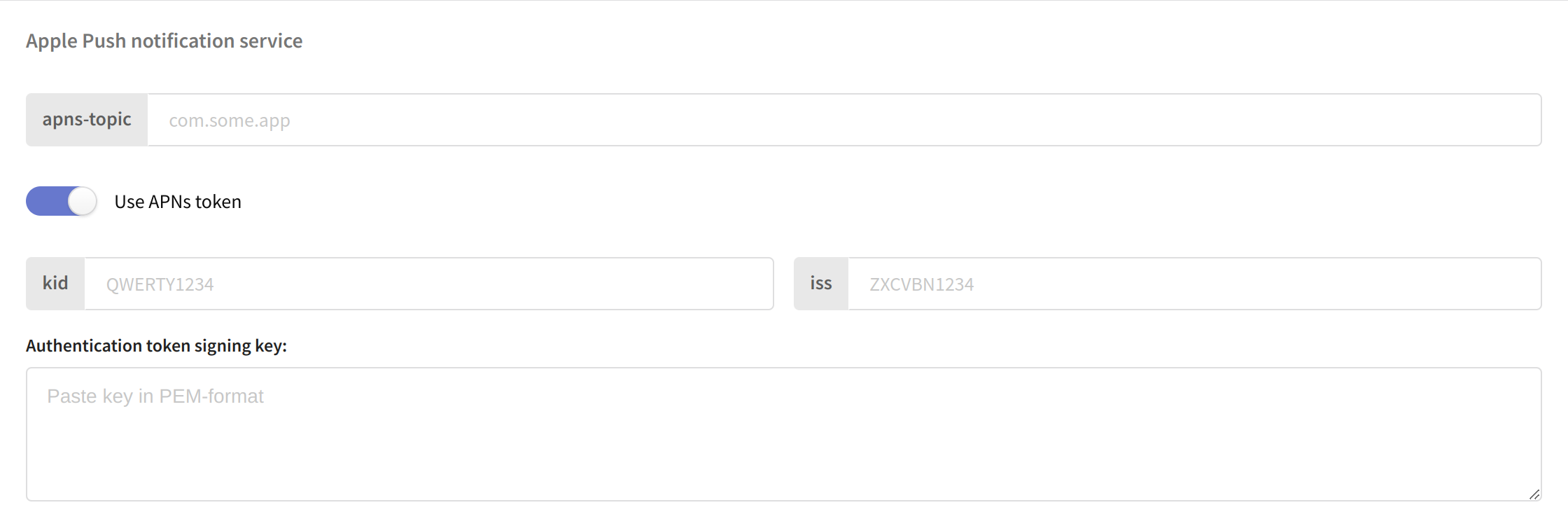
Save the configured resource using the buttons at the top of the page. The platform is ready to send notifications using APNs.
In the Keychain application, right-click the created certificate and export it. Select the .p12 format. If necessary, set a password for the certificate:
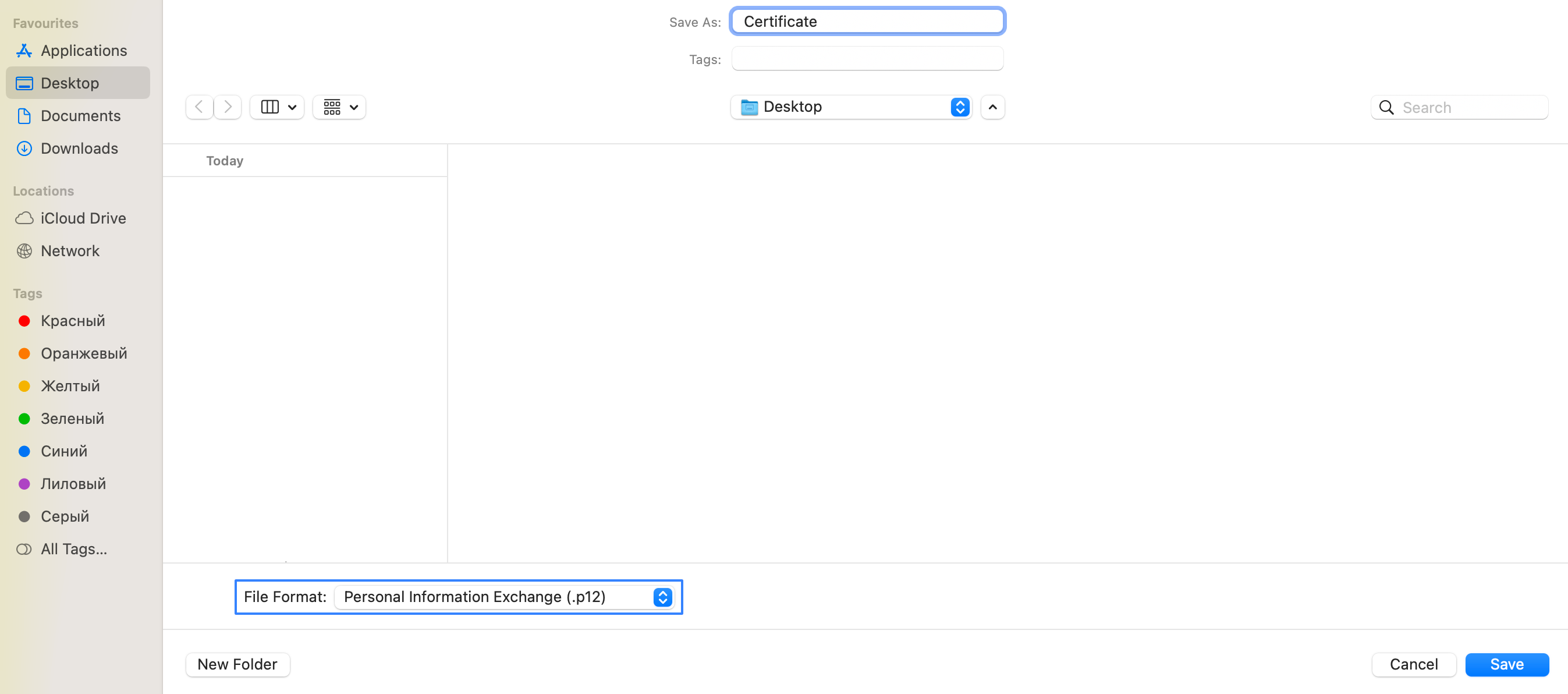
Using terminal navigate to the folder where you exported the certificate. Create a pem key using the command openssl pkcs12 -in filename.p12 -out filename.key.pem -nocerts -nodes, where filename.p12 is the name of the exported file and filename.key.pem is the name of the key pem file to be created.
Without closing the terminal or navigating to other folders, create a pem certificate using the openssl pkcs12 -in filename.p12 -out filename.crt.pem -clcerts -nokeys command similar to the command above (filename.p12 is the source file, filename.crt.pem is the destination file).
Open these files with the nano editor and copy the key and certificate value:
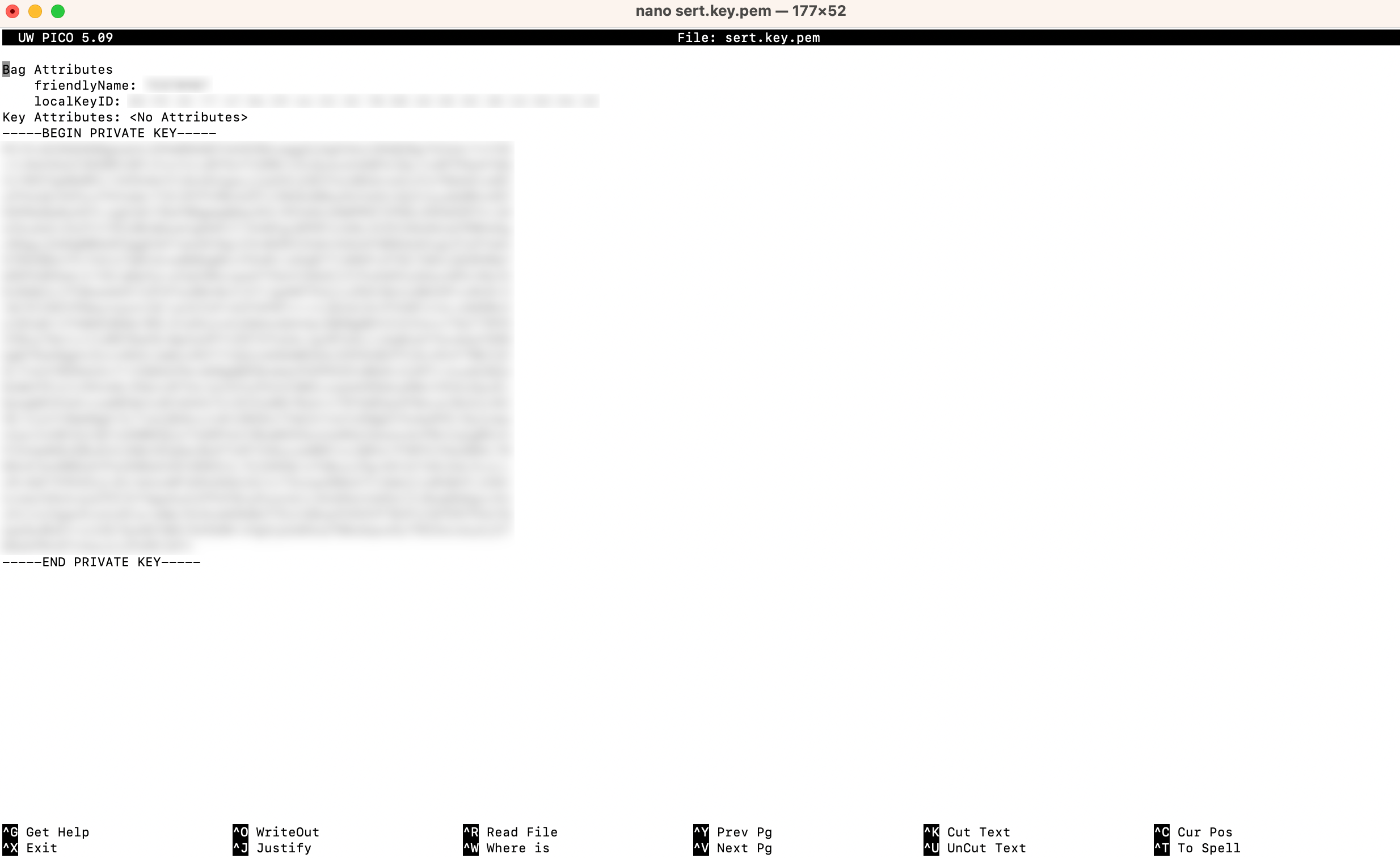
On the Altcraft platform, create a resource for the push channel, select the iOS platform and enable the Apple Push Notification service switch:
Activate the **Use APNs certificate ** switch in the settings below. Fill in the following fields:
- Certificate — the value of the pem certificate you created.
- Private Key — the value of the pem key you created.
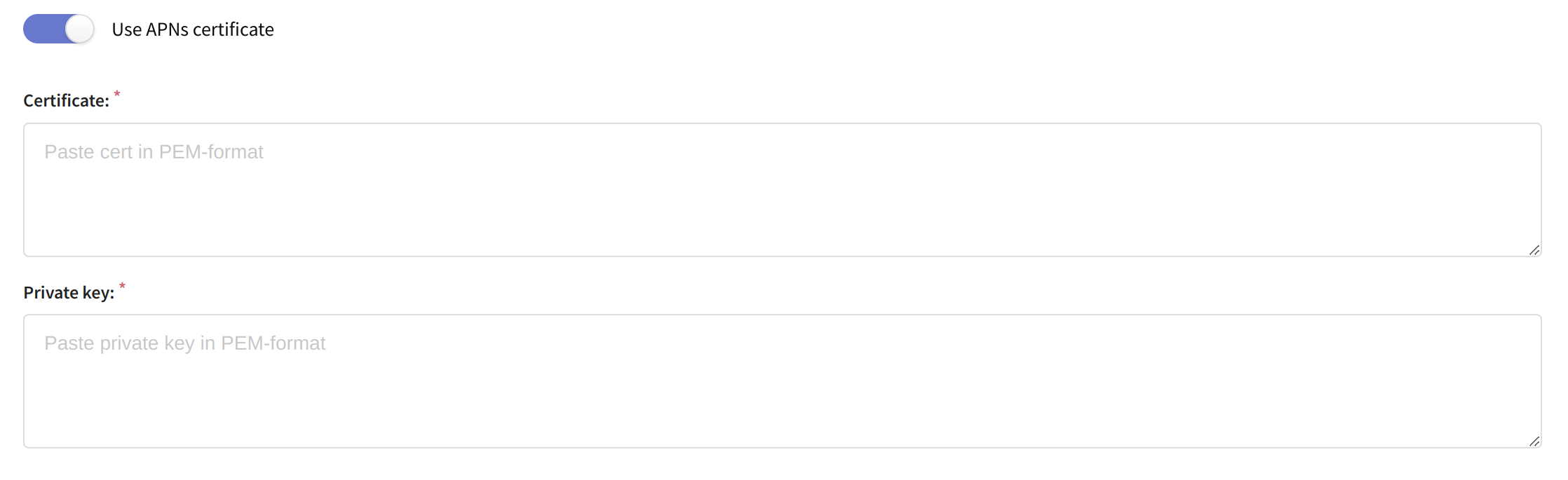
Save the configured resource using the buttons at the top of the page. The platform is ready to send notifications using APNs.
Yandex.AppMetrica push SDK
 | Yandex AppMetrica platform can be used as well to send mobile push notifications. AppMetrica push SDK must be integrated into your applications to do this. Yandex documentation is available here: Yandex AppMetrica documentation. |
Note that AppMetrica uses Google Firebase push SDK to deliver messages. You will want to implement it in your application.
The following data can be used as push subscription source:
- AppMetrica device ID — unique AppMetrica device identifier for both OS.
- iOS IFA — Apple advertising ID only for iOS.
- Google AID — Google advertising ID only for Android.
- Android Push token and iOS Push token — AppMetrica SDK tokens for both OS.
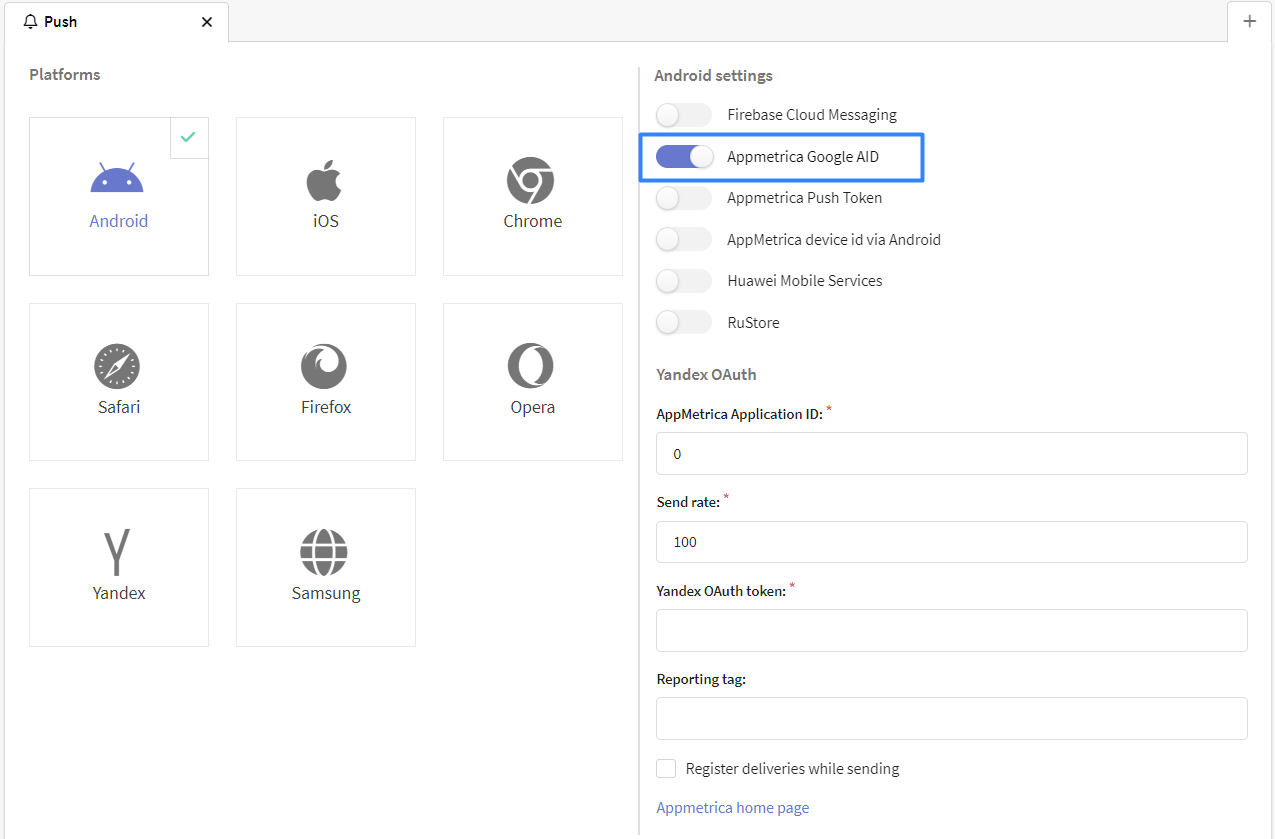
To access AppMetrica, you will need AppMetrica API token. For each application you will also get a unique AppMetrica Application ID. You can get this data in AppMetrica application settings.
Send rate parameter limits maximum sending speed per second. You can specify a custom Reporting tag that will be used in AppMetrica analytic reports:
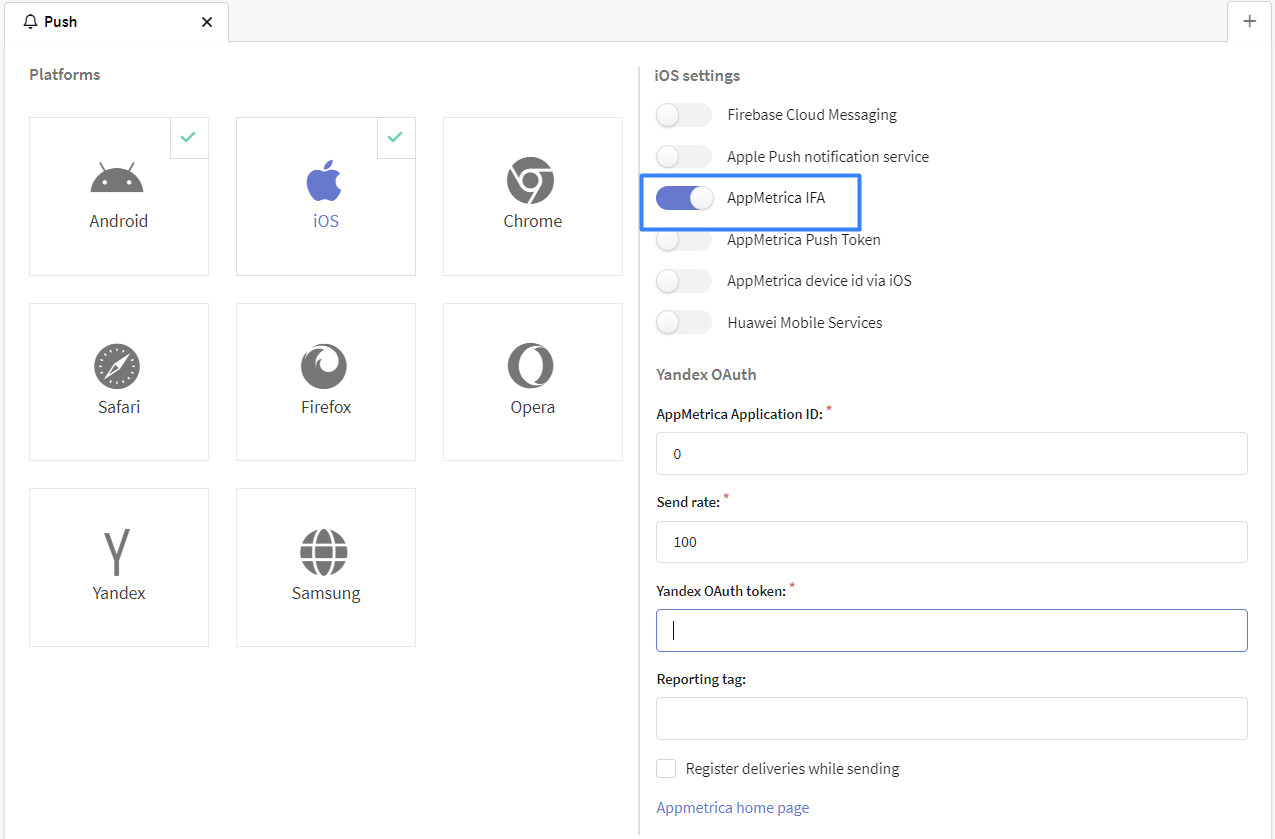
AppMetrica push subscriptions can be formed automatically. Yandex.AppMetrica events integration can manage this and much more. Contact us to get more information.
Huawei Mobile Services
 | Huawei Mobile Services allows you to send push notifications from Huawei-supported apps to Android and iOS devices. |
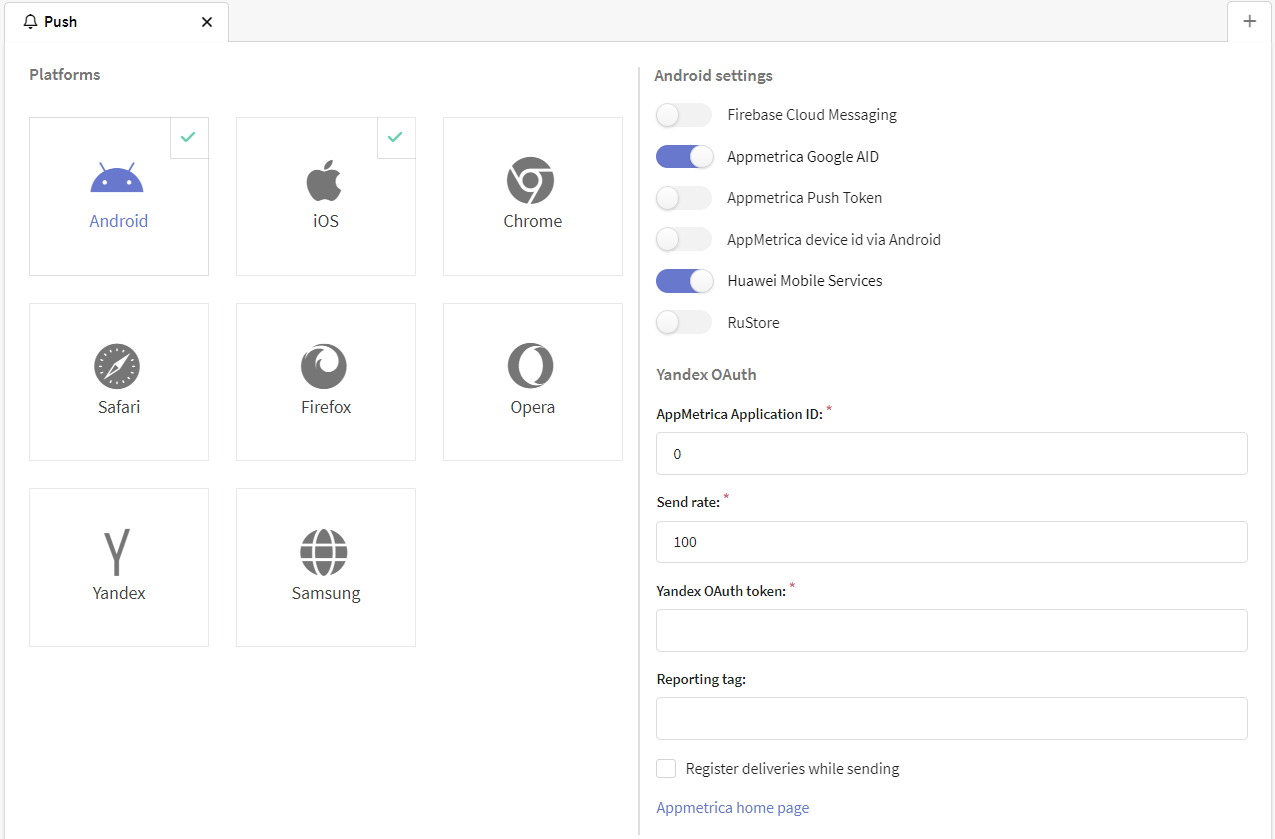
Go to resource editor and activate Huawei Mobile Services for Android and iOS apps:
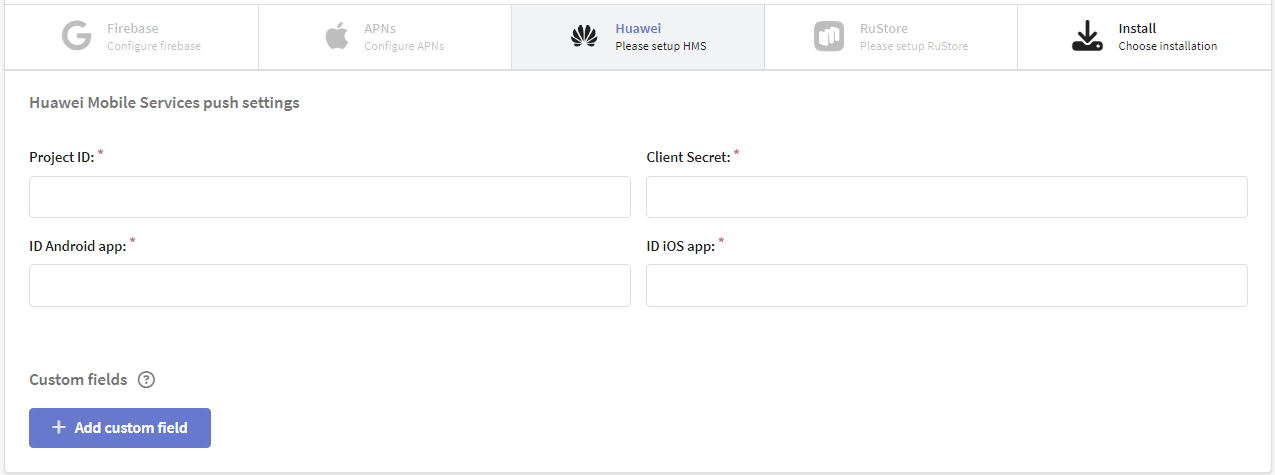
In the panel below, select Huawei. Enter app information for setup:
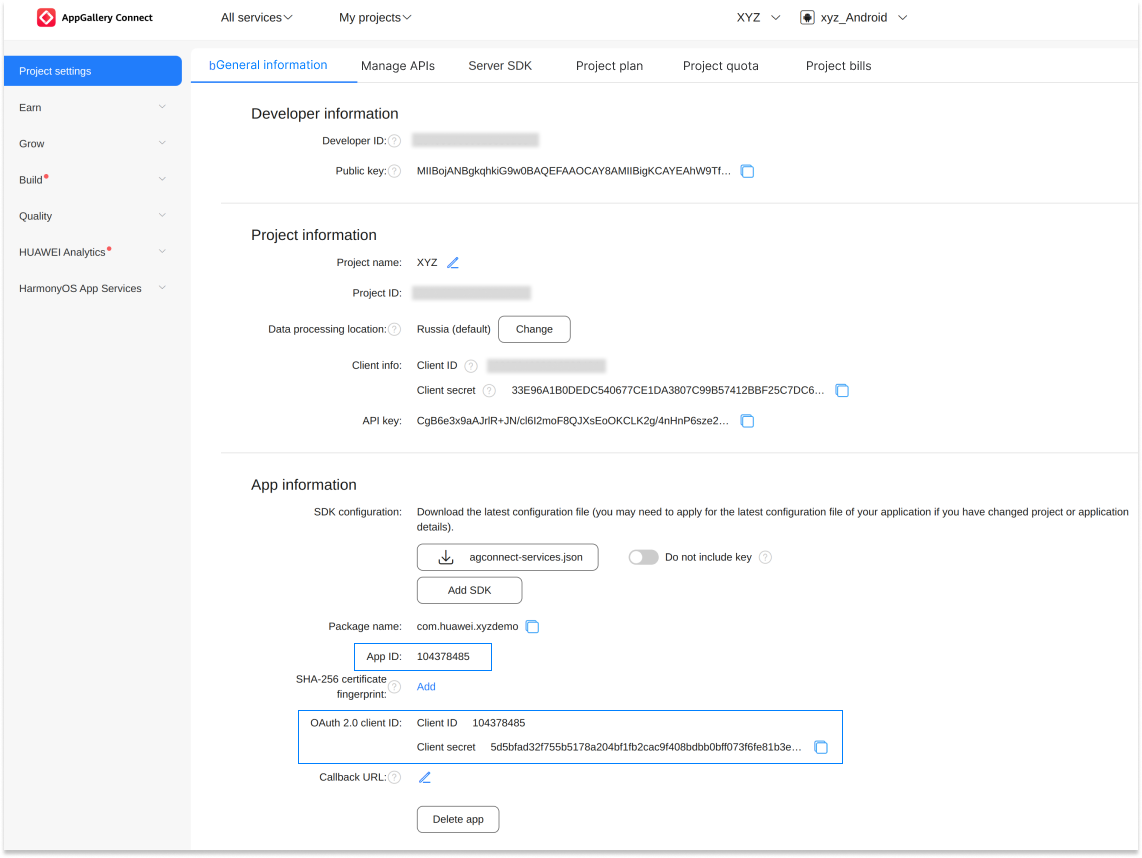
You can find the Project ID, Client Secret and IDs of Android or iOS apps in your project settings. To do this, open the console in your Huawei developer account and go to AppGallery Connect —> My projects. In the top panel, select the application for which you want to configure the sending of push notifications.
Use app information. Note that App ID = Client ID = Project ID.
RuStore
 | The RuStore service allows you to send push notifications from applications published in RuStore. First you need to create a push notification project for your application. |
Go to resource editor and activate RuStore for Android apps. On the panel below, select RuStore and enter the project details for configuration:
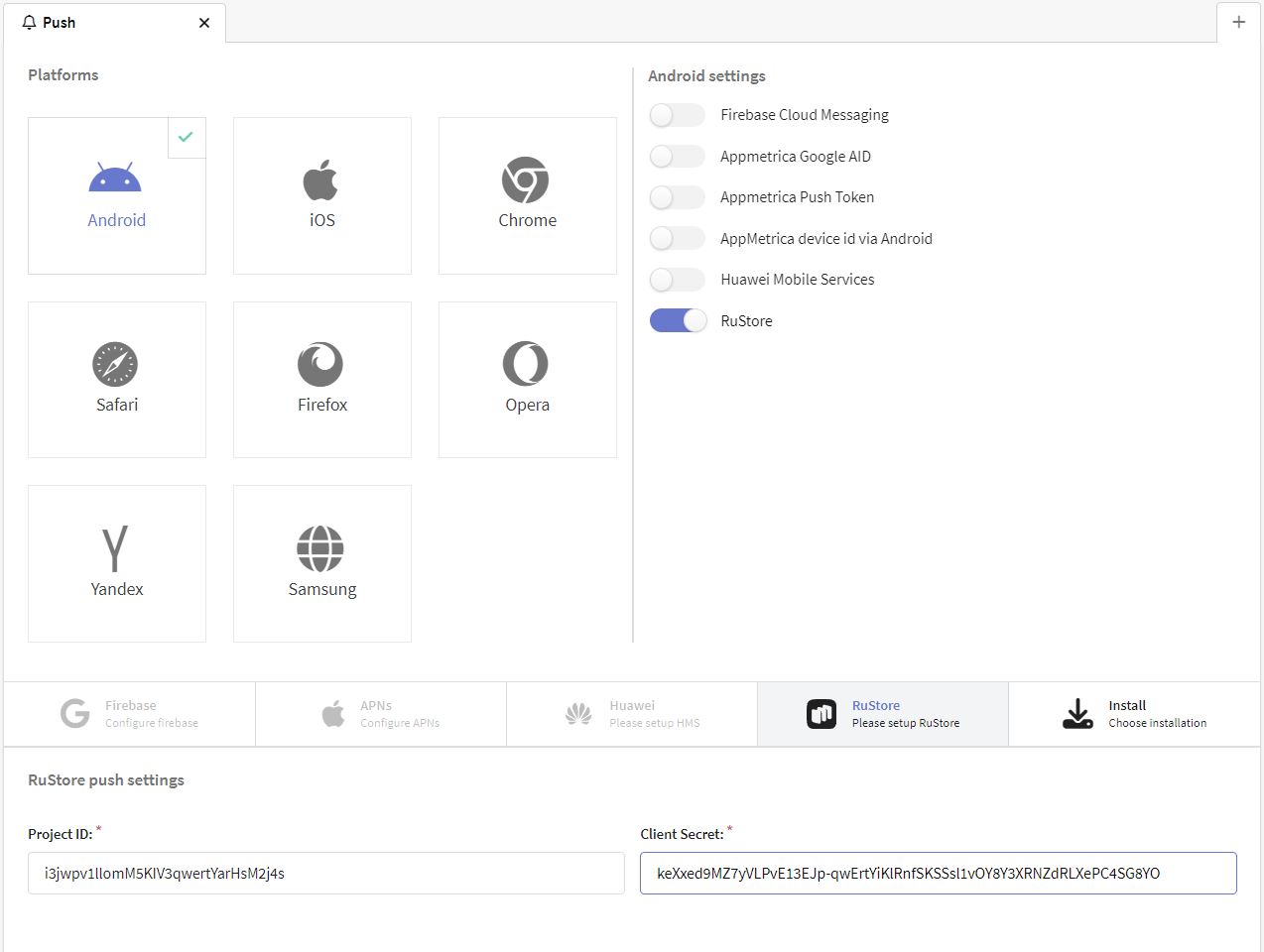
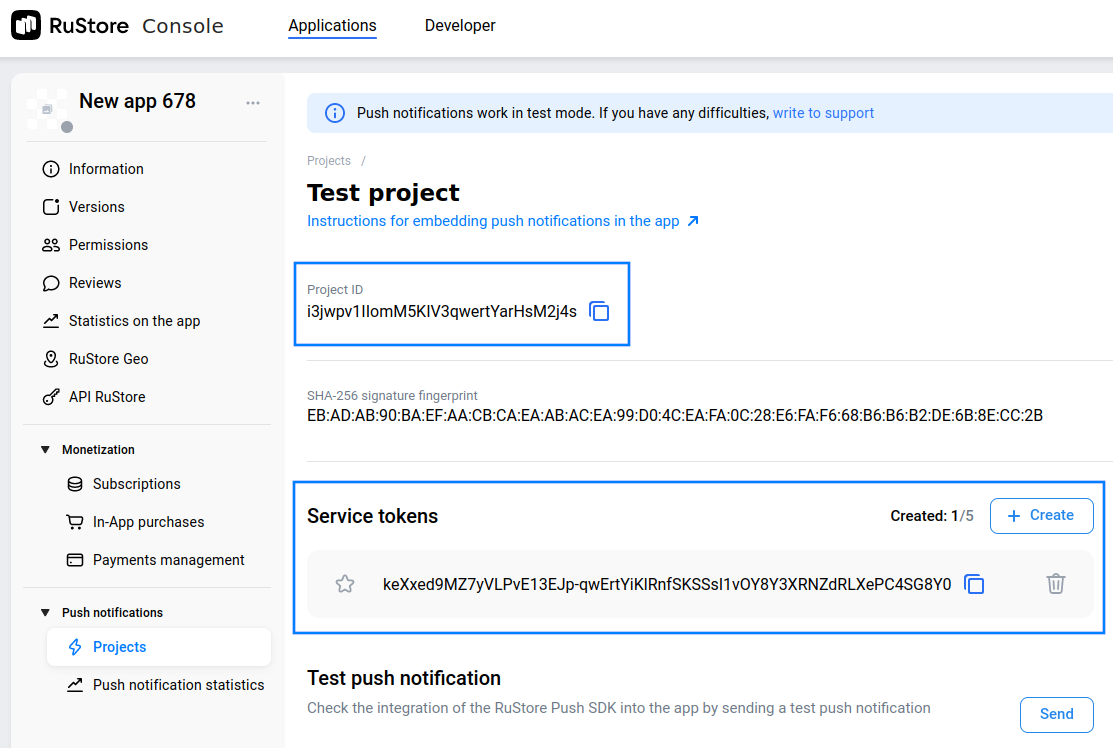
The details can be obtained in the RuStore Console system. To do this, on the application page, go to the "Push notifications" —> "Projects" section and open your project. Use a service token as a Client secret.
App push subscription and tracking
To add an application push subscription via API please use the following request: Add push subscription to database
App push event tracking
App push notifications contain ack and open links.
GET HTTP request to these URLs generate "push delivered" and "push opened" events to be tracked by Altcraft platform.
You can then use these events in segmentation, profile action history and channel reports.
{
	"hub_link": {
	  "ack":"http://your.domian.com/api/v1.1/pushes/crypto_post_events?/2ab9162159...",
	  "open":"http://your.domian.com/api/v1.1/pushes/crypto_post_events?/555fbe0b9..."
	}
}
Add app push events
You can also add events via API requests. Here is the link: Add app push events.