Altcraft Docs LogoAltcraft Docs Logo
User guide iconUser guide
Developer guide iconDeveloper guide
Admin guide iconAdmin guide
English
  • Русский
  • English
Login
    Getting StartedAdministrator documentationFunctional characteristics
      Technology descriptionarrow
    • Architecture OverviewComponent Description
        Deployment schemesarrow
      • Basic schemeFail-safe schemeTypical Placement in Infrastructure
    System requirements
      Admin Panelarrow
      • Account areaarrow
        • Accountsarrow
        • Account UsersAccount Virtual SendersAccount Database Indexes
        TariffsExternal data configurationLDAPTasksSchedule JobsGlobal Stop ListsWebversion Store Policies
        Settingsarrow
      • Databases
          Accessarrow
        • AdminsAPI tokens
        Notifiers
          MTAarrow
        • Default rulesRetry rulesLock rulesBounce patternsStrategiesKeysISPsPools
      Nodes
        Sendersarrow
      • EmailSMSEvent generatorIntegration with SendsayENS: настройка сендера
        Reportsarrow
      • Audit JournalData Usage
        Toolsarrow
      • ARF decoderURL decoderSMID decoderLicense
      Platform installationarrow
    • Automatic installationManual installationRunning the platform in a Docker container
      Platform configurationarrow
    • Configuration fileDomain settingsLDAP access configurationSending Email via SMTP relayPixel and push domain configurationCluster and Replication SetupSystem notifications configurationProcesses UNIX sockets configurationHTTPS ConfigurationMigrating from MongoDB Community Edition to Percona Server for MongoDBAdding sender IP addressesDeduplication request settingsPostgreSQL database for account dataProxy server settingsKeycloak Integration with AltcraftGetting HTTP service statusesConfiguration MongoDB logs rotation
        Configuration of system constants and directoriesarrow
      • Filtering bot actionsDirectory of gender markers
      Platform maintenancearrow
    • Personnel requirementsPlatform maintenance processesPlatform updatingPlatform service monitoringBackup and recoveryTransferring the platform to a new serverCreating, deleting, and populating tables for statistics in ClickHouseUsage of the aktool utilityUsers and directories engaged by the platform
      Custom channels guidearrow
    • OverviewCreating and configuring a channelEntity field configurationTemplate languageEntities
        Pipesarrow
      • Pipe: Basic ConceptsResultErrorsLogPackUnpackHTTP RequestStore SetStore GetSelectorSQLEventerScheduler
        Pipelinesarrow
      • Pipeline: Basic ConceptsMessageScheduleListenerModerateStop
      Extraarrow
    • System page customizationSend Message IDИнструкция по миграции истории в ClickHouseInstructions for migrating history to ClickHouseUtility for importing push subscriptions to Firebase projectUtility for importing push subscriptions to Firebase project
    Processing HTTP/HTTPS traffic
      Administrator APIarrow
      • Accounts admin apiarrow
        • Restricted accessarrow
        • Account Activation and DeactivationAccount Freeze and Unfreeze
        Get accounts listAdd a new accountDelete the account
        Account usersarrow
      • Update an Existing AccountAdd a new accountDelete a userGet a list of usersSending a Welcome Email
        Nodesarrow
      • Synchronize node MTA configurationGet nodes listGet node MTA statusActivate node MTADeactivate node MTA
        Senders admin apiarrow
      • Create or update AKMTA senderGet AKMTA sender informationAssign account to senderGet senders listDelete senderRestore sender
          Sender queuearrow
        • Get sender queue informationHold sender queueRelease sender queueClear sender queue
        Virtual sendersarrow
      • Get virtual senders listGet virtual sender informationCreate virtual senderUpdate virtual senderClone virtual senderDelete virtual sender
    Documentation Archive
  • Admin Panel
  • Account area
  • External data configuration

External data configuration

Description​

External Data Configuration is an Altcraft platform tool designed for integration with external SQL databases.

Capabilities​

  • Scheduled import of customer data
  • Segmentation of subscribers by external databases
  • Dynamic content in message templates

Creating, Editing, and Deleting​

Integration with external SQL databases is configured in the Altcraft Admin Panel, while queries to databases and scheduled imports are created in the account’s user interface.

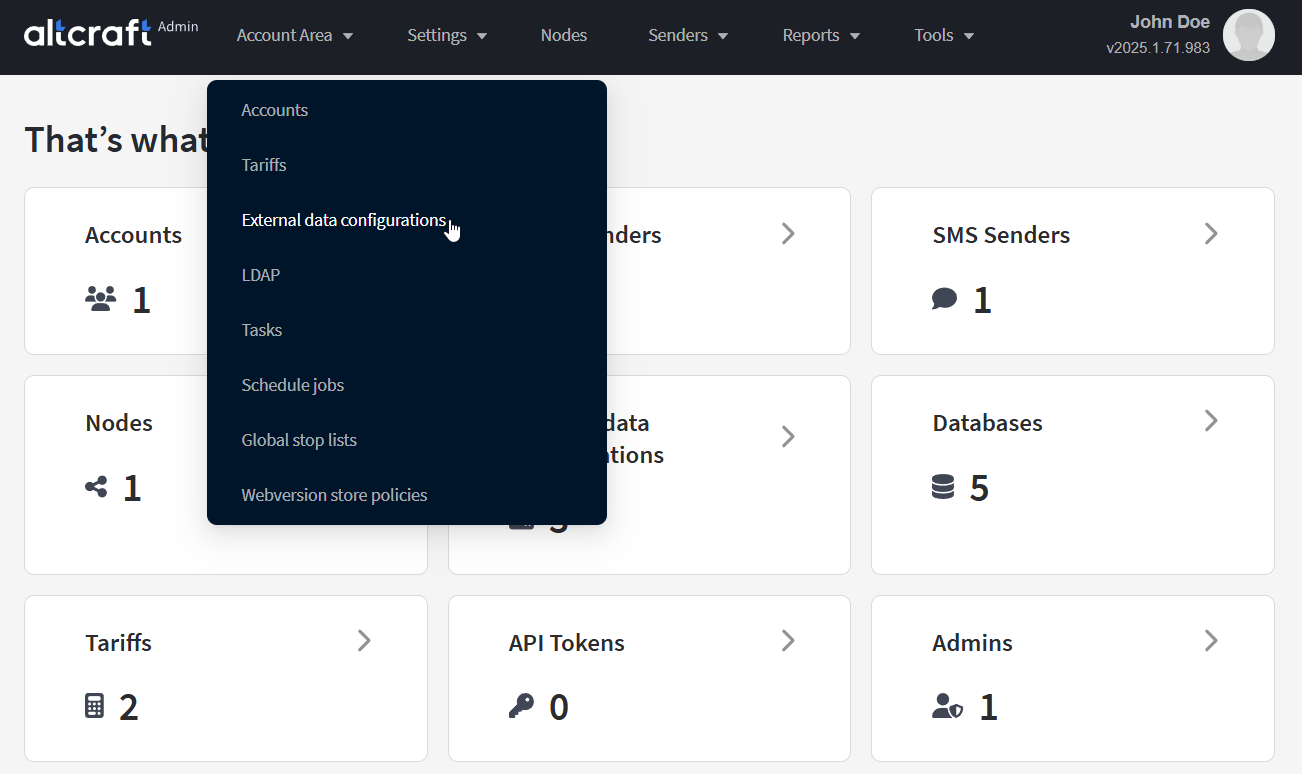
To manage external data source connections, in the main menu select Account Area — External data configurations.
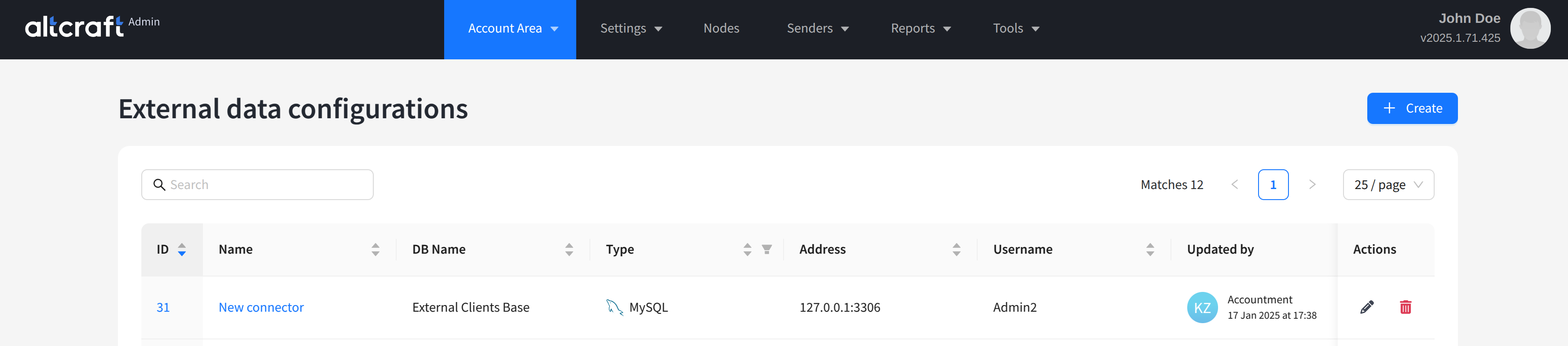
The list displays existing connectors to external databases. On the right side of the table are the edit and delete buttons. You can also click the connector identifier on the left to edit. To create a new connector, click + Create:
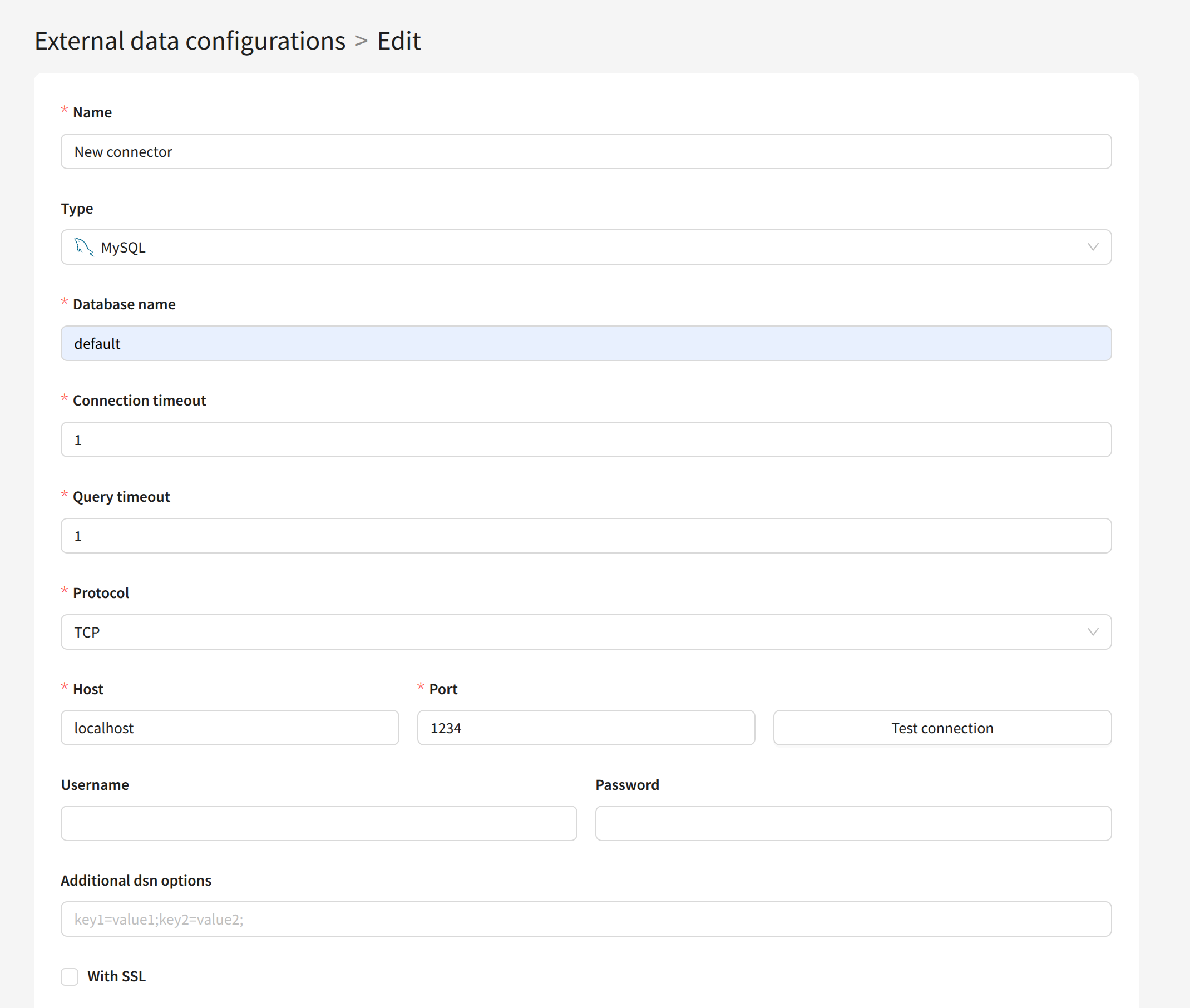
For each connector, specify the following details:

  • Name — connector name.

  • Type — the DBMS type of the external database. Supported types are MySQL, PostgreSQL, MSSQL, Oracle, Hive, and ClickHouse.

  • Database name — name of the external database.

  • Connection timeout — connection query timeout to the database.

  • Query timeout — SQL query execution timeout.

  • Protocol — network protocol for connection. Supported protocols are TCP, UDP, and UnixDomain.

  • Host — server IP address hosting the external database.

  • Port — server port of the external database.

  • Username, Password — login and password for database authorization.

  • Additional dsn options — additional dsn parameters.

  • With SSL — connect the database to the platform via SSL connection. Available for MySQL, PostgreSQL, and ClickHouse.

Hive DBMS supports different authentication types: PLAIN, GSSAPI (Kerberos), LDAP (also PLAIN), and custom types. Authentication itself is configured in Hive’s config; in the platform’s dsn option, you need to specify the required auth parameter (NOSASL, PLAIN, GSSAPI).

tip

You can specify the Collation used for connecting to the database in the Additional dsn options field using the collation_connection= key.
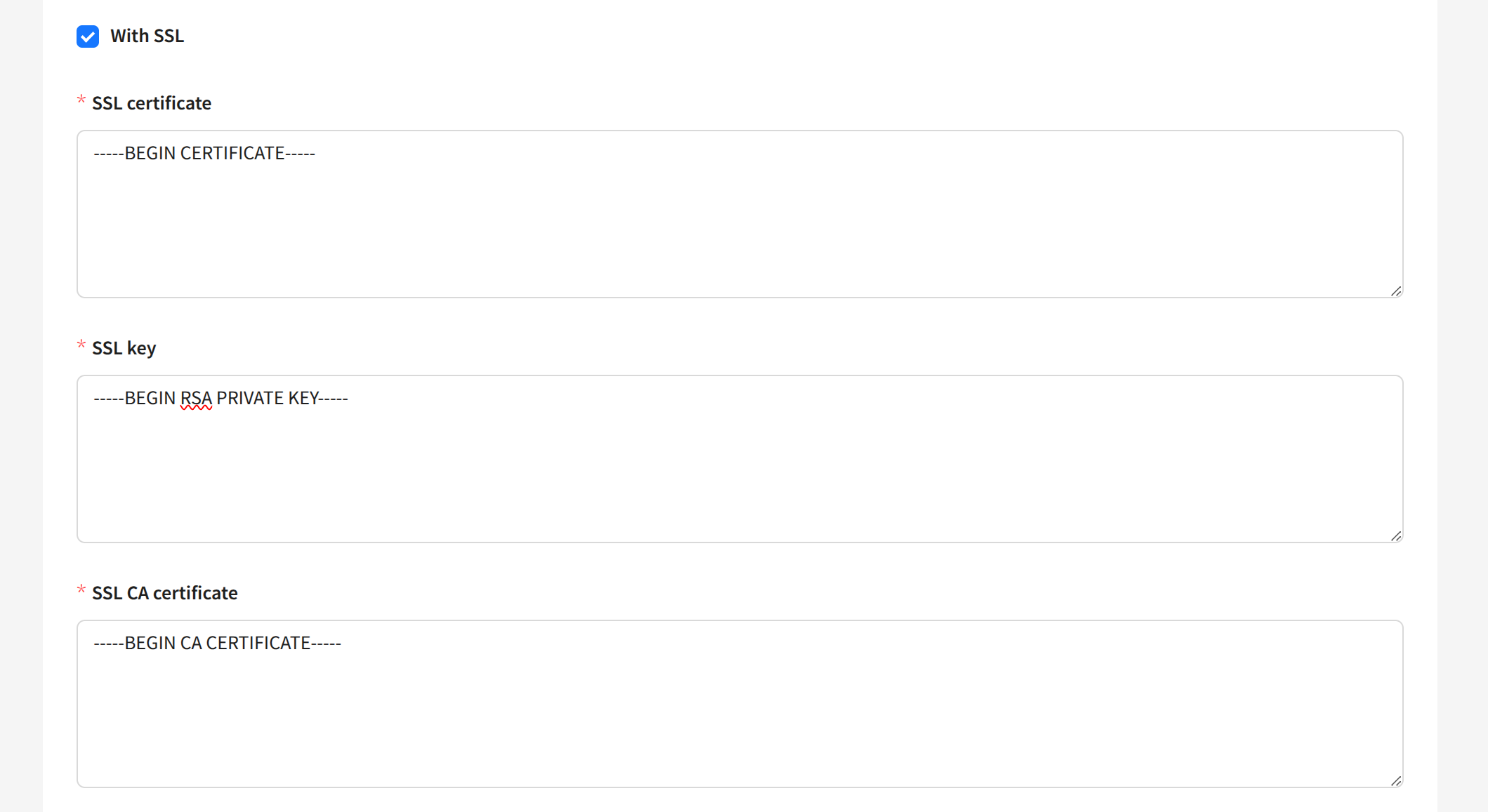
When using SSL connection, you must add an SSL certificate, SSL key, and SSL CA certificate in PEM format:
Connecting a connector to an account​

After the connector is created, assign it to a platform account. In the admin panel, open Account Area — Accounts and select the account to edit. In the Account databases section, choose the connector created earlier. One account can have multiple connectors to different external databases:

tip

How to use external SQL tables for segmentation in the platform is described in detail in this article.

Last updated on Apr 1, 2026
Previous
Tariffs
Next
LDAP
  • Description
  • Capabilities
  • Creating, Editing, and Deleting
  • Connecting a connector to an account
© 2015 - 2026 Altcraft, LLC. All rights reserved.