External Objects (Entities)
An External Object (Entity) is an external entity with which a channel interacts through an API. An Entity allows you to load, create, and edit external data directly from the platform interface when configuring channel content. The retrieved data is then available in the main channel pipelines (Message, Schedule, Listener, Stop, Moderate) through the templating language.
Typical scenario: in the template editor, the user selects a profile from an external CRM, and the data of that profile (name, email, ID) is passed to the Message pipeline for sending to the external service.
External Objects are created on the External Objects tab when configuring a channel:
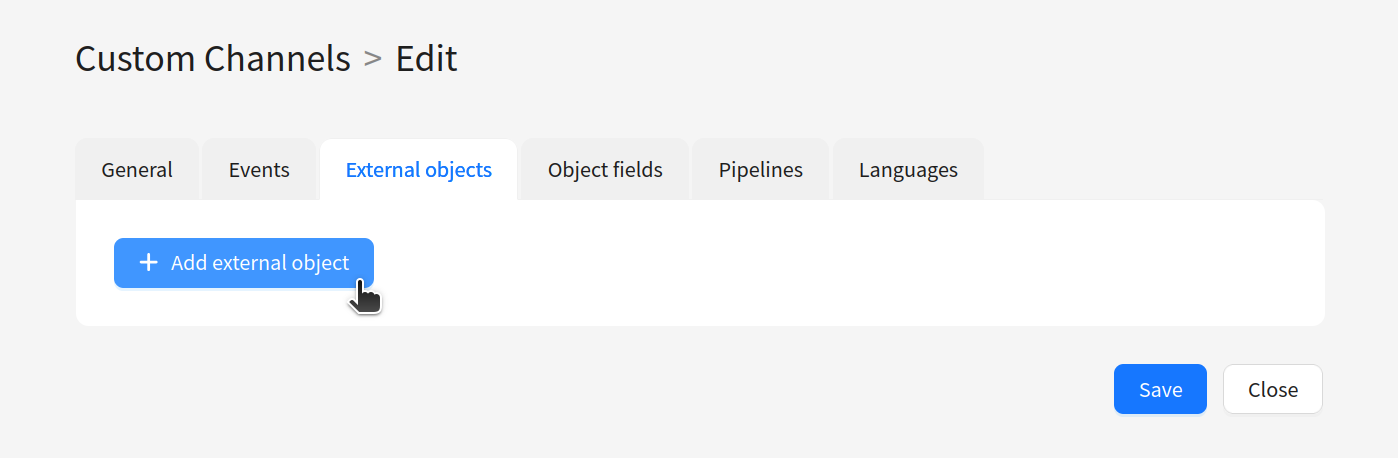
Creating an Entity
When creating an external object, you need to specify:
| Field | Description |
|---|---|
| Name | Entity name. Displayed in the interface when binding to a channel entity field |
| Shortname | Unique string identifier. Entity fields will be accessible in pipelines through templating by this name |
| Description | Brief description of the entity |
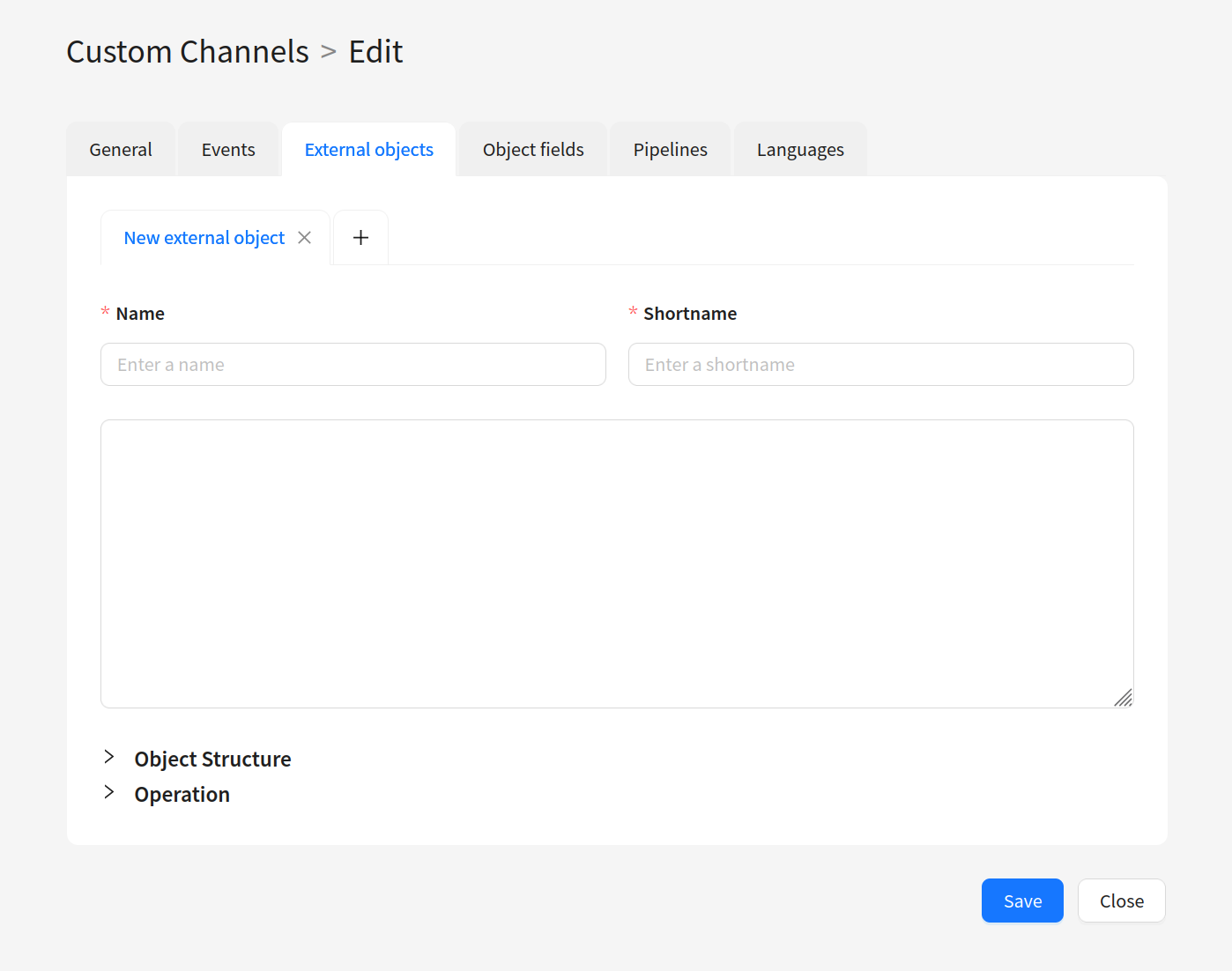
Object structure
The Object Structure section defines which fields the external API returns and which of them will be available in pipelines. This is a list of fields of different types.
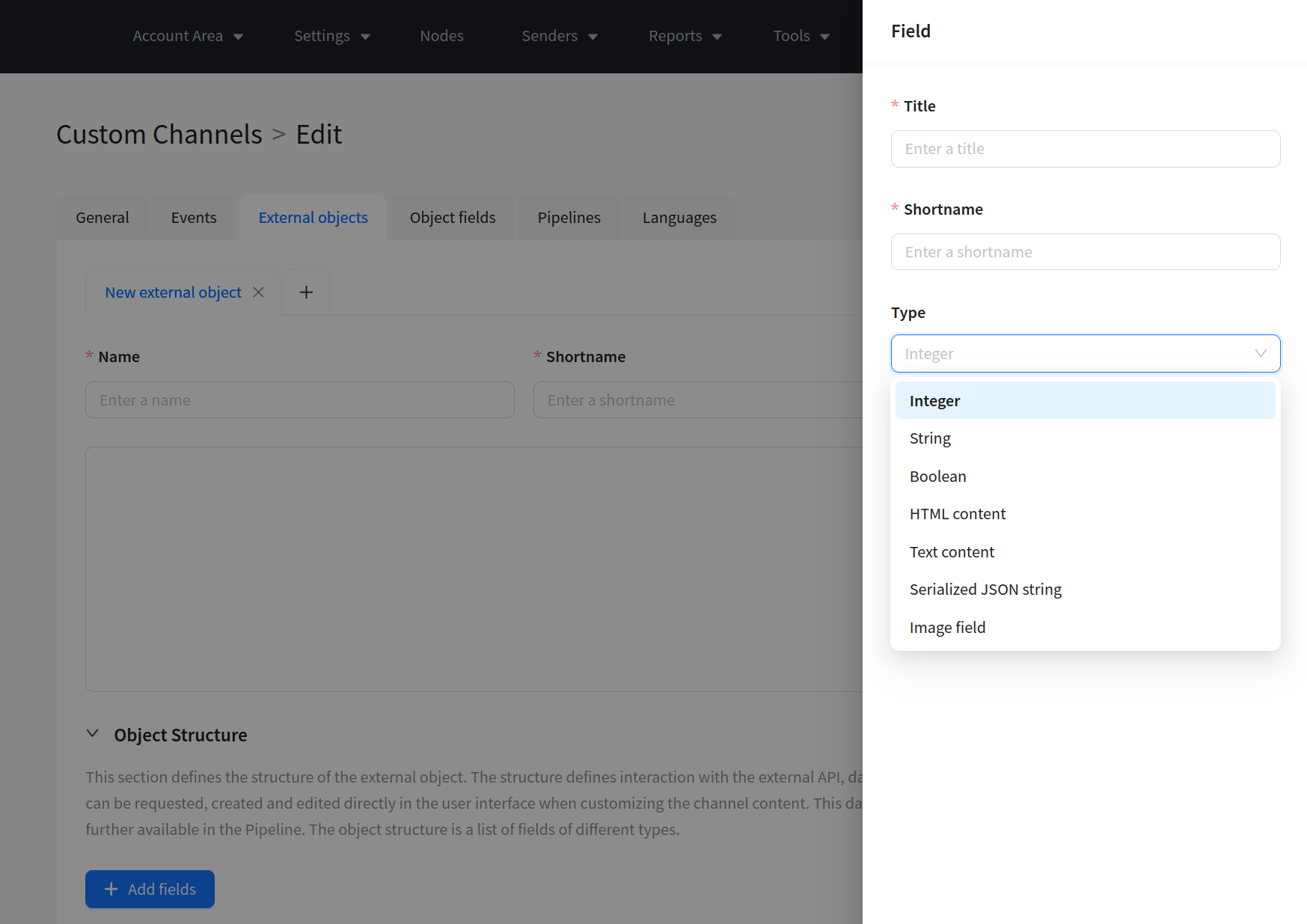
When adding a field (Add Field), the following are specified:
| Field | Description |
|---|---|
| Title | Display name of the field |
| Shortname | Field name for access in a pipeline through templating |
| Type | Data type |
Available field types:
Integer— integerString— stringBoolean— boolean valueSerialized JSON string— JSON objectHTML content— HTML contentText content— multiline textImage Field— image
Among the fields, you need to designate a Primary Field (unique object identifier) and a Preview Field. The Preview Field is the field whose value is displayed in the user interface when previewing an entity. If the entity is bound to a screen form in list mode with selection enabled, the Preview Field value will be used to display the selected list items:
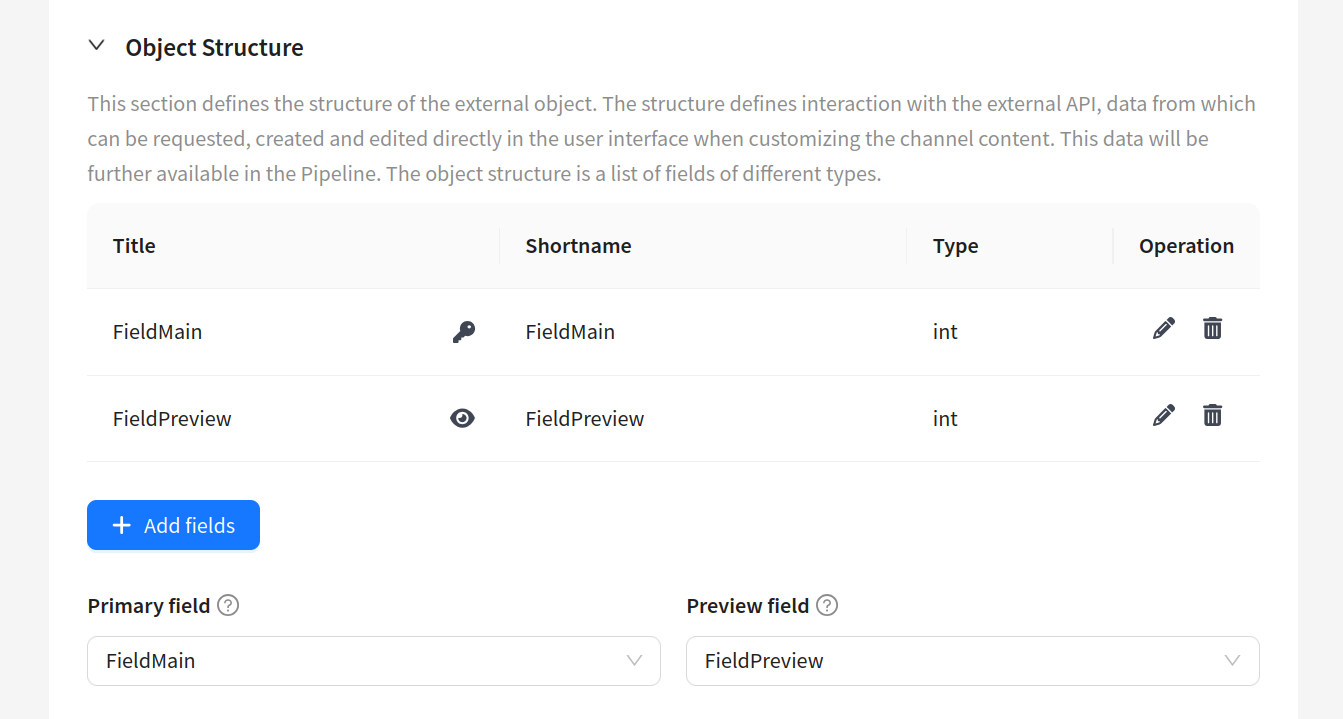
All operations must return data that matches this structure (not necessarily all fields, but the ones that are returned must be described here).
Operations
An operation is a method of interacting with an external entity (create, delete, get a list, get a single object, etc.). Each operation consists of input data (Input Fields) and a pipeline.
Available operations
| Operation | Returns | Effect on the interface |
|---|---|---|
| List | Array of objects | "Add" button in a field with a bound Entity. Opens a table with the ability to select |
| Read | Single object | — |
| Create | Single object | "+" (create) button in a field with a bound Entity |
| Update | Single object | Edit button (pencil) in a field with a bound Entity |
| Delete | — | Delete button in a field with a bound Entity |
Input data (Input Fields)
A set of fields that the user fills in the interface before executing the operation. Input data is not required to be configured. For example, an API token and a database ID — values that may change and that you do not want to hardcode in the pipeline.
Values from Input Fields are available in the pipeline through $in.<shortname>.
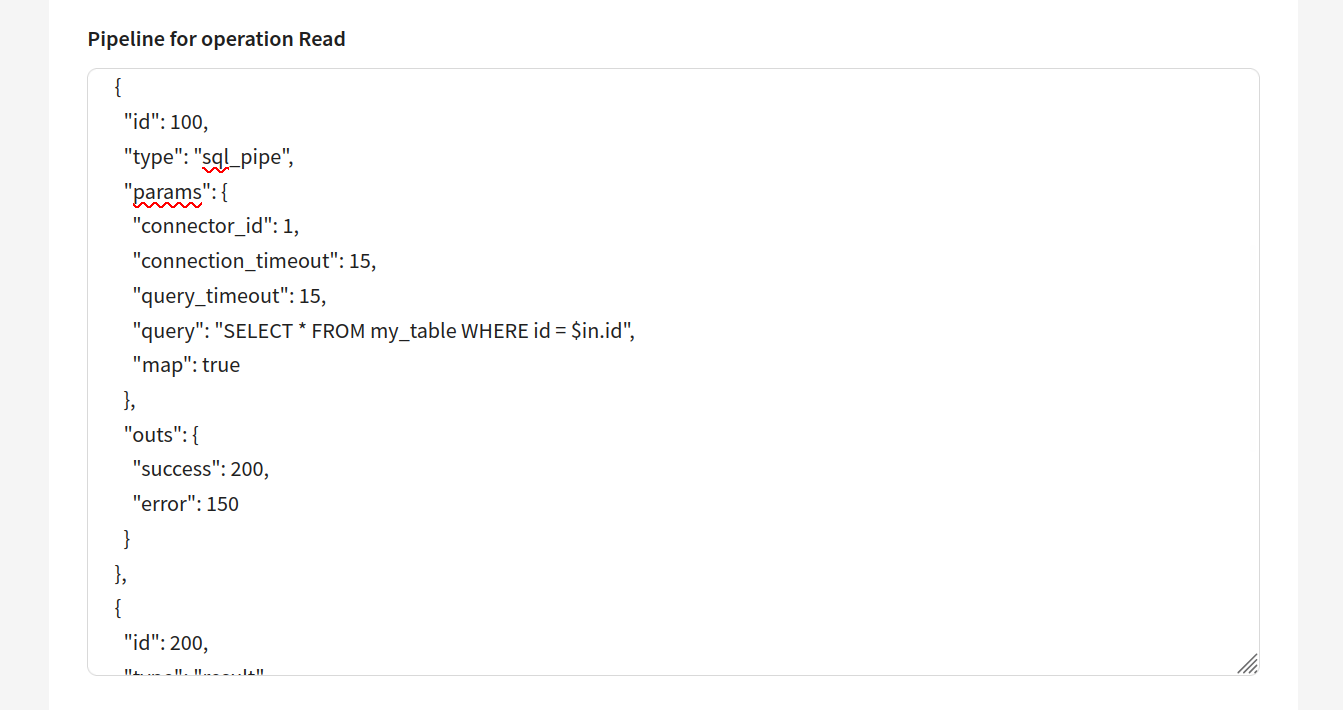
Often, Input Fields are used to filter data in an SQL query. For example, if a field id is added for the Read operation, you can write SELECT * FROM my_table WHERE id = $in.id in the SQL query to retrieve a specific record by the entered ID.
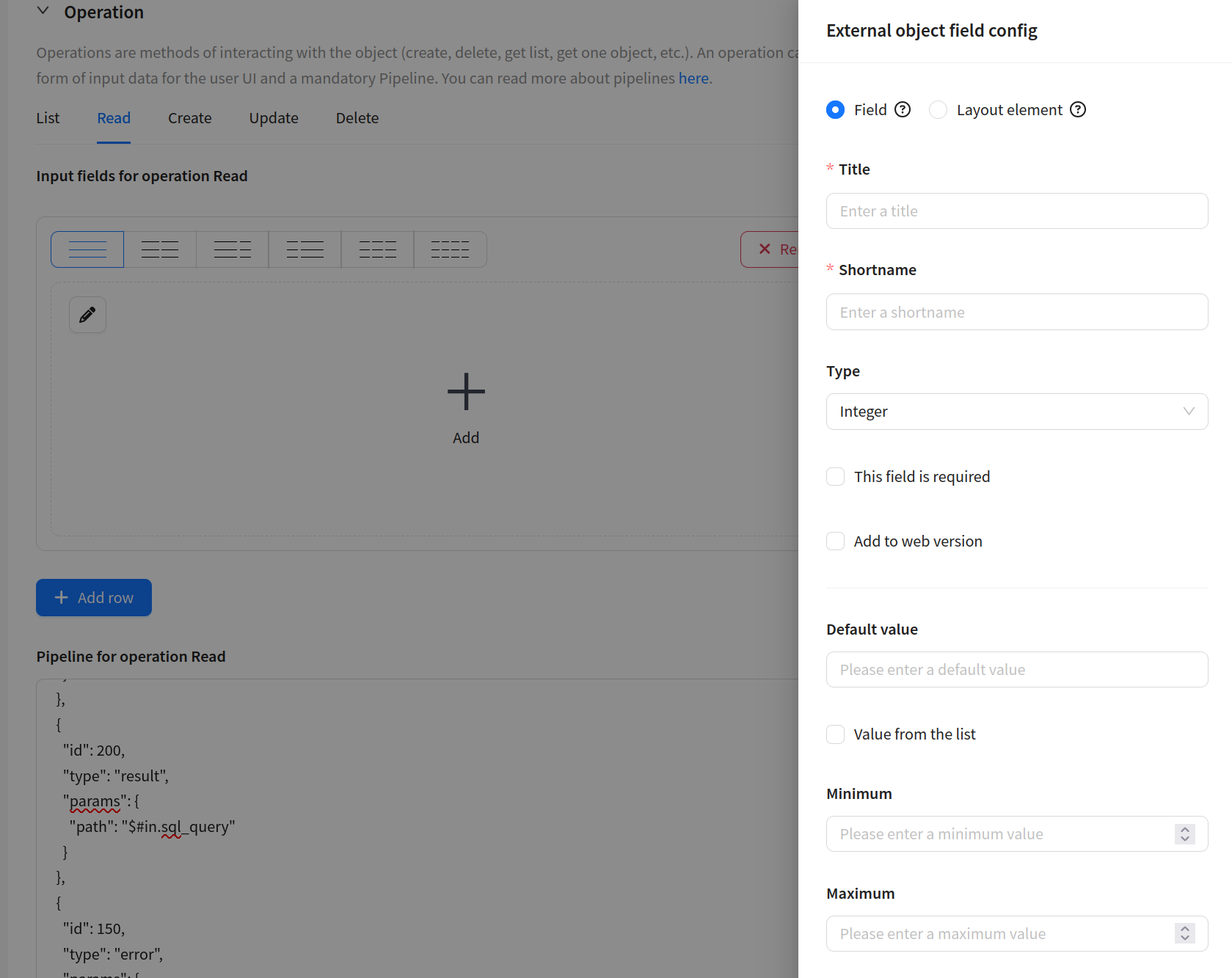
When adding a field (Add Row), you can select a type:
- Field — a data field. Title, Shortname, Type, required flag, default value, value range (Minimum/Maximum), and other parameters are configured.
- Layout element — a decorative element: header (
header), text block (message), divider (divider). Does not store data, used for visual organization of the form.
Operation pipeline
A JSON array of pipes that is executed when the operation is launched from the interface. The configuration is similar to other pipelines in the channel, with some nuances. The pipeline is synchronous — the user who launches the operation in the interface will wait for the result.
Available pipe types:
| Pipe | Purpose |
|---|---|
| HTTP Request | HTTP request to an external API |
| RMQ Publisher | Publish message to RabbitMQ |
| Pack | Pack data into JSON/XML |
| Unpack | Unpack JSON/XML |
| Result | Fix the operation result (required) |
| Error | Terminate with an error |
| Selector | Conditional branching |
| SQL | SQL query to the database |
| Store Set | Save data to storage |
| Store Get | Read data from storage |
| Log | Write to log |
An event must always pass through the Result pipe before exiting the pipeline (unless exiting through Error).
Output forms (Output Operations Form)
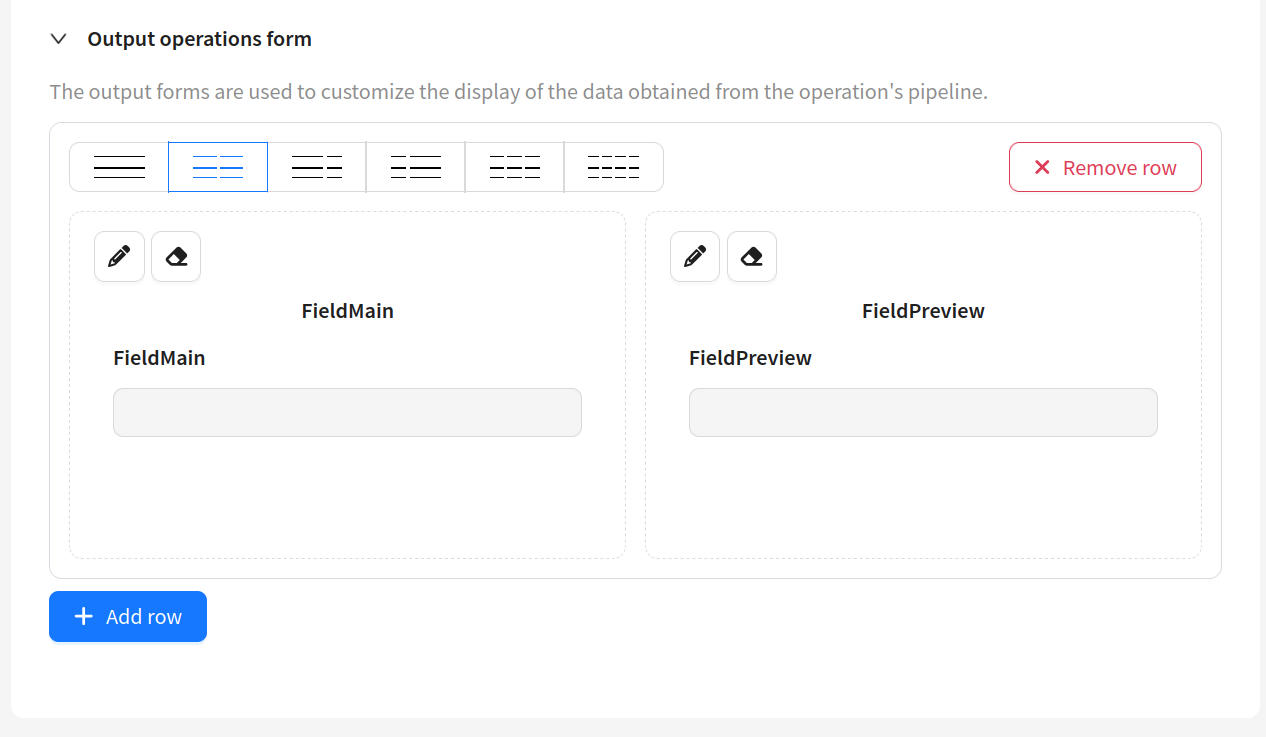
An output form defines how the operation result is displayed in the interface. The List form is bound to the List operation, the Single form — to the Read operation.
You cannot create new fields in an output form — you can only select and arrange fields already created in the Object Structure section.
| Form | Used for | Description |
|---|---|---|
| List | List operation | Table of objects. Fields are selected from Object Structure. The field order in the form determines the column order in the table |
| Single form | Read operation | Form with fields of a single object. Fields are selected from Object Structure |
Fields in the output form are arranged by drag-and-drop.
Binding an External Object to a channel entity field
After creating an External Object, it can be bound to a field in the Object Fields section of the channel (on the Template or Campaign tabs, where the Add Object button is available). A field with a bound External Object occupies the entire row in the Layout.
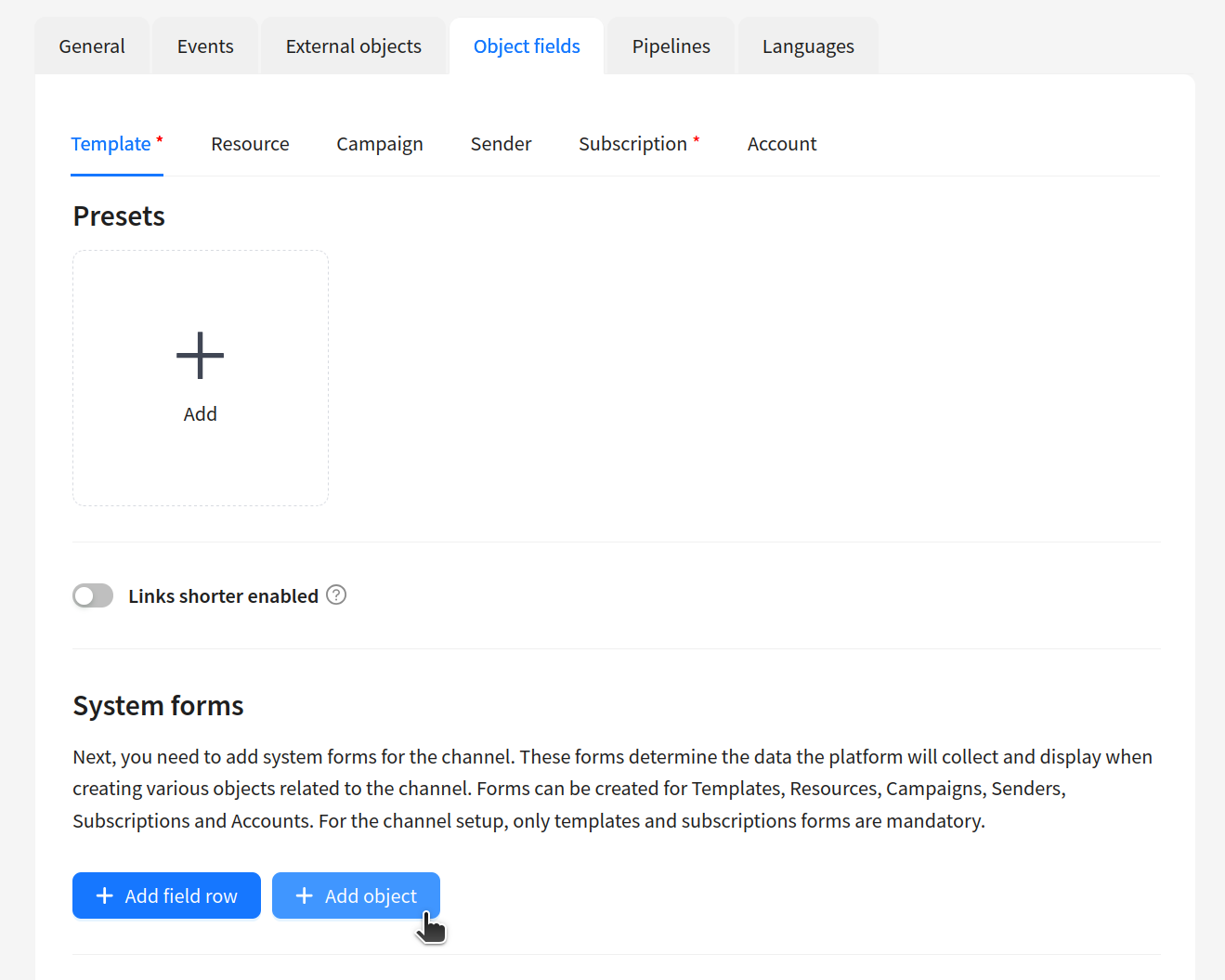
When binding, the following are configured:
| Field | Description |
|---|---|
| Shortname | Name for accessing Entity data in the pipeline (for example, $template.profile). See templating language |
| Entity button description | Button text in the interface that opens Entity editing (for example, "Select profile") |
| External Object | Selection of an External Object from the list of created ones |
| Entity operation | Specifies which operation result (List or Read) will be sent to the sender |
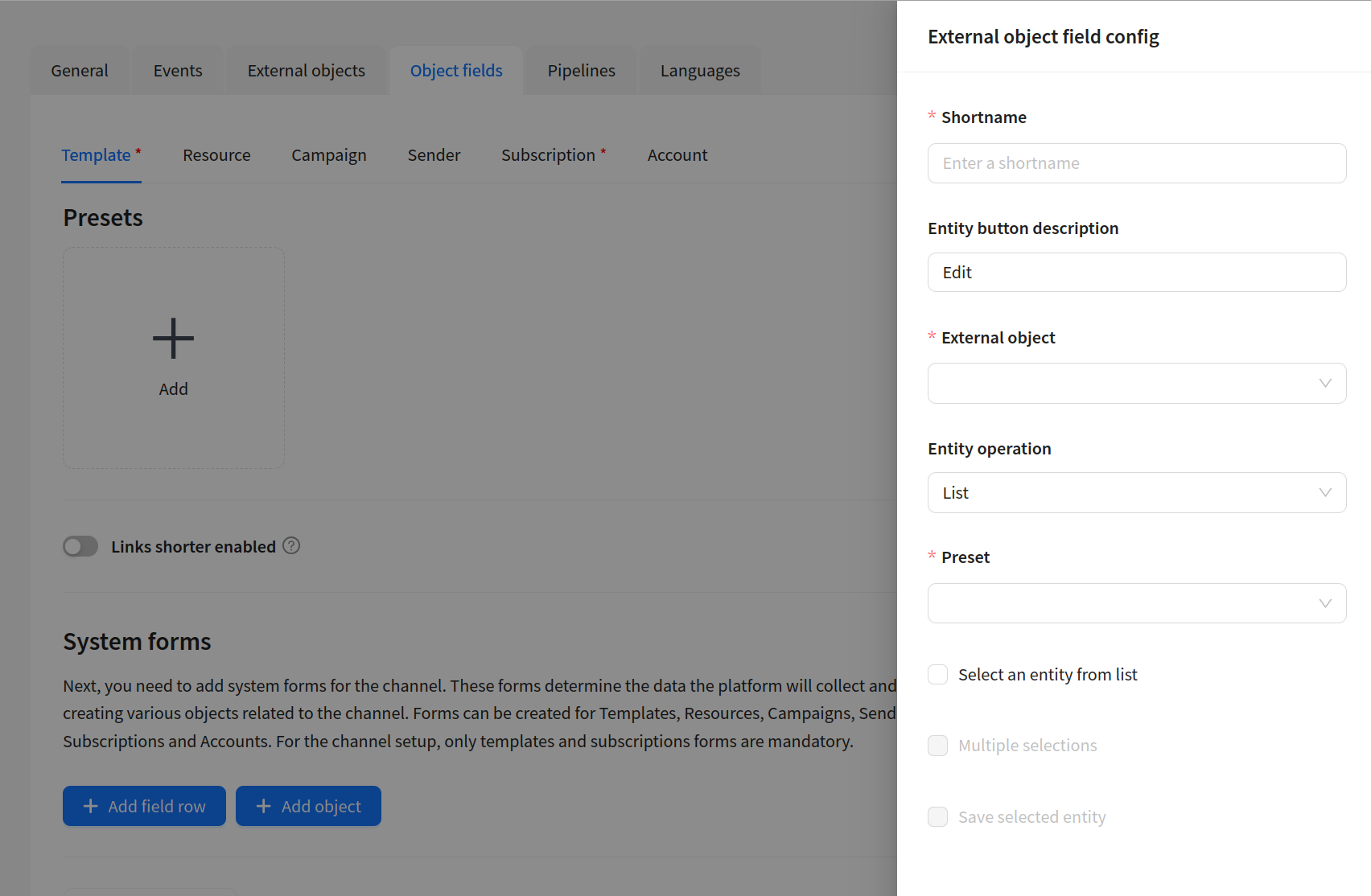
Additional settings for the List operation
| Field | Description |
|---|---|
| Select entity from list | If enabled — the user selects objects from the list. Activates the settings below |
| Multiple selection | Allows selecting multiple objects. If disabled — only one |
| Save selected entity | Determines whether to save the data when configuring the field, or to load fresh data when launching the mailing |
List operation work types
Depending on the Entity binding settings to a field, the List operation works in one of four modes:
| Mode | Settings | Behavior |
|---|---|---|
| Automatic loading | Without additional checkboxes | All data from List is automatically pulled when the campaign is sent. The user does not select records — the List pipeline executes and returns all data |
| Single entity selection | "Select entity from list" enabled | The user selects one record from the list. When the campaign is sent, data is pulled through the Read operation by the ID of the selected record |
| Multiple selection | "Select entity from list" + "Multiple selection" | The user selects one or more records from the list. Each is pulled through Read |
| Saving at template creation | "Save selected entity" enabled | Data is pulled from the external database when the template is saved and stored in MongoDB, not when the campaign is sent |
List + Read connection
For the "Single entity selection" and "Multiple selection" modes, both operations must be configured:
- List — to display the list of available records (the user sees and selects)
- Read — to load full data of the selected record by ID
When a record is selected from the list, the platform automatically calls the Read operation with the ID of the selected record. Therefore, Read must be configured with an Input Field (for example, id) and a pipeline that uses this ID for filtering: SELECT * FROM my_table WHERE id = $in.id.
Pipeline examples for SQL operations
Full pipeline examples for all five operations (Read, List, Create, Update, Delete) using the SQL pipe are in the SQL article. Key points:
- Read:
map: true+ filter$in.id→ Result with$#in.sql_query - List: without
map(return array) → Result with$#in.sql_query - Create: INSERT with
$in.<field>→ Result - Update: UPDATE with
$in.<field>, WHERE$in.id→ Result - Delete: DELETE WHERE
$in.id→ Result
Example
Suppose the List operation returned an array:
[
  { "id": 1, "name": "Segment 1" },
  { "id": 2, "name": "Segment 2" },
  { "id": 3, "name": "Segment 3" },
  { "id": 4, "name": "Segment 4" }
]
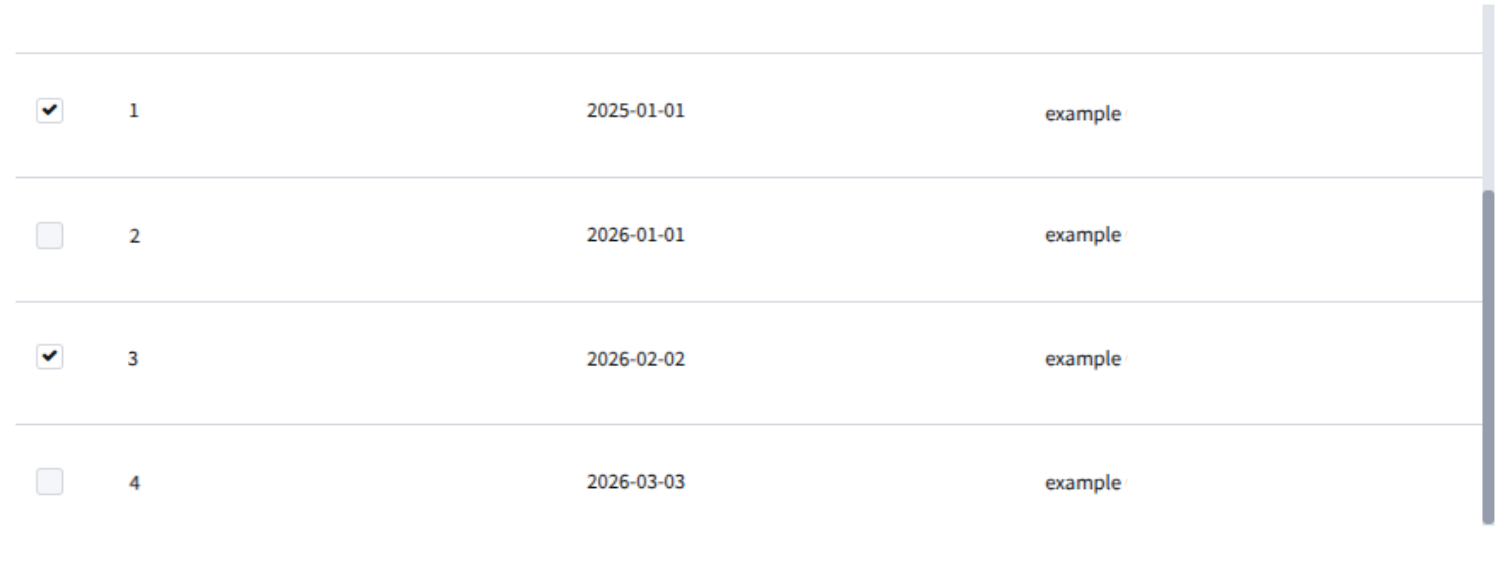
The user selected Segment 1 and Segment 3. The field will store:
[
  { "id": 1, "name": "Segment 1" },
  { "id": 3, "name": "Segment 3" }
]
In the pipeline, the data can be accessed through templating. For example, if the field is configured in Campaign:
| Template | Result |
|---|---|
$campaign.segment.%1.name | Segment 3 |
$campaign.segment | [{ "id": 1, "name": "Segment 1" }, { "id": 3, "name": "Segment 3" }] |
If Select entity from list is disabled, the list of data cannot be edited from the interface — all data will be loaded and written to the field automatically by the operation pipeline.