Account Users
Managing account user accounts is available both in the Altcraft Admin Panel and in the User Interface. This article covers the Admin Panel functionality.
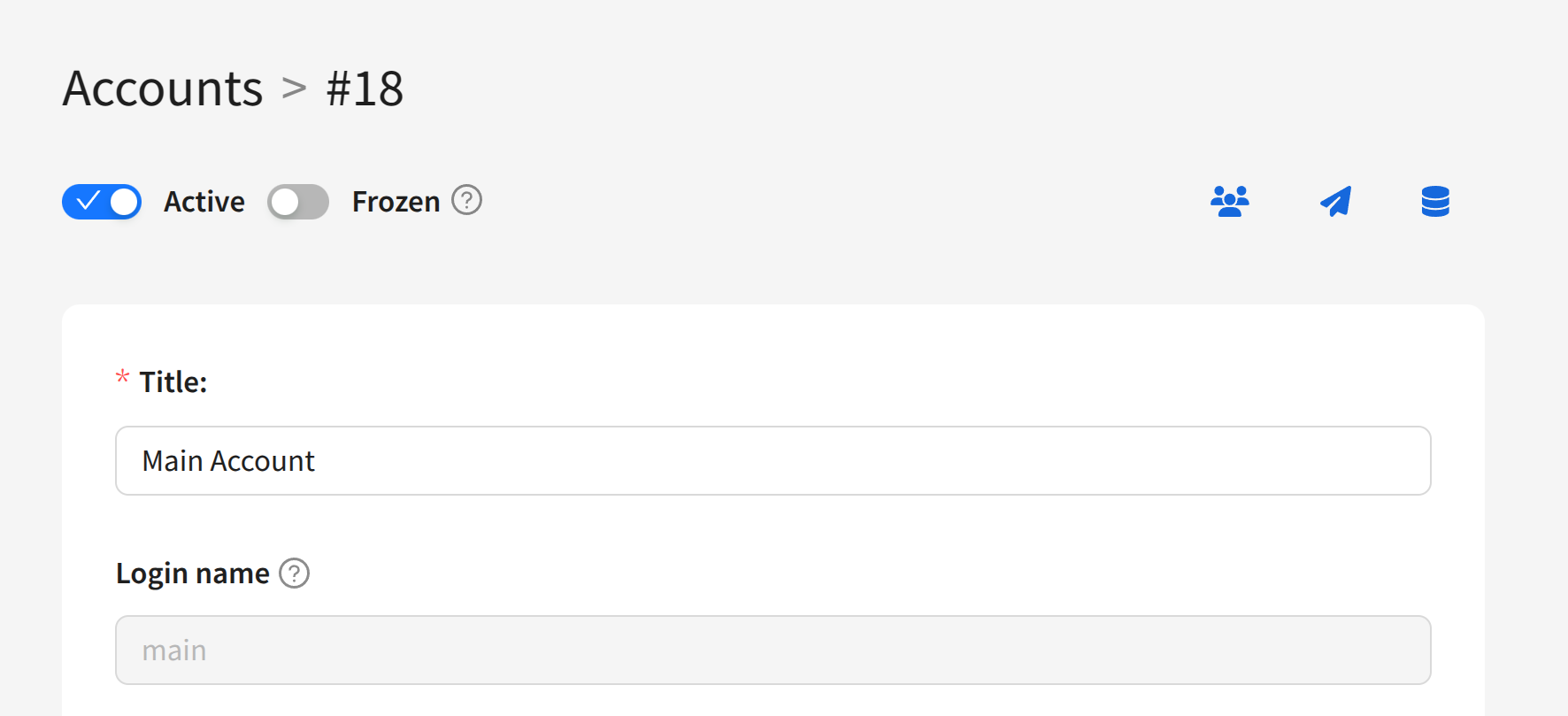
To manage users, in the list of accounts click the quick action button:

Or open the account editing menu and click the Users button:
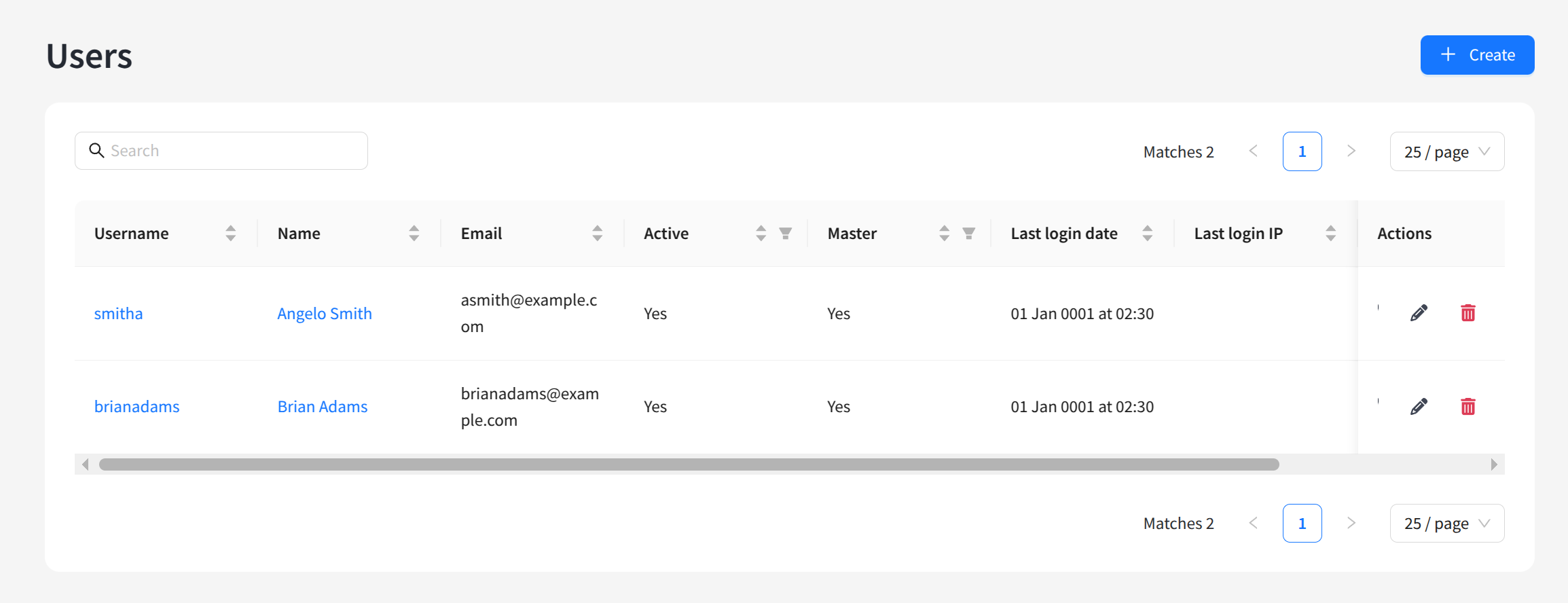
The list of users will open displaying existing accounts. On the right side of the table, there are buttons for logging in as the user, editing, and deleting accounts. You can also click the user account identifier on the left to edit. To create a new account, click + Create:
General Settings
For each user, specify the following parameters:
Login — the system name. Used in the user login together with the system account name (login@accountname).
First name — the user’s first name.
Last name — the user’s last name.
Contact email address — contact email address.
Language — choose between Russian and English interface versions.
Contact phone number — contact phone number (optional).
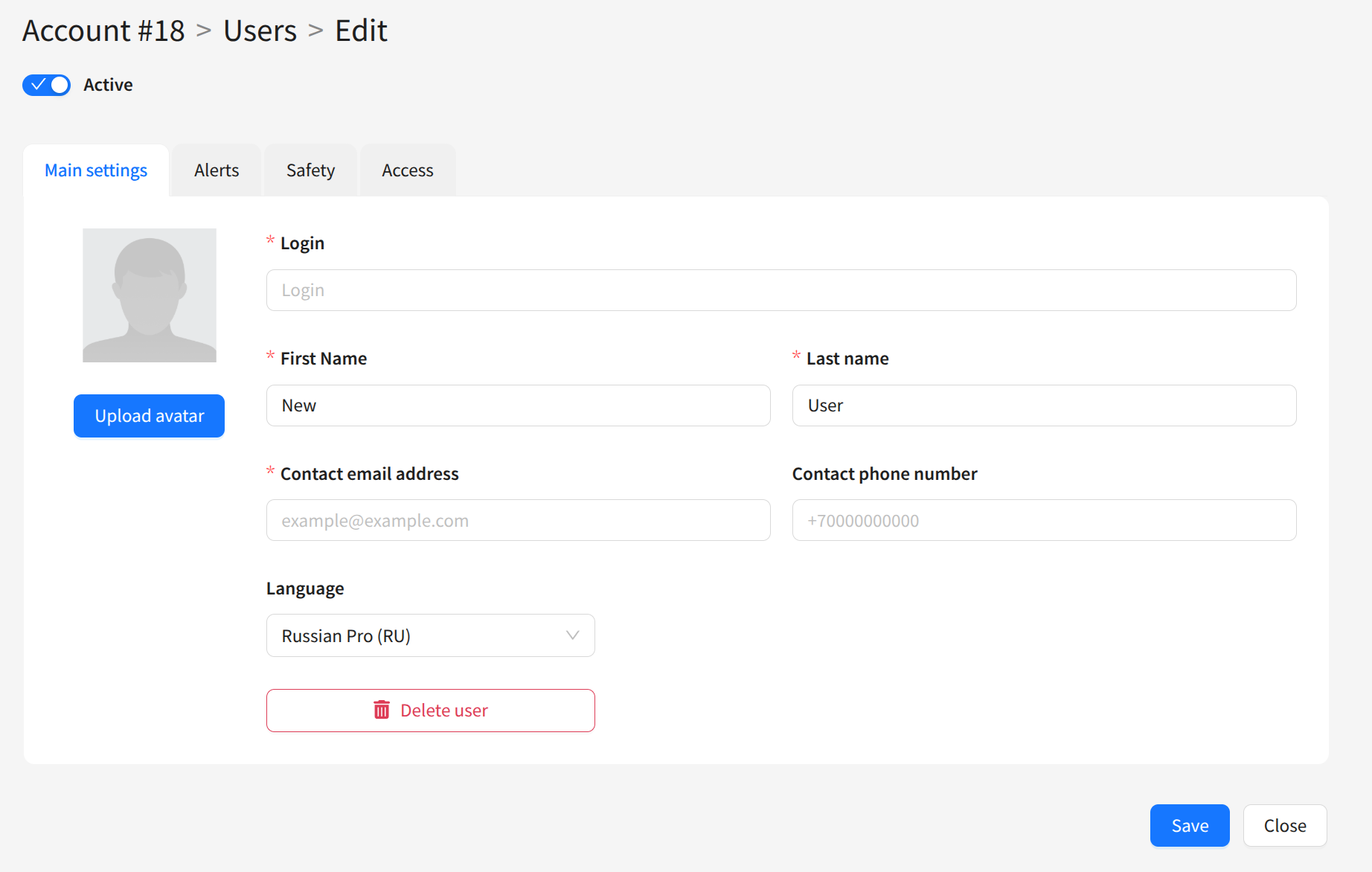
You can also set a user avatar here.
Notification Settings
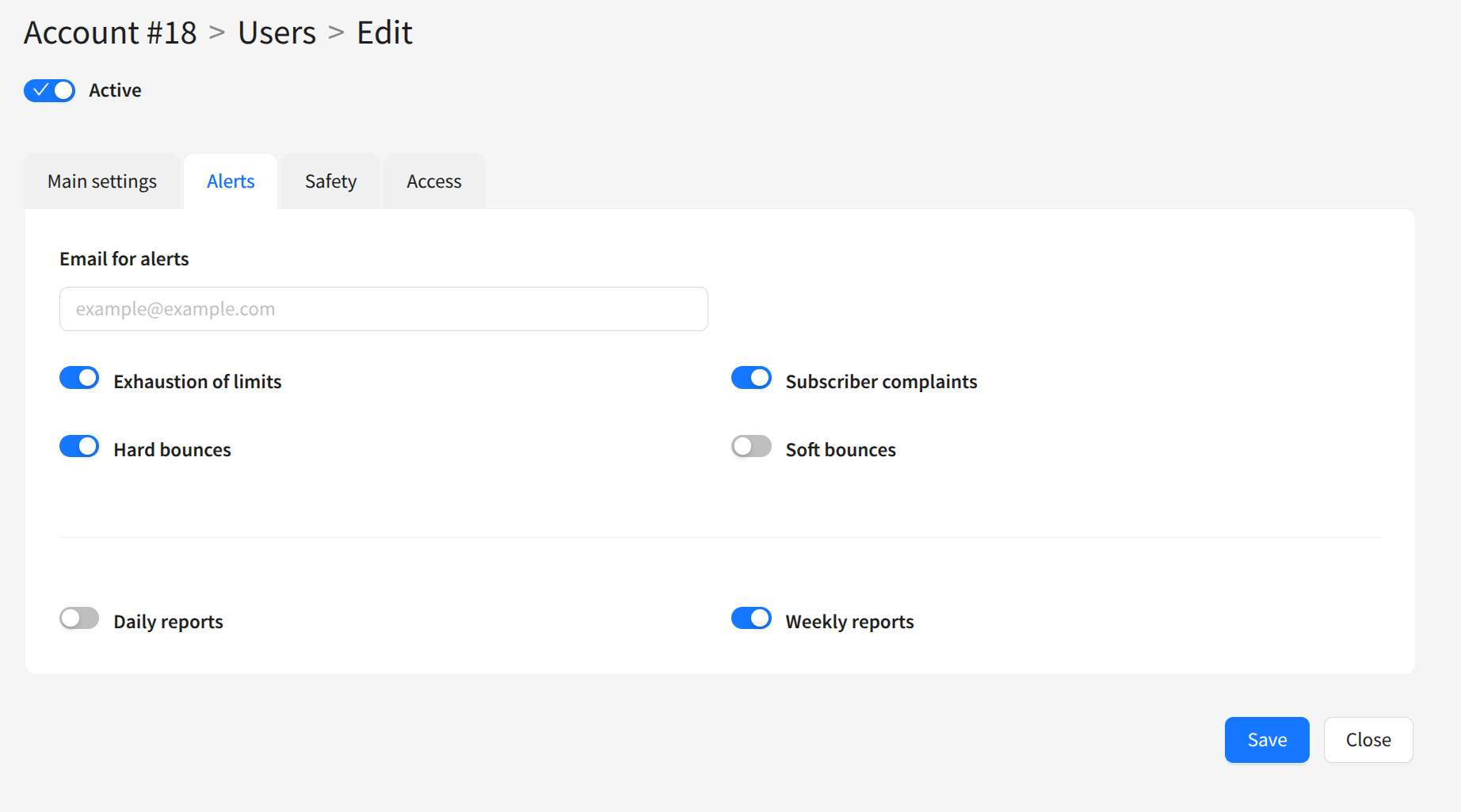
In the Alerts block, you can specify the user’s email for receiving Altcraft reports and notifications, and select which information the user will receive:
Exhaustion of limits — notifications about exceeding the limits of the tariff.
Subscriber complaints — notifications about exceeding the safe threshold of subscriber complaints.
Hard bounces — notifications about exceeding the safe threshold of sending to invalid emails.
Soft bounces — notifications about exceeding the safe threshold of temporary delivery issues.
Daily reports — enables sending daily reports on account mailings.
Weekly reports — enables sending weekly reports on account mailings.
Safety Settings
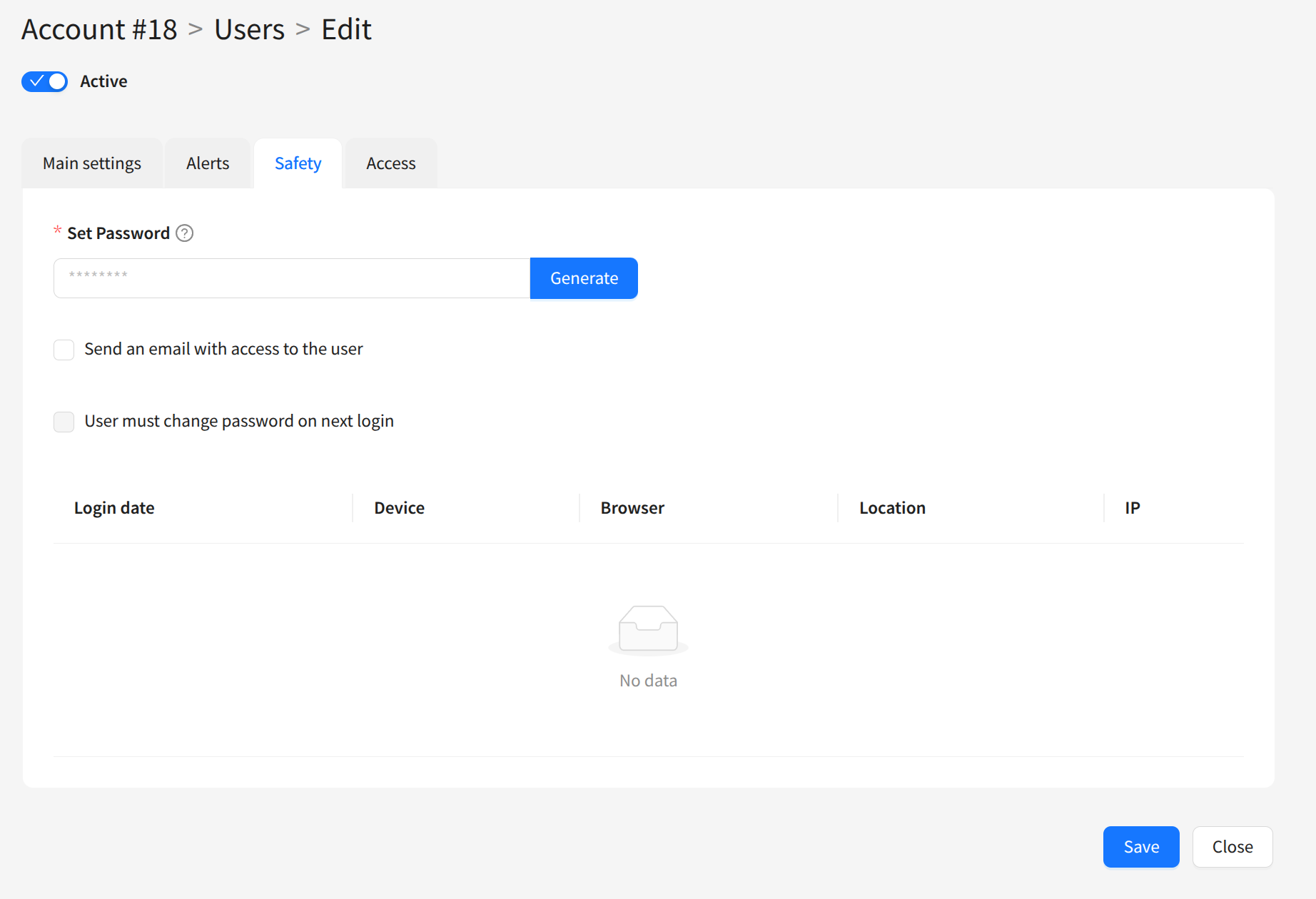
The Safety section contains security settings for the user:
Set Password — set a password for the user.
Send an email with access to the user — if enabled, an email with login details will be sent after saving.
User must change password on next login — when enabled, the user must change the password at the next login.
At the bottom of the screen, you can view the user’s login history in the platform showing login date, browser, IP, and location:
Access Settings
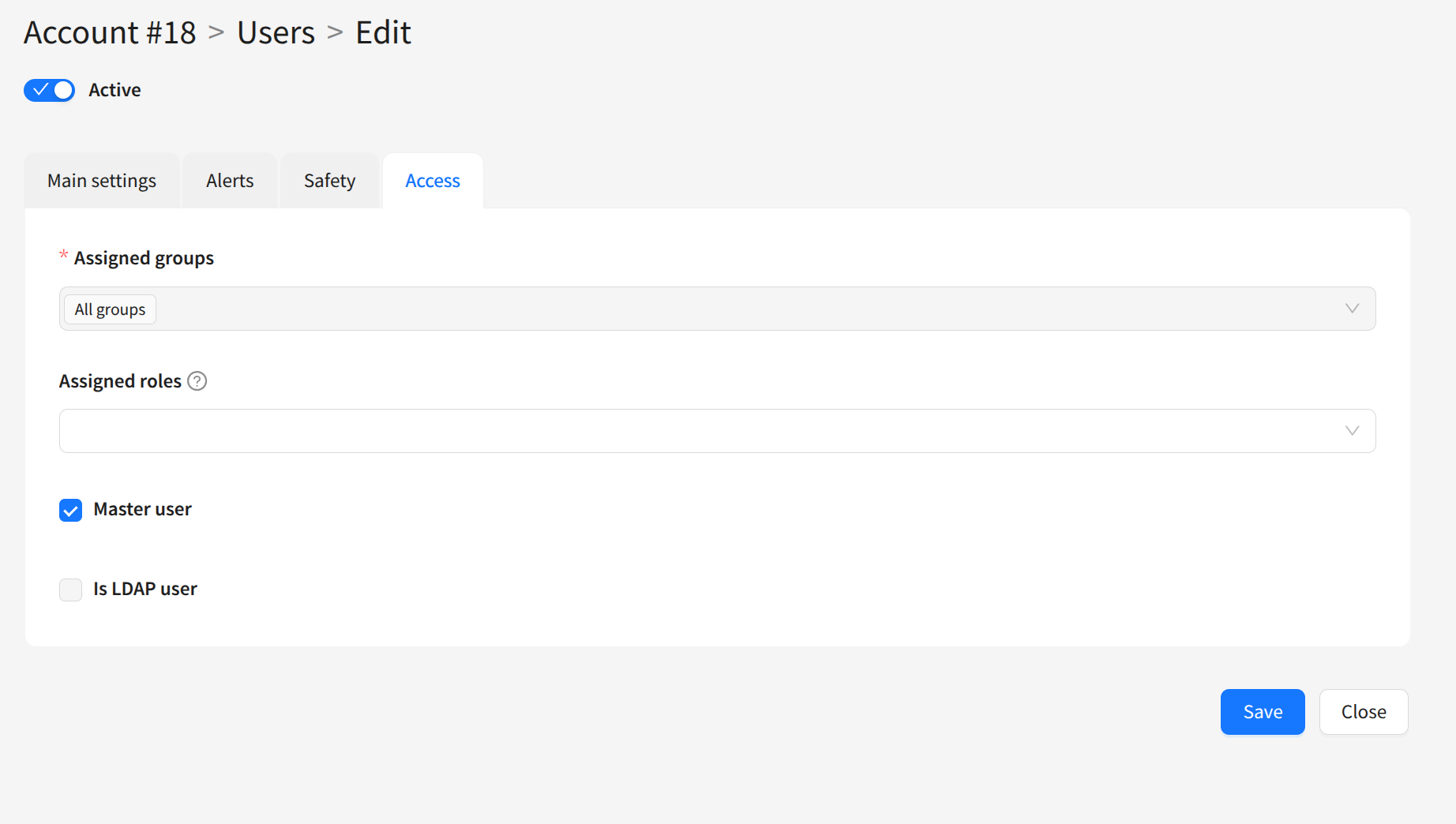
For each user, you can configure access to specific account objects and Altcraft features. More about access rights is described in this article.
Assigned roles — assign access Roles to the user for account objects. Roles are created and edited in the master settings of the User Interface.
Assigned groups — grant the user access to Groups of account objects. Master users can create object groups when editing any account object.
Master user — grant the user access to the Main Group of the account, management of other users, and master settings.
Is LDAP user — use the LDAP protocol for user authentication. To enable this, the corresponding setting must be active in the account.