Altcraft Docs LogoAltcraft Docs Logo
User guide iconUser guide
Developer guide iconDeveloper guide
Admin guide iconAdmin guide
English
  • Русский
  • English
Login
    User documentation
    Getting Started
    FAQ
    Altcraft glossary
      Profiles and databasesarrow
    • Subscription resources
      Managing databases
      Subscriber profile
      Profiles import and data update
      Scheduled customer data import
      Automatic data collection
      Bulk customers profiles update
      Double opt-in subscription
      Suppression lists
      Profile relations
      Profile history export
      Profile export
      Creating a static segment based on import results
      How to open a CSV file
      Matching
      Types of fields in the database
      Global control groups
      Subscription Manager
      Communication channelsarrow
      • Email channelarrow
      • Email: ISP interactions best practices
        Email: sending domain configuration
        Email: setting up and using postmasters
        Быстрый старт
        Push channelarrow
        • Mobile Pusharrow
        • Settings & implementation
            Integrate your app with Altcraftarrow
          • Providers: push message structure
            Processing and adding a subscription
            Event registration
          Web pusharrow
        • Preliminary Settings
            Web browser push configurationarrow
          • Firebase Cloud messaging
            Apple Safari
            Mozilla Services
          Connecting Web Push to a Website
          Transferring Data to the Platform
          Web Push SDK Methods
            Import of subscriptions from third-party push servicesarrow
          • Migrating push subscriptions from third-party services
            How to transfer push subscriptions configured for Safari?
            Migration from OneSignal
      SMS channel
        Creating mailing from scratcharrow
      • Email
        SMS
        Web Push
        Mobile Push
        WhatsApp
        Viber*™
        Руководство: SMS-рассылка через VK Notify
        MAX Bot
        MAX Group
        Notify
        Telegram Bot
        Telegram Group
      Communication Channels Workflow
      Руководство: SMS-рассылка через УТШ
      Руководство: push-рассылка через сервис от "Согласие"
      Segmentationarrow
    • Static Segments
      Dynamic Segments
      Updatable Segments
        Segmentation Conditionsarrow
      • Segmentation by Profile data
        Segmentation by Interactions with Entities
        Segmentation by Activity of the channel
        Segmentation by external data
        Segmentation by external SQL tables
        Segmentation by Profile structure
      Best Send Time (BST)
      Logical operators "AND" and "OR"
      Recommendations for working with segments
      Message templatesarrow
      • Working with message templatesarrow
      • Working in the editor
        Email-template
        SMS template
        Push template
        MAX template
        Telegram template
        WhatsApp template
        Viber™ template
        Notify template
        Visual editor for email-templatearrow
      • Visual editor interface
        Adding blocks
        Elements and their settings
        Custom blocks
        Style manager
        Layer manager
      Template fragments
      Image gallery
      Content personalization
      Creating tables based on array elements
      Block editor for email template
        Altcraft Variables and Functionsarrow
      • Logical expressions in messages
        Loops in messages
        Market variables in templates
        Using the JSONPath functionality
        Dynamic content in messagesarrow
      • Dynamic HTML content
        Dynamic JSON content
        Content from SQL database in templates
        Dynamic API content
      Importing and exporting a message template
      Importing a template from a third-party service
      Exporting a template from Pixcraft
      Mailingsarrow
    • Mailings calendar
      Broadcast mailings
      Regular mailing
      Trigger mailing
      Multivariate testing
      Mailing testing
      Mailing schedule
      Placement mailing
      Campaignsarrow
    • Working with Campaigns
      Local control groups (LCG)
      Audience expansion
      Audience building
      Automation scenariosarrow
    • Managing scenarios
      Nodes of the scenario
      Classic marketing scenarios
      Step-by-step welcome scenario guide
      Scenario for automatic notification of the manager
      Abandoned cart scenario
      Marketarrow
    • Market settings
        Productsarrow
      • How to create a product manually
        How to import a product from a file
        Scheduled product import
        Product and SKU Segments
        Preparing the YML file
      Orders
      Market variables in message template
      Guide: how to send an order confirmation email
      Loyalty programsarrow
    • Loyalty programs
      Loyalty integration with external systems
      Быстрый старт
      Basic loyalty program use cases
      Order Segments
      Promotion codes
      Reports and analyticsarrow
    • Channel report
      Traffic report
        Summary reportarrow
      • Summary report metrics
      Cohorts report
      Lifetime report
      Funnels report
      Goals report
      Audience growth report
      Click map report
      Loyalty programs report
      Bounces report
      Undeliveries report
      Report on global control groups
      Integrationsarrow
      • Action hooksarrow
      • Altcraft Action Hooks
        Action hooks event types
        Action Hook Message Structure
        JSON batch request (HTTP POST action hook)
        Message to RabbitMQ broker
        Message to RabbitMQ exchanger
        Message to Kafka broker
        Test event
        Integration of third-party services using Albatoarrow
      • Connecting Altcraft to Albato
        Launching the welcome scenario using Albato
        Transmitting event data
        Setting app a trigger mailing
        Event registration
        Google Sheets and Altcraft integration
        AmoCRM and Altcraft integration
      Facebook Ads Manager™
      Google Ads Audiences
      MAX
      Yandex.Audience™
      VK Ads™
      Static segment synchronization
      Yandex AppMetrica™
      Tilda™
      Lpgenerator™
      WhatsApp
      Viber*™ integration
      Integration scope
      Data Transmitted During Synchronization
      Notify
      Weblayersarrow
      • Formsarrow
      • Create a form
        Form constructor
        Appearance
        Actions after form activation
        Data analytics
        Binding data channel and forms
        Conditional logic in forms and surveys
        NPS testing
        Pixelsarrow
      • Goal customer actions and scoring
        Pop-upsarrow
      • Creating and publishing a pop-up
        Setting up a popup in the code editor
        Managing pop-ups manually via script
        Popup analytics
        Guide: pop-up for push subscriptions
        Case: Creating a pop-up with the "Wheel of Fortune" widget
        Basic cases of placing a popup via the Tag Manager
        Tag Managerarrow
      • Configuring and installing Tag Manager
        Trigger types
        Variables types
        Linking a pixel and the Tag manager
      Settingsarrow
    • Account settings
      Custom links
      Virtual senders
      Sending policies
      Audit journal
      Tags FAQ
        Users, groups and accessarrow
      • Two-Factor Authentication (2FA)
        Connectionsarrow
      • Connection to Facebook Ads Manager
        Connection to Google Ads
        Connecting to Yandex.Audience™
        Connection to 360dialog
        Connection to Edna
        Connection to Devino Telecom
        Connection to SMSTraffic
        Connection to VK Ads™
        Connection to MTS OmniChannel
        Custom Authentication Connection
        OAuth2 connection
        Basic Authentication connection
        Token Authentication connection
        Connection to Rapporto
        MAX connection
        Connection to Notify
      Attribute settings
      API requests: where to startarrow
    • Import or update a profile
      Trigger mailing launch
      Engage profile in scenario
      Changelogarrow
    • v2026.1.76
      v2025.4.75
      v2025.4.74
      v2025.3.73
      v2025.2.72
      v2025.1.71
      v2024.4.70
      v2024.3.69
      v2024.2.68.2
      v2024.1.68
    Documentation archive
    library
  • Communication channels
  • Creating mailing from scratch
  • SMS

First SMS Mailing

This tutorial will help you to create and launch your SMS mailing in the Altcraft Platform from scratch.

SMS as a channel of communication with clients is impossible to replace. It does not matter if a customer has Internet access, because today everyone has a mobile phone. The subscription process is also simpler than in other channels: the only thing you need to get started is a customer's phone number.

Yes, there is no way to add media content to SMS, but you can add links to resources on the Internet. Altcraft Marketing automatically shortens links in a message and also tracks recipients' clicks.

Step 1: Connect SMS gateway​

Altcraft Marketing uses integrations with gateways of mobile operators to send SMS to your customers.

tip

You can read about our ready integrations in this article.

In case you use different SMS gateway, write to us at team@altcraft.com and we will agree with you the terms of connecting the new gateway.

At first you'll have to connect the SMS sender. You need the authorization data of the telecommunications service provider, as well as the CALLER ID agreed with it.

caution

If you use an Altcraft Marketing cloud account, please give the information to the support team at team@altcraft.com. They will help you to connect the integration.

If the Altcraft Marketing platform is installed on your equipment (On-Premise), you need to configure SMS sender in the platform administrative panel. Contact your platform administrators to set up senders and virtual senders using the instructions below:

  • Senders are configuration records that combine parameters for sender identification, sending speed, and settings for the sender's behavior in case of sending errors.
  • Virtual senders are the rules for sending from multiple senders. Can be configured both in the Administration Panel and in the User Interface.
tip

Or just contact our support team — and we will help you set up SMS sending.

Step 2: Subscribe customers to the SMS channel​

Profiles Databases​

Altcraft Marketing mailings are received by your subscribers. Subscriber profiles are stored in profiles databases.

Each customer profile has a system field "Phone". You can store your customers' phones there. However, it is used not to send, but to identify a customer in the platform.

Subscription resources​

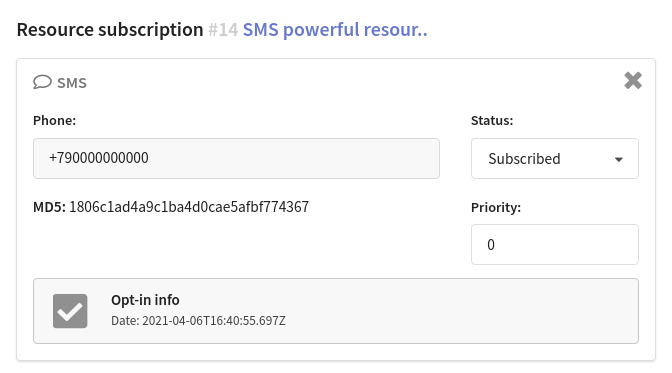
When you start your SMS mailing, you use profile subscriptions to resources. This way, you can notify the client by several phone numbers. Each client profile can be subscribed to one or more resources . What can be a resource? A specific marketing area, a site, an application, or the type of content.
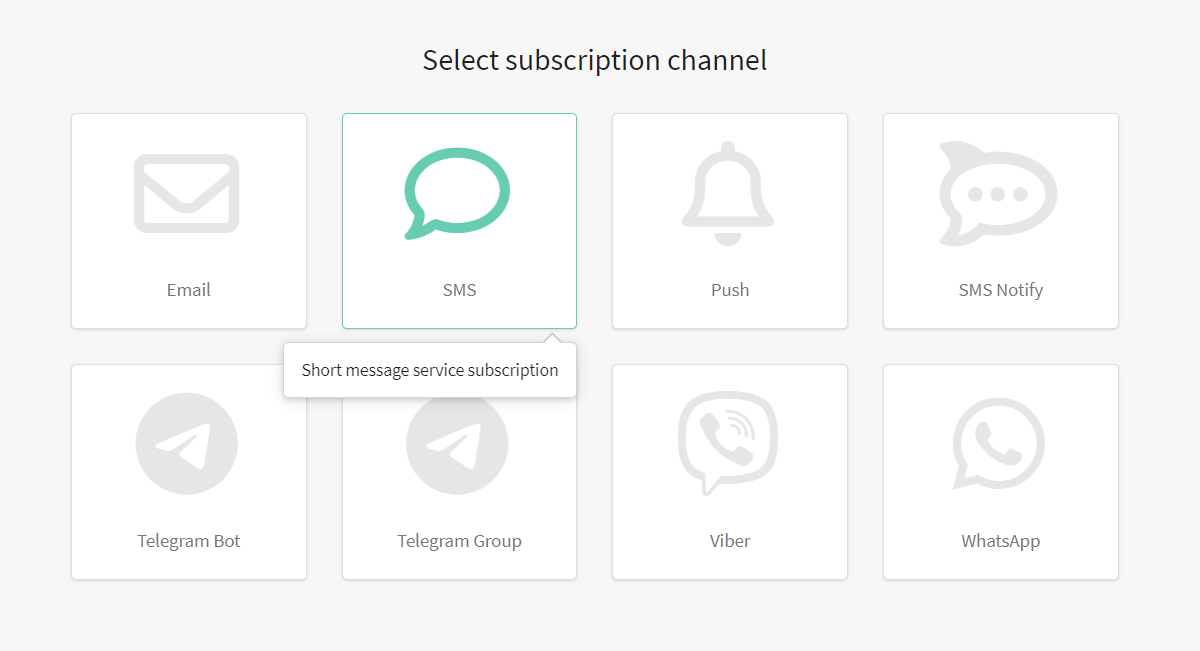
Select the corresponding item in the main menu, then create a new resource or select an existing one. Select an SMS channel for a new resource:
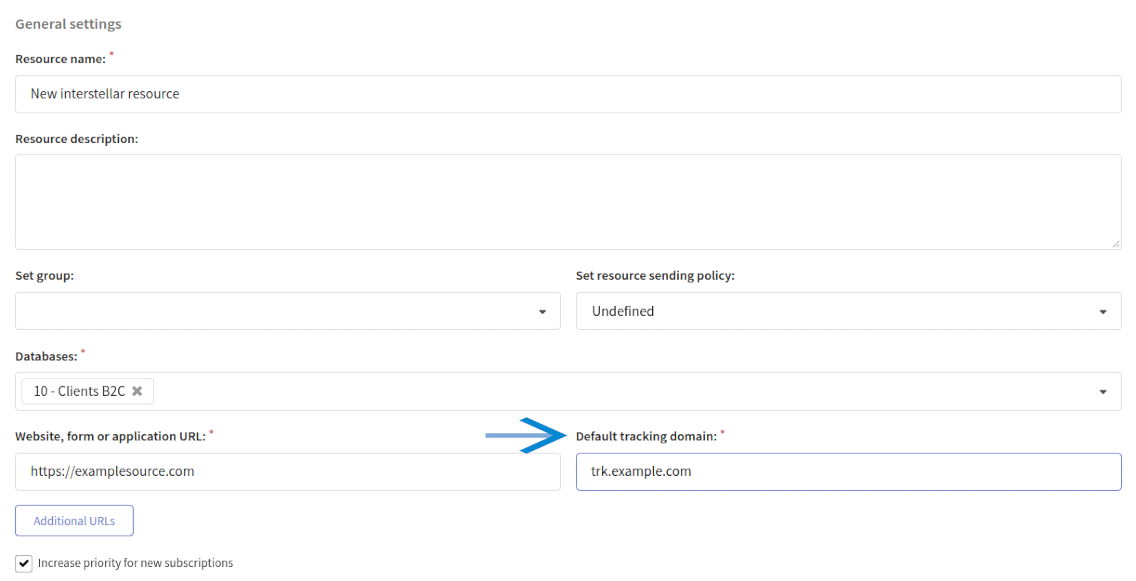
In the general settings, add the necessary databases. If it's necessary, assign a sending policy and specify the Default tracking domain. This domain will process your customers' clicks on links in SMS messages:
In the SMS options of the resource channel Caller ID agreed with your telecommunications service provider:

Customer profiles and subscription to the resource​

So, we've just configured the profiles database and subscription resource. Now it's time to import customer data into the platform. For each client, Altcraft Marketing creates a single digital profile that includes personal data, history of actions and subscriptions to your resources.

You can upload customer data manually: one at a time, in a list, or from a table file. Different import methods are described in this article.

You can also set up automatic import of client profiles:

  • on schedule from your SQL database
  • through the use of the integration with platform API

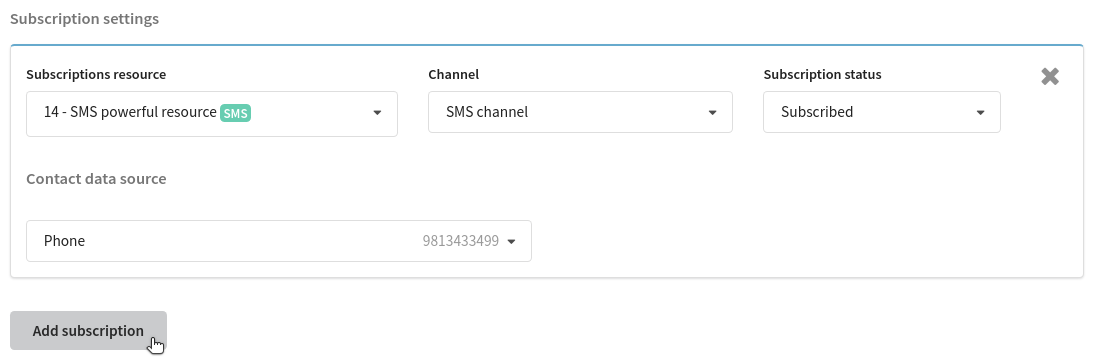
When you import data, sign clients to the previously prepared resource. To do this, select SMS as the communication channel and specify the column with subscribers' phones:
tip

If you already have a profiles database, add them a subscription to a new resource. There are two options:

  • if customers have subscriptions to another resource with up-to-date SMS phone numbers — use bulk profile update
  • if you need to upload to the platform SMS phone numbers for subscription, use the profile import in the "update only" mode

Step 3: Prepare content for submission​

The content for your SMS mailings is created in Message Templates. The templates contain content for all available channels. When you create a new template, select the SMS channel - or add it for an existing one.

The SMS version of the template is a simple text editor where you can add data of a specific client, as well as dynamic text content from external sources:
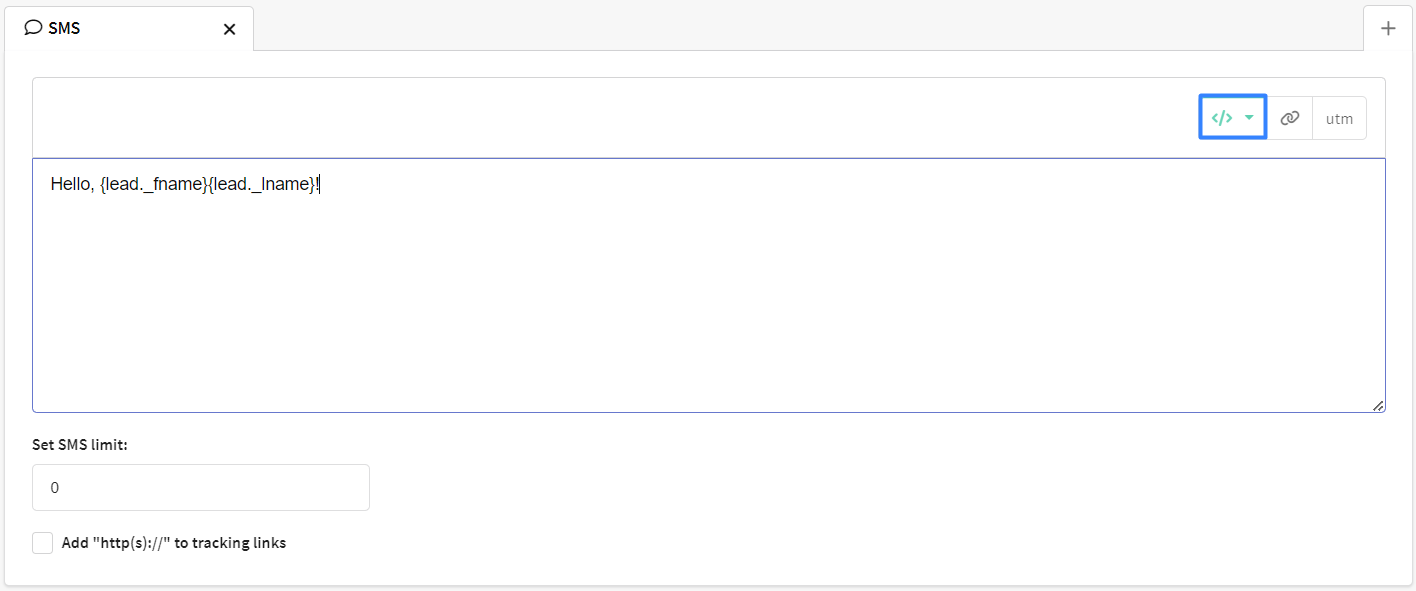
Notice

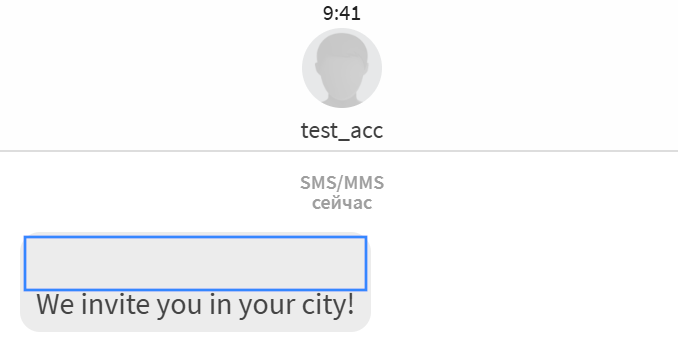
When a template includes logical expressions or loops, the platform counts every formatting character — spaces and line breaks — as part of the final message. Each space or line break adds one character to the SMS and may affect the cost. To save characters and control message length, keep logical constructions on one line.

For example, instead of:

{if lead._city equal "Moscow"}
We invite you to a conference in Moscow on June 30!
{else}
We invite you to a conference in your city!
{end}
Use:

{if lead._city equal "Moscow"} We invite you in Moscow on June 30!{else}We invite you in your city!{end}
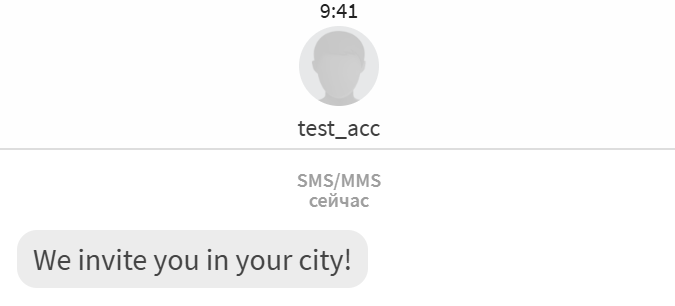
This approach keeps the logic intact and avoids unexpected SMS length growth.

Step 4: Select the type of email mailing​

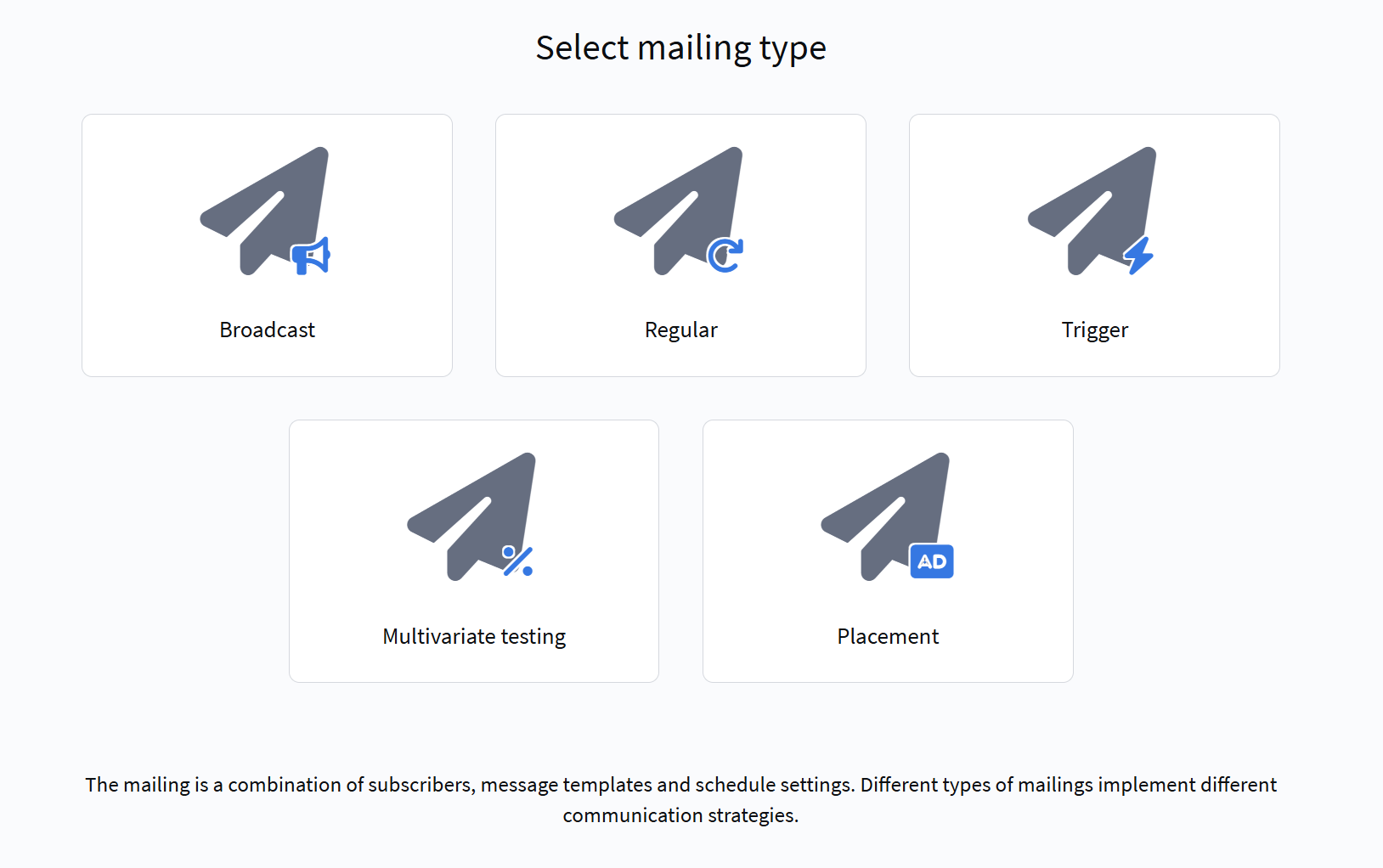
If you want to send an SMS message, you need to use such a tool as a Mailing

Do you want to send out a one-time mailing to all profiles of the database or to the audience of the specific segment? Choose Broadcasts

If the mailing is periodic, your choice is a Regular mailing.

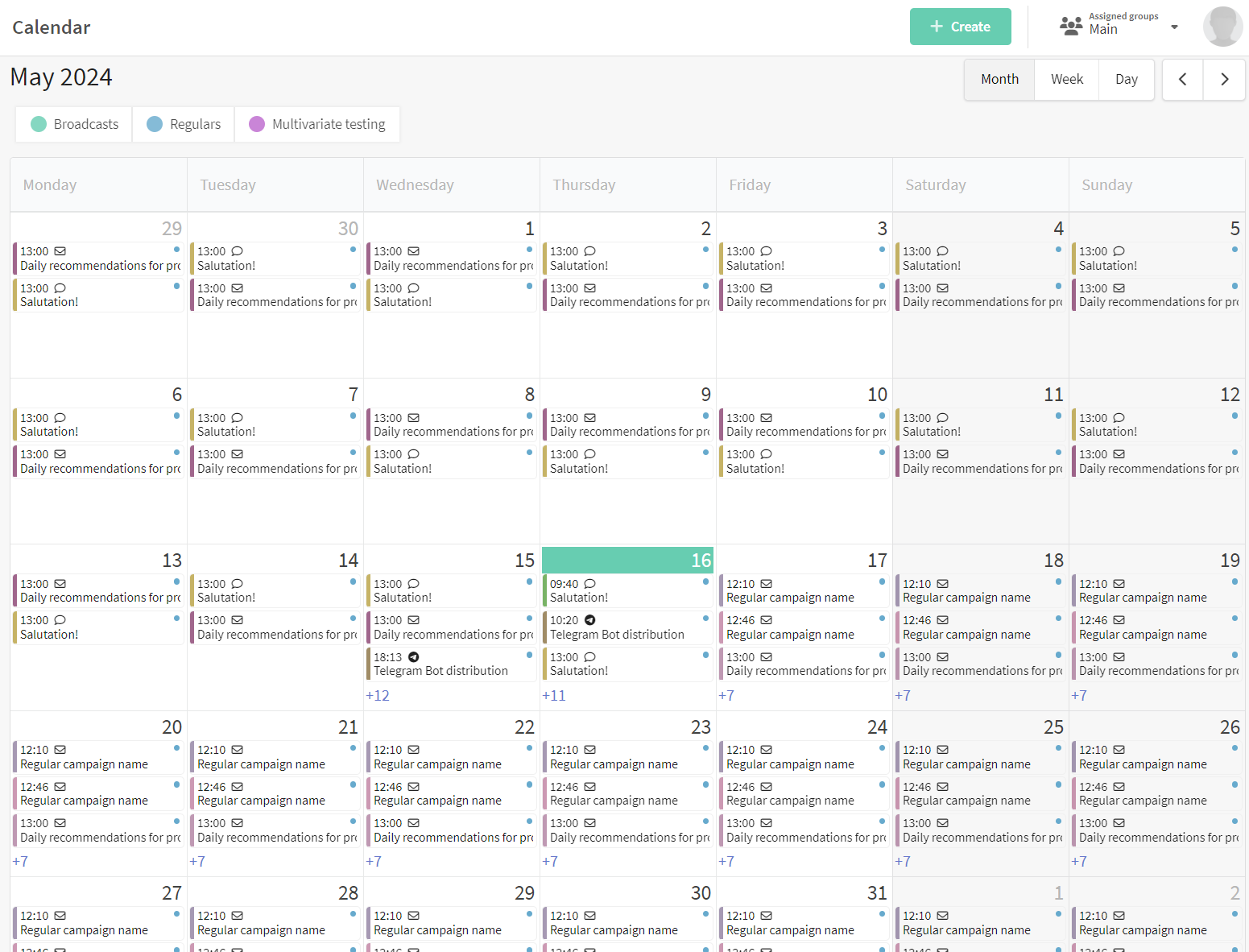
In the main menu select Mailing and open Calendar. This is where you'll find all scheduled mailings.

Decide on a date and create a mailing of the required type:

tip

You can find details about how to set up Broadcast on this page.

tip

You can find details about how to set up Regular mailing on this page.

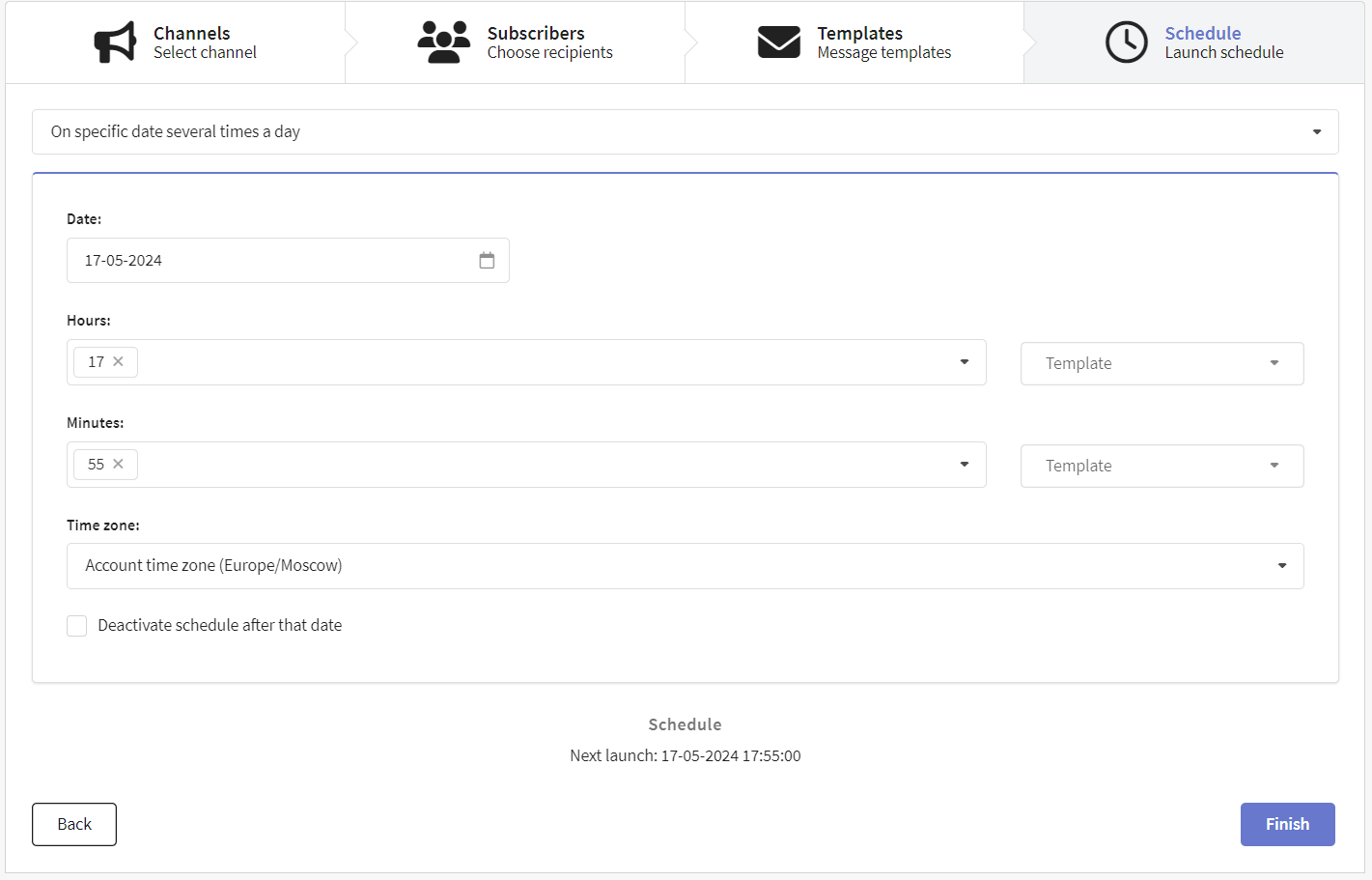
Once you're done with the general mailing settings, you need to:

  1. Select SMS as the communication channel;
  2. Select the subscription resource you've just configured and the audience of recipients;
  3. Add a message template to your message;
  4. Set a schedule. For example, for a broadcast the option "On specific date at specific time" is available.

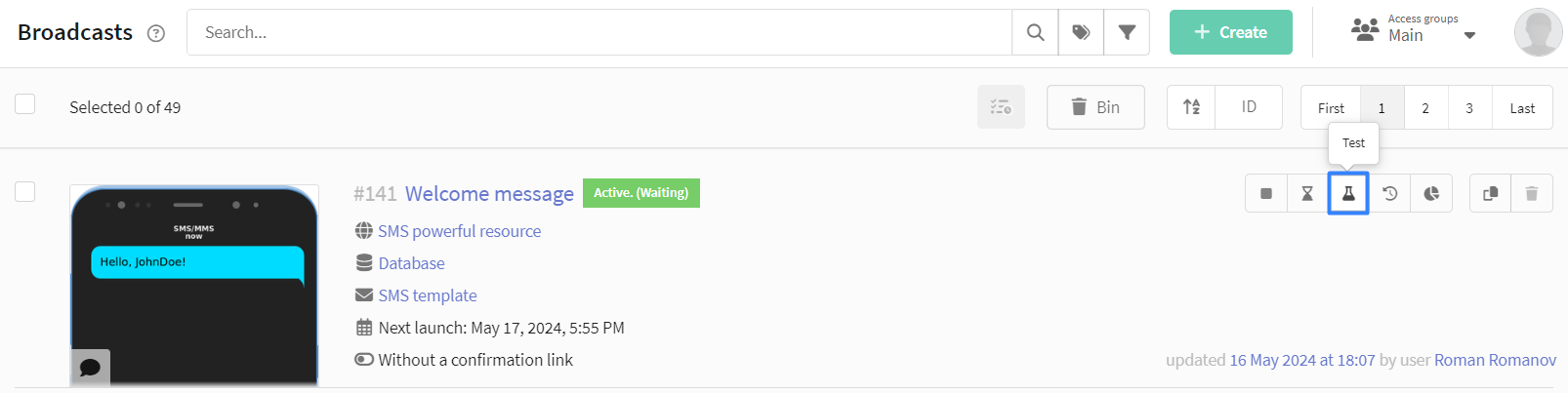
Once the mailing is set up, save it. Later you can find it in the list of mailings of the corresponding type. There is a quick action menu on the right side of each mailing. Use it to test the mailing — and if everything is successful, activate it:

Step 5: Assess the effectiveness of the email mailing​

Mailing Log​

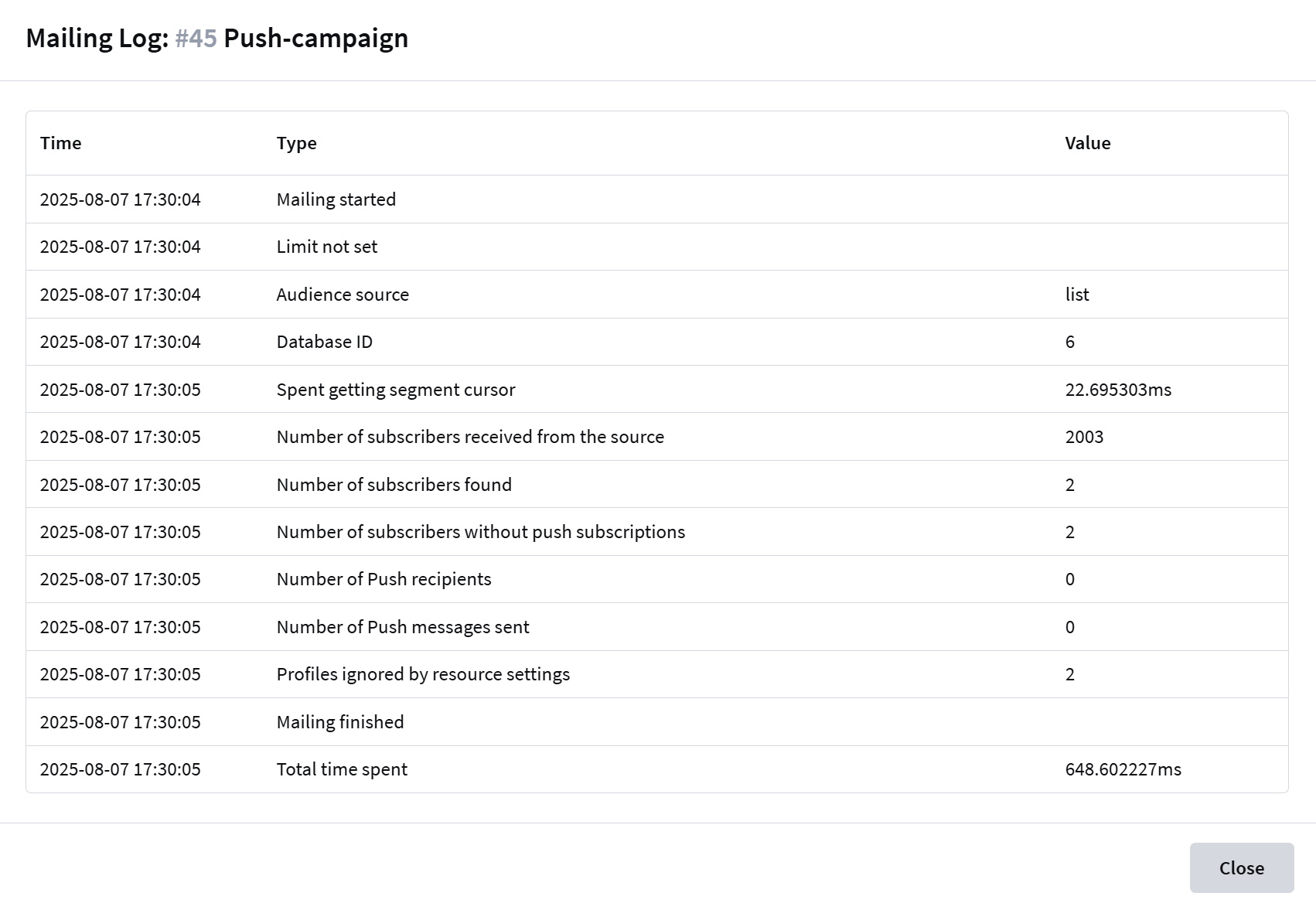
The Mailing Log is a tool that provides a summary of the progress of your email mailing. It logs key events, mailing parameters, and statistics, helping you identify potential issues.

To open the mailing journal, click the "Journal" button in the quick actions menu:


The mailing Log contains the following information:

TypeDescription
Mailing startedThe timestamp when the mailing execution began
LimitIndicates whether a sending limit is set
Audience sourceContact source:
List — Database
Segment — Segment
Database ID/Segment IDIdentifier of the database being used
Spent getting segment cursorTime spent loading contact data from the source (in milliseconds)
Number of subscribers received from the sourceTotal number of contacts in the specified source
Number of subscribers foundNumber of contacts with active subscription to the selected resource
Duplicate phonesCount of duplicate phone numbers (excluded from sending)
Number of SMS recipientsFinal count of successful SMS deliveries
Mailing finishedCompletion timestamp of the mailing execution
Total time spentTotal duration from mailing start to completion (in seconds)

Reports and Analytics​

To evaluate the effectiveness of your email mailings go to the section Analytics in the main menu of the platform.

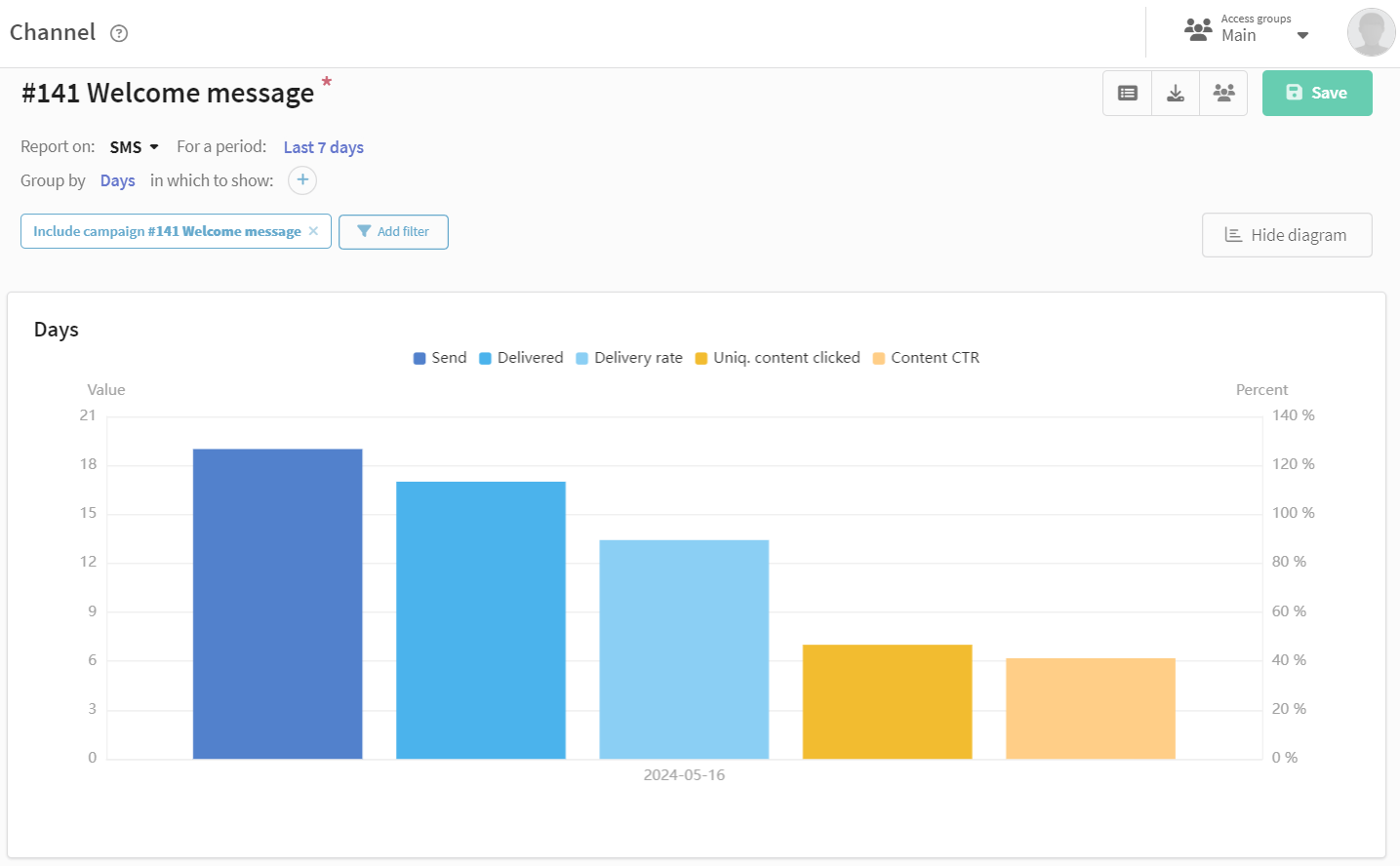
The channel report provides analytics for one or several mailings, for one or several communication channels. For the convenience of grouping, you can select a preset of indicators for SMS:

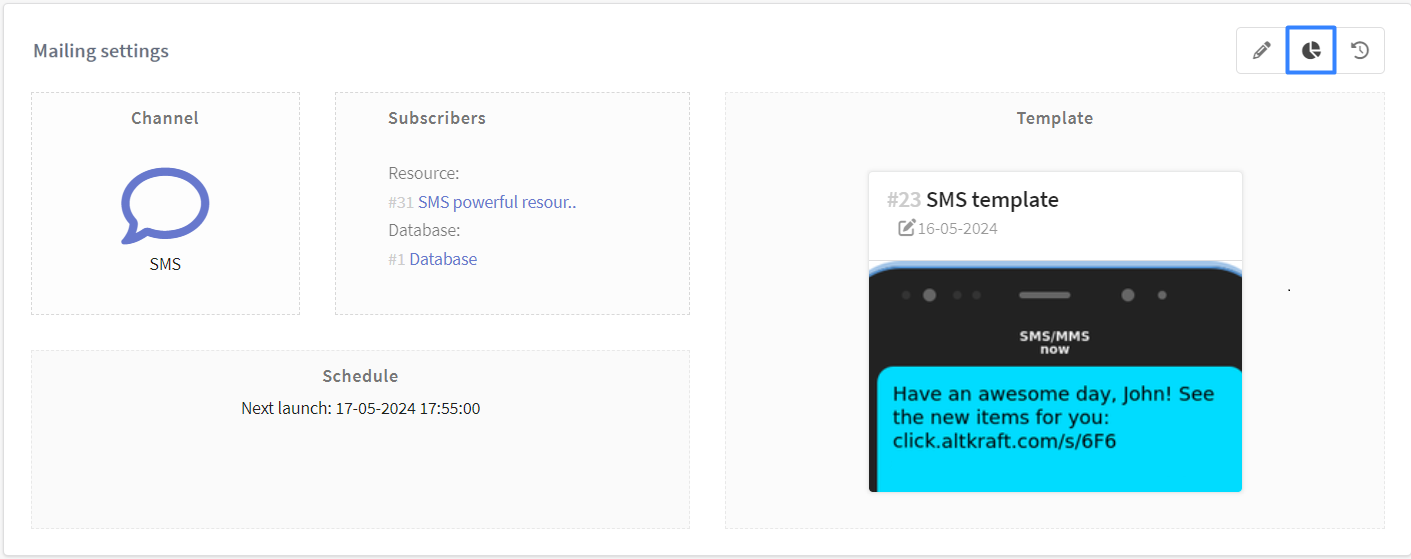
You can also go to the channel report for a specific mailing by following the link in the mailing editor:

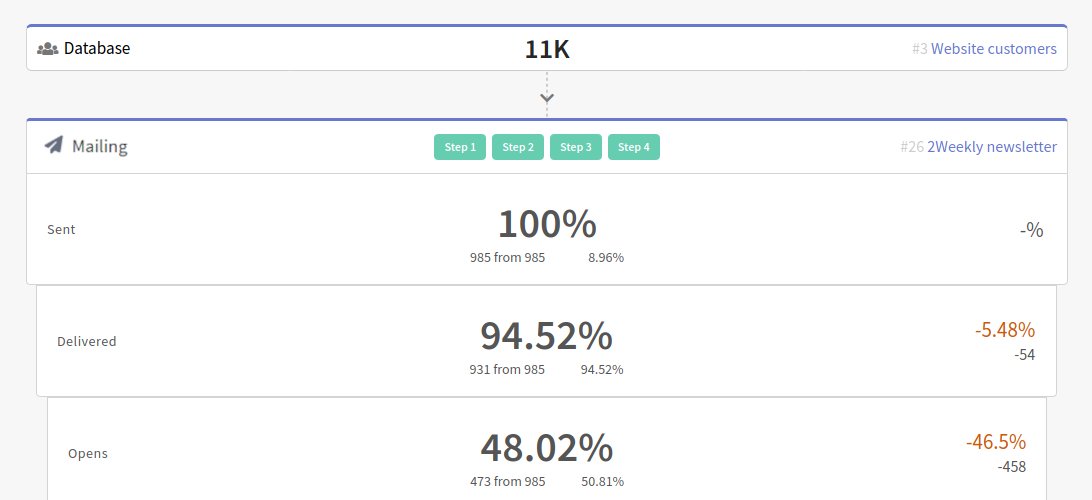
Actions in the SMS mailing or in the template can turn into steps in the interactive conversion funnel:

Last updated on Mar 27, 2026
Previous
Email
Next
Web Push
  • Step 1: Connect SMS gateway
  • Step 2: Subscribe customers to the SMS channel
    • Profiles Databases
    • Subscription resources
    • Customer profiles and subscription to the resource
  • Step 3: Prepare content for submission
  • Step 4: Select the type of email mailing
  • Step 5: Assess the effectiveness of the email mailing
    • Mailing Log
    • Reports and Analytics
© 2015 - 2026 Altcraft, LLC. All rights reserved.