Altcraft Docs LogoAltcraft Docs Logo
User guideDeveloper guideAdmin guide
Company siteHelp center
English
  • Русский
  • English
v72
  • v74
  • v73
  • v72
Login
  • User documentation
  • FAQ
  • Altcraft glossary
  • Profiles and databases
  • Communication channels
  • Segmentation
  • Message templates
  • Campaigns
  • Automation scenarios
  • Market
  • Loyalty programs
  • Reports and analytics
  • Integrations
  • Weblayers
  • Settings
    • Account settings
    • Attribute settings
    • Custom links
    • Virtual senders
    • Sending policies
    • Audit journal
    • Tags FAQ
    • Users, groups and access
    • Connections
      • Connection to Facebook Ads Manager
      • Connection to Google Ads
      • Connection to Yandex.Audience
      • Connection to 360dialog
      • Connection to Edna
      • Connection to Devino Telecom
      • Connection to SMSTraffic
      • Connection to VK Ads™
      • Connection to MTS OmniChannel
      • OAuth2 connection
      • Basic Authentication connection
      • Token Authentication connection
      • Connection to Rapporto
      • Connection to Notify
  • API requests: where to start
  • Changelog
  • library
This is documentation for Altcraft Platform v72. This documentation is no longer maintained.
The information for up-to-date platform version at this page is available (v74).
  • Settings
  • Connections
  • Connection to Rapporto
Documentation for version v72

Connection to Rapporto

Connection to Viber*™ is required to integrate the platform with the messenger. This article describes how to set up a connection to Rapporto provider.

tip

Before setting up a connection on the platform, read the Rapporto documentation in order to set up integration and request service ID and password.

In the main menu, go to Settings → Connections. Select connection type — Rapporto:
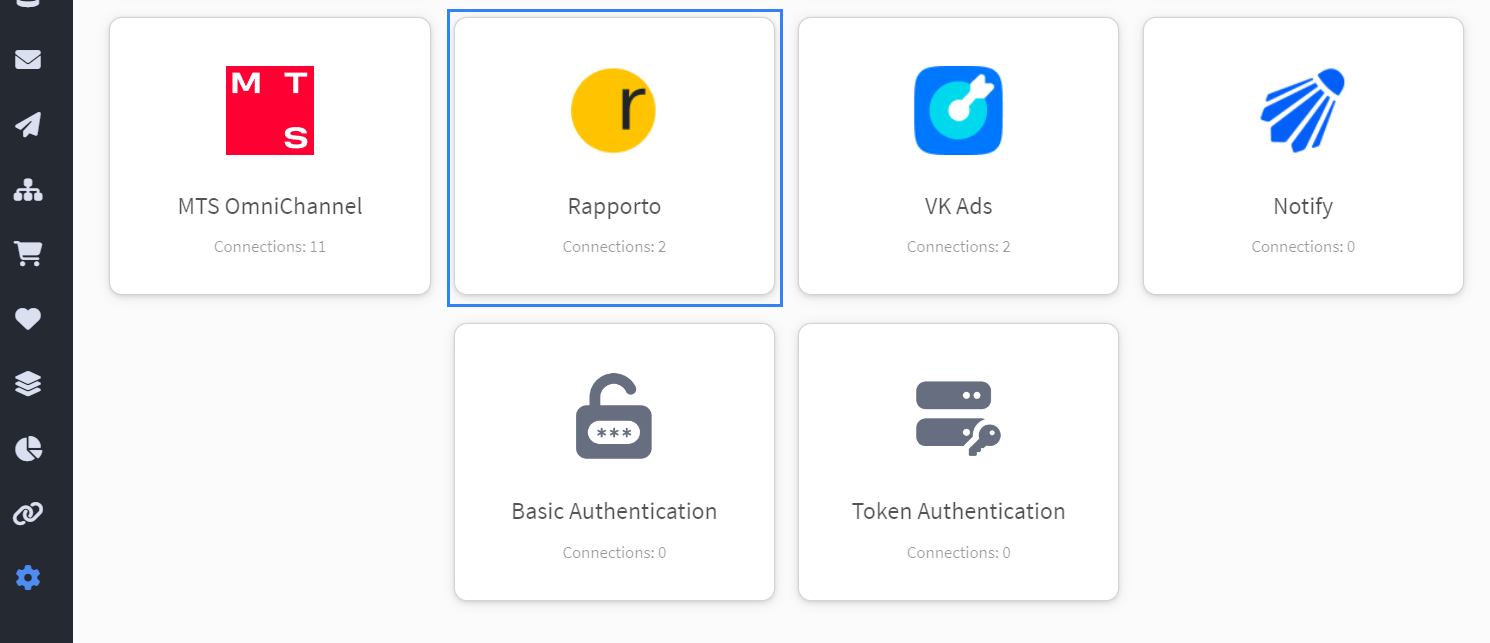
Click the "Create" button on the top bar. The connection settings window opens, then enter connection's name, optionally add description.

Next you need to pass a validation check. Enter the service ID and password, click "Check". Upon successful connection, the following will appear:
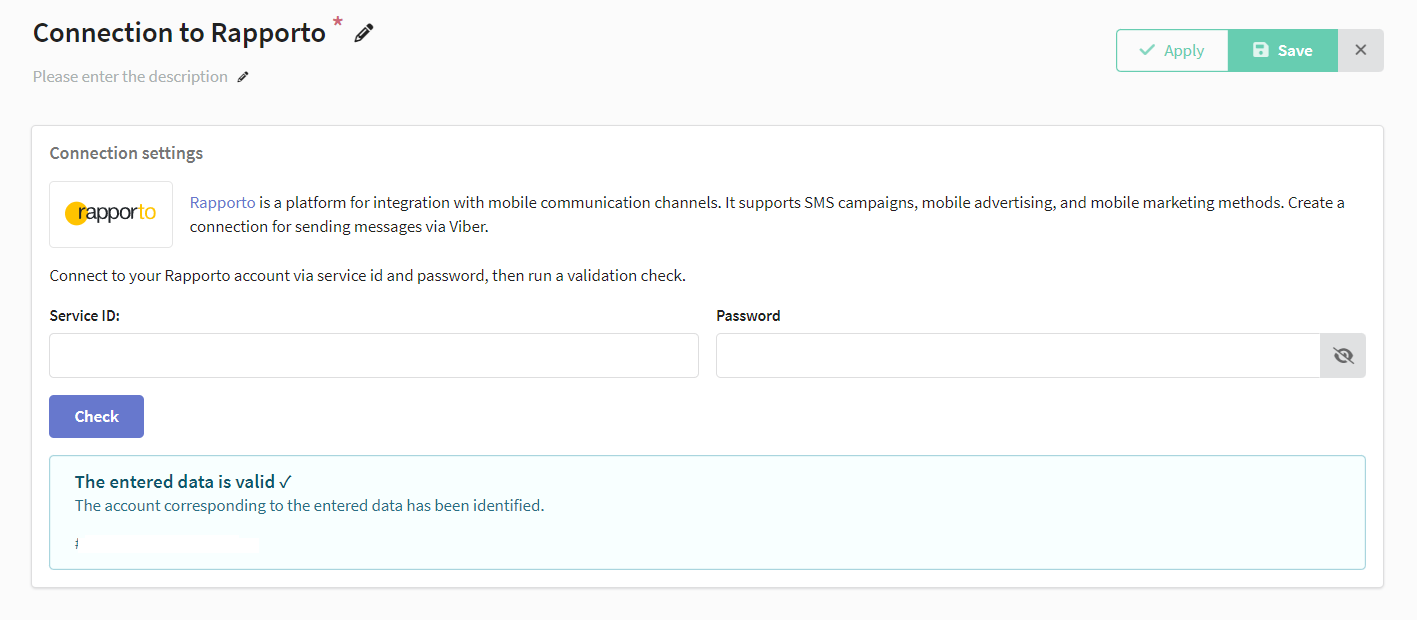
Click on the "Save" button to save the connection.After that you can proceed to setup a new integration.


* Viber™ is a trademark of Rakuten Group, Inc. Blocked in the Russian Federation.

Last updated on Jan 14, 2026
Previous
Token Authentication connection
Next
Connection to Notify
© 2015 - 2025 Altcraft, LLC. All rights reserved.