Audit journal
Description
User action audit is a very important security and monitoring feature, capturing Altcraft platform user actions. Only users with master privileges can access audit log by opening Settings → Audit journal.
The log is kept for the last 90 days by default. to customize this interval add a record "AUDIT_LOG_TTL" : 90 to main.json configuration file, changing the value as you need.
Audit query settings
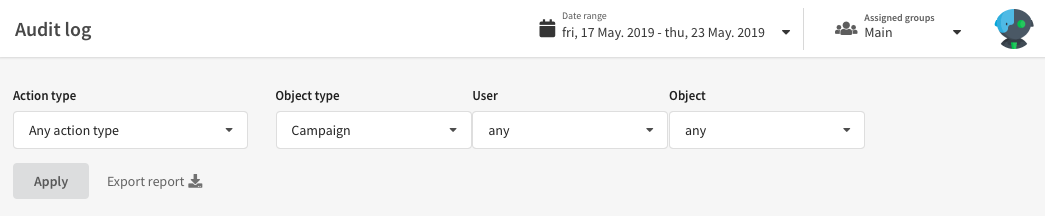
You can customize audit log query to fit your current needs:
- Date range — time period to capture events.
- Action type — captured event type. These can be actions like authorisation, creating, editing or activating account objects.
- Object type — by selecting a type you can retrieve information about specific account object groups like users, access groups and roles, databases and segments, resources and campaigns, templates and their parts — or other objects.
- Object — here you can select a specific account object of a selected type.
To view the resulting audit log press Apply. You can as well download .XLS or .CSV version of audit log by pressing Export report:
Viewing audit journal
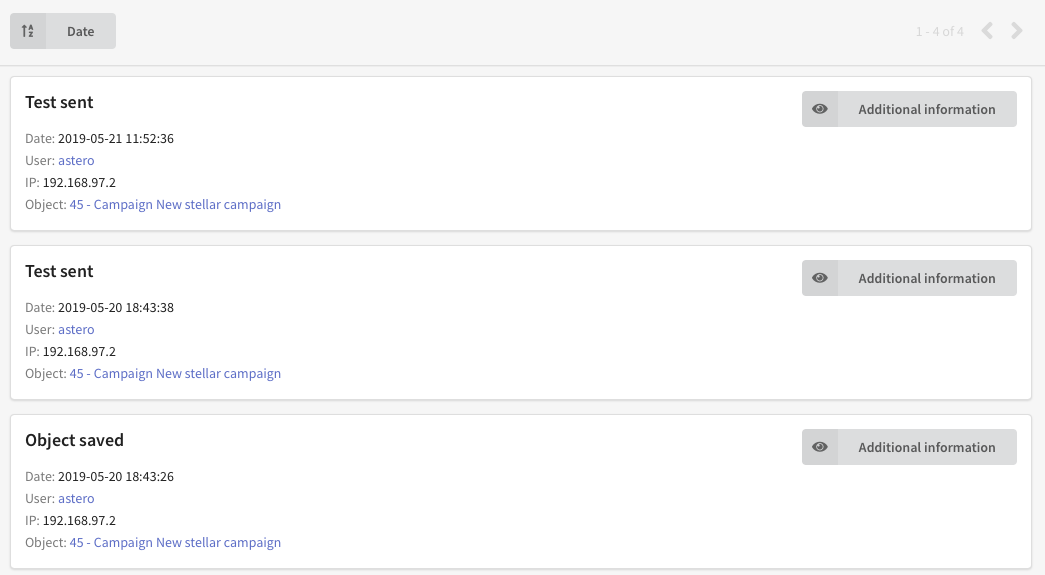
Events captured by audit query are displayed as a list of tiles, where tile headings represent action types. For every event the following information is displayed: date, user, user's IP and object in question.
Additional information contains event-specific data like campaign test emails.
You can sort audit log by date, user, IP or object.