Altcraft Docs LogoAltcraft Docs Logo
User guideDeveloper guideAdmin guide
Company siteHelp center
English
  • Русский
  • English
v72
  • v74
  • v73
  • v72
Login
  • User documentation
  • FAQ
  • Altcraft glossary
  • Profiles and databases
  • Communication channels
  • Segmentation
  • Message templates
  • Campaigns
  • Automation scenarios
  • Market
  • Loyalty programs
  • Reports and analytics
  • Integrations
  • Weblayers
  • Settings
    • Account settings
    • Attribute settings
    • Custom links
    • Virtual senders
    • Sending policies
    • Audit journal
    • Tags FAQ
    • Users, groups and access
    • Connections
      • Connection to Facebook Ads Manager
      • Connection to Google Ads
      • Connection to Yandex.Audience
      • Connection to 360dialog
      • Connection to Edna
      • Connection to Devino Telecom
      • Connection to SMSTraffic
      • Connection to VK Ads™
      • Connection to MTS OmniChannel
      • OAuth2 connection
      • Basic Authentication connection
      • Token Authentication connection
      • Connection to Rapporto
      • Connection to Notify
  • API requests: where to start
  • Changelog
  • library
This is documentation for Altcraft Platform v72. This documentation is no longer maintained.
The information for up-to-date platform version at this page is available (v74).
  • Settings
  • Connections
  • Connection to Devino Telecom
Documentation for version v72

Connection to Devino Telecom

To integrate the platform with Viber*™, you need to configure a connection to one of the providers. This article explains how to set up a connection with the provider Devino Telecom.

To get started, register an account with your provider and then go to Altcraft Platform.

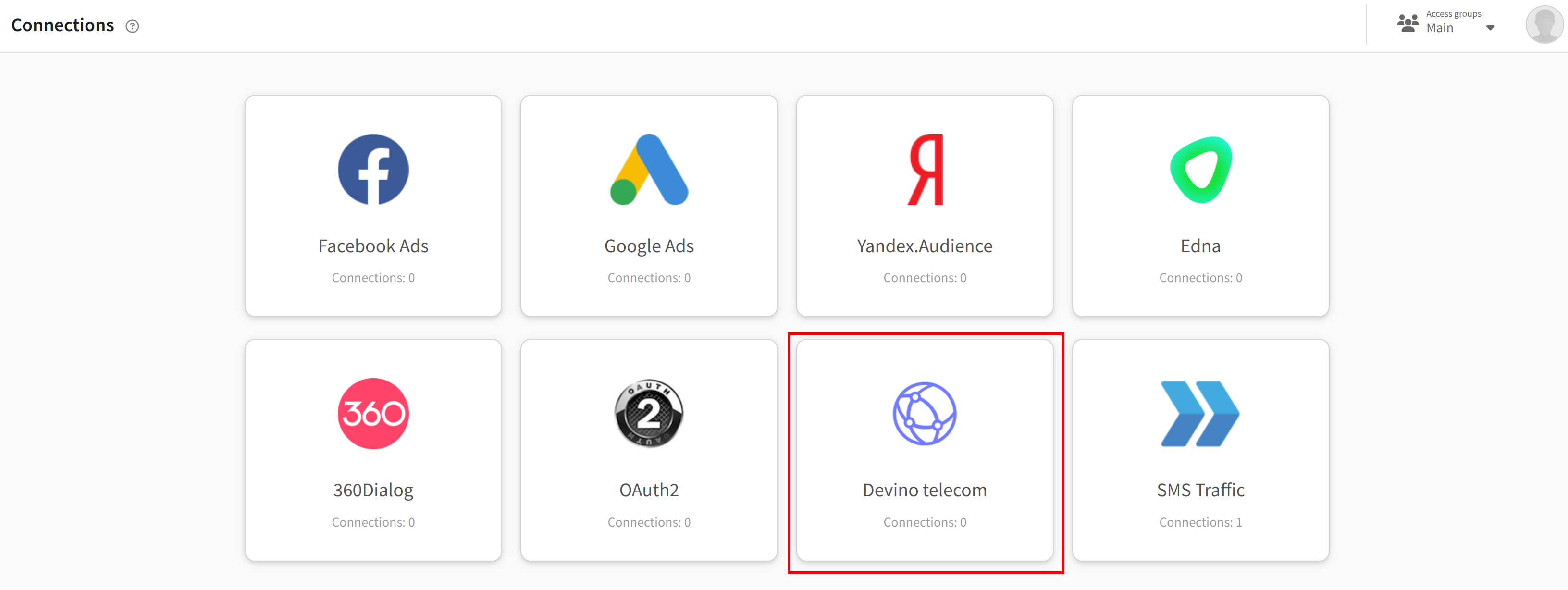
In the main menu, go to Settings → Connections. Select connection type — Devino Telecom. Click the "Create" button on the top bar.
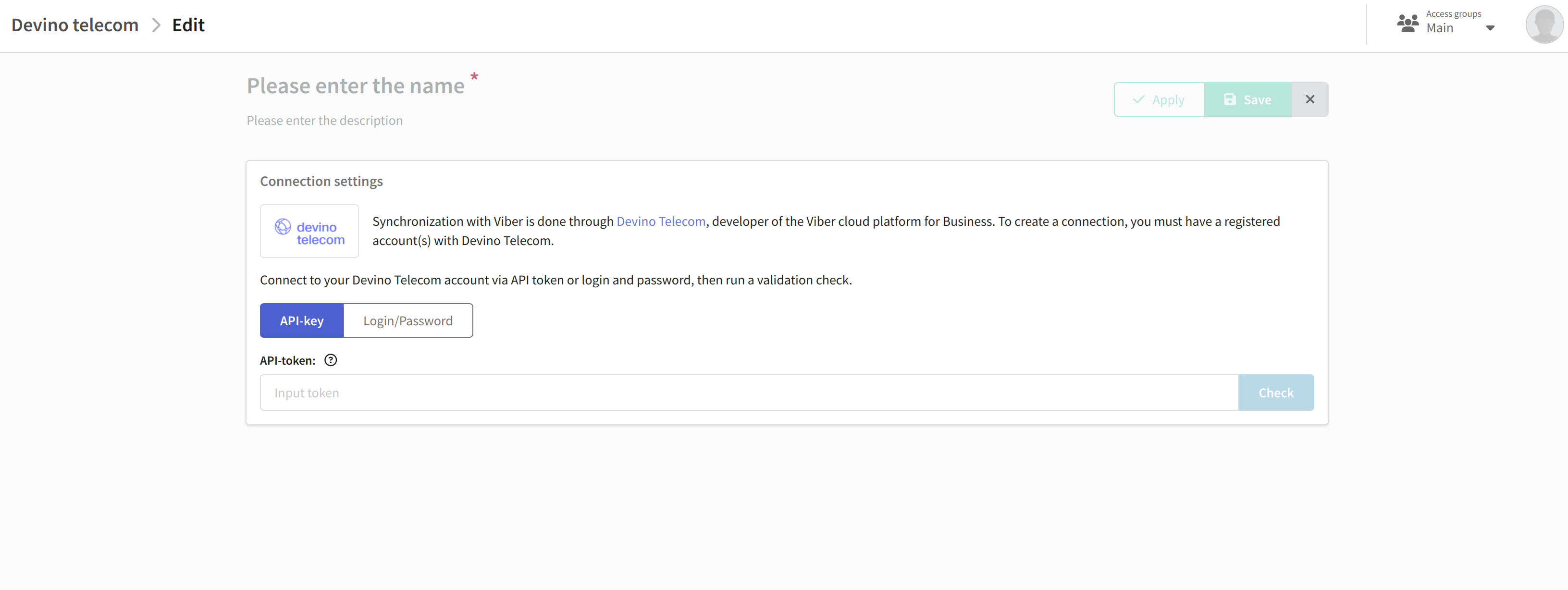
Specify a name and description for the connection. Next, choose the authorization method that suits you best for your Devino account:

  • API Key — Using a generated API key.
  • Username and Password — A combination of your Devino.Online account's login and password in Base64 encoding.
tip

You will find more information about these authorization methods in the Devino documentation.
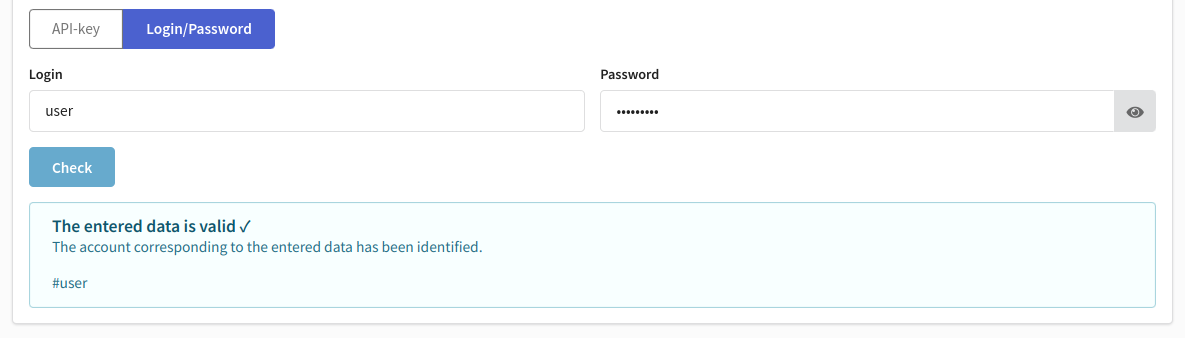
Enter your authorization data. After that, it is necessary to validate the entered information. To initiate the validation process, click the "Check" button. If the provided data is correct, you will receive confirmation of a successfully identified account below.
Save your connection using the buttons in the upper right corner. Now you can set up the integration.


* Viber™ is a trademark of Rakuten Group, Inc. Blocked in the Russian Federation.

Last updated on Jun 7, 2024
Previous
Connection to Edna
Next
Connection to SMSTraffic
© 2015 - 2025 Altcraft, LLC. All rights reserved.