Accounts
Description
Account is a unified environment for company marketers and related specialists to work with the User Interface of the Altcraft marketing platform.
Master users of an account have access to all objects within the account’s access groups, including consolidated statistics on sends and actions, as well as an audit of other users’ activities.
An account uses shared internal and external platform resources:
- Tariffs
- Databases and Job Processing Server
- Senders
- Connectors to External Databases
- Connectors to External Directory Services (LDAP)
Creating and Editing
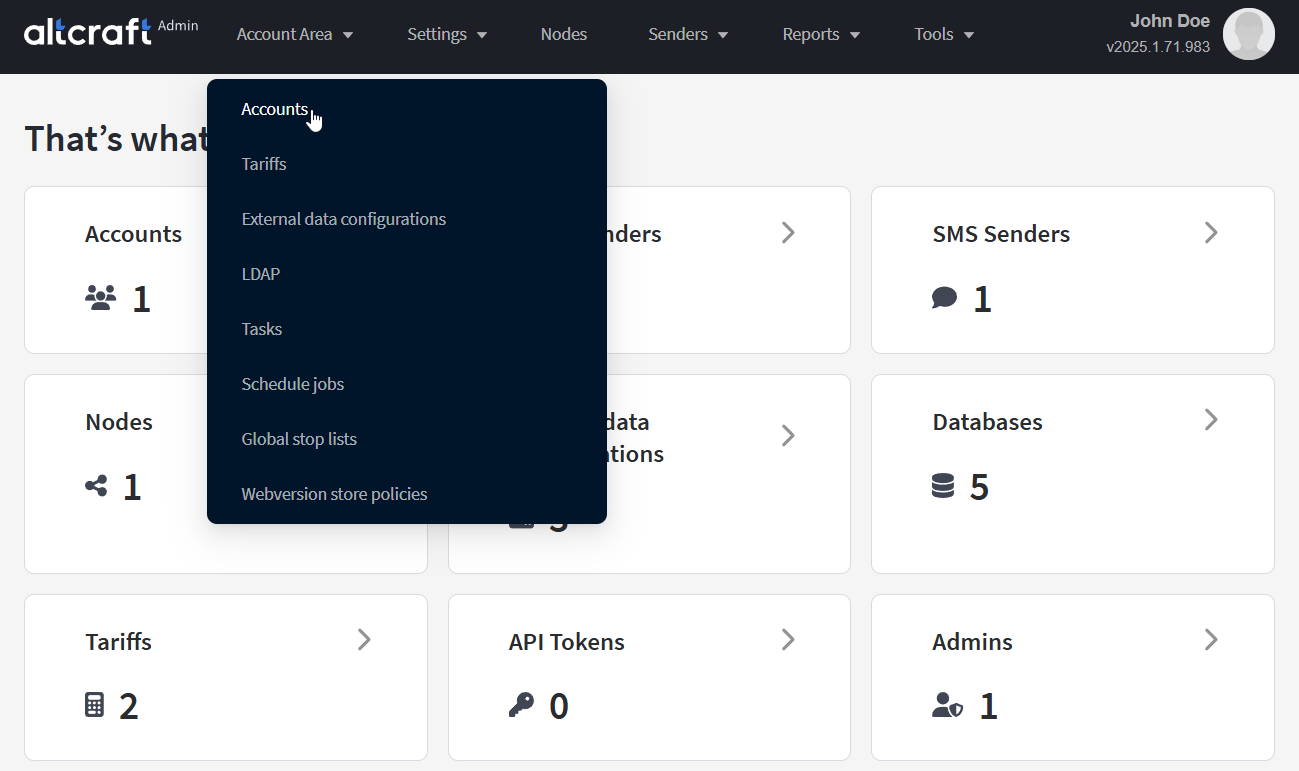
To manage accounts, go to Account Area and select Accounts.
You will see a list of platform accounts:
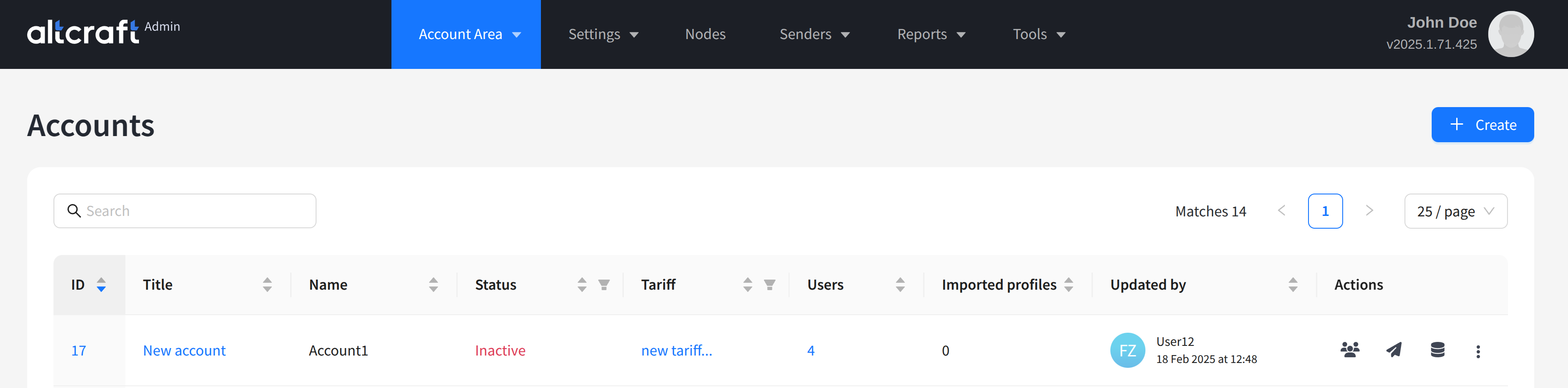
To edit an account, click its identifier on the left. To create a new account, click + Create.
Main Settings
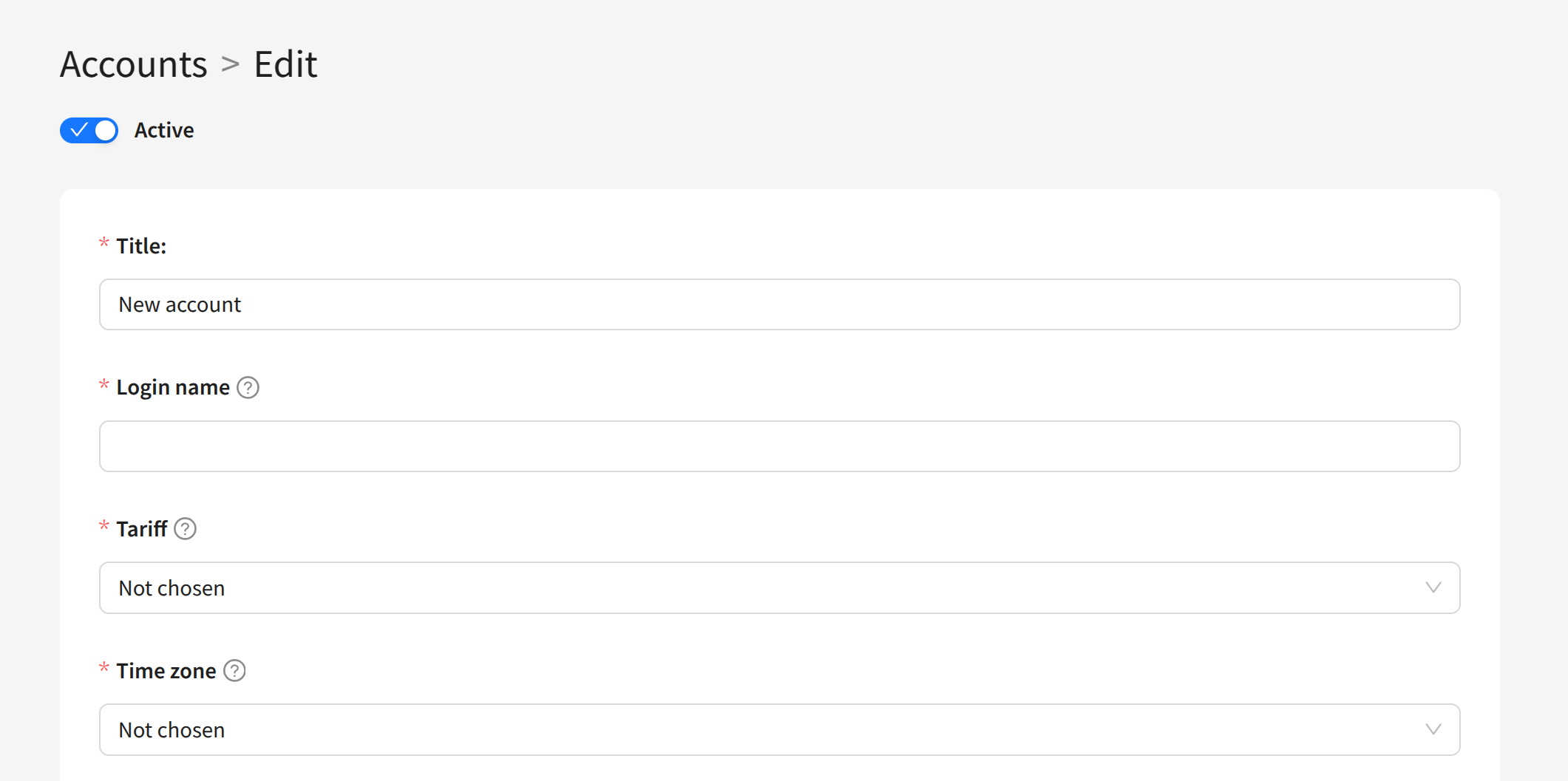
If needed, you can create an inactive account to activate it later when required. Use the Active/Inactive toggle at the top of the screen.
For each new account, the following main settings are specified:
Title — the account name in the Admin Panel interface.
Login name — the system name. Used in user logins of the account (username@login).
Tariff — data and traffic limits for the account. Creating a tariff is described in this article.
Time zone — the time zone used for timestamps in the account.
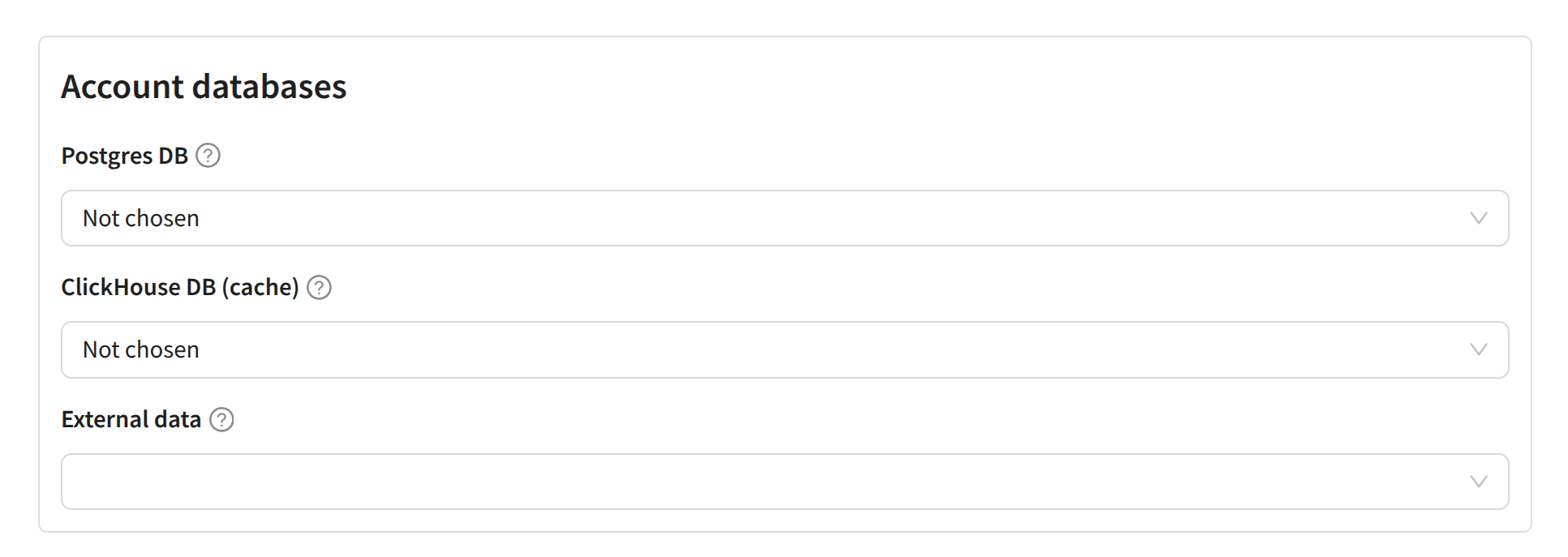
Account Databases
In this section, specify previously created database connectors required for the platform:
- Postgres DB — used by the Market module to store product and order data.
- ClickHouse DB — used to store history, statistics, and build custom reports. These data serve as the basis for segments and reports.
- External data — SQL connectors for integration with external infrastructure.
When deploying platform components in a cluster to implement a fault-tolerant operation scheme, configuration records must be created for each MongoDB shard and each SSDB replica, and added to the account.
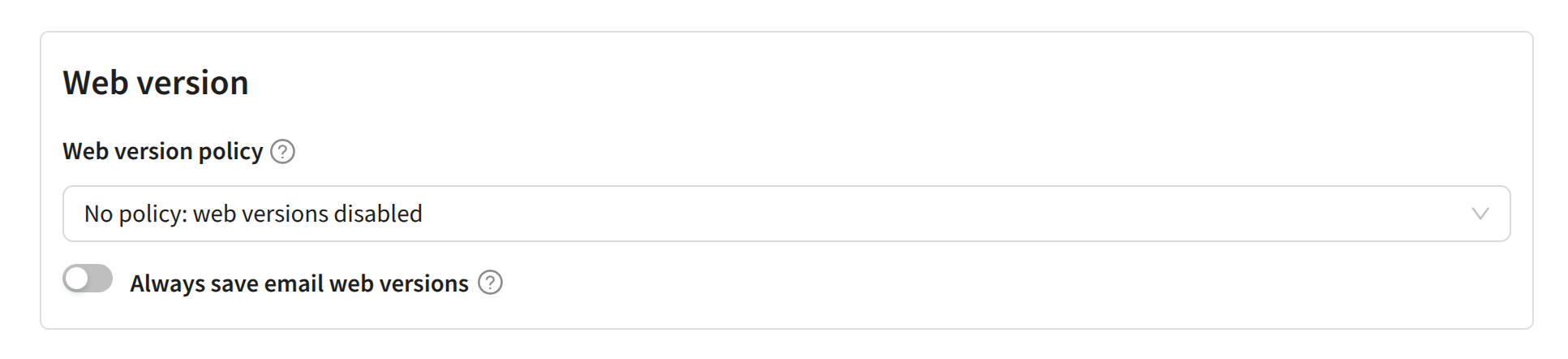
Web Version Settings
In this section, specify the web version storage policy for the account. Channels and retention periods are configured when creating a separate policy. Here you can also enable saving web versions of all email messages:
Additional Settings
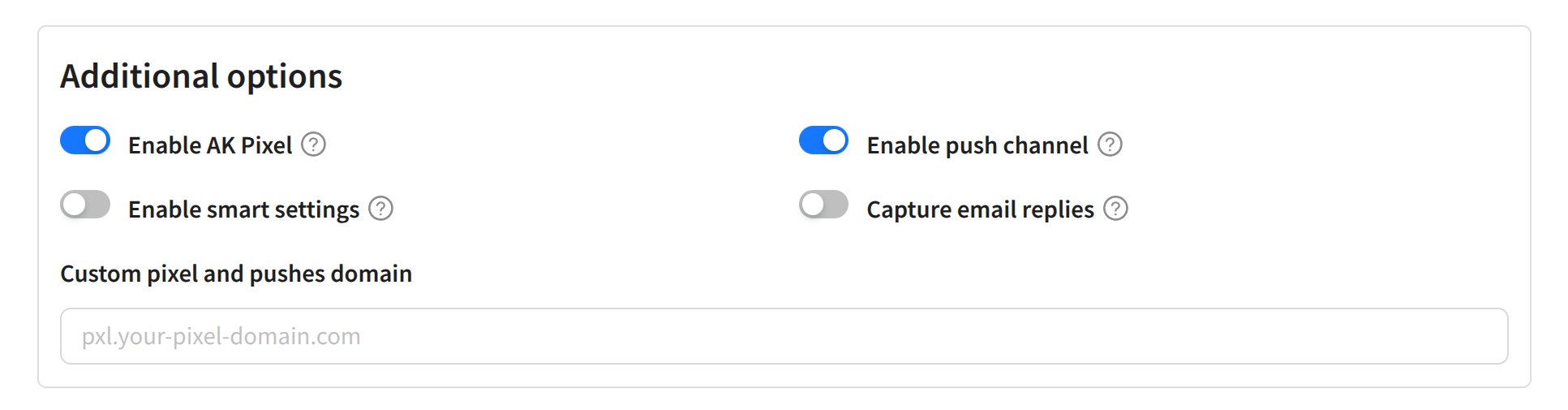
The following additional account settings are available:
- Enable AK Pixel — enable tracking pixels for the account.
- Enable smart settings — activate advanced campaign settings such as hidden copy and unconditional sending.
- Enable push channel — enable Web Push channel for the account.
- Capture email replies — enable collecting replies to email messages.
For pixels and Push notifications to work, you must also specify a cookie processing domain.
Notifications
Additionally, you can set the day of the week for sending weekly email reports to account users (Send weekly reports on) and the hour for daily reports (Send daily reports at):

Authorization
In this section, you can configure the following parameters:
- Force 2fa for users — enable mandatory two-factor authentication for account users.
- Use LDAP — allow employees to use corporate directory credentials, such as Active Directory, to log into the platform with the appropriate set of groups and access roles.
A step-by-step guide for configuring LDAP access to Altcraft is available here.

Managing an Existing Account
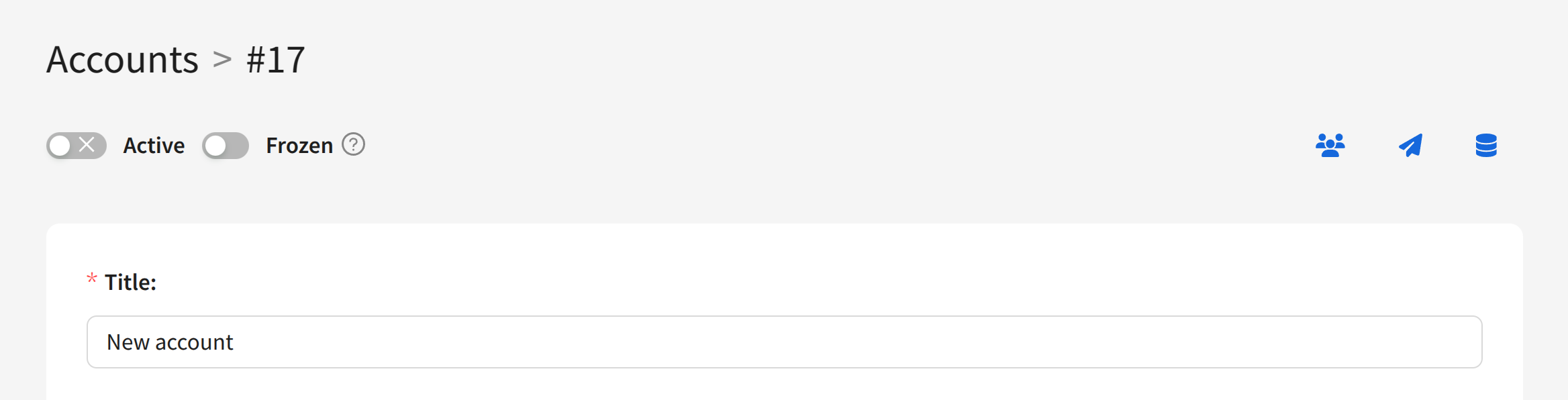
When the account is saved in the platform, the following features become available:
- Managing account users (Users)
- Managing virtual senders (Virtual senders)
- Managing account databases (Account Databases)
- Activation and deactivation of the account. You can also configure notifications about deactivation to be sent to account users.
- Freezing the account. When an account is frozen, creating and editing objects is not available.
You can access these settings from the interface of an existing account:
Or from the account list using the quick action buttons on the right side of the table: