External data configuration
A step-by-step guide for integrating with external databases is available here!
Description
External Data Configuration is an Altcraft platform tool designed for integration with external SQL databases.
Capabilities
- Scheduled import of customer data
- Segmentation of subscribers by external databases
- Dynamic content in message templates
Creating, Editing, and Deleting
Integration with external SQL databases is configured in the Altcraft Admin Panel, while queries to databases and scheduled imports are created in the account’s user interface.
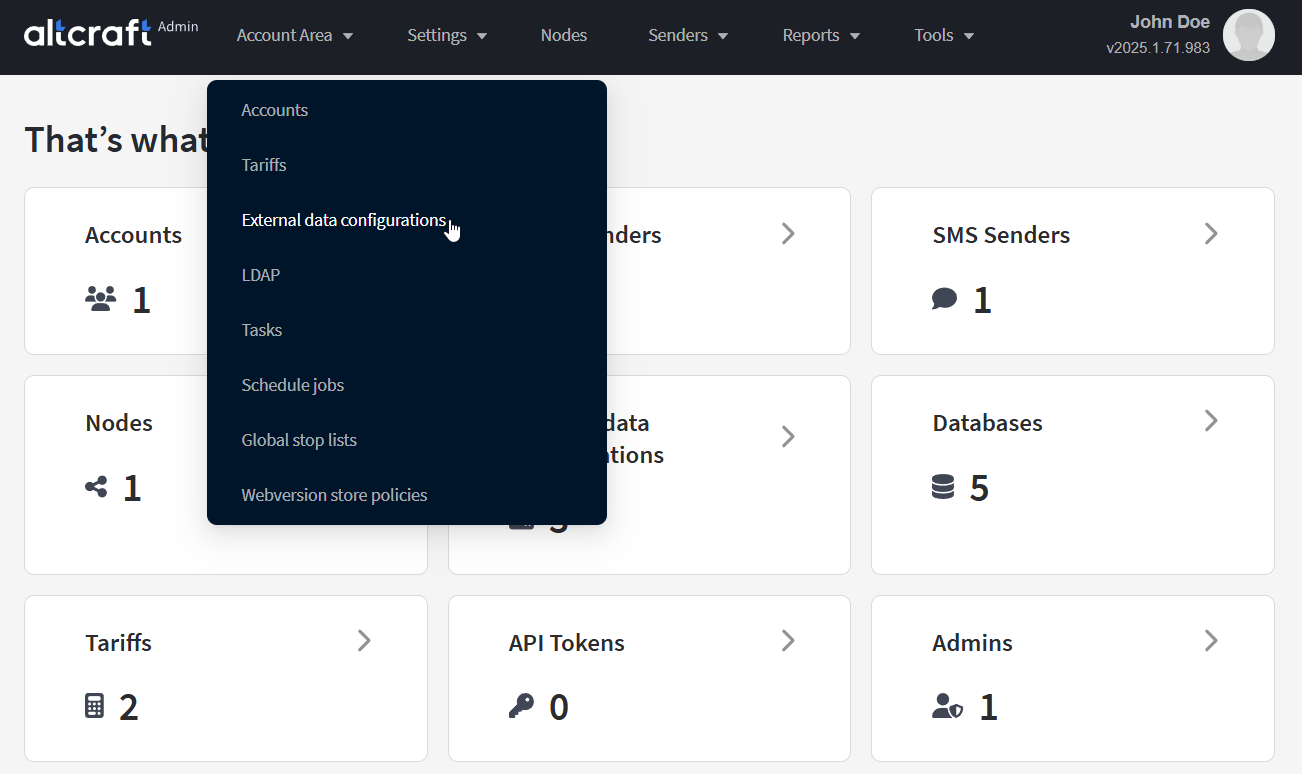
To manage external data source connections, in the main menu select Account Area — External data configurations.
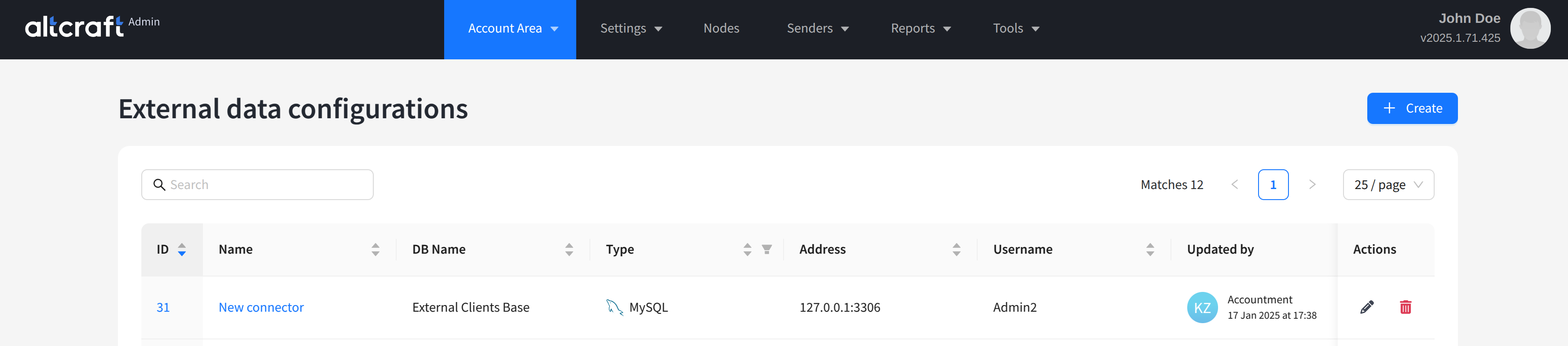
The list displays existing connectors to external databases. On the right side of the table are the edit and delete buttons. You can also click the connector identifier on the left to edit. To create a new connector, click + Create:
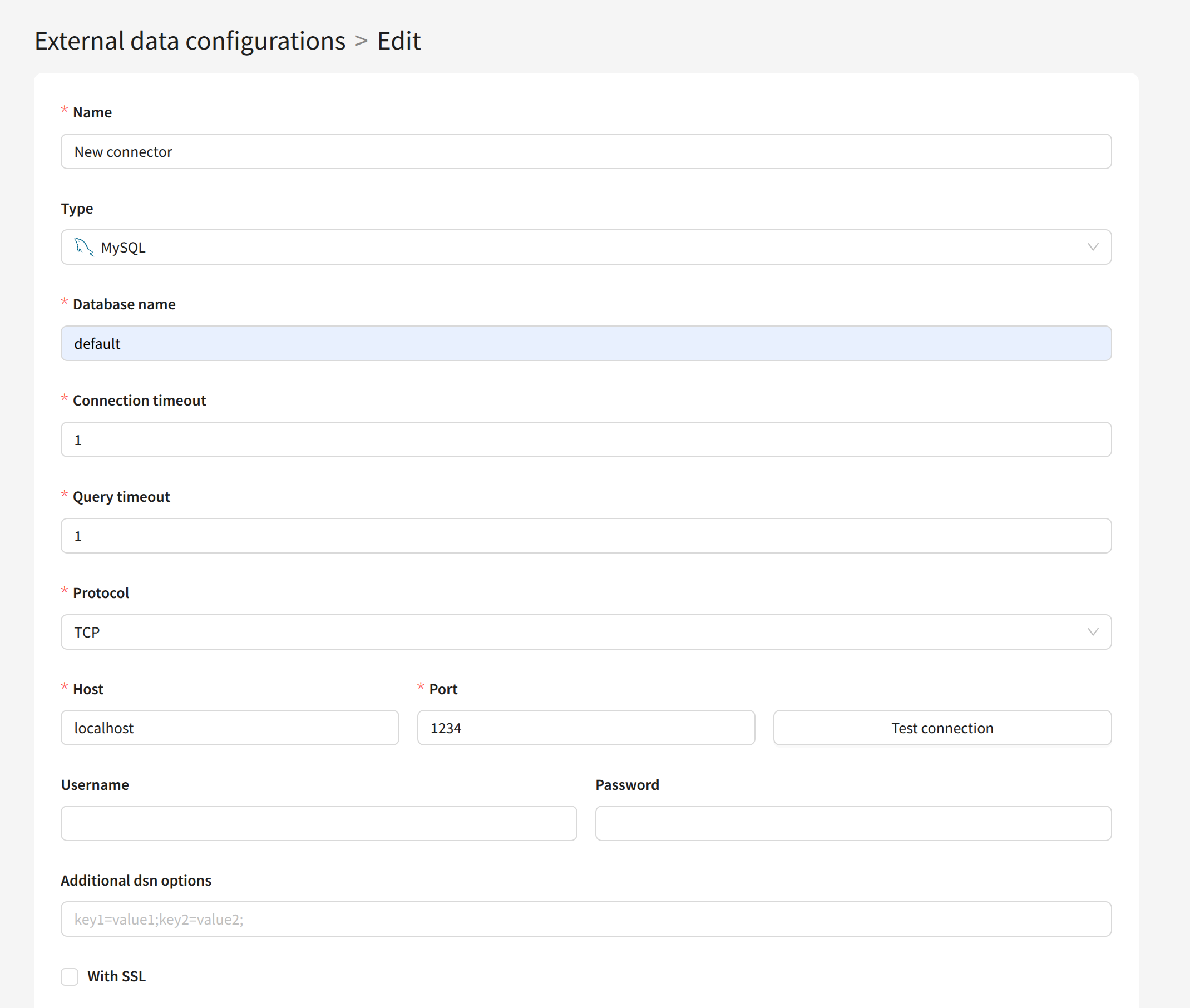
For each connector, specify the following details:
Name — connector name.
Type — the DBMS type of the external database. Supported types are MySQL, PostgreSQL, MSSQL, Oracle, Hive, and ClickHouse.
Database name — name of the external database.
Connection timeout — connection query timeout to the database.
Query timeout — SQL query execution timeout.
Protocol — network protocol for connection. Supported protocols are TCP, UDP, and UnixDomain.
Host — server IP address hosting the external database.
Port — server port of the external database.
Username, Password — login and password for database authorization.
Additional dsn options — additional dsn parameters.
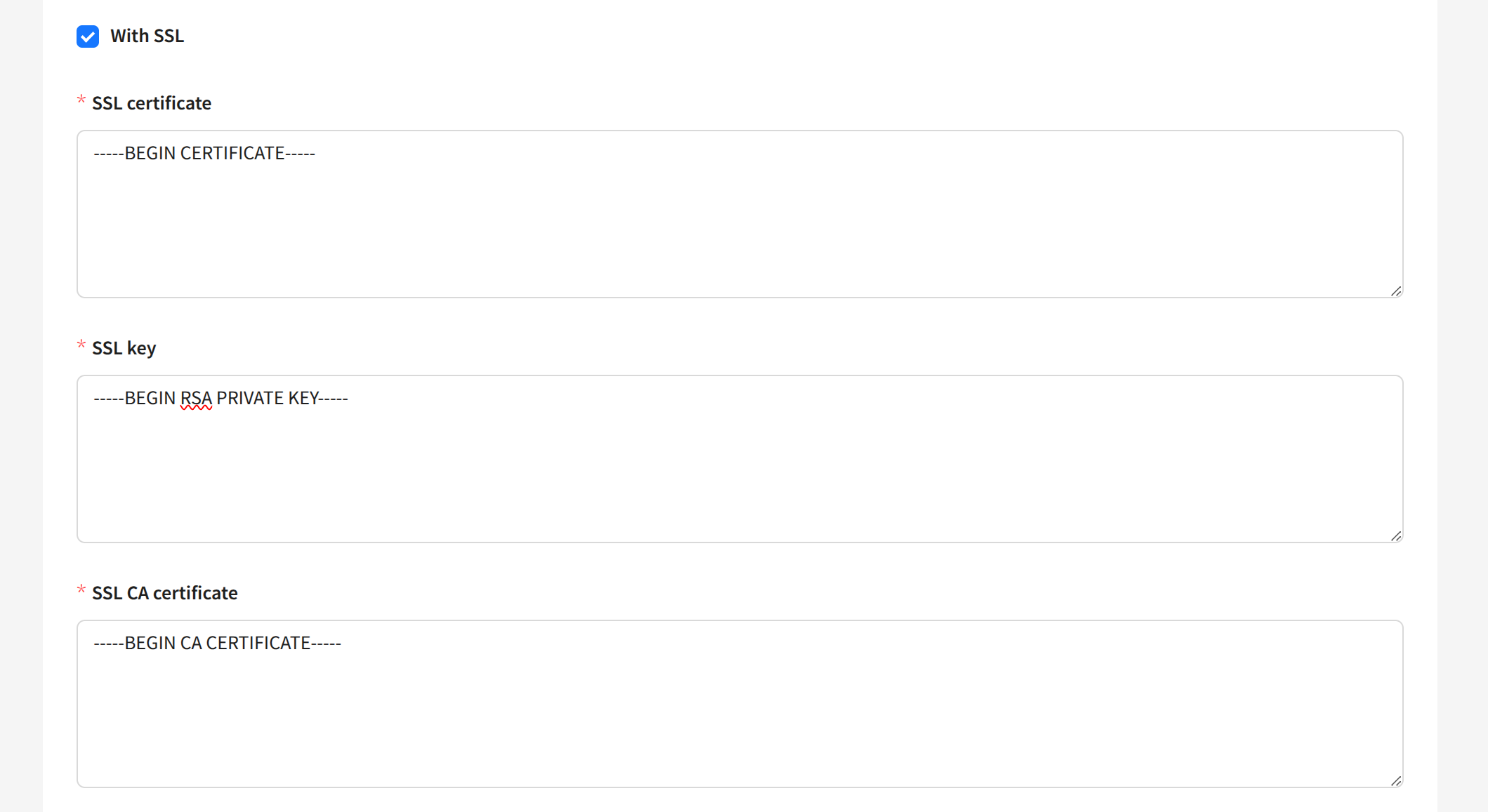
With SSL — connect the database to the platform via SSL connection. Available for MySQL, PostgreSQL, and ClickHouse.
Hive DBMS supports different authentication types: PLAIN, GSSAPI (Kerberos), LDAP (also PLAIN), and custom types. Authentication itself is configured in Hive’s config; in the platform’s dsn option, you need to specify the required auth parameter (NOSASL, PLAIN, GSSAPI).
You can specify the Collation used for connecting to the database in the Additional dsn options field using the collation_connection= key.
When using SSL connection, you must add an SSL certificate, SSL key, and SSL CA certificate in PEM format: