Account Virtual Senders
Description
Virtual senders group the platform’s real senders and set rules and proportions for sending through them. Managing account user accounts is available both in the Altcraft Admin Panel and in the User Interface. This article covers the Admin Panel functionality.
Users can select a virtual sender in campaign Smart settings. To enable this, the Smart settings option must be activated for the account. If Smart settings are not activated, the first matching virtual sender will be used for campaigns.
Creating, Editing, Deleting
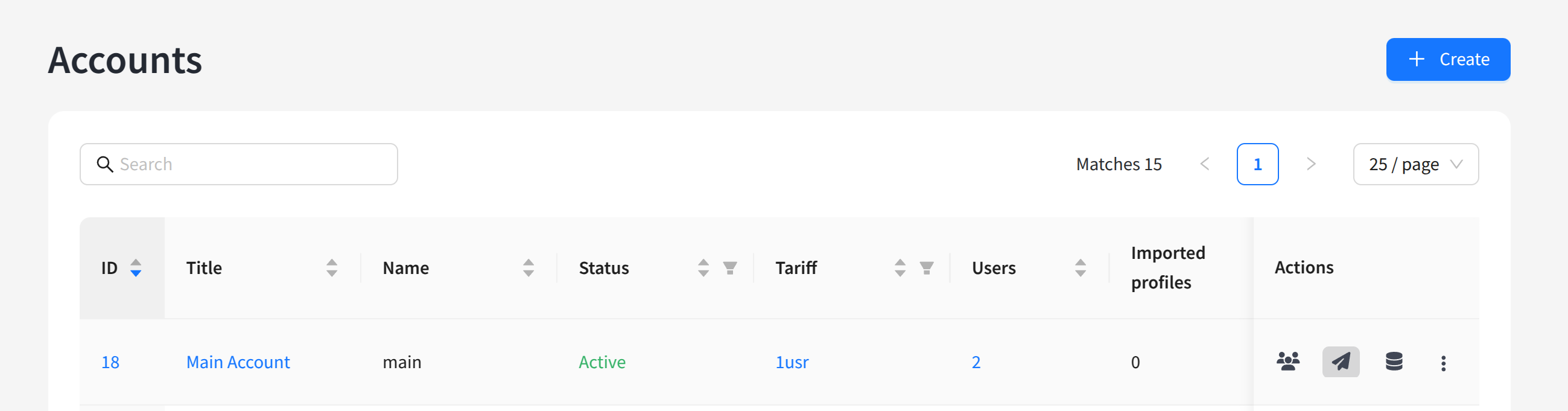
To manage virtual senders, in the list of accounts click the quick action button:
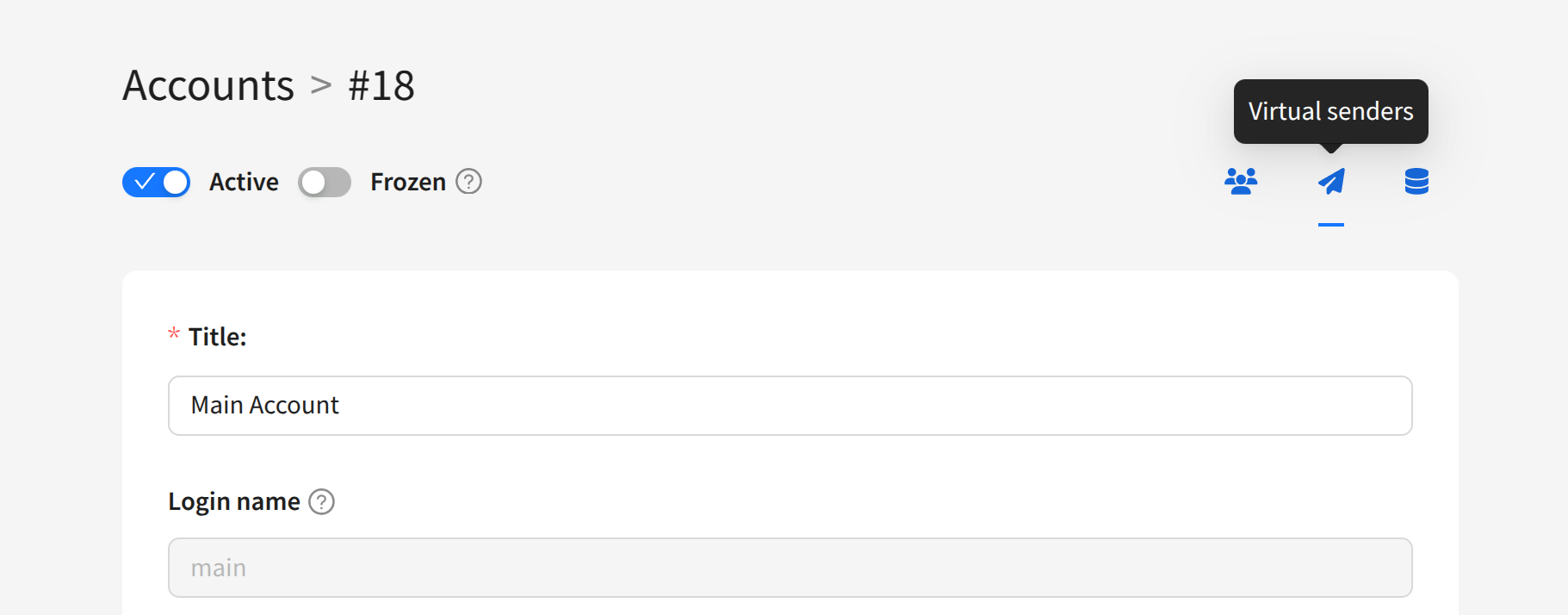
Or open the account editing screen and click the Virtual senders button:
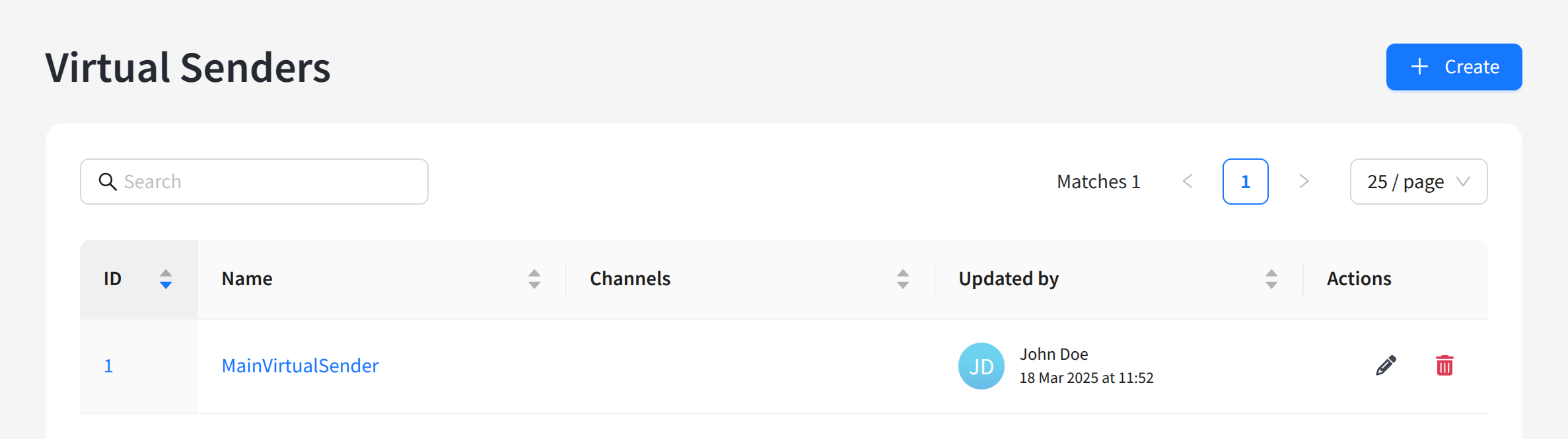
The list of existing virtual senders will open. On the right side of the table are the edit and delete buttons. You can also click the virtual sender identifier on the left to edit. To create a new virtual sender, click + Create:
General Settings
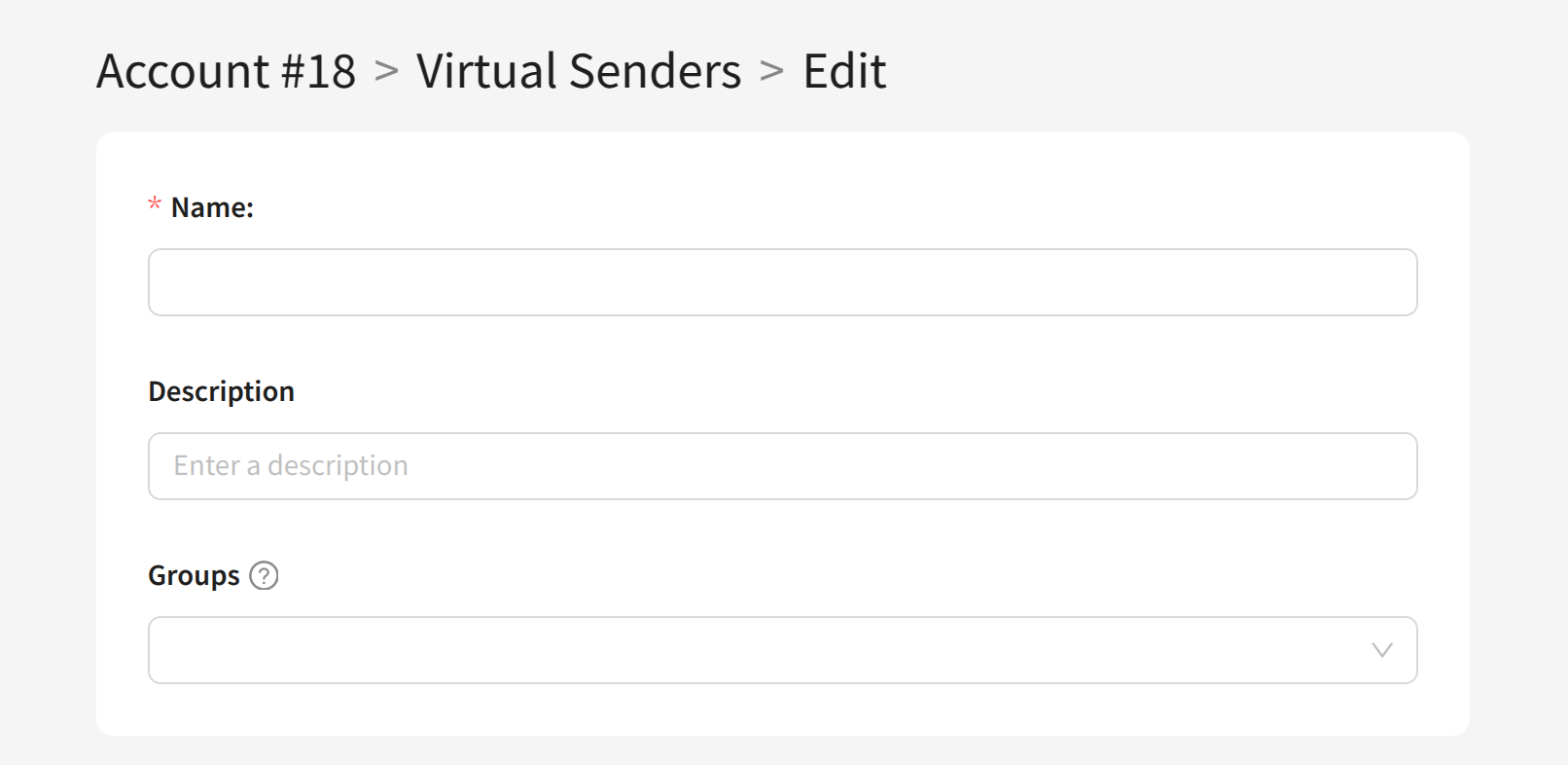
In the general settings, specify a unique Name for each virtual sender and assign the account object Groups where the virtual sender will be available (Groups):
Email Sender Rules
Email sender rules determine which real senders and in what proportions will be used under certain conditions. To add a rule, click + Add rule.
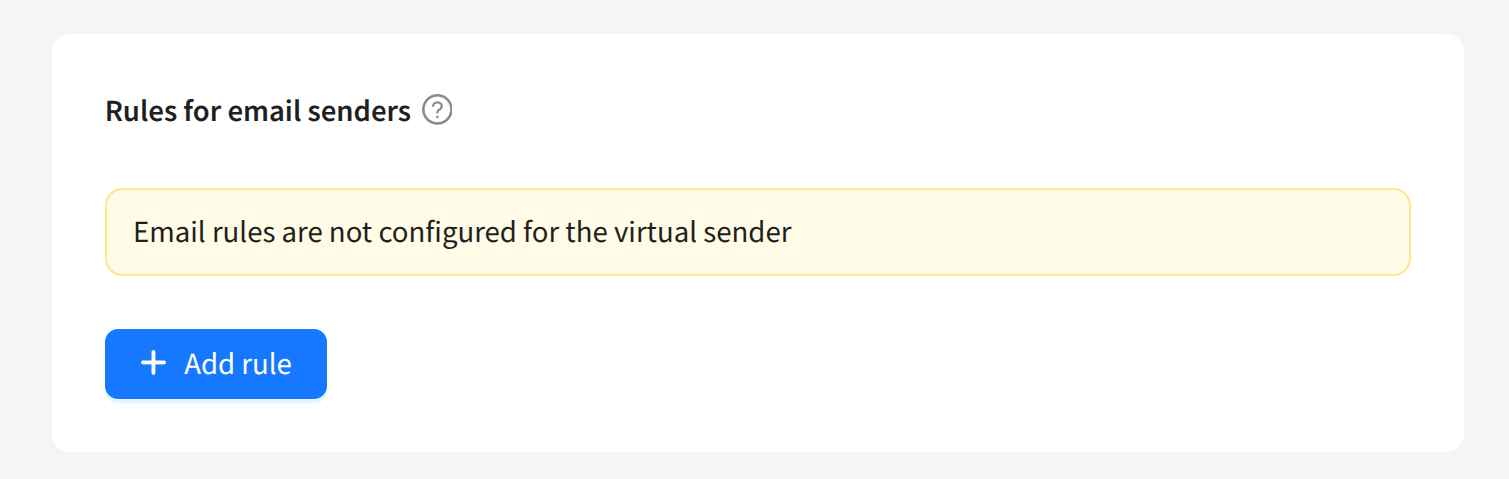
Select the appropriate condition in the Rule dropdown menu:
- Match by Group — applies to email campaigns in a specific account object Group.
- Match by From domain — applies to sends from a specific domain.
- Match by To domain — applies to sends to specific email domains.
- Default (match all) — applies to all sends.
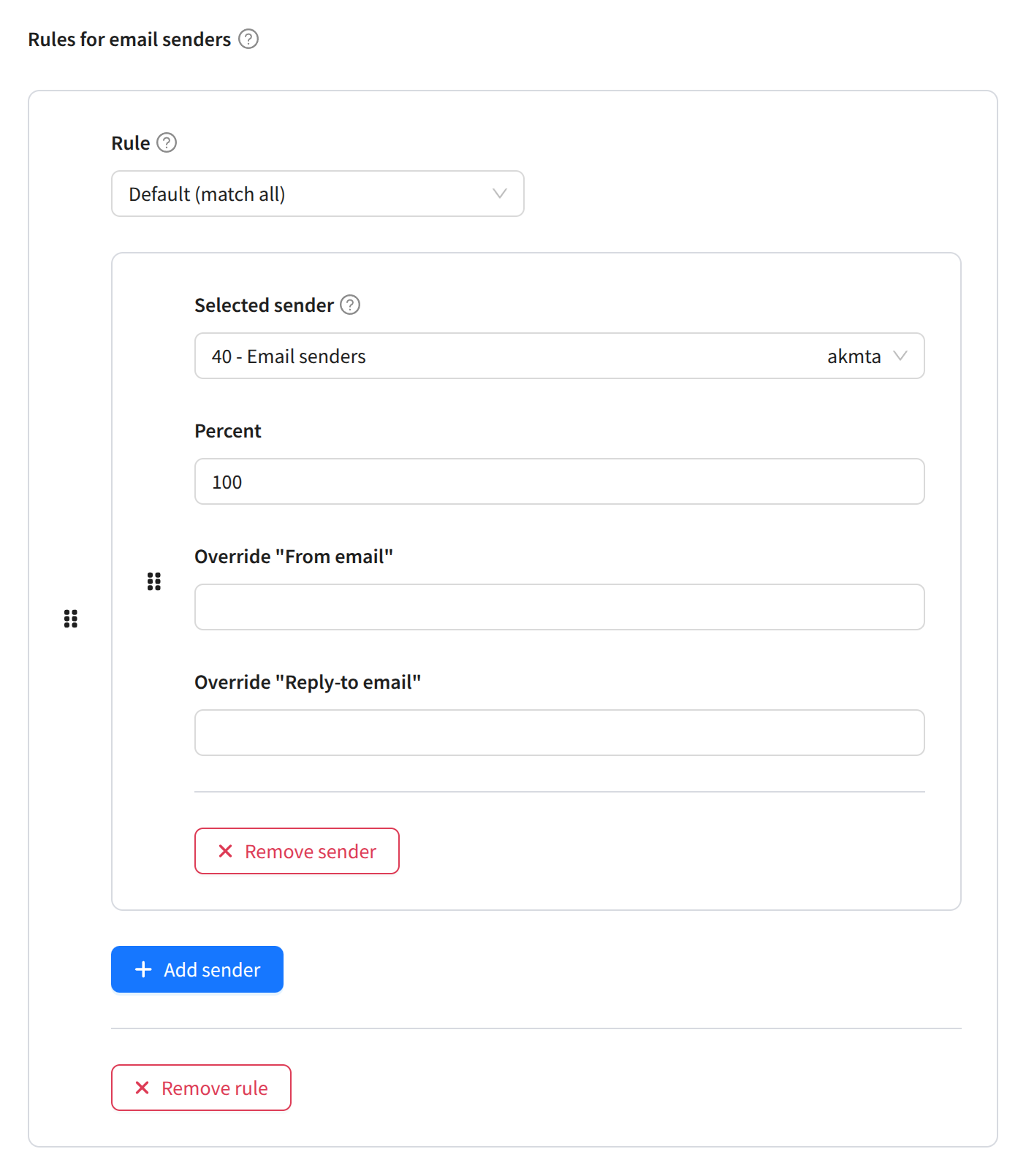
Rule priority is determined by their position on the page: top to bottom. The Default (match all) rule must always be last. You can adjust the priority of other rules using the Move up and Move down buttons. To delete a rule, click Remove rule.
The default rule Default (match all) cannot be deleted or moved up because it handles all case