Apple Push Notification Service
You can configure APNS using either an authorization key or a certificate. The setup method depends on the selected option.
Option 1: using an Auth Key
Step 1. APNS configuration
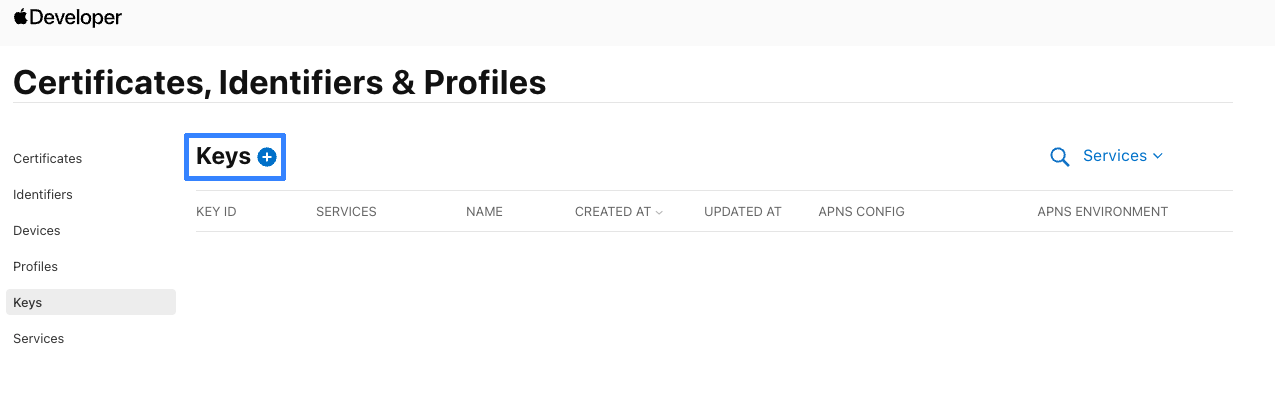
Go to the Apple Developer website, section Account. Navigate to Certificates, Identifiers & Profiles — Keys. Create a new Key:
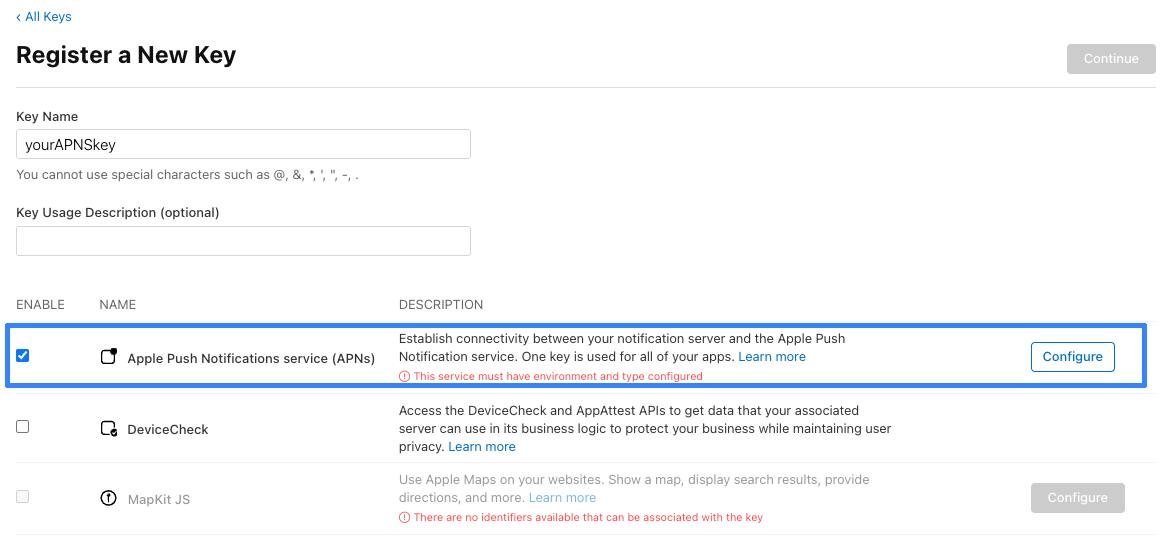
Select Apple Push Notification service:
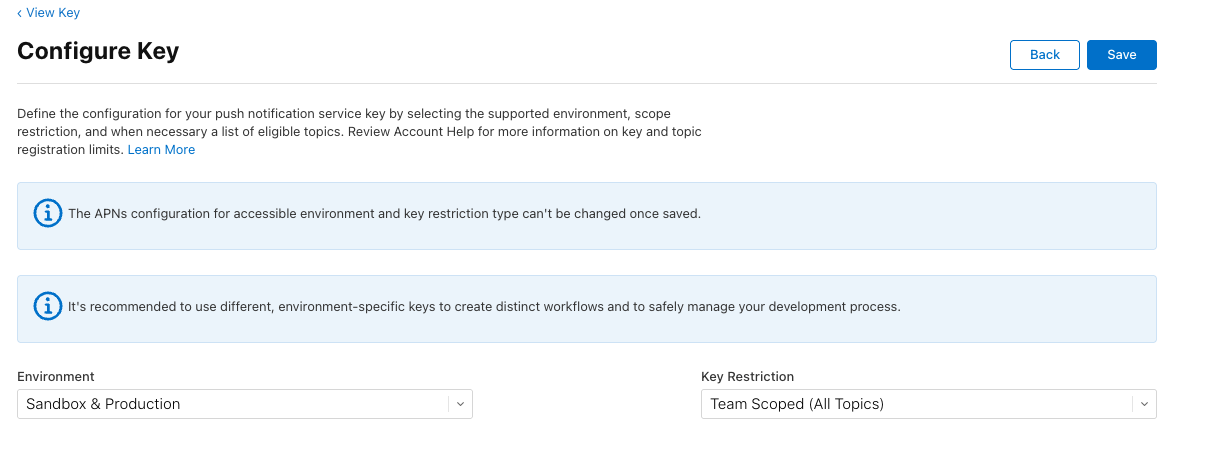
Configure APNs. Click Configure and select the Environment based on your setup:
Register the key:
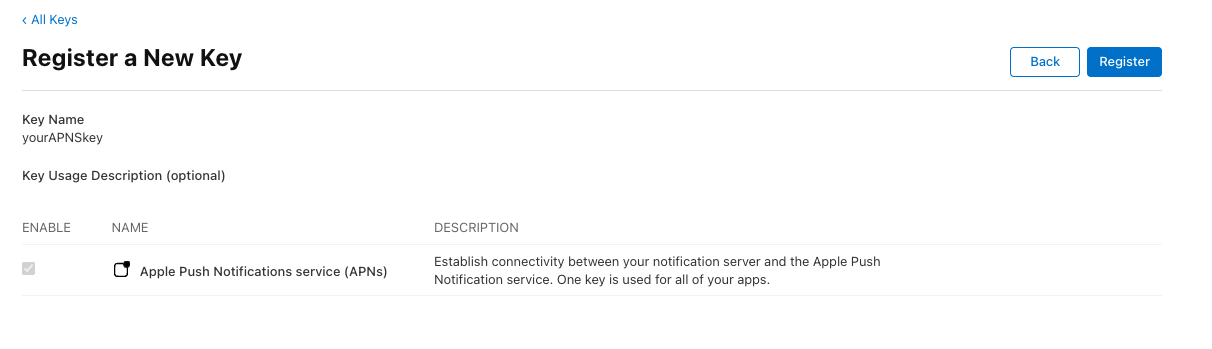
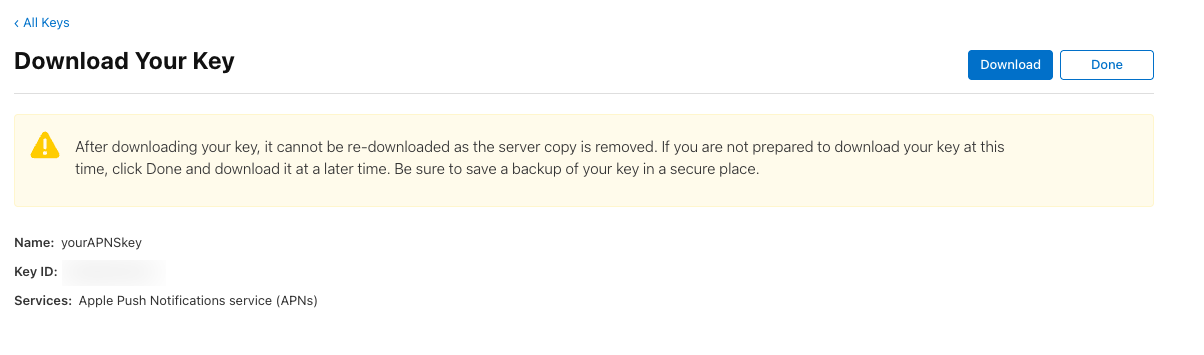
Apple Developer allows the created key to be downloaded only once. Make sure to store it securely. After download, it cannot be retrieved again:
Step 2. Altcraft resource configuration
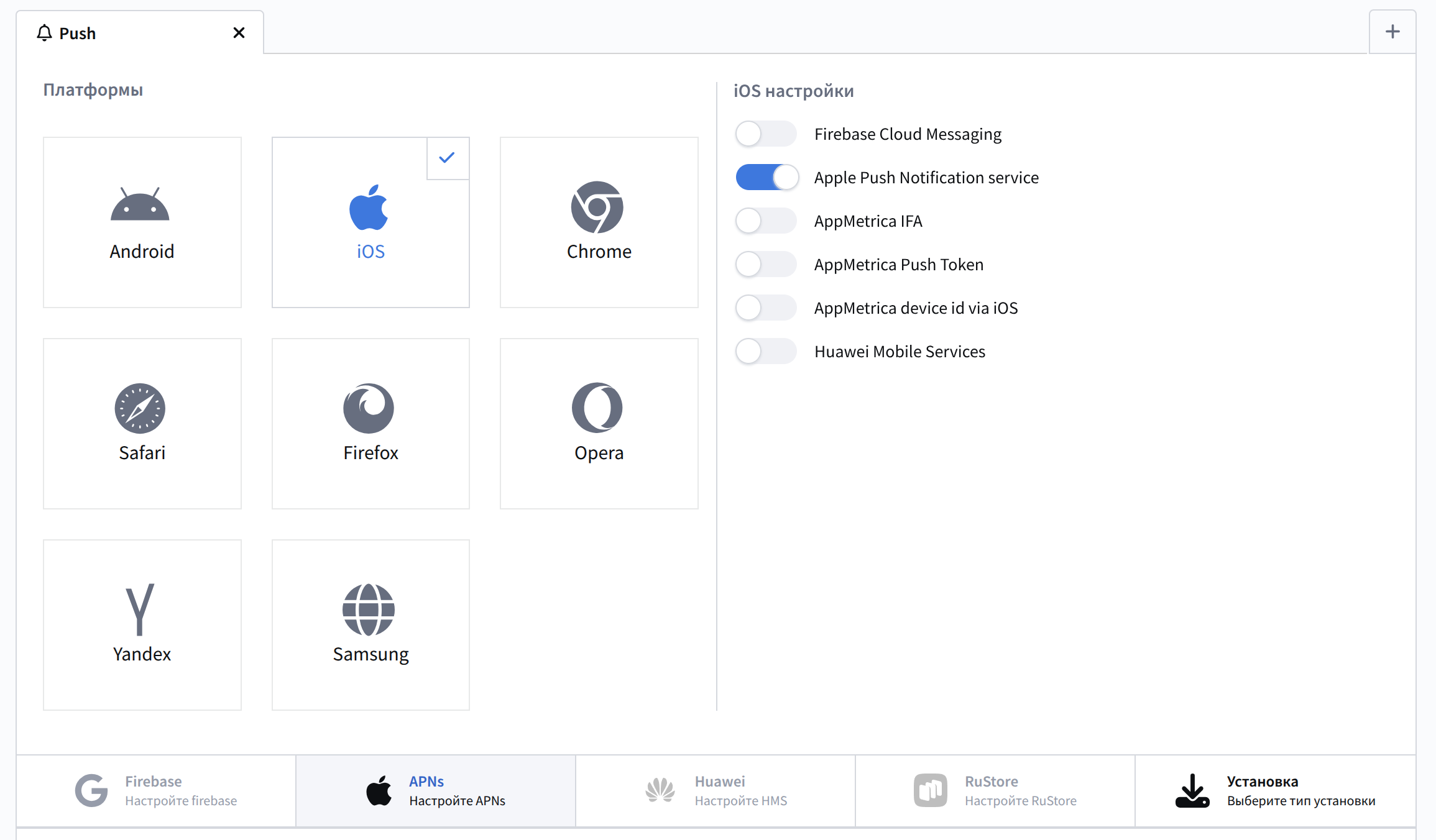
Configure the resource in the platform. Add a Push channel and enable Apple Push Notification service:
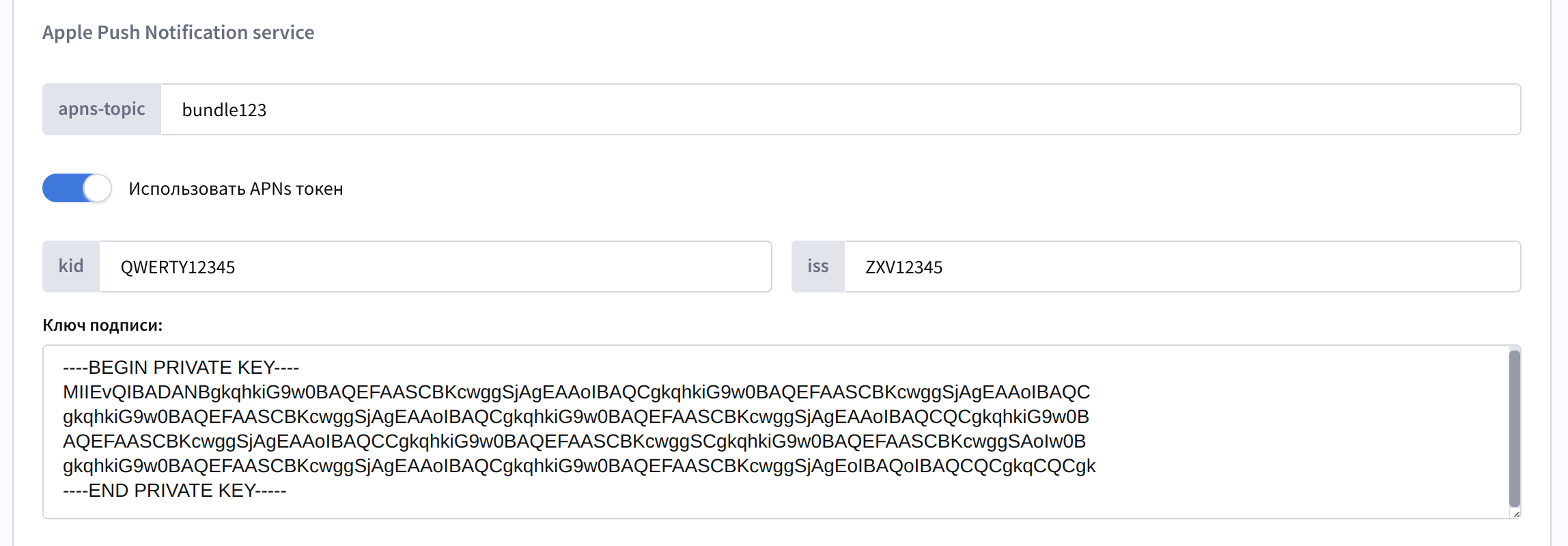
Enable Use APNs token and fill in the following fields:
- apns-topic — the app Bundle ID
- kid — the key ID created in the previous step. It is available in Certificates, Identifiers & Profiles — Keys on the Apple Developer website
- iss — the Team ID from the Apple Developer website
- Signing key — the created Auth Key. To add it, open the downloaded p8 file in a text editor and copy its contents
Save the resource. Provider configuration is complete. Next, follow the SDK initialization guide.
Option 2: using a certificate
Step 1: APNS configuration
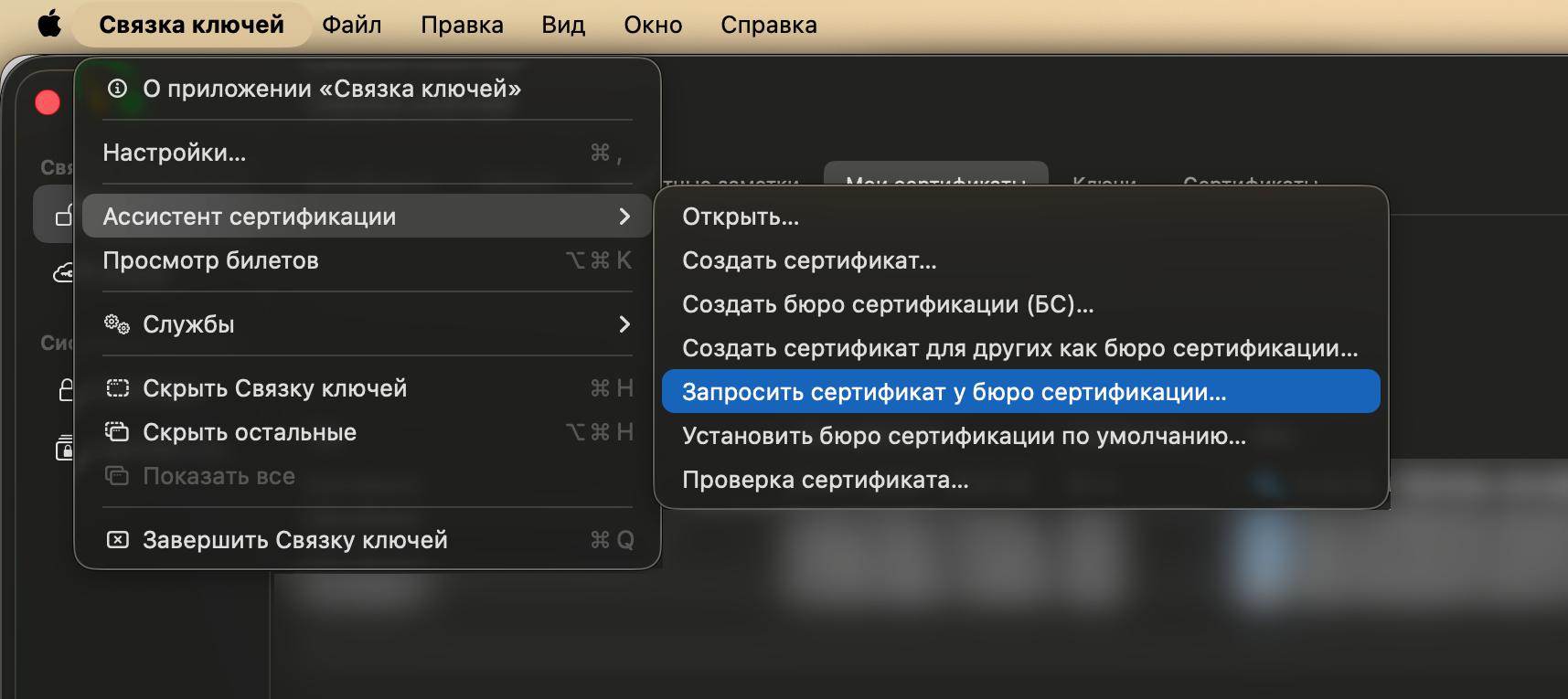
Request a certificate from the Keychain Access certificate authority:
Fill in the required fields and save the file to disk:
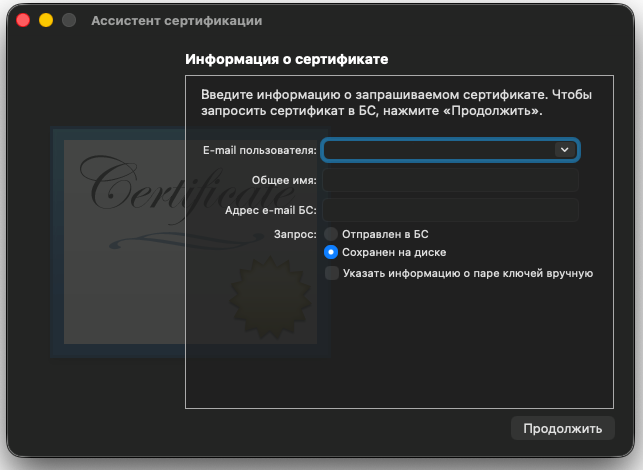
The saved .certSigningRequest file will be needed at the next step.
Go to the Apple Developer website, section Account. Navigate to Certificates, Identifiers & Profiles — Certificates and create a new certificate:
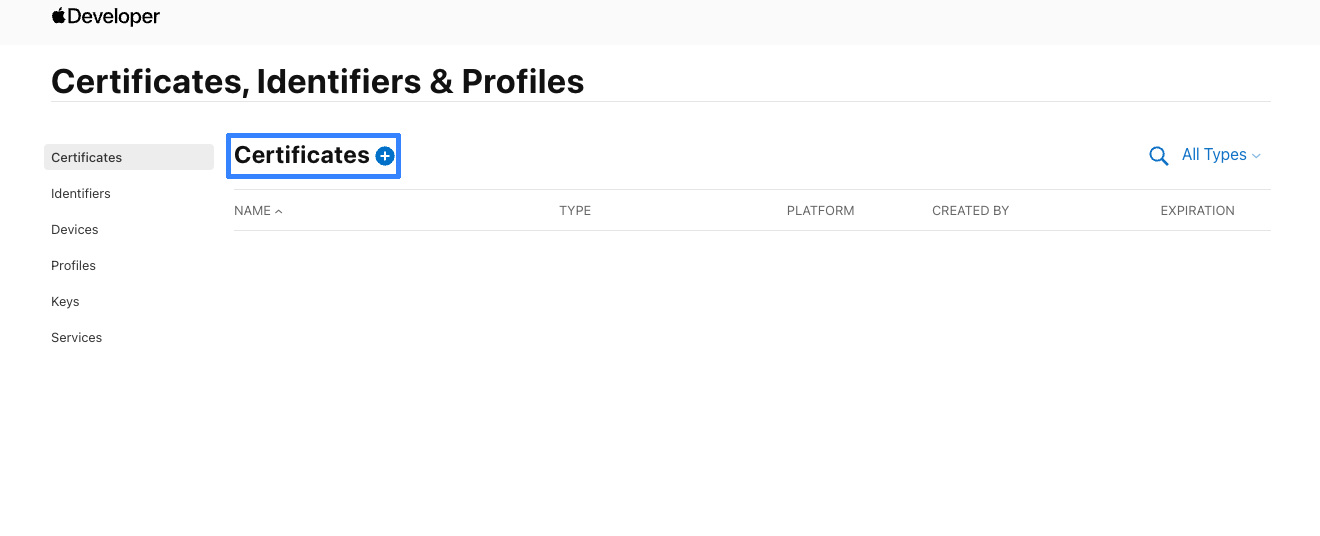
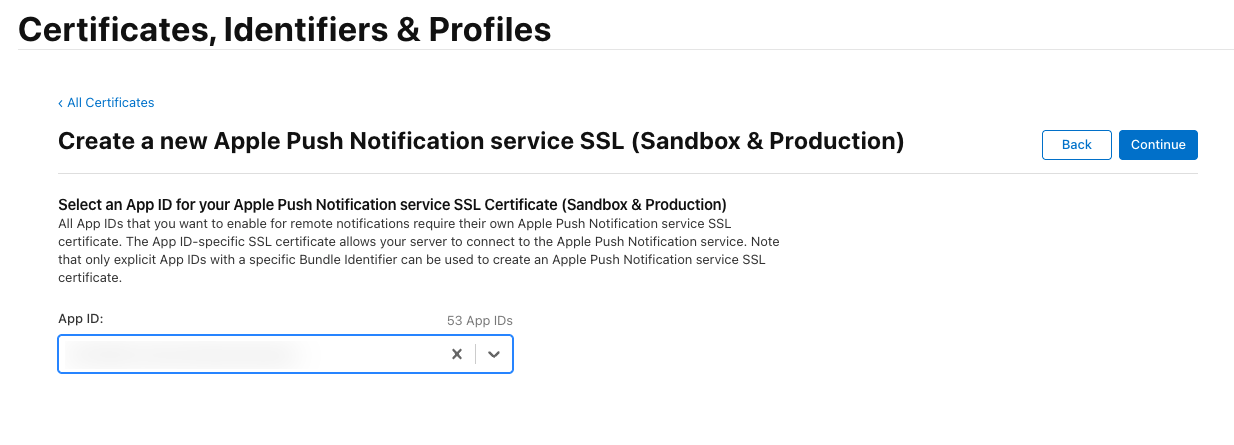
In Services, select Apple Push Notification service SSL (Sandbox) or (Sandbox and Production) depending on the environment. Then choose your app from the list:
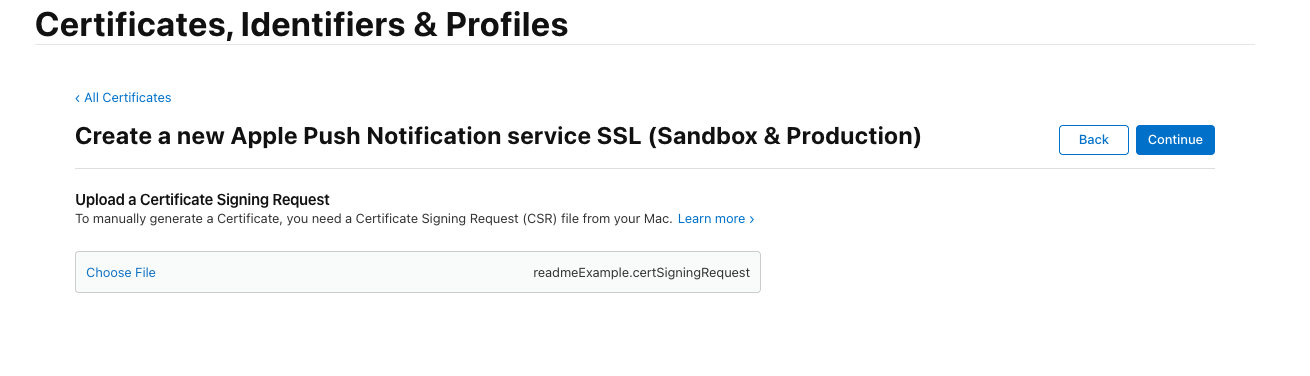
Upload the previously created Certificate Signing Request (.certSigningRequest file):
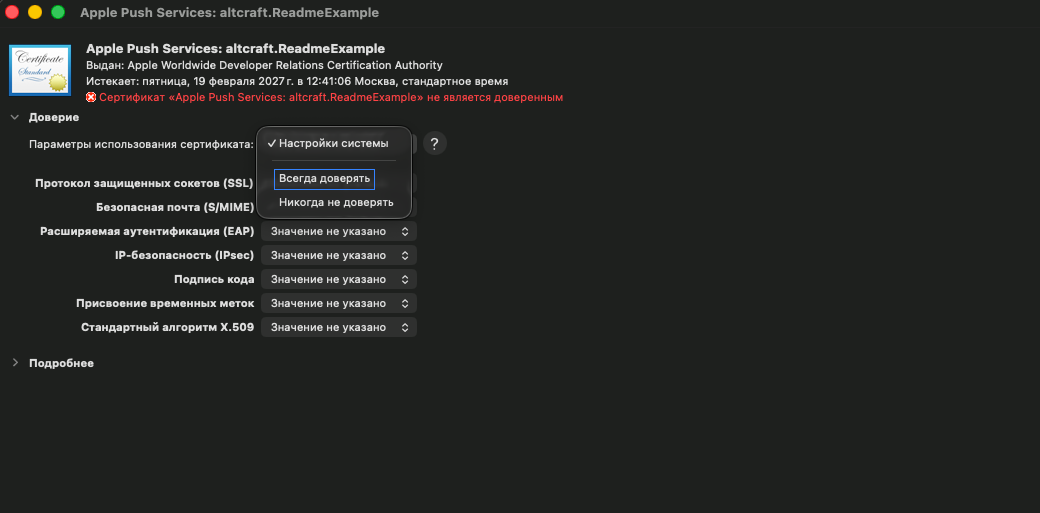
Download the created certificate. Open the downloaded file in Keychain Access. Double-click the certificate and set the trust level to Always Trust:
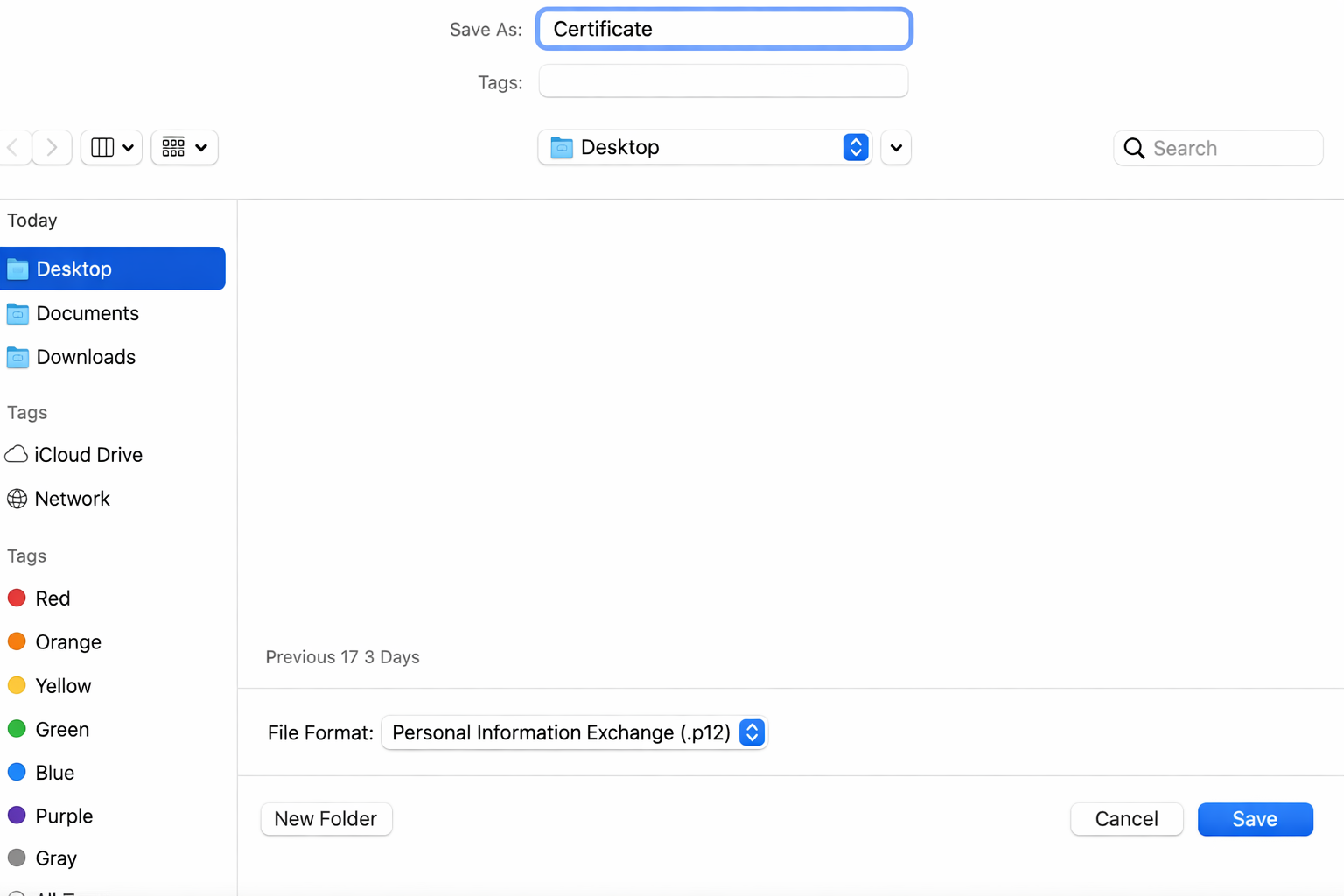
Right-click the certificate and export it as a .p12 file. Set a password if required:
Using Terminal, navigate to the folder containing the exported certificate. Create a pem key using the command openssl pkcs12 -legacy -in filename.p12 -out filename.key.pem -nocerts -nodes, where filename.p12 is the exported file name and filename.key.pem is the name of the resulting PEM key file.
Without closing Terminal or changing directories, create a pem certificate using openssl pkcs12 -legacy -in filename.p12 -out filename.crt.pem -clcerts -nokeys, following the same naming logic (filename.p12 as the source file, filename.crt.pem as the output file).
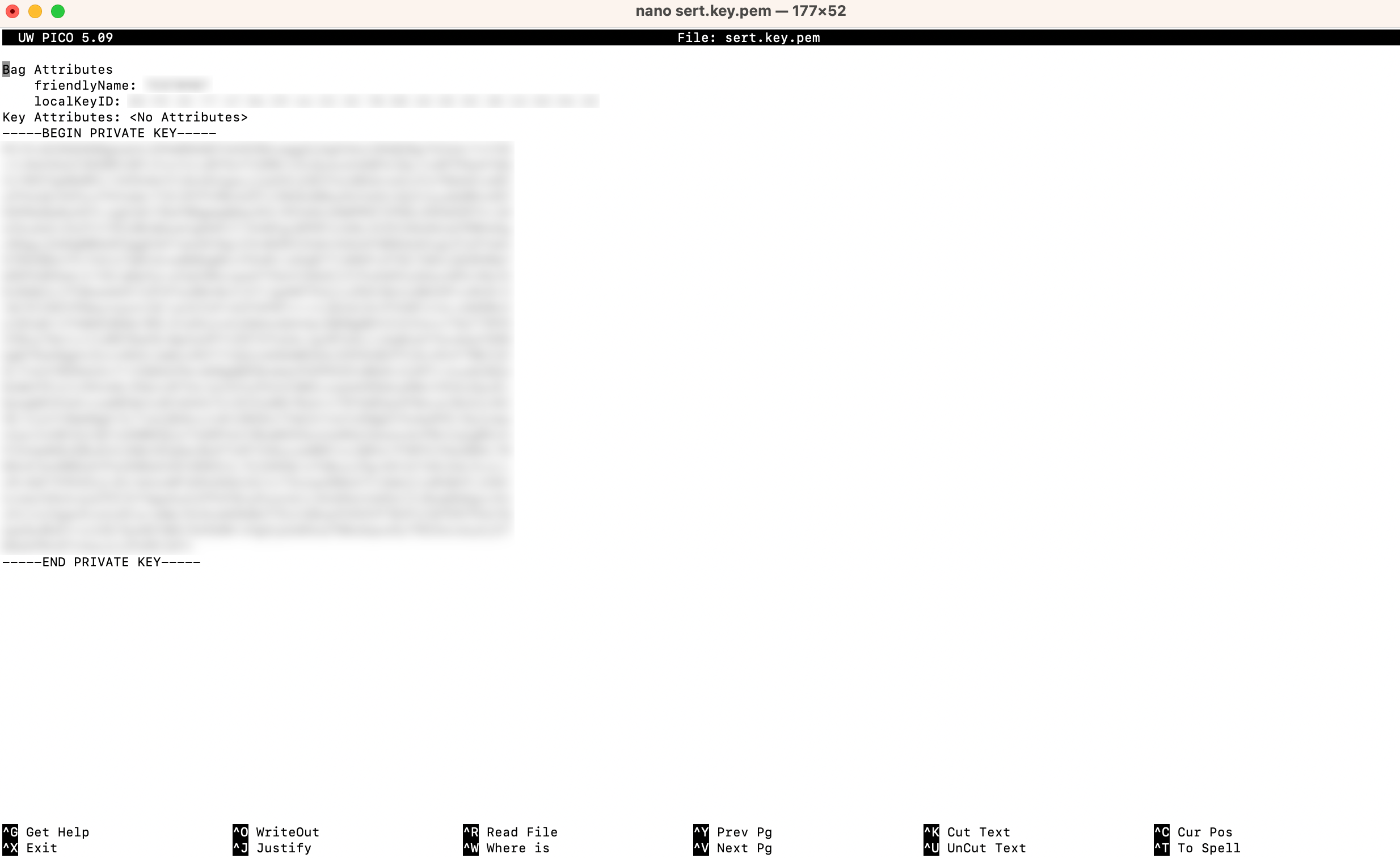
Open both files in Terminal using nano. Their contents will be required in the platform fields at the next step:
Step 2. Altcraft resource configuration
Configure the resource in the platform. Add a Push channel and enable Apple Push Notification service:
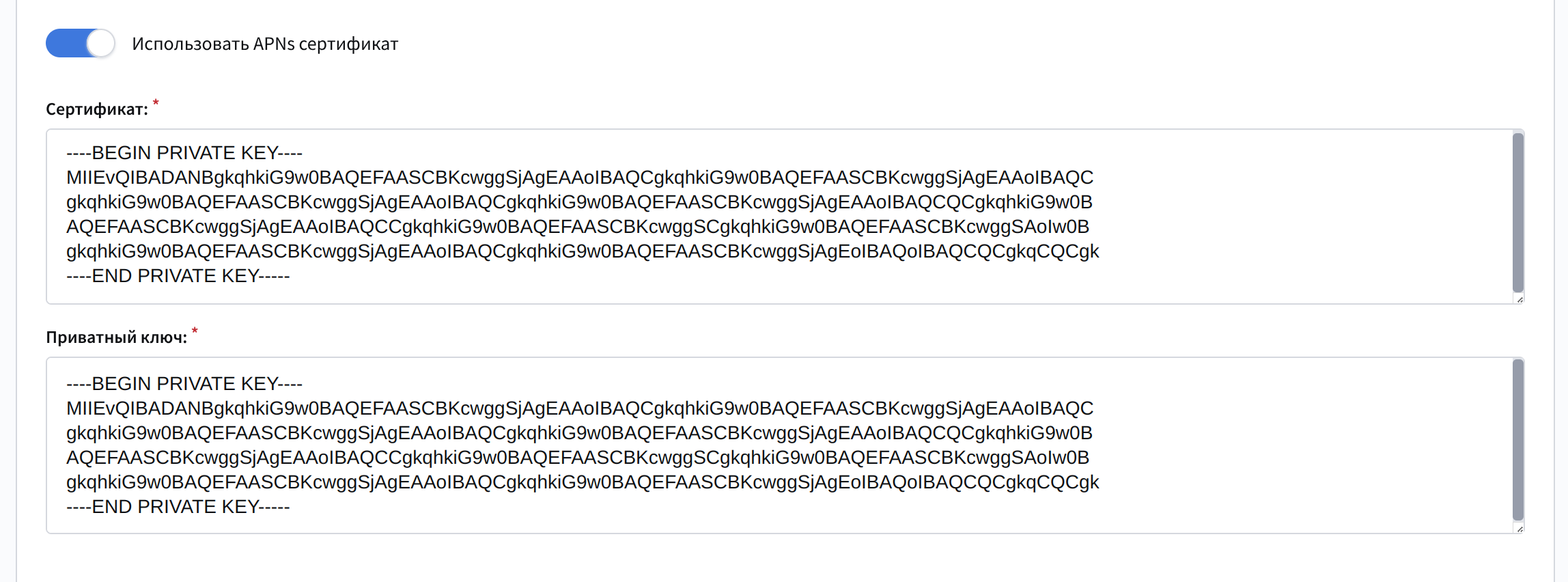
Enable Use APNs certificate and fill in the following fields:
- apns-topic — the app Bundle ID
- Certificate — the certificate file contents
- Private key — the certificate private key value
Save the resource. Provider configuration is complete. Next, follow the SDK initialization guide.