Firebase Cloud Messaging
Firebase Cloud Messaging project settings
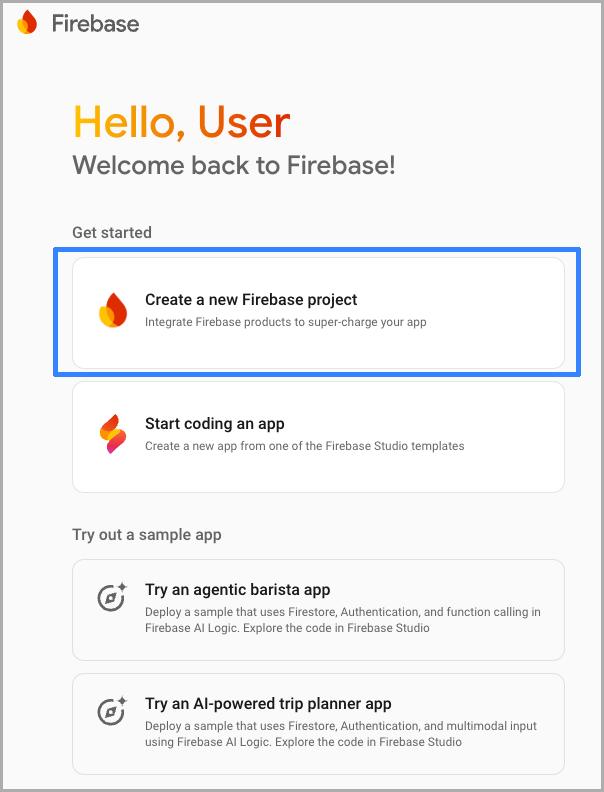
Create a Firebase project:
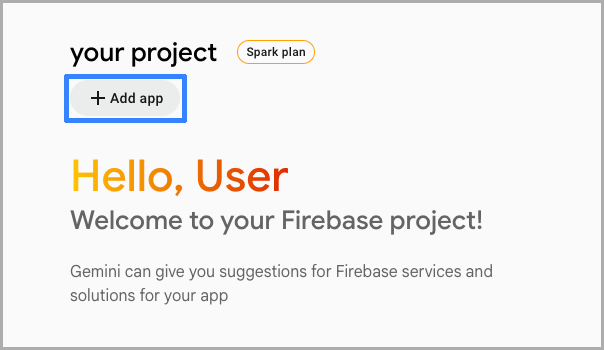
Add the app to the project:
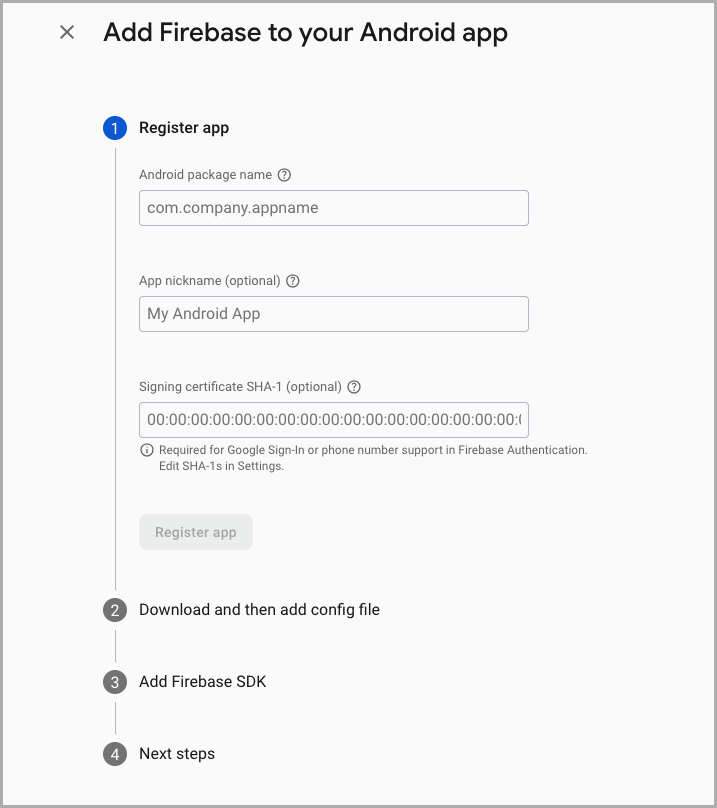
Register the app, filling in the required fields with information about it:
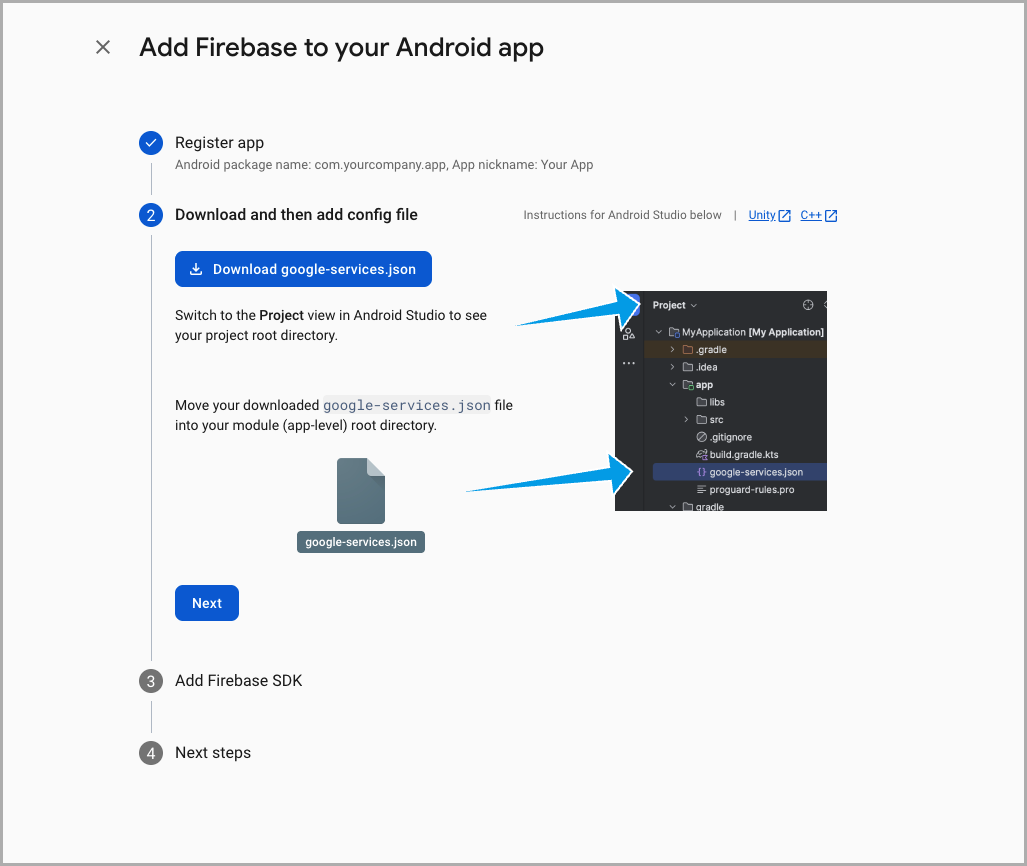
Download the google-services.json file:
Altcraft resource settings
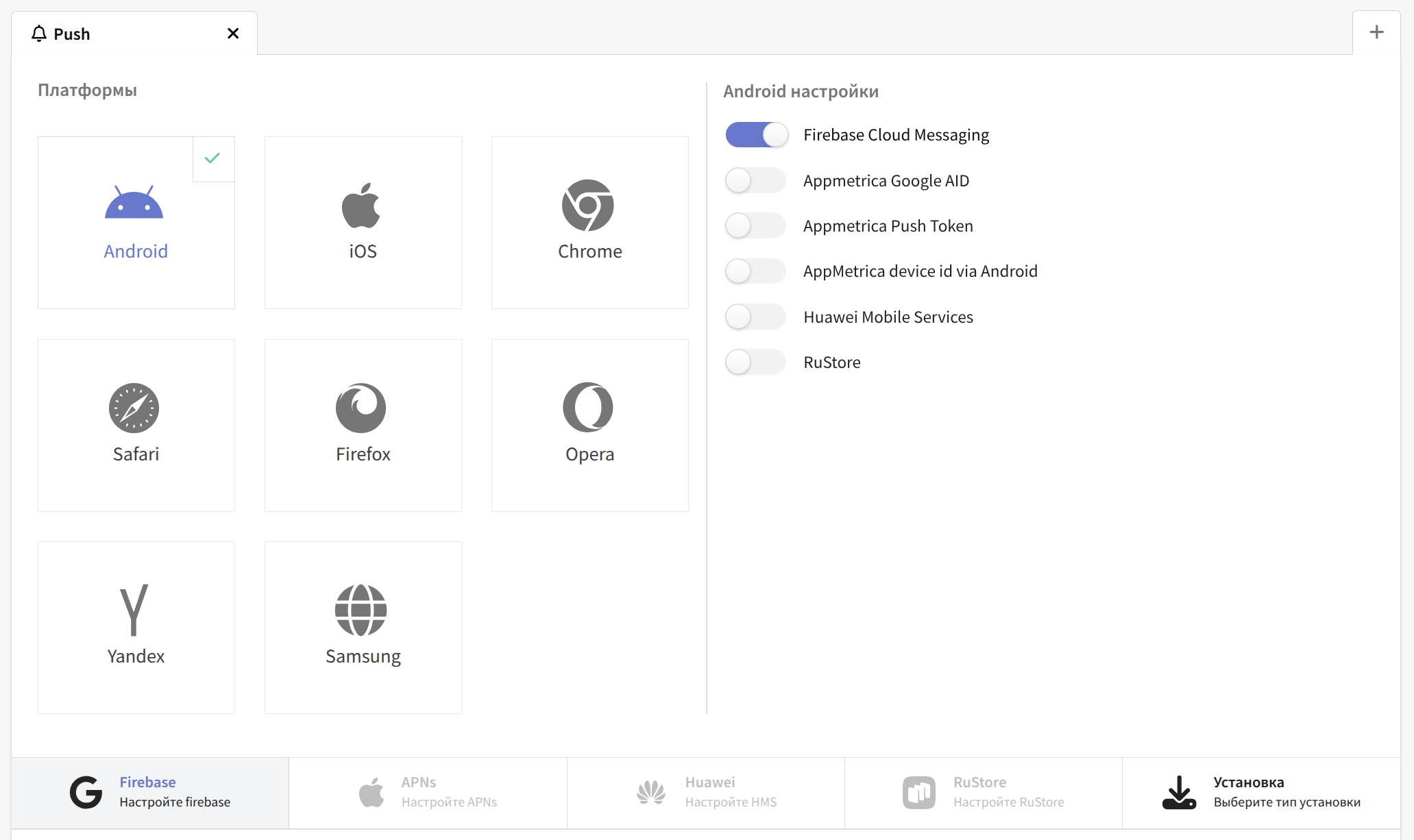
In Altcraft Platform, create a resource or add a new communication channel — Push — to an existing one. Then, in the resource settings, select the Android platform and enable the Firebase Cloud Messaging switch:
A bit lower, go to the Firebase settings and specify the sender identifier (messagingSenderId) and the project identifier (projectId). You also need to upload the Firebase file with the private key (.json):
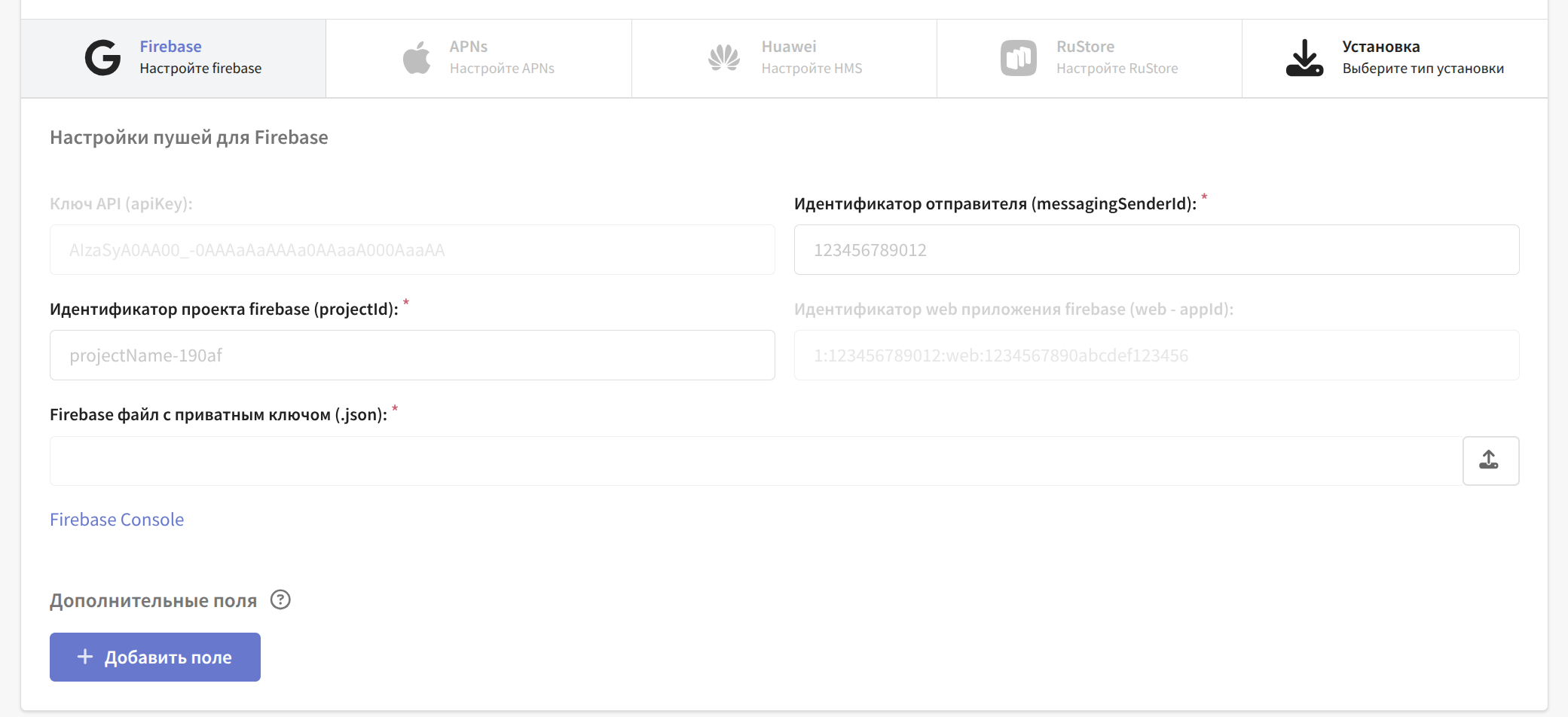
You can create such a Firebase file in Firebase under Project settings -> Service account.
After making the changes, do not forget to save the resource.
Integrating FCM into the app project
Manual integration
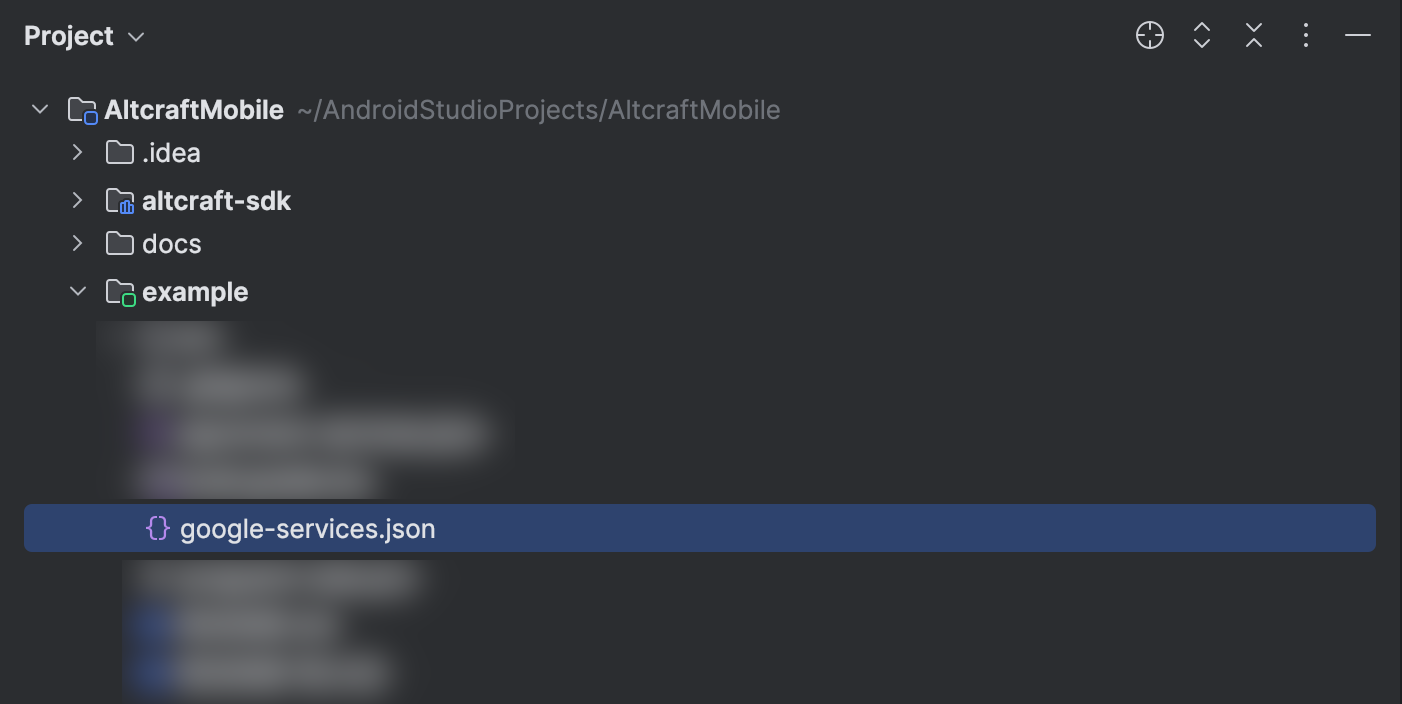
Move the downloaded google-services.json file to the root catalog of the app module (app):
Then add the plugins and dependencies to the Gradle files:
build.gradle.kts (project level)
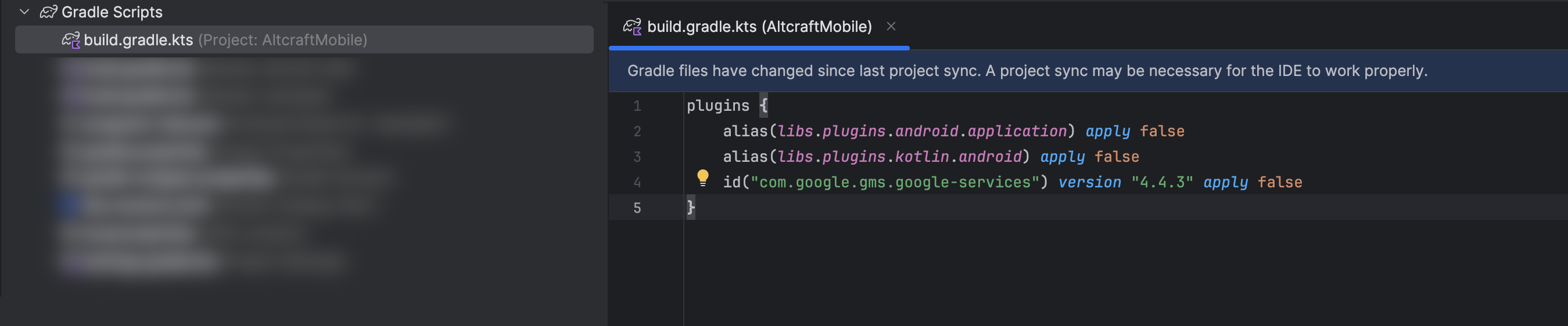
Add the google-services plugin to the project-level build.gradle.kts file:
    plugins {

        id("com.google.gms.google-services") version "4.4.3" apply false

    }
Information about the current version of the plugin is available here.
build.gradle.kts (applevel)
Add the google-services plugin to the app-level build.gradle.kts file
    plugins {

        id("com.google.gms.google-services")

    }
Also add the dependencies:
Using firebase-bom (allows versions of firebase libraries to be specified automatically)
    dependencies {
   implementation(platform("com.google.firebase:firebase-bom:34.0.0"))
     implementation("com.google.firebase:firebase-messaging")
    }
Without firebase-bom
    dependencies {
     implementation("com.google.firebase:firebase-messaging:25.0.0")
    }
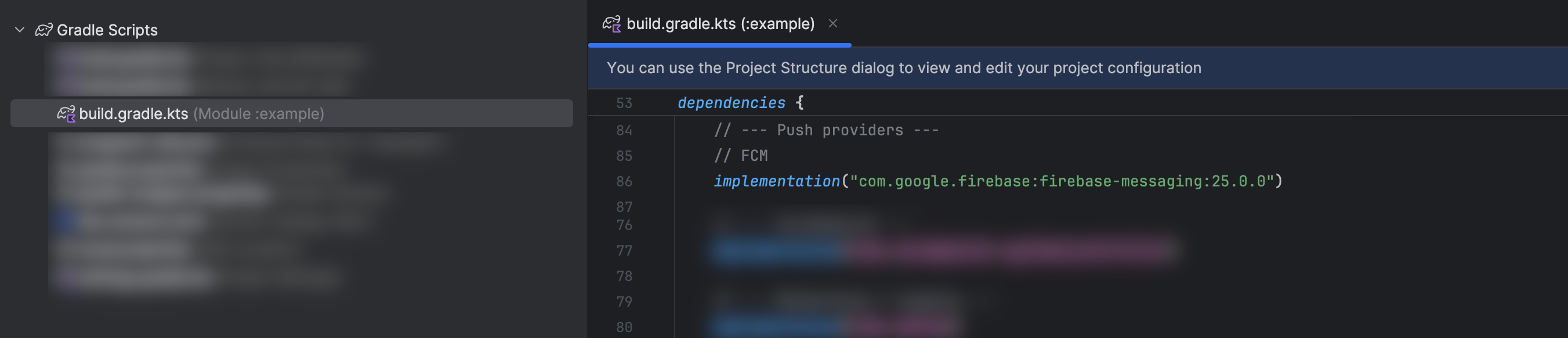
Information about the current library versions is available on this page of Firebase.
After adding the plugins and dependencies, run a synchronization of the Gradle changes.
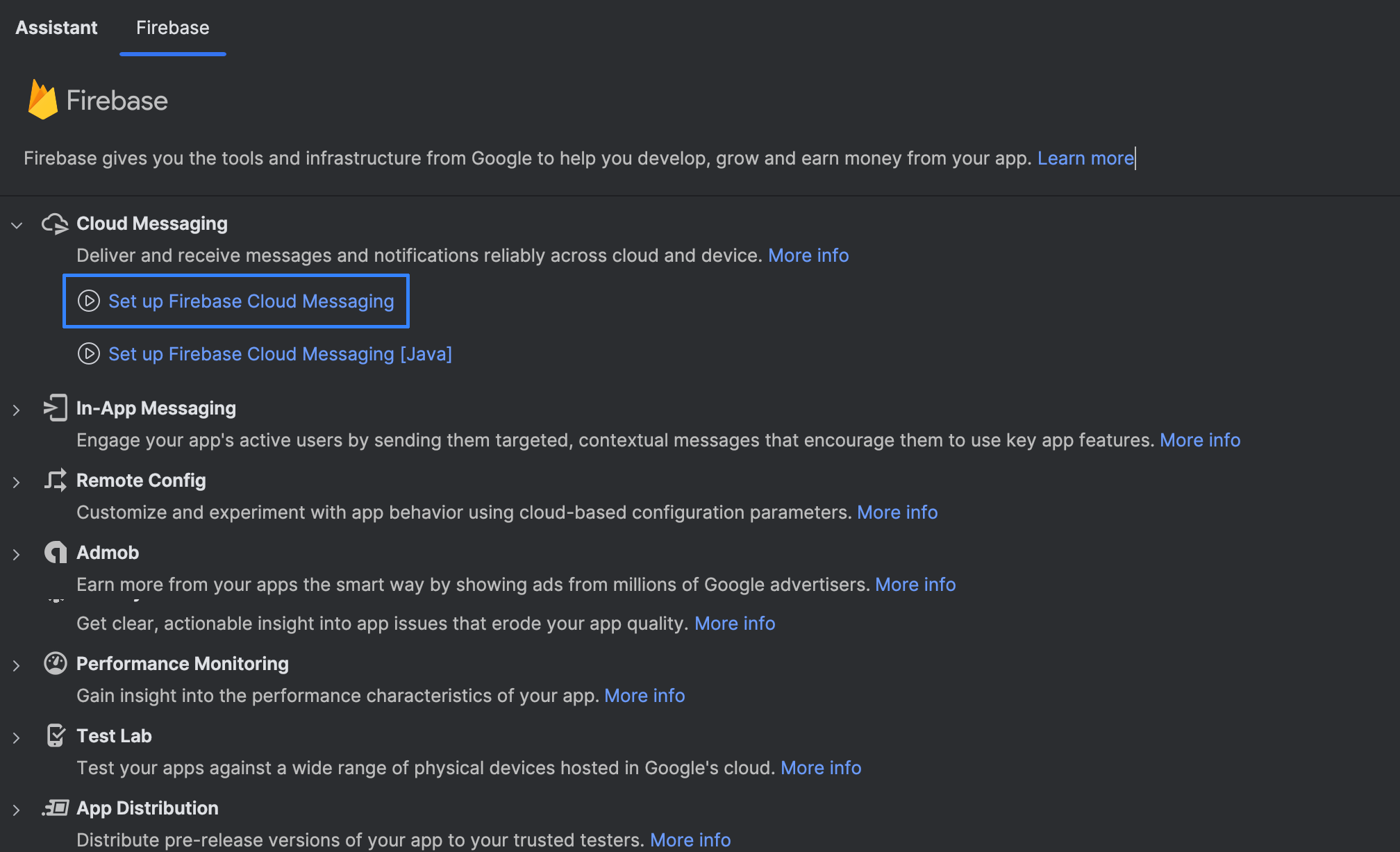
Automatic Android Studio setup
Go to Tools -> Firebase -> CloudMessaging -> Set up Firebase Cloud Messaging:
Creating a class that extends FirebaseMessagingService()
Create a class that extends FirebaseMessagingService():
import com.google.firebase.messaging.FirebaseMessagingService
import com.google.firebase.messaging.RemoteMessage


/**
 * FCM service for handling push tokens and messages.
 */
class FCMService : FirebaseMessagingService() {

    /**
     * Called when a new FCM token is generated.
     *
     * @param token The new FCM token.
     */
    override fun onNewToken(token: String) {
        super.onNewToken(token)
    }

    /**
     * Called when a push message is received.
     *
     * Forwards the message to all receivers with additional metadata.
     *
     * @param message The received [RemoteMessage].
     */
    override fun onMessageReceived(message: RemoteMessage) {
        super.onMessageReceived(message)

       // Message
    }
}
Updating the app's manifest
Add information about FCMService to the app's AndroidManifest.xml:
        <service
            android:name="com.altcraft.fcm.FCMService"
            android:exported="false">
            <intent-filter>
                <action android:name="com.google.firebase.MESSAGING_EVENT" />
            </intent-filter>
        </service>
Replace com.altcraft.fcm.FCMService with your package and class.