Huawei Mobile Services
Huawei Mobile Services project settings
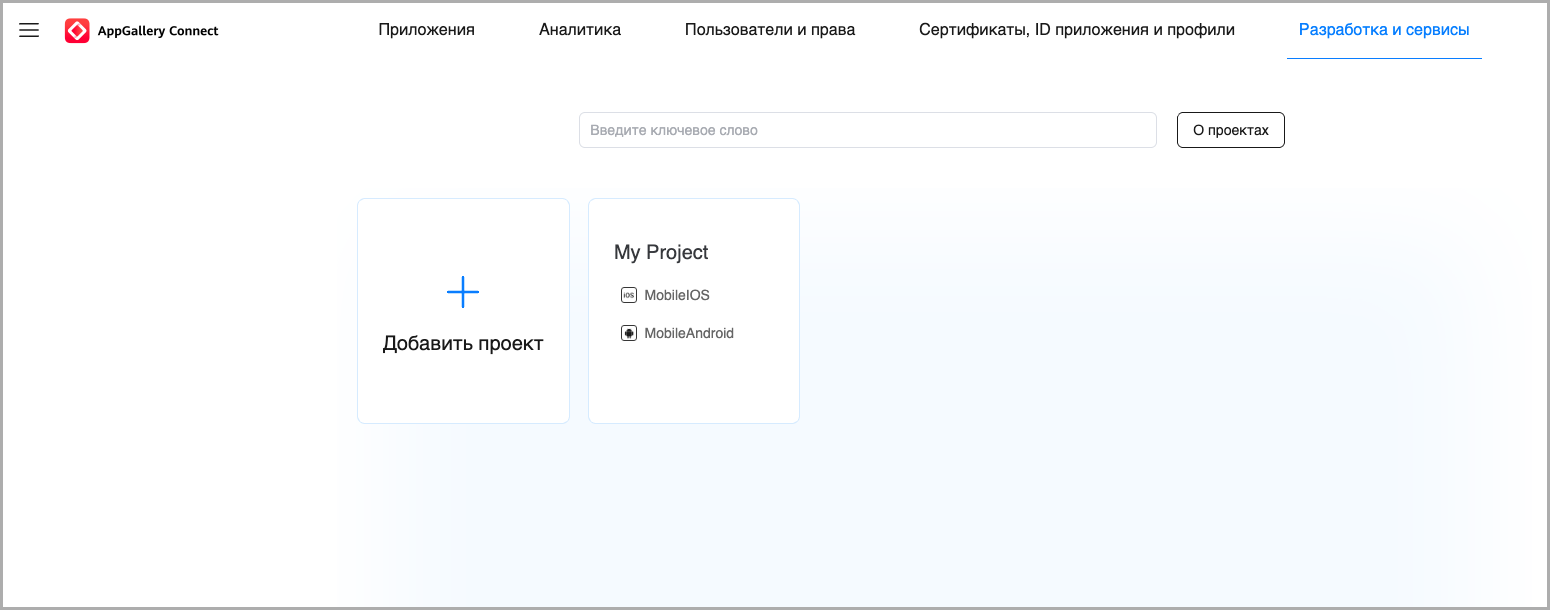
Create an AppGalleryConnect project. To do this, go to the Development and services section -> Add project:
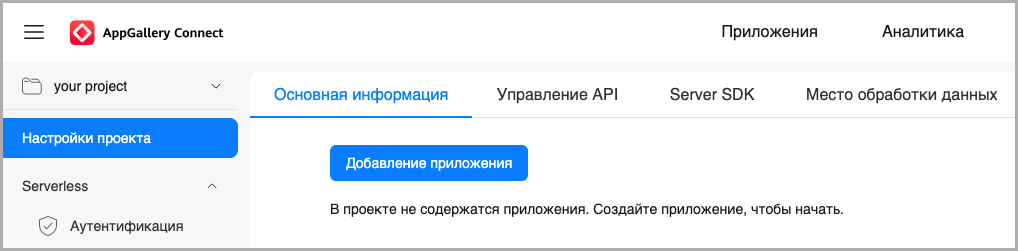
Add a new app to the project:
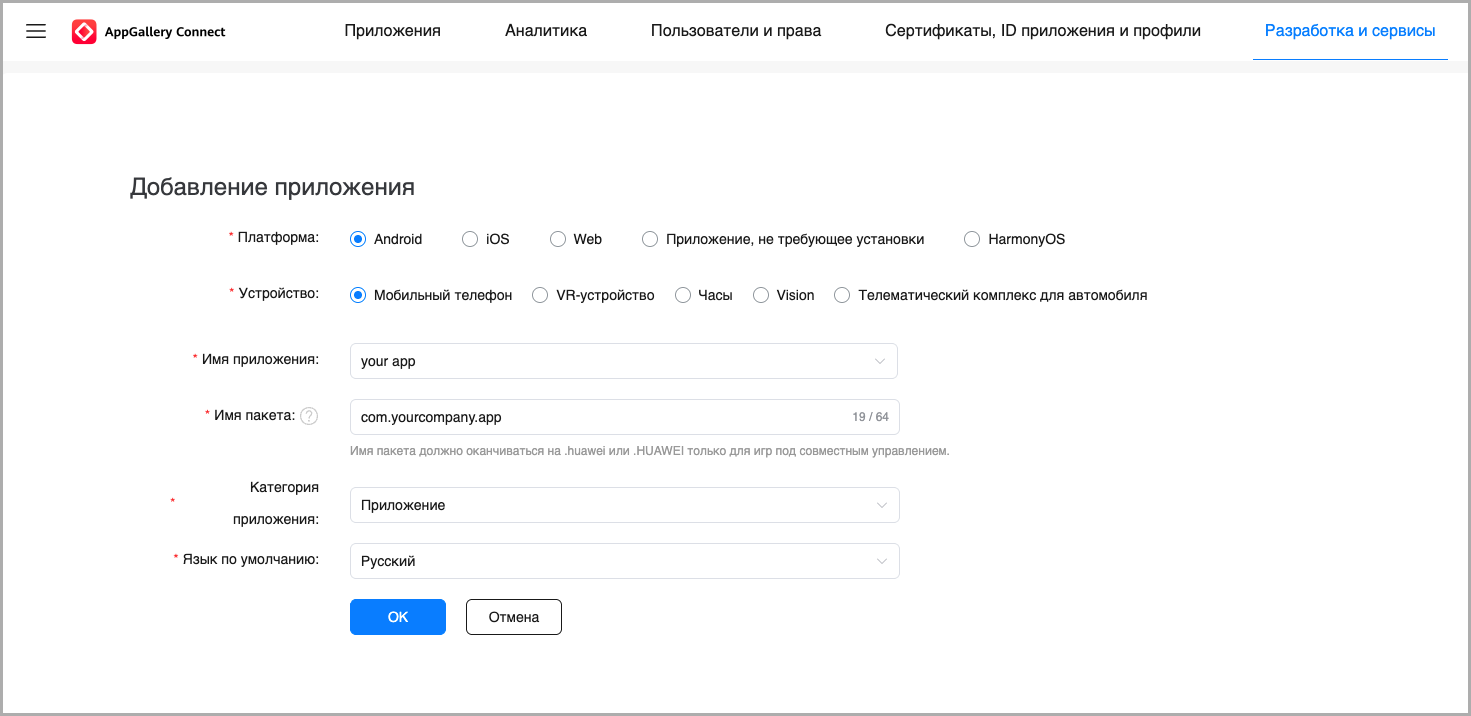
Specify information about your app:
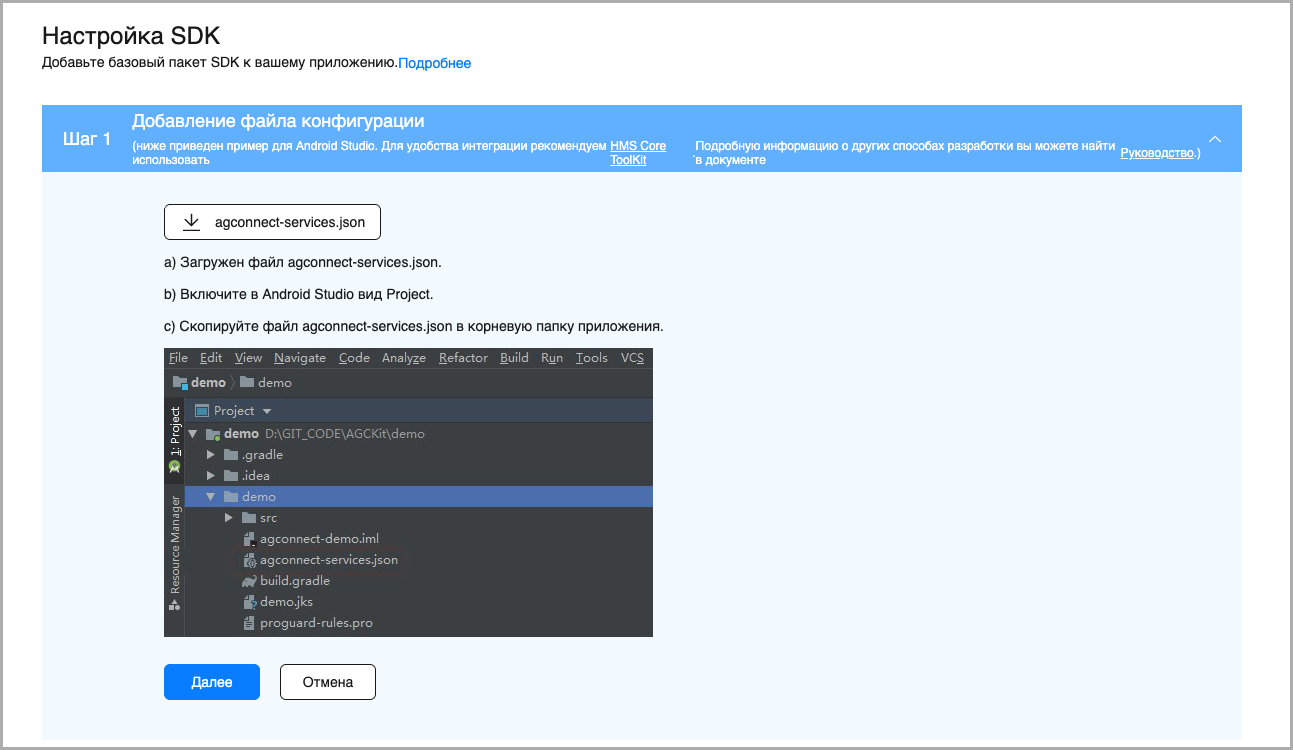
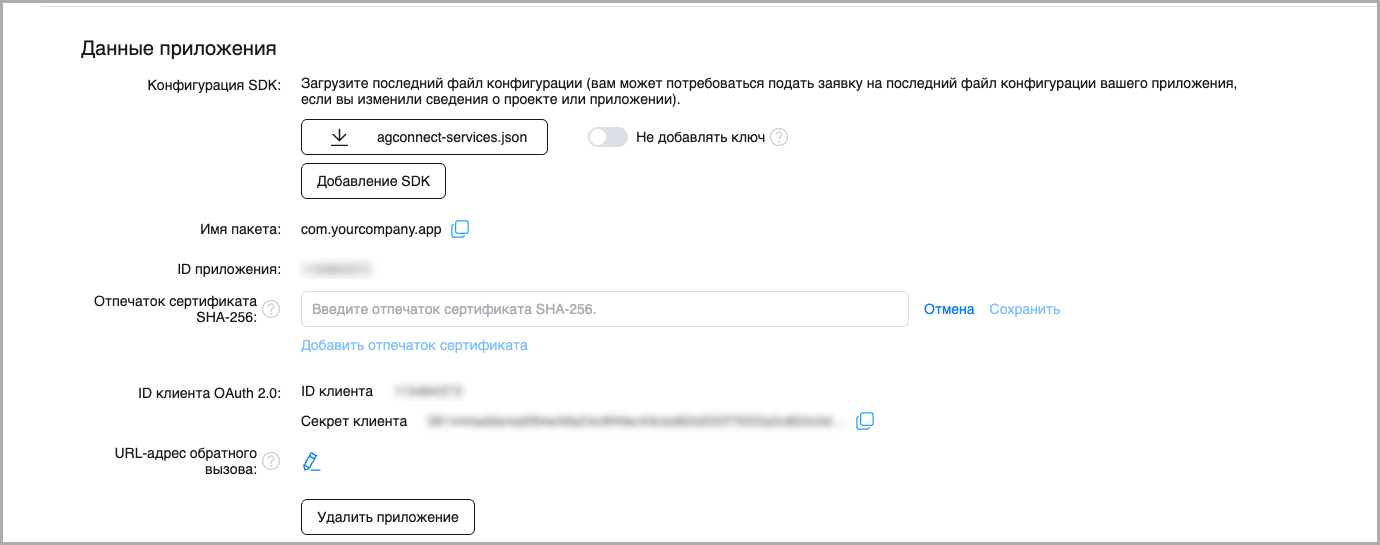
Download the agconnect-services.json file:
Go back to the project settings and add the SHA-256 signing fingerprint. You can obtain it by running the console command ./gradlew signingReport in the root catalog of the app project:
In the left sidebar, select Push Kit in the Growth section:
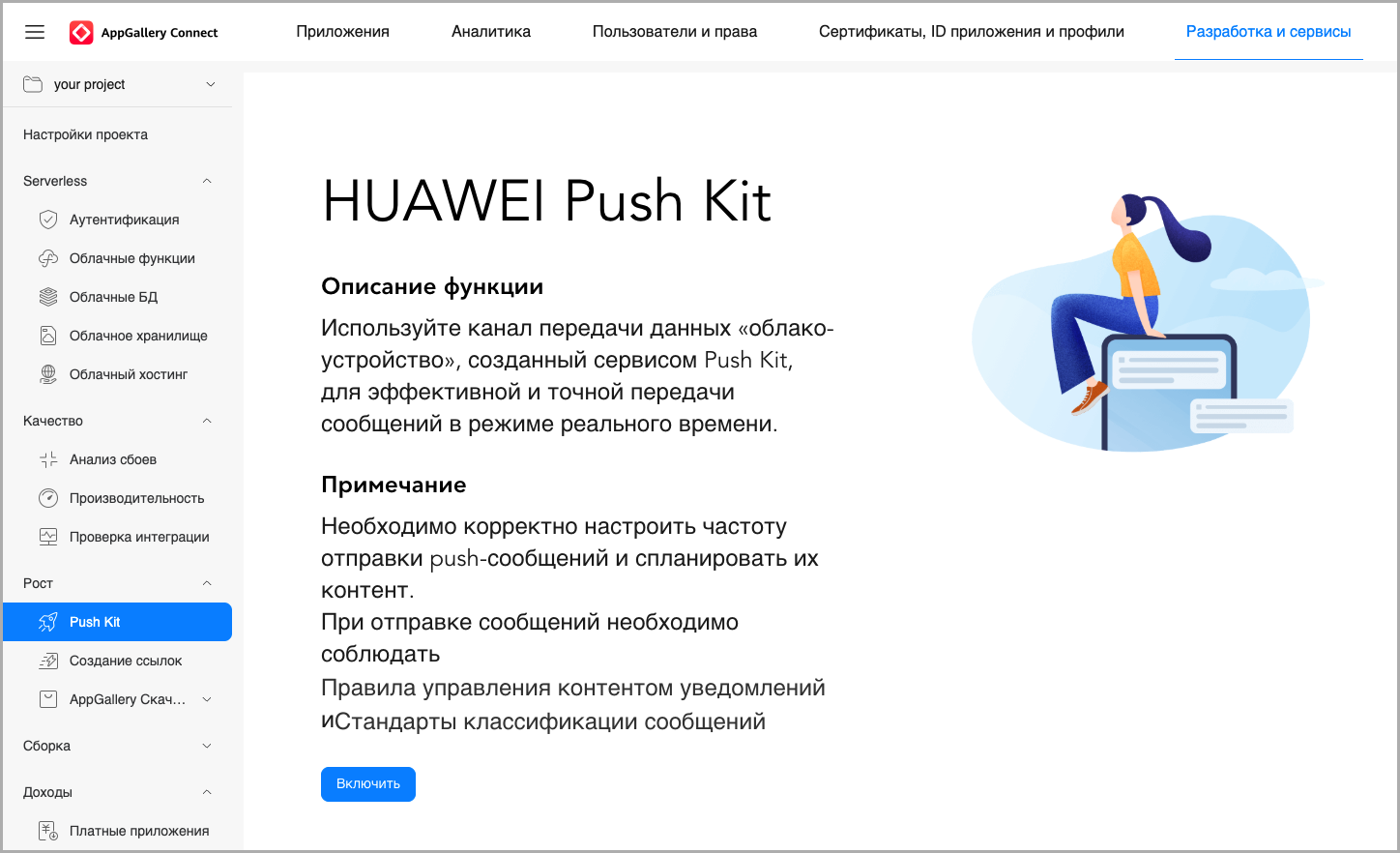
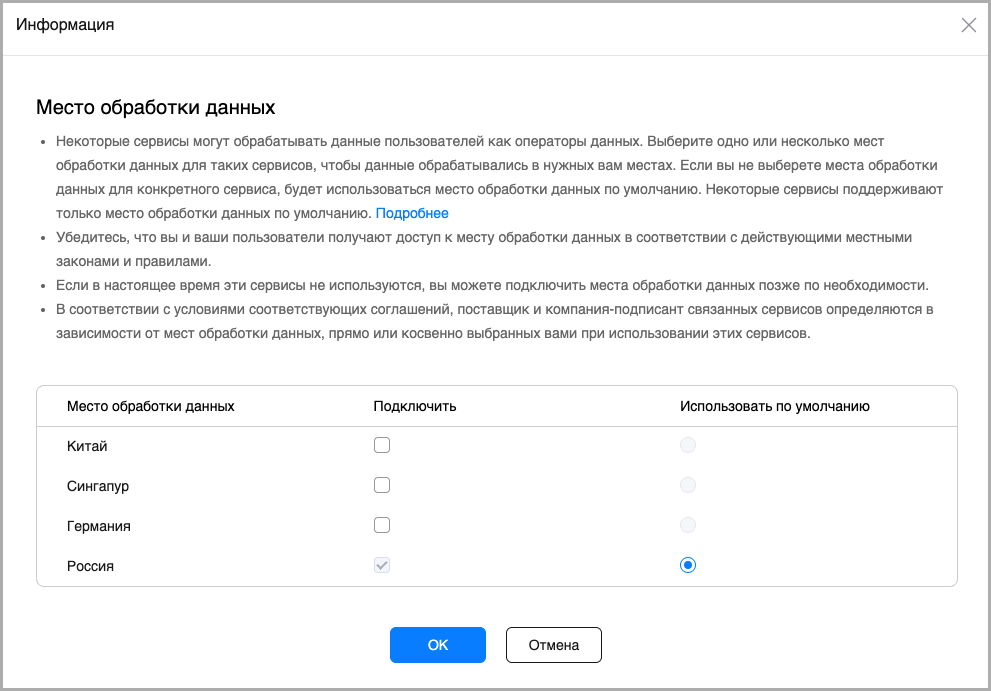
Click Enable -> Select a data storage location:
Altcraft resource settings
In Altcraft Platform, create a resource or add a new communication channel — Push — to an existing one. Then, in the resource settings, select the Android platform and enable the Huawei Mobile Services switch:
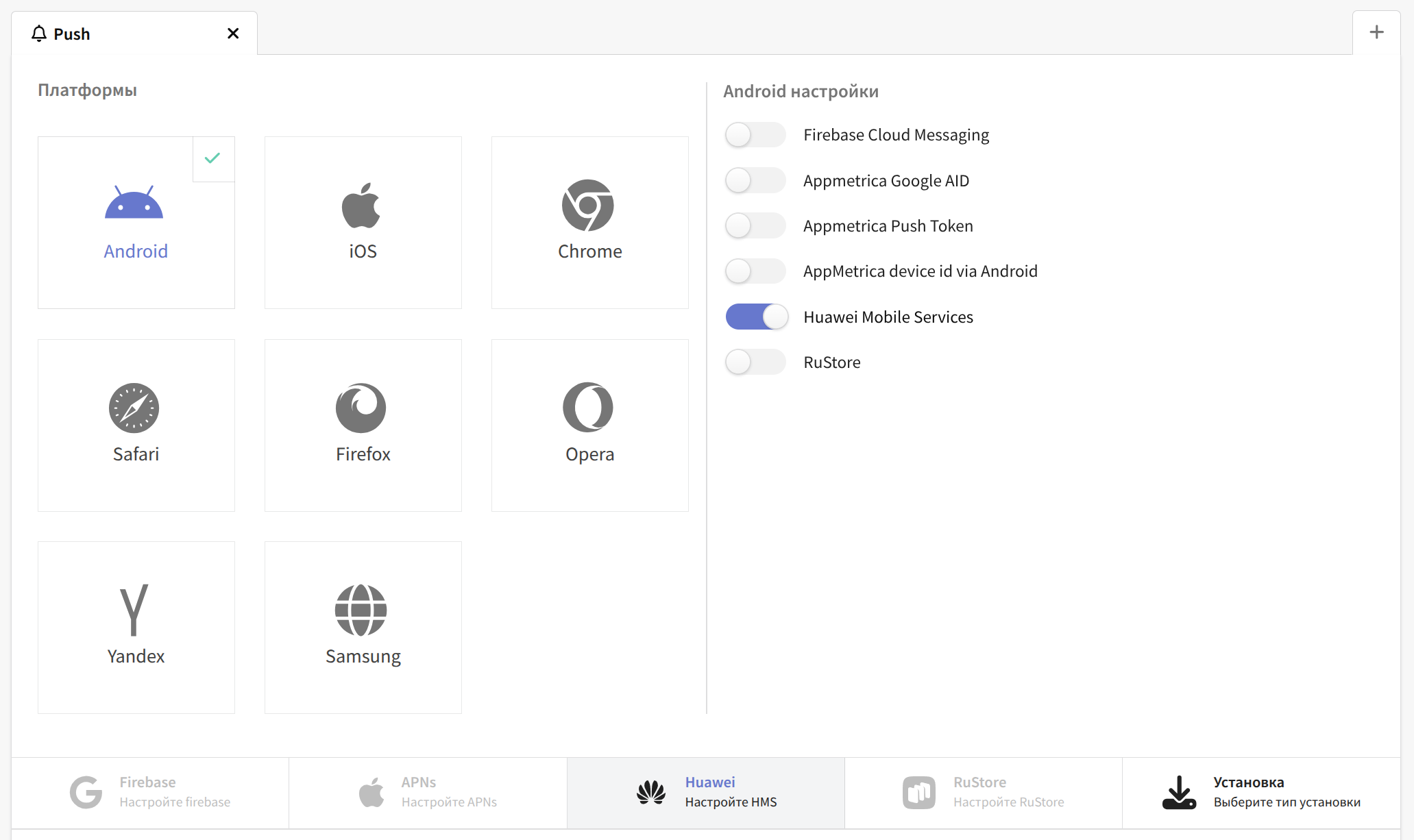
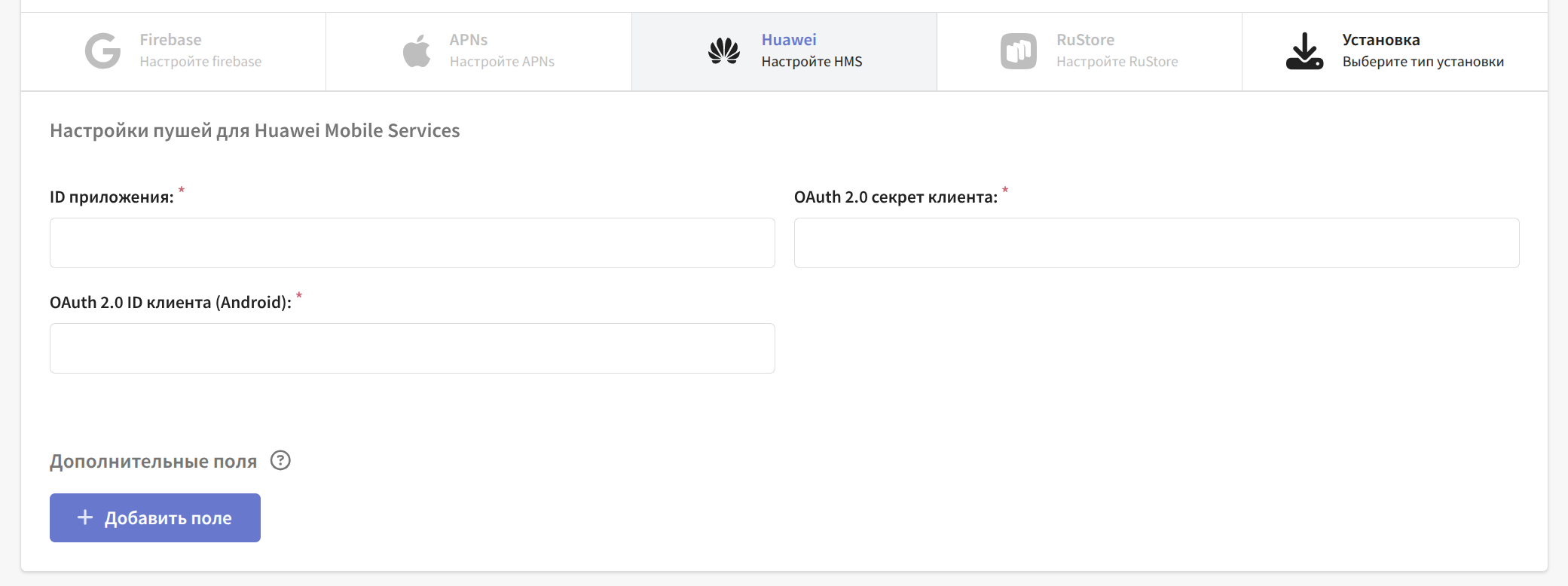
A bit lower, go to the Huawei settings and specify the App ID, OAuth 2.0 Client ID, and OAuth 2.0 Client Secret:
All of this information can be found in the App data section of Huawei Mobile Services (the same place where the SHA-256 signing fingerprint was added in the previous step):
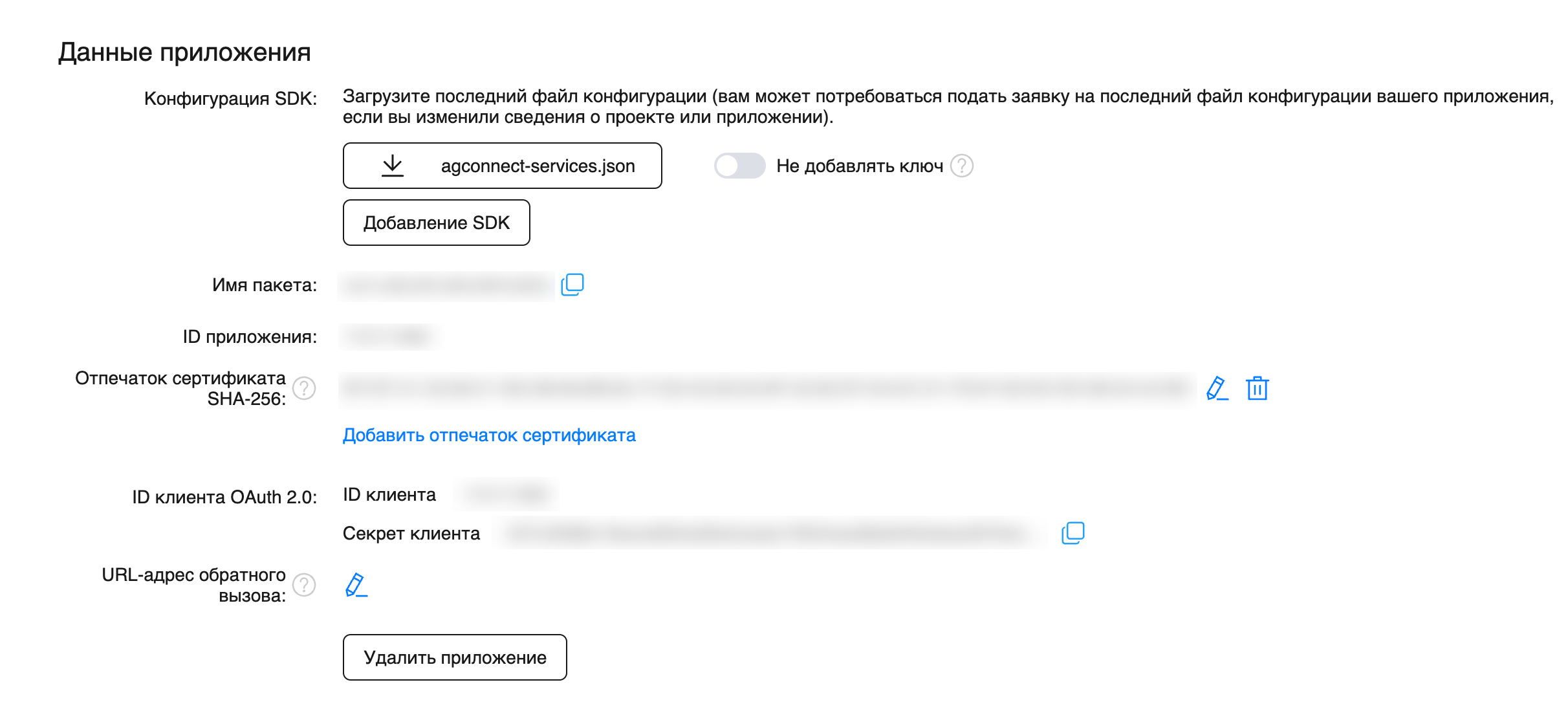
After making the changes, do not forget to save the resource.
Integrating Huawei Push Kit into the app project
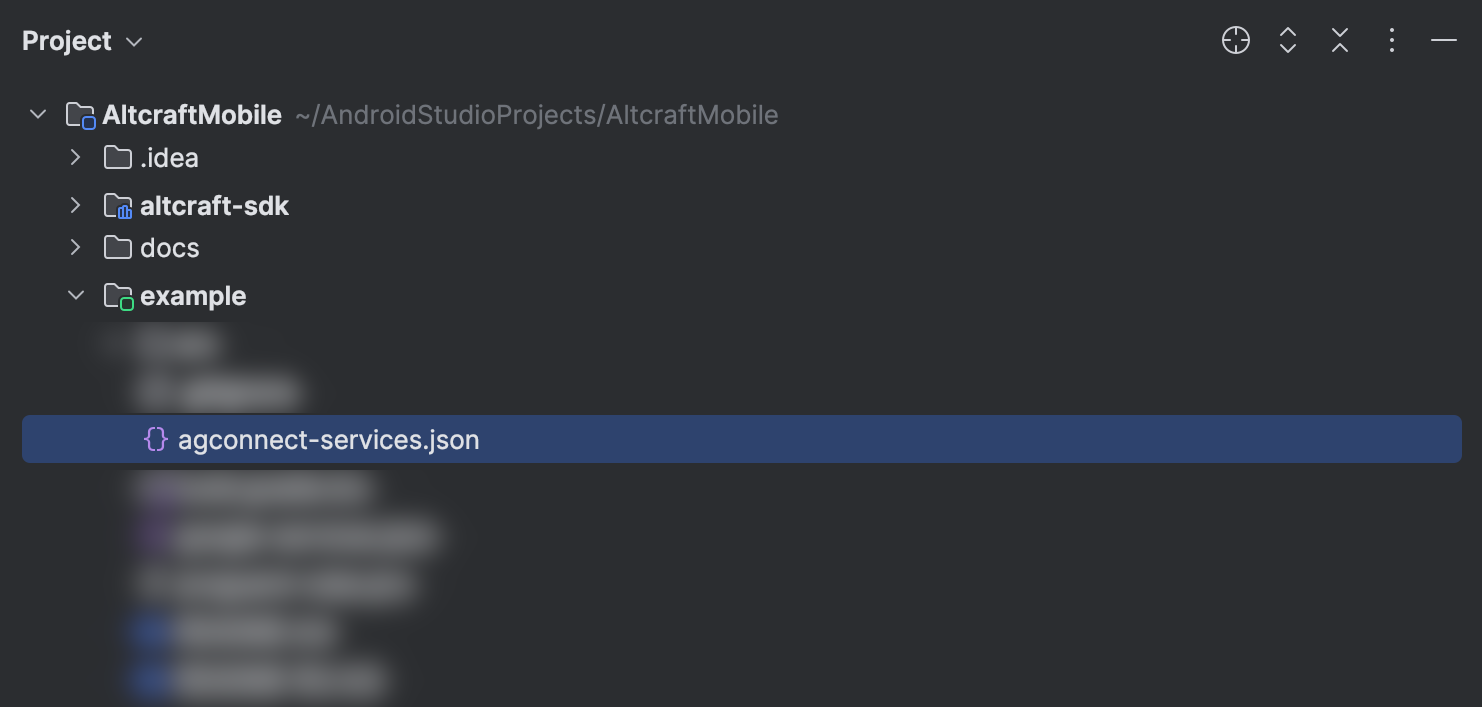
Move the downloaded agconnect-services.json file to the root catalog of the app module (app):
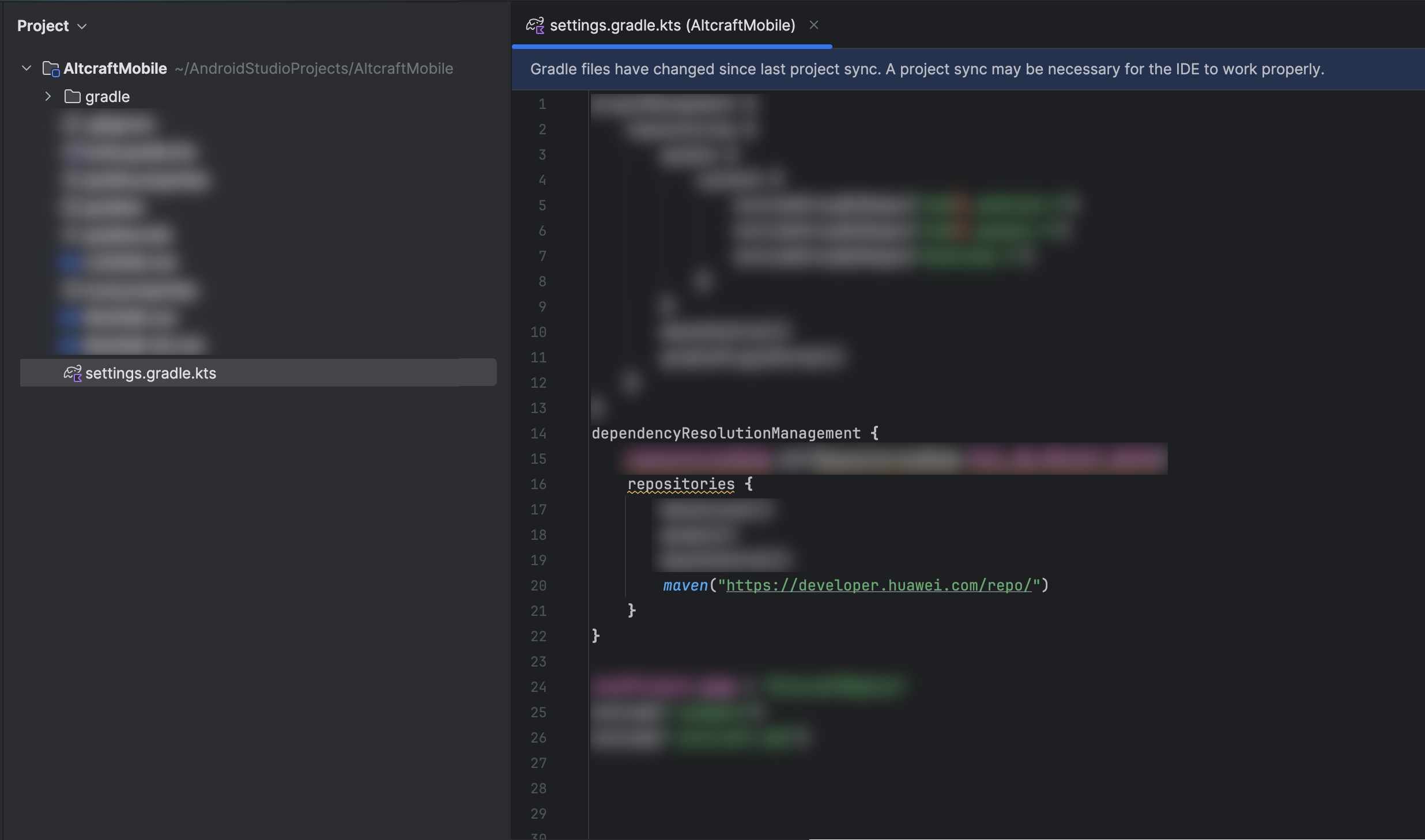
Add the repositories and dependencies to the Gradle files:
settings.gradle.kts (project setting)
     dependencyResolutionManagement {
     repositories {

     // Other repositories..

     maven("https://developer.huawei.com/repo/")

    }
  }
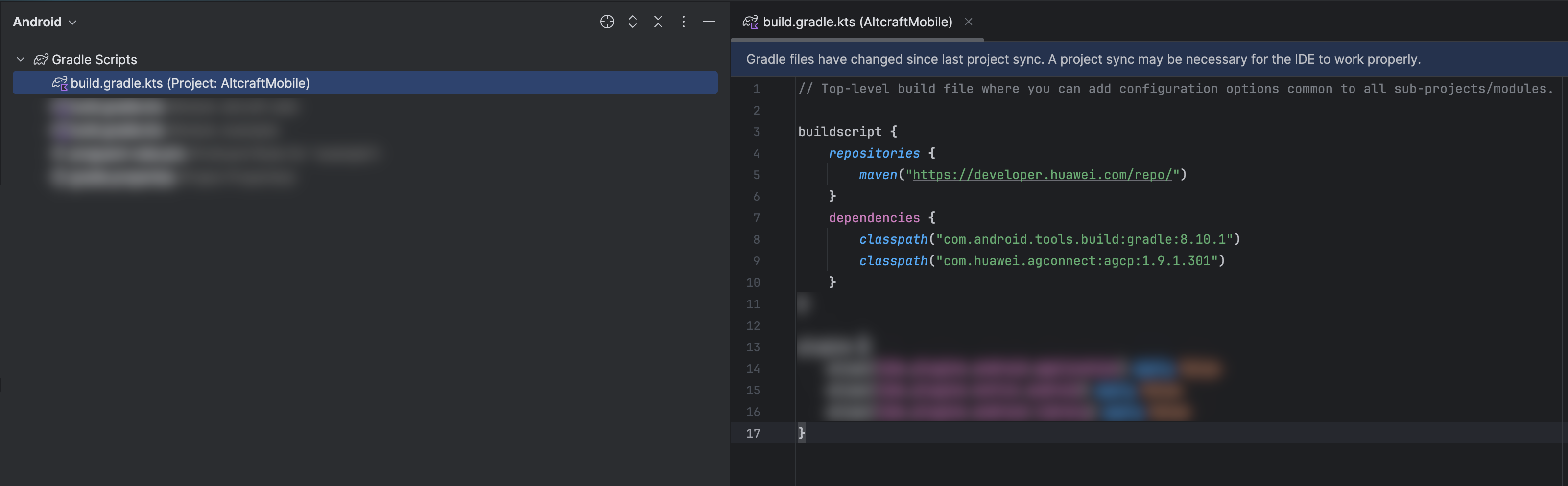
build.gradle.kts (project level)
   buildscript {
    repositories {
        maven("https://developer.huawei.com/repo/")
    }
    dependencies {
        classpath("com.android.tools.build:gradle:8.10.1") // Important! specify the Android Gradle Plugin (AGP) version that you use.
        classpath("com.huawei.agconnect:agcp:1.9.1.301")
    }
  }
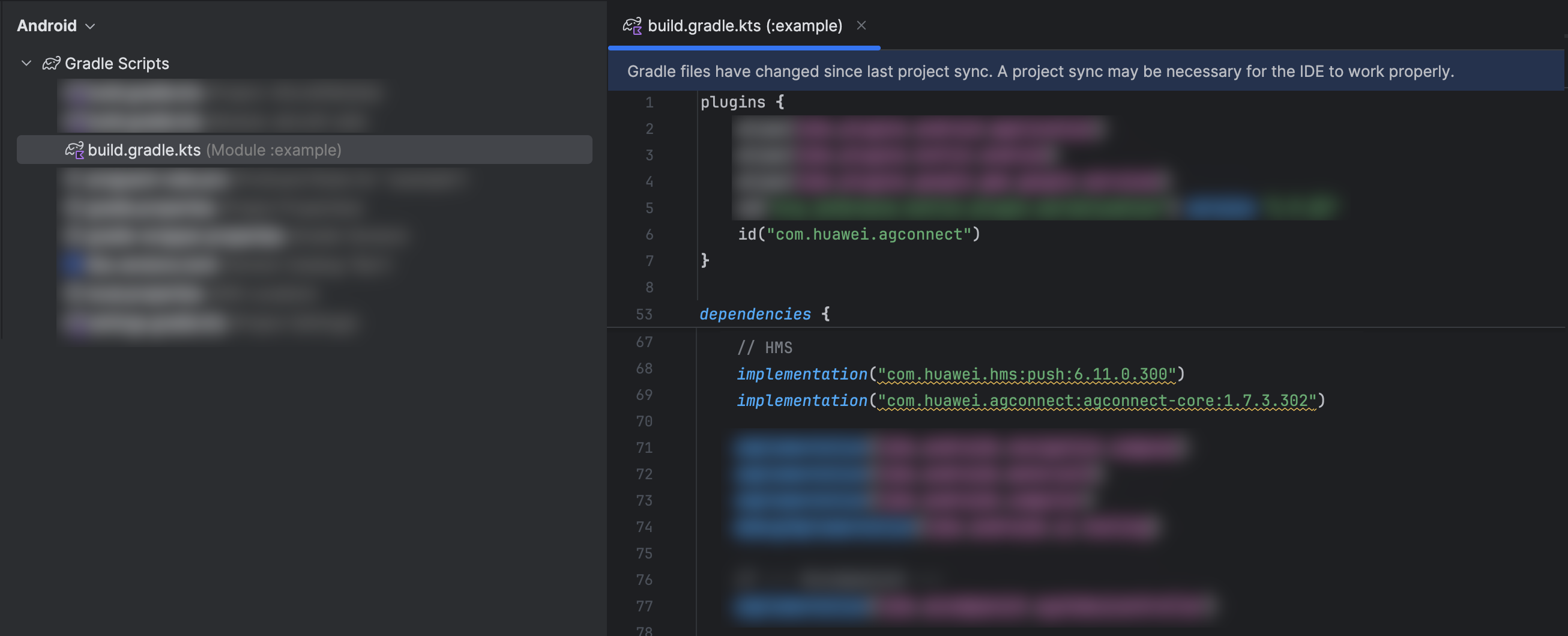
build.gradle.kts (applevel)
  plugins {
    id("com.huawei.agconnect")
  }

  dependencies {
   implementation("com.huawei.hms:push:6.11.0.300")
   implementation("com.huawei.agconnect:agconnect-core:1.7.3.302")
  }
Information about the current versions of the dependencies is available on the Huawei Developer pages:
After adding the repository and dependencies, run a synchronization of the Gradle changes.
Creating a class that extends HmsMessageService()
Create a class that extends HmsMessageService():
import com.huawei.agconnect.AGConnectOptionsBuilder
import com.huawei.hms.aaid.HmsInstanceId
import com.huawei.hms.api.HuaweiApiAvailability

/**
 * HMS service for handling push tokens and incoming notifications.
 *
 * Extends [HmsMessageService] and overrides key HMS callback methods.
 */
class HMSService : HmsMessageService() {
    /**
     * Called when a new HMS token is generated.
     *
     * @param token The new HMS token.
     */
    override fun onNewToken(token: String) {
        super.onNewToken(token)
    }

    /**
     * Called when a push message is received from HMS.
     *
     * Forwards the message with additional metadata to all receivers.
     *
     * @param message The received [RemoteMessage].
     */
    override fun onMessageReceived(message: RemoteMessage) {
         // Message
    }
}
Updating the app's manifest
Add information about HMSService to the app's AndroidManifest.xml:
        <service
            android:name="com.altcraft.hms.HMSService"
            android:exported="false">
            <intent-filter>
                <action android:name="com.huawei.push.action.MESSAGING_EVENT"/>
            </intent-filter>
        </service>
Replace com.altcraft.hms.HMSService with your package and class.