RuStore
The RuStore app must be installed on the device.
RuStore dev project settings
Go to the developer console:
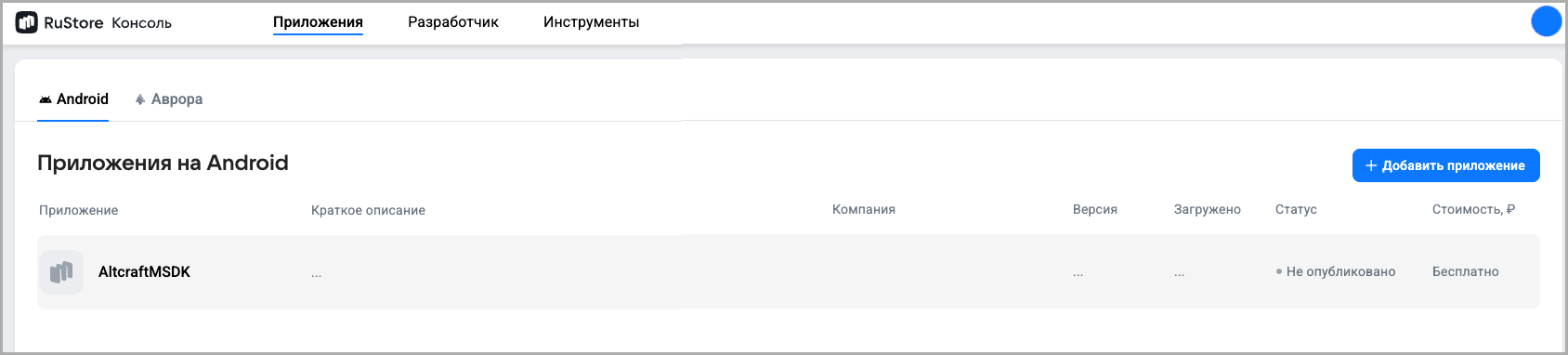
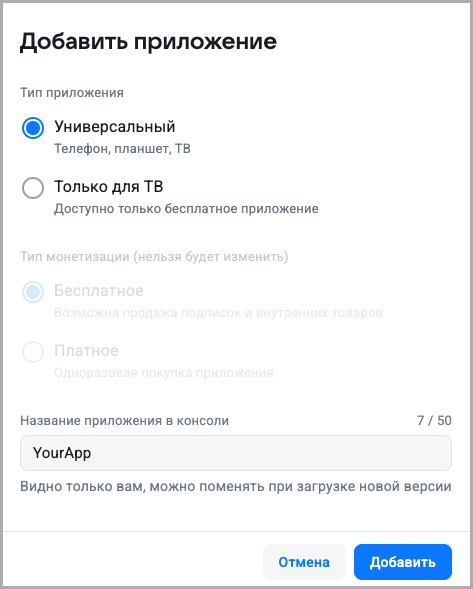
Add the app in the App section:
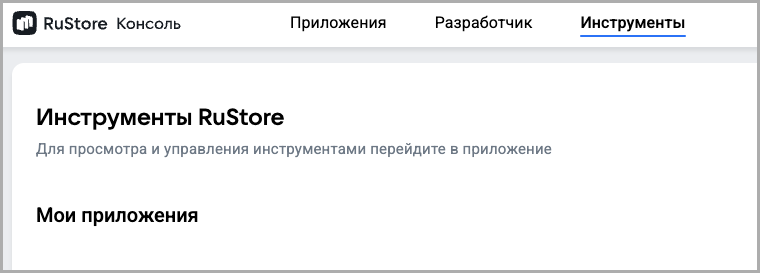
Go to the Tools section of the developer console:
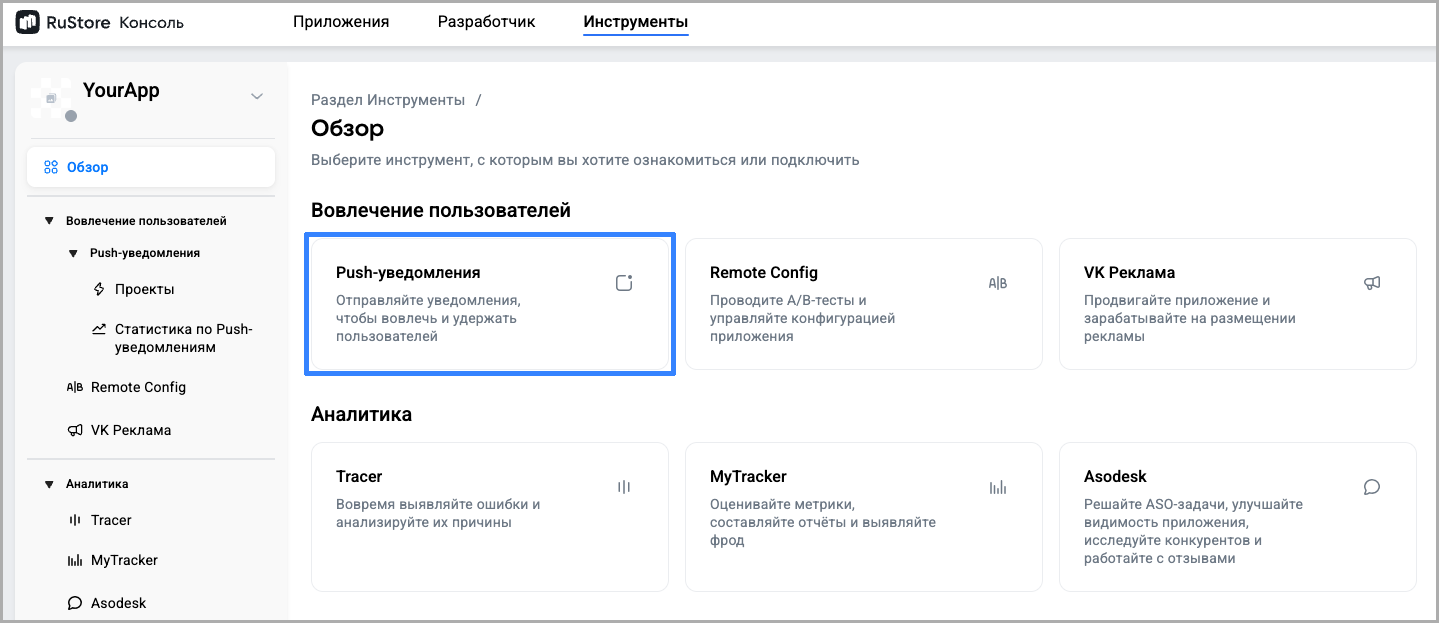
Go to the created app. Select the Push notifications item:
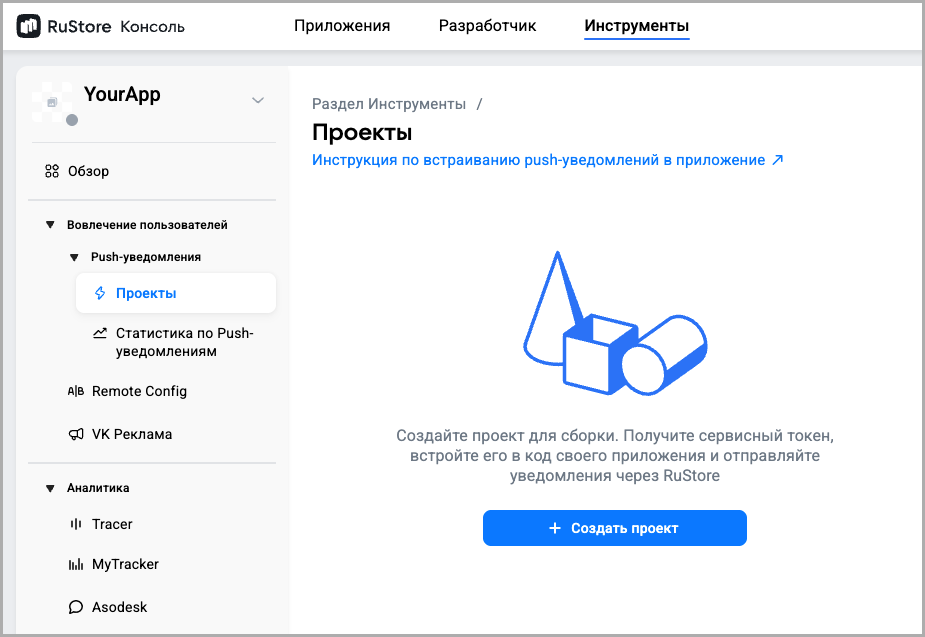
Create a project:
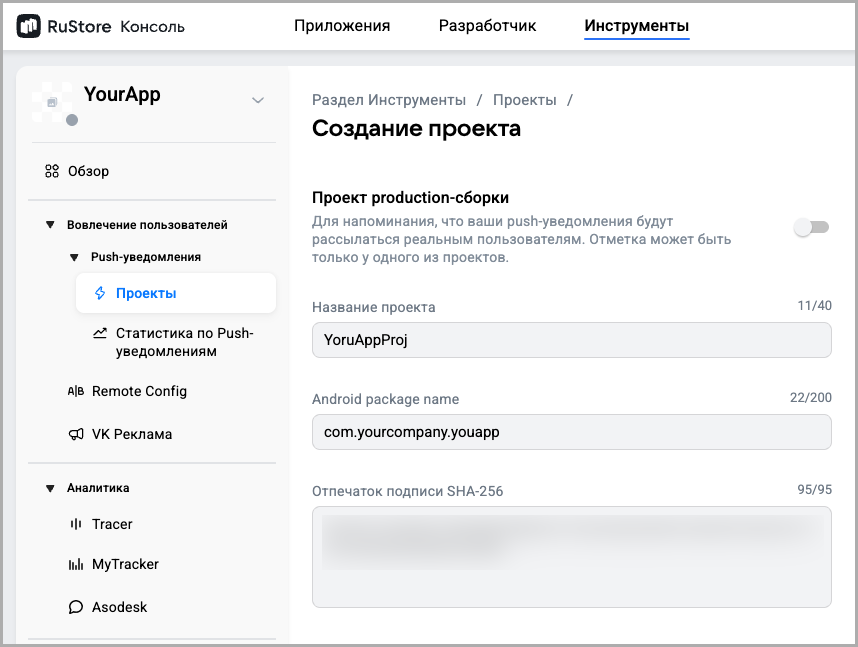
In it, specify:
- the project name;
- the app package;
- the app's SHA-256 signing fingerprint. You can obtain it by running the console command
./gradlew signingReportin the root catalog of the app project.
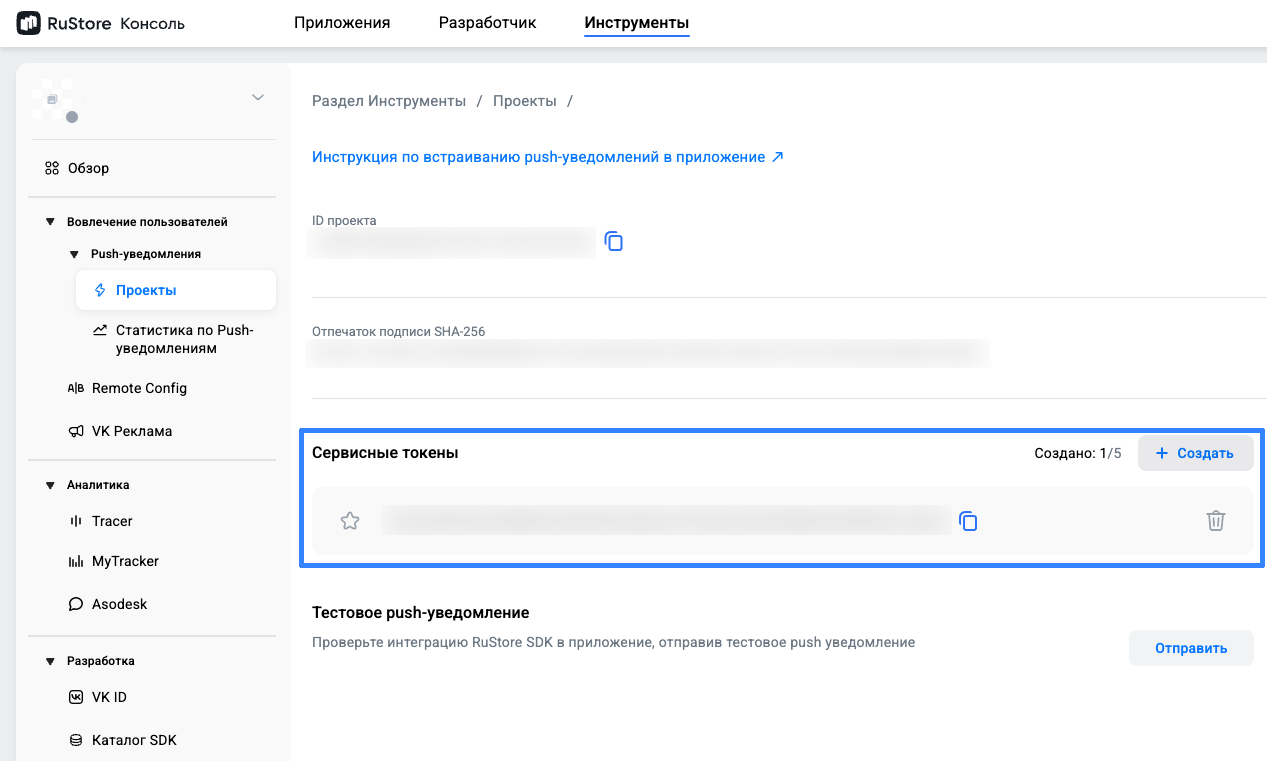
Within the created project, create a service token:
Altcraft resource settings
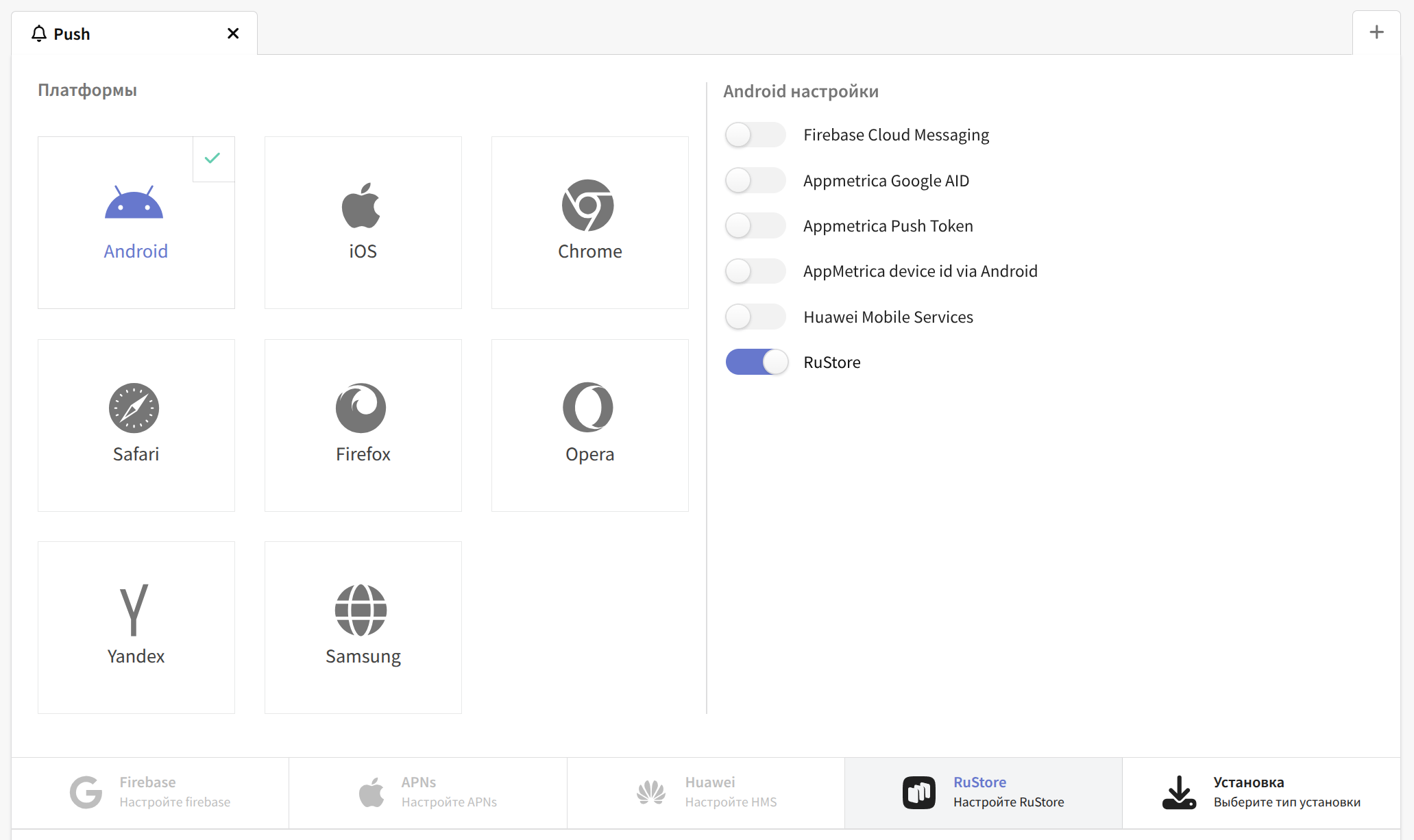
In Altcraft Platform, create a resource or add a new communication channel — Push — to an existing one. Then, in the resource settings, select the Android platform and enable the RuStore switch:
A bit lower, go to the RuStore settings and specify the project identifier and the password:
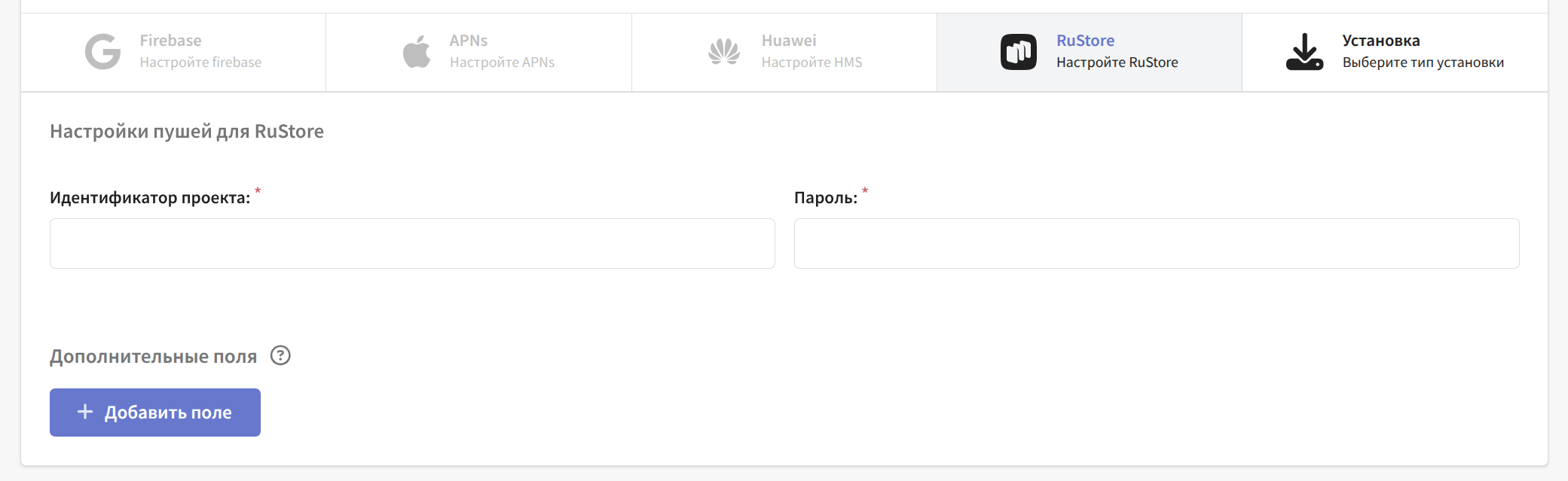
After making the changes, do not forget to save the resource.
Integrating RuStore Push Messaging into the app project
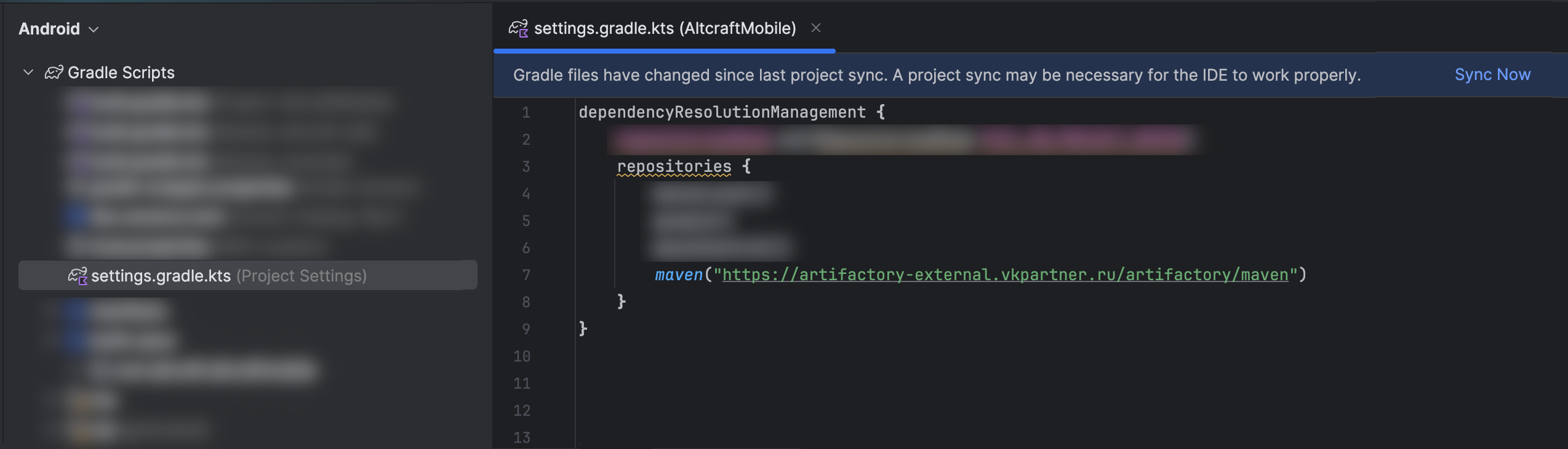
Add the repositories and dependencies to the Gradle files:
settings.gradle.kts (project setting)
     dependencyResolutionManagement {
     repositories {

     // Other repositories..

     maven("https://artifactory-external.vkpartner.ru/artifactory/maven")

    }
  }
build.gradle.kts (applevel)
  dependencies {

   implementation("ru.rustore.sdk:pushclient:6.10.0")
  }
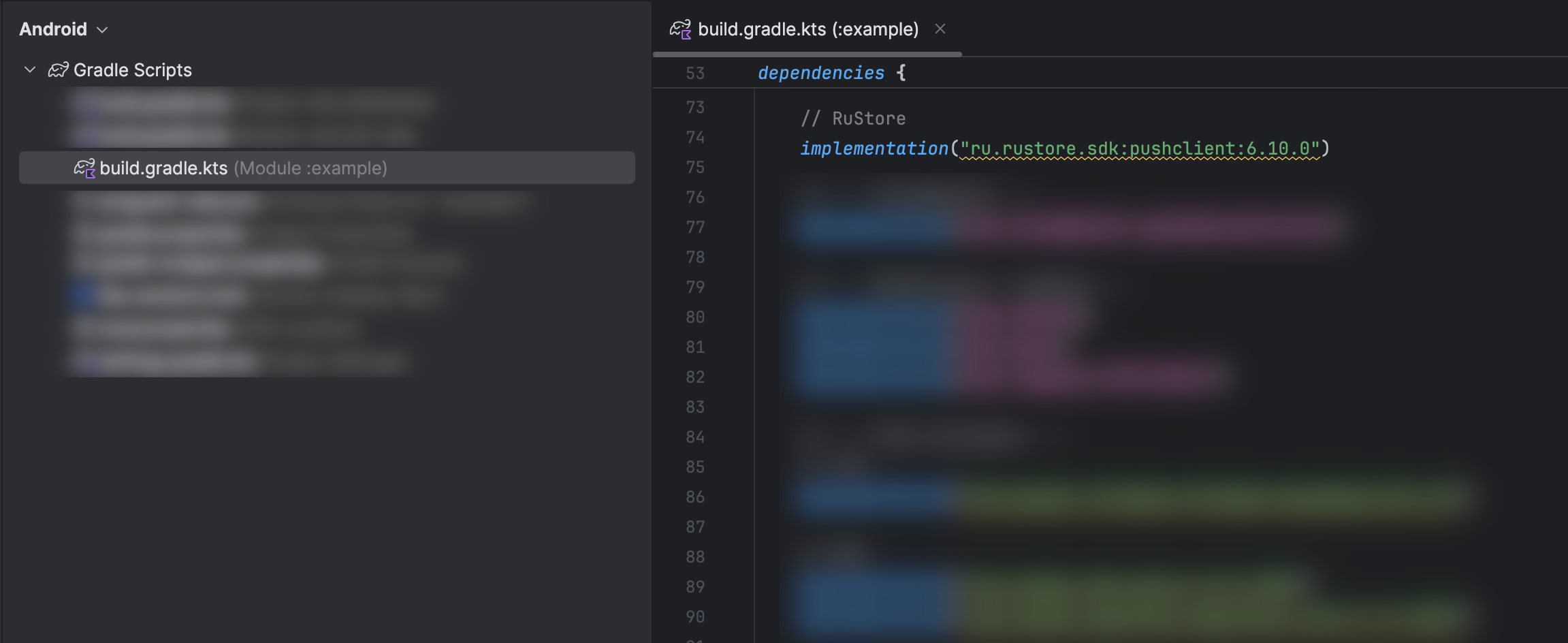
Information about the current versions of the dependencies is available here.
After adding the repository and dependencies, run a synchronization of the Gradle changes.
Initializing RuStorePushClient
Initialize RuStorePushClient in Application.onCreate():
import ru.rustore.sdk.pushclient.RuStorePushClient

class App : Application() {
    override fun onCreate() {
        super.onCreate()
        RuStorePushClient.init(this, "project_ID")

    }
}
Creating a class that extends RuStoreMessagingService()
Create a class that extends RuStoreMessagingService():
import ru.rustore.sdk.pushclient.messaging.model.RemoteMessage
import ru.rustore.sdk.pushclient.messaging.service.RuStoreMessagingService

/**
 * RuStore service for handling push notifications.
 *
 * Extends [RuStoreMessagingService] and overrides key callbacks.
 */
class RuStoreService : RuStoreMessagingService() {
    override fun onNewToken(token: String) {
        super.onNewToken(token)
    }

    /**
     * Called when a push message is received.
     *
     * Forwards the message to all receivers with added metadata.
     *
     * @param message The received RemoteMessage.
     */
    override fun onMessageReceived(message: RemoteMessage) {
      // Message
    }
}
Updating the app's manifest
Add information about RuStoreService to the app's AndroidManifest.xml:
        <service
            android:name="com.altcraft.rustore.RuStoreService"
            android:exported="true"
            tools:ignore="ExportedService">
            <intent-filter>
                <action android:name="ru.rustore.sdk.pushclient.MESSAGING_EVENT" />
            </intent-filter>
        </service>
Replace com.altcraft.rustore.RuStoreService with your package and class. Note that the android:exported="true" parameter must be specified in the manifest.
- The RuStore app is installed on the device;
- The RuStore app has been granted permission to display notifications;
- The Rustore app has been granted permission to prevent battery-saver mode from restricting it in the background.