Quick segment
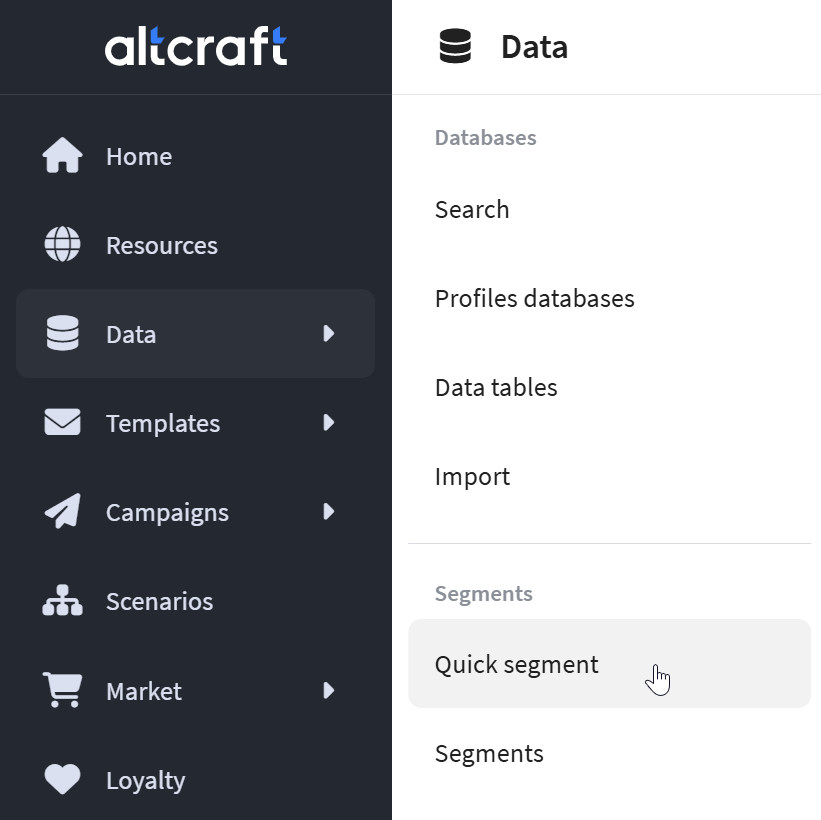 | Quick segment is a tool for building queries to customer profile databases. It allows you to create audience segments based on specified segmentation rules and use them to solve marketing tasks. Quick Segment is convenient to use for quick search of the necessary profiles, with which there are some problems in the communication process. In addition, quick segment is useful when working with segments that contain complex rules, grouped into groups, etc. Before working with such segments, it is important to make sure that all settings are correct. Go to Data and select Quick segment. |
How to build a segment
After you have selected a quick segment from the main menu, the segmentation prompt window will appear.
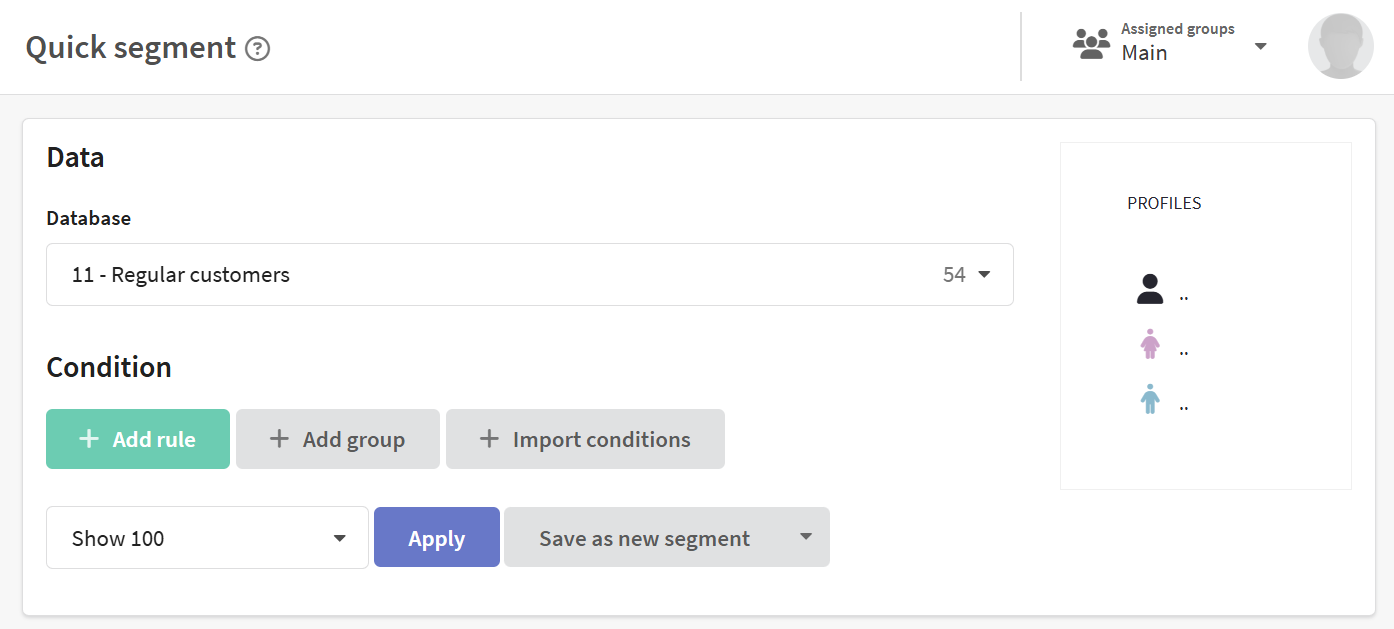
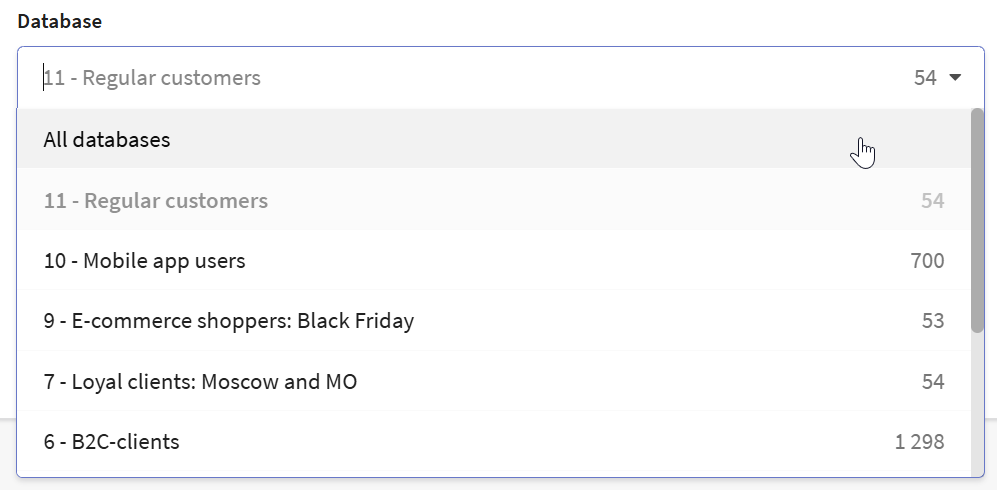
Specify the database in which you want to find profiles, or select "All databases" if you don't want to be limited to just one database.
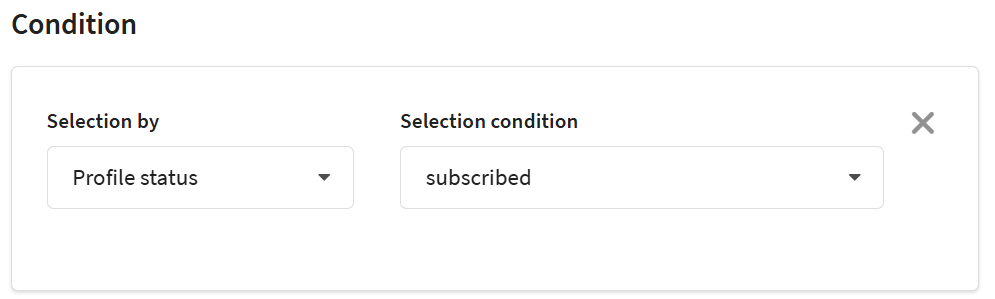
Press "+ Add rule" to set the profile selection conditions. In the "Selection by" field, select the parameter by which client profiles will be filtered, for example, selection by profile status. The "Selection condition" field is intended for setting the criteria by which the clients segment will be formed. In this field the segmentation rules defining which profiles will be included in the selection are set up.
The "Add Group" button is used to create complex segmentation conditions combining several rules into one group using "AND" or "OR" logical operators.
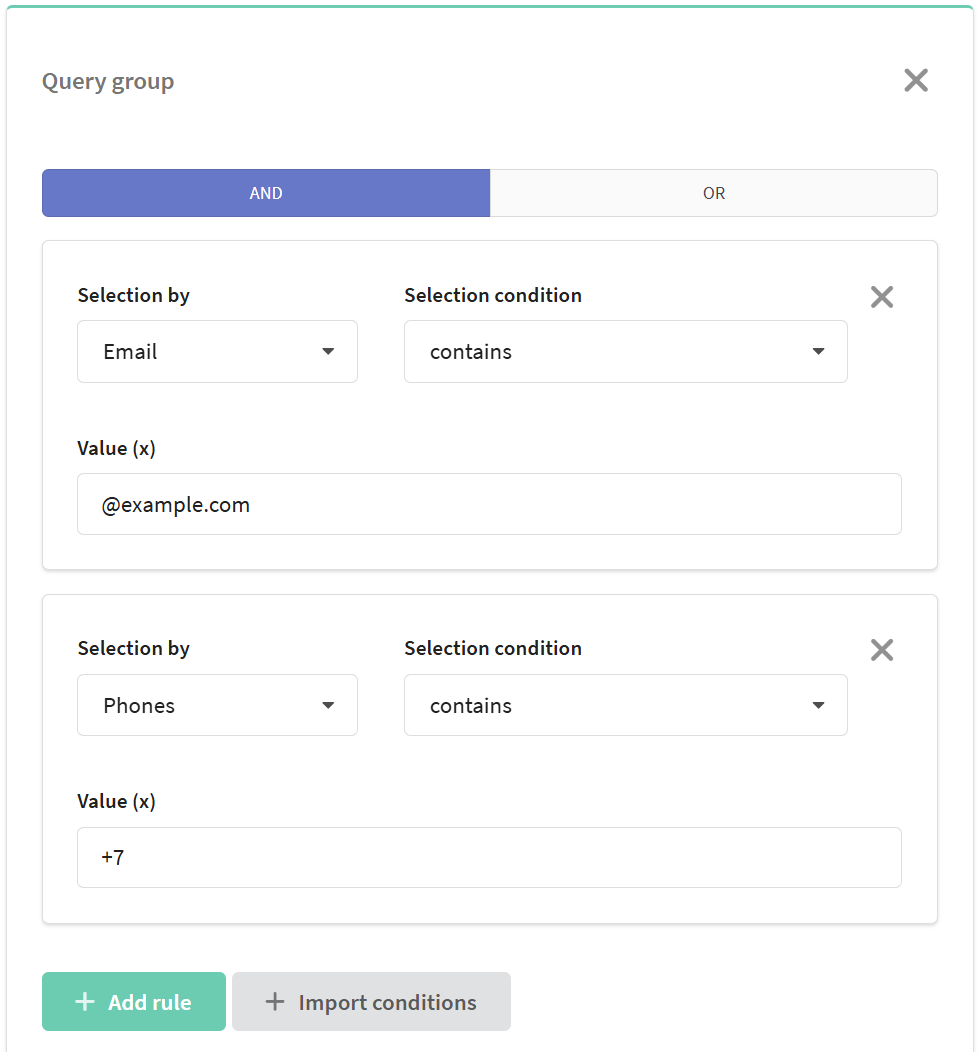
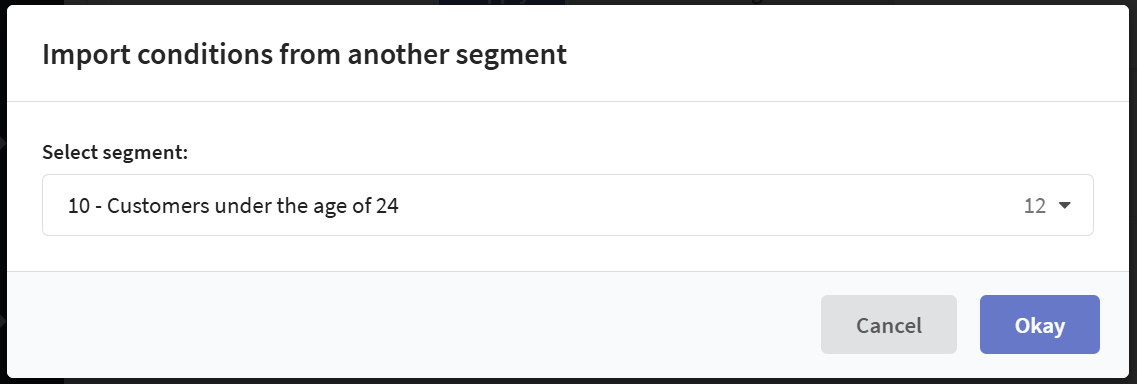
You can also import the source and sampling rules from an existing segment by clicking the "Import Conditions" button.
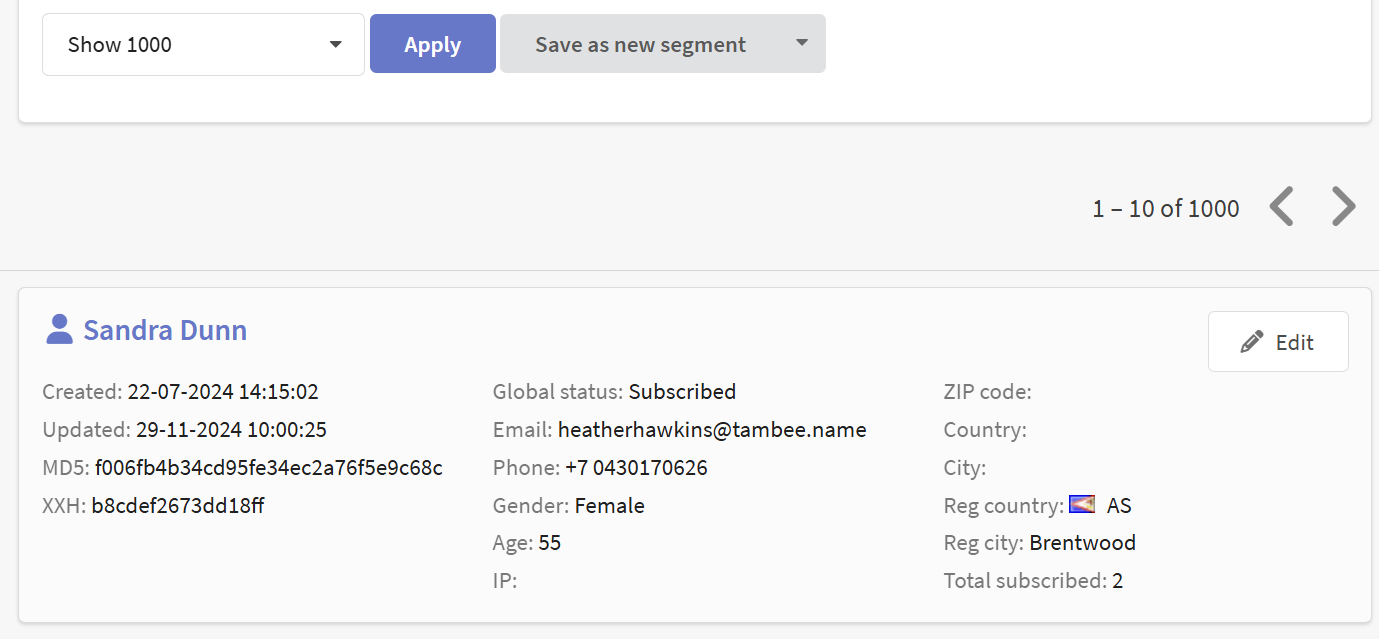
To get a list of profiles that match the condition, click "Apply". The number of found profiles will be displayed on the right. The list of profiles will appear below. If you click on a name, you can go to the profile card.
Available actions with quick segment
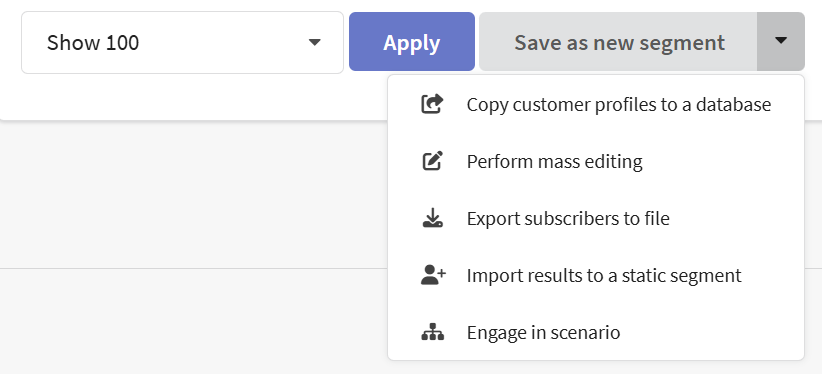
After obtaining the list of profiles that match the specified conditions, the following actions become available:
-
Save as new segment — allows you to save profile selection rules as a dynamic segment for further use in campaigns or analytics.
-
Copy customer profiles to a database — this action transfers selected profiles to another database.
-
Perform mass editing — allows you to perform a mass update of profiles.
-
Export subscribers to file — generates a file with data of selected profiles in csv format.
-
Import results to a static segment — adds selected profiles to an existing static segment.
-
Engage in scenario — sends the selected profiles to the scenario. The profiles will enter the scenario through the "Default" node.