Altcraft Docs LogoAltcraft Docs Logo
User guideDeveloper guideAdmin guide
Company siteHelp center
English
  • Русский
  • English
v72
  • v74
  • v73
  • v72
Login
  • User documentation
  • FAQ
  • Altcraft glossary
  • Profiles and databases
  • Communication channels
  • Segmentation
  • Message templates
    • Working with message templates
    • Visual editor for email-template
      • Visual editor interface
      • Adding blocks
      • Elements and their settings
      • Custom blocks
      • Style manager
      • Layer manager
    • Template fragments
    • Image gallery
    • Content personalization
    • Creating tables based on array elements
    • Block editor for email template
    • Variables and Functions in Altcraft
    • Dynamic content in messages
    • Importing and exporting a message template
    • Importing a template from a third-party service
    • Exporting a template from Pixcraft
  • Campaigns
  • Automation scenarios
  • Market
  • Loyalty programs
  • Reports and analytics
  • Integrations
  • Weblayers
  • Settings
  • API requests: where to start
  • Changelog
  • library
This is documentation for Altcraft Platform v72. This documentation is no longer maintained.
The information for up-to-date platform version at this page is available (v74).
  • Message templates
  • Visual editor for email-template
  • Layer manager
Documentation for version v72

Layer manager

The last section in the right pane of the editor is Element Structure.

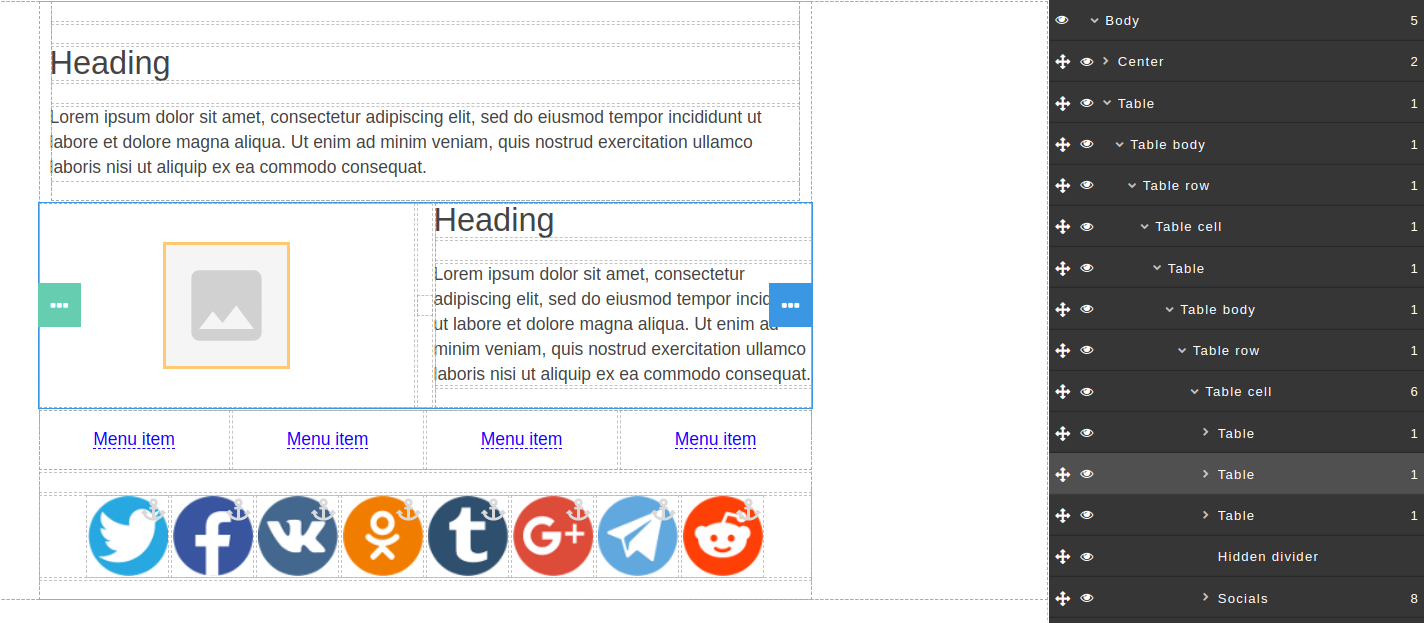
Here you will find a tree of elements (HTML DOM). Use it to get to any element in the template in a couple of clicks. Such a tool can be very useful, especially if you have to work with a template that you did not create. One look at the structure of the elements will allow you to understand the general structure of the template and adjust it without going into details.

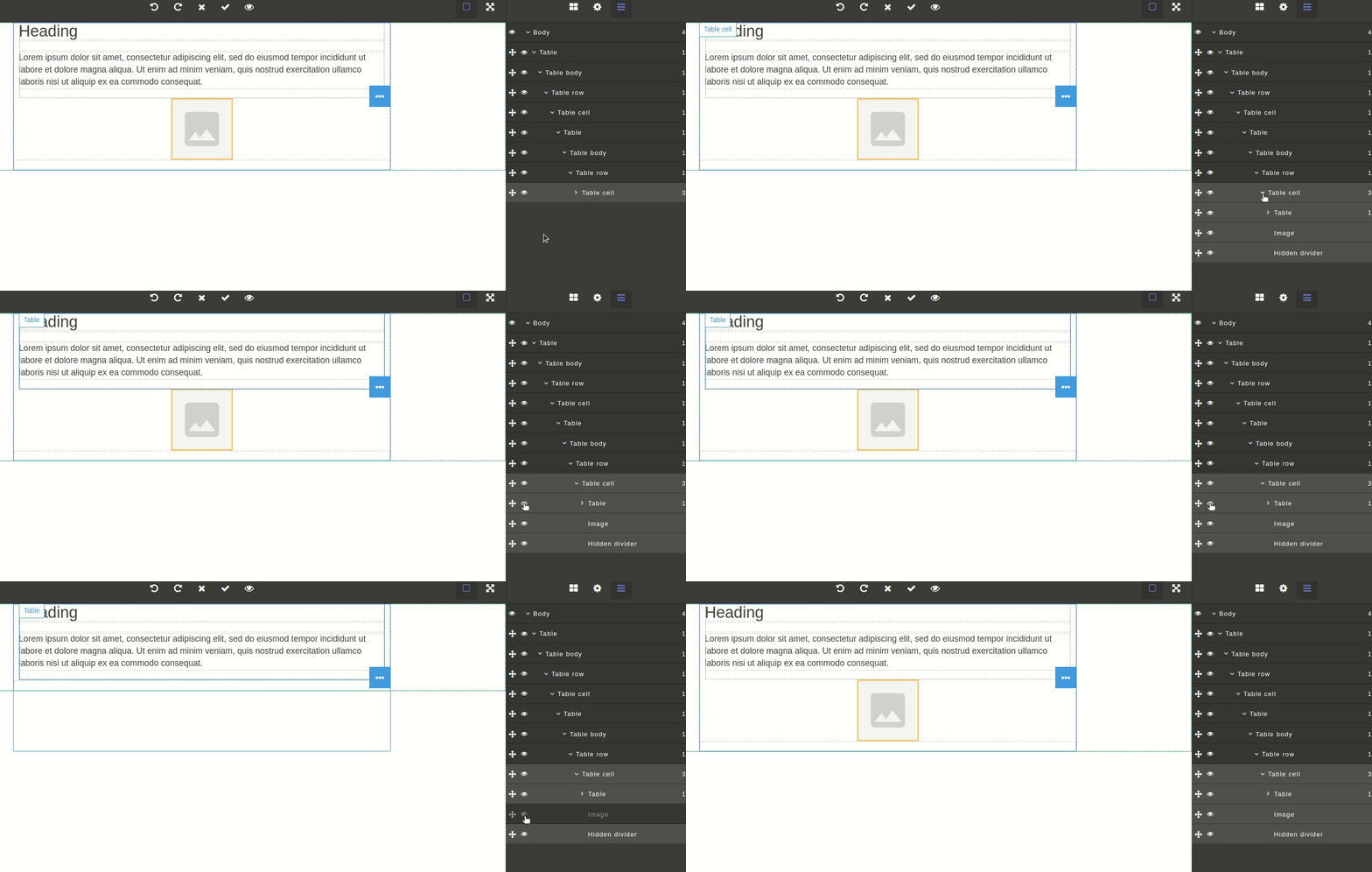
When you open the element structure, a list of all the template elements appears on the right side. Here you can clearly see how the elements are nested within each other.

The number opposite each item shows how many children the parent has.

If you hover over or click on an element, the area occupied by it in the template will be highlighted in blue.
So how can we use the element structure?

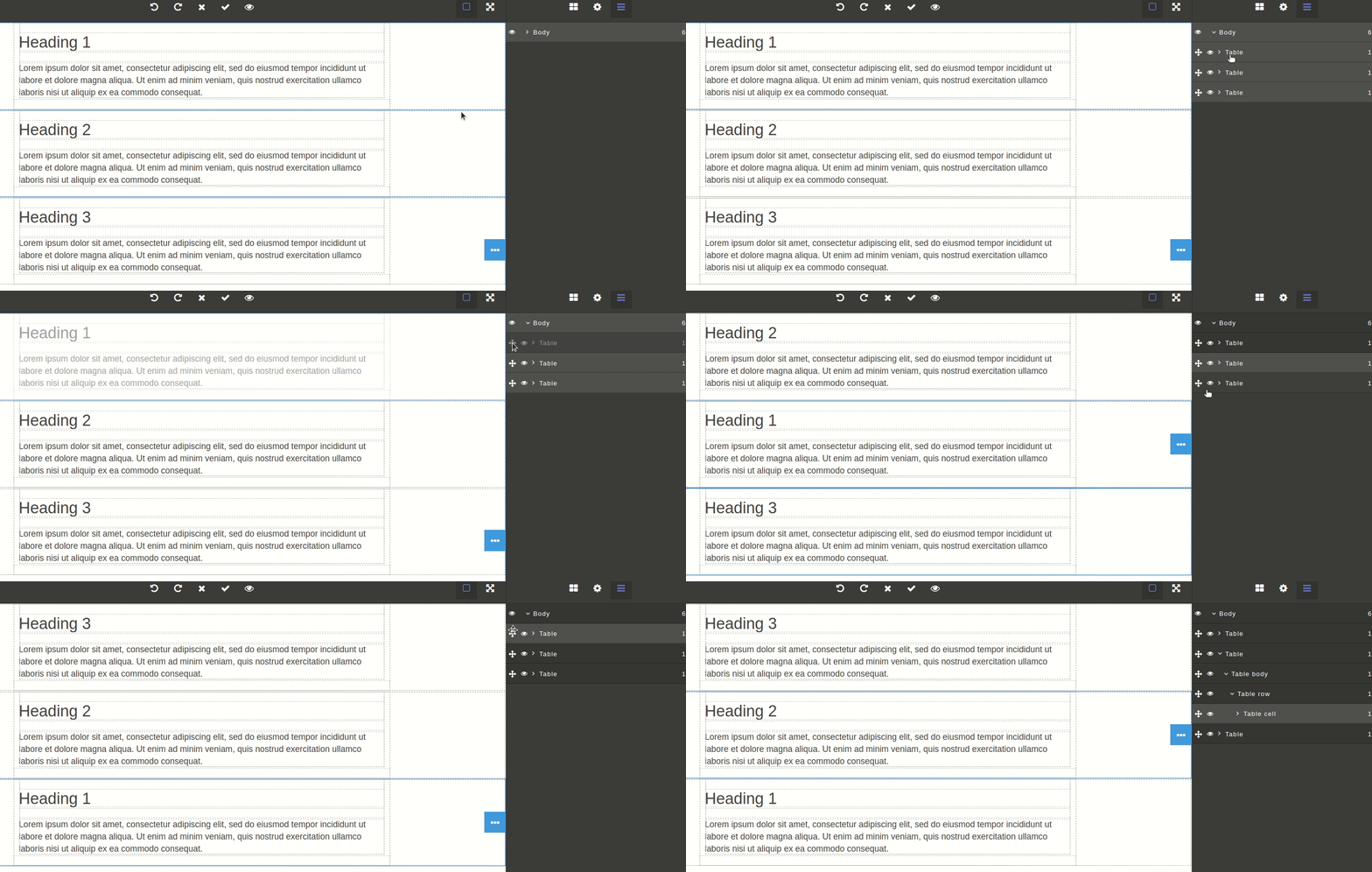
(1) Change the position of an element or the entire container. Drag and drop the element to its new position.
(2) Hide elements. Perhaps now you don't need a certain element of the message or a whole block, or you want to see how the template will look without it. Click to hide the element. If you change your mind and want to return the element, click .

Last updated on Apr 23, 2023
Previous
Style manager
Next
Template fragments
© 2015 - 2025 Altcraft, LLC. All rights reserved.