Template fragments
Description
 | Fragments are message blocks, which are used throughout several messages. For example, a fragment can be used as header or footer in the message, or block with social networks links — any content, that you are going to send within several mailings. |
Fragments are similar to template parts, but they can be used throughout several templates, when parts can be used only in the template where created. You can read more about parts in templates managing article.
For example, emails often contain links to social networks pages:

Fragments have been developed to make repeated message sections easy and fast to use — and thus to avoid mistakes.
Managing fragments
Select Templates → Fragments in the main menu to start working on fragments. A list of existing fragments will open. Using context menu, you can edit, clone or delete the fragment, — or set access group for it. If you need a new fragment — press + Create at the top part of the page:

General settings
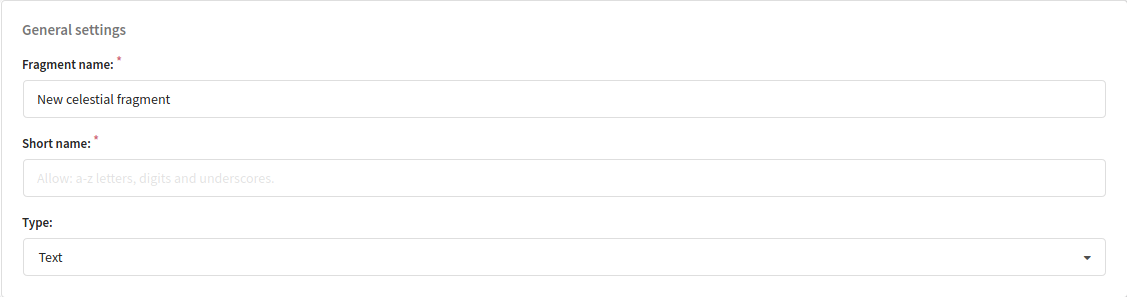
In general settings, you need to set Fragment name, that will be shown in the list, and Short name. Short name is used when you insert fragments into the templates manually, like {fragment.<short name>}, or using variables menu (</>). Also, you need to select fragment Type: HTML or text:
At the bottom part of the page, there is a block, using which you can set access group for the fragment:

HTML fragments
HTML fragments are suitable for email messages, and custom channels that support HTML. The editor supports HTML and CSS, and personalization variables. To make formatting and working with objects easier, next functions are available:
Formatting:
 — bold
 — italic
 —
— strikethrough
 — bullet list
 — numbered list
 — table
Service functions:
 — pixels for tracking of letter opening and reading. If you do not add pixel during message editing, the system will warn you about this.
 — external HTML content. You can also set variable source address manually
 {[http://example.com]}.
 — links builder.
 — UTM tags.
 — images.
 — social buttons.
 — variables and editor functions menu. Using this button, you can add Customer profiles' data, promo codes, loops, logical expressions, dynamic content and service parameters into the message.

Plain text fragments
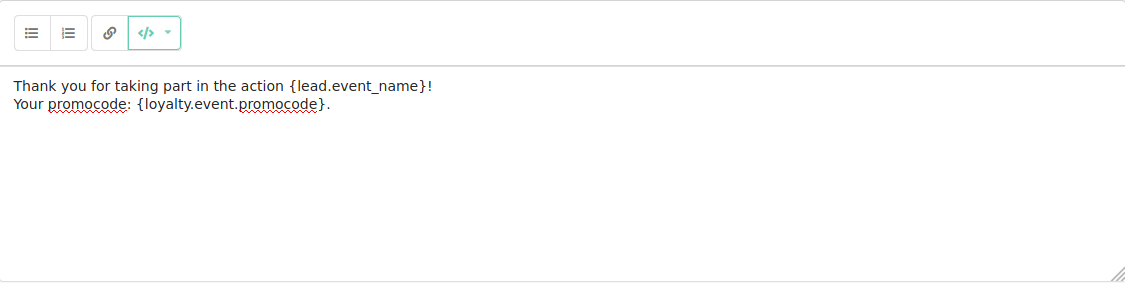
Text fragments can be used in all types of content. The following functions are available in the editor:
— bullet list
— numbered list
— links builder.
—
variables and editor functions menu
.
Using fragments in templates
Fragments can be added into templates using variables menu (</>). Also, you can add them manually using {fragment.<short name>}. Fragments can be displayed depending on some conditions and subscriber data.
If you want to display one of several fragments in a random order, choose Random fragment and specify the set of fragments you want to use:
{randomfragment[fragment.header_1 fragment.header_2 fragment.header_3]}