Working with message templates
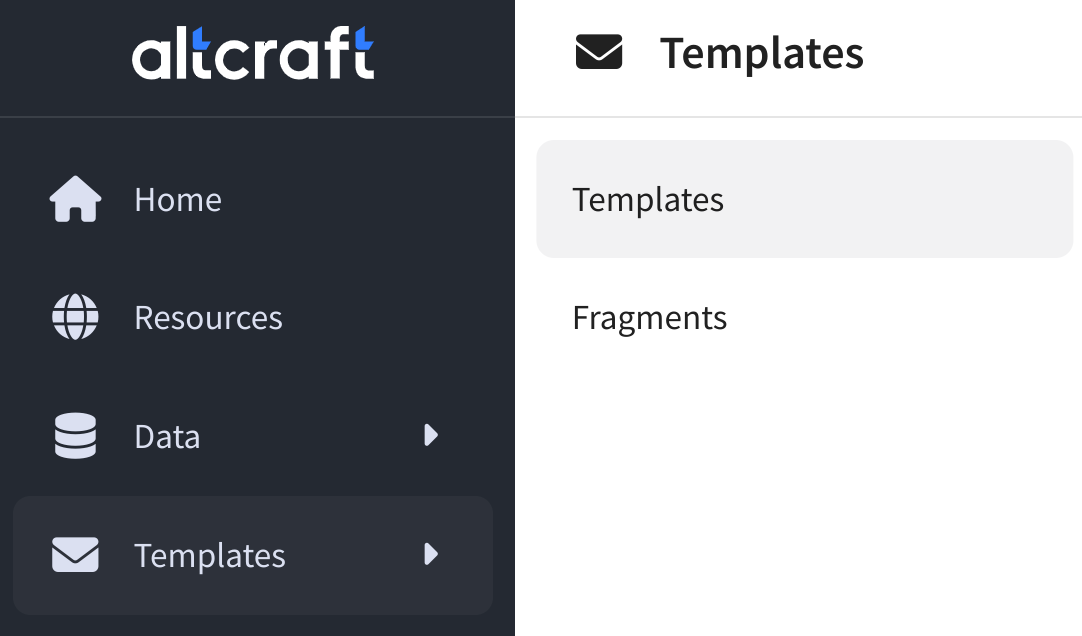 | To view existing templates and add new ones, open the Templates section in the main menu, then go to the item of the same name: |
The list shows all of your message templates available in the account or in the access group. To find a template in the general list, enter the template name or its ID in the search bar. You can also filter templates by tags, sending (communication) channel. You can also display only drafts or ready-made templates.
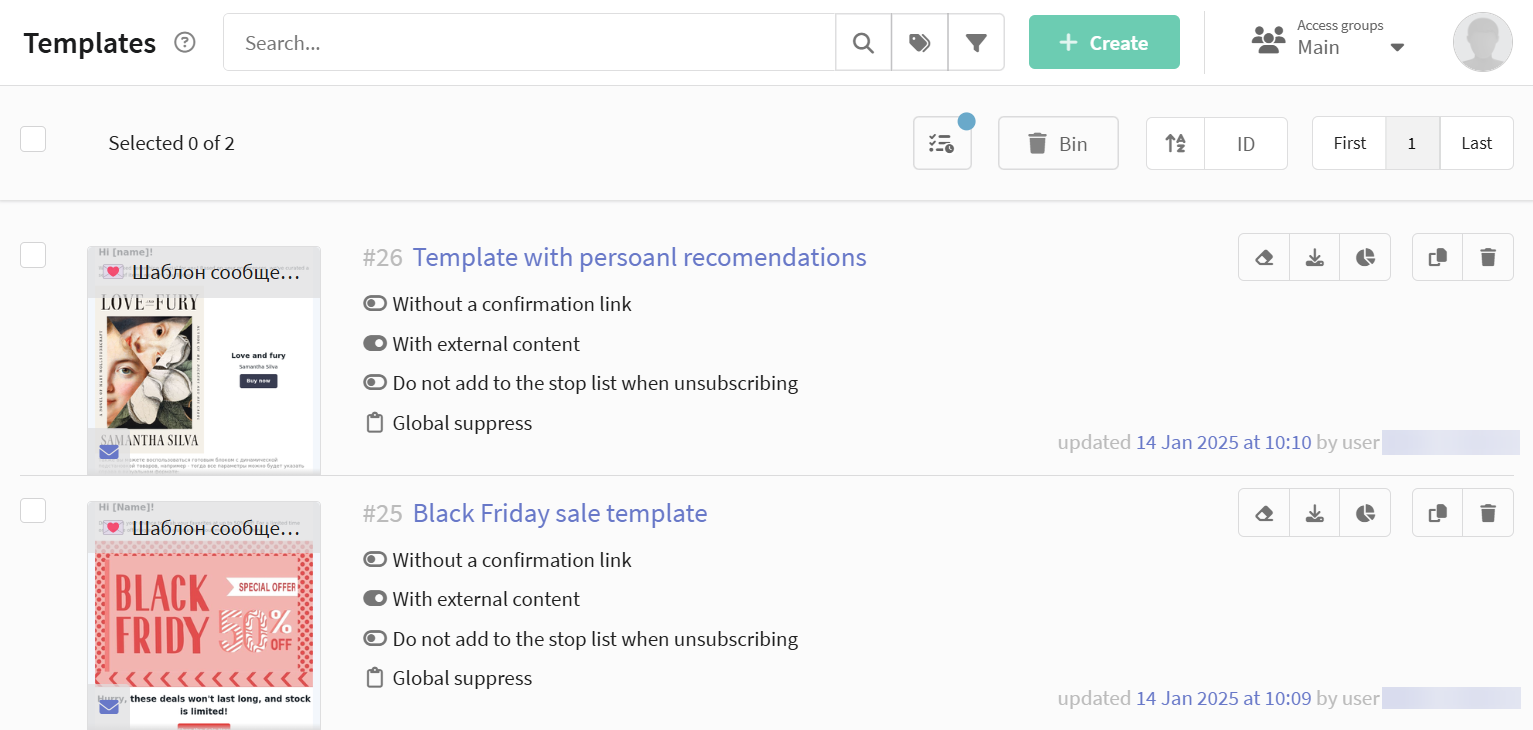
Click on the template and it will open the message preview. Here you can check how the message will look in different channels and on different devices.
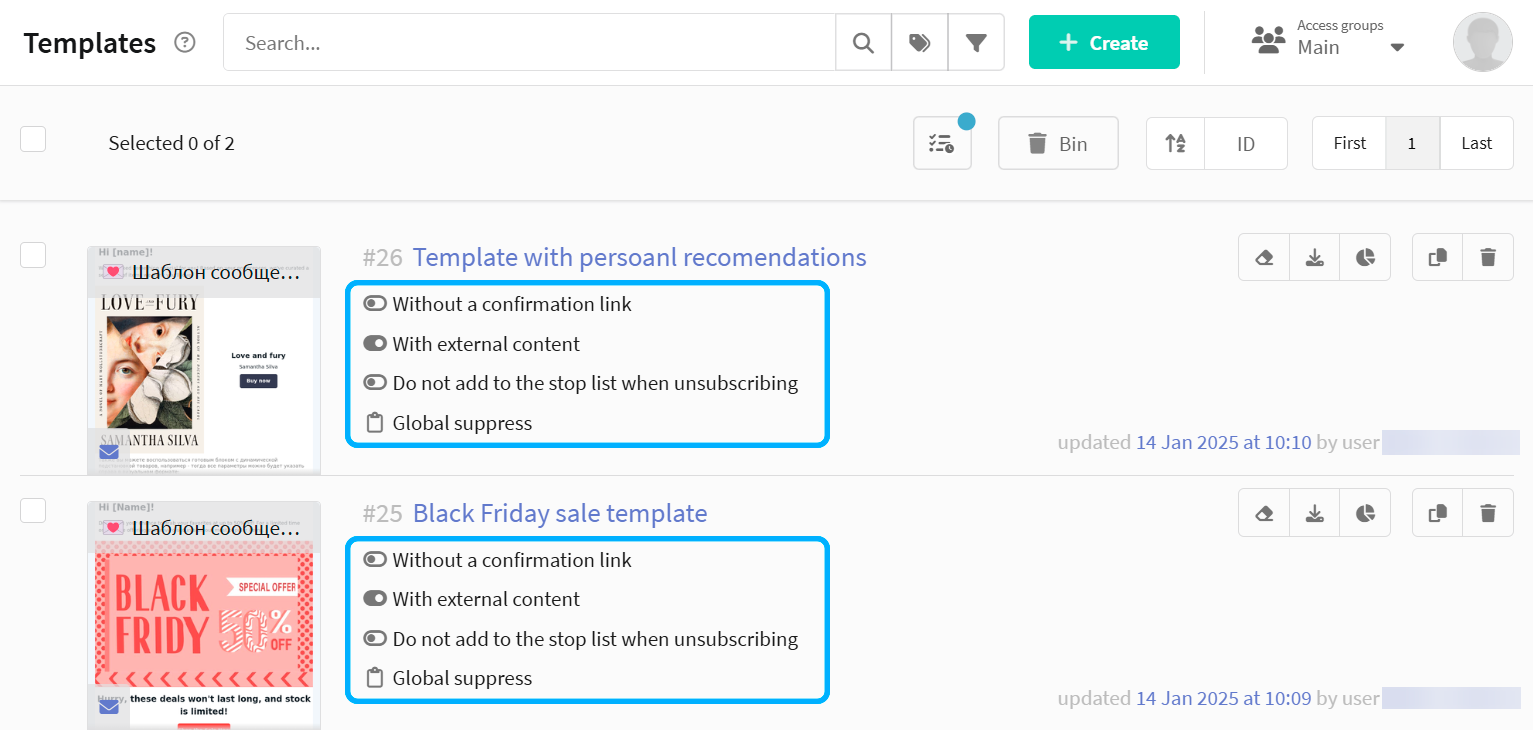
General information for each template is:
- The presence of a confirmation link — a template with such a link is required when using Double opt-in subscription.
- The presence of external content — the use of links to dynamic JSON content in the template.
- Adding to the stop list when unsubscribing — if the subscriber clicks the unsubscribe link in the message template, he will be included in the selected stop list.
- Suppression list - a campaign using a template will block sending an email to a subscriber whose contacts are in the specified suppression list.
A quick action menu is available:
 — draft mode.
 — export the template.
 — go to the template report.
 — clone the template.
 — delete the template.
To add a new template, click the + Create button at the top of the page. If you need to edit an existing template, click on its title.
Read more about working with the template editor and about templates for each communication channel in the following articles:


Working in the editor


Email-template


SMS template


Push template


Telegram template


WhatsApp template
Viber™ template

