Viber™ template
Creating a template
Viber*™ template consists of a series of messages. To start editing a template, add a message using the + Message button:
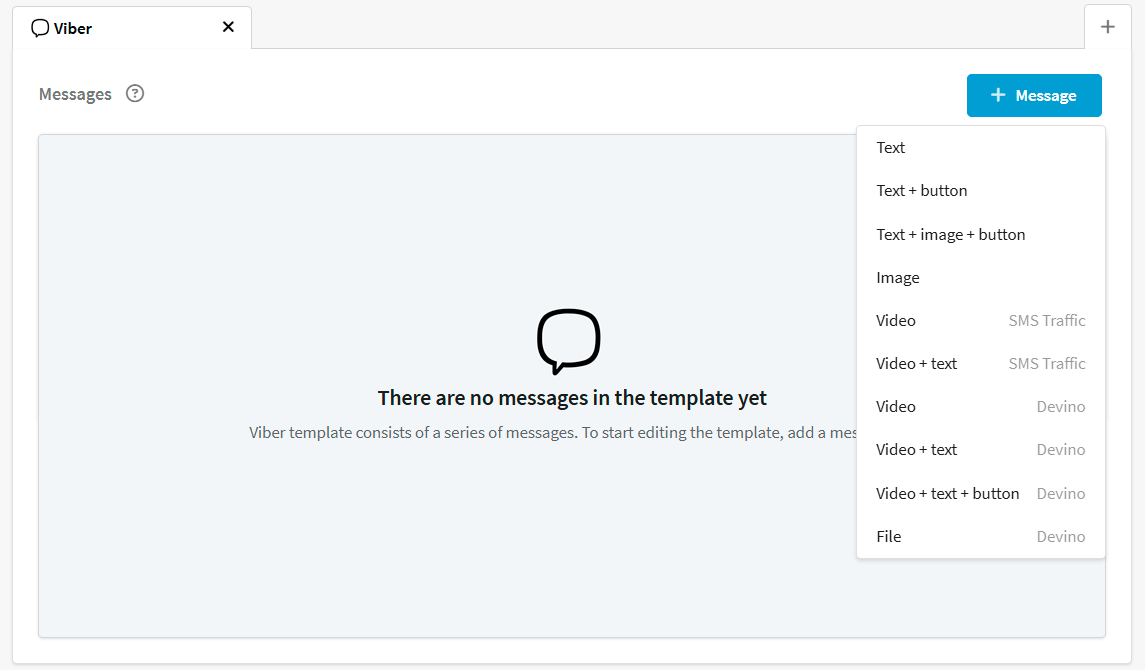
The maximum number of messages in a series is 5. If multiple messages are used in the template, each of them will be sent with an interval of 2 seconds.
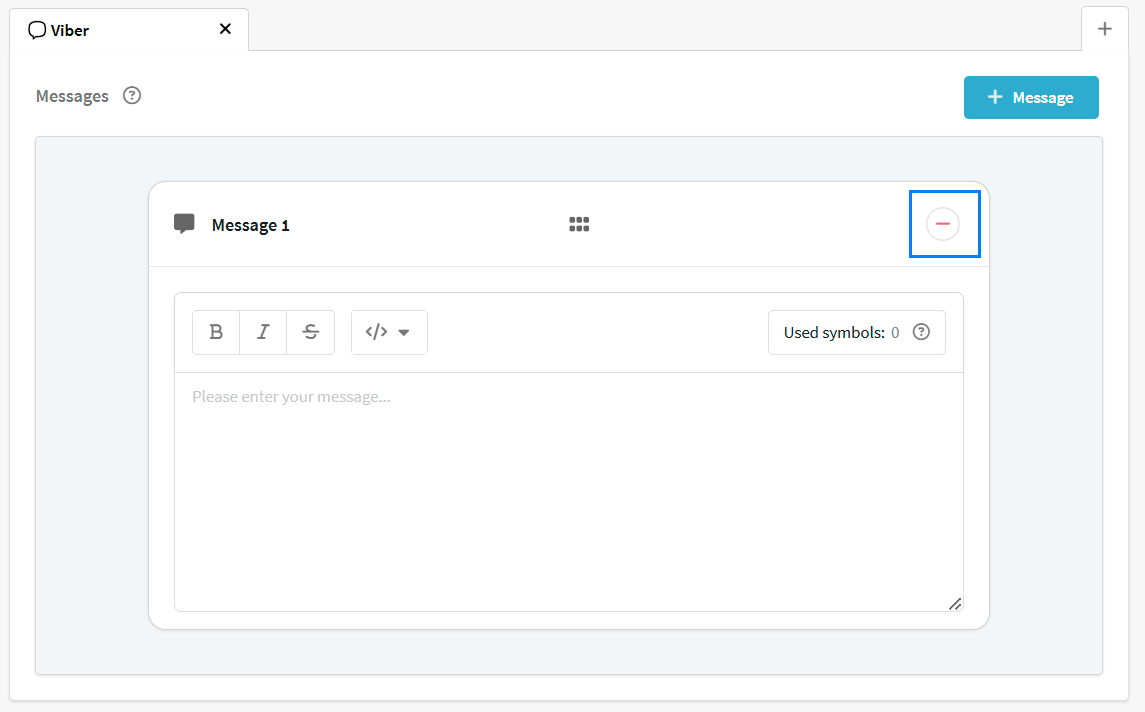
To remove an unnecessary message, click  .
.
Types of messages
The following types of messages are available:
| Message type | Devino | SMSTraffic | MTS OmniChannel | Rapporto |
|---|---|---|---|---|
| Text | + | + | + | + |
| Text + button | + | + | + | + |
| Text + image + button | + | + | + | + |
| Image | + | + | + | + |
| Video | + | + | - | - |
| Video + text | + | + | - | - |
| Video + text + button | + | - | - | - |
| File | + | - | - | - |
Text
Enter the text of your message in the editor using the Markdown format. For ease of formatting, the following functions are available on the top panel:
 — bold
text
— bold
text
 — italics
 —
—
strikethrough
text
 — list of editor variables and functions to personalize the message.
Please note that Markdown markup is displayed in preview mode (for example, "text"), but the recipient of the message will see the correct formatting ("text").
Also, you cannot add links in Markdown format to the "Text" block.
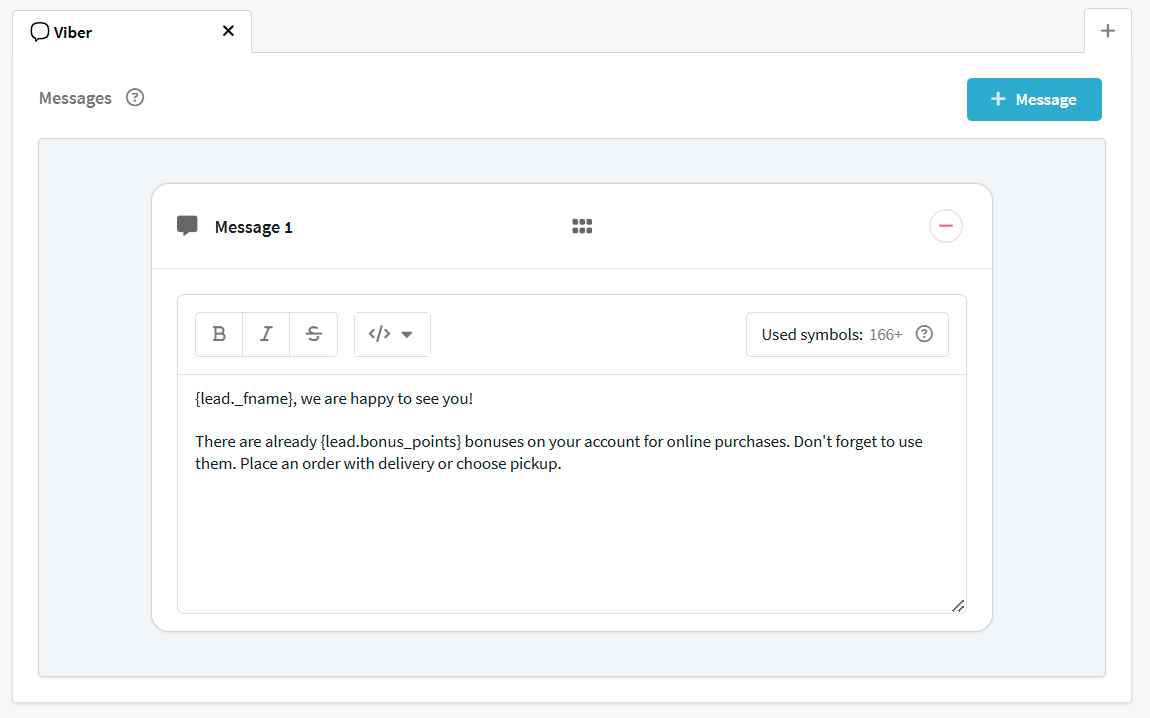
You can add emojis to Viber*™ messages. To insert an emoji, you need to use its code. For example, to add 🙂, type (smiley). Codes for all available emojis can be found at this link.
Please note that when calculating the number of characters in a message, each character in the emoji code is taken into account.
Emojis are not displayed in preview mode!
There is a character counter on the right. The maximum length of a single message is 1000 characters. Please note that data that is pulled from dynamic variables may exceed this limit. To ensure reliable delivery, we recommend that you monitor the length of the message.
Button
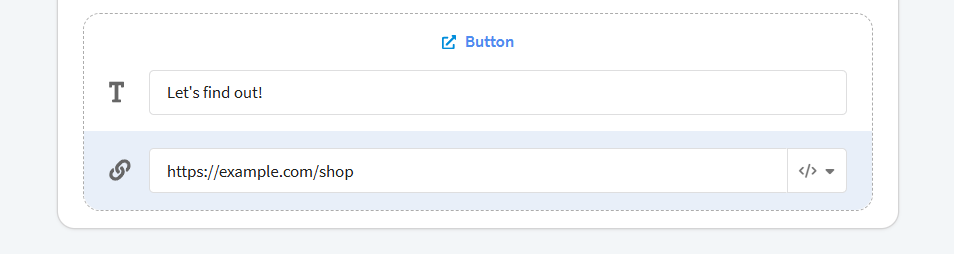
Specify the text of the button that will be displayed on the button and the link to click through. You can add variables to the URL.
Image
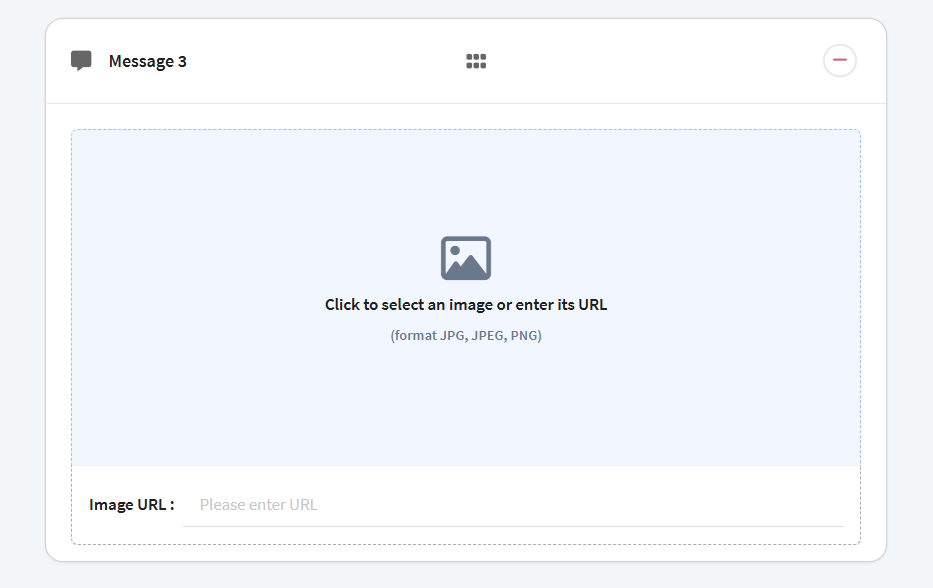
Supported formats are jpg, jpeg, png. The maximum size is 5 MB.
There are two ways to add images:
- From the platform gallery. To open the gallery, click on the download area. Select the desired image or upload a new one from your device.
- From an external source. Specify the link to the image.
Video
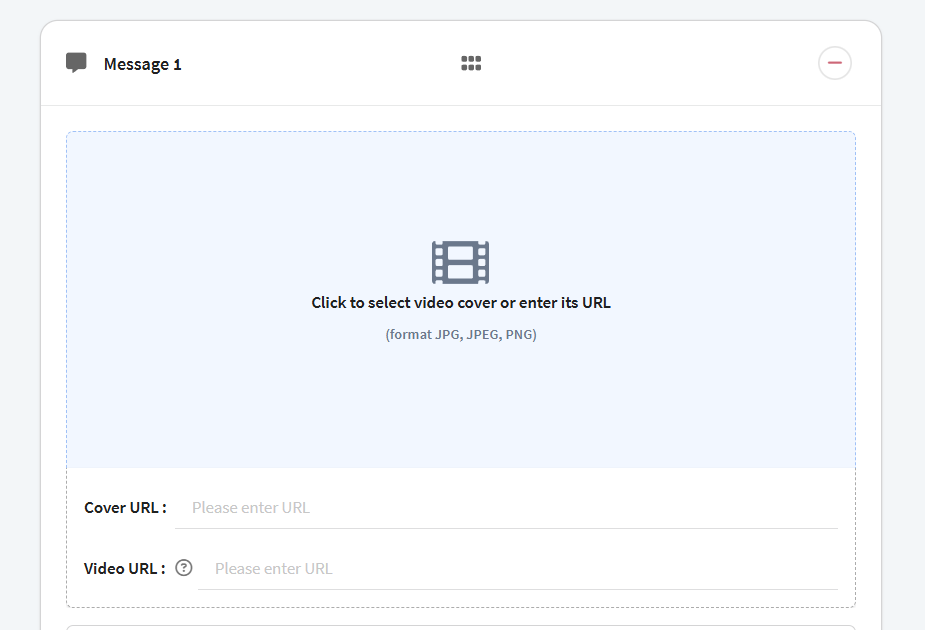
Supported formats are mp4, 3gpp. The codec is H.264. The maximum size is 5 MB.
To add a video, specify its URL. You also need to install a cover for the video. You can select an image from the platform's gallery or insert a link to the image.
File
Supported formats are doc, docs, rtf, odt, odf, txt, pdf, eps, xls, xlsx, ods, csv. The maximum file size is 200 MB. The limit on the number of characters in the file name is 25 (including the extension).
To send the file, specify the link to it.

* Viber™ is a trademark of Rakuten Group, Inc. Blocked in the Russian Federation.