Altcraft Docs LogoAltcraft Docs Logo
User guideDeveloper guideAdmin guide
Company siteHelp center
English
  • Русский
  • English
v72
  • v74
  • v73
  • v72
Login
  • User documentation
  • FAQ
  • Altcraft glossary
  • Profiles and databases
  • Communication channels
  • Segmentation
  • Message templates
  • Campaigns
  • Automation scenarios
  • Market
  • Loyalty programs
  • Reports and analytics
  • Integrations
    • Action hooks
    • Integration of third-party services using Albato
      • Connecting Altcraft to Albato
      • Launching the welcome scenario using Albato
      • Transmitting event data
      • Setting app a trigger campaign
      • Event registration
      • Google Sheets and Altcraft integration
      • AmoCRM and Altcraft integration
    • Facebook Ads Manager™
    • Google Ads Audiences
    • Yandex.Audience™
    • VK Ads™
    • Static segment synchronization
    • Yandex AppMetrica™
    • Tilda™
    • Lpgenerator™
    • WhatsApp
    • Viber*™ integration
    • Integration scope
    • Notify
  • Weblayers
  • Settings
  • API requests: where to start
  • Changelog
  • library
This is documentation for Altcraft Platform v72. This documentation is no longer maintained.
The information for up-to-date platform version at this page is available (v74).
  • Integrations
  • Integration of third-party services using Albato
  • Event registration
Documentation for version v72

Event registration

Albato allows you to transfer customer data to subscriber profile on the platform.

To do this, you need to set up a way External service → Albato → Altcraft

Set up the trigger​

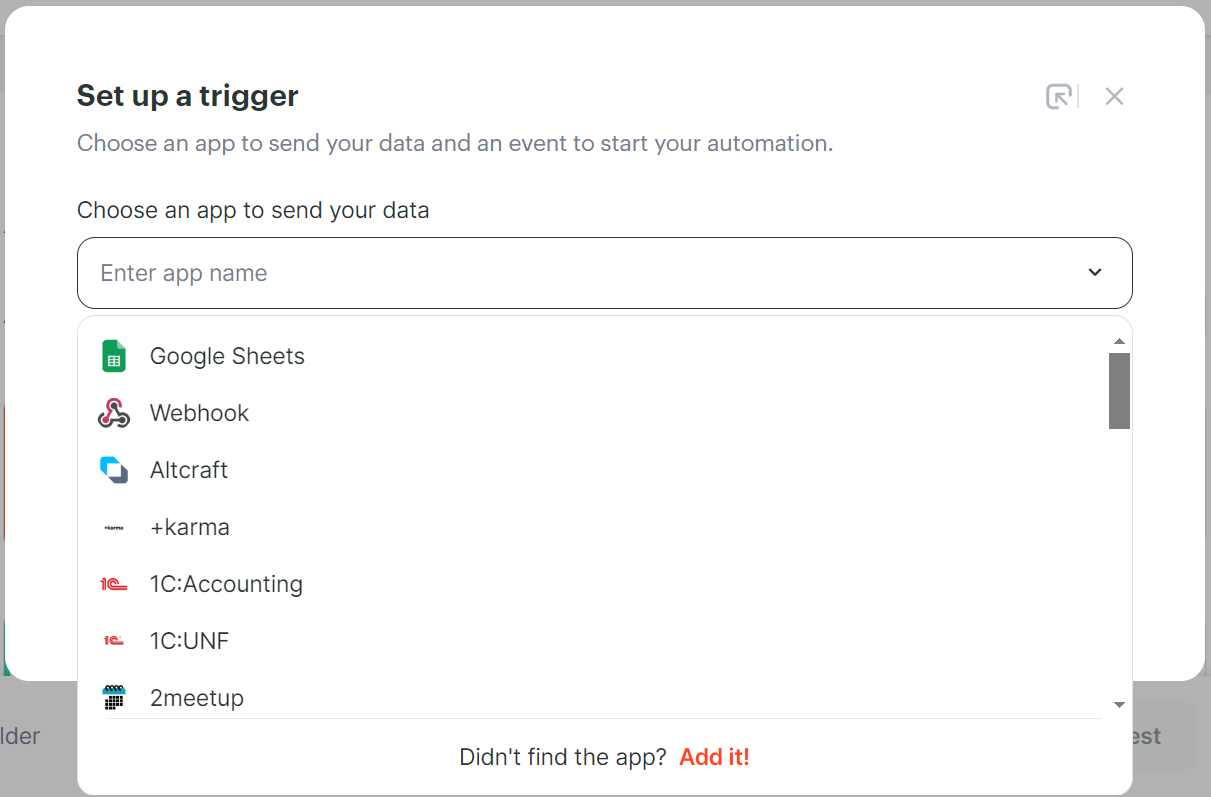
Specify the external service that will transfer data to the platform:
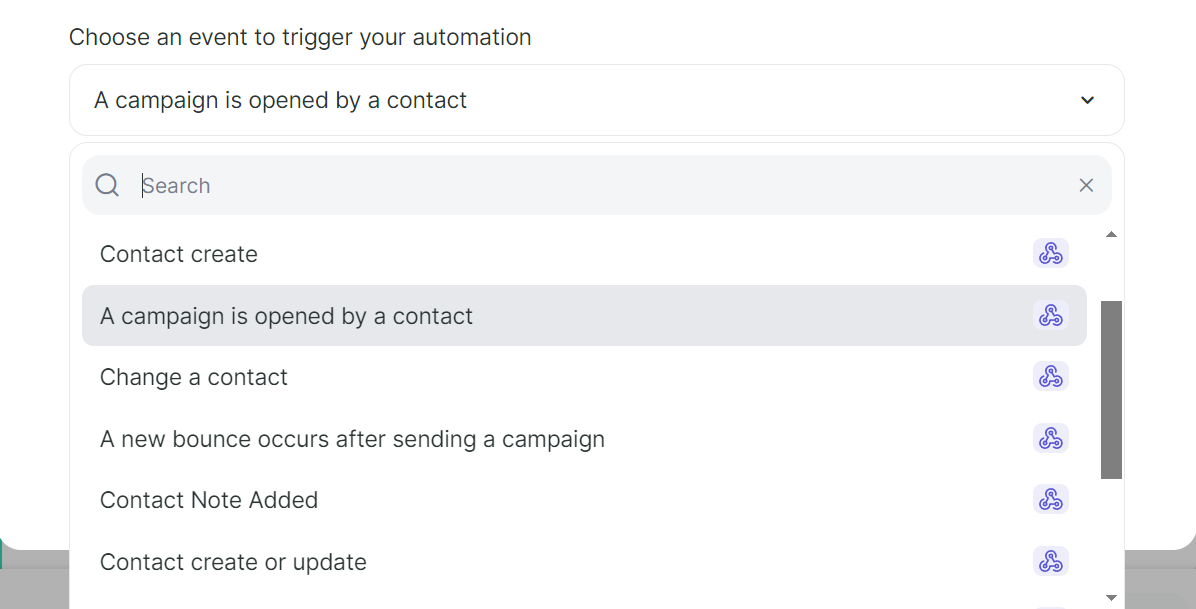
Select the event that will trigger the data transfer:
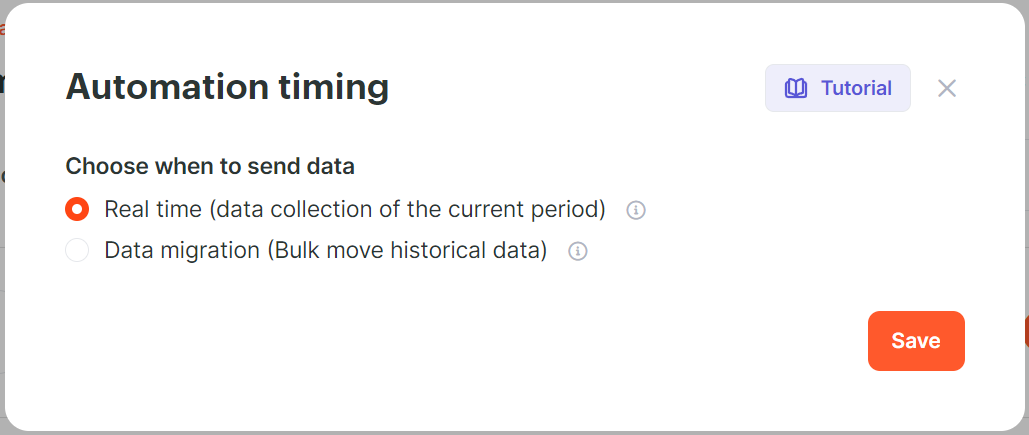
Select the mode of operation of the bundle: data can be sent to Altcraft in real time or specify for which period to collect it.
Set up the action​

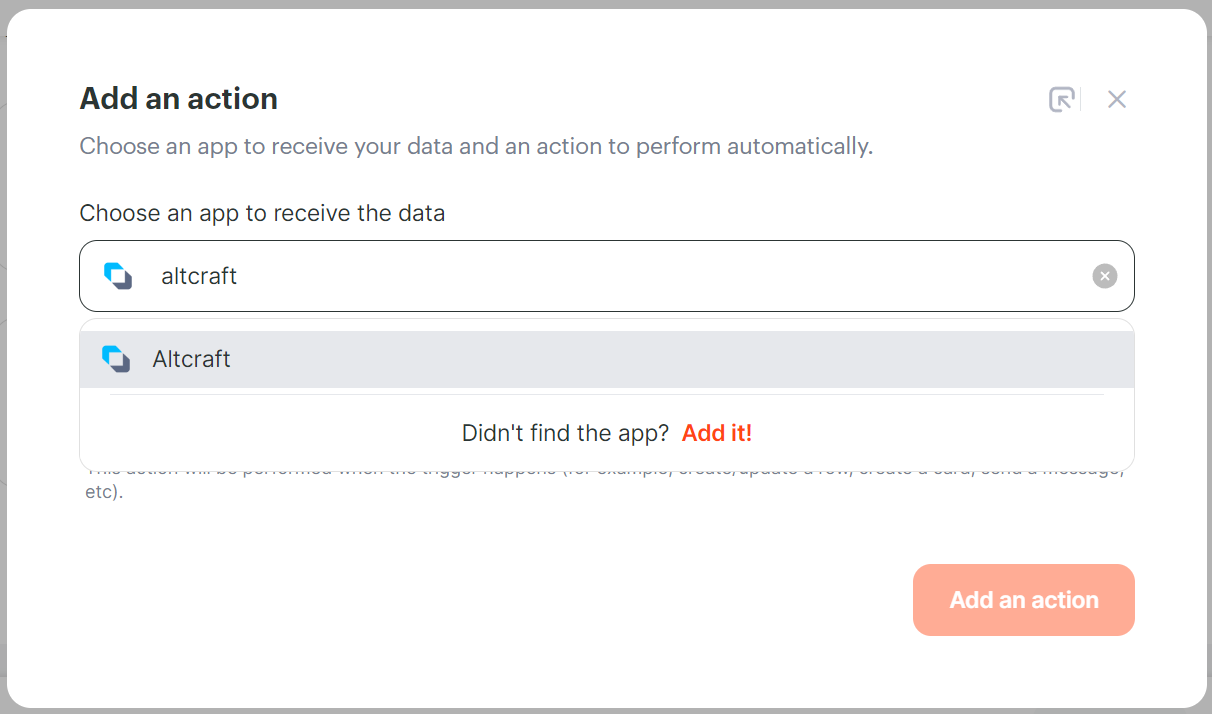
Specify Altcraft as a service for receiving data:
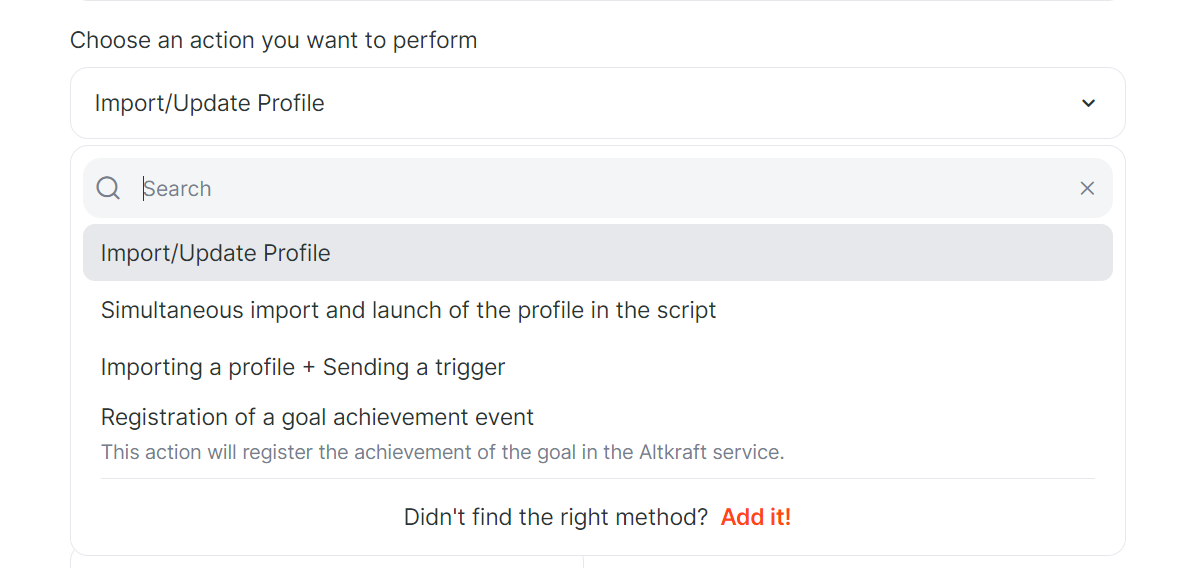
Assign an action that will take place after the event occurs. In order for the data to be imported into the subscriber's profile, select Import/Update profile:
Adjust the filter accordingly:
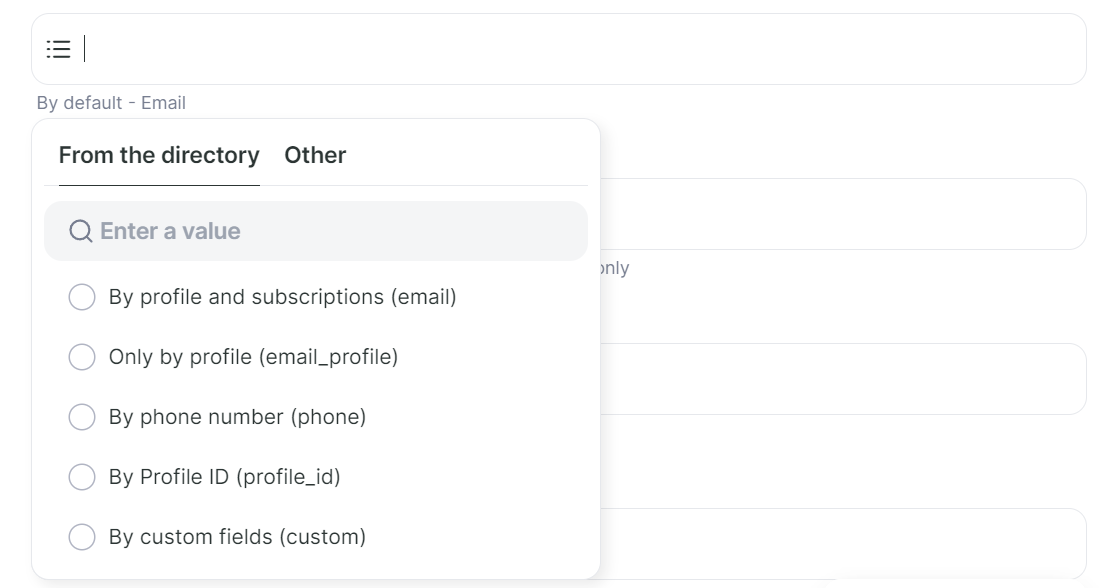
Optionally, set up additional fields.

After saving the bundle, when the trigger is started, the data will be transferred to the client's profile card.

Last updated on Jan 28, 2026
Previous
Setting app a trigger campaign
Next
Google Sheets and Altcraft integration
  • Set up the trigger
  • Set up the action
© 2015 - 2025 Altcraft, LLC. All rights reserved.