Altcraft Docs LogoAltcraft Docs Logo
User guideDeveloper guideAdmin guide
Company siteHelp center
English
  • Русский
  • English
v72
  • v74
  • v73
  • v72
Login
  • User documentation
  • FAQ
  • Altcraft glossary
  • Profiles and databases
  • Communication channels
  • Segmentation
  • Message templates
  • Campaigns
  • Automation scenarios
  • Market
  • Loyalty programs
  • Reports and analytics
  • Integrations
    • Action hooks
    • Integration of third-party services using Albato
      • Connecting Altcraft to Albato
      • Launching the welcome scenario using Albato
      • Transmitting event data
      • Setting app a trigger campaign
      • Event registration
      • Google Sheets and Altcraft integration
      • AmoCRM and Altcraft integration
    • Facebook Ads Manager™
    • Google Ads Audiences
    • Yandex.Audience™
    • VK Ads™
    • Static segment synchronization
    • Yandex AppMetrica™
    • Tilda™
    • Lpgenerator™
    • WhatsApp
    • Viber*™ integration
    • Integration scope
    • Notify
  • Weblayers
  • Settings
  • API requests: where to start
  • Changelog
  • library
This is documentation for Altcraft Platform v72. This documentation is no longer maintained.
The information for up-to-date platform version at this page is available (v74).
  • Integrations
  • Integration of third-party services using Albato
  • AmoCRM and Altcraft integration
Documentation for version v72

AmoCRM and Altcraft integration

The guide describes how to set up data transfer from Altcraft to AmoCRM via Albato.

Let's assume that after communication via SMS, it is necessary to record in AmoCRM information on the delivery of a message to a contact previously imported into Altcraft. It is possible to record information in the “Notes” entity in AmoCRM.

To set up such an integration, you need to create a new automation:

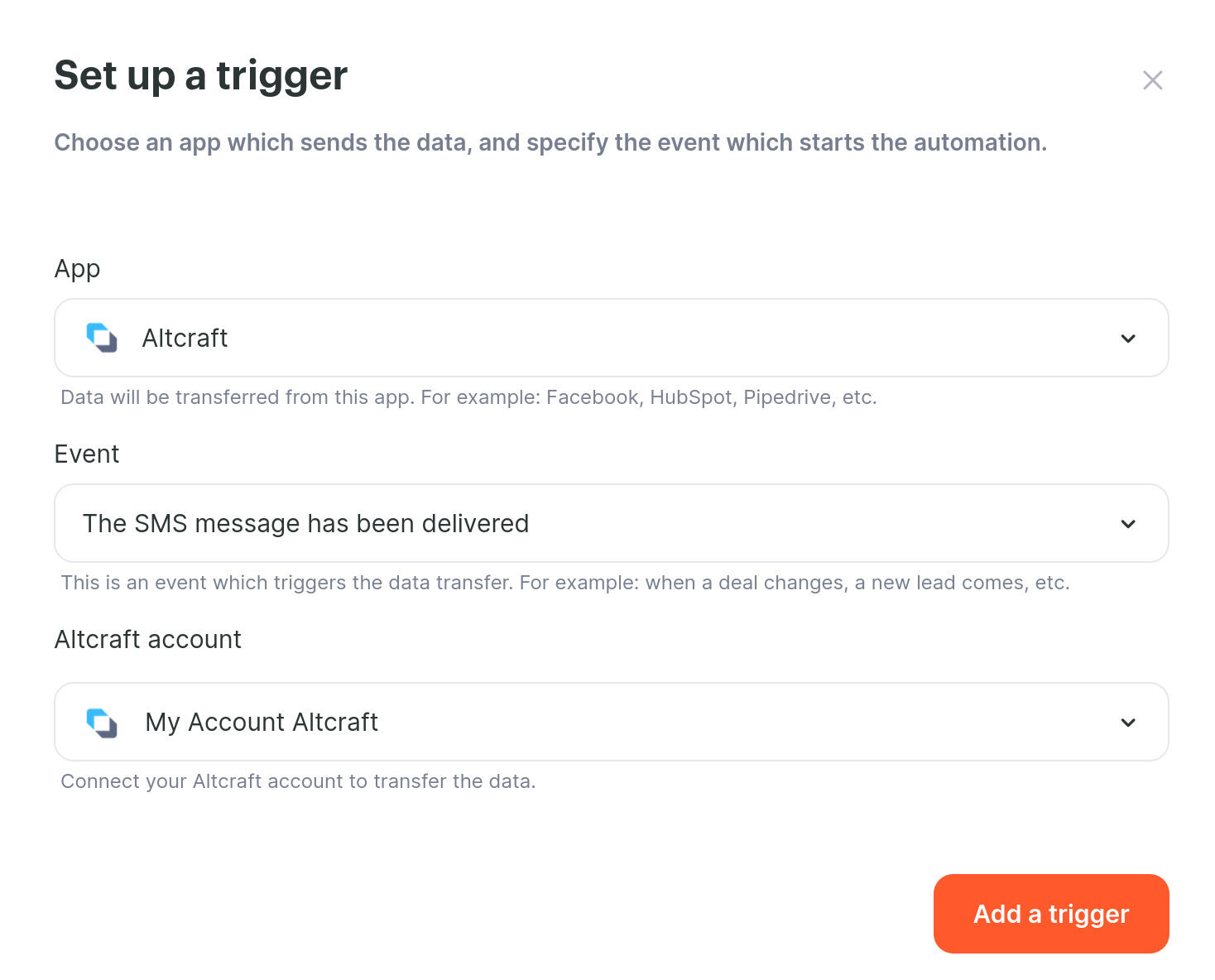
  • On the first tab, select Altcraft as the app, “SMS message delivered” as the event type. You also need to connect an account or select a previously connected one;
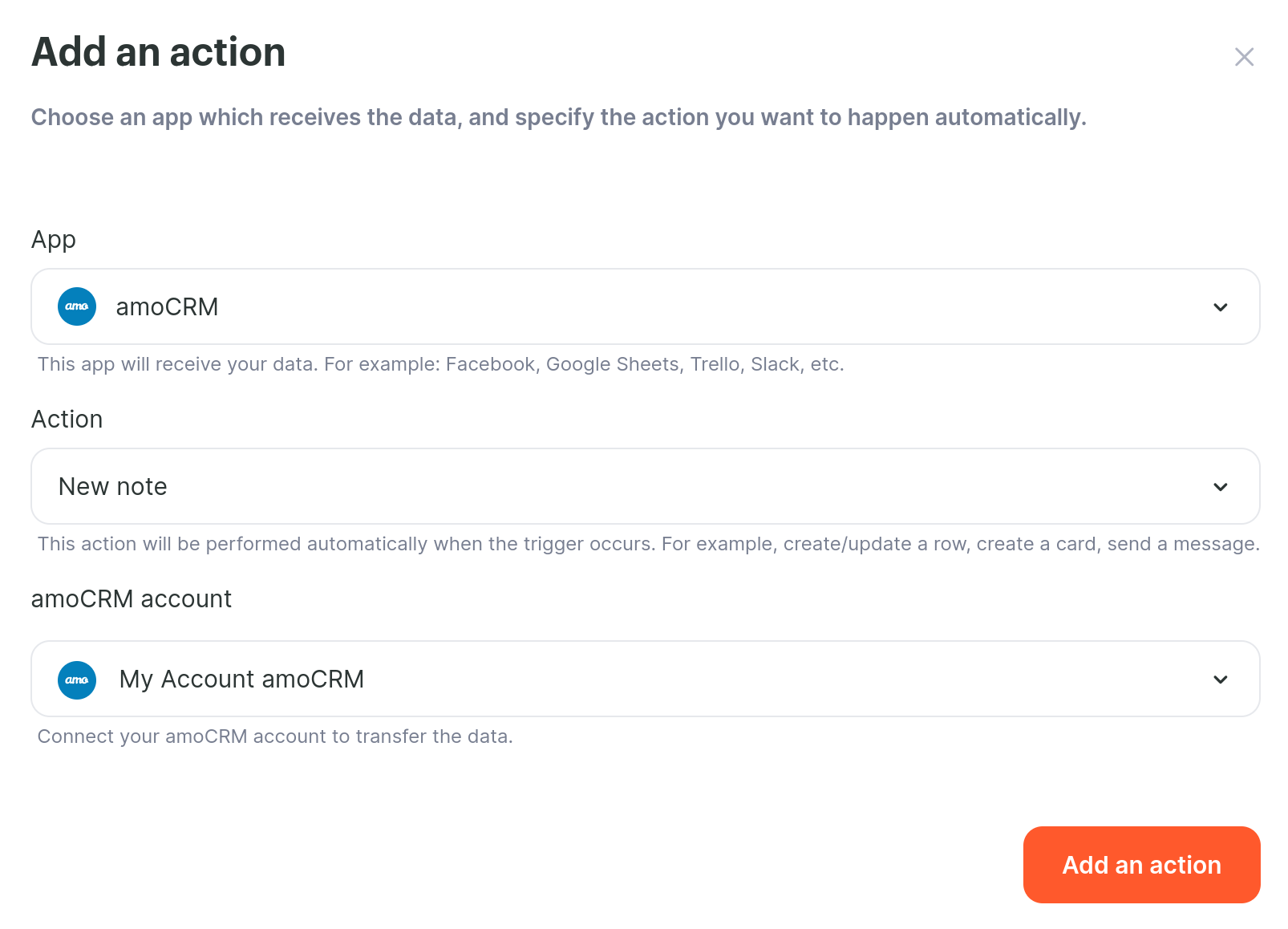
  • On the second tab, you need to select AmoCRM as the app, an action (in this example, a message is added to the “Notes” block), and also connect an account or select a previously connected one.
After clicking “Add action”, the following window opens, in which you need to configure the mapping of the fields.
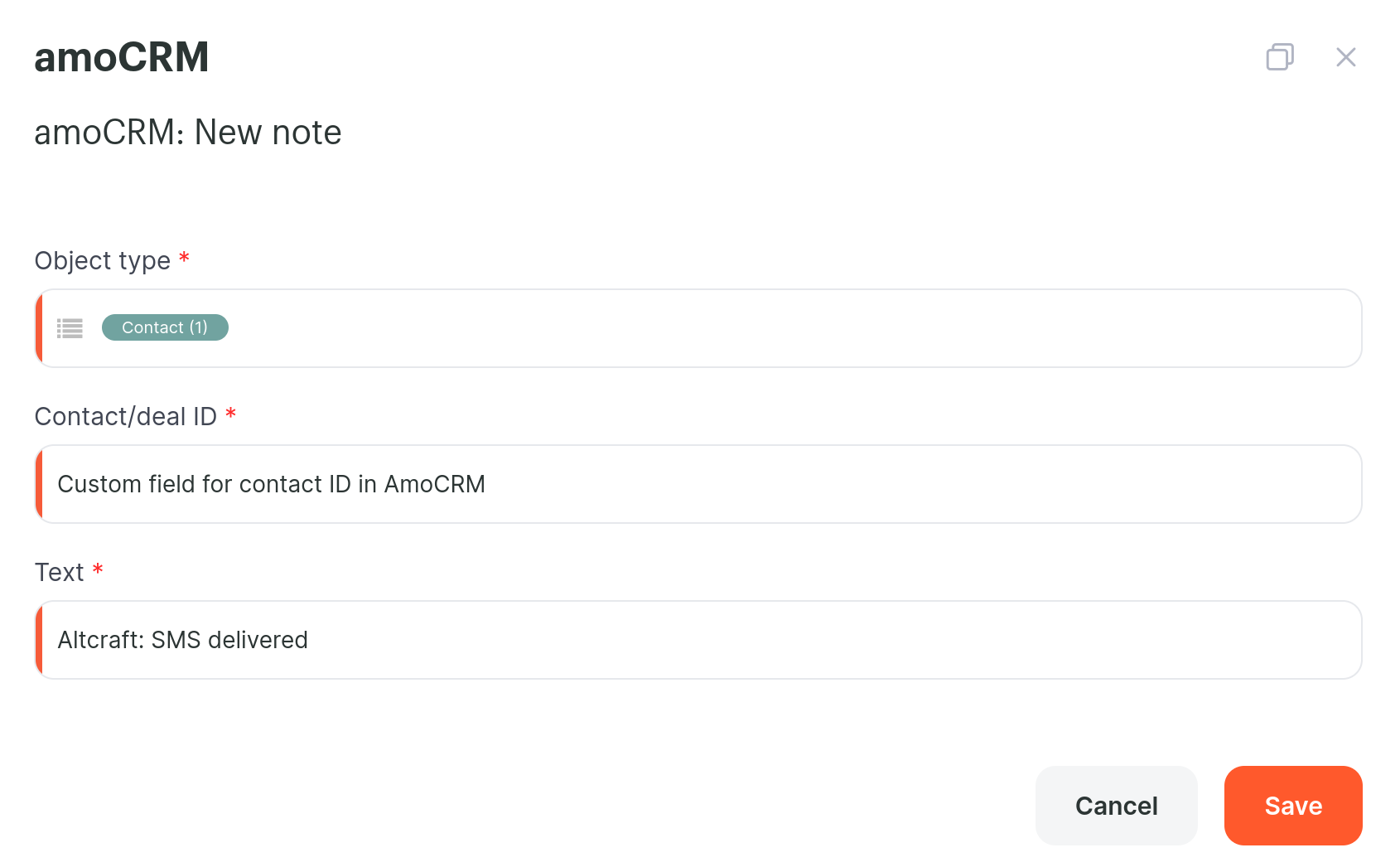
After clicking the “Save” button, an automation card will be displayed in the “Automations” window.

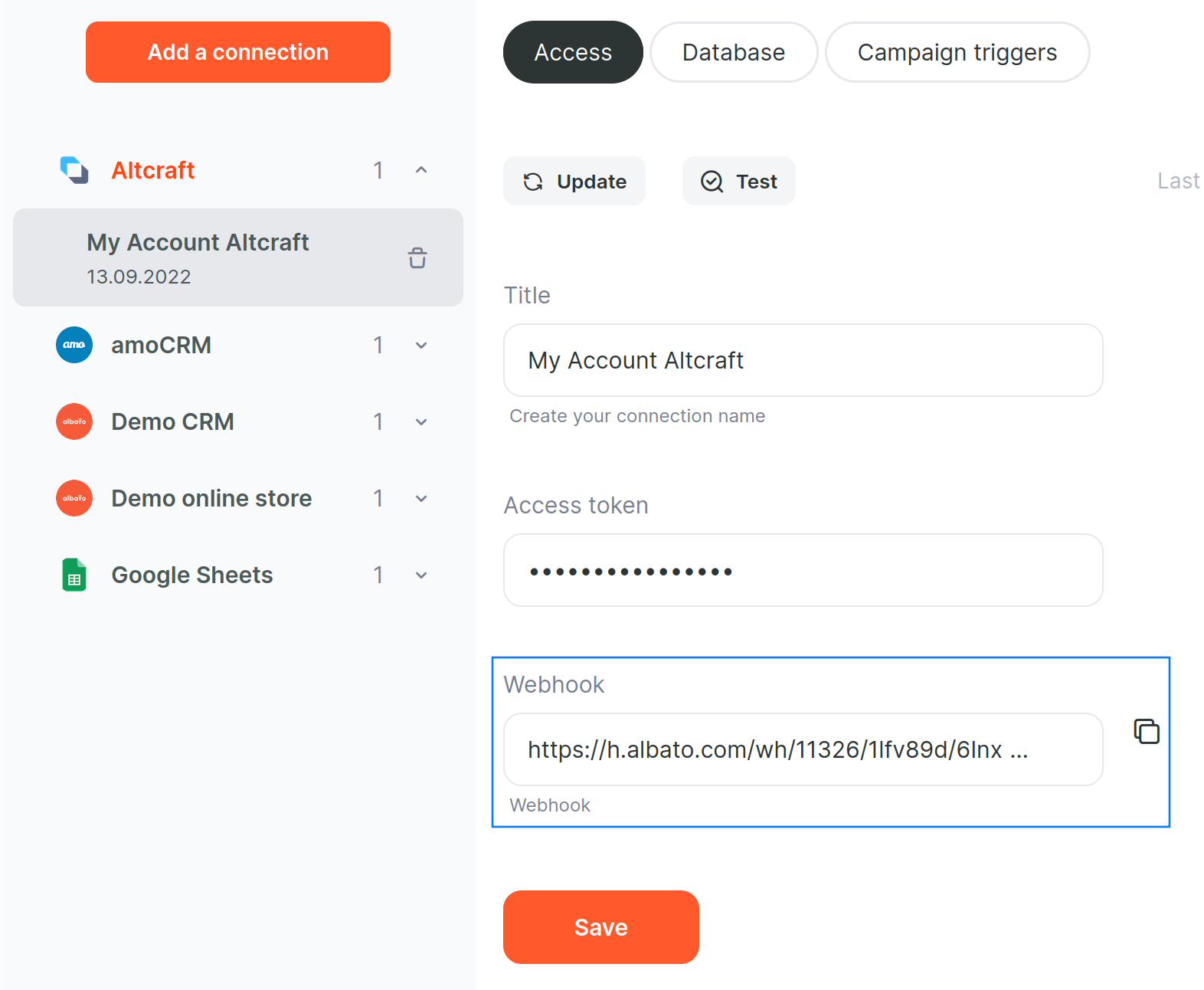
For correct data transfer, it is necessary to set up Action Hooks in Altcraft (Learn more). As the URL of the link to send the event, you must specify the Albato webhook URL (you can see it in the app connection card), as well as set the event type and select a custom field for matching by the contact ID in AmoCRM.
Last updated on Oct 10, 2022
Previous
Google Sheets and Altcraft integration
Next
Facebook Ads Manager™
© 2015 - 2025 Altcraft, LLC. All rights reserved.