Transmitting event data
An event is an action related to the delivery of messages or the import of subscriber profiles, as well as customer actions tracked by Altcraft platform pixels on your website or on the app.
Event data can be transferred to various services using action hooks, including Albato.
Setting up action hook on the platform
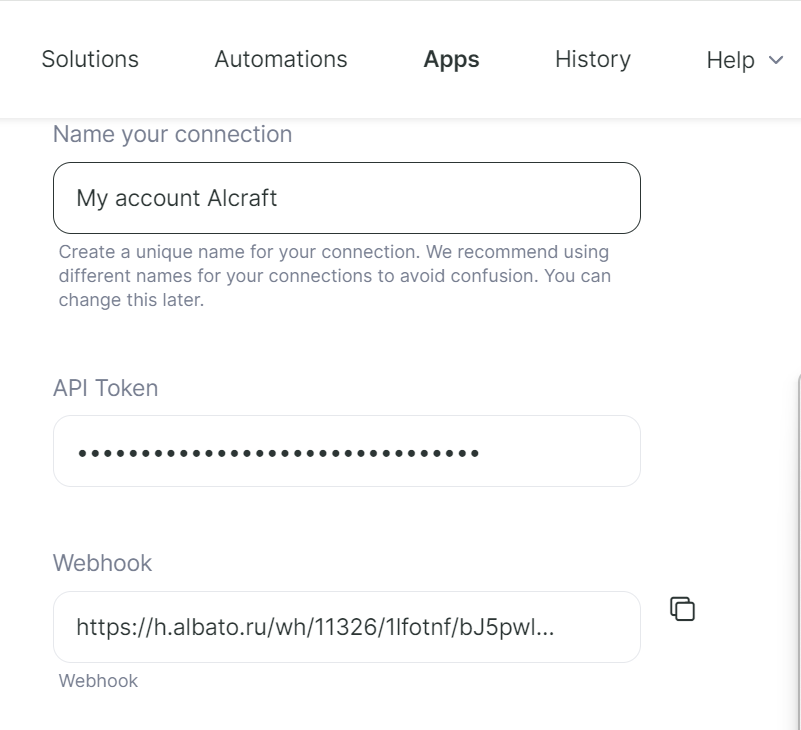
The main steps for configuring action hook are described in this article. On the URL field, specify the address, the way is Albato → Apps → Altcraft → My Altcraft account
List of available events:
- Campaign launched
- An SMS message has been sent for delivery to the subscriber.
- Not a unique click on a link in an Email message
- The SMS message has been delivered
- Click on the subscription confirmation link in the double opt-in message
- SMS message not delivered
- The subscriber followed the unsubscribe link in the email and was unsubscribed
- Push message sent for delivery to subscriber
- Not a unique opening of a Push message
- Push message delivered
- Not a unique click on a link in an SMS message.
- Not a unique click on a link in a Push message
- The promo code is activated
- Not a unique opening of an Email message
- Email message sent for delivery to subscriber
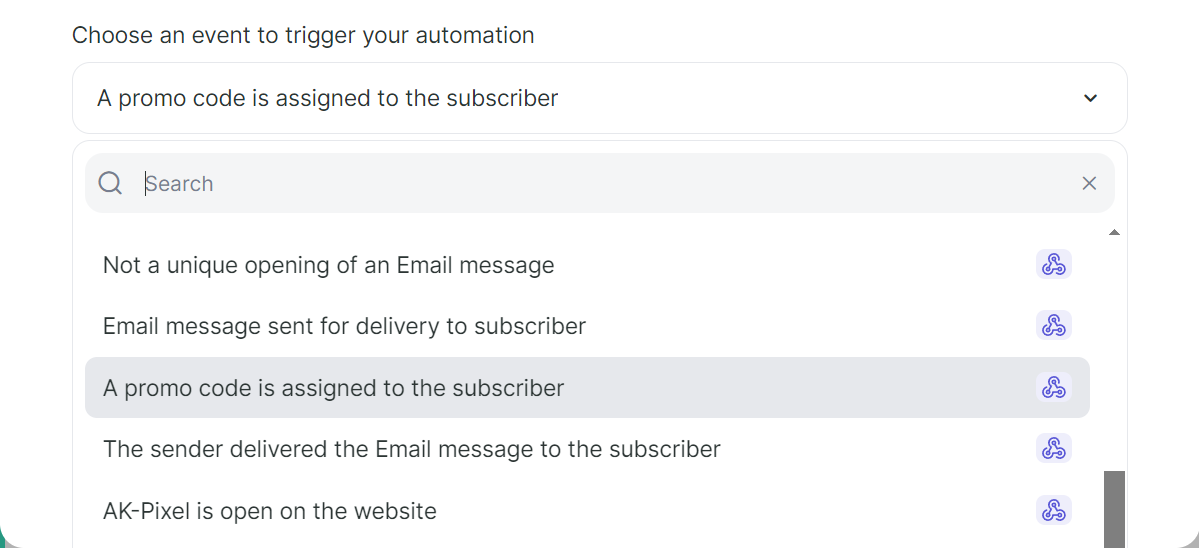
- A promo code is assigned to the subscriber
- The sender delivered the Email message to the subscriber
- AK-Pixel is open on the website
- The sender could not deliver the Email message to the subscriber
- You can activate event capture using the switch at the top of the screen:

Setting up a automation in Albato
To set up a automations to transfer data from Altcraft to an external service, click "Create new automations"
Set up a trigger
Select Altcraft as the service that will transfer data to Albato
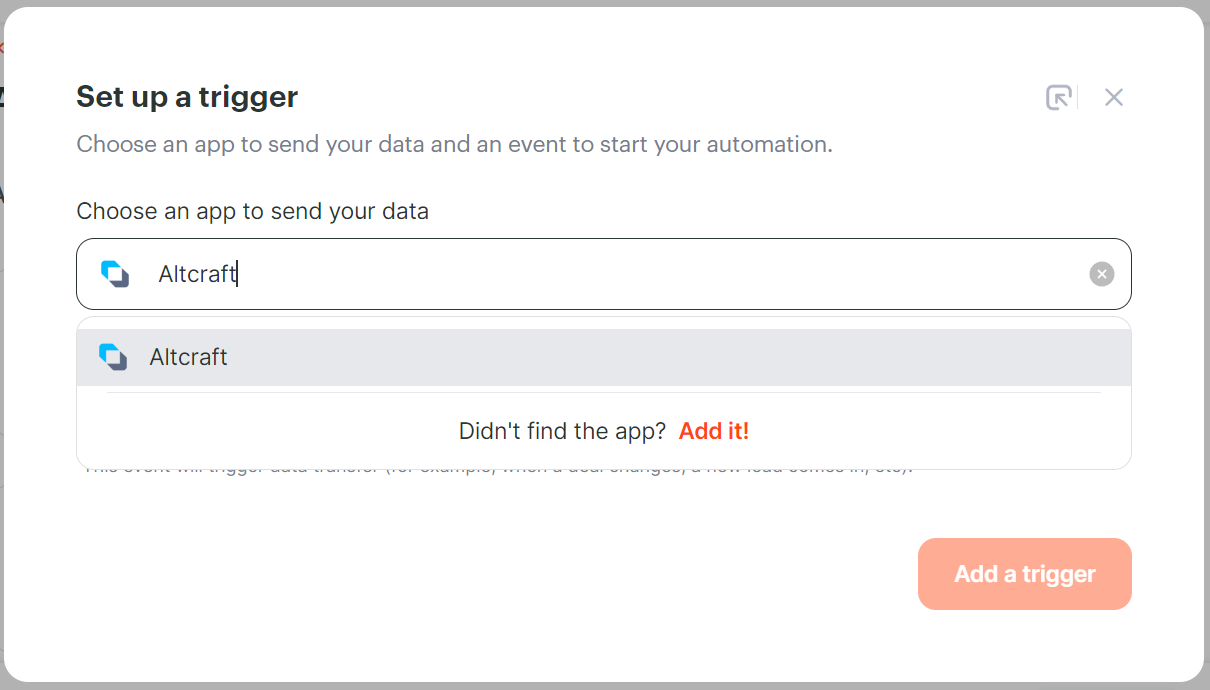
Select the event that will trigger the transfer of data to Albato:
Connect your account.
Add the action that will occur after the trigger is started
Select the service where the data will be sent:
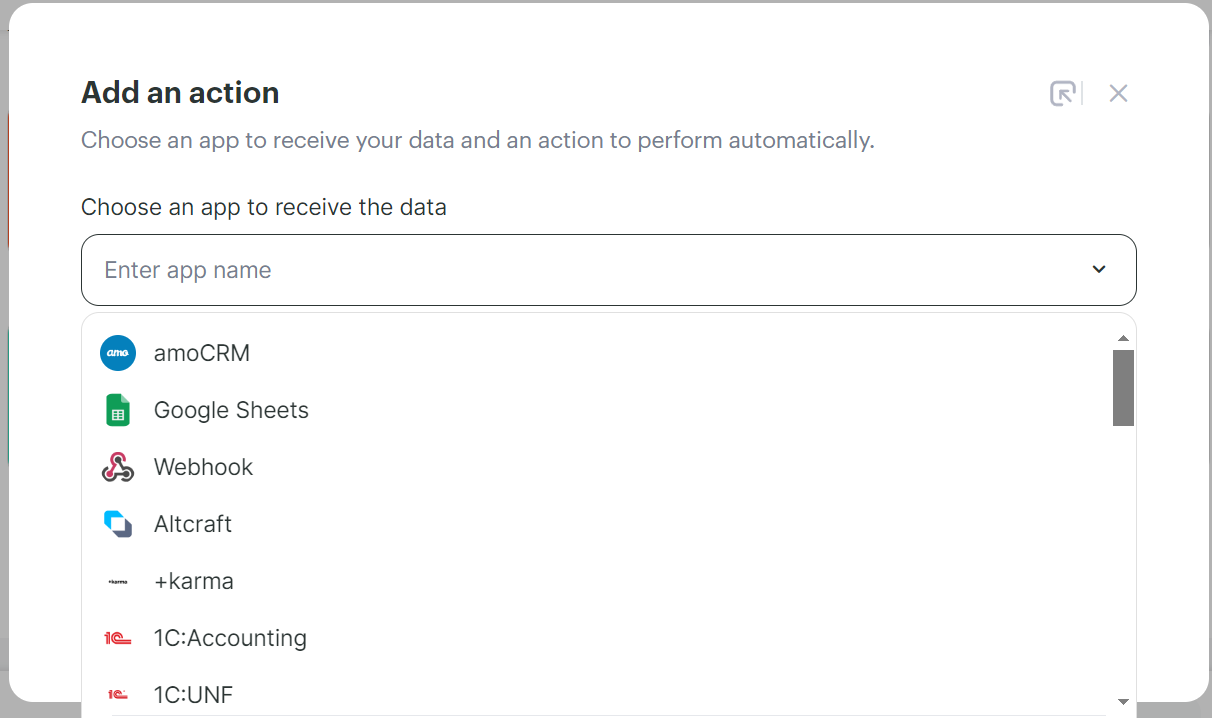
Assign an event to be performed:
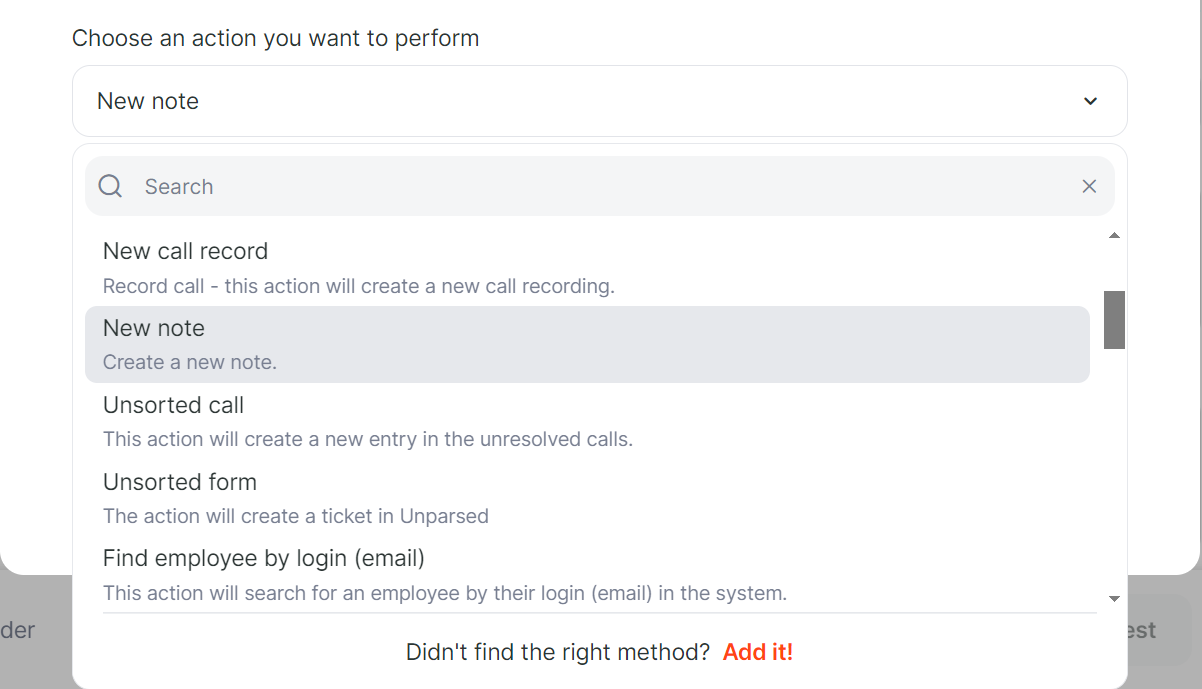
Connect your account to Albato.
Click save and then configure the fields: add a "Contact", the text "add a promo". You can activate the automations after adding necessary information.