Firebase Cloud messaging
 | If you want to send Web Push to such browsers as Mozilla Firefox, Opera, Google Chrome, Yandex Browser, Samsung Internet Browser, you need to create a project in Firebase Console. |
Step 1. Creating a Firebase project
Follow the link, create an account in Google Firebase and register your website or application. To do this, click on the Create project button and specify the project name:
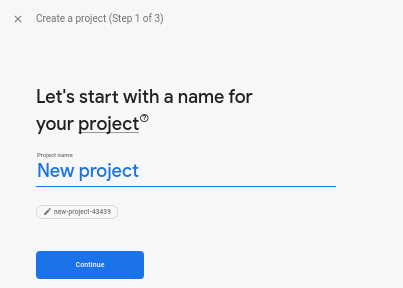
When creating a project, you can set up Google Analytics and also add Firebase to your web application, but these are not required steps.
Step 2: Receiving project data
To configure Firebase Cloud Messaging in Altcraft Platform, you need the following information:
- API key for web application
- Firebase project ID
- Firebase sender ID
- Firebase credentials file (.json)
- Application ID
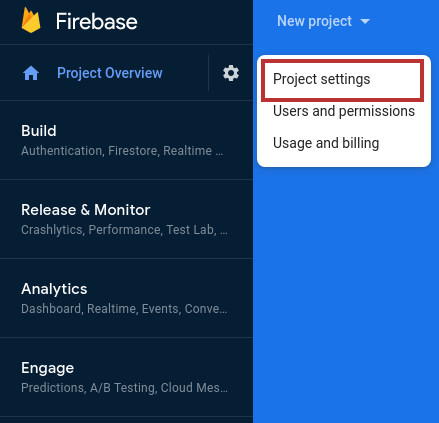
All this information you can find in the Firebase Console interface. Go to the navigation panel on the left side, click the icon "Settings" and choose "Project Settings":
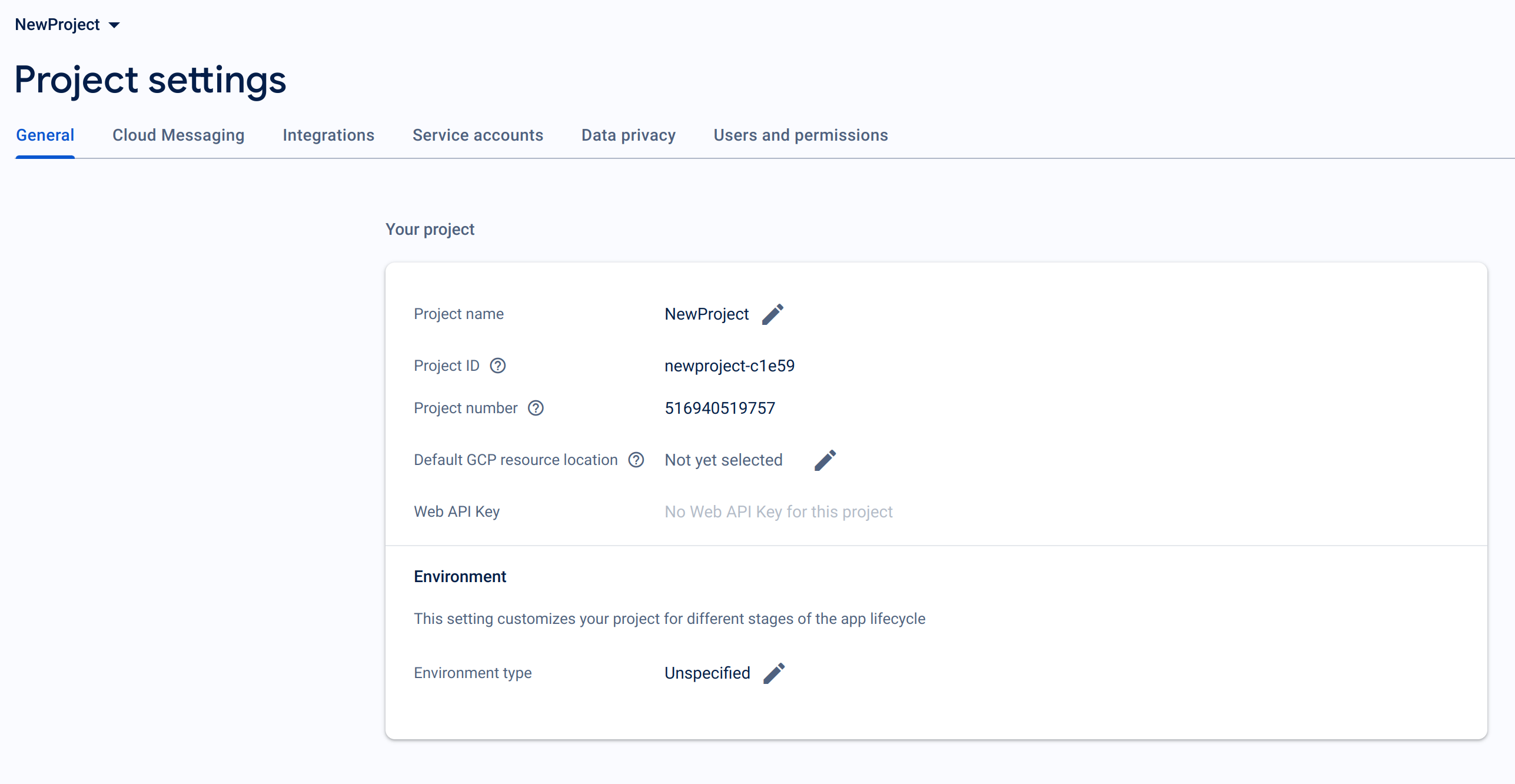
Firebase project ID (Project ID) and API key for web application (Web API key) are in the section "General":
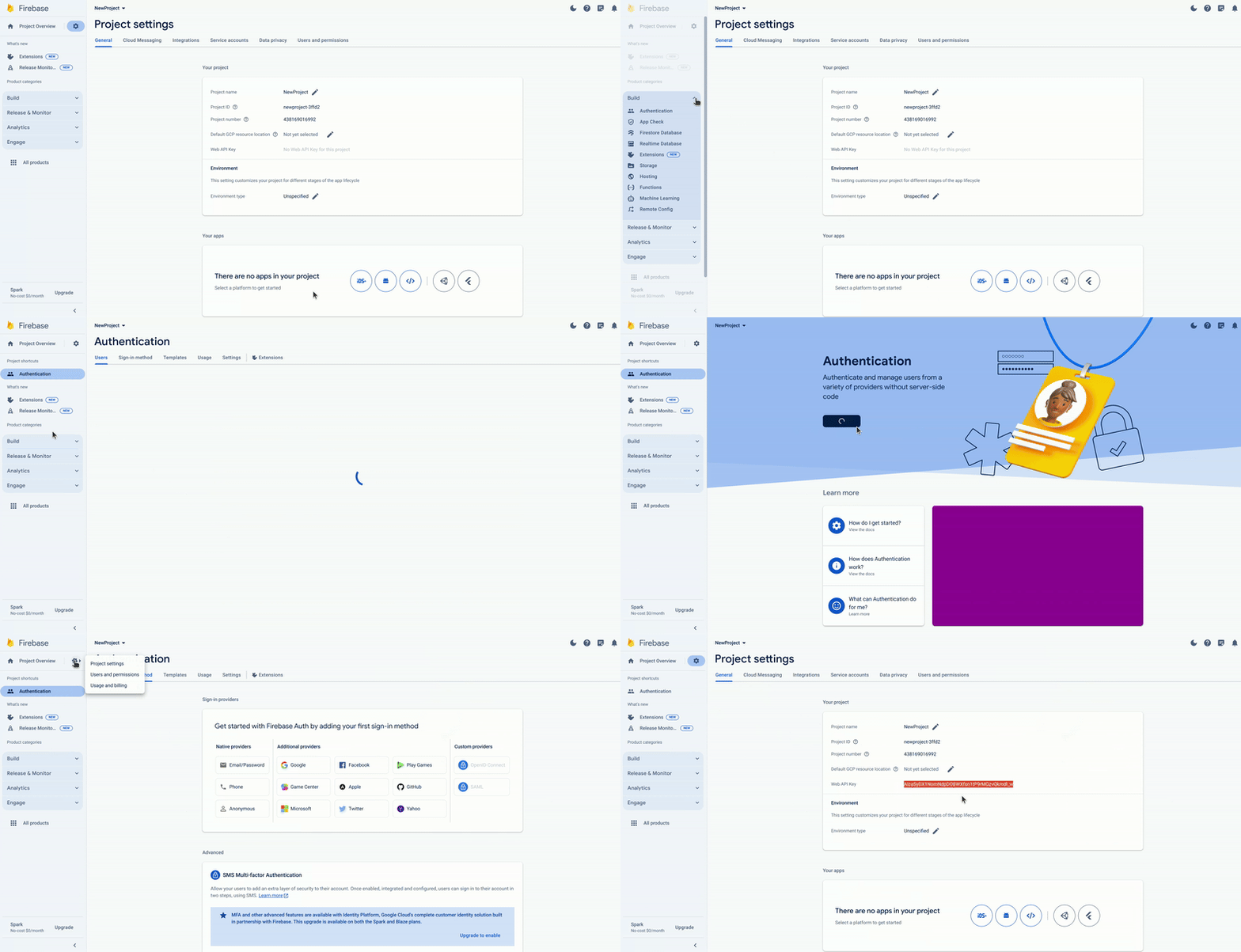
If you do not see the Web API Key, go to the "Build" panel and open the "Authentication" panel in the drop-down menu. Click on the "Get started" button on the screen. Now you can go back to the settings menu at the left panel:
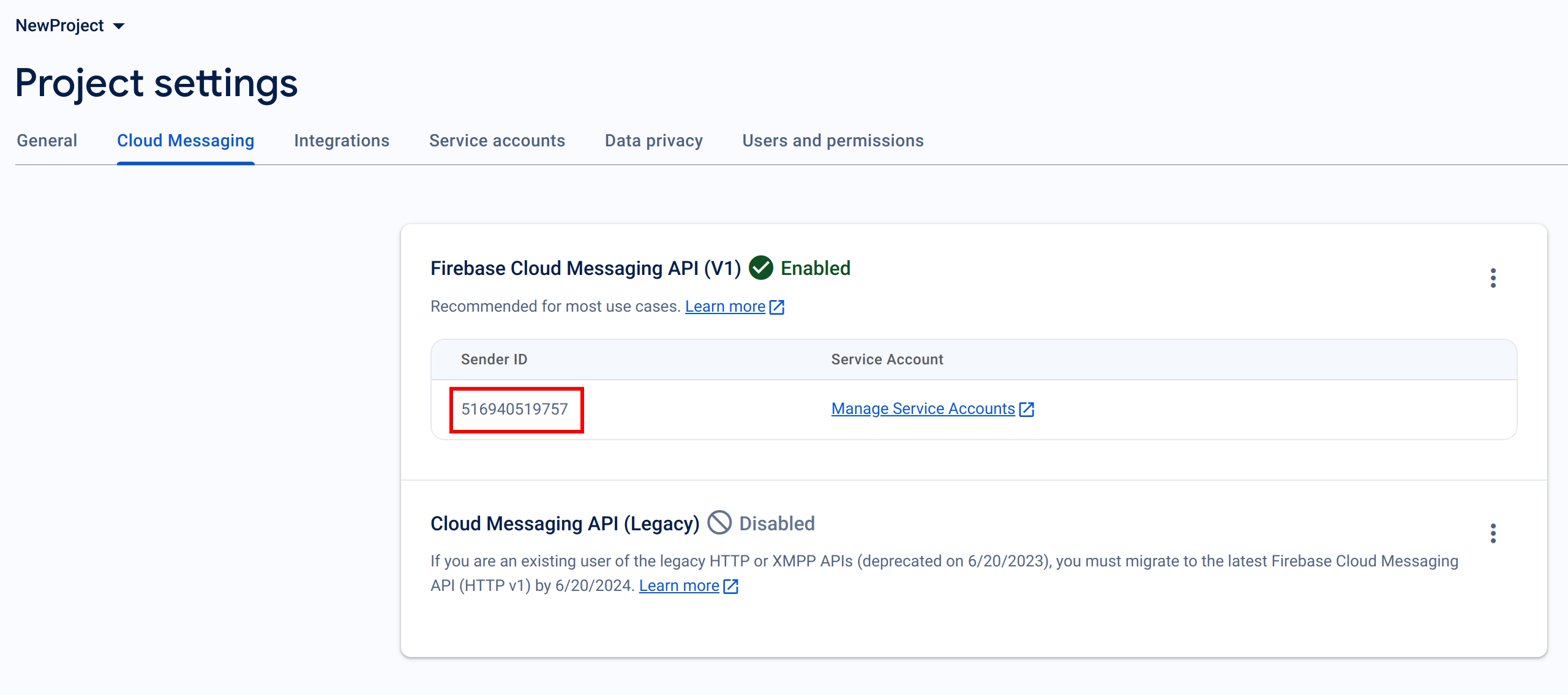
Firebase sender ID (Sender ID) is in the section "Cloud Messaging":
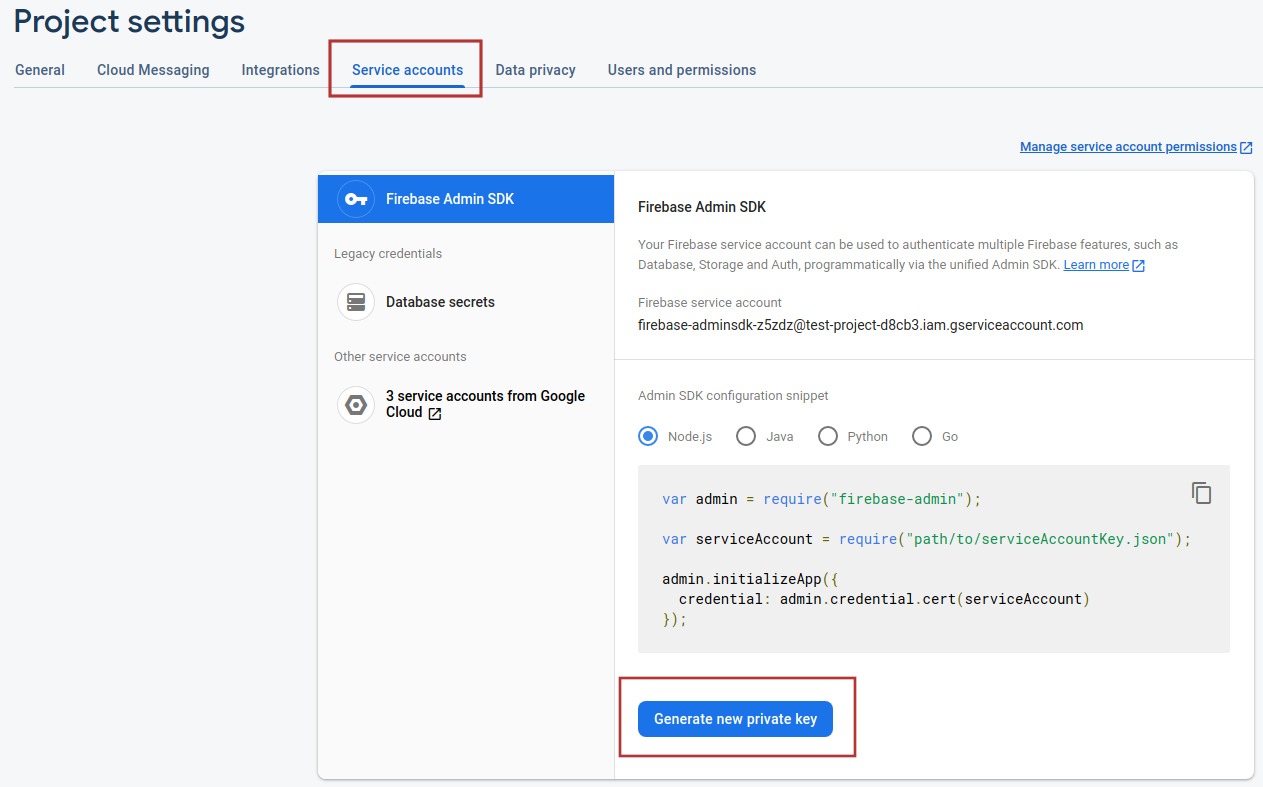
To configure Firebase, you also need Firebase credentials file. To download it, go to the "Service accounts" tab. Click "Generate new private key". The file will begin downloading:
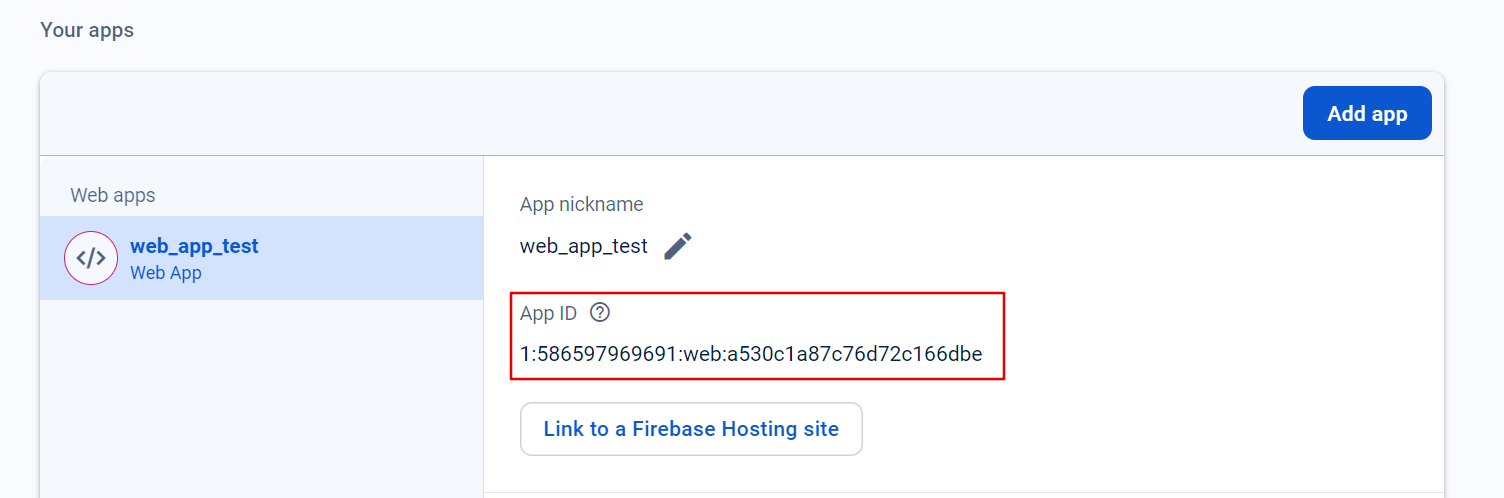
App ID can be found in Your Apps section on Firebase Console:
Step 3. Setting up a push channel in a resource
Go back to Altcraft Platform and go to the "Resource Settings". Configure Firebase Cloud Messaging for supported browsers using data from the Firebase Console. Upload your .json file to the "Firebase credentials file (.json)" window:
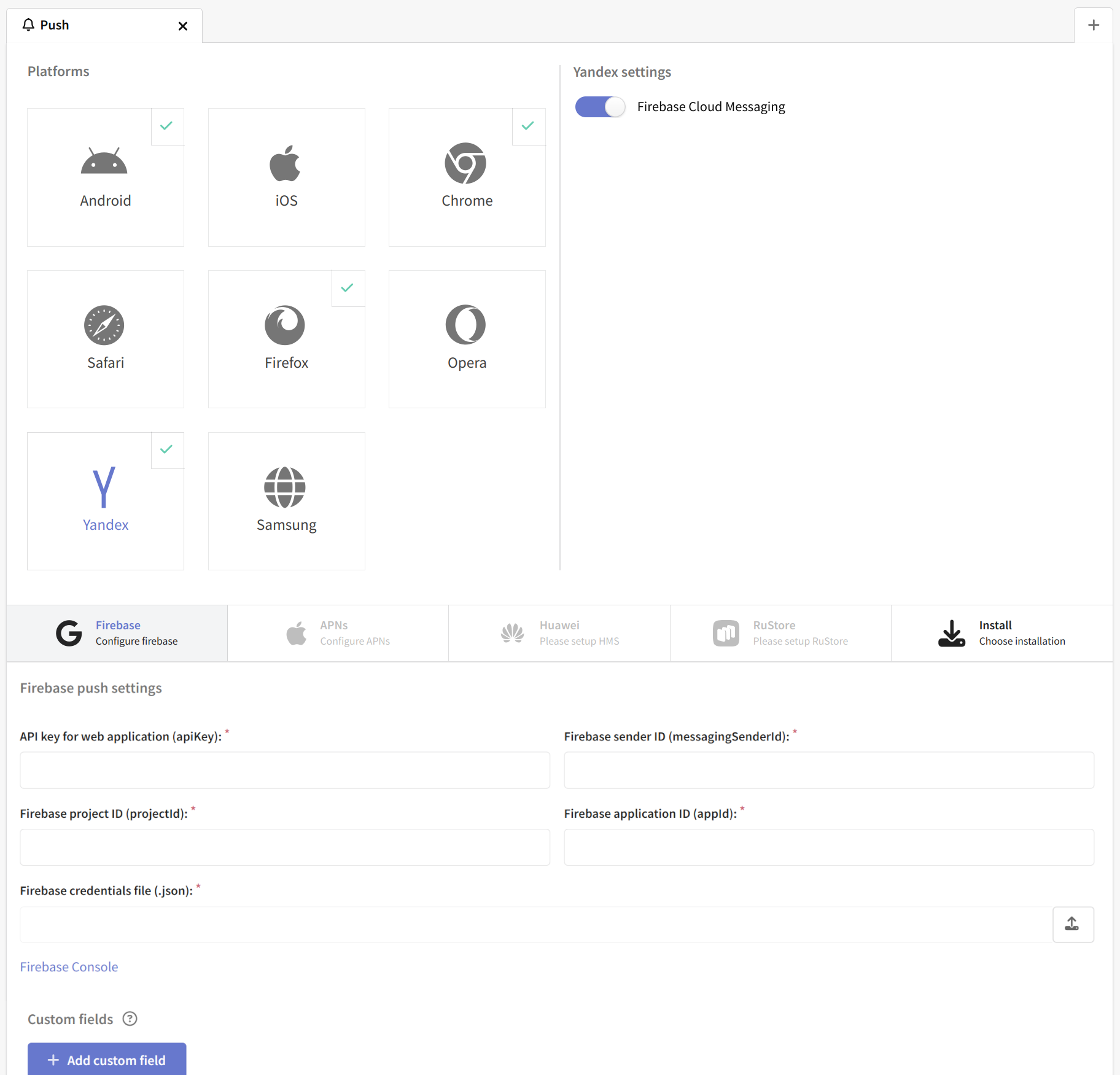
Save the resource or Apply changes by using the buttons in the upper right corner of the screen. Only after that go to the tab "Install".
The next step is Implementing Web push.