Altcraft Docs LogoAltcraft Docs Logo
User guideDeveloper guideAdmin guide
Company siteHelp center
English
  • Русский
  • English
v72
  • v74
  • v73
  • v72
Login
  • User documentation
  • FAQ
  • Altcraft glossary
  • Profiles and databases
  • Communication channels
    • Email channel
    • Push channel
      • Mobile Push
      • Web push
        • Preliminary Settings
        • Web browser push configuration
        • Connecting Web Push to a Website
        • Transferring Data to the Platform
        • Web Push SDK Methods
        • Import of subscriptions from third-party push services
    • SMS channel
    • Creating campaign from scratch
    • Руководство: SMS-рассылка через УТШ
    • Руководство: push-рассылка через сервис от "Согласие"
  • Segmentation
  • Message templates
  • Campaigns
  • Automation scenarios
  • Market
  • Loyalty programs
  • Reports and analytics
  • Integrations
  • Weblayers
  • Settings
  • API requests: where to start
  • Changelog
  • library
This is documentation for Altcraft Platform v72. This documentation is no longer maintained.
The information for up-to-date platform version at this page is available (v74).
  • Communication channels
  • Push channel
  • Web push
  • Preliminary Settings
Documentation for version v72

Preliminary Settings

Technical Settings​

Make sure your website is running over the HTTPS protocol.

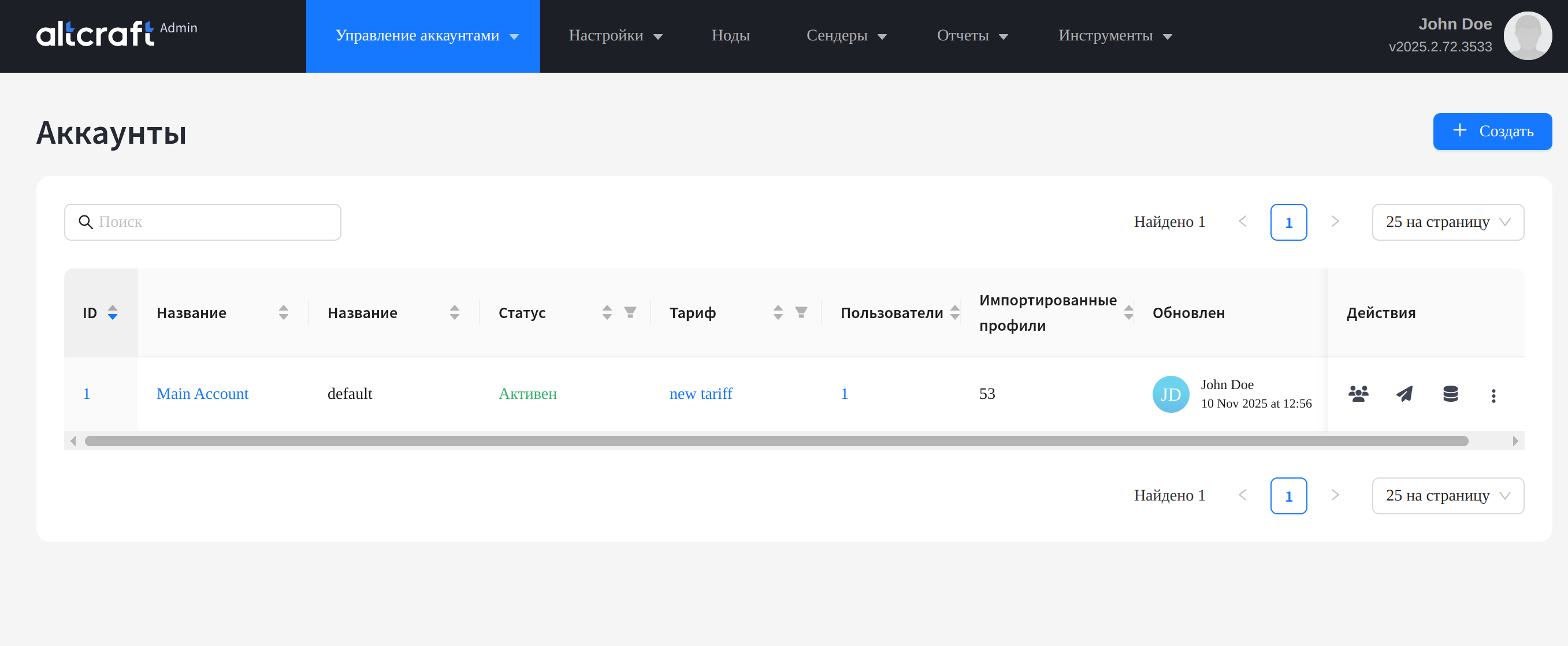
Additionally, web pixels must be configured in the Altcraft Platform. Go to Admin Panel → Account Management:
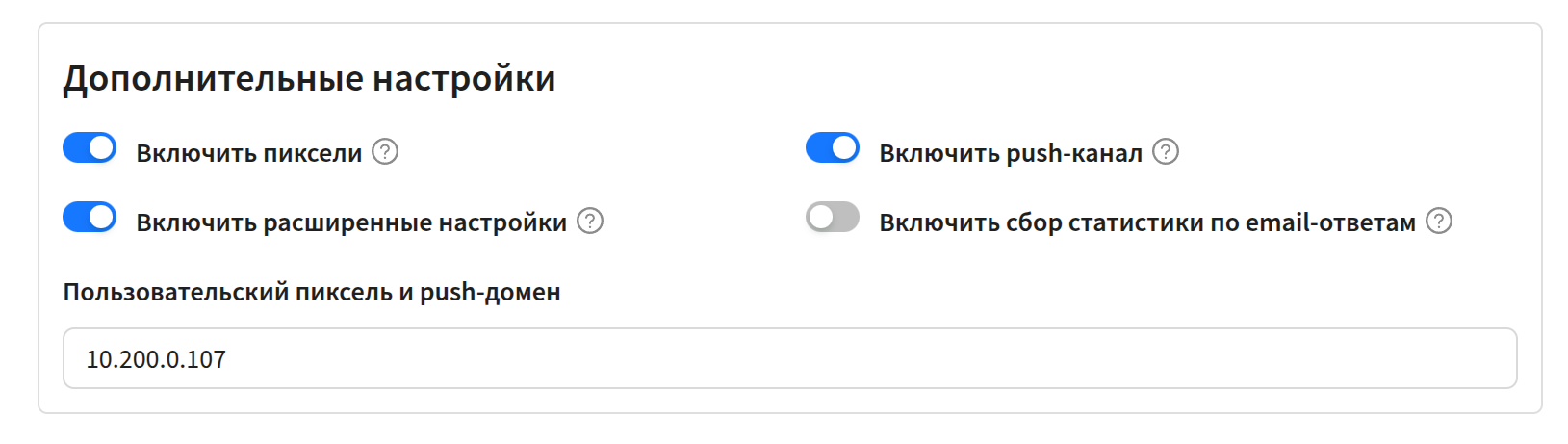
Activate push notifications and pixel for the accounts from which sending is planned.
Configuring a Resource in the Platform​

tip

Each website must have a separate resource created.

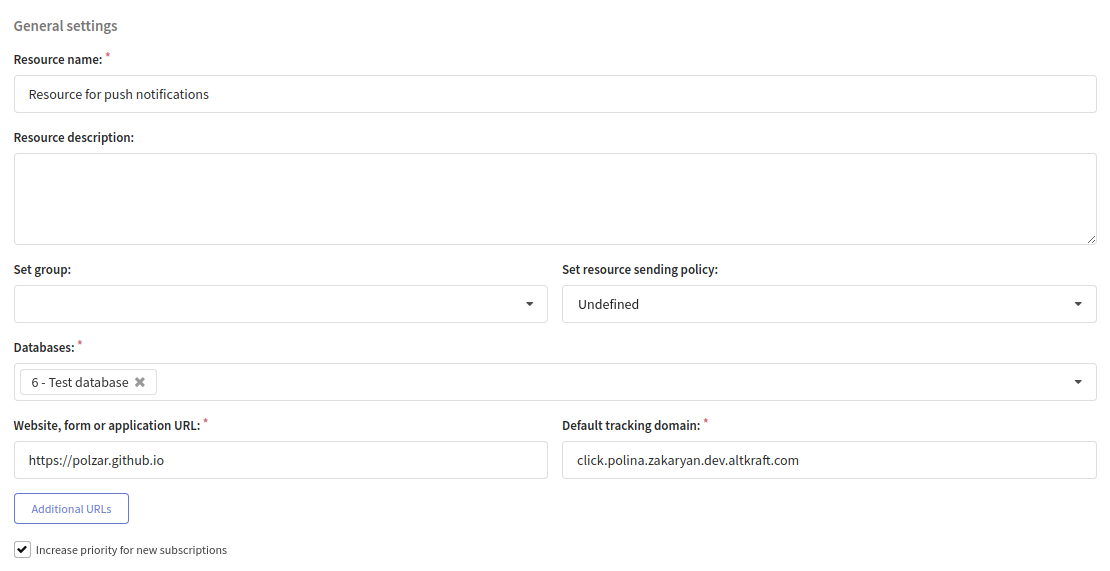
1. In the Altcraft platform, create or select Databases where push notification subscribers will be stored.

2. Select a Resource for Web Push subscriptions or create a new one.

3. Enter the Name and Description of the resource.

4. In the Website, form, or application URL field, specify the address of the site where push subscription occurs and from which notifications will be sent. This site is later added to the Toolkit files, so if an incorrect address is specified, push notifications will not work.

5. In the Default Tracking Domain field, specify the domain where Altcraft tracking is running. This domain will process your customers' clicks on links in messages.
Last updated on Apr 26, 2023
Previous
Web push
Next
Web browser push configuration
  • Technical Settings
  • Configuring a Resource in the Platform
© 2015 - 2025 Altcraft, LLC. All rights reserved.