Altcraft Docs LogoAltcraft Docs Logo
User guideDeveloper guideAdmin guide
Company siteHelp center
English
  • Русский
  • English
v73
  • v74
  • v73
  • v72
Login
  • Getting Started
  • Administrator documentation
  • Functional characteristics
  • Technology description
  • System requirements
  • Admin Panel
  • Platform installation
  • Platform configuration
    • Configuration file
    • Domain settings
    • LDAP access configuration
    • Sending Email via SMTP relay
    • Pixel and push domain configuration
    • Cluster and Replication Setup
    • System notifications configuration
    • Processes UNIX sockets configuration
    • HTTPS Configuration
    • External SQL database integration
    • Adding sender IP addresses
    • Deduplication request settings
    • PostgreSQL database for account data
    • Proxy server settings
    • Getting HTTP service statuses
    • Configuration MongoDB logs rotation
    • Configuration of system constants and directories
  • Platform maintenance
  • Custom channels guide
  • Extra
  • Processing HTTP/HTTPS traffic
  • Administrator API
This is documentation for Altcraft Platform v73. This documentation is no longer maintained.
The information for up-to-date platform version at this page is available (v74).
  • Platform configuration
  • External SQL database integration
Documentation for version v73

External SQL database integration

Description​

Altcraft Marketing can integrate with a SQL server to make queries to external data tables. This can be used for:

  • Scheduled customer data import
  • Segmentation by external SQL queries
  • Dynamic SQL content in messages

Connections to external servers are configured in Administrative panel, queries can be configured both there and in User interface.

Step 1: Create database connector​

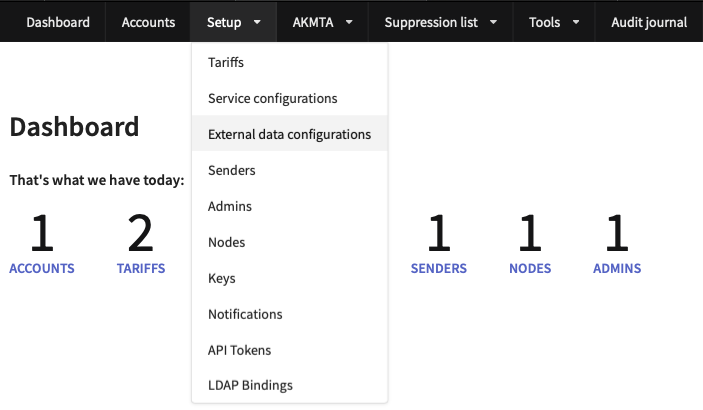
To connect to an SQL server, in Administrative panel select Setup → External data configurations.
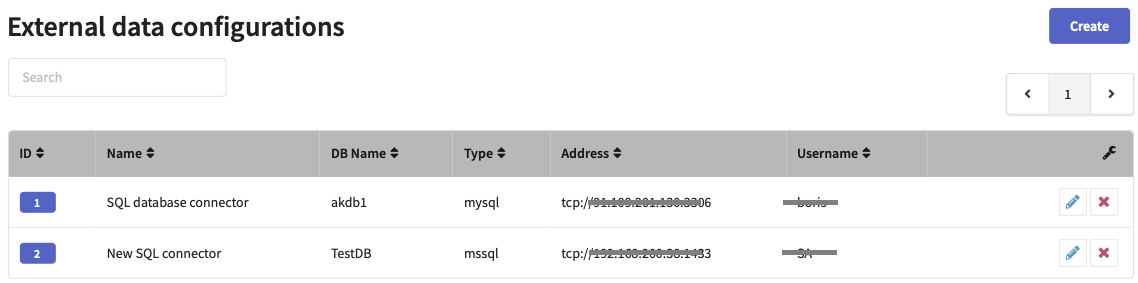
Add a connection by pressing Create.
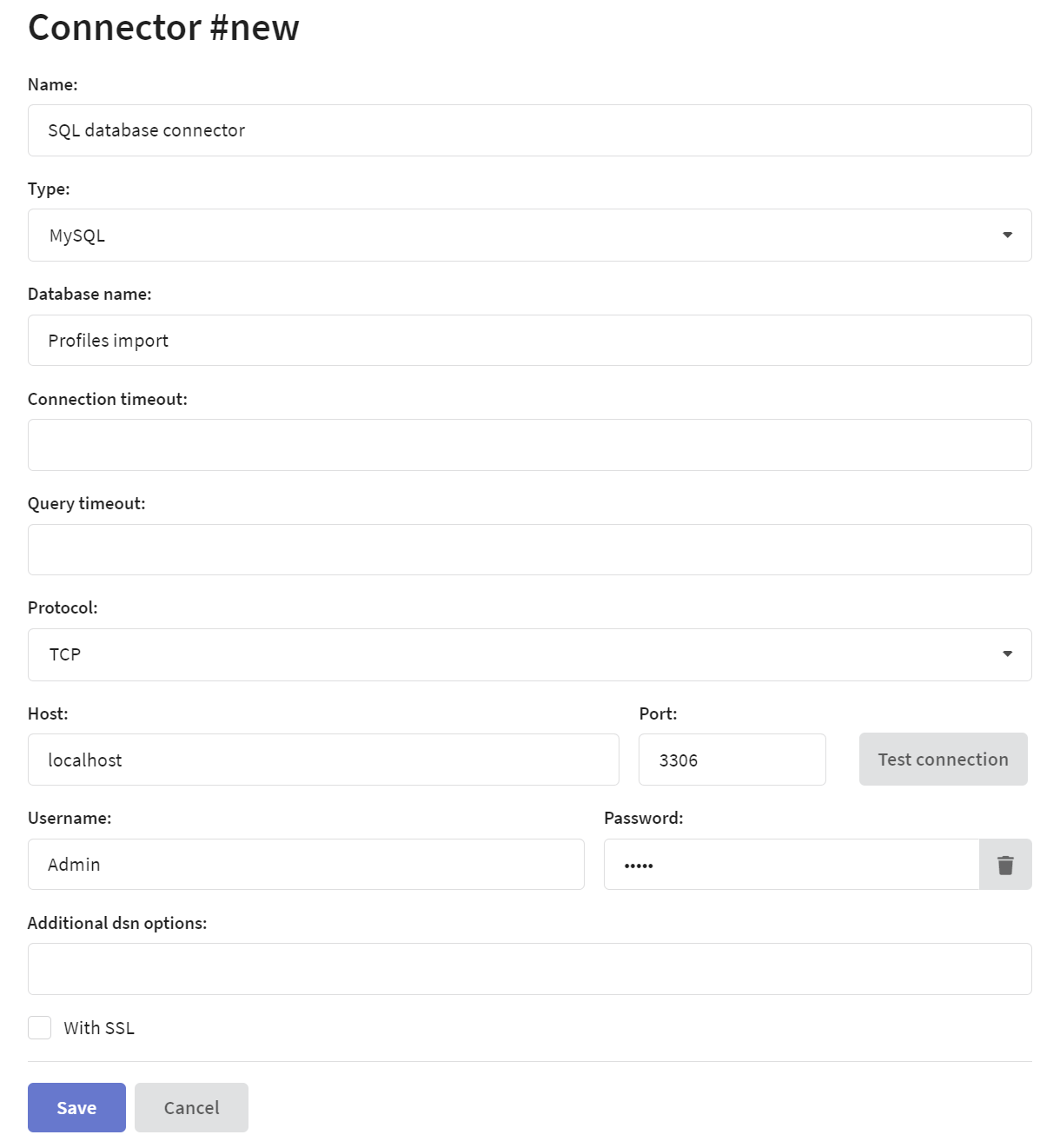
Specify the following information:

  • Name — connection name.
  • Type — database management system (MySQL, MSSQL, PostgreSQL, Oracle and ClickHouse are supported).
  • Database name — database name.
  • Protocol — network protocol for connection (TCP, UDP or UnixDomain).
  • Host — database IP.
  • Port — database port.
  • Username, Password — database user redentials.
tip

You can specify the Collation used to connect to the database in the Additional dsn options field using the collation_connection= key.
Step 2: Activate connector for account​

After you create a connector, assign it to the account you use. Open Accounts and select it from the list. In External data configuration section open Assigned connectors and add the record from step one. Note that one account can have multiple connections to external services.

Step 3: Check your connection​

To check if everything works fine open Segmentation queries in your account editing form.

Create a new query. Select your connector and enter a query body:
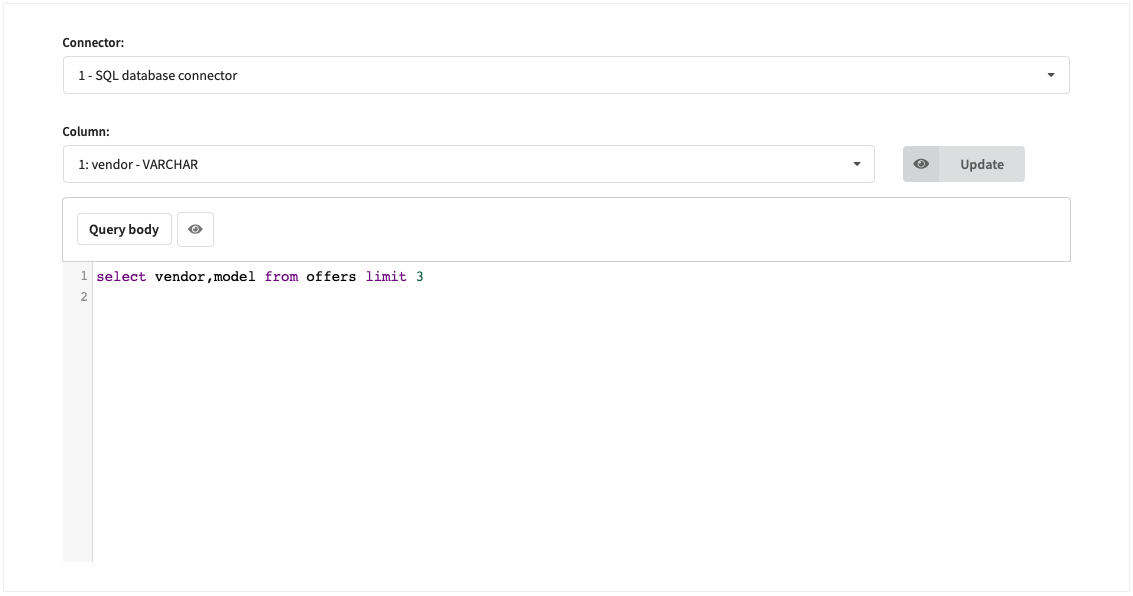
When you click the eye icon — if everything's ok — you will see query preview.
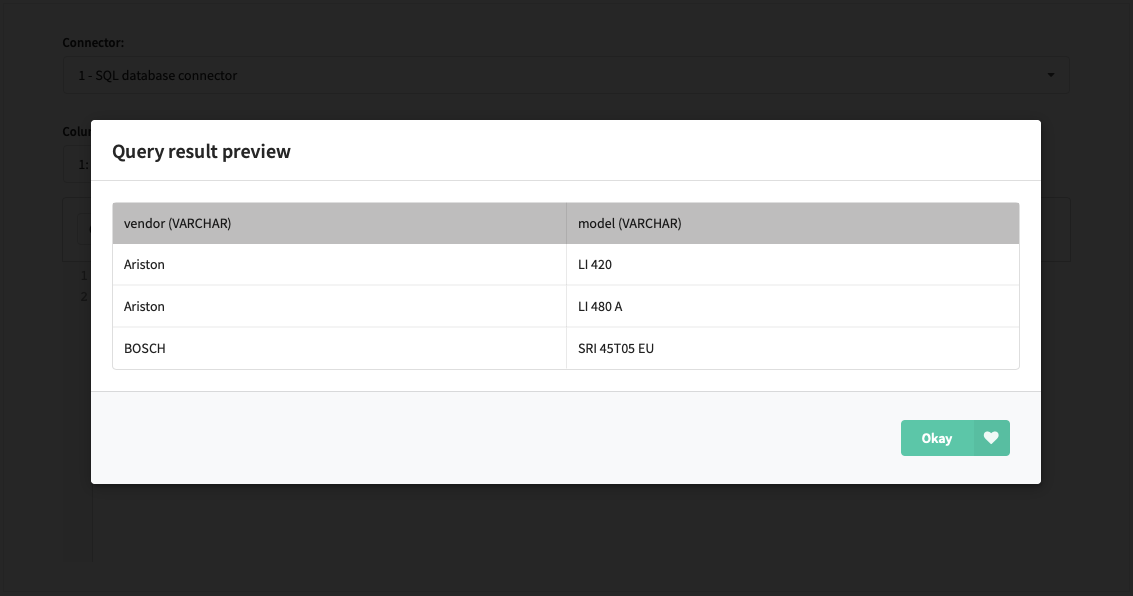
Segmentation queries in administrative panel​

Segmentation queries can be restricted from User interface if your data is sensitive for marketers.

Add the following property to main.json configuration file:

"DISABLE_QUERY_EDITOR": true
Last updated on Sep 9, 2024
Previous
HTTPS Configuration
Next
Adding sender IP addresses
  • Description
  • Step 1: Create database connector
  • Step 2: Activate connector for account
  • Step 3: Check your connection
  • Segmentation queries in administrative panel
© 2015 - 2025 Altcraft, LLC. All rights reserved.