External SQL database integration
Description
Altcraft Marketing can integrate with a SQL server to make queries to external data tables. This can be used for:
Connections to external servers are configured in Administrative panel, queries can be configured both there and in User interface.
Step 1: Create database connector
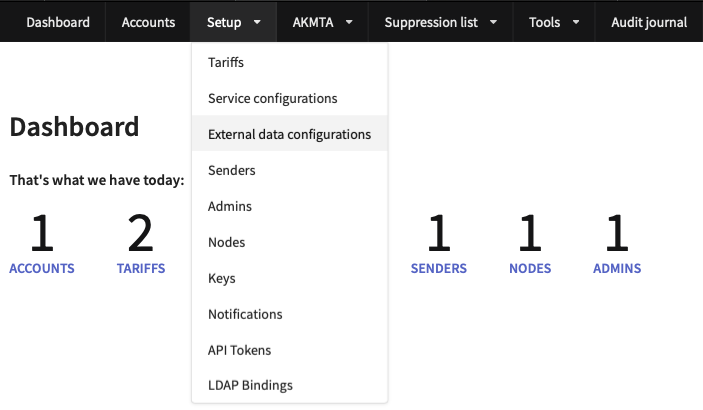
To connect to an SQL server, in Administrative panel select Setup → External data configurations.
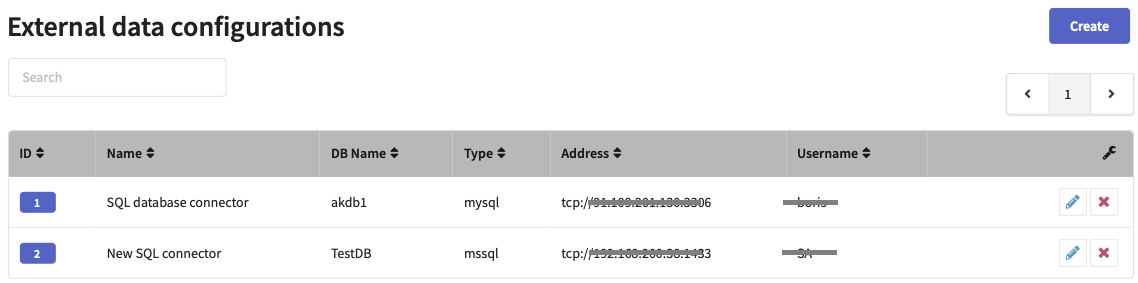
Add a connection by pressing Create.
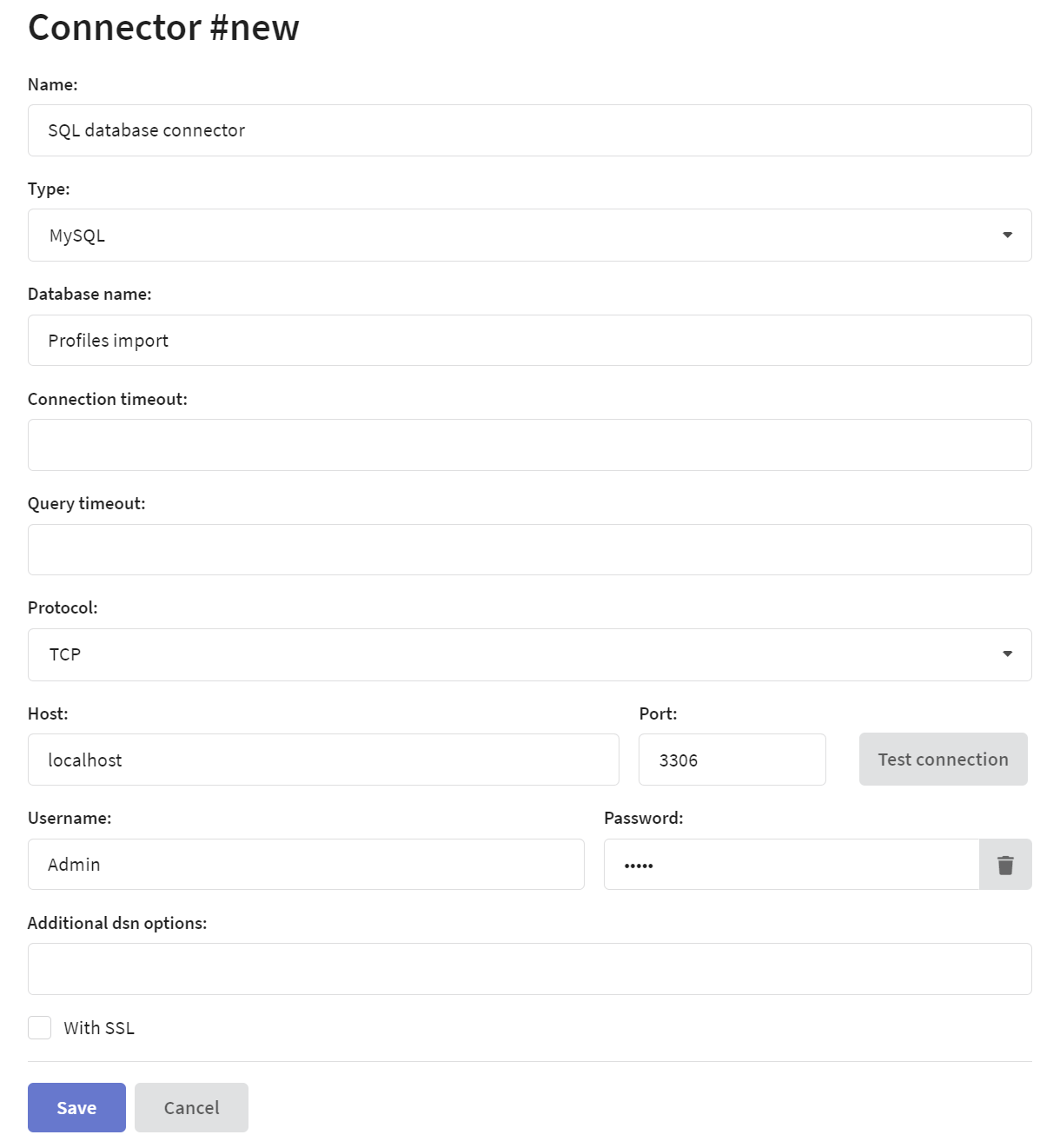
Specify the following information:
- Name — connection name.
- Type — database management system (MySQL, MSSQL, PostgreSQL, Oracle and ClickHouse are supported).
- Database name — database name.
- Protocol — network protocol for connection (TCP, UDP or UnixDomain).
- Host — database IP.
- Port — database port.
- Username, Password — database user redentials.
You can specify the Collation used to connect to the database in the Additional dsn options field using the collation_connection= key.
Step 2: Activate connector for account
After you create a connector, assign it to the account you use. Open Accounts and select it from the list. In External data configuration section open Assigned connectors and add the record from step one. Note that one account can have multiple connections to external services.

Step 3: Check your connection
To check if everything works fine open Segmentation queries in your account editing form.

Create a new query. Select your connector and enter a query body:
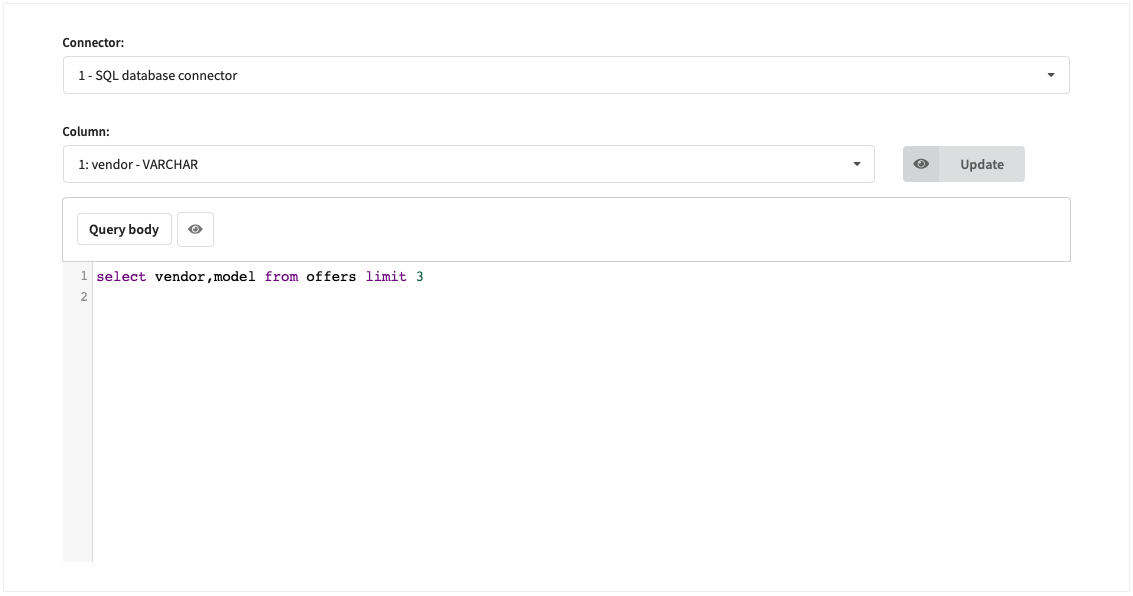
When you click the eye icon — if everything's ok — you will see query preview.
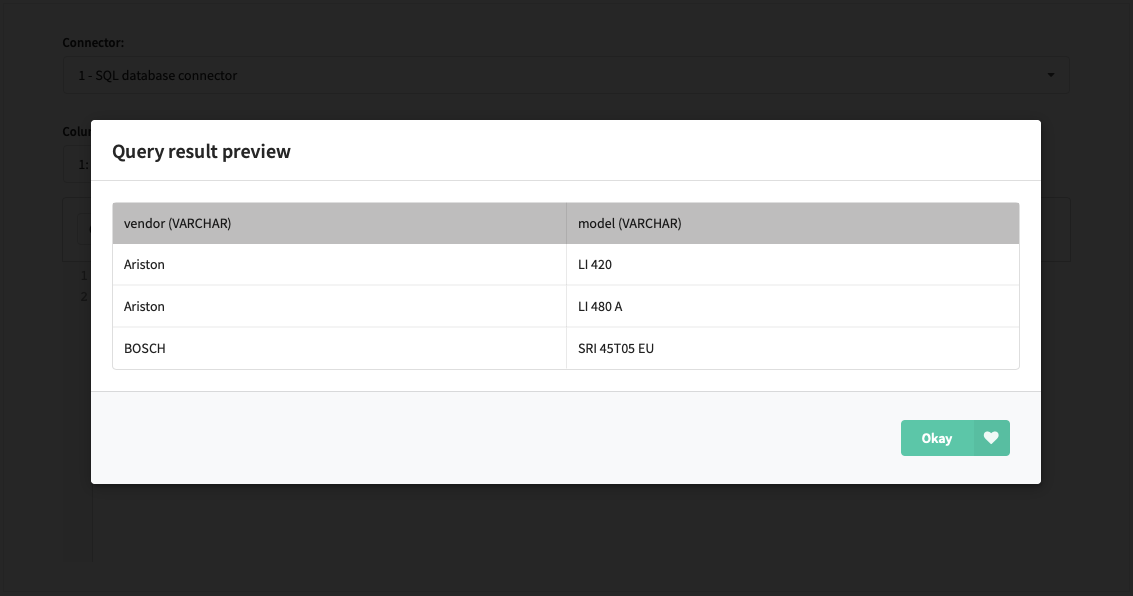
Segmentation queries in administrative panel
Segmentation queries can be restricted from User interface if your data is sensitive for marketers.
Add the following property to main.json configuration file:
"DISABLE_QUERY_EDITOR": true