PostgreSQL database for account data
PostgreSQL installation
You can find PostgreSQL installation instruction for Ubuntu here: https://www.postgresql.org/download/linux/ubuntu/
PostgreSQL must be connected to enable the Market module. For correct operation, PostgreSQL version 16.1 or higher is required.
User and database configuration
A standard variant with local database installation is described. In this example we use altcraft as the username, but you can specify any arbitrary name.
After you have PostgreSQL installed, make the following preparations:
- Re-login as the newly created user postgres:
su - postgres
- Run the PostgreSQL command shell:
psql
- Create a user through which we will connect to PostgreSQL:
CREATE USER altcraft WITH PASSWORD 'myPassword';
- Check if the user has been created:
\du
- Give permission to create the database to the user:
ALTER USER altcraft CREATEDB;
- Create the database:
CREATE DATABASE ak_init_db OWNER altcraft;
- Grant the user database rights:
GRANT ALL PRIVILEGES ON DATABASE ak_init_db TO altcraft;
- Add the following lines to the end of the
/etc/postgresql/<version_postgresql>/main/pg_hba.conffile:
# TYPE  DATABASE        USER            ADDRESS                 METHOD
host      all         altcraft       localhost              password
Then go to the administrative panel for further customization.
Platform settings
In the Administrative panel, go to the "Setup" → "Service config" section. It is necessary to create a new configuration for connecting to the database; to do this, click the "Create" button.
Select the connection type "Account DB Postgres Configuration". Specify the host, port and credentials of the user created in PostgreSQL. To test the connection, click "Test connection":
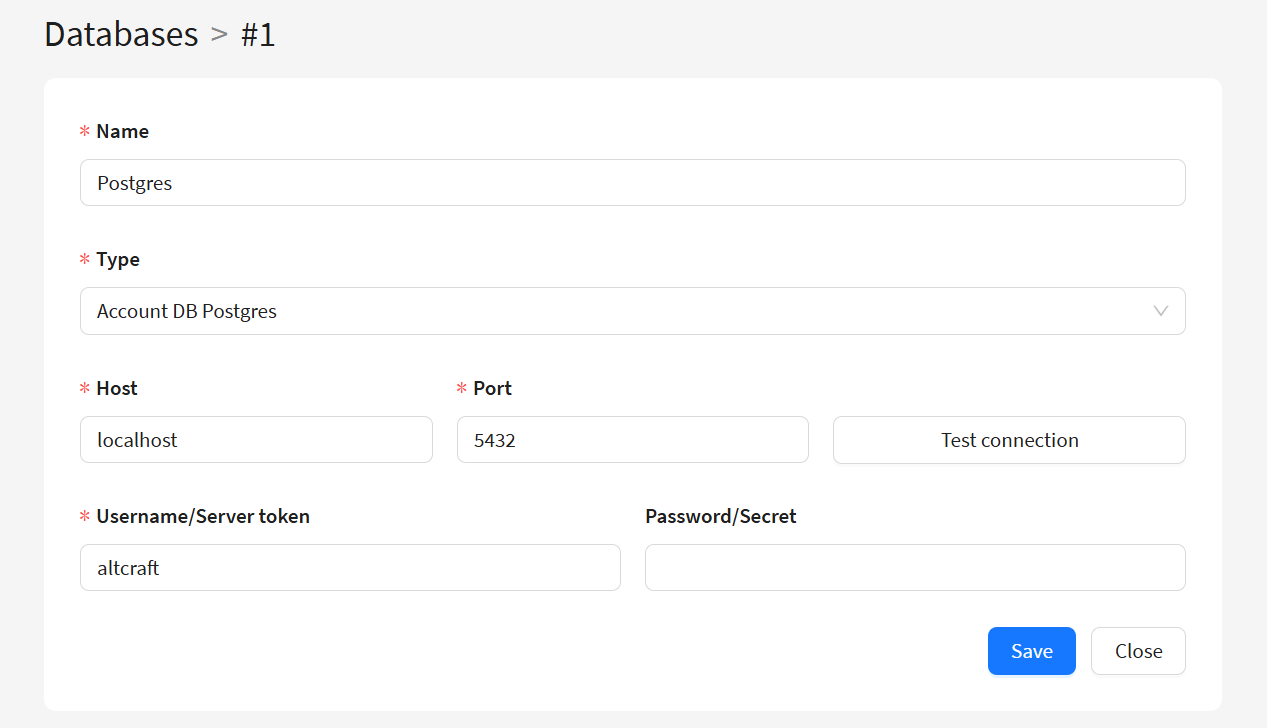
Add the created configuration to your account. To do this, edit your account and select the configuration in the "Service configuration" item:

You can learn more about setting up connectors to databases here.