Broadcast campaigns
Description
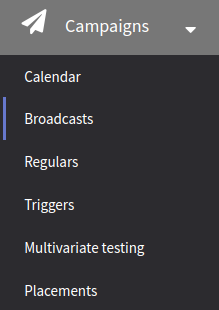 | Broadcast campaigns are used when you need to communicate to a specific audience one single time. It can be a seasonal offer email, or usage terms change notification — any content that is sent to an audience rather than to separate customers on a non-regular basis. At the end of a broadcast mailing, every recipient is sent one message. Thus broadcast messages mostly use static content, as it is sent once. Personalization options can still be a great asset to make your mass communications more human-like. To create a new broadcast, go to Mailings → Broadcasts and click + Create button. Also, you can use the calendar to create a new broadcast. |
General settings
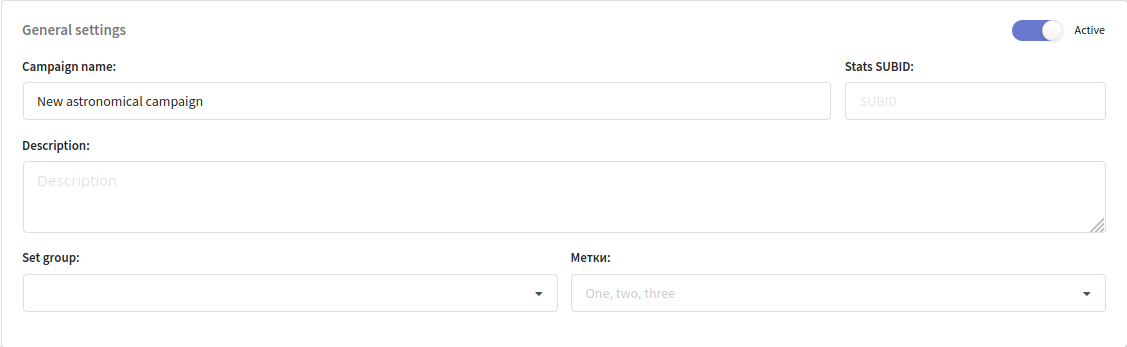
In the main settings, specify the name and description of the new mailing, and if needed, set the access group, add tags and attributes for additional grouping. You can also specify a statistics SUBID for the mailing here. In the upper right corner, there's a toggle to activate the mailing.
Mailing settings
The following information is defined in mailing settings: communication channels, subscribers, templates with content, and schedule for mailing.
- Channels
- Subscribers
- Templates
- Schedule
On the first tab, you can select a communication channel you want to use. Channel you want to use must be available in at least one subscriptions resource, which you can select on the next tab.
For Email sending, you can use the field with the main subscriber contact information – the Email field.

When using a push channel, you can select specific push providers for sending, as well as the sending mode - fanout, sending to all subscriptions taking into account filters, or last, sending to the subscription with the most recent creation date. If there are several of these (created at the same time), then one will be selected randomly. If the mailing has filters by provider, custom fields or categories, then the filters are applied first, and then the most recent subscription is searched.
On this tab, select the resource form drop-down menu. You can use a database or segment as an audience.
Mailings are sent to customers who subscribe to a certain resource. Resources can be a separate website, product, promotion, or another direction of your communications with customers. Select a resource. Make sure the recipients in your database are subscribed to it.

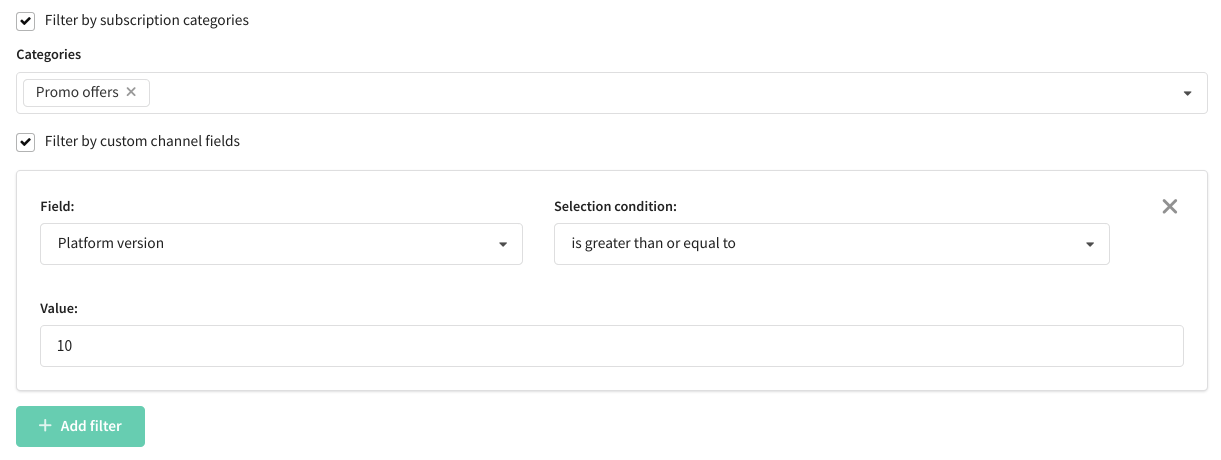
Additionally, you can filter recipients by resource categories. To enable this functionality, you need to have categories created in the resource. In mailing settings, select the categories to which the profile should be subscribed to receive a message.
You can also filter recipients by custom channel fields. To do this, select either a standard or custom subscription field. In the "Selection condition" field, choose a logical operator and, if necessary, specify a value. You can combine rules using the logical AND (all conditions must be met) and OR (at least one condition must be met).
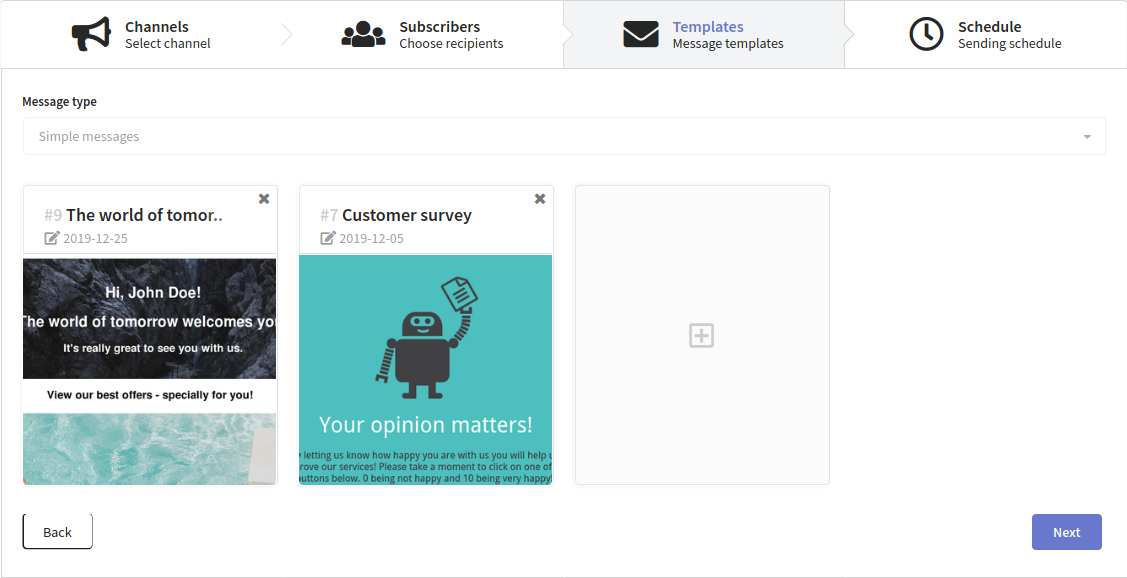
On this tab, you can select the content that you want to use in the mailing. In Altcraft, messages templates combine content for mailing by all available channels.
Please, make sure, that the template has content for the selected channel.
Clcik  and select a prepared template. Any mailing type can use up to 8 templates. The broadcast mailing will send one message to each customer using selected templates in random order in equal parts. Click on the thumbnail to preview, or click on the template name to open template editor:
The mailing schedule is described in detail on this page.
On this tab, you can configure sending policy. During massive mailings, you need to remember about sender reputation. Email providers set limits for massive mailings that depend on sender reputation and the number of sent messages. Usually, providers set limits for messages received in 24 hours.
Sending all messages at once
If your sender reputation is high enough, you can send all messages in 24 hours. To do this, select On specific date at specific time.
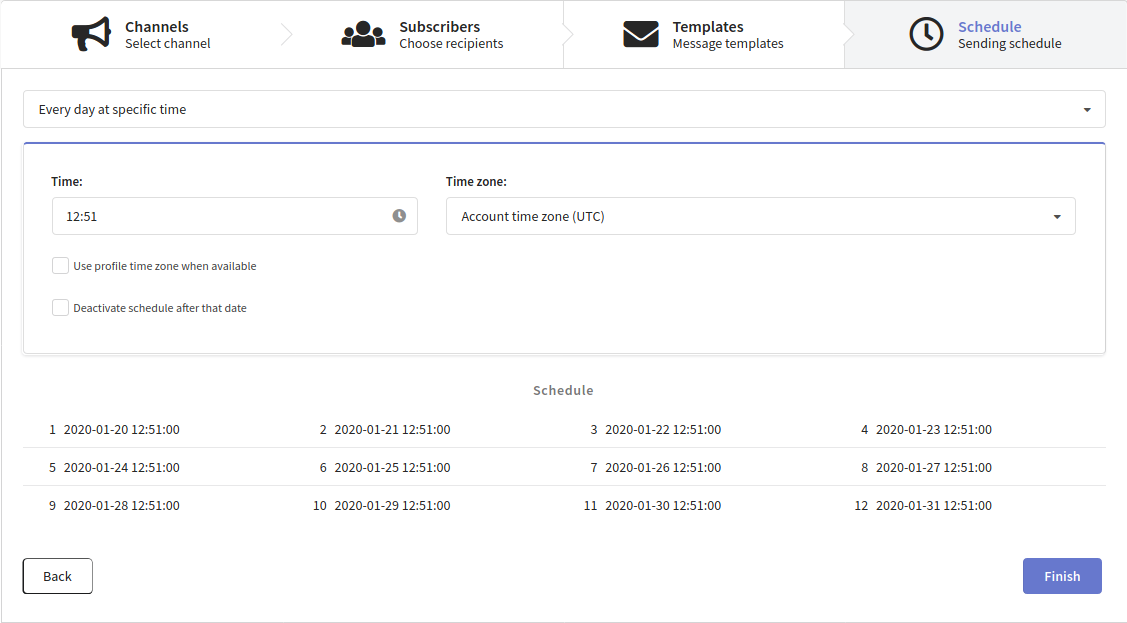
Also, you can select a time zone for sending, or Use profile time zone when available.
Partial sending
Most email providers limits are valid for 24 hours. If your mailing is over limits, we recommend you to use Every day at specific time option. You can configure the number of sent messages in the Limitations block.

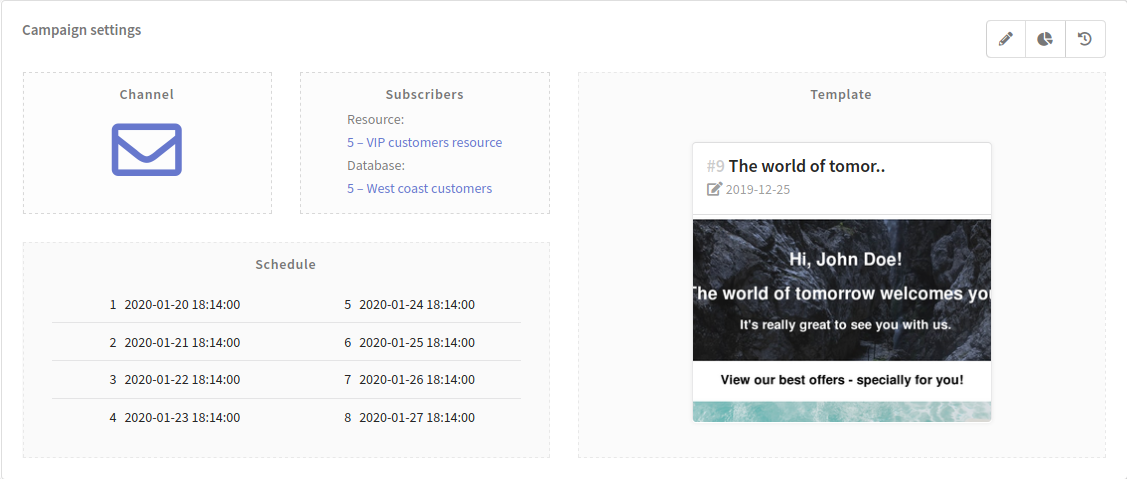
After you made your configurations, click the Finish button. Selected parameters will be displayed in the Mailing settings block. You can use appropriate buttons to edit settings or go to the mailing report.
Instant mailing launch
If you want to launch a mailing right after its creation, toggle the appropriate option at the bottom part of the page.
- If the limits were not configured, messages will be sent to all customers.
- If limits were configured, the mailing will be launched besides schedule.

Limitation
If the number of messages in the mailing is more than the number of messages received by email providers in a day, you can separate your broadcast mailing into several parts.
You can also use mailing limitations to control the loading of your sender or your company network architecture.
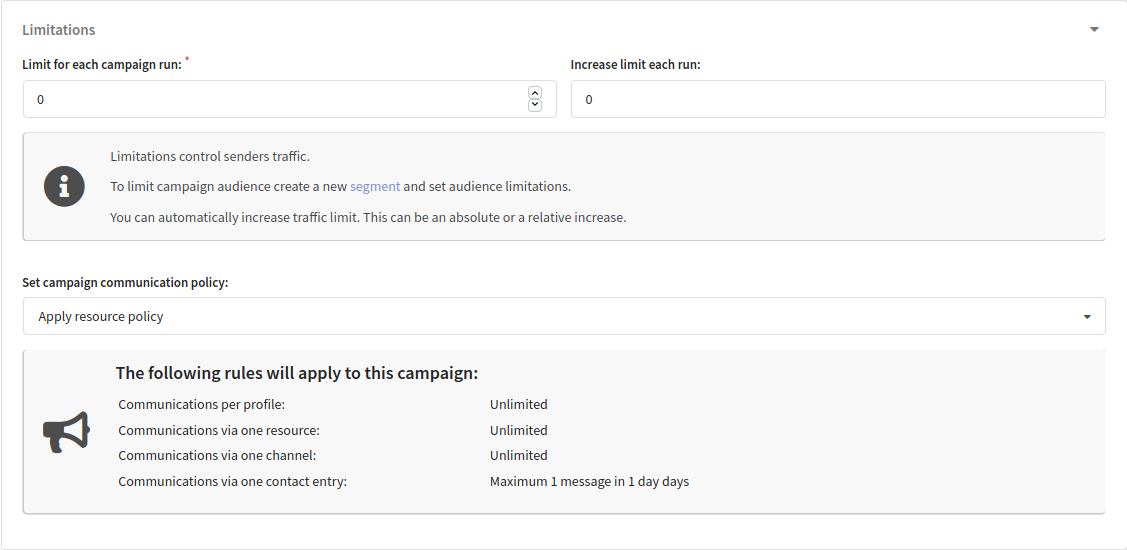
You can configure limits using these options:
-
Limit for each mailing run — the number of messages, that will be sent during the next launch by schedule
-
Increase limit each run — the number of messages or percent value that will be added during next launch.
When the "Use profile time zone when available" option is enabled, the limit settings and instant mailing launch are unavailable.
Communication policy sets limits for communication with one subscriber. By default, the mailing will use account policy or resource policy.
Smart settings
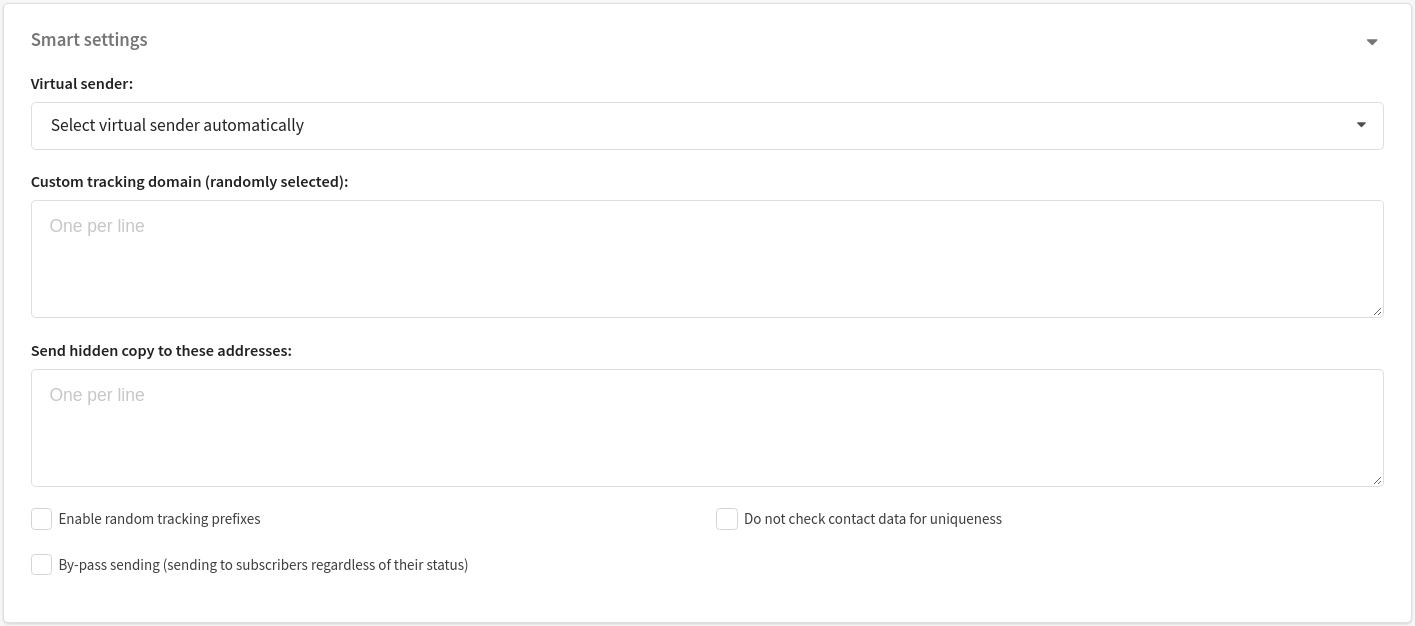
If Smart settings are activated for your Altcraft marketing platform account, you can manage mailing virtual senders, blind carbon copy settings and several other options. This section will appear at the bottom of the mailing editor page. The following settings are available:
- Virtual sender — this option allows you to select a virtual sender for the mailing. The virtual sender is the set of rules for sending messages from real senders.
- Custom tracking domain — this option allows you to track actions in mailing messages using additional tracking servers. Domains must be divided with line breaks.
- Send hidden copy to these addresses — BCC for sent messages. Addresses must be divided with line breaks.
- Extra options — these options depend on your Altcraft configuration. For example, these options can be Enable random tracking prefixes, or Do not check contact data for uniqueness.
If you are not sure, what Smart settings you need to use, please contact your Altcraft administrator or Altcraft support specialists.
Mailing watchers
You can set mailing watchers in smart settings. Watchers will receive the same messages as customers. The watchers database is necessary for this feature. It is created in the same way as a normal database, except a special option which must be toggled in the general settings of the database.
In Smart settings, select Watchers database and limit:

Broadcast mailing sequence
This option is available only for broadcast campaigns. It allows to automatically launch a mailing after the previous mailing is finished. For this, select the mailing, after:

If you have massive mailings, please, make sure that your mailing fits the limits of email service providers.
Mailing progress
In the list of broadcast campaigns, you can see the progress bar of each mailing.

Each message status has its own colour:
- sends – the number of profiles for which messages were generated
- delivered – the number of profiles to which the message was delivered
- delivering – the number of messages in the sender queue
- undeliveries – the number of profiles that failed to deliver the message
- policy offences – the number ofprofiles affected by sending policy (see more)
- supressions – the number of profilesin suppression lists (see more)
Click on the progress bar to open a table with mailing statistics:
