Mailings calendar
Altcraft campaigns calendar is our ultimate solution for organizing your marketing campaigns.
It empowers your business with a strategical overview of the situation and an efficient marketing communications planning framework.
 | Mailings calendar в displays launch time for all your marketing campaigns during the custom period of time:
|
Also, from the calendar, you can create a new mailing of any type, including a trigger mailing, which does not have a fixed launch time.
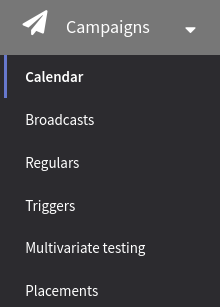
To access the calendar, in the main menu select Mailings → Calendar.
Viewing campaigns information
The calendar displays information about future and past campaigns. If you perform massive mailing divided into several parts, every part will be displayed in the calendar. It can help you to control the loading of your sender and network, and email provider limitations.
For every mailing, launch time, mailing type and name, and used channels are displayed. Three display modes are available:
Month — this option displays information about all launches in a month. For every day, three first campaigns are shown. If there are more than three launches in a day, a link to detailed information will be shown in the bottom part of the tile.
Week — this option displays information about all launches in a week. Mailings are grouped by launch day and time.
Day — this option displays information about all launches on a separate day.

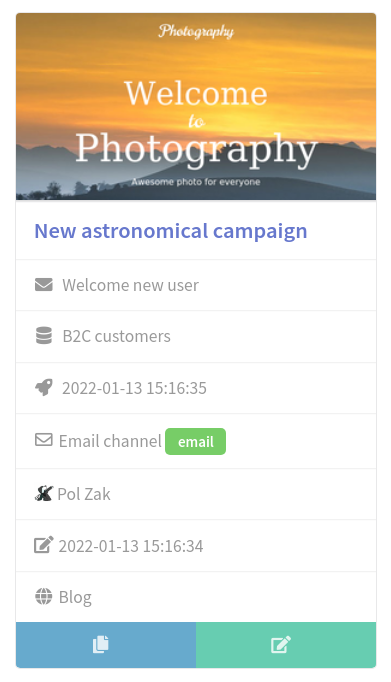 | Click a mailing label to view details of a mailing. You can clone or edit the mailing and see the mailing summary:
In month view you can see all active campaigns for a specific month. Use < and > buttons to switch months. |
Creating a new mailing
 | You can create a mailing at any time from the calendar interface. Select first launch day, click an empty space in the calendar for that date, and press + Add mailing in the popup. |
The selection panel with all 4 mailing types will open. When you press on the type you want, the editing form will open.
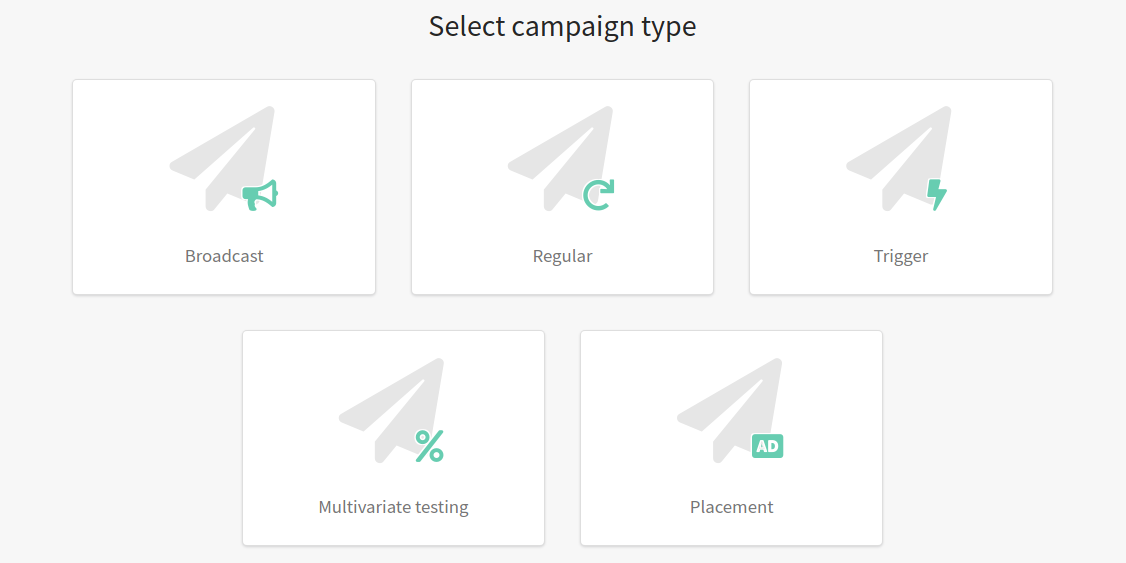
Sending date will be preset in the mailing editor, though you can change it as you wish.