Description
Sender in Altcraft is a configuration of the message delivery service. Senders are configured for email and SMS communication channels. As an email sender, Altcraft Mail Transfer Agent (AKMTA) can be used — a built-in email delivery module with extensive configuration capabilities.
Creating, Editing, Deleting
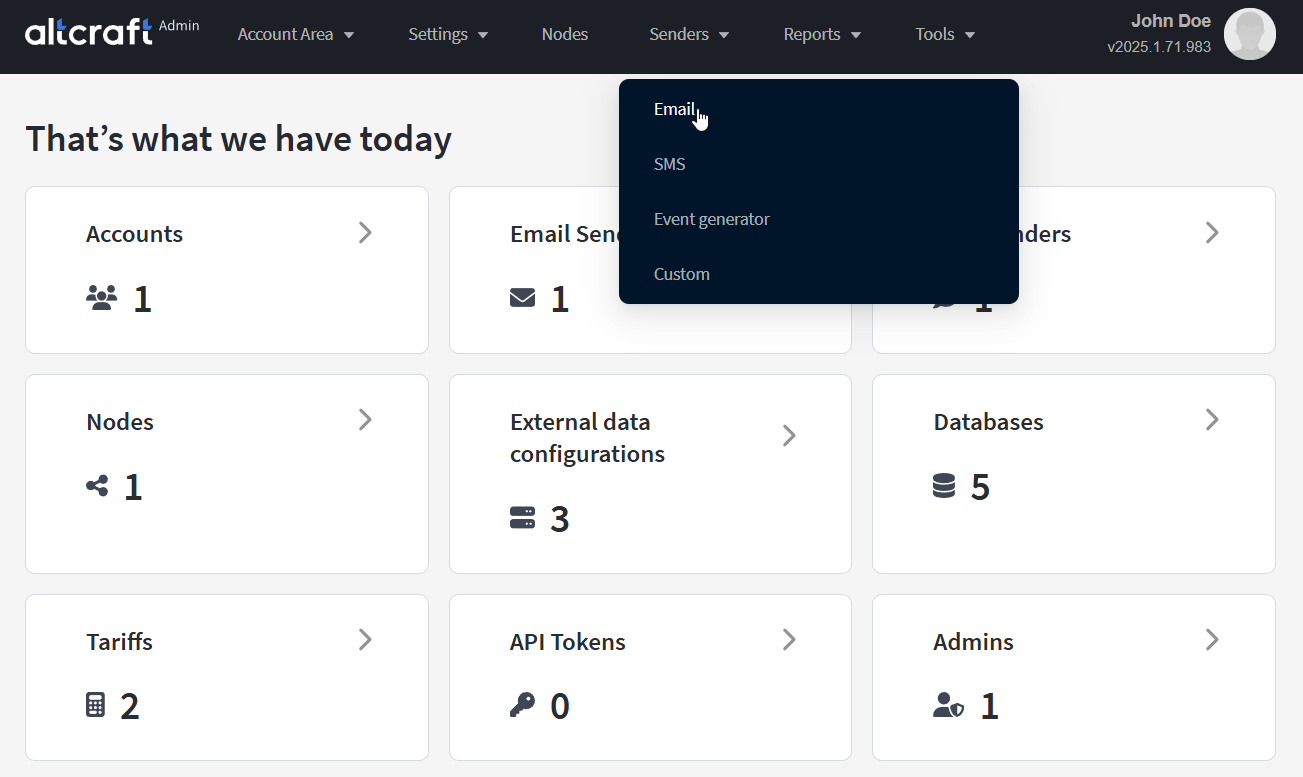
To manage email senders, in the main menu select Senders — Email:
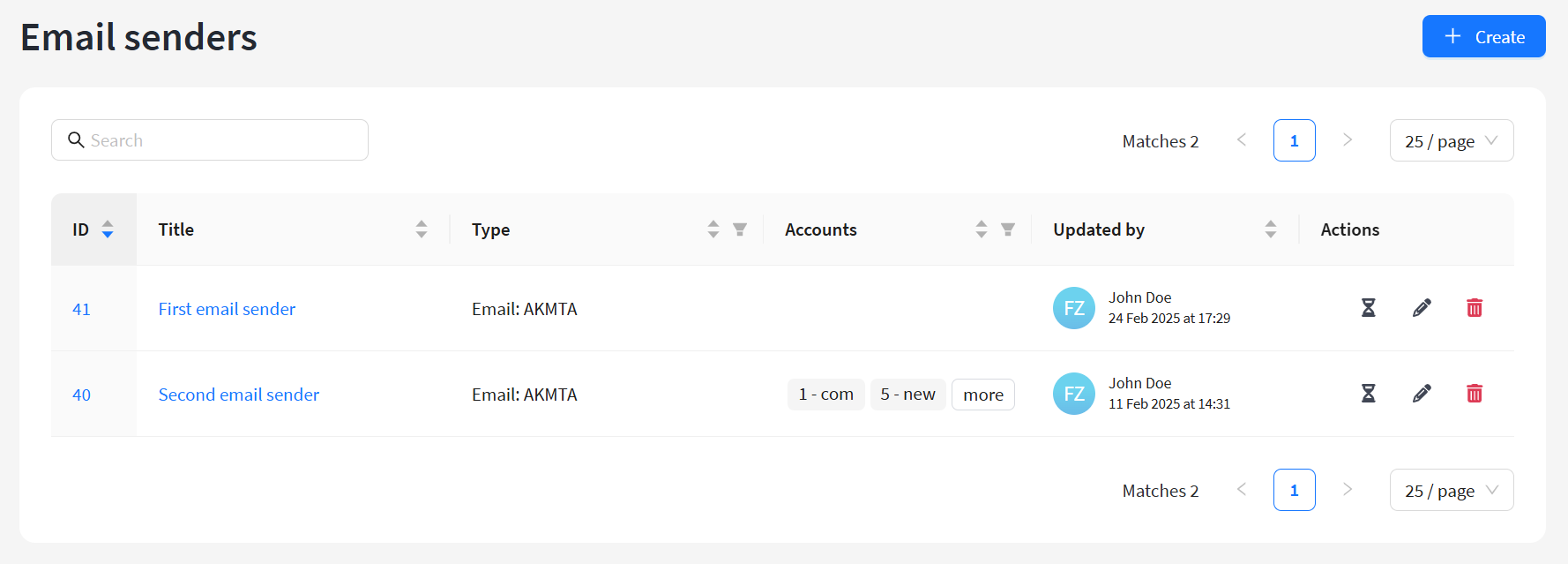
The opened sender list displays existing senders. On the right side of the table, there are edit and delete buttons. You can also edit by clicking the sender ID (on the left). To create a new sender, click Create.
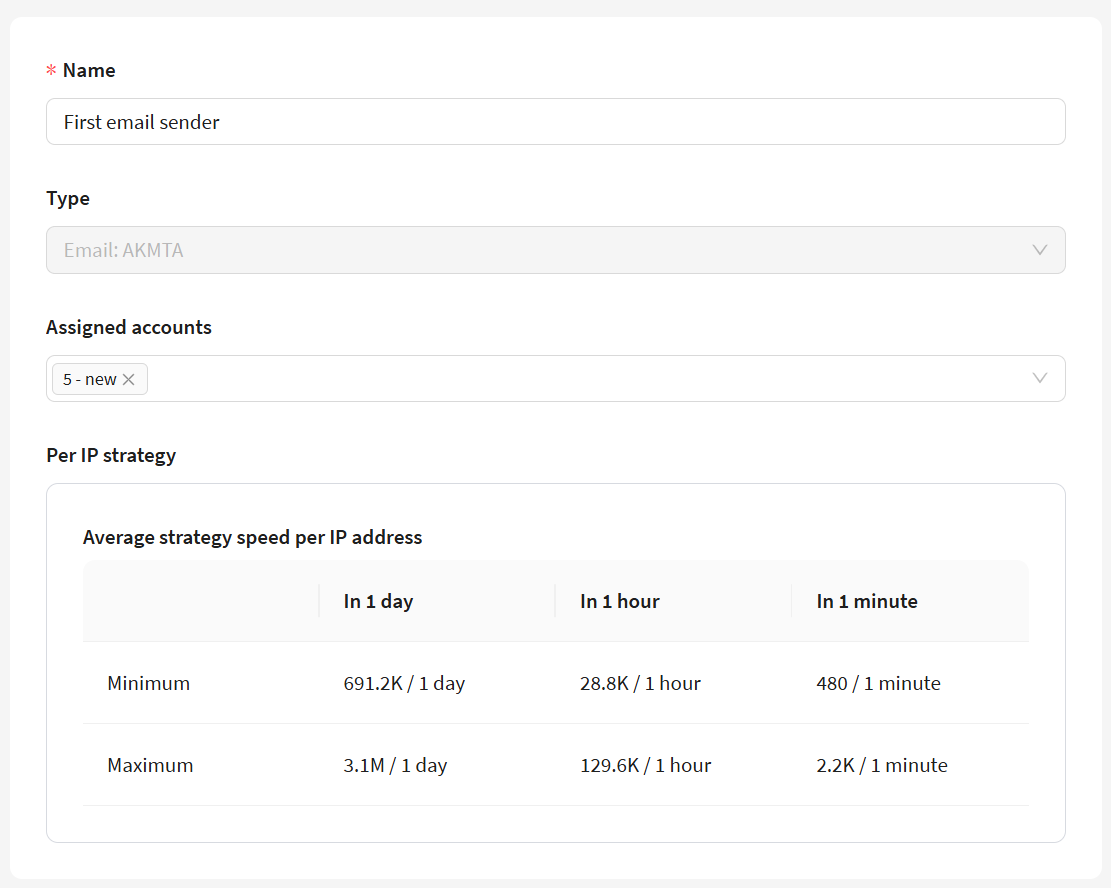
For a new sender, in the Name field specify a unique name, and in the Assigned accounts menu select platform accounts that will be able to use the sender for delivering messages.
Email Senders
The following solutions are used for sending, processing, and receiving emails:
- AKMTA (Altcraft Mail Transfer Agent) — the built-in Altcraft sending module. Its setup is described in the next section.
- Amazon SES (Simple Email Service) — integration with Amazon’s transport module. Documentation link: https://docs.aws.amazon.com/ses/index.html
- Sendsay — integration with Sendsay SMTP relay. Webhooks are used to obtain delivery statuses. Documentation link: https://docs.sendsay.ru/integrations/webhooks/
The platform also provides integration with the Get-n-post sender. Contact our support team to learn more: team@altcraft.com.
AKMTA Sender Configuration
When selecting the built-in delivery module (Type - Email: AKMTA), the MTA configuration settings for the current sender will open.
General Settings
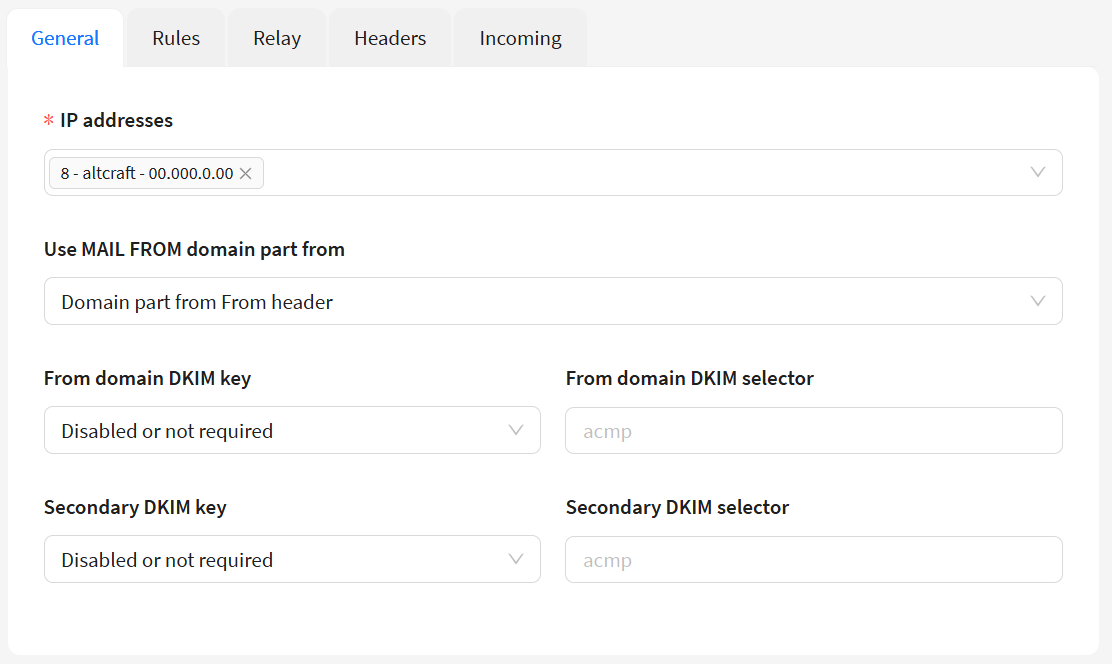
In the General block, you configure sender domains and IP addresses. The following parameters are available:
IP addresses — sender IP addresses. Must be available on the sending node.
Sender domain type — select the domain the sending module will represent. This can be:
Domain from the From header of outgoing messages (Domain part from "From" header)
Domain from the PTR record of the sending IP (Reverse record from sender IP (PTR))
Custom domain (Specify custom domain)
Aligned prefix and From header (Aligned prefix and From header)
From domain DKIM key — DKIM key of the sender domain.
From domain DKIM selector — DKIM selector of the sender domain.
Secondary DKIM key — secondary DKIM key.
Secondary DKIM selector — secondary DKIM selector.
- MAIL FROM subdomain — subdomain of the main domain. Used when choosing the Aligned prefix and From header domain modification.
Pool — resource pool needed for sending emails from a specific domain. Used when choosing the Aligned prefix and From header domain modification. The pool must be created separately. Learn how to create it here.
Instructions for adding IP addresses to the sender are available here.
Rules
AKMTA settings are covered in a separate section of the documentation. It describes ISP management, sending strategies, Lock rules, Retry rules, Bounce patterns.
Each AKMTA sender can be finely tuned to deliver messages depending on the number of available IP addresses, network load, IP and domain reputations, and other factors.
- Speed — defines the sending speed from sender IP addresses.
- Retry rules — retry sending rules.
- Lock rules — sending lock rules.
Retry rules and Lock rules fully override default AKMTA sending scenarios. Configure them for the sender if you need to add new rules or modify the built-in AKMTA rules. Be sure to transfer any required rules from the AKMTA default rules menu.
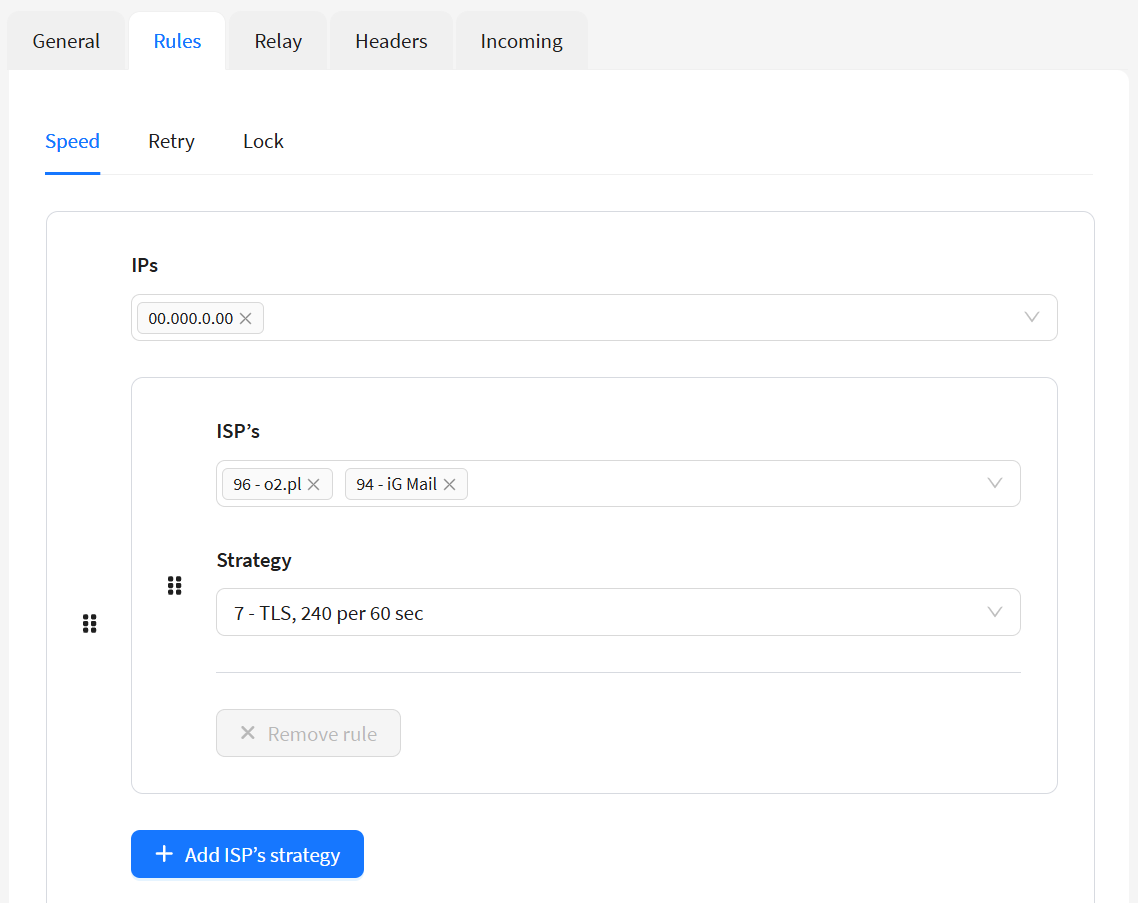
Speed — managing delivery speed
You can separately control the sending speed for different IPs, different email providers, and combinations of IPs and ISPs. To control the sending speed from IP addresses, click Add rule under the speed calculation table.
IPs — sender IPs for which you want to set a separate speed.
ISPs — email providers for which you want to set a separate speed within an IP.
- Strategy — sending strategy parameters. Created in AKMTA settings.
Sending speed for major providers like Gmail, Yandex, Mail.ru, Outlook.com, and others must be specified separately. The Any other ISP option is used to configure delivery speed to any other servers.
The Add ISPs strategy button adds special delivery rules from sender IP addresses to selected ISPs.
SMTP Relay
The AKMTA sender can deliver messages not directly to ISPs but via an SMTP relay as an additional forwarding node. On the relay side, messages can be further processed before leaving the company perimeter. To enable this option, check Send via SMTP relay.
To connect to the relay, specify the following:
-
SMTP relay host — relay network address and port.
-
SMTP auth user — username for relay server authorization.
-
SMTP auth password — password for relay server authorization.
-
SMTP auth type — relay authentication protocol. Available options:
- Without authorization
- Text Plain
- Login
- CRAM-MD5
-
Start TLS — enable connection encryption.
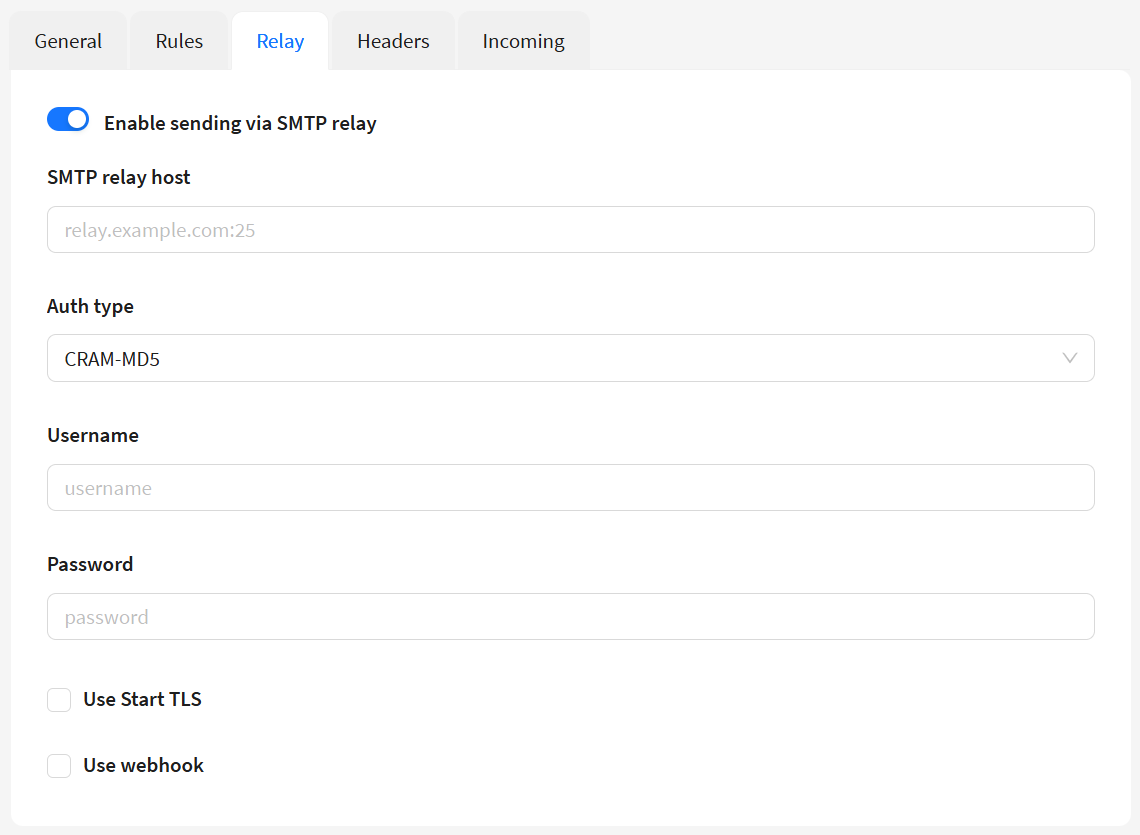
- Use webhook — enable receiving email statuses via webhook instead of DSN. After enabling this, you’ll need to select a gateway. The platform automatically generates a webhook URL that will receive delivery statuses. Copy this URL and specify it in your gateway webhook settings.
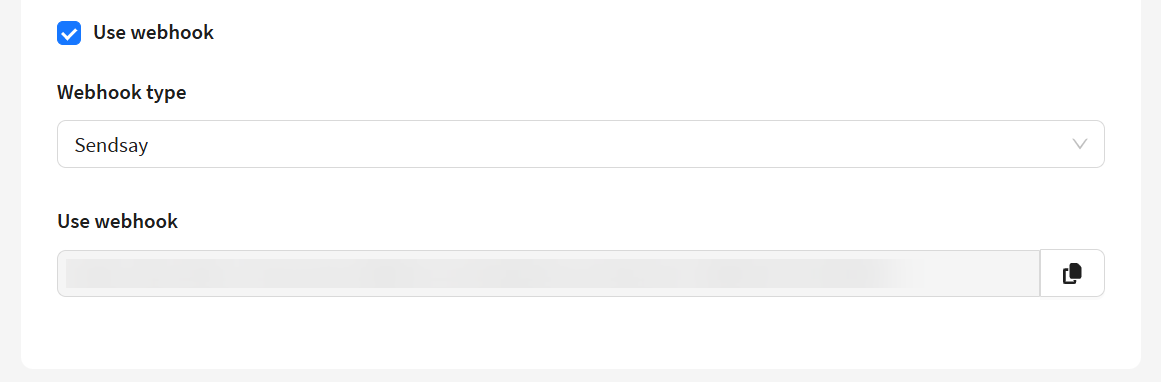
Webhook setup in Sendsay is described in the documentation.
Headers
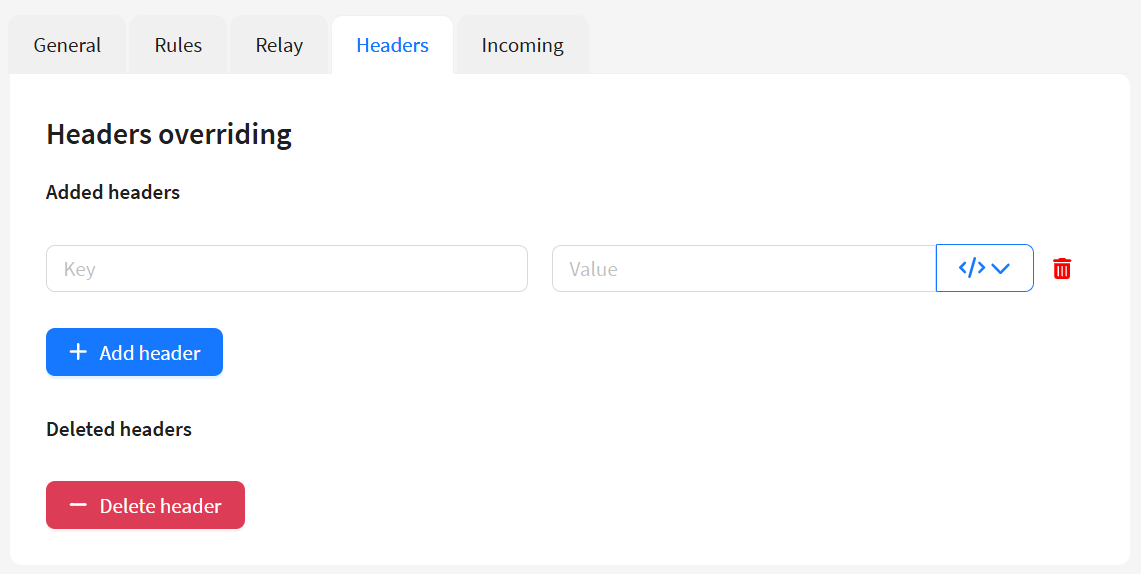
In this section, you can configure header overriding. In the left field, enter the header name, and in the right field, the header value.
Note that ISP headers are applied after sender headers, so they can overwrite or remove sender headers.
 — you can use variables in headers. Select the desired variable from the dropdown menu.
Mark for deletion — enabling this allows you to remove the specified header from the email.
Incoming
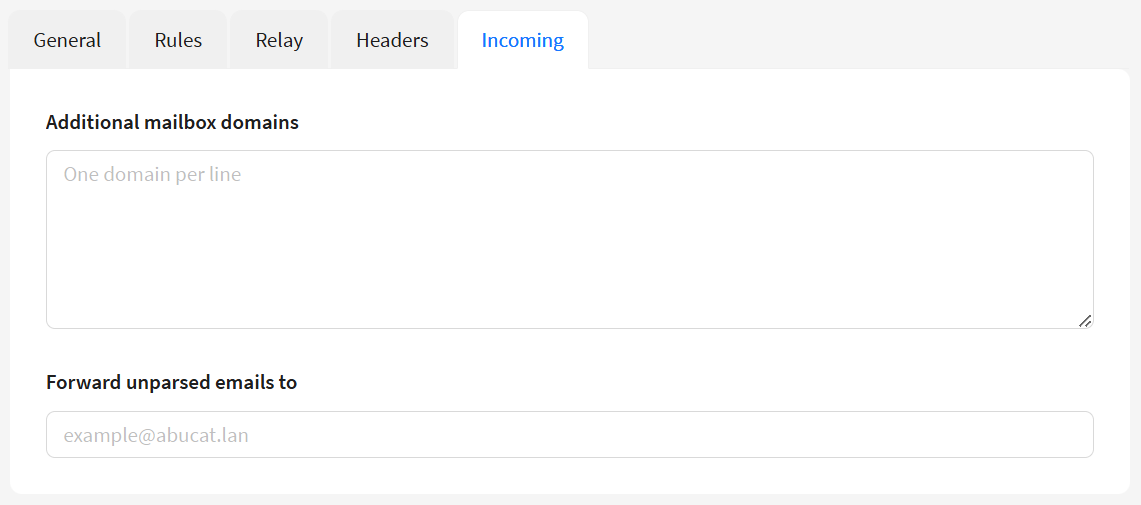
In the Incoming section, you can specify additional mail domains and email addresses for unparsed emails.
Additional mailbox domains — specify additional domains for which your server should accept and process emails.
Forward unparsed emails to — email address for messages the server failed to process correctly.