Altcraft Docs LogoAltcraft Docs Logo
User guideDeveloper guideAdmin guide
Company siteHelp center
English
  • Русский
  • English
v72
  • v74
  • v73
  • v72
Login
  • User documentation
  • FAQ
  • Altcraft glossary
  • Profiles and databases
  • Communication channels
  • Segmentation
  • Message templates
    • Working with message templates
    • Visual editor for email-template
      • Visual editor interface
      • Adding blocks
      • Elements and their settings
      • Custom blocks
      • Style manager
      • Layer manager
    • Template fragments
    • Image gallery
    • Content personalization
    • Creating tables based on array elements
    • Block editor for email template
    • Variables and Functions in Altcraft
    • Dynamic content in messages
    • Importing and exporting a message template
    • Importing a template from a third-party service
    • Exporting a template from Pixcraft
  • Campaigns
  • Automation scenarios
  • Market
  • Loyalty programs
  • Reports and analytics
  • Integrations
  • Weblayers
  • Settings
  • API requests: where to start
  • Changelog
  • library
This is documentation for Altcraft Platform v72. This documentation is no longer maintained.
The information for up-to-date platform version at this page is available (v74).
  • Message templates
  • Visual editor for email-template
Documentation for version v72

Visual editor for email-template

Visual editor for email-template is a tool for creating, editing and customizing marketing email templates that greatly simplifies the process of designing attractive and functional emails. Thanks to its user-friendly interface, users can easily customize the design of templates to their needs, even without programming knowledge. Among the key advantages of the editor are the ability to preview instantly, adaptive design for different devices and a wide range of ready-made elements that can be easily combined.

How to get started in the editor?

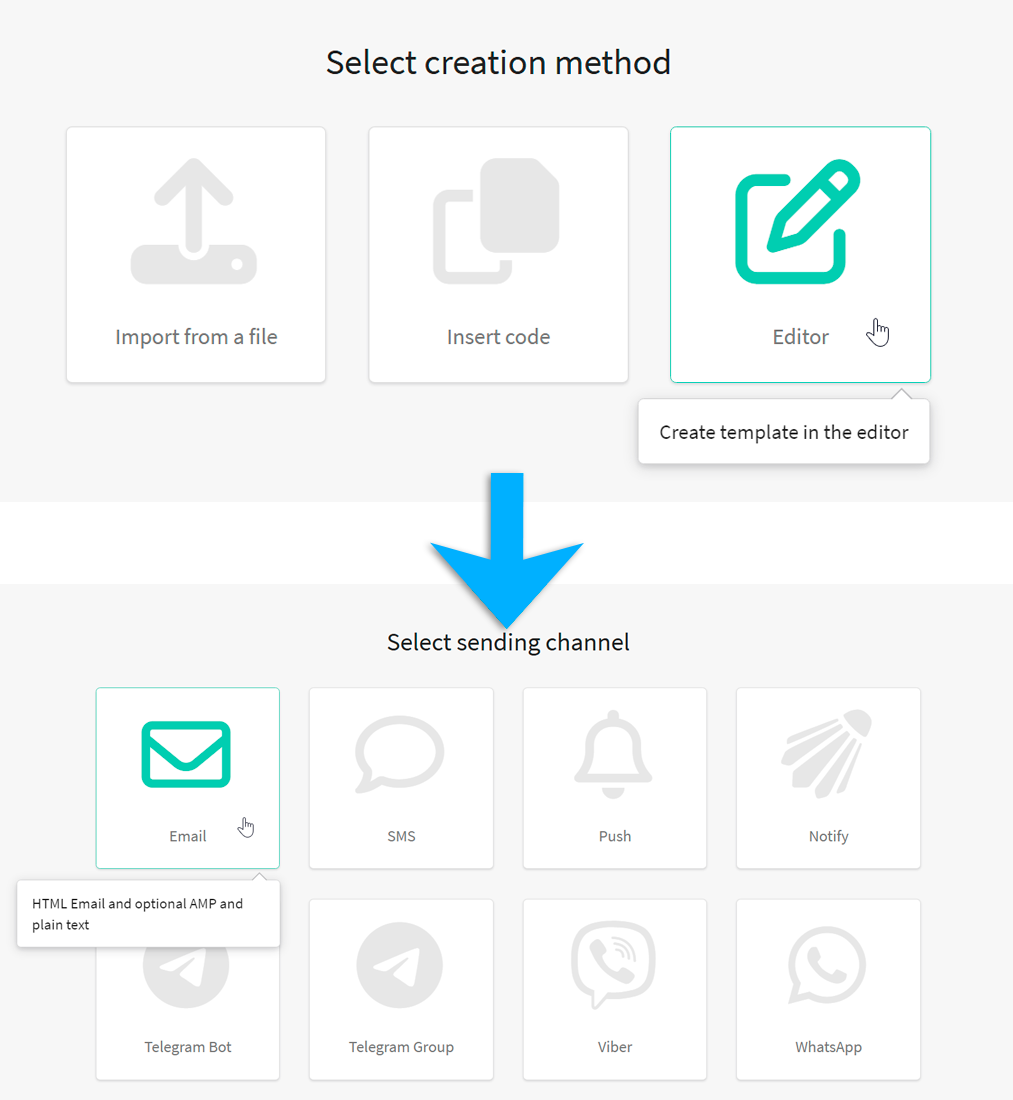
In the main menu, open Templates and create a new message template. Select Editor → Email.
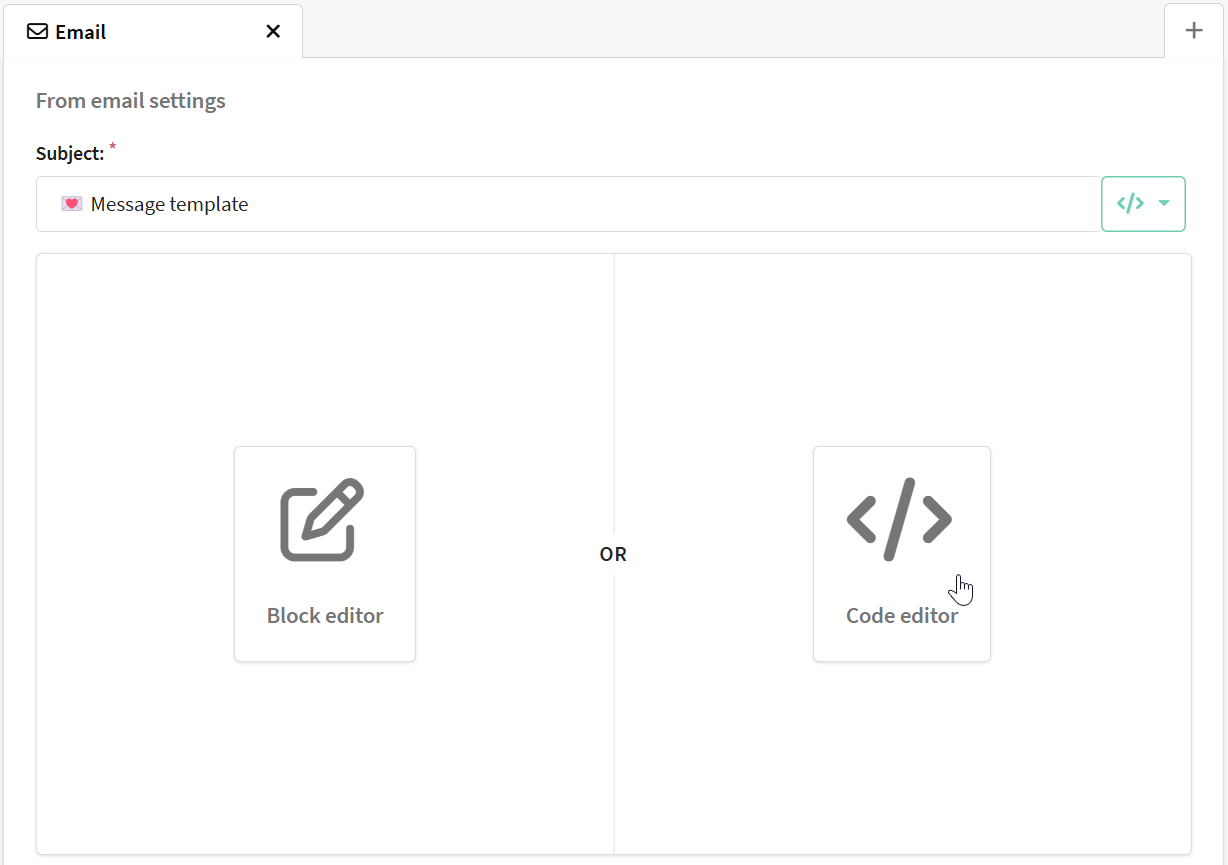
You will see an email template customization window, select "Code Editor".
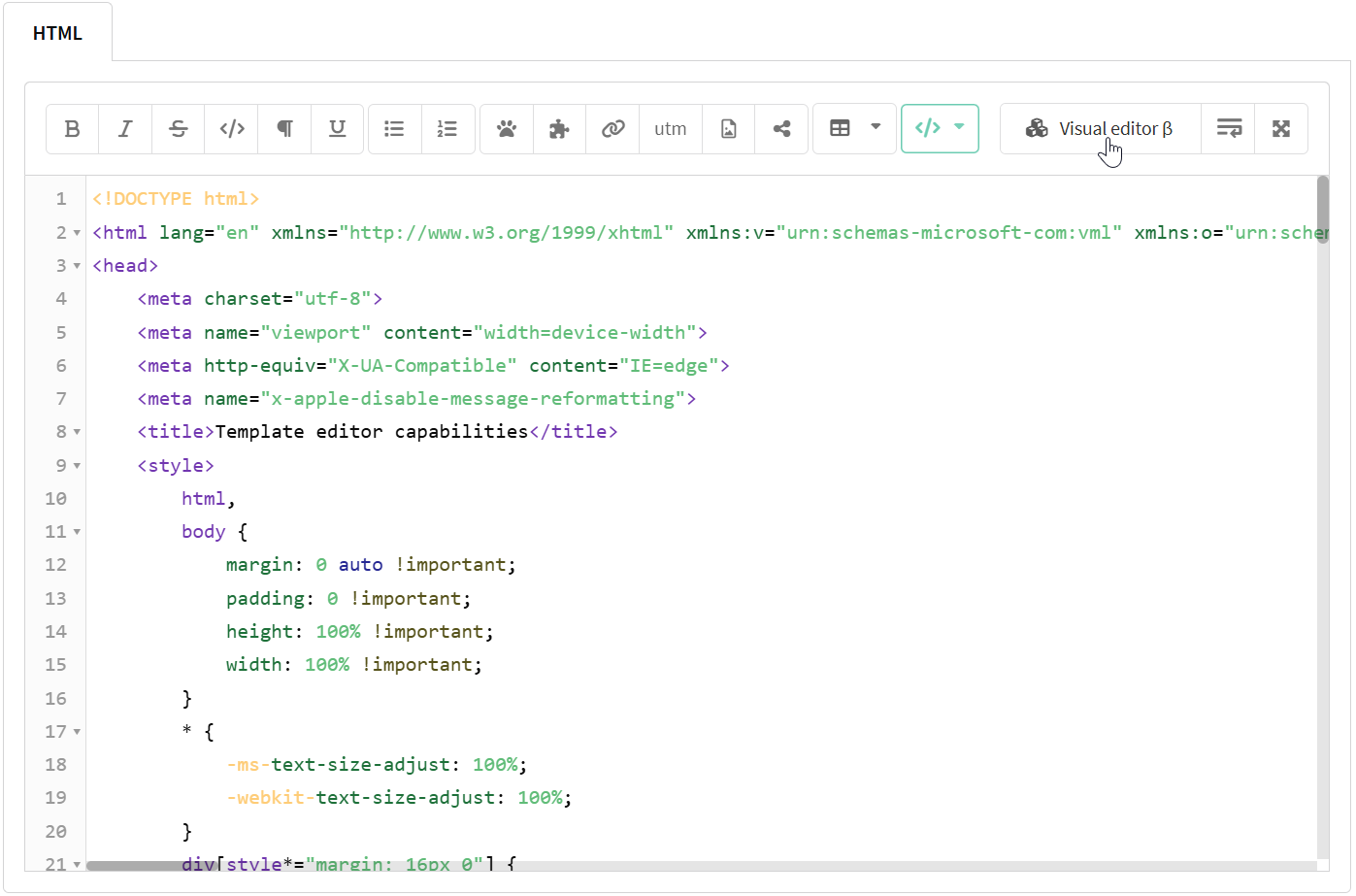
You will find yourself in the HTML code editing window, in it click on the "Visual Editor" button.
Read more about working with the visual template editor in the following articles:

Visual editor interfaceVisual editor interface

Visual editor interface

Adding blocksAdding blocks

Adding blocks

Elements and their settingsElements and their settings

Elements and their settings

Custom blocksCustom blocks

Custom blocks

Style managerStyle manager

Style manager

Layer managerLayer manager

Layer manager

Last updated on Apr 8, 2025
Previous
Notify template
Next
Visual editor interface
© 2015 - 2025 Altcraft, LLC. All rights reserved.