Telegram Bot: a Guide for the First Mailing
 | A bot is a direct channel that allows you to personally send messages to subscribers who have entered into a chat with the bot. Read this guide to set your first mailing using the Telegram bot. |
Step 1. Create a bot and get a token
1. Log in to Telegram, enter @BotFather in the search box and select the desired bot.

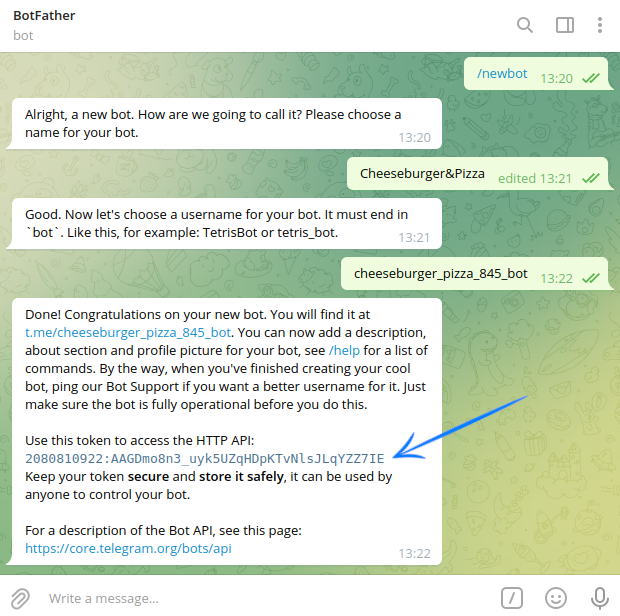
2. Start a dialogue with the bot by clicking the START button in the chat. Then send the /newbot command to it. Enter the name and then the username for your new bot. Please note that the username must end with "bot" or "Bot". Copy the received bot token:
Step 2. Subscribe your customers to this Telegram Bot
Go to the "Data" → "Profile database" and create a new database. The data of users subscribed to the bot will be stored here, as well as their Telegram IDs.
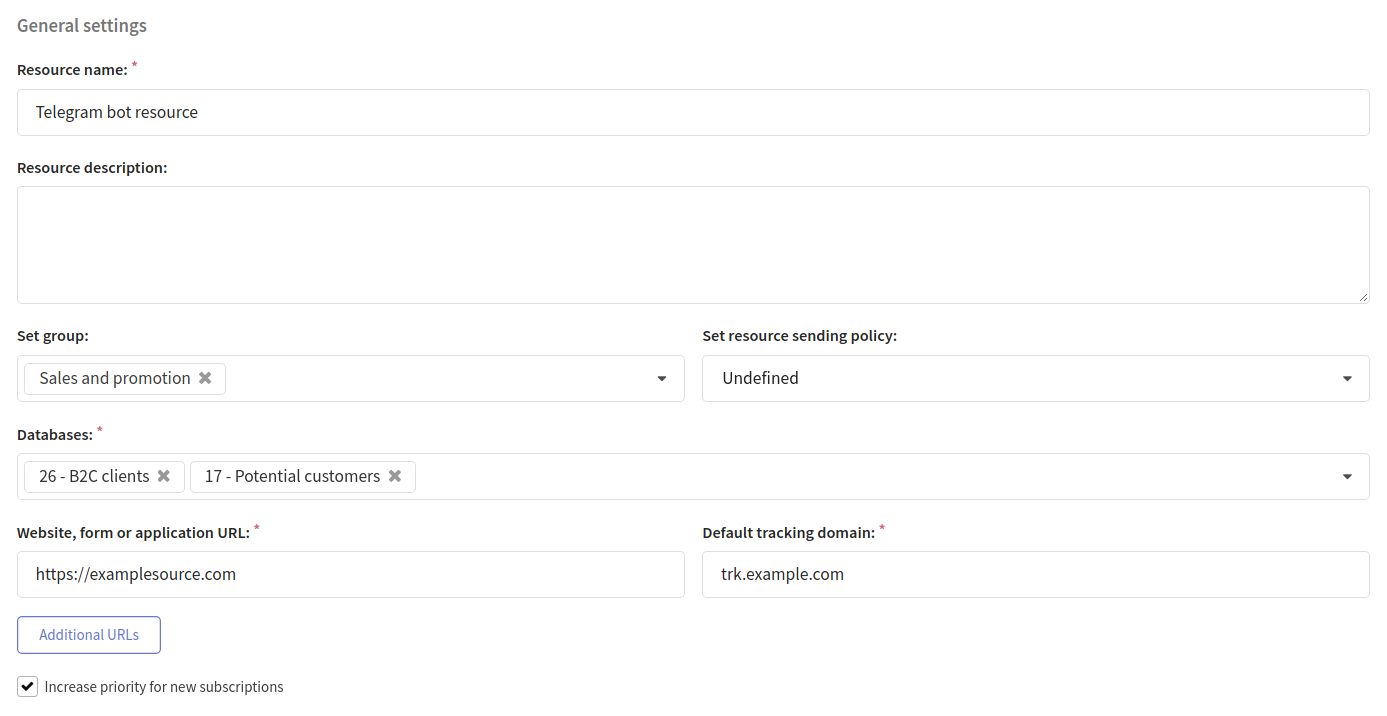
Then in the "Resources" section create a new resource or select a pre-existing one. Use Telegram Bot as a channel:

Add the necessary databases in the basic settings. Specify the default tracking domain that will process subscribers' clicks on the links in your Telegram Bot messages.
Add the bot token copied from Telegram and save the resource:

Now you need to import user data into the database by subscribing them to the resource.
Please note that the platform only sends Telegram campaigns. Subscriber data is collected and transmitted to the platform on the client side. Read more about how to do this in the Telegram documentation.
Example of getting a user's chat_id using the getUpdates method
Method: POST
URL:
https://api.telegram.org/bot<bot_token>/getUpdates
Response:
{
    "ok": true,
    "result": [
        {
            "update_id": 262756455,
            "message": {
                "message_id": 47,
                "from": {
                    "id": <chat_id>,
                    "is_bot": false,
                    "first_name": "John",
                    "last_name": "Doe",
                    "username": "john_doe",
                    "language_code": "en"
                },
                "chat": {
                    "id": <chat_id>,
                    "first_name": "John",
                    "last_name": "Doe",
                    "username": "john_doe",
                    "type": "private"
                },
                "date": 1652284613,
                "text": "Hello, world"
            }
        }
    ]
}
<chat_id> is a unique identifier for a chat with a specific user. You need to pass it to the platform.
Step 3. Create a template
Go to the "Templates" section. When creating a new template, select the Telegram Bot channel and add this channel to a pre-existing template. Select the content type in the Telegram version of the template:
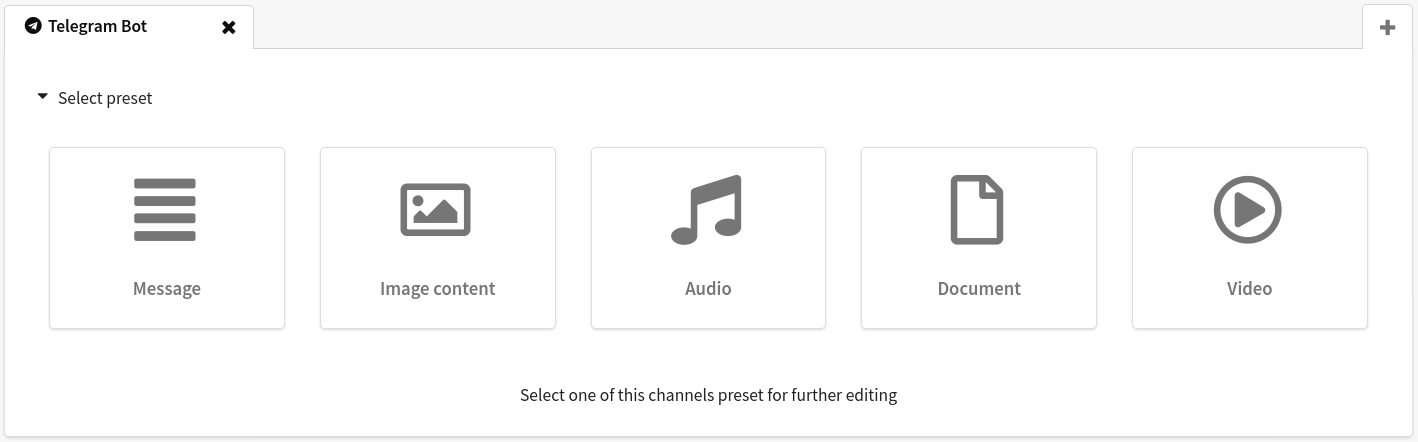
You can add data of a particular customer, as well as dynamic text content from external sources.
Step 4. Configure and launch a mailing
Open the section "Mailings" and select the distribution method: broadcast, regular or trigger mailing.
Create a new mailing. After filling in the basic settings, you need to:
Choose Telegram Bot as a communication channel
Select a previously configured subscription resource and target audience
Add a message template to your mailing
Set a schedule

When the mailing is fully configured, save it. It will be displayed in the list of campaigns of the corresponding type. There is a quick action menu on the right side of each entry. By its means, you can send test message  and, if everything is good, activate your actual mailing
  :
:
Step 5. Evaluate your mailing effectiveness
Mailing Log
The Mailing Log is a tool that provides a summary of the progress of your email mailing. It logs key events, mailing parameters, and statistics, helping you identify potential issues.
To open the mailing journal, click the "Journal" button in the quick actions menu:
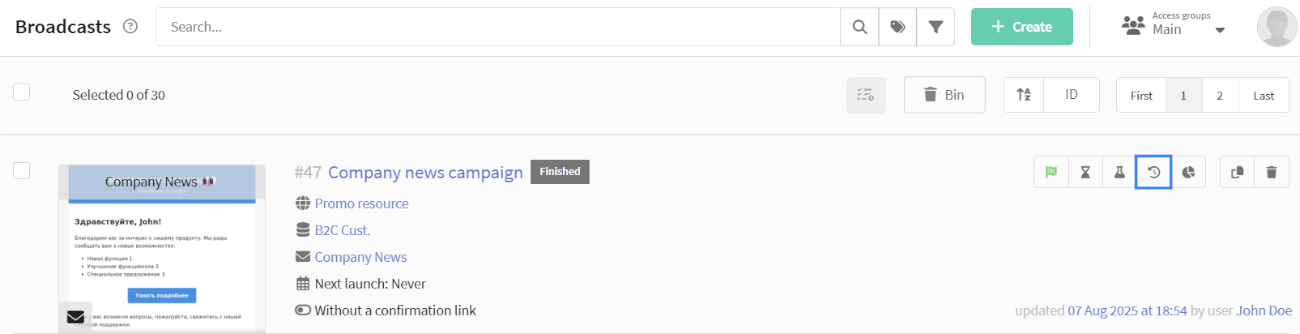
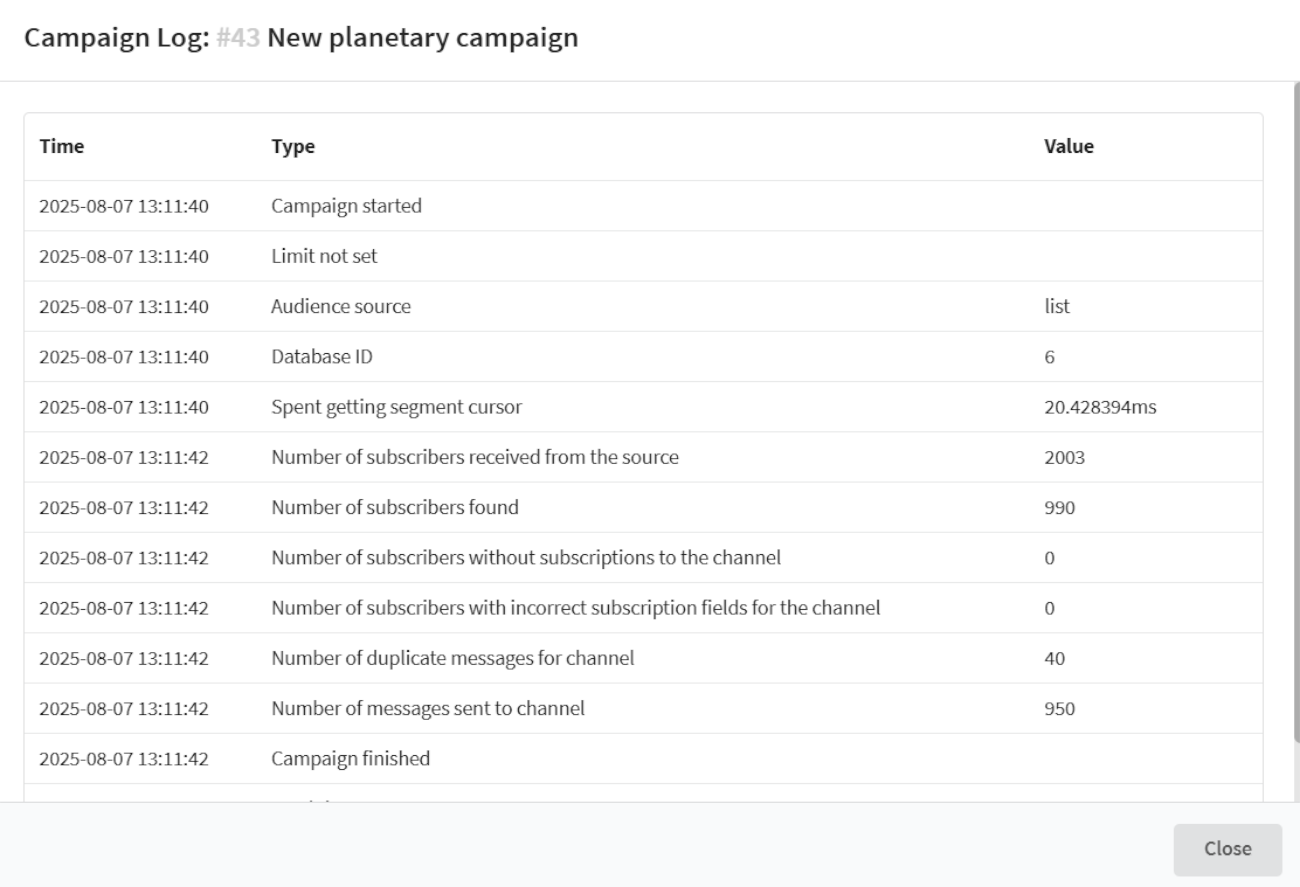
The mailing Log contains the following information:
| Type | Description |
|---|---|
| Mailing started | Start time of mailing execution |
| Limit | Indicates whether a sending limit is set |
| Audience source | Source of contacts: List — Database Segment — Segment |
| Database ID/Segment ID | Identifier of the database/segment |
| Spent getting segment cursor | Time spent loading data from source (ms) |
| Number of subscribers received from source | Total number of profiles in the specified source |
| Number of subscribers found | Number of users in source with active subscription to selected resource |
| Number of subscribers without subscriptions to channel | Users without valid channel subscriptions |
| Number of subscribers with incorrect subscription fields | Users with invalid subscription data fields |
| Number of duplicate messages for channel | Count of duplicate contacts detected |
| Number of messages sent to channel | Final count of successfully delivered messages |
| Mailing finished | Mailing completion timestamp |
| Total time spent | Total execution duration from start to finish (sec) |
Reports and Analytics
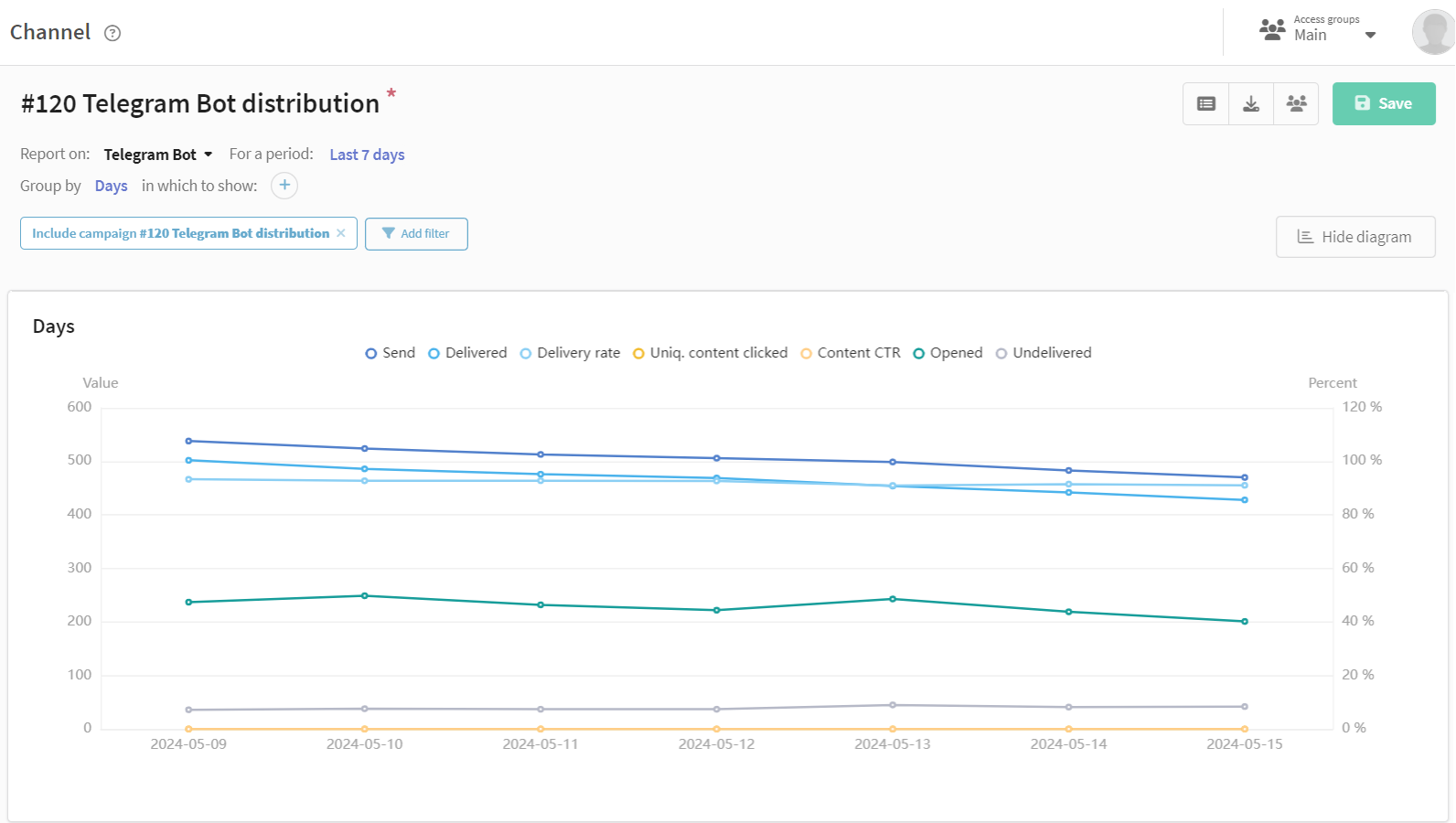
To evaluate the effectiveness of your push campaigns use the "Analytics" section in the main menu of the platform. A channel report provides the analysis of one or more campaigns.
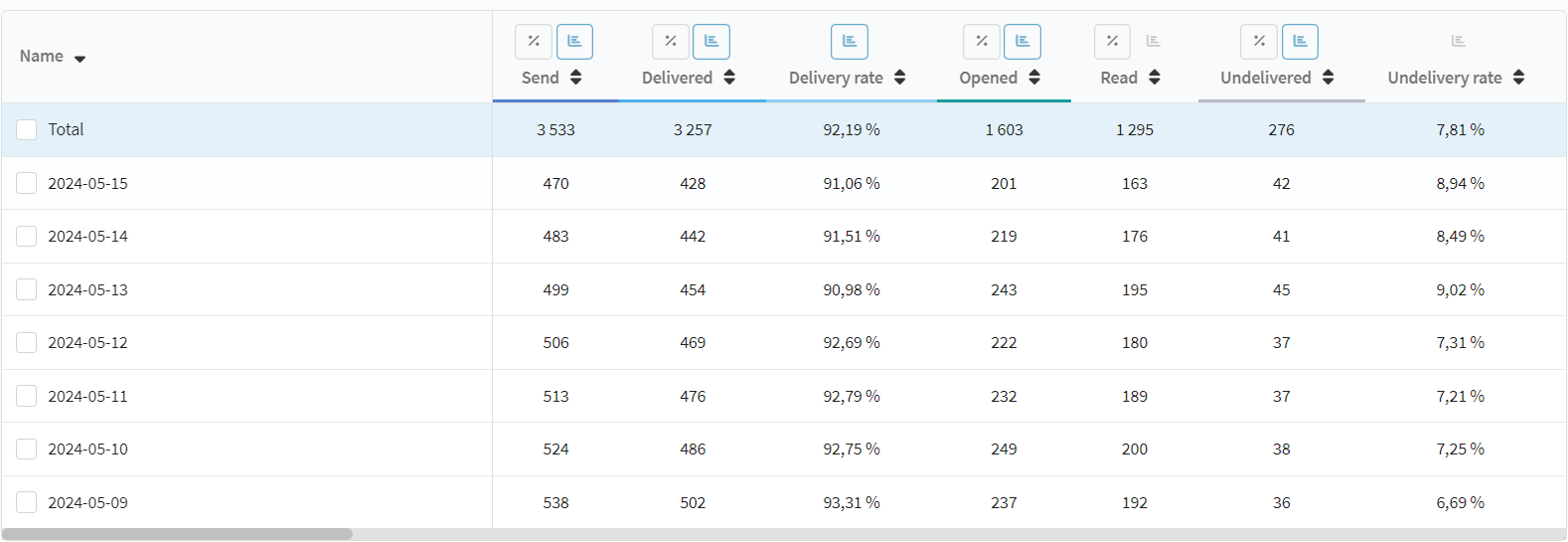
To make grouping easier, you can select a preset of indicators for Telegram Bot. You will see the data on the number of sent, delivered or undelivered messages in the table, as well as information on unique clicks and openings.