Campaign testing
Description
Sometimes you need to test your campaigns before activation due to several reasons. This way, you can be sure that:
- content will be properly displayed in different mail clients;
- the technical part of sending and delivering the message is all right;
- all substitutions and complex logic inside the template work correctly;
- email and SMS providers do not block messages because of the content.
Using campaign testing, you can send letters for verification to the person responsible for your mailings or use services that evaluate the quality of messages, delivery infrastructure, etc.
Choose a campaign of a certain type and click the test icon  :
:

Contacts of test mailing recipients
In the new window, you'll see the settings for the campaign you are testing and test subscribers.
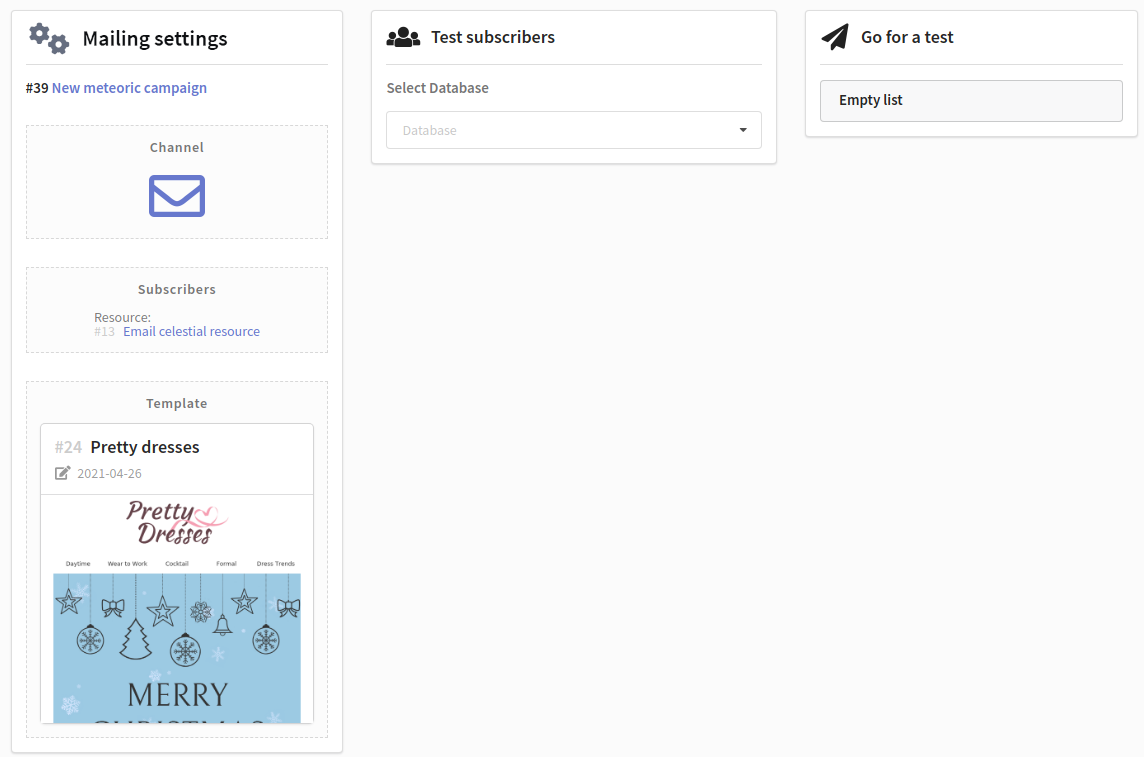
If you don't have test subscribers yet, you can add them. To do this, select the profile base in the drop-down list, then you will be prompted to create a test subscriber profile in this database if it has not yet been created. To do this, click on the "Create a new test profile" button:

Then you'll see the interface for creating a test profile:
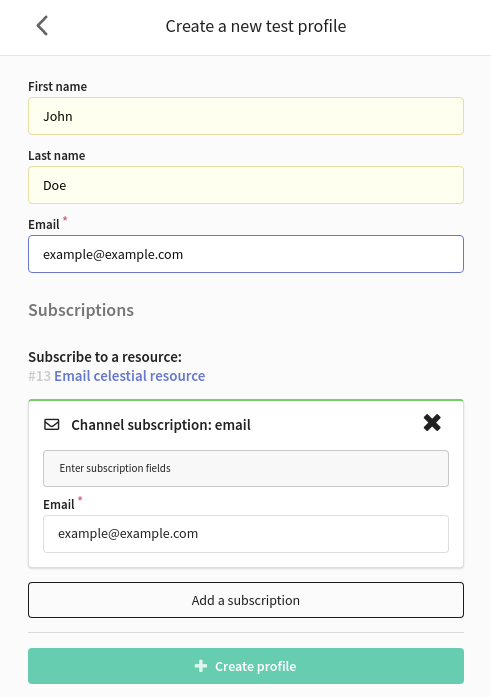
After all the data has been entered in the appropriate fields, click the "Create profile" button. The test profile will be displayed in the test list and will be available for selection:
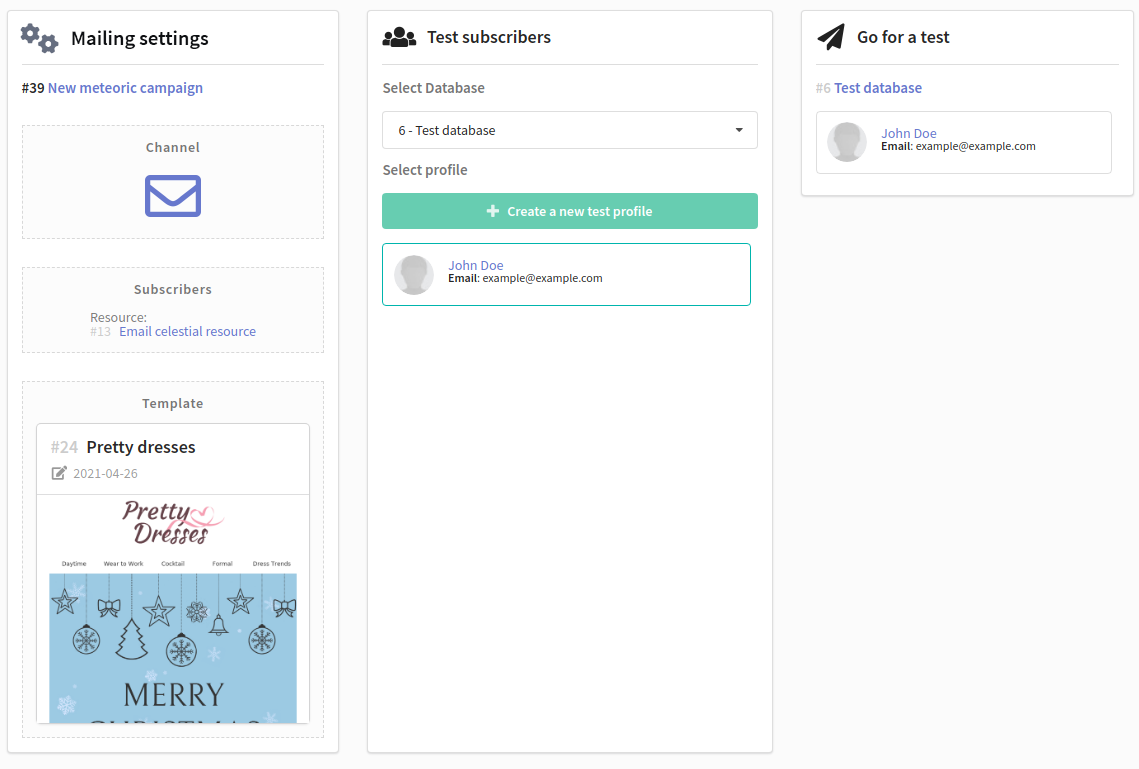
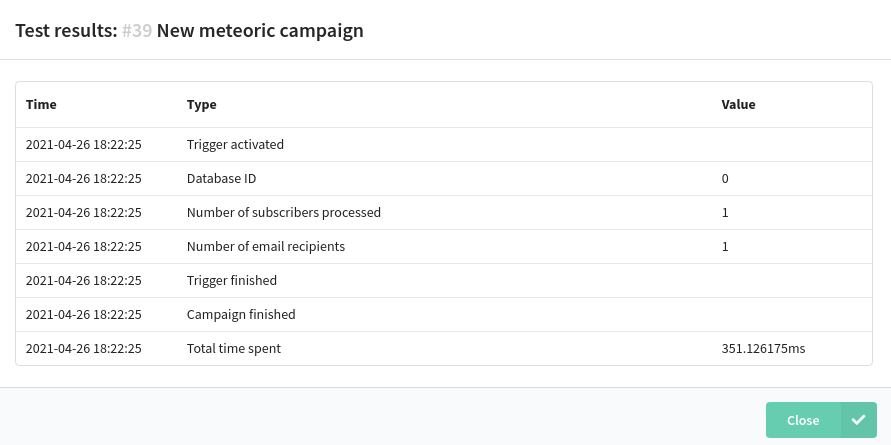
Click the "Test" button and a test campaign will be sent. You'll get the test result in the new window:
It is definitely a good practice to have test contacts for all most used email and SMS providers.